
Batch editing means applying one defined operation to a selected group of files or folders in a single run, rather than repeating the same action item by item. You're probably looking at a Finder window right now where every folder looks exactly the same, and you're opening each one just to remember what's inside. That small guessing game is where this idea earns its keep.
The Moment Your Folder Icons All Look the Same
Open a busy client directory, a research folder, or last year's project archive on a Mac. You'll likely see rows of identical blue folders, each with a name you've got to read before you know where to click. There's nothing wrong with those folders. They're just asking your eyes to do work your peripheral vision could do faster.
That friction adds up. You scan, pause, open the wrong folder, back up, and scan again. It isn't dramatic, but it's a slow drain on focus every time you return to the same set of work.
From One Folder to a Group
The shift batch editing offers isn't about clicking faster. It's about changing the unit of work. Instead of asking, "How should this one folder look," you ask, "How should this group look, and how can I tell it apart from the group next to it?"
That's a different kind of thinking. You're designing a set, not decorating individuals. A shared color for active client work, another for archived material, a recognizable overlay for folders you open daily. Once you see folders as families, editing them one by one starts to feel like the odd choice.
You're not speeding up repetition. You're making one decision and letting it apply consistently to everything it belongs to.
This perspective fits naturally with a broader visual approach to managing files in Finder, where color and icon do recognition work that names alone can't do quickly. Names still matter, of course. They just don't need to carry the entire burden of helping you find things.
What You'll Be Able to Do
By the end of this piece, you'll have a clear working definition of what is batch editing, a clean way to separate it from bulk editing and automation, and concrete folder examples you can picture in your own Finder. You'll also have a safety checklist for scope, reversibility, and privacy, because changing many folders at once deserves a little more care than changing one.
If you've ever stared at a wall of blue and wondered whether there's a smarter way, you're in exactly the right place. There is, and it's simpler than the terminology makes it sound.
What Batch Editing Actually Means
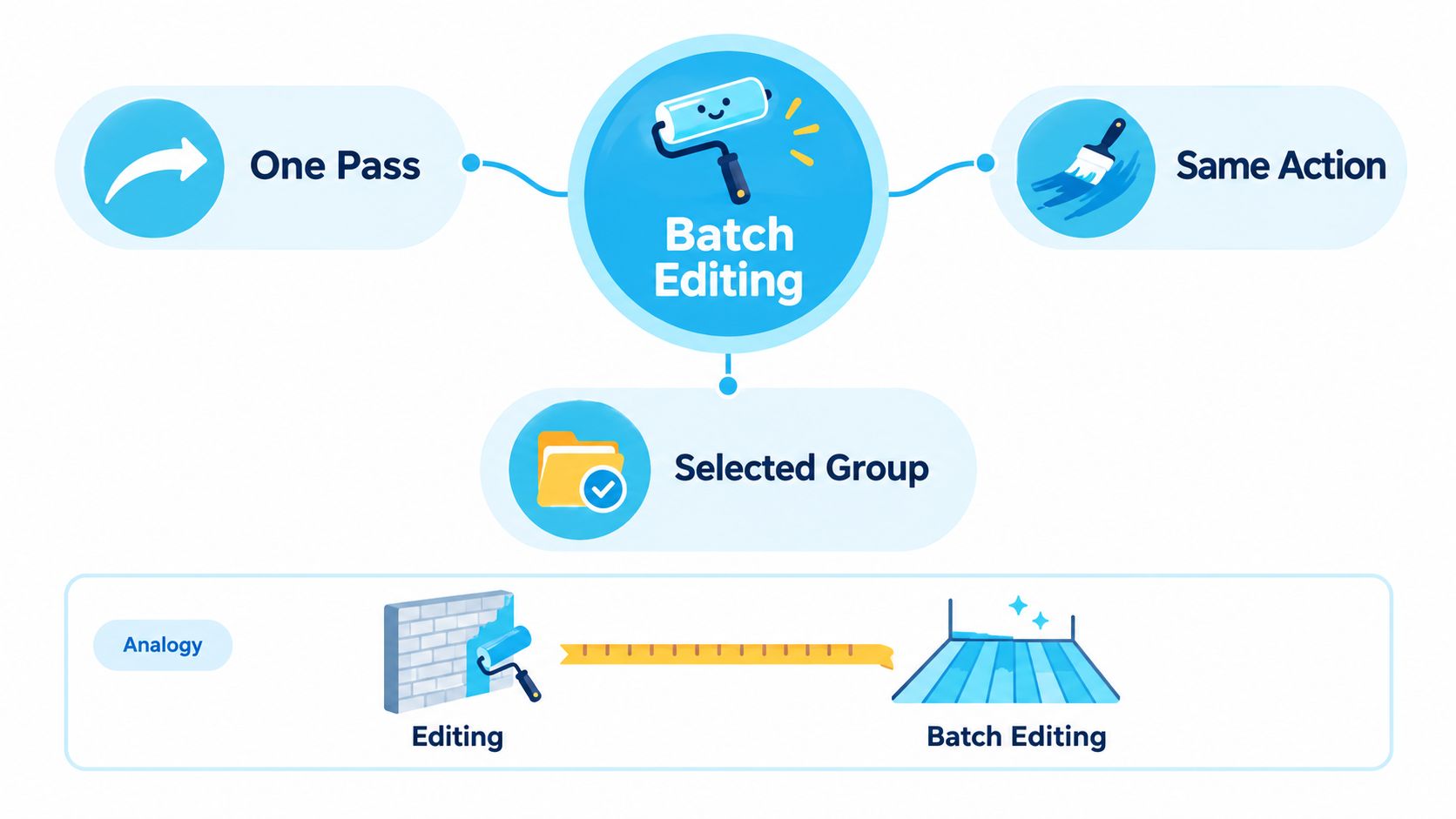
Here's an analogy that holds up well. Regular editing is painting one wall in a room. You pick a color, apply it, clean up, then move to the next wall and start over. Batch editing is taping off an entire floor and rolling the same color across every wall in one continuous pass. The color decision happens once. The application happens everywhere it belongs.
That captures the core. Batch editing is the application of one defined operation to multiple files or folders in a single run, and you can see its roots in mid-20th-century batch processing, where IBM's 709x-era IBSYS from 1960 automated the loading and execution of successive jobs.
The Three Stages
Every batch operation, whether in Finder or elsewhere, separates into three stages. Once you see them, you can evaluate almost any batch tool quickly.
- Selection: You choose the set the operation will touch, such as twelve client folders in one directory. Nothing outside the set changes.
- Rule definition: You specify exactly what happens, such as one shared color, one overlay icon, or one naming format. The rule is the same for every item.
- Execution: The software applies that rule across the selection in a single run, using identical parameters for each folder.
Keeping these stages separate is what makes batch editing predictable. You know what's in scope before anything changes, and you can review the rule before you commit to it.
Where the Idea Came From
Early computers worked this way by necessity. Jobs were queued from punched cards or magnetic tape, prepared in advance, and executed with little interaction during the run. Preparation and execution were deliberately separate.
Modern batch editing keeps that same logic but moves it inside interactive software. You select many objects, define an operation such as renaming, converting, resizing, recoloring, or applying a shared visual attribute, and the software applies it consistently. Contemporary systems also commonly offer job histories, logs, and progress indicators, so you can rerun or adjust a previous batch instead of rebuilding it.
So a batch operation counts as batch editing when one rule meets one chosen set in one run. If you're making a fresh decision for each item as you go, you're editing quickly, but you're not batch editing.
Batch Editing vs Bulk Editing vs Automation
These three terms get swapped around constantly, and that confusion leads people to pick the wrong workflow. They aren't synonyms. Each one describes a different relationship between you, the rule, and the timing.
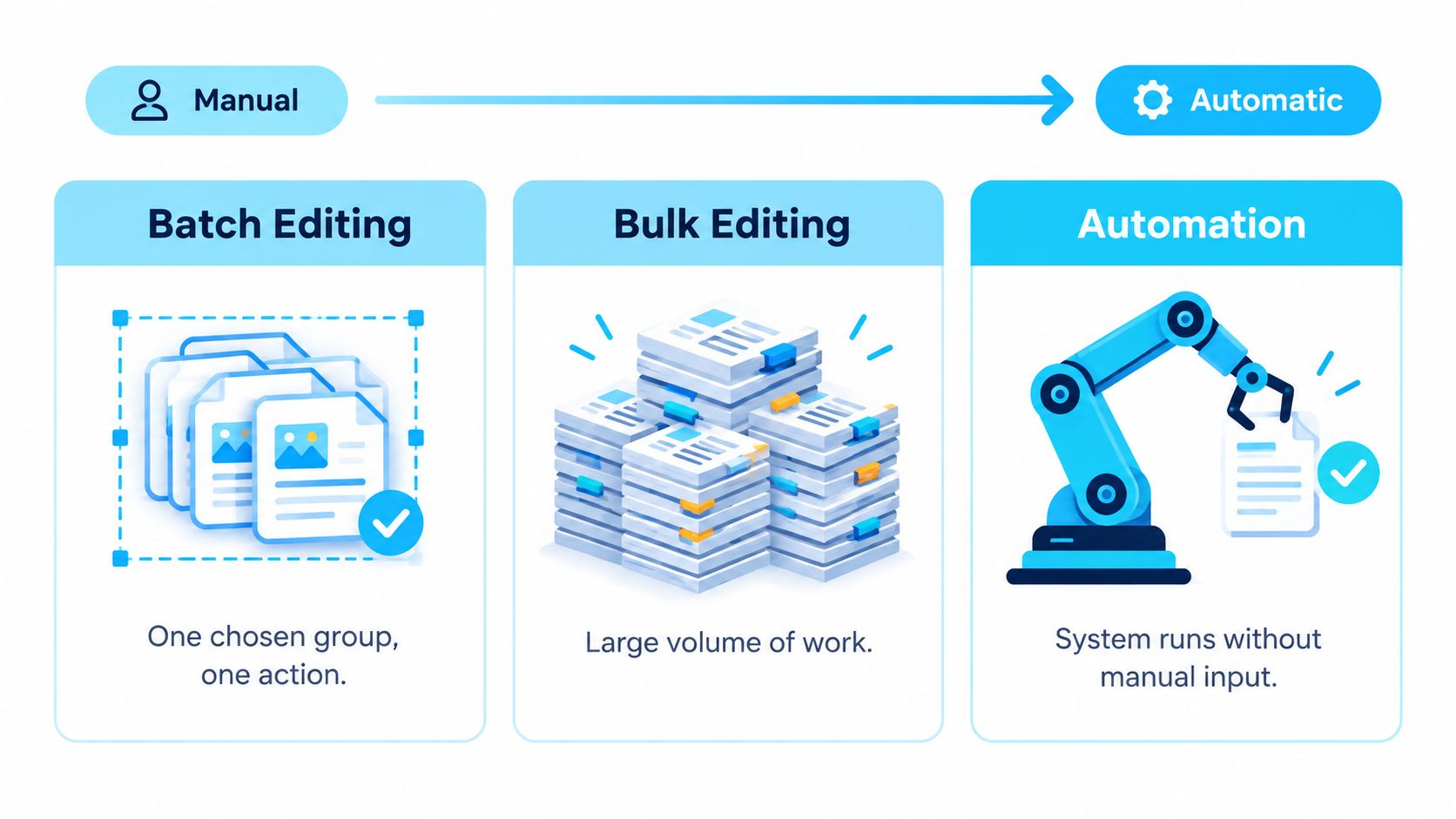
Batch editing acts on a chosen group, bulk editing describes work at larger scale, and automation applies rules repeatedly or continuously, a distinction that's laid out clearly in an explanation of batch processing as a rule plus a filtered asset set.
Three Folder Workflows at a Glance
| Workflow | Scope | Trigger | Best Use Case |
|---|---|---|---|
| Batch editing | One chosen group | You run it once | Styling a known set of client folders |
| Bulk editing | A large volume of work | You, possibly in several passes | Restyling an entire archive of projects |
| Automation | Whatever matches a rule | The system, ongoing | Styling newly created folders automatically |
Bulk editing is about volume, not method. You can do bulk work in batches, or you can grind through it item by item. Batch editing is the method you'd use for one group within that larger job.
Automation is the biggest step away. An automated rule applies to folders that don't exist yet, without you reviewing them first. That's powerful when your naming is predictable, and risky when it isn't. If you're comparing tools that sit on that end of the spectrum, it helps to review how different Mac automation apps handle ongoing rules before you hand over that control.
You'll recognize the same selection logic in other tools, too. The way you delete multiple iPhone photos relies on choosing a set first and applying one action to all of it, which is the batch pattern in a different context. The decision rule stays the same. Known group, batch it. Future items with predictable names, consider automation. Everything else, slow down.
How Batch Editing Works in Folder Workflows
Abstract definitions only get you so far, so let's ground this in folders. In Finder, you're already familiar with the underlying pattern from renaming. A batch editor separates selection, rule definition, and execution, and macOS lets you select several items and apply operations such as replacing text, adding text, or generating names from a format with an index, counter, or date, as shown in Apple's guide to renaming multiple items in Finder. The same model can apply a shared icon, color, overlay, or restoration action to an entire directory tree.
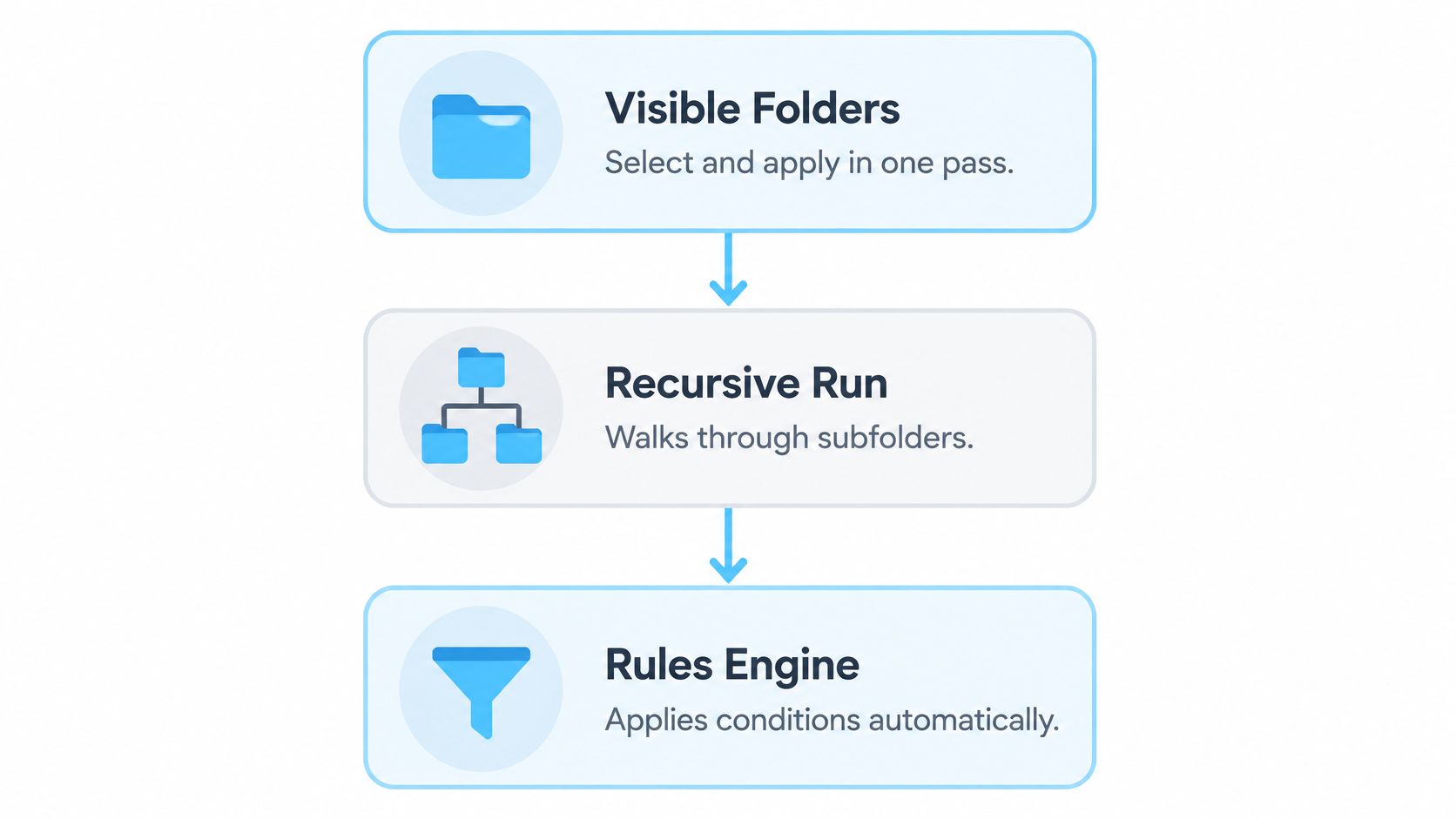
The diagram below shows the three layers you'll choose between when that model is applied to folder appearance.
A Concrete Example
Say you've got a set of 2026 client folders, one per client, all identical blue. You select the whole group, define one rule, a warm amber color with a small briefcase overlay, preview it, and run it. Every folder in the set now announces itself as active client work at a glance. Your archive folders stay untouched because they weren't in the selection.
That single-pass approach is the safest starting point because the scope is exactly what you can see. A recursive run goes further, walking into subfolders and styling descendants too. That's useful for an entire project tree, but it changes the job from a finite, known set to a potentially much larger traversal, so scope needs to be explicit before you run it.
The third layer is watcher-style application, where a rule keeps styling new folders as they appear in a location. Tintd, for example, is a macOS app that can apply icons and colors across multiple folders and subfolders, and it also offers a folder watcher. That sits on the automation side of the line from the previous discussion, so it deserves the same predictability test.
Watching a batch run happen once often clarifies the layering better than reading about it.
Three Folder Batch Styles
| Style | What Changes | Trigger | Reversibility |
|---|---|---|---|
| Select-and-apply | Icon or color on visible folders | Manual, one run | Restore original icons |
| Recursive | Icon or color across a tree | Manual, one run | Restore across the same scope |
| Watcher-based | Style on newly created folders | Automatic, ongoing | Disable rule, then restore |
One last point on fit. Folder styling operates at the presentation layer, how folders look in Finder. It works alongside macOS metadata tools rather than replacing them, which the next section picks up in more detail.
Common Misconceptions About Batch Editing
Three assumptions trip people up regularly, and each one can cause real folder headaches. Let's clear them out before they cost you anything.
The first is that batch editing is just fast clicking. It isn't. Speed is a side effect. The actual change, as covered earlier, is that one decision governs a whole set, so consistency comes from the structure of the operation rather than from your discipline in repeating it perfectly twelve times.
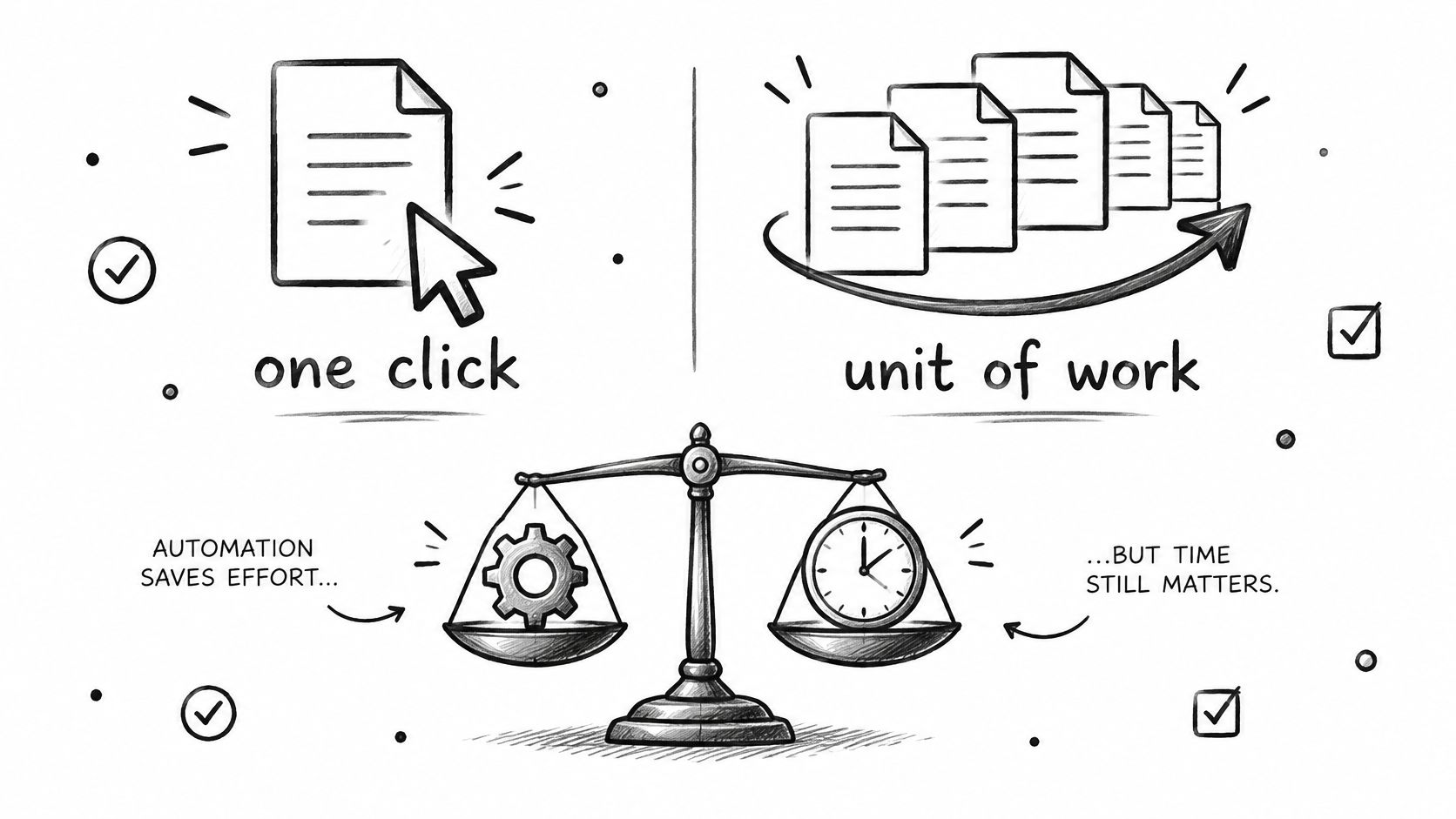
Faster Is Not Automatically Better
The second misconception is that automation is always the upgrade. A rule can't read intent. If a new folder has an ambiguous name, an automated system will happily style it according to whatever pattern it matches, even when a human glance would say, "That's an exception." Automatic styling creates unwanted consistency when folders have quirks the rule wasn't built for.
Visual Changes Are Not Metadata Changes
The third confusion mixes up what folder styling does with what tags do. On macOS, tags are searchable across items stored locally or in iCloud, while a folder-icon batch editor changes visual identity in Finder, two different layers that Apple's documentation on tagging files and folders helps keep distinct.
That distinction has a practical consequence. A well-built styling mapping should be idempotent, meaning running the same rule twice doesn't progressively alter the result. Your amber client folders stay amber, not darker with each run. Tags, meanwhile, keep doing their retrieval job even when folders move or appear in different Finder layouts.
A folder can also belong to several conceptual groups at once, a client folder that's also a finance folder, while only one visual style can be displayed. That's not a flaw. It's a reminder that visual styling carries one strong signal well, and tags carry the overlapping classifications.
The rule to keep is simple. Batch stable, known groups. Automate only where the outcome is predictable. When in doubt, choose the workflow that lets you review before anything changes.
A Safety Checklist Before You Batch Edit Anything
Applying one change to many folders is efficient precisely because it scales, and that scaling cuts both ways. A good decision applied to thirty folders helps thirty times. A wrong scope applied to thirty folders creates thirty small problems. A short pre-flight check prevents most of them.
Separate Visual Changes From Destructive Ones
Not all batch operations carry the same risk. Changing a folder's icon, color, or overlay is non-destructive, since the contents and hierarchy stay exactly as they were. Renaming, moving, or deleting in bulk is a different category entirely and deserves far more caution.
Visual organization can improve recognition without altering structure. Apple's Smart Folders illustrate that principle, since they present matching files together without moving the files themselves, a behavior described in Apple's guide to organizing files with Smart Folders. Folder styling works on that same safe principle, changing appearance rather than the underlying filesystem.
Your Pre-Run Checklist
- Preview the target set: Confirm exactly which folders are selected, and whether subfolders are included.
- Preserve the prior state: Know what the folders looked like before, so restoration returns them to something real.
- Record exceptions: Note any folder in the group that shouldn't take the shared style, and exclude it first.
- Confirm a restoration path: Check there's a one-click way back to default icons before you run anything.
- Start with the smallest scope: Apply to the fewest folders that prove the rule works, then widen.
Don't Skip the Privacy Question
Folder names and nearby-folder context can reveal client, project, research, health, or legal information. If a tool suggests styles based on names, you need to know whether those suggestions are generated locally on your device or transmitted to an external service. For professionals and researchers, that's not a footnote. It's a deciding factor.
Batch editing is a governance decision about scope, reversibility, and data exposure, not just a productivity shortcut.
Pairing this checklist with sound habits for organizing your digital files overall keeps the visual layer and the structural layer working together. Run the check, then run the batch.
Putting It All Together This Week
You don't need to reorganize your entire Mac to put this into practice. You need one stable group of folders and one clear decision. Pick the set you open most often, active clients, current courses, this quarter's projects, and start there.
A Small Action Plan
- Name the group: Write down, in one sentence, what these folders have in common. If you can't state the shared criterion, the group isn't ready to batch.
- Choose one shared style: One color, one overlay, nothing more. A single strong signal beats three weak ones every time.
- Preview, then apply narrowly: Run it on the visible set first. Skip recursion until you've seen the result and trust it.
- Keep the exit open: Confirm you can restore default icons in one click, and note any folder you deliberately excluded.
- Earn automation later: Only once that group stays stable and new folders follow predictable names should a watcher enter the picture.
The mental model to carry forward is this. One rule, one known set, one run, with a way back. If any of those four pieces is missing, you're not looking at a safe batch edit yet, and slowing down is the right call.
Next time a wall of identical blue folders greets you, you won't need to fix them one at a time or hand the job to a rule you haven't tested. You'll recognize the group, make the decision once, and let the run do the repetition. That's the whole idea, and it holds up no matter how your folders change.
Ready to see your own folders sorted by sight instead of by squinting at names? Tintd lets you batch-apply custom icons and colors across Finder folders and subfolders, restores defaults in one click, and does all of its processing locally on your Mac so your folder names stay private. Visit Tintd to try styling your first group this week.