
Your desktop has probably become a holding pen for half-finished decks, renamed downloads, screenshots you swear you'll need later, and folders called Final, Final 2, and Really Final. That's not a moral failure, it's what happens when digital file organization is asked to do too many jobs at once. The fix isn't a perfect taxonomy that looks elegant on paper and collapses in daily use, it's a system that makes the next retrieval decision obvious.
Why Perfect Folder Trees Fail Modern Workflows
A lot of folder advice starts with a promise of order, then hands you a tree so deep that you need a map to find a receipt. That approach feels clean until real work gets messy. A client brief can also be a contract, a reference asset, and a portfolio candidate, and forcing it into one permanent branch usually creates either duplication or search fatigue.
Retrieval beats taxonomy
The better question is not where a file belongs forever, it's how quickly you can find it under pressure. In practice, a shallow structure with clear names and visible cues beats a clever hierarchy that only makes sense to the person who designed it.
I've seen teams spend more time debating folder philosophy than locating the file they needed ten minutes ago. That's the wrong fight. Digital file organization works when it reduces friction at the moment of retrieval, not when it impresses someone during a cleanup session.
Keep branches broad and predictable
Broad root folders like Projects, Clients, Archive, and Reference are easier to scan than endless subfolders that differ only by date or phase. The point is to create a structure that supports fast choices, not one that asks you to remember a hidden logic every time you save something.
If a file belongs to multiple contexts, treat the folder as the main route, not the full description. Put the machine-readable detail in the name, and use visual markers for quick recognition later. That hybrid approach is much easier to live with than a rigid tree that forces every exception into a fake category.
The Evolution of Hierarchical File Systems
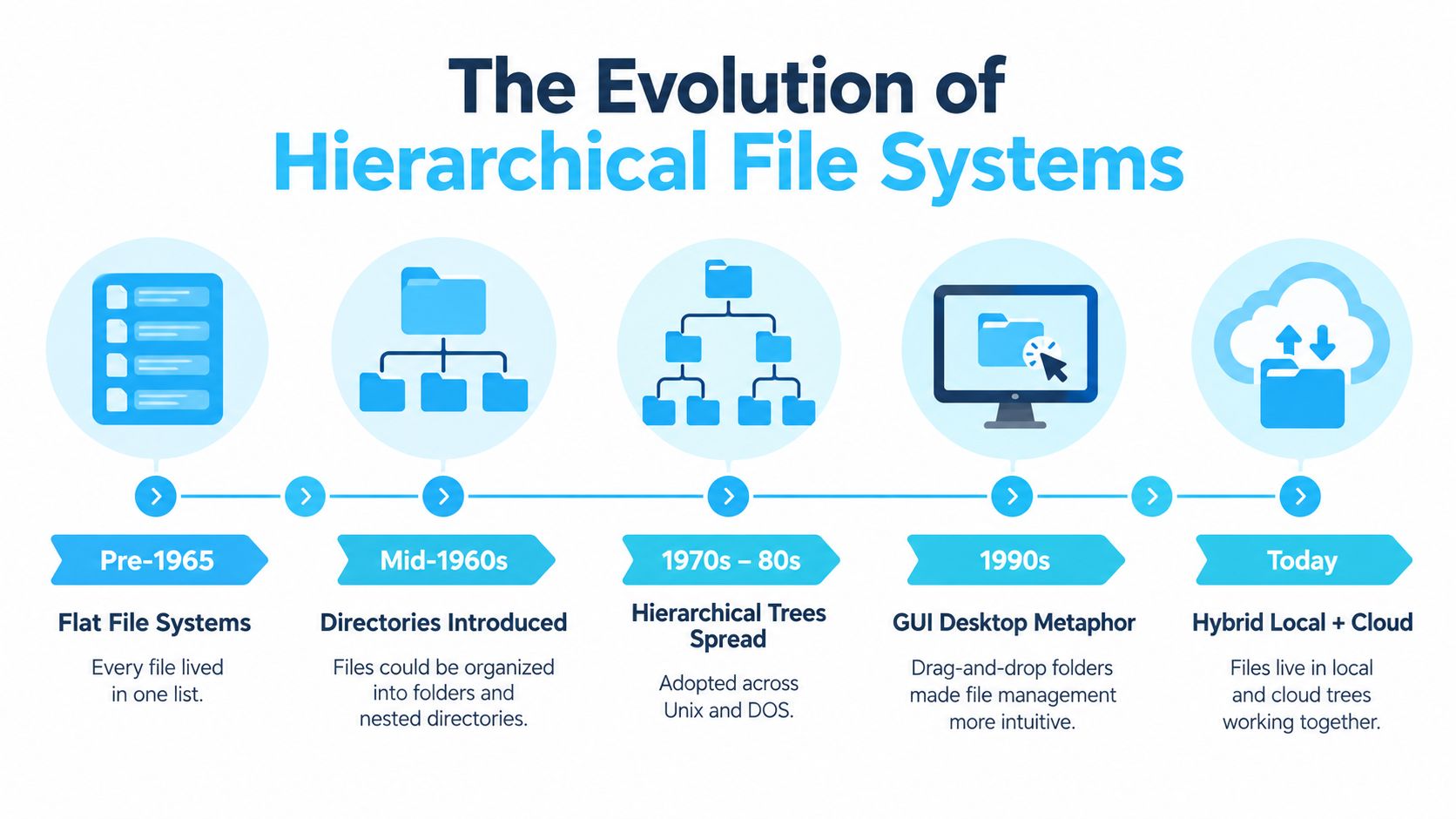
Before the mid-1960s, many file systems were flat, which meant one directory held the file names and that was basically it. That worked when storage was small and collections were limited. Once file sets grew, flat lists became harder to work through, and the hierarchical directory tree emerged as the practical answer, with Multics proposing multilevel directories in the mid-1960s and Unix refining the model in the 1970s. The history of hierarchical file systems shows how we got from a single list to nested paths that still shape modern desktops.
Why the tree model scaled
The shift to directories mattered because it turned file storage into a navigable hierarchy. Instead of scanning one huge list, users could narrow in on a branch that matched a person, project, subject, or function. That same structure established ideas that still matter in macOS Finder, including nested folders, root locations, and absolute and relative paths.
Hierarchical systems also helped machines. Access control, structured names, and directory relationships fit cleanly into that model. The downside is that humans often keep adding depth long after the structure has stopped serving the work, which is how an elegant tree turns into a maze.
Flat lists returned inside modern habits
The irony is that many modern behaviors recreate the old problem. Downloads folders, cloud sync roots, temporary export folders, and shared drives can all become giant catch-alls if nobody maintains the branches. The tree itself is still useful, but only if the structure stays meaningful.
Directories are stored as files that map names to identifiers, so the underlying system is already handling the complexity for you. Your job is to make the top layer human-readable. That means using names, location, and visual distinctions as real navigation tools, not decoration.
Building Machine-Readable Naming Conventions
A filename should tell you what the item is, where it belongs, and how current it is before you open it. University of California guidance recommends filenames that identify contents uniquely and may include a project identifier, location, investigator, year, data type, version, and file type. It also recommends a project-level root folder with a documented hierarchy for experiments, dataset versions, or contributors. UCLA's file organization guidance treats naming as part of retrieval, not as an afterthought.
Use names as metadata
Use the fields you search by. A practical template is ProjectID_Category_YYYYMMDD_Status. Kept consistent, it lets people and indexing tools filter by stable tokens instead of opening folders blindly.
The date format matters because ISO-style dates such as YYYYMMDD sort chronologically in normal lexicographic order. That removes the need for a separate normalization step, which matters when files are sorted by name in Finder, scripts, or cross-platform tools.
Avoid characters that break the workflow
Spaces and special characters create avoidable ambiguity when paths move through scripts, command lines, or systems that handle names differently. The goal is not prettier filenames, it is reliable filenames. Underscores and a fixed token order usually do the job cleanly.
A naming set like this stays readable:
- ProjectID for the client or initiative
- Category for the asset type
- YYYYMMDD for the capture or creation date
- Status for stage, version, or approval state
A file can move out of its original folder and still carry enough context in its name to remain searchable, sortable, and understandable later. Once names are reliable, automating repetitive Mac workflows is the natural next step, because naming rules only pay off when they are applied consistently.
Leveraging Visual Cues for Faster Scanning
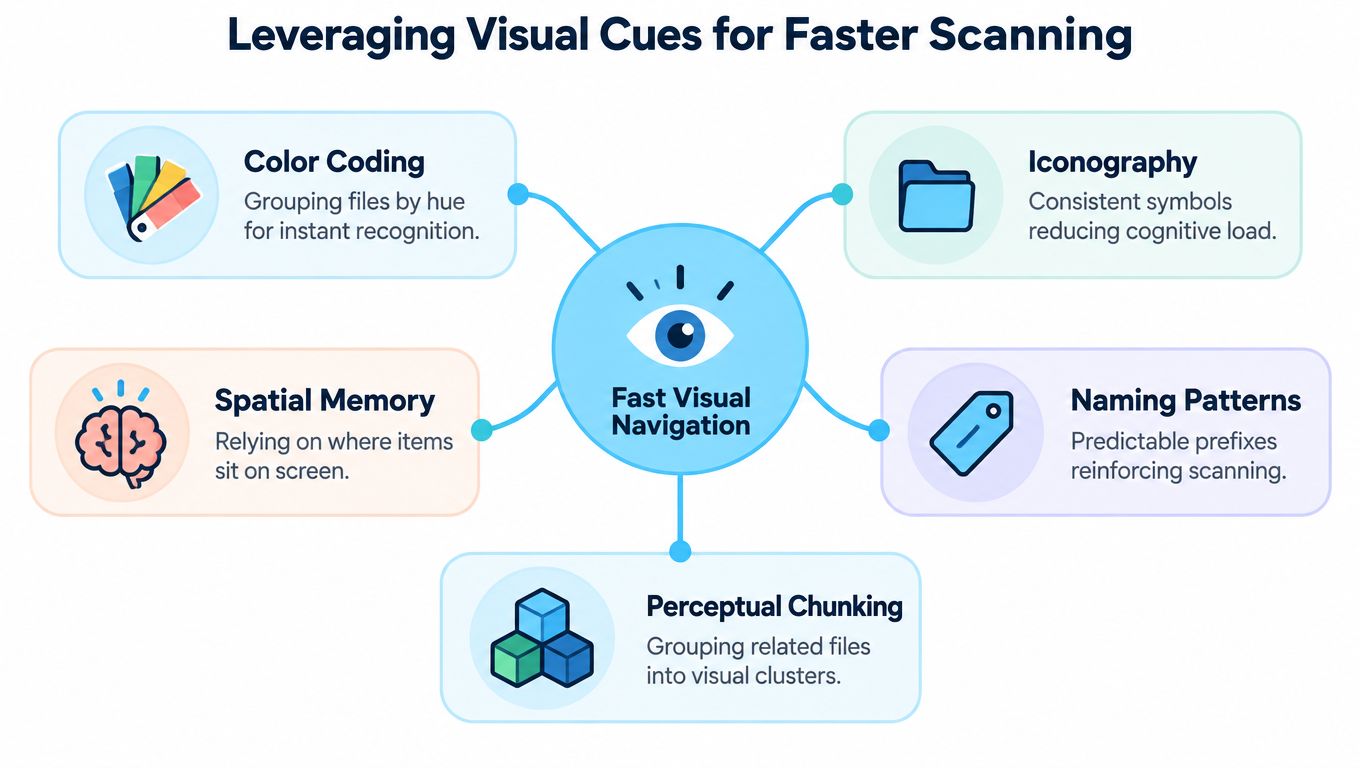
Human scanning is fast when the eye sees stable patterns. Research on perceptual organization shows that grouped objects tend to be stored together in visual memory, which means layout and visual consistency affect how quickly folders are recognized. Woodman, Vecera, and Luck's research on visual grouping supports a simple practical idea, systematic visual cues make a directory easier to parse at a glance.
Build a visual code, not decoration
The mistake is treating folder color like a preference setting. It works better as a code. One color family can mean lifecycle state, such as active, archived, or draft, while icon classes can signal content type, such as research, code, video, or design assets.
That gives you two layers of meaning. Color answers “what stage is this in,” and icon answers “what kind of thing is it.” Keep those meanings stable, and scanning becomes quicker because the brain stops decoding each folder from scratch.
Use consistency to reduce cognitive load
Repeated colors, stable icon placement, and predictable folder spacing all help the directory feel chunked into recognizable groups. In Finder, that means you can spot the right branch before you've read every label. The key is to avoid mixing too many meanings into one visual signal.
I've found that visual cues work best when they're redundant with the name, not replacements for it. If the folder says Client, and the color also means client work, the brain gets a reinforcement cue. If the color sometimes means “urgent” and sometimes means “private,” it stops being useful fast.
For a Mac workflow, Tintd's visual file manager approach fits naturally alongside naming rules. It's not a substitute for metadata, it's the second layer that makes the tree faster to scan.
Automating Folder Styling on macOS
Manual folder styling always starts well and ends badly. You color a few project folders, assign a couple of icons, then new folders appear and the system slowly drifts into inconsistency. That's why automation matters more than the styling itself, because consistency is what makes the visual code usable.
Let the system keep itself aligned
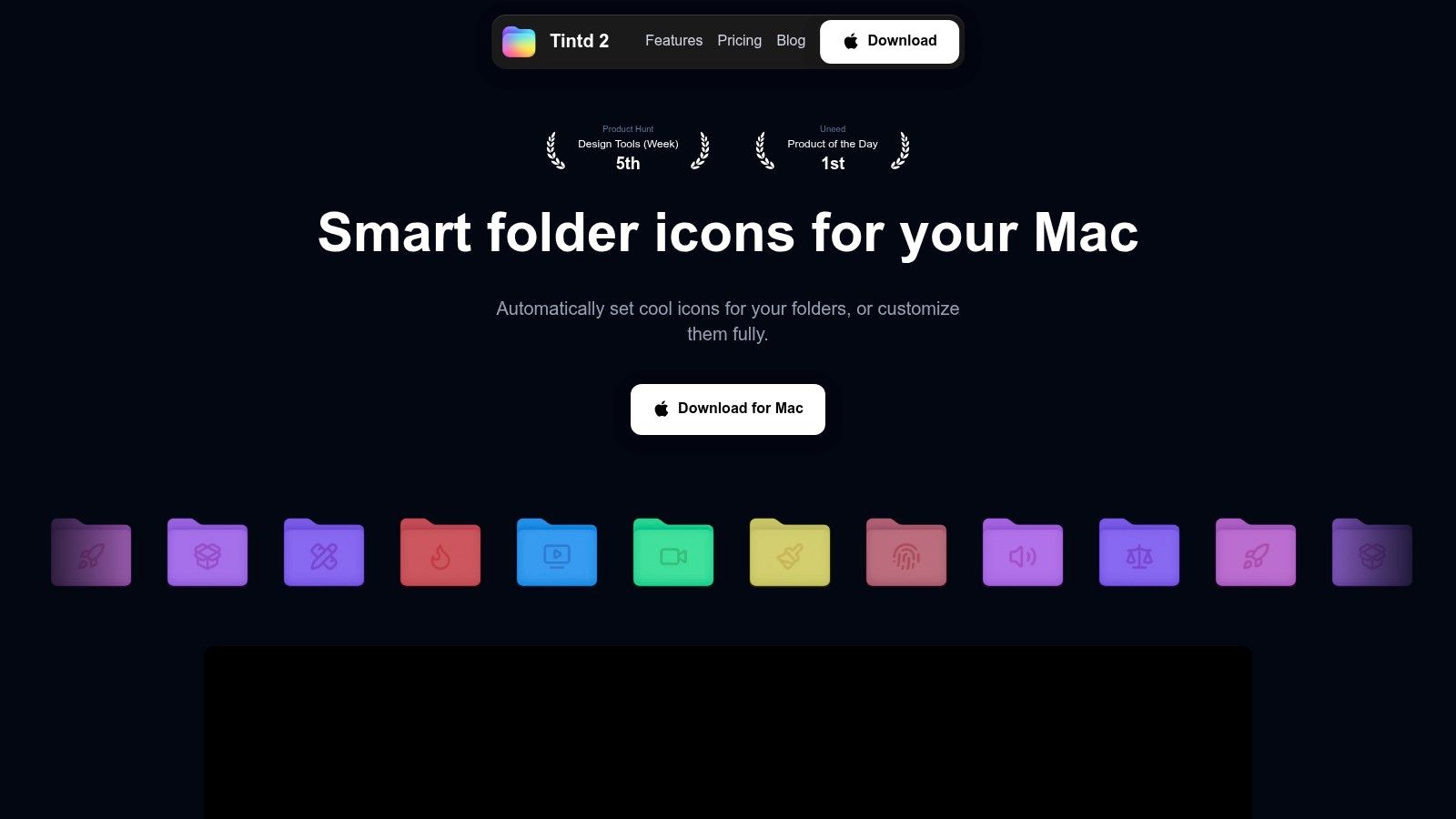
On macOS, a local tool like Tintd can apply icons and colors to Finder folders based on their names, keep styles on-device, and batch-edit existing directories. It also supports a folder watcher, so new folders in selected locations get styled as they appear instead of waiting for someone to remember to do it later. Tintd's folder color workflow is most useful when you want a visual system that doesn't depend on constant manual cleanup.
The practical setup is simple. Style your major root folders first, then assign consistent rules for subfolders that need distinct visuals. If Projects uses one color family and Archive uses another, new directories can inherit the same logic without extra effort.
Retrofit the mess you already have
Old directories usually need a bulk pass. Batch editing is useful there because it lets you clean up years of inconsistent styling without touching each folder one by one. That matters when a client archive contains hundreds of subfolders and the visual pattern has been lost.
A short automation loop is usually enough:
- Style the root sets first so broad categories are obvious.
- Apply batch edits to older folders that follow the same logic.
- Use watched locations for active workspaces so new folders inherit the rules.
- Review exceptions manually only when a folder truly needs to break the pattern.
When visual consistency is automated, the directory stops decaying every time someone creates a new folder. That's the difference between a styling habit and a system.
Separating Local Organization from Cloud Backup
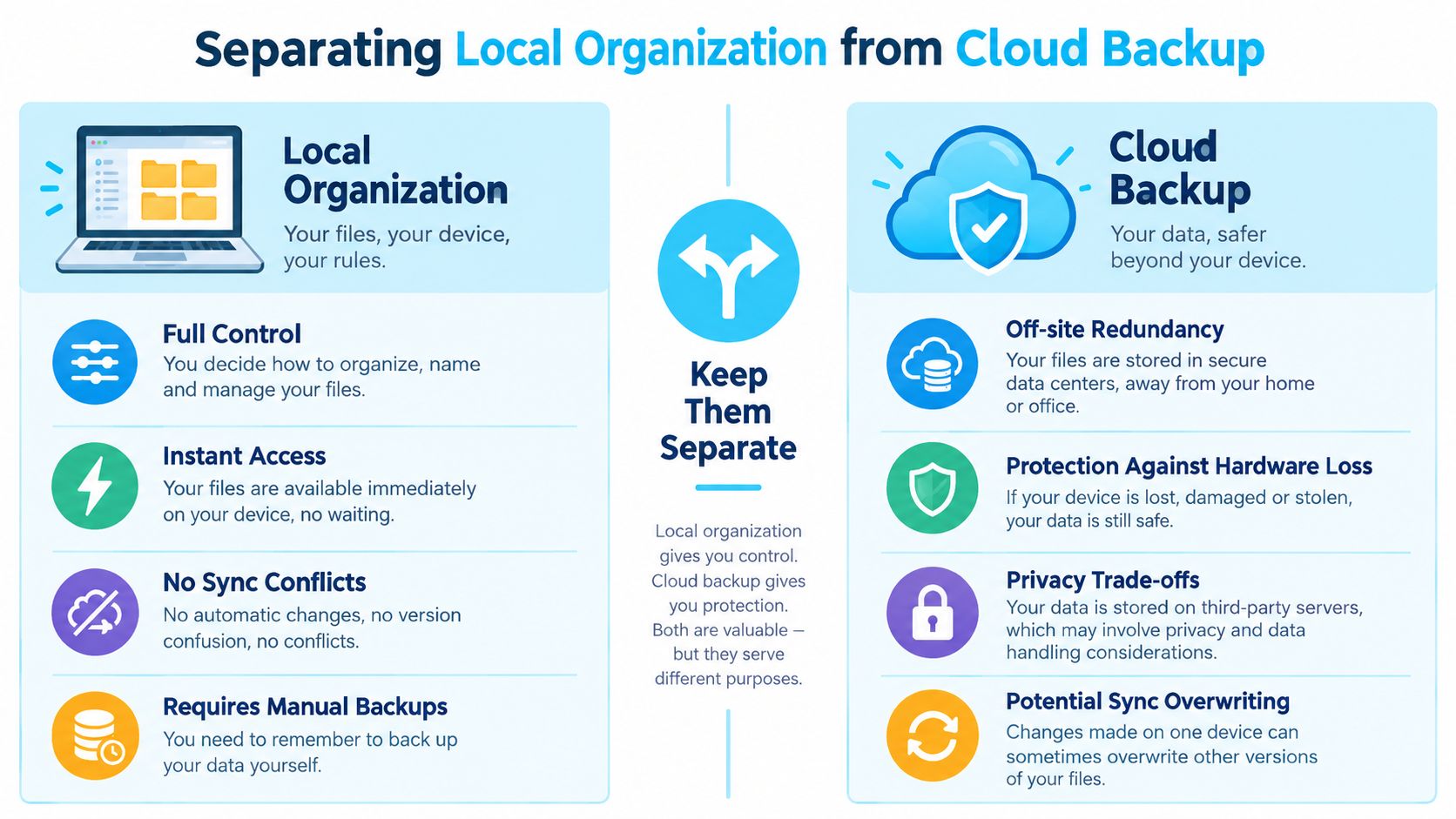
Organization and backup are related, but they're not the same thing. A local filing system can be clean, fast, and private, while backup protects against loss elsewhere. Mixing the two leads people to trust cloud sync for tasks it was never meant to handle, especially when sensitive client files or research data are involved.
Keep appearance local, keep recovery separate
A local-first approach means the visual layer, folder styling, and naming logic live on the device. That preserves privacy and keeps your directory behavior predictable. Backup then becomes its own process, with its own schedule and its own copy strategy.
That distinction matters because users experience privacy and resilience together, even if the tools treat them as separate problems. A local file structure can help you move quickly through work without exposing metadata unnecessarily, while backup remains the mechanism that protects you if the device fails.
Cloud convenience comes with trade-offs
Consumer survey data points to real friction here. In Acronis's 2025 survey of 2,480 consumers across eight countries, 64% identified data breaches as their top privacy concern, while roughly 35% said they do not back up data regularly and 4% did not know what backup means. Acronis's survey summary shows how often people blur the line between convenience and protection.
Western Digital's 2025 global survey of 6,118 respondents found that 63% would back up more often if the process were automatic and effortless, 60% had run out of cloud-storage space in the previous six months, and 56% had upgraded to paid plans. Those numbers point to a familiar pattern, cloud tools are useful, but they can also create storage pressure and false confidence.
If you want a practical walkthrough of backup discipline, how to keep your files truly safe is a useful companion resource.
Maintaining Your System Over Time
A directory system doesn't fail all at once. It slips when every download lands somewhere temporary and nobody comes back to process it. The fix is a small, repeatable routine, not a quarterly purge that turns into a weekend of resentment.
Treat Inbox as a staging area
A temporary Inbox folder works well for quick saves, imports, and downloads. It gives you one place to dump incoming files before they're named, styled, and routed into the right project branch. The folder itself should be short-lived, not a permanent storage category.
One clean-up pass before you finish is usually enough for active work. Rename the file using your naming rule, assign the correct visual style, and move it to the right root folder. That habit keeps the staging area from becoming a second desktop.
Archive by standard, not sentiment
At project close, flatten deep client branches into a standard archive layout. Keep the structure simple, keep the visual tags consistent, and remove anything that only made sense during the project's active phase. Old work should be easy to find later without forcing you to remember the exact shape of the original job folder.
A designer I've watched do this well keeps a small archive branch, styles it differently from active work, and leaves a clear naming trail on the final assets. Months later, when an old campaign image is needed again, the search starts with the archive label, then the date token, then the content type. That sequence is fast because the system was built for retrieval, not perfection.
For teams that also need to share milestones externally, upload event pictures can sit alongside the same retrieval habits, as long as the naming and folder rules stay consistent.
Tintd helps macOS users apply icons and colors to Finder folders with local, on-device styling, batch edits, and a folder watcher that keeps new directories consistent. If your current setup depends on memory and manual right-clicking, that's usually where the friction starts. Visit Tintd if you want a visual layer that supports faster scanning without turning organization into a full-time job.