
You move the same files into the same folders, launch the same apps, clean up the same downloads, and repeat the same keyboard sequence before your actual work begins. A text transformation takes several clicks, a project folder becomes hard to scan, and one small task turns into a chain of manual steps.
Mac automation apps solve different layers of that problem. Some organize Finder visually, some route files, some launch commands, some turn gestures or keys into actions, and others provide programmable control over the system. The right choice depends on whether you need folder watchers, cross-app workflows, keyboard control, contextual text actions, or code-first automation.
This list covers 10 Mac automation apps, with each tool matched to the job it handles best. You'll see how to put each one into practice, where it integrates with the rest of your Mac, and where its limitations become noticeable. Tintd deserves particular attention if your real problem is keeping Finder folders visually organized rather than merely moving them around. For a wider view of adjacent creative workflows, you can also explore AI video editing tools.
1. Tintd
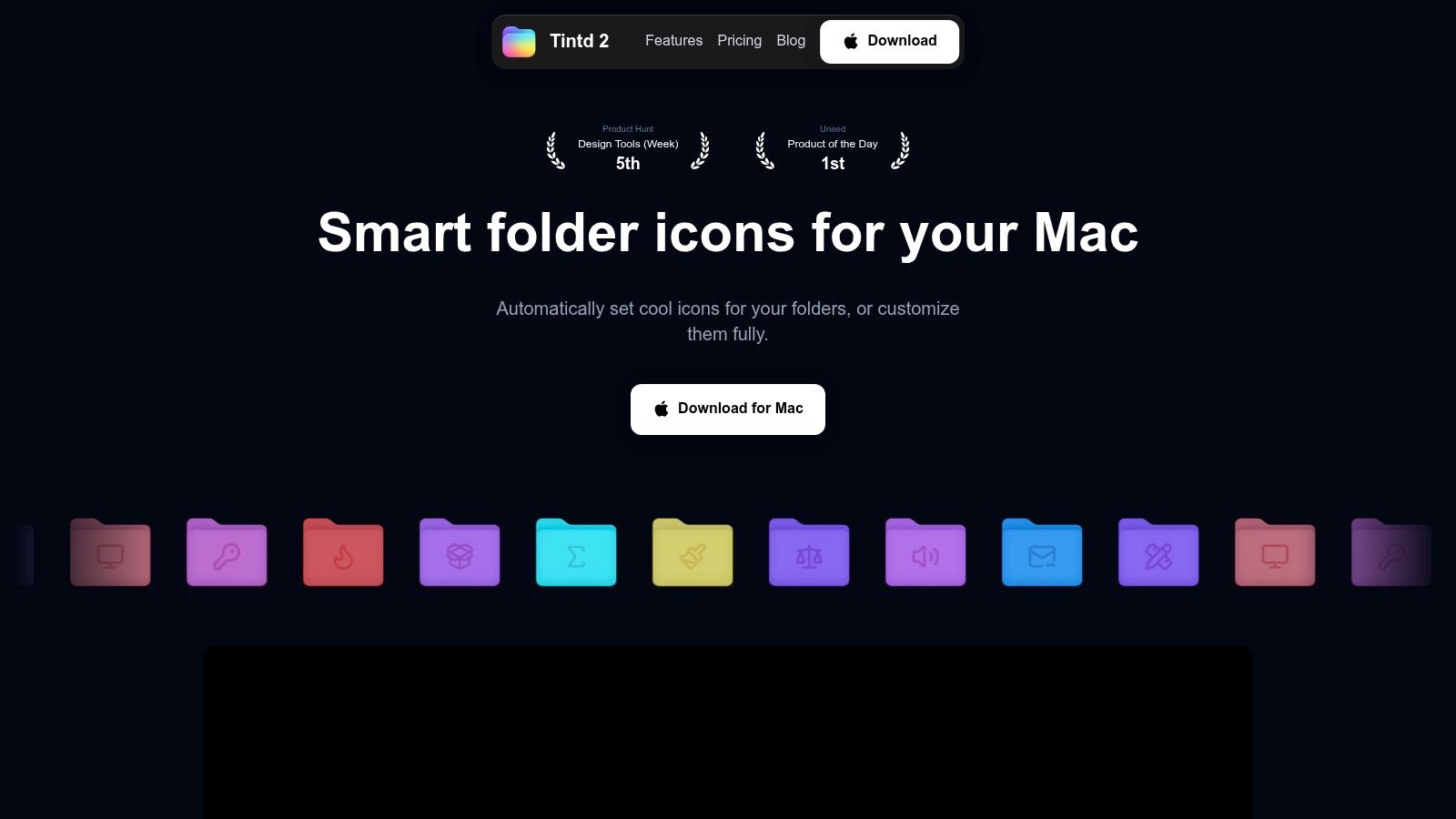
Tintd is the right starting point when your automation problem is visual rather than logistical. It turns ordinary Finder folders into recognizable signposts by applying icons, emojis, colors, and custom images. Instead of opening folders one by one to remember what they contain, you can build a visual system for client work, source code, research, media assets, or personal projects.
Its Smart Icon and Smart Color tools work locally from folder names and surrounding folder context. Suggestions can be applied from Finder's right-click menu, across multiple folders, or through batch operations that include subfolders. That matters when a project archive has grown beyond a structure you can comfortably maintain by hand.
Best for visual Finder organization
The Folder Watcher extends Tintd from a one-time cleanup tool into a maintenance layer. Select locations, let it detect new folders, and apply matching visual styles as your workspace changes. That's useful for teams that repeatedly create folders for campaigns, shoots, releases, courses, or customer work.
The privacy model is a meaningful differentiator. Tintd processes folder names and suggestions on the Mac, without cloud or external AI calls. Users who handle client records, unpublished designs, source code, or research material can organize folder metadata without sending it to an outside service.
Tintd includes history, custom image import, icon placement and size controls, color fine-tuning, and one-click restoration of the default macOS folder icon. Folder Watcher does require Full Disk Access for locations it monitors, so review the scope before enabling it. Apple explains how automation permissions work and how to review or revoke them in System Settings > Privacy & Security > Automation in its macOS permission guidance.
For a deeper look at the organizational use case, see this visual file manager guide. Tintd works best beside a file-routing tool such as Hazel, not as a replacement for one. Use Tintd to make a folder structure easier to read, then use Hazel when files themselves need rules.
2. Apple Shortcuts
Apple Shortcuts is a practical starting point for Mac automation when you want cross-app workflows without building a separate system. Its visual editor connects actions across Finder, Safari, Mail, Calendar, Notes, and other supported apps. A shortcut can run from a Finder Quick Action, menu bar, Spotlight, widget, or Siri request.
Start with the job, then choose the trigger. Select a group of images in Finder, rename and resize them, and send them to a chosen folder. Copy selected text, transform it, and place the result on the clipboard. These workflows keep recurring tasks close to where they begin, instead of requiring a separate launcher or macro layer.
Best for accessible cross-app workflows
Shortcuts has a clear progression path. Beginners can assemble actions visually. More advanced users can add shell scripts, AppleScript, variables, conditions, and input handling. The Gallery offers starting points, while iCloud keeps shortcuts available across Apple devices.
The trade-off appears as a shortcut grows into a dense chain of branches and exceptions. Debugging is less transparent than reading a script, and available actions depend partly on what app developers expose. A shortcut may work smoothly with Apple apps while offering limited controls inside a specialized third-party application.
Use Shortcuts when a workflow should be easy to share and simple to trigger. Keep it focused on cross-app handoffs, text transformations, and lightweight Finder actions. Persistent background monitoring belongs in Hazel, while extensive interface control is usually a better fit for Keyboard Maestro. Apple's Shortcuts for Mac documentation shows which actions your macOS version supports.
For related app choices, this Mac productivity apps guide provides useful context. Shortcuts can launch Tintd-related actions, start a file-routing rule, or pass selected Finder items to another tool. That division keeps each app focused on its job instead of creating overlapping automation stacks.
3. Keyboard Maestro
Keyboard Maestro is built for the moment when a simple shortcut has turned into a complete desktop procedure. It can respond to hotkeys, typed strings, application changes, window focus, schedules, device events, and other triggers. From there, it can manipulate windows, control interfaces, handle clipboard content, work with files, perform OCR, and run scripts.
The difference is persistence. Keyboard Maestro runs in the background and waits for the conditions you define. A designer can trigger a project setup sequence when a particular app opens. A developer can create a palette for repetitive build, test, and deployment commands. An operations user can combine keystrokes, window positioning, clipboard values, and file actions into one controlled macro.
Best for broad macro control
Its editor supports variables, conditions, loops, and debugging, which lets a workflow respond to changing inputs instead of blindly replaying clicks. That flexibility is why Keyboard Maestro is often the strongest choice for power users who don't want to write every automation from scratch.
It can also become too much. The interface exposes a large collection of actions, and a macro assembled quickly can be difficult to understand later. Name groups clearly, add comments, and test destructive actions against a temporary folder before allowing them to touch production files.
Keyboard Maestro complements focused tools rather than replacing them. Hazel should still own rules for sorting incoming files. Karabiner-Elements should still handle low-level key behavior. Keyboard Maestro is the coordinator when a workflow crosses applications, windows, clipboard content, and system actions.
4. Hazel
Hazel specializes in file routing. You point it at a Finder folder, define conditions, and let it move, rename, tag, archive, trash, or process files according to those rules. It's particularly effective for Downloads, incoming project assets, invoices, screenshots, exports, and folders that collect predictable file types.
A Hazel rule can match names, dates, metadata, and content. Content matching is valuable when the filename isn't enough, such as sorting PDFs based on text inside the document. Rules can also launch scripts, AppleScript, Automator actions, or Shortcuts, so Hazel can act as the event-driven front end for a larger workflow.
Best for hands-off file organization
Hazel feels different from a macro tool because you don't usually tell it to perform a sequence at a specific moment. You define the state a file should reach, then let the folder watcher respond when matching items appear. That model is excellent for maintenance and less useful for interactive tasks that depend on what's currently on screen.
Start with a small watched folder and actions that are easy to reverse. A rule that applies a tag is safer to test than one that immediately moves files across a complicated archive. Add a final catch-all rule only after you understand what earlier rules do with duplicates, temporary files, and partially downloaded documents.
Hazel pairs neatly with Tintd. Hazel can route a new project folder into the right location, while Tintd can apply a consistent icon and color without changing the folder's contents. That division keeps file movement and visual organization separate. You can find more complementary utility ideas in this Mac utilities guide.
5. Alfred with Powerpack
Alfred begins with a launcher, but its real value appears when you use it as a keyboard-driven command layer. Type a short command to open a file, search a location, run a calculation, retrieve clipboard history, insert a snippet, or send input into a custom workflow.
The Powerpack adds the workflow engine that makes Alfred more than an app switcher. Triggers, filters, variables, actions, and scripts can turn a short keyword into a sequence. A workflow might query a project directory, format the result, and open the selected item. Another might take a URL, pass it to a service, and copy a clean result to the clipboard.
Best for launcher-driven actions
Alfred feels fast because the workflow starts from intent rather than navigation. You don't need to locate an app, open a menu, and find a command. Once a keyword is familiar, the action becomes nearly immediate.
The limitation is that advanced workflows benefit from scripting knowledge. The community ecosystem helps, but a downloaded workflow can still be opaque if you don't understand what it reads, runs, or changes. Inspect third-party workflows before granting them broad access.
Alfred is a strong choice for users who prefer a compact command vocabulary. It overlaps with Raycast, so users should generally choose one as their primary launcher. Use the other only if it provides a specific extension or workflow that the first tool can't replace.
6. BetterTouchTool
BetterTouchTool turns physical input into a flexible action layer. Trackpad gestures, mouse buttons, keyboard shortcuts, Stream Deck controls, gamepads, and other inputs can trigger application commands, window operations, clipboard actions, or multi-step sequences.
Its strongest feature is contextual activation. A gesture can do one thing in a browser, another in a design application, and something else when a particular window is active. That makes it useful for people who work across several applications but want consistent muscle memory. A three-finger gesture might arrange windows, while a mouse button could paste a prepared block of text or open a project panel.
Best for input layers and ergonomics
BetterTouchTool can consolidate utilities for window snapping, clipboard handling, widgets, and custom controls. It's especially effective when you know which physical action should replace a repeated menu path. The software rewards deliberate configuration rather than random experimentation.
The abundance of settings is also the main drawback. New users can spend more time designing an elaborate gesture vocabulary than saving time with it. Start with one or two actions tied to movements you already make naturally, then add layers only after those feel automatic.
BetterTouchTool sits above lower-level keyboard remapping. If you need a key to behave differently at the system event level, Karabiner-Elements is more appropriate. If a gesture must launch a complex, conditional procedure, Keyboard Maestro can take over after BetterTouchTool supplies the trigger.
7. Raycast
Raycast is a polished launcher for commands, extensions, snippets, clipboard history, window management, and developer workflows. Its extension store makes it easy to add actions for specific services without building each integration from the ground up.
The experience is more discoverable than a traditional macro editor. Search exposes available commands, and extensions give the launcher a growing set of domain-specific abilities. Developers can create their own extensions, while non-developers can often find a prepared command for a common task.
Best for modern command discovery
Raycast is useful even if you never enable its AI features. The core launcher can handle application switching, file search, snippets, window actions, and clipboard retrieval. AI can be layered onto the workflow when it solves a defined problem, but it shouldn't be the reason you choose the tool if your needs are ordinary command launching.
Pricing and plan boundaries can be confusing when you only want non-AI capabilities. Check which extension or feature you really need before choosing a paid tier. Also review data handling for extensions and AI features, especially when commands may process project names, messages, or documents.
Raycast and Alfred occupy much of the same territory. Pick the interface you enjoy using every day, then keep specialized automation elsewhere. Raycast can trigger Shortcuts, scripts, or file tools, but it doesn't need to replace them.
8. Hammerspoon
Hammerspoon is the code-first option for users who want macOS behavior to follow precise logic. It connects Lua scripts to system APIs for windows, input, applications, files, network state, hotkeys, and contextual events. There isn't a visual editor to soften the learning curve, but there is considerable freedom once the configuration is understood.
A Hammerspoon setup can react to Wi-Fi changes, reposition windows when an app opens, create custom hotkeys, or switch behavior based on the current context. The Spoons ecosystem provides reusable components, so you don't always have to build every piece from zero.
Best for scriptable system control
Hammerspoon feels lightweight after configuration because the behavior lives in a text-based setup rather than a large collection of visual actions. That makes it easier to version, review, and reproduce than a complex collection of GUI macros.
The price of that control is responsibility. A syntax error can disable part of the configuration, and a poorly scoped script can interfere with other applications. Keep changes modular, reload incrementally, and make sure each event handler has a clear condition.
Hammerspoon complements Shortcuts and Keyboard Maestro when you need system context that those tools don't expose cleanly. It isn't the sensible first choice for simple file sorting or a basic launcher. It's for users who are comfortable treating the Mac as a programmable environment.
9. Karabiner-Elements
Karabiner-Elements handles keyboard behavior at a lower level than most Mac automation apps. It can remap keys, create modifier layers, define app-specific mappings, and apply different profiles to different keyboards or devices.
This is the tool to use when the input itself needs to change. Developers often create a Hyper key, turning an otherwise unused modifier combination into a reliable layer for launching commands or controlling windows. A keyboard can behave one way in a terminal and another way in a writing application, without requiring every action to be recreated inside a general macro tool.
Best for deterministic keyboard automation
Karabiner-Elements is open source and built for precise event handling. Its JSON configuration and command-line options suit users who want changes that are explicit, portable, and predictable. Community rules can speed up setup, but you should still understand what a rule changes before applying it.
It isn't a general macro suite. Karabiner-Elements won't replace Hazel for folder routing or PopClip for selected text actions. It provides the input layer, then hands the resulting shortcut to another tool when the workflow needs a larger response.
Keep a recovery path available while testing. A remapping mistake can make familiar keys behave unexpectedly, especially if several devices or app-specific profiles overlap. Build one layer at a time and document the intended key map so the configuration remains usable months later.
10. PopClip
PopClip automates the small text actions that interrupt writing, research, support work, and development. Select text, and it presents a contextual action bar for copying, searching, opening links, translating, sending prompts, or running custom transformations.
That interaction is valuable because it appears at the point of selection. You don't need to copy text, open a launcher, find a command, paste into another field, and return to the original app for every small operation. PopClip works across most Mac applications and can be extended with a large library of actions.
Best for contextual text actions
A researcher can search a selected citation, a support agent can transform a response, and a developer can encode or decode a selected value without leaving the current context. Custom actions can connect PopClip to scripts and other tools, which makes it a useful front end for small transformations.
The trade-off is interaction style. PopClip is strongest with a mouse or trackpad and less compelling for users who work exclusively from the keyboard. Its extension collection can also become difficult to manage if every possible action is enabled.
Use PopClip for short, local transformations rather than long workflows. Alfred or Raycast can handle command discovery, while PopClip handles the text that is already selected. That separation keeps both tools focused and reduces duplicated triggers.
Top 10 Mac Automation Apps, Feature Comparison
| Tool | Core features & automation | UX & quality | Unique selling points | Target audience | Price / Value |
|---|---|---|---|---|---|
| Tintd 🏆 | Folder Watcher, Smart Icon & Color, 11,000+ icon/emoji library, batch edit, Finder right‑click | ★★★★★, fast, private, on‑device suggestions | ✨ On‑device privacy, consistency engine, custom image import, one‑click restore | 👥 Creatives, devs, productivity fans, privacy‑minded users | 💰 Try free → one‑time lifetime ($9.99 promo) |
| Apple Shortcuts | Visual editor, Quick Actions in Finder, cross‑device iCloud sync | ★★★★☆, native, polished, easy to start | ✨ Native macOS integration, Siri/Spotlight access | 👥 General Mac users, beginners, casual automators | 💰 Free (preinstalled) |
| Keyboard Maestro | Macro engine: 100+ actions, variables, triggers, debugging | ★★★★☆, very powerful, steeper learning curve | ✨ Flexible triggers, robust always‑on engine | 👥 Power users, automation pros, advanced workflows | 💰 Paid one‑time license (trial available) |
| Hazel | Rule‑based folder watchers, move/rename/tag, content matching | ★★★★☆, reliable for set‑and‑forget file automation | ✨ Best‑in‑class file cleanup and routing, script hooks | 👥 Users needing automated file organization | 💰 Paid one‑time license (trial available) |
| Alfred (Powerpack) | Keyboard launcher, workflow engine, clipboard, snippets | ★★★★★, extremely fast, extensible via workflows | ✨ Large workflow ecosystem, quick file actions | 👥 Productivity enthusiasts, power users | 💰 Core free; Powerpack paid upgrade |
| BetterTouchTool | Gesture/input mapping, chainable actions, widgets, clipboard | ★★★★☆, highly configurable, ergonomic gains | ✨ Deep gesture support, Stream Deck integration | 👥 Ergonomic users, creatives, muscle‑memory workflows | 💰 Paid (trial available) |
| Raycast | Fast launcher, extensions, AI features (opt‑in), dev tools | ★★★★☆, polished, speedy, discoverable | ✨ Extension store, developer‑friendly, layered AI | 👥 Developers, teams, power users | 💰 Free basic; Pro/Team tiers for AI/features |
| Hammerspoon | Lua scripting bridge to macOS APIs, “Spoons” packages | ★★★★☆, extremely powerful if you script | ✨ Near‑limitless scripting flexibility, lightweight | 👥 Developers, scripters, advanced customizers | 💰 Free / open‑source |
| Karabiner‑Elements | Complex keyboard remapping, per‑device rules, JSON config | ★★★★☆, precise, low‑level reliability | ✨ Best for deep key remaps, per‑app/device profiles | 👥 Developers, keyboard enthusiasts, sysadmins | 💰 Free / open‑source |
| PopClip | Contextual action bar on text selection, 300+ extensions | ★★★★☆, lightweight, fast for text tasks | ✨ Quick text transforms, many extensions | 👥 Writers, editors, anyone who manipulates text often | 💰 Paid (small one‑time fee) |
Build a Smaller, Smarter Mac Automation Stack
The best Mac automation setup usually contains fewer tools than the enthusiast setup. Start with the job that repeats often, then choose the smallest layer that solves it. A visual Finder problem needs a different answer from a file-routing problem, even when both happen inside the same folder.
Use Tintd when folders are difficult to scan and you want icons, colors, and local visual rules. Use Hazel when files need to move, rename, tag, archive, or trigger another action based on conditions. Choose Shortcuts for accessible cross-app workflows that should be easy to launch and share. Choose Keyboard Maestro when the procedure spans windows, clipboard content, interface controls, and conditional steps.
For launcher-driven work, choose Alfred or Raycast, not both by default. Alfred suits users who like compact keywords and a mature workflow ecosystem. Raycast suits users who prefer command discovery, extensions, and a polished launcher interface. BetterTouchTool is the ergonomic layer for gestures, buttons, and physical controls, while Karabiner-Elements is the lower-level choice for deterministic key remapping.
PopClip belongs beside those tools when selected text is the bottleneck. Hammerspoon belongs in a more technical setup where scripts need to react to system state, application events, or window behavior. These tools can complement each other, but each should have a clear owner for a particular type of trigger.
Build around one repeatable task
Pick one annoyance that happens often enough to justify automation. Move a single class of downloads, create a project folder with a consistent visual system, or turn a repeated text cleanup into one command. Define the expected result before adding conditions.
Test triggers and permissions on a small scope. A folder watcher should monitor a selected location before it monitors an entire drive. A file rule should apply to a test directory before it touches an archive. Apple's automation settings let you review which apps can control other apps, and that permission boundary deserves the same attention as the workflow itself.
Document rules that move, rename, delete, or modify files. Record the trigger, the conditions, the destination, and the recovery step. Cosmetic changes such as folder colors and icons are comparatively easy to reverse, while content-changing automation needs stronger safeguards, previews, histories, and undo paths.
A practical stack might use Tintd for visual organization, Hazel for routing, Shortcuts for occasional cross-app actions, and Alfred or Raycast for launching them. A developer may add Karabiner-Elements for a Hyper key and Hammerspoon for context-aware window control. A writer may need only PopClip and Shortcuts. The right stack is the one you can explain, test, and maintain.
For more ways to evaluate workflow software without collecting overlapping utilities, consult this guide to effective workflow tools. Then give your first automation a short trial, observe where it fails, and improve the rule before expanding its scope.
Tintd gives your Mac a focused visual automation layer, with local folder styling, batch editing, Finder integration, and a watcher for newly created folders. If Finder feels harder to scan than it should, Tintd can turn repeated visual cleanup into a private, reversible workflow.