
A cluttered Finder, a stack of overlapping windows, a nearly full drive, and a Downloads folder full of files you meant to sort last week can make a fast Mac feel surprisingly slow to use. The right utility depends on the friction you feel most often, not on how many features an app can advertise. Apple's built-in Finder already supports tags, Smart Folders, sorting, and custom folder icons, so it's worth deciding whether you need a third-party layer before installing one. The same principle applies when you're comparing built-in and third-party voice control for Mac.
This roundup groups the best Mac utilities by real workflow problems: Finder organization, launching work, window control, storage cleanup, system maintenance, and file automation. You'll find practical strengths, limitations, pricing considerations, and the type of user each tool suits. Tintd is the specialist pick for making Finder folders easier to scan, while the other six tools target access, storage, maintenance, layout, and automation.
1. Tintd for visual Finder organization
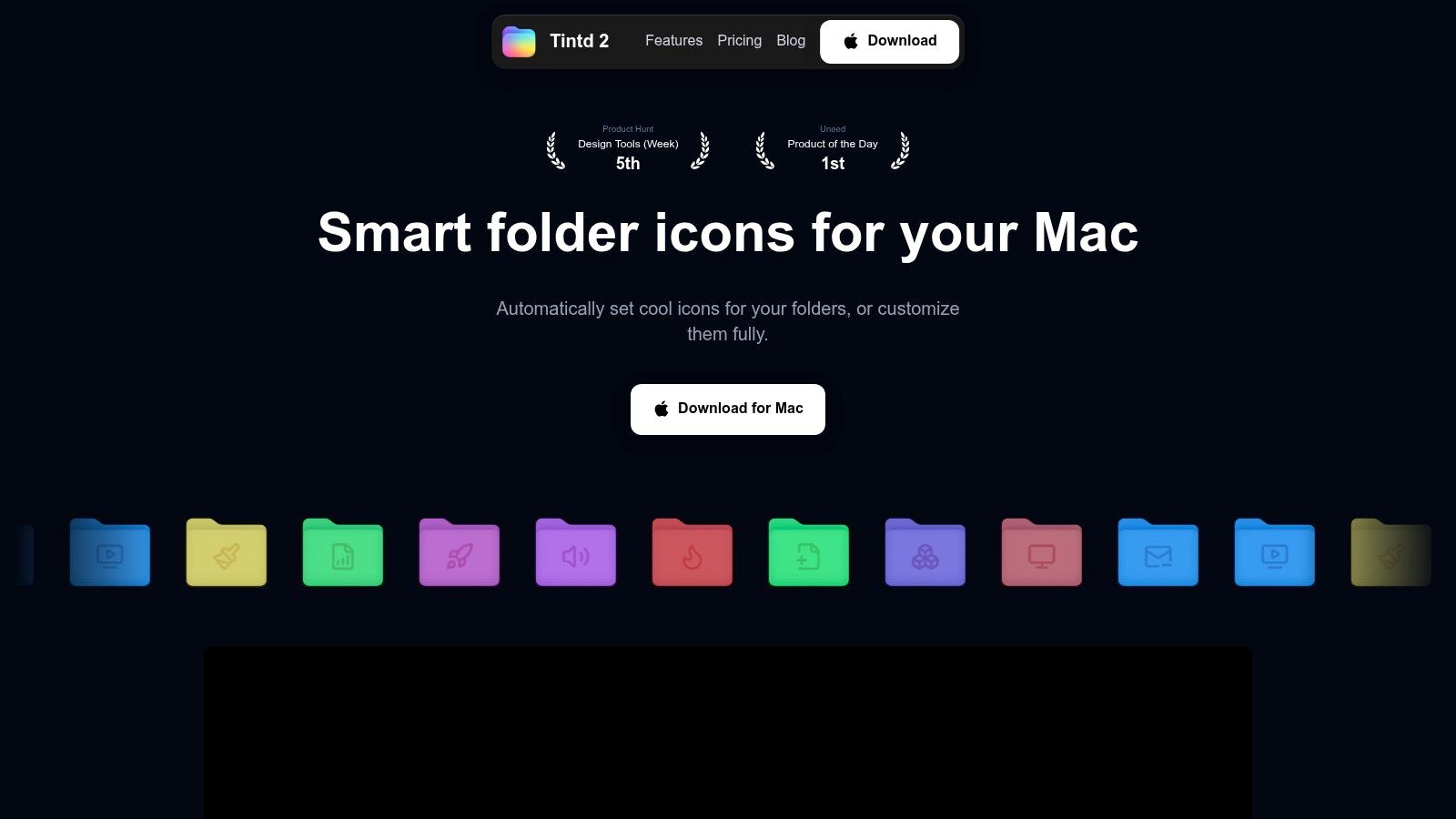
Finder can store files logically without making them easy to recognize at a glance. A project folder named “Client Archive” looks much like every other blue folder, even when it contains completely different work. Tintd addresses that visual friction by assigning meaningful icons and colors to Finder folders, either manually or through on-device suggestions.
Its Smart Icon and Smart Color features read folder names locally and suggest styles that fit the folder and its neighboring folders. The app works with a curated library of 11,000+ icons and emojis, and it can also import custom images. That makes it useful for design projects, research folders, coursework, code repositories, and client work where visual grouping matters more than moving files into a new hierarchy. The suggestions run without cloud processing or external AI calls, which is a practical advantage for sensitive folder names and metadata. See how to customize folder icons on Mac for the basic workflow.
Where Tintd earns its place
Tintd's strongest feature is that it adds visual organization without forcing a new file manager. You can apply a style from Finder's right-click menu, adjust icon size, placement, and color, then restore the standard macOS folder icon when you change your mind. Batch editing and subfolder support make the difference when a folder tree has grown beyond what manual styling can handle.
The Folder Watcher can style new folders as they're created in selected locations. It does require Full Disk Access, because the watcher needs permission to see those folders. Styles and custom icon settings are stored per Mac, so they don't automatically follow you through iCloud to another computer. That's a meaningful limitation for people who switch between Macs regularly.
Tintd supports mixed-language folder names across 11 languages, remembers previous designs through history, and offers a one-time lifetime purchase after the free trial. The site currently lists the purchase at $9.99, displayed as 80% off from $49.99, so check the current offer before buying. It's macOS-only, but for students, creatives, developers, and knowledge workers who want a private visual system, that narrow focus is the point.
2. Alfred 5 for keyboard-driven launching
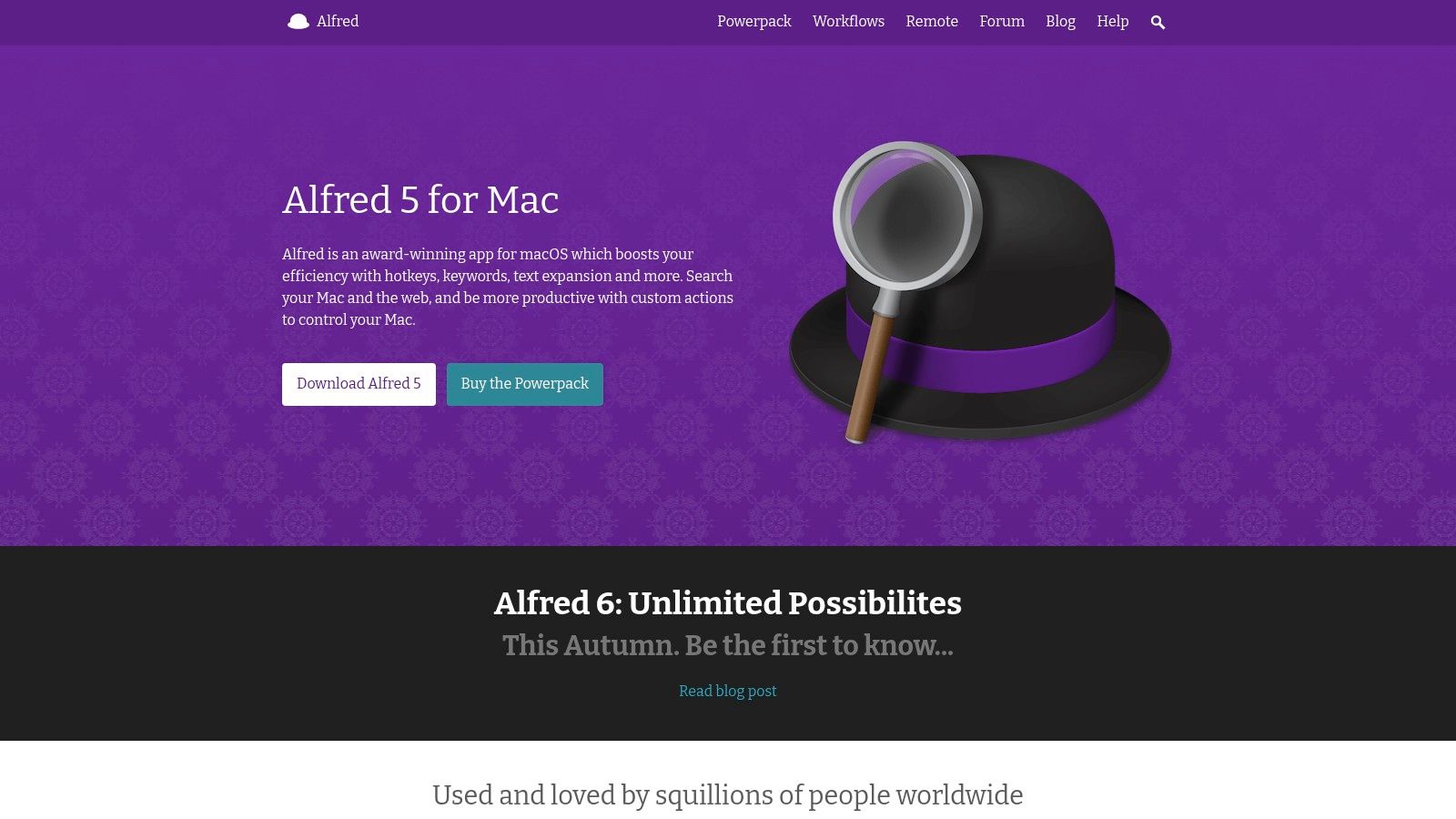
Alfred 5 is built for people who'd rather press a shortcut than hunt through Finder, Launchpad, or a crowded Dock. Type an app name, file name, contact, or web query, and Alfred provides a fast command surface for getting there. Its basic launcher is useful on its own, but the paid Powerpack is where the app becomes a serious productivity tool.
Powerpack workflows can combine triggers, variables, and actions. You can create a shortcut that opens a project folder, launches the relevant apps, pastes a prepared snippet, or sends a file through a repeatable sequence. Alfred also includes clipboard history, text snippets, file navigation, and keyboard-based file actions. It's a strong option for users who already know what they want to do and don't want to browse for it.
The trade-off with Alfred
Alfred's ecosystem is mature, and community workflows can save you from building everything yourself. The app is lightweight and highly configurable, but that flexibility comes with a learning curve. Complex workflows require you to understand triggers, inputs, variables, and output actions rather than just selecting a setting from a menu.
The paid Mega Supporter option is a one-time purchase that includes lifetime upgrades, which will appeal to users who prefer perpetual software access. The downside is that the most capable features sit behind the Powerpack, so the free version may feel like a preview if you're specifically interested in clipboard workflows or advanced automation.
Alfred is the better choice when you want a private, highly customizable keyboard launcher and you're willing to invest time in tailoring it. It isn't the best fit if you want an immediately polished extension marketplace with minimal configuration. For that workflow, Raycast is the more approachable alternative.
3. Raycast for a modern command center
Raycast takes the launcher concept and presents it as a polished command palette. It can open apps and files, search the web, manage clipboard history, control windows, and connect to a broad extension ecosystem. The free tier is unusually capable, making Raycast a practical first stop for users who want more from Spotlight without committing to a complex setup.
Its built-in tools include Clipboard History, Window Management, and calendar-related commands. Community extensions can connect Raycast to other apps and services, so you can turn one shortcut into a small control panel for recurring tasks. The interface feels more guided than Alfred's workflow builder, and the extension store makes discovery easier.
Raycast versus Alfred
Raycast is the better default recommendation for someone who wants useful features immediately. Alfred is more attractive if you want to design intricate workflows and control the details yourself. Raycast's extension model gets you moving sooner, while Alfred often rewards deeper customization over time.
Paid plans add cloud sync, administration controls, and advanced AI options. Some AI capabilities and bring-your-own-key functionality require a subscription, and policy and pricing changes around AI have prompted debate among users. That doesn't undermine the free launcher, but it does mean you should check the current plan before building a workflow around paid features.
Apple's own survey of 13,700 MacBook users found that 68% valued Spotlight most among macOS features, which helps explain why launcher utilities remain central to Mac workflows. The same survey reported that 85% would recommend a Mac, with average battery-life satisfaction at 8/10. Those figures come from the MacBook usage survey, and they point to a practical expectation: users generally want utilities that extend familiar Mac retrieval habits rather than replace them with a completely separate system.
4. CleanMyMac X for all-in-one maintenance
CleanMyMac X bundles several maintenance tasks into one interface. It can remove system junk, locate large or old files, uninstall apps and related leftovers, remove malware, and show system information from the menu bar. That breadth makes it convenient for people who don't want separate apps for cleanup, removal, and basic monitoring.
The app's uninstaller is more useful than dragging an application to the Trash and forgetting about it, because it can help identify associated files. Its large and old file tools provide a starting point for storage cleanup, while the menu bar monitor can show CPU, memory, storage, and protection status. Malware removal and security-related features are also included in some editions.
Check the edition before buying
CleanMyMac X's main weakness is that editions differ depending on whether you buy through the MacPaw Store, the Mac App Store, or Setapp. Certain security features aren't available in every build, so the purchase channel affects what you receive. Review the current edition details on the CleanMyMac X product page before assuming every feature is included.
The app also uses an annual subscription or license and upgrade model, which won't suit users who prefer focused, one-time utilities. It can feel like overkill if you only need to identify what is using disk space. DaisyDisk is more direct for that task, while CleanMyMac X makes sense when you want one dashboard for several maintenance jobs.
Use it when convenience matters more than having a narrowly specialized tool. It's particularly useful for less technical users who want guided cleanup and app removal. It's less compelling for someone who already trusts separate tools and prefers to inspect every deletion manually.
5. DaisyDisk for discovering storage problems
DaisyDisk solves a specific problem well: finding what is consuming space on your Mac. Instead of presenting storage as a long list of folders, it displays an interactive sunburst map. Large blocks stand out immediately, and you can drill down until you reach the files responsible for the problem.
The visual approach is valuable when Finder's list view hides the relationship between folders and their contents. DaisyDisk scans quickly, and administrator mode can provide deeper visibility. It also accounts for APFS snapshots and can scan supported cloud drives, including Dropbox, Google Drive, OneDrive, and Box.
A focused cleanup tool
DaisyDisk doesn't try to be a full system tune-up suite. That limitation is a strength if you want to understand storage before deleting anything. You choose what to remove, so the app won't decide on its own that an unfamiliar folder is disposable. The manual process takes longer than a one-click cleaner, but it gives you better control over consequential deletions.
Its lifetime-license approach also suits users who don't want another recurring subscription. The product is purpose-built, so it won't replace an uninstaller, malware tool, or file automation app. For a broader view of organizing local files and folder structures, compare it with this guide to a Mac file organizer.
Independent productivity rankings emphasize offline tagging, color labeling, and bulk-capable workflows as useful differentiators for large local folder systems. The file-organization software evaluation also places weight on features, ease of use, and value. DaisyDisk fits the discovery side of that equation, while Tintd fits the visual navigation side.
6. Rectangle for window control
macOS gives you basic window controls, but people who work across documents, browsers, terminals, and communication apps often need more deliberate layouts. Rectangle adds keyboard shortcuts and drag-to-edge snapping for halves, thirds, quarters, and sixths. It also supports multiple displays, which makes it useful for desk setups where windows need to move predictably between screens.
The free version is the important part. It provides a reliable foundation without turning window management into another subscription decision. Users familiar with Spectacle's shortcut model can usually adapt quickly, and the app remains lightweight enough to leave running.
When Rectangle Pro makes sense
Rectangle Pro adds custom sizes and positions, workspaces, throw actions, and iCloud sync. Those features matter if you repeatedly restore a specific arrangement, such as a browser and research document on one display with a terminal and preview window on another. If you only need to snap a window left or right, the free app is probably enough.
The main limitation is that Rectangle focuses on layouts rather than full automation. It doesn't provide window rules that automatically position every app whenever it opens. That keeps the utility simple, but power users may need another tool or a different window manager for app-specific behavior.
Choose Rectangle when your bottleneck is space and window placement, not launching or file organization. It pairs well with Alfred or Raycast, but it shouldn't be installed as a substitute for either. A launcher gets you to the work. Rectangle decides where that work sits.
7. Hazel 6 for advanced file automation
Hazel is for Mac users who have repeated a file-management task enough times to resent doing it manually. It watches selected folders and applies rules based on names, file kinds, dates, tags, contents, sources, and other metadata. Actions can move, copy, rename, tag, archive, trash, or process files through scripts and Shortcuts.
A simple rule might keep Downloads orderly. A more advanced setup can rename incoming assets, sort them into project folders, apply tags, archive completed material, and hand a file to AppleScript, shell, JavaScript for Automation, or Shortcuts. Hazel runs locally, so it's a strong option when file names and metadata shouldn't leave the Mac.
Powerful rules need careful design
Hazel's flexibility is also its risk. A poorly designed rule can move or rename files in ways you didn't expect, especially when several conditions overlap. Start with a narrow folder, use obvious actions, and test a rule against a small set of files before expanding its scope. The app has a background helper for ongoing processing, but reliable automation still depends on thoughtful rule design.
For example, you could use Hazel to identify new project folders and then connect that workflow with a visual styling process. If you want to understand the broader idea, this guide explains how to automatically change folder icons on Mac. Hazel itself remains the better choice for file movement, naming, tagging, archiving, and script execution.
Hazel is a pay-once app with no free tier, and complex rules take time to learn. It's not the right purchase for someone who only wants prettier folders or a faster launcher. For serious local file automation, though, it offers the depth that simpler utilities intentionally avoid.
Top 7 Mac Utilities: Feature Comparison
| Item | Implementation Complexity 🔄 | Resource Requirements ⚡ | Expected Outcomes ⭐ | Results / Impact 📊 | Ideal Use Cases / Tips 💡 |
|---|---|---|---|---|---|
| Tintd | Low, GUI-driven; quick setup | Low, macOS only; Folder Watcher needs Full Disk Access | ⭐⭐⭐, consistent, private folder styling | 📊 Improved visual organization and fast bulk styling | 💡 Best for Mac users organizing many folders; import custom icons; one-time purchase |
| Alfred 5 | Medium, simple launcher; Powerpack workflows add complexity | Low, lightweight; Powerpack is paid | ⭐⭐⭐, highly efficient keyboard workflows | 📊 Time savings and automation for frequent tasks | 💡 Power users benefit most; use community workflows; buy Powerpack for advanced features |
| Raycast | Low, intuitive command-palette; extensions add steps | Low → Medium, excellent free tier; paid for cloud/AI features | ⭐⭐⭐, fast launcher with rich extensibility | 📊 Faster access plus large extension ecosystem | 💡 Free is powerful; subscribe if you need sync or advanced AI |
| CleanMyMac X | Low, GUI, one-click tools; some features vary by edition | Medium, subscription/license differences across stores | ⭐⭐, broad maintenance and cleanup tools | 📊 Consolidates system utilities; ongoing cost for full features | 💡 Good all-in-one maintenance for general users; check edition feature gaps |
| DaisyDisk | Low, focused, visual interface; simple workflow | Low, one-time purchase; admin for deep scans | ⭐⭐, clear, fast disk-usage insights | 📊 Quickly frees significant disk space; manual deletion control | 💡 Ideal for targeted storage cleanup; use snapshots/drive scans carefully |
| Rectangle | Low, simple shortcuts; Pro adds advanced options | Low, free/open-source baseline; Pro is paid | ⭐⭐, reliable window snapping and layouts | 📊 Improved multitasking and consistent window placement | 💡 Free edition suffices for most; upgrade for custom layouts and iCloud sync |
| Hazel 6 | High, rule-based engine; learning curve for complex rules | Medium, pay-once app; macOS-only with background helper | ⭐⭐⭐, powerful, scalable local file automation | 📊 Automates sorting, renaming, archiving at scale | 💡 Best for advanced local automations; test rules incrementally; supports scripts/Shortcuts |
Build a Mac Utility Stack That Solves Real Friction
The best Mac utilities aren't the ones with the longest feature lists. They're the tools that remove a recurring interruption without adding another system you have to maintain. Start by naming the bottleneck in plain language: “I can't recognize my folders,” “I keep searching for apps,” “my windows are everywhere,” “I'm out of storage,” or “I sort the same files every day.”
For visual Finder organization, Tintd is the focused choice. It adds icons, colors, bulk styling, custom images, and automatic folder watching while keeping processing on-device. If your issue is keyboard access rather than Finder scanning, compare Alfred 5 and Raycast. Alfred suits users who want deep, customizable workflows and don't mind learning its system. Raycast is easier to adopt quickly, with a polished launcher, built-in commands, and a large extension ecosystem.
Rectangle handles window control without trying to become a complete productivity platform. The free version is enough for basic snapping, while Rectangle Pro makes sense for custom layouts and workspaces. For storage, DaisyDisk is the clearer specialist because it shows where space is going and leaves deletion decisions in your hands. CleanMyMac X is the better fit when you want cleanup, uninstalling, malware removal, and monitoring in one interface, provided you check which edition includes the features you need.
Choose Hazel 6 when manual file sorting has become a genuine workflow problem. Its rule engine can automate naming, movement, tagging, archiving, and script execution, but it deserves careful setup. Apple's own Finder already handles Smart Folders, tags, sorting, and custom icons, so third-party tools should earn their place by improving a specific part of that native workflow. Apple's documentation on Finder organization and Smart Folders is a useful baseline before you add anything.
The Mac utility market also rewards practical distribution choices. Independent analysis describes the pure-Mac software market as substantially smaller than iOS and reports that direct distribution has become important for many Mac developers, with only around 20% of Mac developers relying on the App Store alone according to Mac software market analysis. For buyers, that means checking the developer's site, license terms, update policy, privacy model, permissions, and whether settings sync across Macs.
Install one utility for one recurring frustration. Test it in your actual workflow, review its permissions and storage behavior, and only then decide whether another tool adds value. A focused combination of Tintd, a launcher, Rectangle, DaisyDisk or CleanMyMac X, and Hazel can be useful. Installing every utility at once usually creates a new problem: too many tools competing for attention.
Tintd adds visual meaning to Finder folders with on-device Smart Icon and Smart Color suggestions, bulk editing, custom images, and automatic styling for new folders. If your Mac feels disorganized because every project folder looks the same, visit Tintd and try a more scannable Finder workflow.