
Too many windows are competing for attention, the Downloads folder is overflowing, tasks are scattered across notes and messages, and every folder in Finder looks exactly the same. That kind of friction doesn't come from one broken app. It comes from a workflow with gaps between planning, launching, sorting, arranging, capturing, and finding information.
The best Mac productivity apps solve different bottlenecks, so this list compares them by job instead of treating one tool as a universal replacement. The recommendations cover personal planning, keyboard-driven control, file automation, window management, screen capture, documentation, and visual Finder organization. I'm weighing workflow fit, depth, learning curve, licensing and subscription trade-offs, privacy, and how well each app complements the others. If you're organizing coursework or a busy semester, this guide also pairs well with productivity apps for semester planning.
1. Tintd for making folders visually scannable
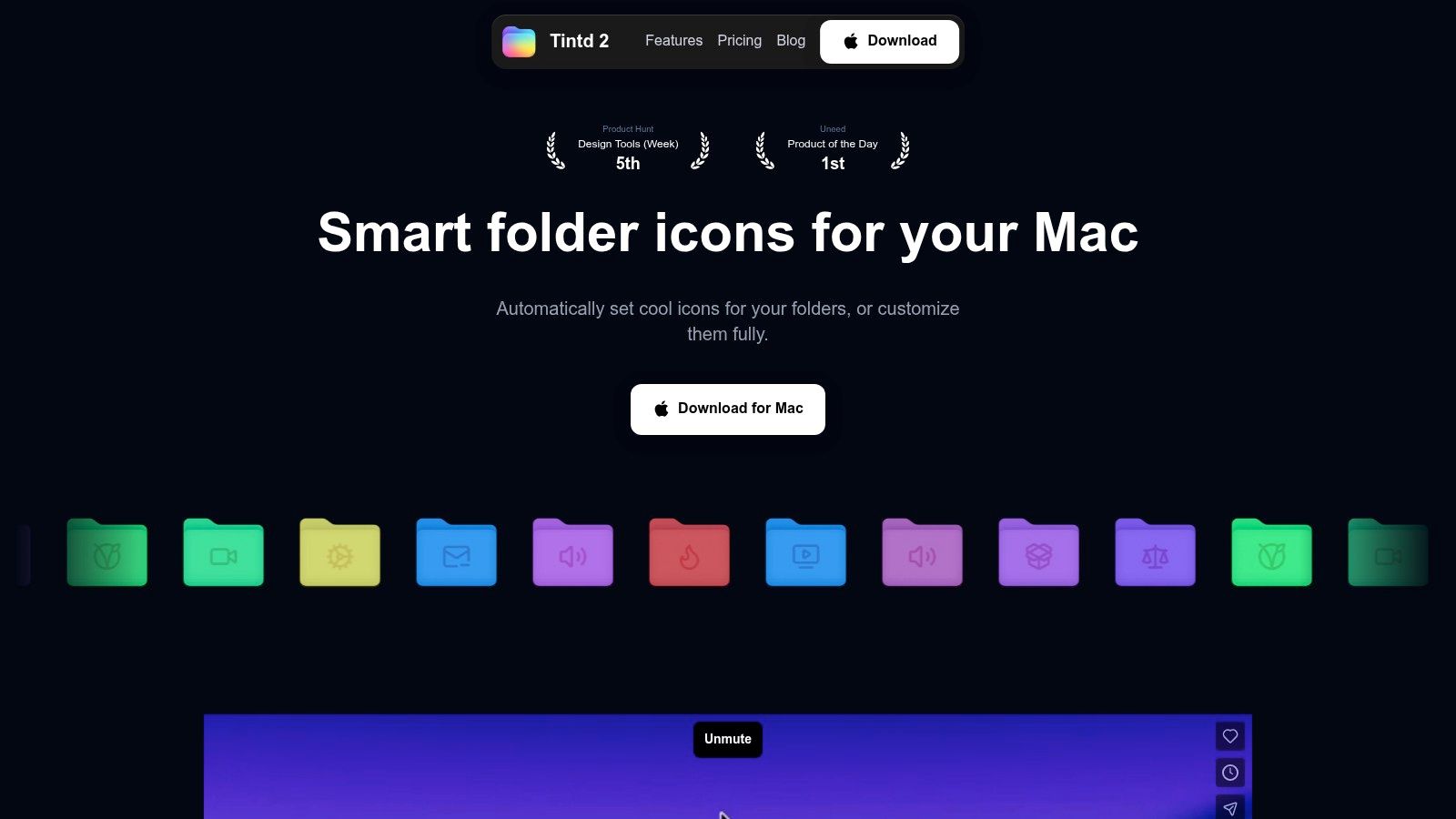
Finder works well when you remember a folder's location. The friction starts when client work, research, code, exports, and archives all use the same blue icon. Tintd tackles that visual problem by applying meaningful icons and colors to Finder folders, either manually or through rules.
Tintd reads folder names locally and suggests a Smart Icon and Smart Color. Accept the suggestion, adjust it, or choose a style from a library of 11,000+ icons and emojis. Custom palettes, imported images, icon placement, size controls, and reusable style history let you build a visual system for your work instead of decorating folders at random.
The workflow benefit becomes clear in a large project tree. Bulk editing applies a style to groups of folders and subfolders, while Finder's right-click menu keeps the action next to the folder you are organizing. Folder Watcher can style new folders as they appear, helping a project structure stay consistent. Tintd also recognizes folder names across 11 languages, which helps multilingual file systems remain scannable.
A private layer for Finder organization
Tintd processes folder names and suggestions on the Mac, without cloud uploads or external AI calls. That suits people handling private research, client materials, sensitive project names, or proprietary code. The research on Macintosh file organization supports the broader idea behind this workflow: folder structure helps with memory and navigation, not just storage.
The trade-offs are clear. Folder Watcher requires Full Disk Access to detect new folders, and styles remain stored locally rather than syncing automatically across Macs through iCloud. Tintd is macOS-only, includes a free trial, and uses a one-time purchase model. The current lifetime license is $9.99, reduced from $49.99, as listed on the product site. For setup instructions, see how to customize folder icons on Mac.
Best for: creative professionals, developers, students, researchers, and anyone managing a large Finder hierarchy.
2. Raycast for launching actions from the keyboard
Raycast works best when your main problem is the number of small actions scattered across macOS. Instead of opening an app, searching for a file, checking clipboard history, calculating a value, creating a quick link, and then switching windows, you can bring those actions into one keyboard-first command bar.
The core launcher is fast and flexible. Raycast handles app and file search, clipboard history, snippets, quicklinks, calculations, calendar actions, and window controls. Its extension ecosystem adds integrations for services and workflows, so the app can grow with your habits rather than forcing you to replace it when your needs become more advanced.
The free tier is generous for individual users. Paid Pro features add AI assistants, cloud sync, custom themes, and team or administrative controls. The credit-based model for AI usage is clearer than an unlimited feature promise that later changes without much explanation, but you'll still need to decide whether sync and AI justify a recurring subscription.
Where Raycast fits in a larger stack
Raycast is not a replacement for every automation tool. It launches and connects actions extremely well, but users who need complex conditions, loops, data transformations, or highly customized system behavior may prefer a dedicated macro utility. It also works alongside Hazel and Keyboard Maestro rather than competing directly with them.
A useful workflow is to create a Raycast quicklink for a project folder, a frequently used web dashboard, or a recurring command. Then use it as the front door to the rest of your system. The best Mac utilities often become more useful when one keyboard shortcut can expose them without interrupting your current context.
You should also review privacy and account requirements before enabling cloud-connected extensions or AI features. Raycast's local core is convenient, but the data path can differ depending on which extension or paid feature you use.
Best for: keyboard-first users who want one fast command center for search, snippets, clipboard history, and app actions.
3. Things 3 for focused personal task planning
A task manager earns its place by making the next action obvious. Things 3 does that without trying to become a team workspace, project database, or all-purpose knowledge system. Its interface is polished, quick, and deliberately focused on personal planning.
The structure is straightforward. Areas separate parts of life or work, while Projects group related outcomes. Headings divide larger projects into stages, checklists handle supporting steps, and tags add another way to filter work. The Today and Upcoming views help turn a large task inventory into a manageable daily sequence.
Things 3's keyboard navigation is one of its strongest Mac features. Natural-language date entry reduces the need to stop and fill out fields, while shortcuts such as “Type Travel” make it quick to capture and organize tasks. Shortcuts, widgets, and iCloud sync also make it feel at home in an Apple-centered setup.
The limitation is intentional
Things 3 doesn't include built-in collaboration or team features. You can't use it as a shared project hub with assignees, comments, or a team activity stream. That limitation is a benefit if you want a clean personal system, but it rules Things out for teams that need shared ownership and formal project coordination.
The licensing model is also different from subscription task managers. Things 3 uses a one-time purchase for each Apple platform, but Mac, iPhone, and iPad purchases are separate. Check the current terms on the Things 3 product page before building a multi-device setup.
A task list should reduce decisions, not become another project that needs maintenance.
Use Things 3 for commitments and next actions, not every piece of reference material you might need later. If you're evaluating it alongside broader Mac project management tools, keep the distinction clear. Things 3 is strongest for personal execution, while collaborative systems handle team coordination.
Best for: individuals who want a refined, keyboard-friendly task manager without a subscription or team-workspace overhead.
4. Hazel for rule-based file automation
Hazel is the tool to choose when you keep performing the same file cleanup by hand. It watches selected folders, evaluates rules, and takes actions such as renaming, moving, tagging, archiving, or handing files to scripts and Shortcuts.
Start with a narrow folder, usually Downloads. A simple rule might identify a file by kind, name, date, tag, source URL, or matching content, then move it into a project folder. You can build more complex conditions with nested rules, lists, and tables when a basic “if this, then move it” rule isn't enough.
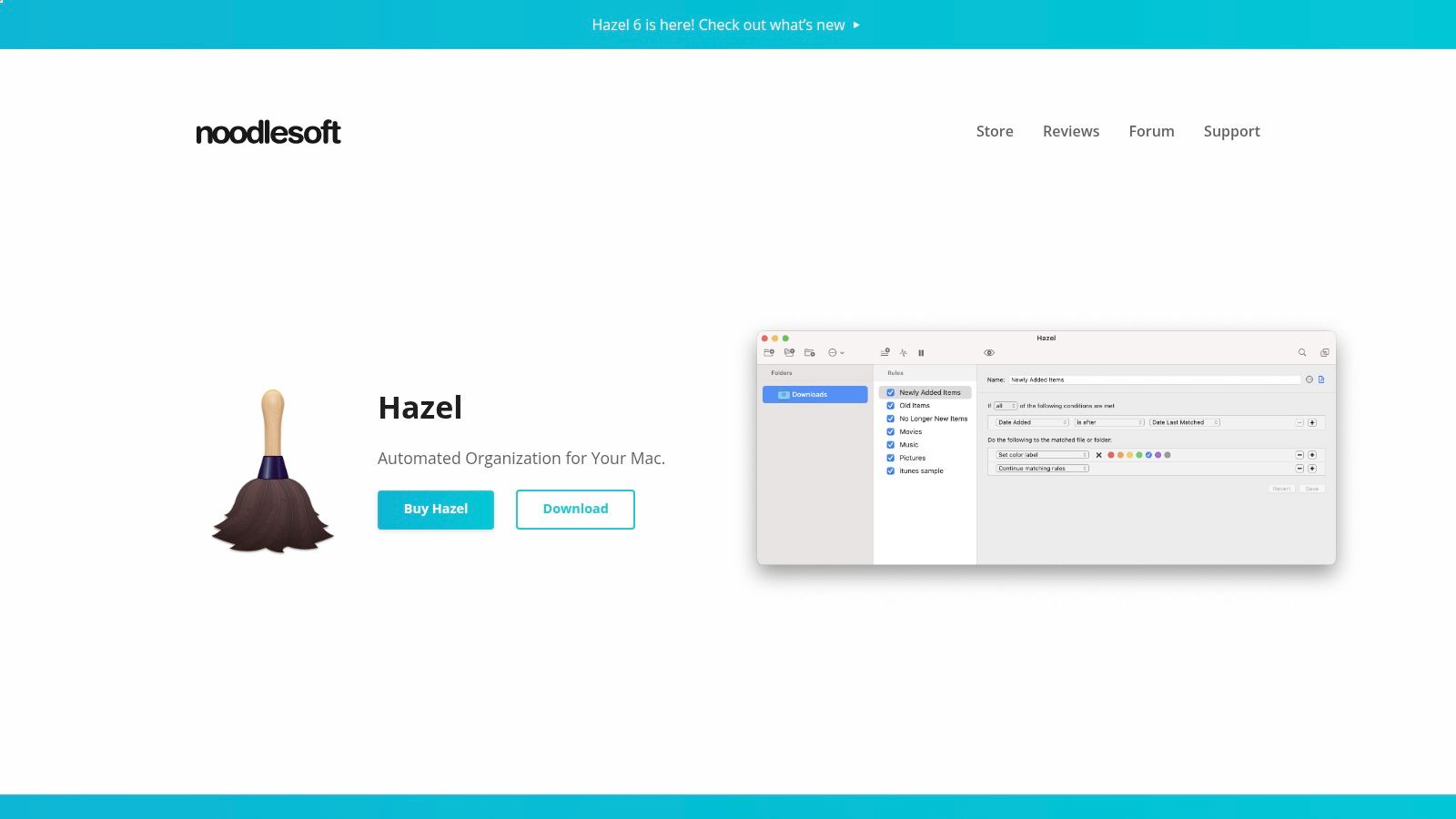
The best Hazel workflows are conservative at first. Move copies or test files before letting rules touch an important archive. Add clear naming conventions, keep an audit-friendly folder structure, and avoid rules that can send the same file through multiple competing actions. Hazel can save a great deal of repetitive effort, but a badly designed rule can create confusion faster than manual sorting.
Automation without losing control
Hazel runs as a lightweight background agent, which makes it suitable for routine housekeeping. You can use it to separate invoices, collect screenshots, organize downloaded assets, move completed exports, or archive old files. It can also pass work to scripts and Shortcuts when file movement is only one part of a larger process.
The trade-off is the learning curve. Hazel's depth becomes valuable only after you understand how its conditions interact, and file utilities need broad permissions to do their work. Expect to review Full Disk Access and Automation permissions during setup.
For a practical stack, let Hazel handle incoming files, then use Tintd to make the resulting folder hierarchy easier to scan. Hazel decides where a file belongs. Tintd helps you recognize which folder to open.
Best for: Mac users who repeatedly sort Downloads, Desktop files, project assets, exports, and archives.
5. Keyboard Maestro for advanced Mac macros
Keyboard Maestro is for workflows that involve several steps and several applications. It can launch apps, manipulate windows, type text, transform clipboard contents, move the pointer, trigger actions from hotkeys or typed strings, and respond to app, window, or time conditions.
The macro editor exposes 600+ actions, variables, loops, and if/then logic. That gives you much more control than a simple launcher shortcut. A developer might use a macro to open a terminal, position a code editor, paste a prepared command, and bring up a documentation window. A support specialist might capture selected text, clean its formatting, insert a response template, and return focus to the original app.
Powerful, but not instantly simple
Keyboard Maestro rewards repeatable processes. If you perform a task once a month, it probably isn't worth building a macro for it. If you perform the same multi-step routine every day, the setup time can make sense.
The interface is utilitarian rather than fashionable, and complex macros need naming, grouping, and testing. Debugging becomes much easier when you build one small action at a time, use descriptive names, and add conditions that prevent a macro from running in the wrong application.
Build the smallest reliable macro first. Add branching only after the basic sequence works.
Keyboard Maestro uses a per-user license that can be used on up to five Macs, according to the Keyboard Maestro website. It's a strong choice for users who want no-code automation but don't want to give up the flexibility normally associated with scripting.
Use Raycast to launch a macro, Hazel to trigger file-related actions, and Keyboard Maestro for the user-facing sequence that connects several tools.
Best for: power users, developers, operations specialists, and anyone with stable multi-step routines.
6. Rectangle for placing windows quickly
Window management is a physical source of friction. You drag one window aside to reveal another, resize a third, and then repeat the process after reconnecting a monitor or reopening an app. Rectangle replaces that manual adjustment with keyboard shortcuts and snap areas.
The free, open-source version handles common placements such as halves, thirds, quarters, edges, and corners. That's enough for a practical two-window arrangement, such as a document beside a browser, or a terminal beside an editor.
Rectangle Pro adds more control for users with precise layouts. It supports window throwing, custom sizes, repeated behaviors, layouts, edge docking, and iCloud sync for Pro users. Those features are useful when you move between a laptop display and external monitors or need a consistent arrangement for specific work contexts.
Pick the lightest window system that works
Rectangle isn't a full tiling window manager. It doesn't automatically tile every window into a dynamic layout, so users who want a strict keyboard-driven tiling environment may need a different tool. That restraint is also why Rectangle feels approachable. You can keep the normal macOS window behavior and add reliable shortcuts where you need them.
The free version is the sensible starting point. Pro pricing isn't shown prominently on the site and appears at checkout, so check the current price before committing. You'll also need the expected accessibility permission for window control.
A useful setup pairs Rectangle with Raycast. Use Raycast to launch or focus an app, then use Rectangle shortcuts to place it. Keyboard Maestro can take this further by opening a group of apps and arranging them into a repeatable workspace.
Best for: most Mac users who want faster window placement without adopting a full tiling system.
7. CleanShot X for capturing and documenting work
CleanShot X turns screenshots and recordings into a complete documentation workflow. It captures scrolling pages, lets you annotate images, records the screen, applies OCR, and can create share links through its optional cloud service.
The value isn't just a better screenshot. CleanShot X reduces the number of handoffs between capturing, editing, labeling, and sharing. You can mark a bug, blur sensitive information, explain a sequence with annotations, or record a short walkthrough with an editor and presentation effects. OCR makes text inside captures easier to reuse, while scrolling capture helps with long pages that don't fit in one frame.
That makes it useful for developers writing bug reports, designers reviewing interfaces, support teams explaining fixes, and educators preparing instructions. It also works offline, which matters if you want to capture local material without sending it to a cloud service.
Watch the cloud boundary
CleanShot X offers optional CleanShot Cloud features for share links and related collaboration workflows. Some team and cloud capabilities require a subscription, while the basic plan includes a year of updates with renewal optional. Review the current CleanShot X licensing options if you need long-term updates, cloud sharing, or Setapp access.
For a privacy-conscious workflow, keep captures local and share files through the channel your organization already approves. For a fast internal explanation, cloud links may be convenient. The right choice depends on the sensitivity of the material, not just the speed of sharing.
CleanShot X complements Tintd in a useful way. Tintd improves visual recognition inside Finder, while CleanShot X helps you communicate what appears on screen after you've found and opened the right material.
Best for: documentation-heavy work, bug reporting, tutorials, support, design review, and screen recording.
Top 7 Mac Productivity Apps, Feature Comparison
| Tool | 🔄 Implementation complexity | ⚡ Resource & efficiency | 📊 Expected outcomes | Ideal use cases | ⭐ Key advantages & tips 💡 |
|---|---|---|---|---|---|
| Tintd | Low, install + optional Full Disk Access for Folder Watcher | ⚡ Low local CPU; fully on-device (no cloud) | 📊 Visually consistent, scannable folders; faster navigation (no auto-sync between Macs) | Creatives, developers, students, privacy-focused Mac users | ⭐ Privacy-first on-device suggestions; 11,000+ icons, bulk editing; 💡Grant Full Disk Access to enable watcher |
| Raycast | Moderate, install, enable extensions and optional Pro features | ⚡ Very fast keyboard-first UX; Pro features use cloud/AI credits | 📊 Centralized launcher and workflows; accelerates daily tasks | Keyboard-centric power users, developers, small teams (Pro) | ⭐ Extensible ecosystem and generous free tier; 💡Install community extensions to extend quickly |
| Things 3 (Cultured Code) | Low, intuitive app with short learning curve for workflows | ⚡ Efficient single-user app; uses iCloud for sync | 📊 Clear, focused personal task management; improved personal productivity | Individuals seeking a polished GTD-style task manager (no collaboration) | ⭐ Exceptional UX and keyboard flow; one-time purchase per platform; 💡Use Areas + Projects for structure |
| Hazel (Noodlesoft) | Medium, create rule sets (takes time to master) | ⚡ Lightweight background agent; requires Full Disk Access | 📊 Reliable, hands-off file organization and cleanup | Users with heavy downloads/assets, automated project file handling | ⭐ Powerful rule-based automation; 💡Start with simple rules and iterate |
| Keyboard Maestro | High, build complex macros with variables/logic | ⚡ Local, efficient automation; minimal runtime overhead | 📊 Deep multi-step automation across system/apps; large time savings | Advanced automators, power users, macro builders | ⭐ One of the most capable no-code automation tools; 💡Use community macros as templates |
| Rectangle / Rectangle Pro | Low, install and enable shortcuts or Pro features | ⚡ Very lightweight; fast window snapping and layouts | 📊 Quicker window placement and screen organization | Users who want efficient window management or precise layouts | ⭐ Free core features; Pro adds layouts, throw and iCloud sync; 💡Define custom sizes per workflow |
| CleanShot X | Low, ready-to-use with many optional features | ⚡ Capture is quick; recording uses more CPU/disk | 📊 High-quality screenshots/recordings with annotation and OCR | Documentation writers, QA, educators, support and tutorial creators | ⭐ All-in-one capture, editor and OCR; 💡Use scrolling capture and built-in editor for long docs |
Choose the Apps That Match Your Bottlenecks
There isn't one universal winner among the best Mac productivity apps because each recommendation removes a different kind of friction. Choose Things 3 if your main problem is deciding what to do next and keeping personal commitments visible. Choose Raycast if you lose time opening apps, searching for files, retrieving snippets, or repeating small commands.
For file handling, Hazel is the practical choice when Downloads, Desktop, or project folders need rule-based sorting. Keyboard Maestro is better when the work involves a multi-step macro across apps, windows, clipboard contents, and typed input. They overlap slightly, but their strengths are different. Hazel watches and processes files. Keyboard Maestro orchestrates actions across the Mac.
Rectangle handles window placement with a light touch, while CleanShot X is the stronger choice for capture, annotation, recording, OCR, and documentation. Tintd fills the gap most roundups leave open, Finder-level visual organization. Recent Mac productivity app coverage tends to focus on task managers, launchers, notes, calendars, and clipboard tools, but a readable folder system can remove just as much everyday friction when your work lives in Finder.
Privacy deserves a place in the decision. macOS remains a meaningful desktop platform for productivity-app buyers, with StatCounter reporting 6.1% global desktop operating system share in September 2026 and another market summary reporting 14.58% in June 2026. The different readings point to a persistent Mac market, not a reason to treat every workflow as cloud-first. The same StatCounter macOS market data also highlights version fragmentation, so compatibility and lightweight workflows matter.
A practical stack could look like this:
- Plan: Capture projects, next actions, and deadlines in Things 3.
- Launch: Use Raycast to open the right app, folder, shortcut, or macro.
- Sort: Let Hazel process incoming files according to stable rules.
- Automate: Use Keyboard Maestro for repeatable multi-step routines.
- Arrange: Place active windows with Rectangle.
- Document: Capture results, bugs, and instructions in CleanShot X.
- Scan: Apply Tintd styles so project folders are recognizable at a glance.
Start with the bottleneck you feel most often. Add one tool, test its permissions and sync behavior, and decide whether its licensing model fits the way you work before expanding the stack. If you're comparing broader workflow automation software, keep the same principle in mind: choose automation that removes a repeated action without creating a new system to babysit.
Tintd offers Smart Icon and Smart Color suggestions, bulk folder styling, Finder right-click integration, a Folder Watcher, and on-device processing with no cloud or external AI calls. If visually scanning project folders is the friction you notice most, visit Tintd and make Finder easier to move through without adding another subscription to your workflow.