
You've got tasks in one app, working files scattered through Finder, meeting notes in another workspace, and deadlines that only become visible when they're already close. That setup is common on a Mac, especially when a project starts small and gradually collects briefs, revisions, assets, approvals, dependencies, and collaborators.
The best Mac project management tools don't all solve the same problem. Some calculate complex schedules. Others help one person control daily commitments, coordinate a visual team board, connect documentation to tasks, or keep development work moving through cycles. A separate utility may improve the Finder layer without pretending to be a task manager. For creators, that file-and-collaboration boundary is also relevant to collaboration for creators.
This comparison groups tools by the friction they remove. You'll find heavyweight planning apps, personal task systems, team platforms, documentation workspaces, developer-focused trackers, and Tintd, which belongs in the supporting folder-organization layer rather than replacing task assignment, scheduling, or collaboration.
1. OmniPlan from The Omni Group
OmniPlan is the serious planning choice for projects where dependencies, resources, baselines, and schedule logic matter more than quick task capture. Its native macOS interface gives project managers interactive Gantt, network, and resource views, while automatic resource leveling and critical path analysis help expose the consequences of slipping work.
That makes it a strong fit for a product launch with dependent deliverables, a construction schedule, or a multi-stage production plan. You can track cost and effort, compare the current plan with a baseline, and use earned value information when simple “to do” and “done” statuses aren't enough.
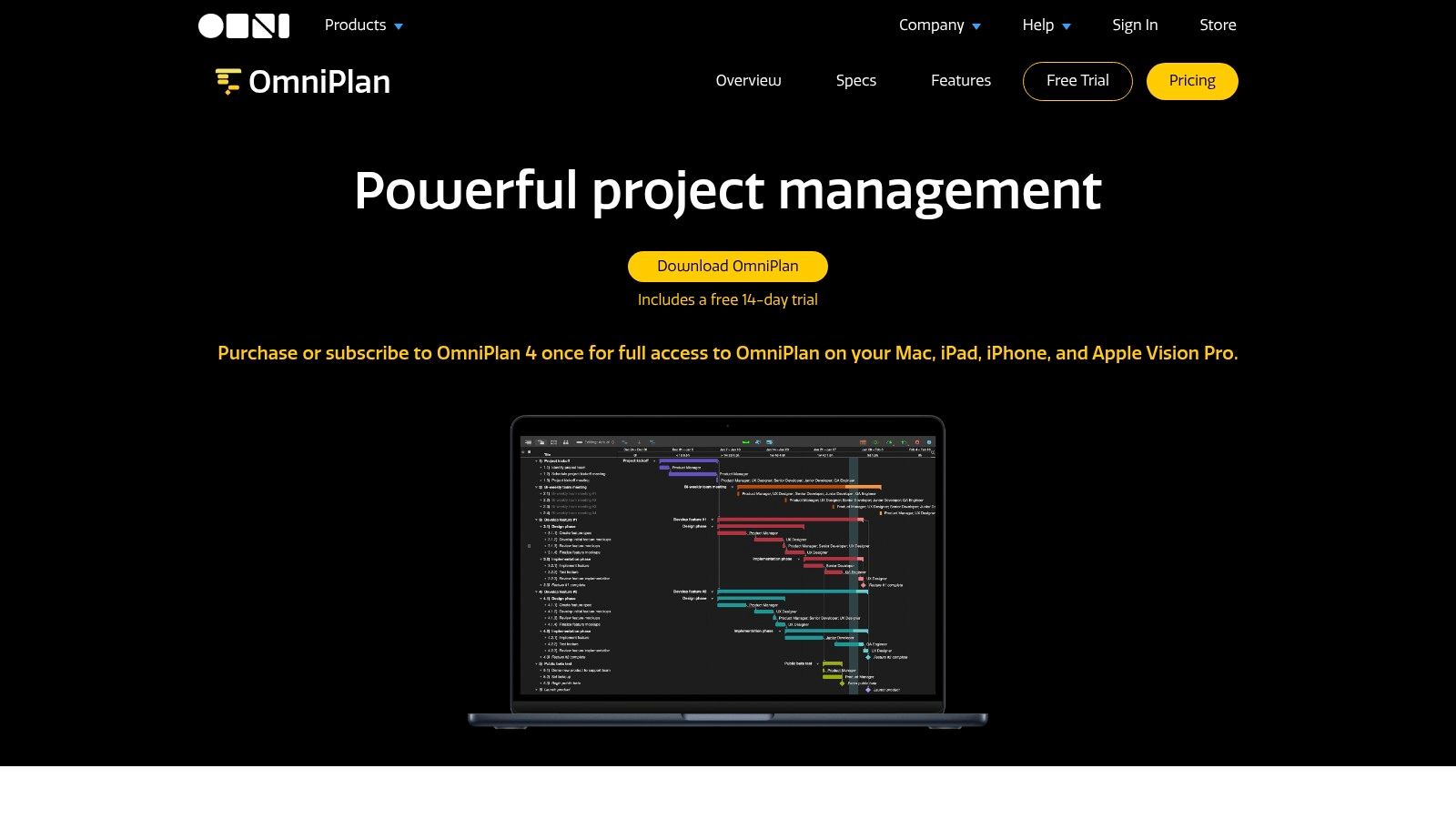
The trade-off is complexity. Someone who only needs a personal list may find the scheduling model excessive, and pricing details are presented through the app or store rather than in one consistently visible public tier structure. The universal license across Mac, iPhone, iPad, and visionOS is useful for Apple-centered planners. Explore the OmniPlan project planning app before committing to a heavier workflow.
2. Merlin Project from ProjectWizards
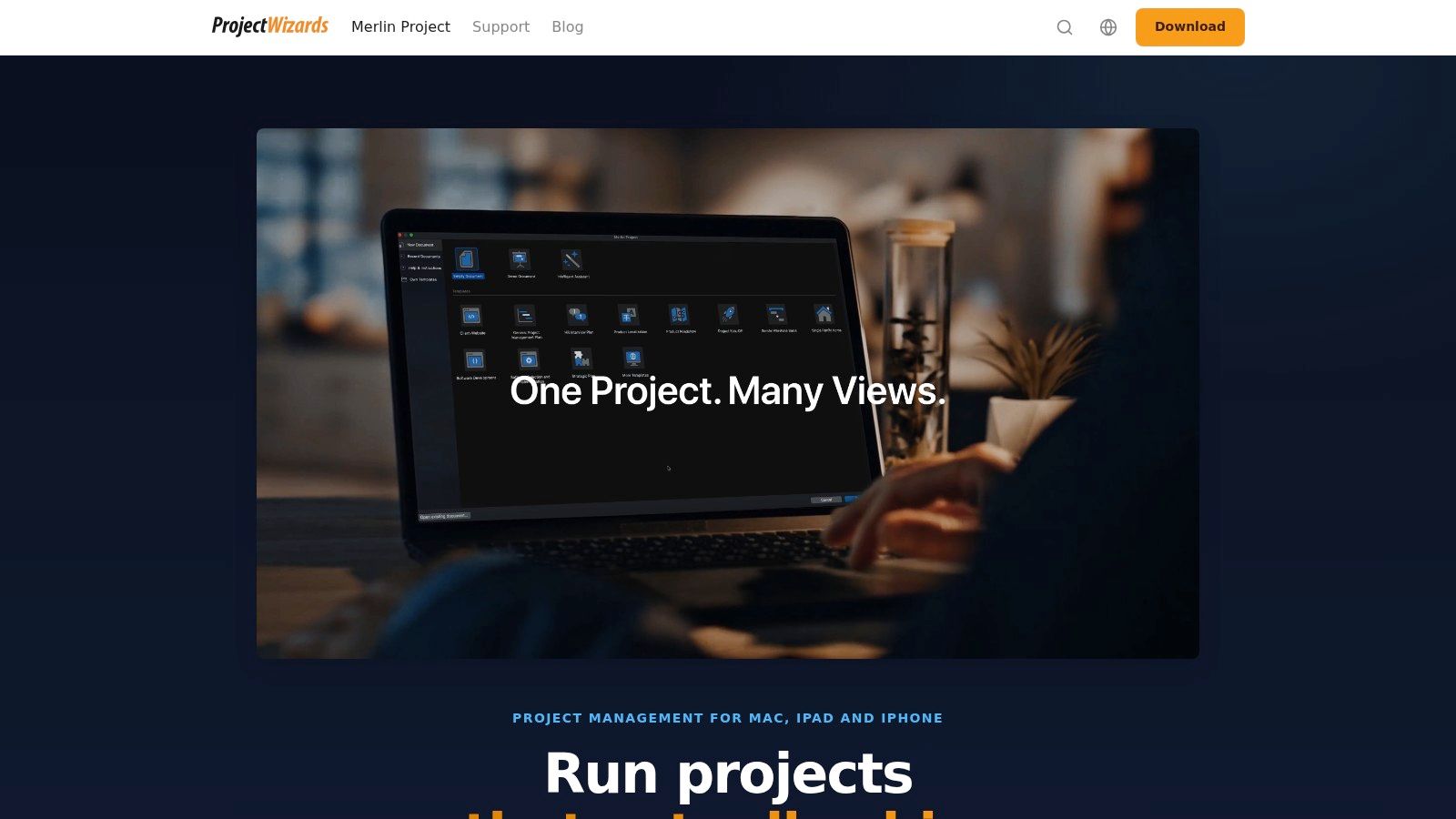
Merlin Project suits teams that still think in classical project management terms, but want those methods on Apple hardware. Its Gantt, Kanban, mind map, and network planning views let a project move from an early concept into a detailed schedule without forcing every stakeholder into the same visual format.
The resource pool and automatic leveling are particularly useful when several people share constrained capacity. Agencies can map campaigns, event teams can coordinate suppliers and milestones, and software teams can connect work packages to a broader delivery plan. Baselines, earned value analysis, and cost planning give experienced project managers more control than a lightweight board normally provides.
Where Merlin Project earns its place
Import and export support for Microsoft Project, CSV, PDF, and HTML makes Merlin Project easier to place in a mixed-tool environment. That matters when a client, contractor, or operations department doesn't use the same Mac application.
The downside is that its power can be wasted on a simple list of tasks. Editing after the trial requires a subscription, so the team should test a real project rather than a toy example. If you need a broad, traditional planning toolkit with multiple editions for Mac, iPad, iPhone, and Express, review Merlin Project against the way your team already plans.
3. OmniFocus 4 from The Omni Group
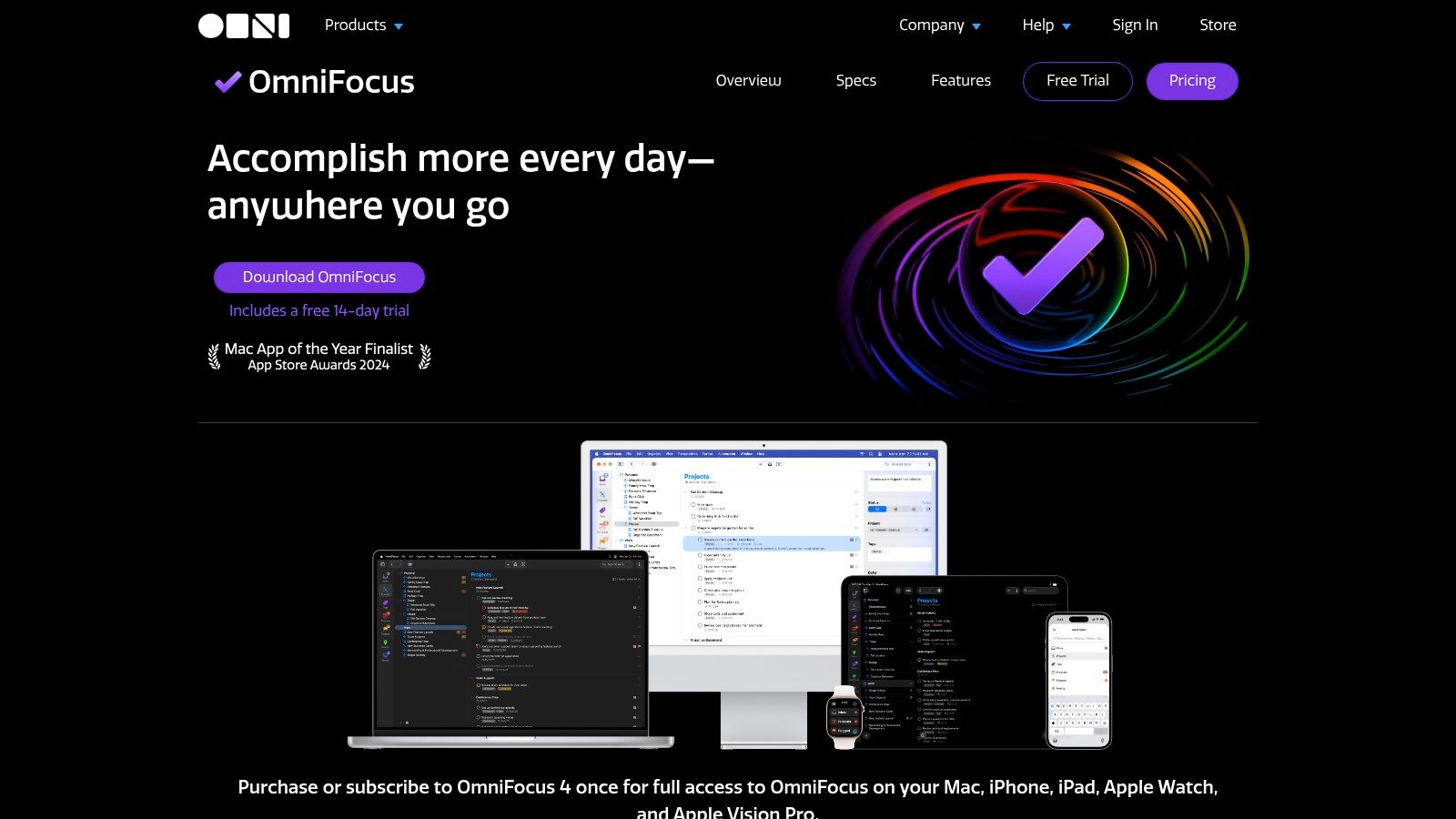
OmniFocus 4 is built for personal project control, not for managing a large team's shared delivery system. It works well when one person has many commitments, needs reliable capture, and wants to decide what deserves attention based on context, tags, perspectives, and review routines.
A creative director might keep client follow-ups, production steps, travel preparation, and personal administration in one system. A consultant could separate next actions by client, location, or energy level while still keeping a project outcome visible. Cloud sync extends the workflow across Apple devices, and strong offline use makes it practical when connectivity is inconsistent.
The boundary you shouldn't ignore
OmniFocus becomes less convincing when several people need to assign work, comment in context, monitor shared status, and see a common team schedule. Its perspectives are powerful, but that power belongs primarily to the individual designing their own working view.
Web access is an optional add-on for standalone licensees, so don't assume it automatically solves access for collaborators on other platforms. Use the OmniFocus task manager when the core problem is personal execution across Apple devices. Pair it with a team platform when accountability and shared delivery matter.
4. Things 3 from Cultured Code
Things 3 is the choice for someone who wants to capture work quickly and keep the interface out of the way. Its projects, headings, checklists, deadlines, calendar integration, and keyboard-driven controls are enough for independent creatives who manage several parallel engagements without needing resource leveling or portfolio governance.
The Mac experience is polished and fast. A designer can open a project, add the next few actions, attach a deadline, and return to the actual work without configuring a database. The one-time purchase for the Mac app is also a clear fit for users who prefer not to add another recurring service to their stack.
What Things 3 won't provide
Things 3 isn't a substitute for a collaborative project platform. It doesn't give a team the shared assignment, discussion, reporting, and governance features found in Asana, ClickUp, or monday.com. Separate purchases are also required across Mac, iPhone, and iPad.
That limitation is useful if you treat it as a deliberate boundary. Keep personal commitments in Things 3, and keep team commitments in the shared system where other people can see and update them. The app is strongest when speed and calm matter more than a complete operational command center.
5. Asana
Asana solves visual team coordination with room to grow. A team can switch between list, board, timeline, and calendar views without moving the underlying work into a different system. Portfolios, goals, reporting, rules, templates, and integrations support organizations that need more structure than a single board.
That range helps a marketing team coordinate campaigns, a product group manage launches, or an operations team connect recurring processes to larger goals. The Mac desktop app provides native notifications while the browser remains available for collaborators who work elsewhere.
Use Asana without creating an administrative maze
Asana can feel complicated at first because the platform supports many types of work. Start with one project template, a small status vocabulary, and a clear rule for where decisions belong. Add automations only after the manual workflow is stable.
The platform scales from small teams to enterprise environments, but advanced capabilities and AI can add cost at scale. It's also primarily a connected work platform, so teams that require deep local-first operation should test offline behavior rather than assuming the Mac app behaves like a fully native project file. See the Asana work management platform when shared ownership and governance are central.
6. Trello from Atlassian
Trello remains effective when the workflow is easy to explain as cards moving through visible stages. A board for a video project might use lists such as Brief, In production, Review, Approved, and Published. A card can hold the owner, checklist, attachments, comments, and the next decision without asking the team to learn a scheduling system first.
That simplicity is Trello's advantage. A small creative team can start quickly, and a personal board can make work-in-progress limits visible at a glance. Butler automation adds rules and scheduled commands for teams that want to move cards, assign members, or update fields without writing code.
When a board stops being enough
Trello becomes less comfortable when you need portfolio planning, detailed resource allocation, or a dependency-heavy schedule. Power-Ups and advanced views can extend the board, but each addition increases the amount of configuration the team must understand. Butler automation also has quotas and plan-dependent limits, so don't design a process around automations before checking the plan.
The Mac desktop app is convenient, but Trello remains a connected collaboration service rather than a local project database. Choose Trello for straightforward flow management, especially when adoption speed matters more than analytical depth.
7. ClickUp
ClickUp is for teams that want tasks, documentation, whiteboards, goals, time tracking, and dashboards in one broad workspace. It can represent a project as a list, board, Gantt, timeline, or workload view, then connect the work to Docs and whiteboards without requiring a separate knowledge tool.
That breadth is useful for a growing agency or product team that has outgrown a basic board but doesn't want to assemble several disconnected services. Native time tracking, granular permissions, integrations, goals, and automation can support a more detailed operating model.
A flexible workspace becomes useful only after someone decides what the team should ignore.
ClickUp's weakness is the same as its strength. New users can face too many views, fields, notifications, and configuration choices. Some features and AI add-ons are gated by plan or priced separately, so the apparent breadth doesn't always equal available functionality.
Create a small workspace first. Define the task statuses, use one primary view, and link documents instead of duplicating them across multiple locations. The ClickUp work platform is worth considering when consolidation matters and someone is willing to own the setup.
8. monday.com
monday.com works well for cross-department tracking where different teams need different views of the same work. Customizable boards and item types can represent campaigns, requests, product work, hiring pipelines, or operational processes. Timelines, Gantt views, Kanban, dashboards, automations, and integrations let each group see the information in a useful format.
A marketing team may track briefs and approvals, while leadership sees a dashboard and operations monitors dependencies. That flexibility is more practical than forcing every department into an identical task hierarchy.
Keep the board model understandable
The risk is turning every preference into a new column, status, automation, or dashboard. Simple task lists can feel heavy in monday.com, particularly when the team doesn't need cross-department reporting. Pricing is tiered by seats and includes a minimum, with an exact quote requiring the configurator, so validate the commercial model for your actual team before building around it.
The Mac desktop app is useful for notifications and access, but the main value comes from the shared web workspace. Review monday.com if you need configurable processes across marketing, product, operations, or other departments.
9. Notion
Notion is the strongest fit when the project's real friction is the distance between tasks and information. A product brief, research notes, meeting decisions, specifications, task database, and project timeline can live in a connected workspace. Relations and rollups help connect work items to clients, initiatives, owners, or documentation.
That model suits a content team where every task needs a brief, a campaign where assets and approvals need context, or a product team where decisions should remain next to the work they explain. Templates can speed up setup, but they should serve the workflow rather than become the workflow.
Protect the workspace from clutter
Notion requires thoughtful information architecture. If every person creates a new database, naming convention, and dashboard, the team will spend more time searching than planning. Decide which database is authoritative, which pages are reference material, and how archived projects leave the active workspace.
Offline desktop usage is available, while AI and agent features may add cost or consume credits. The Mac app is useful, but Notion is primarily a connected workspace with flexible databases. Explore Notion for projects and documentation when the project record needs to explain not only what must happen, but why.
10. Linear
Linear is designed for product and engineering workflows where speed, cycles, and issue clarity matter. Projects, cycles, roadmaps, and a focused issue model keep teams moving without the visual and administrative weight of a traditional project suite.
A development team can connect work to GitHub or GitLab, share updates through Slack, and attach design context from Figma. The Mac desktop app, real-time notifications, and failsafe offline mode support a fast working rhythm for people who spend much of the day in a code editor and issue tracker.
Don't confuse focused with universal
Linear isn't the right choice when the team needs classical Gantt scheduling, detailed resource leveling, or broad administrative planning. Its offline behavior is a failsafe rather than a full offline project mode, so teams working in disconnected environments should test the exact actions they need.
For a software team, the opinionated structure is often a benefit. It reduces the temptation to turn every issue into a custom record. For a general agency or operations department, the narrower model may become a constraint. See Linear for product and engineering teams if cycles, roadmaps, and development integrations are the center of the workflow.
11. Tintd
Tintd solves a different kind of project friction. It's a Finder organization companion, not a standalone project manager. The macOS app assigns custom icons and colors to folders manually or automatically, making a growing collection of client, campaign, code, research, or production folders easier to scan.
That distinction matters. Tintd won't assign tasks, calculate dependencies, schedule people, or replace Asana, Things 3, or Linear. It supports the file layer around those tools, especially when the project manager tells you what needs to happen but Finder contains the assets needed to make it happen.
Build a visual file convention
Smart Icon and Smart Color suggestions can use folder names and nearby folders to propose matching styles. Folder Watcher can detect new folders in selected locations and apply a consistent visual treatment, while batch editing helps update a project hierarchy without changing each folder manually.
The app includes a library of 11,000+ icons and emojis, custom color controls, Finder context-menu integration, history for reusing styles, custom image imports, and one-click restoration of the standard macOS folder icon. Processing stays local and offline, with no cloud or AI calls, which keeps folder names and usage on the device.
Tintd recognizes mixed-language folder names across 11 languages, and its one-time purchase provides perpetual access without a subscription. The trade-off is straightforward: visual organization only works when the underlying folder taxonomy makes sense. Use Tintd's visual file manager to support a clear project structure, not to compensate for an unclear one.
12. Choosing the Right Mac Stack for Your Workflow
A schedule is slipping because dependencies are unclear, personal tasks are scattered, or Finder folders take too long to scan. Start with that friction, then choose the tool that addresses it. OmniPlan and Merlin Project suit dependency-heavy schedules. OmniFocus and Things 3 support personal task control. Asana, Trello, ClickUp, and monday.com coordinate team work, with different balances between simplicity and configuration.
Notion fits projects where briefs, decisions, and specifications must stay near the work. Linear suits product and engineering teams organized around issues, cycles, and roadmaps. Tintd supports the file layer beside these systems, helping you organize Finder when local assets are difficult to distinguish.
The tools can work as a stack. A small studio might use Things 3 for personal commitments, Asana for shared delivery, Notion for briefs, and Tintd for client assets. A development team could use Linear for issues, Notion for technical documentation, and a consistent Finder structure for local design exports. The project platform controls work. The Mac file system holds the files that work produces.
Make the decision in sequence
- Start with team size: Decide whether one person or several people will update the system.
- Measure planning complexity: Choose detailed scheduling when dependencies, resources, baselines, or costs affect decisions.
- Define collaboration needs: Check for assignments, comments, permissions, notifications, and shared status when work crosses people.
- Check documentation requirements: Add Notion or an equivalent when specifications and decisions need to remain connected to tasks.
- Identify file friction: Add Tintd when Finder navigation slows delivery. A folder utility will not replace project control.
Capterra's project management software research reports that buyers prioritize functionality first, price second, and ease of use third. The same report says 63% of respondents took less than six months to choose project management software, 61% took less than six months to implement it, and 92% were somewhat to extremely satisfied with their investment. Choose a capable fit, then keep rollout work proportional to the problem.
If your team is evaluating AI-assisted planning, compare top AI project management tools before fixing the Mac stack. For gaps outside task management, review these best Mac utilities.
13. How to Put the Tools Into Practice
Start with a real deliverable, not an empty workspace. Define what finished work looks like, choose one system of record for tasks, and limit statuses to labels everyone can interpret. Each task needs one owner, a clear next action, and enough context to finish without searching through unrelated conversations.
Keep specifications, decisions, and supporting files connected to the work they describe. Decide which information belongs in the project platform and which belongs in Finder. Use a consistent naming convention for clients, projects, versions, and dates. This Mac file organization guide covers naming patterns that remain useful as projects change.
For Finder-heavy workflows, build the hierarchy before styling it. Separate active projects from archive material, then give each project clear locations for briefs, working files, exports, approvals, and delivery assets. Apply Tintd's batch editing to one project subtree first and check the result in Finder before rolling the convention across the archive. This catches a misapplied style early. Folder Watcher can style new folders, but the folder structure must still make asset ownership clear.
Run onboarding, notification, permission, plan-limit, and offline tests against a real project. Review the workflow after use, then adjust only where friction appears. Flexible platforms invite extensive customization, but teams learn faster when the initial convention stays small and consistent.
13 Mac Project Management Tools: Side-by-Side Comparison
| Product | Core features | UX / Quality (★) | Price & Value (💰) | Target audience (👥) | Unique selling points (✨) |
|---|---|---|---|---|---|
| OmniPlan (The Omni Group) | Interactive Gantt, resource leveling, baselines | ★★★★ | 💰 Pro-priced, license-based (multi‑device) | 👥 PMs handling complex, timeline-heavy projects | ✨ Deep scheduling math; native macOS performance |
| Merlin Project (ProjectWizards) | Gantt, Kanban, mind‑map, baselines, import/export | ★★★★ | 💰 Clear tiers; subscription required to edit after trial | 👥 Agencies, construction, events, software teams | ✨ Classical PM feature set + strong import/export |
| OmniFocus 4 (The Omni Group) | Projects, tags, perspectives, sync across Apple devices | ★★★★ | 💰 One‑time or subscription options; Apple‑centric | 👥 Individuals & small teams focused on personal execution | ✨ Highly customizable views; deep Apple integration |
| Things 3 (Cultured Code) | Projects, headings, checklists, calendar integration | ★★★★★ | 💰 One‑time purchase per platform | 👥 Individuals, creatives wanting fast capture & simplicity | ✨ Best‑in‑class Mac UX; elegant, keyboard‑driven flow |
| Asana | List/Board/Timeline/Calendar, portfolios, automation | ★★★★ | 💰 Tiered subscription; advanced features cost extra | 👥 Teams scaling from small to enterprise | ✨ Robust integrations, templates, admin controls |
| Trello (Atlassian) | Boards, lists, cards, Butler automation, Power‑Ups | ★★★★ | 💰 Free tier; paid for Power‑Ups and higher automation quotas | 👥 Lightweight teams and personal boards | ✨ Fast to learn; powerful no‑code Butler automation |
| ClickUp | Tasks, docs, whiteboards, time tracking, dashboards | ★★★★ | 💰 Generous free tier; affordable paid plans | 👥 Teams wanting all‑in‑one work platform | ✨ High feature density and customizability |
| monday.com | Custom boards, Gantt, automations, dashboards | ★★★★ | 💰 Tiered by seats; configurable pricing | 👥 Marketing, ops, product teams needing templates | ✨ Flexible work OS with large integrations marketplace |
| Notion | Docs, databases, templates, timeline/board views | ★★★★ | 💰 Free/personal tiers; paid for advanced features & AI | 👥 Teams needing docs + project data in one place | ✨ Flexible modeling of projects with rich templates |
| Linear | Issues, cycles (sprints), roadmaps, dev integrations | ★★★★★ | 💰 Free/paid team plans | 👥 Product & engineering teams focused on speed | ✨ Extremely performant UI; strong developer integrations |
| 🏆 Tintd | Smart Icon/Color suggestions, Folder Watcher, 11k+ icons, batch edit, Finder right‑click, local/offline | ★★★★★ | 💰 One‑time purchase (perpetual); no cloud calls | 👥 Mac users & teams needing Finder‑based asset organization | ✨ On‑device privacy, massive icon library, instant offline suggestions |
| Choosing the Right Mac Stack (guide) | Tool grouping by job, decision sequence for stack choices | ★★★★ | 💰 N/A (guidance resource) | 👥 Teams choosing complementary Mac tools | ✨ Shows how to combine PM apps + Tintd for visual file org |
| How to Put the Tools Into Practice (guide) | Implementation steps: SOR, naming, onboarding, folder hygiene | ★★★★ | 💰 N/A (how‑to guide) | 👥 Teams & individuals deploying a workflow | ✨ Practical, tool‑neutral playbook with Finder/Tintd tips |
Build a Mac Workflow You'll Actually Maintain
There isn't one universal winner among Mac project management tools. OmniPlan and Merlin Project are better when schedule logic drives the work. OmniFocus and Things 3 are better when one person needs dependable control over commitments. Asana, Trello, ClickUp, and monday.com cover different versions of team coordination, from a simple visual flow to a configurable work operating system.
Notion earns its place when project information is part of the deliverable. Linear is more focused, and that focus is valuable for product and engineering teams that organize around issues, cycles, and roadmaps. Tintd serves another layer entirely. It can make Finder folders easier to scan and maintain, but it won't solve ownership, deadlines, dependencies, or collaboration.
The best choice is usually the lightest tool that handles the project's real complexity. A personal creative project doesn't need resource leveling because a large schedule can support it. A multi-person launch shouldn't rely on an individual task list just because it feels pleasant to use. A development team shouldn't force issue tracking into a generic board if its repository and release workflow need tighter integration.
Pilot the decision with one active project. Don't evaluate an empty workspace, because every tool looks simple before it contains real tasks, exceptions, documents, approvals, and unfinished work. Give the team a clear outcome, define the owner for each task, and document the conventions that others must follow.
The Mac platform has supported dedicated project management software for decades. ProjectWizards' history of Mac project management describes MacProject as a standard Macintosh project management tool in the late 1980s, notes that about 30 products were available by the mid-1990s, and records early Mac pricing that ranged from $195 for MacTask to $4,200 for Open Plan/Mac. The history also shows why native software matters to some users: the move to Mac OS X forced existing products to be ported or rewritten, and native options later re-emerged.
The category remains commercially meaningful. One market report valued the Mac project management software market at USD 1.2 billion in 2024 and projected USD 2.5 billion by 2033, with a reported 9.2% CAGR from 2026 to 2033. The same Mac project management software market report cites broader project management software forecasts of about USD 6.1 billion in 2022 and roughly USD 9.4 billion by 2026. Those projections don't tell you which app fits your workflow, but they do underline that Mac-compatible project management isn't an afterthought.
Choose the primary planning or task tool first. Define the Finder structure around the work it supports, add a visual folder layer only if files are creating friction, and review the setup after the first project cycle. That review will tell you more than another round of feature comparisons.
Tintd helps Mac users organize project folders with on-device icon and color suggestions, Finder integration, bulk editing, and Folder Watcher support for new folders. If Finder is the part of your workflow that keeps slowing you down, visit Tintd and create a visual file system that supports your chosen project manager.