
Your Downloads folder just gained another project, and it looks exactly like the twelve beside it. You remember the client name. Finder search will find a file if you remember part of its name. It will not help you spot the right folder while you scroll.
That is the moment people start shopping for watch folder software. Some of it relocates every new file the second it lands. Some of it only saves a search. A smaller set leaves every path alone and changes how the folder looks, so you can recognize it.
I would decide which of those jobs you want before you grant any app broad disk access. Moving a folder is reversible only if you know where it went. A color and an icon are reversible if the tool offers a restore. Those are different costs, and most roundups skip them.
Watch Folder Tools Compared at a Glance
| Approach | What it changes | Needs scripting | Best for |
|---|---|---|---|
| Native Folder Actions | Runs an attached script when items are added to a folder | Yes (AppleScript) | Custom, scripted file handling |
| Smart Folders | Saved search view; files stay in place | No | Finding files across locations |
| Shortcuts folder automations | Runs actions when files or folders update, such as moving files by type | Low (visual builder) | Rule-based moving and sorting |
| Dedicated styling watcher (Tintd Folder Watcher) | Applies color and icon to new folders; file contents and paths unchanged | No | Recognizing project and client folders at a glance |
| Cross-platform folder monitoring tools | Monitors folders on Windows and Mac; actions vary by vendor | Check the vendor documentation | Mixed-operating-system teams |
Folder Actions are the long-standing native option. You attach a script to one folder, and that script can run when items arrive. Shortcuts folder automations are the newer built-in route: a visual builder fires actions when files or folders update, including moves by type. Both can change where content lives.
Smart Folders do not move anything. They are a saved search. The files stay put, and the view updates as matches change.
A styling watcher sits in a third category. Our Folder Watcher reads the name of each new folder in locations you chose and applies a matching color and icon. Paths, names, and file contents stay where they were. Nothing is relocated, so catalog apps, sync clients, and scripts that point at those paths keep working.
The divide that matters
Tools in this space do one of three things.
- Change: scripts and Shortcuts can move, rename, or process items.
- Search: a Smart Folder collects matches in one view and leaves the originals alone.
- Restyle: a styling watcher only changes appearance.
Cross-platform monitors are a separate case. A Windows and Mac product may move files, copy them, or only log activity, and that behavior is not the same from one vendor to the next. Treat that row as a pointer to the vendor's own docs, not as a promise about what the app will do to your tree.
Match the row to the job before you read further. Sorting files, finding files, and recognizing folders are not the same request.
Styling, Automation and Smart Folders Compared
People lump three macOS layers into one idea of "watching a folder." They are not interchangeable, and Apple's Finder organization guide already separates folders, Smart Folders, Quick Actions, and automation without treating continuous visual styling as its own workflow.
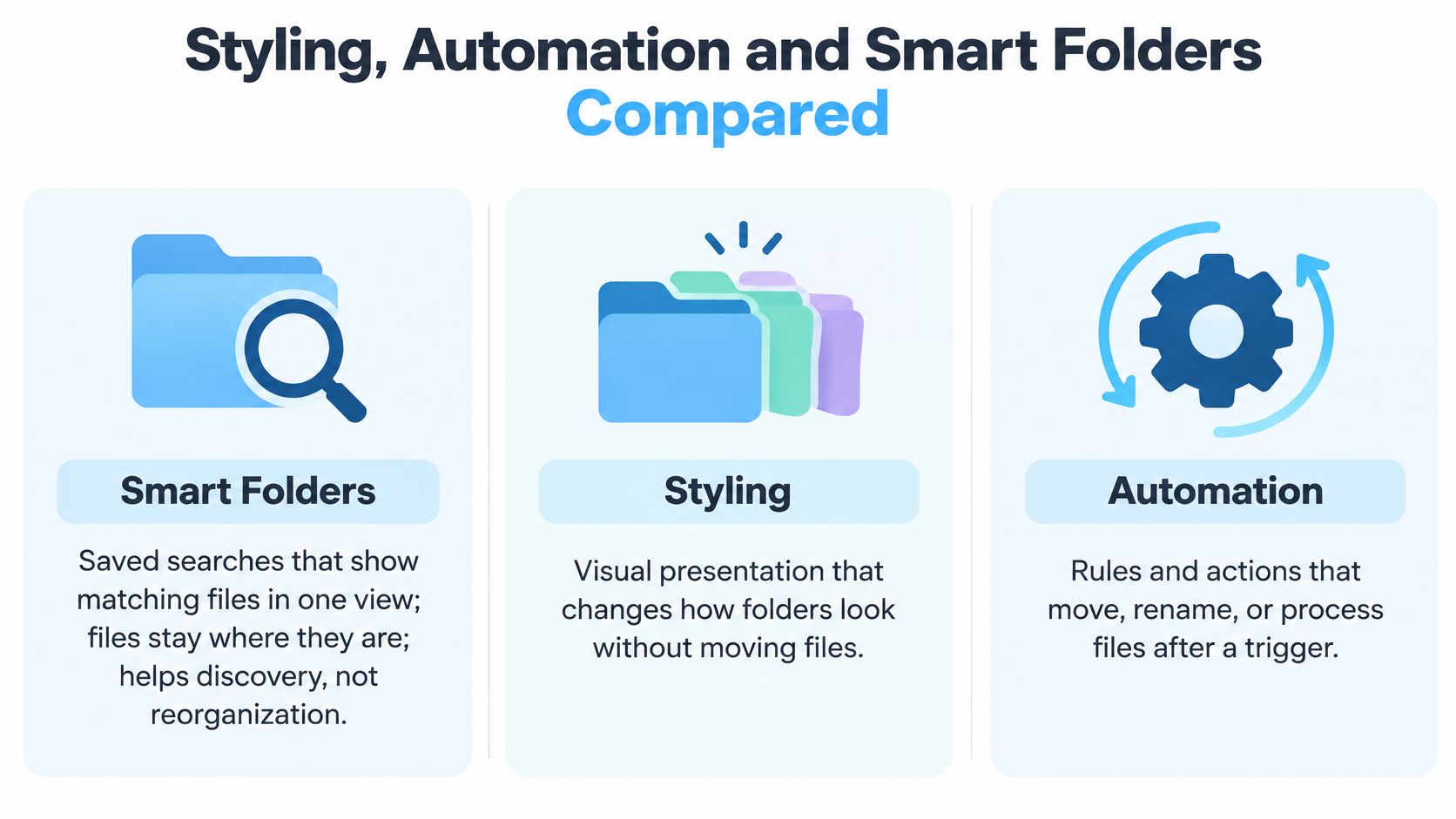
Smart Folders are saved searches. They show files that match your criteria in one place. The files are not moved, and the underlying folders are not restyled. You get discovery, not a new layout on disk.
Shortcuts folder automations run when files or folders are updated. A common action is moving files by type. That is real organization: the path changes, and anything that stored the old path is now wrong.
Styling adds persistent visual metadata. Color and icon change. The path, the folder name, and every file inside stay the same. Changing a folder's icon or color is purely cosmetic and does not affect any files or subfolders inside the folder.
The useful question is not which watcher is best. It is whether the watcher should change organization, presentation, or both.
A path you cannot afford to move
Say a photographer keeps one folder per client under Pictures/Clients, synced to cloud storage and referenced by a catalog app. A distinct icon makes "Nguyen Wedding" obvious in a crowded list. Moving that folder into a sorted tree would break the catalog and the sync mapping. Styling does not.
The same split shows up anywhere a path is a contract. Teams that hand off media files for event production teams often have editors, producers, and a shared volume all pointing at the same folder names. A move "to tidy things" is a broken link for someone else. A color is local presentation.
Our styling is a name match, not a file move. The watcher reads the new folder name, matches keywords in more than one language, such as Invoice, Client, or Kunde, and applies one color and one icon. In a bulk case, about fifty client folders created together are rescanned once, and each receives a single style. Matching runs on the Mac. A color can be chosen to fill a gap beside neighboring folders, so a new job does not clone the blue already used next door.
If you also need scripted moves, pair this with the native options covered in our guide to macOS automation tools. Use Smart Folders to find, Shortcuts to move, and a styling watcher to recognize. Combine them when the workflow needs all three, and do not let the move step touch folders whose paths other apps already store.
How a Folder Watcher Detects New Folders
macOS has treated "something arrived in this folder" as a first-class job for a long time. Apple's automation guide documents Folder Actions, a native feature in place for more than two decades. A Folder Action associates an AppleScript with a specific folder. It can run when items are added or removed, or when the folder window is opened, closed, moved, or resized. Practical uses Apple lists include notifying you when new files or folders arrive, notifying you when content is removed, processing newly detected items, and starting another automated task.
You attach it in Finder. Control-click the folder, open Folder Actions Setup, pick a script, and attach it to that folder only. The script is not roaming the whole disk. That selective model is the right mental picture for any watcher: project, client, Downloads, or asset directories, and nothing else.
A styling watcher uses the same idea of a scoped reaction, without asking you to write AppleScript. The event layer reports that a directory tree changed. The app then looks at the folder's real state and applies a repeatable style.
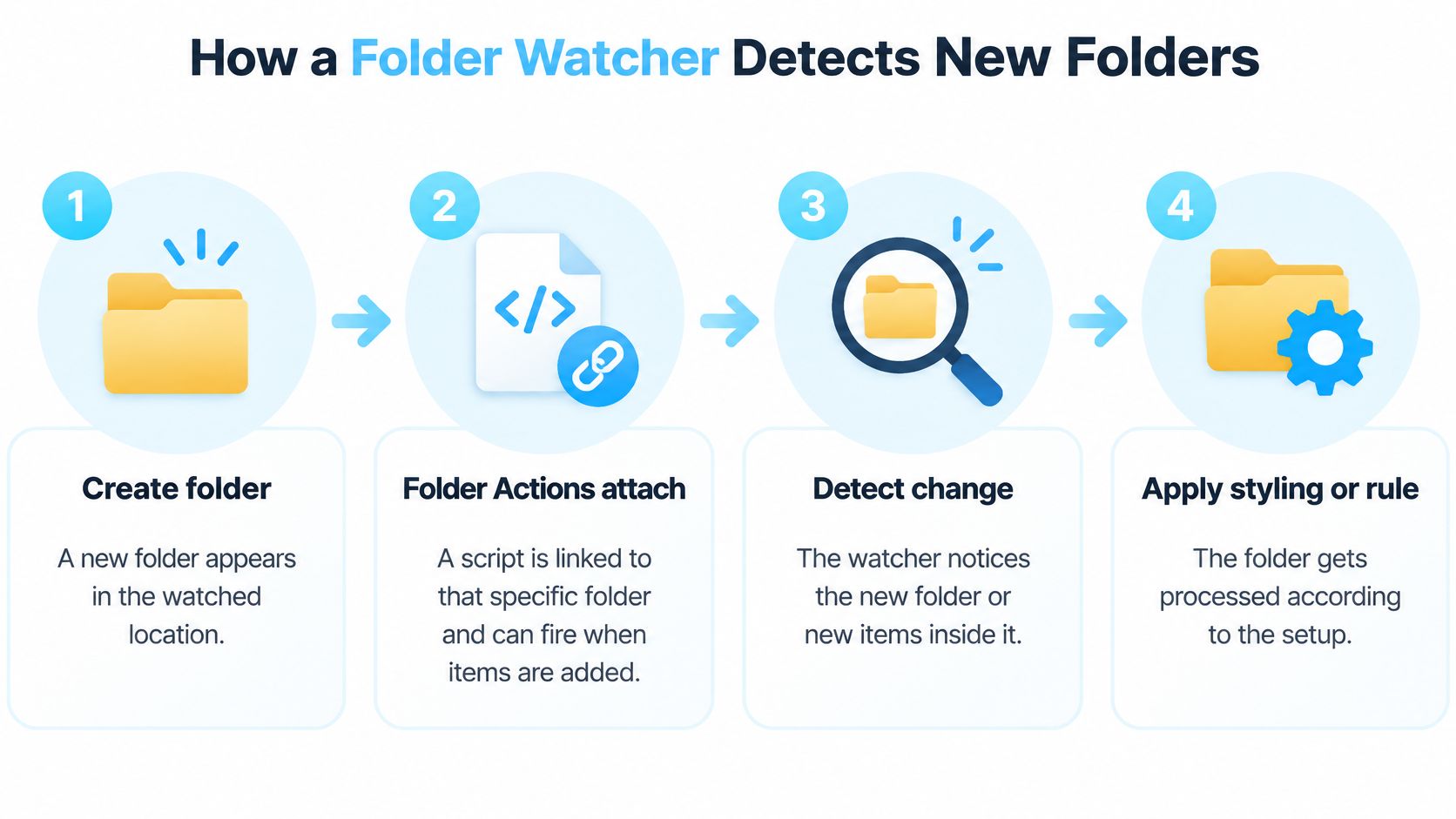
What you see, step by step
- You create a folder, or drop one, inside a watched location such as
~/Projectsor~/Downloads. - macOS reports the change as a filesystem event for that part of the tree.
- The watcher checks the folder's actual state instead of trusting the event alone. A burst can collapse into one notice, so the folder on disk is the source of truth.
- It reads the folder name, picks a matching color and icon, and applies them.
- Finder shows the styled folder. Files inside stay untouched, and the path does not change.
Why the watched root matters
Attachment is per location, not per computer. A watcher limited to ~/Projects and ~/Downloads will not restyle ~/Library, a Time Machine volume, or a random folder you created on the Desktop. If you point it at too high a root, you will style things you only meant to glance at once.
Run a quick timing check before you trust it. Create ~/Projects/Client Test, note the clock, and see how long the style takes to show up in Finder. Then create a second folder while the first is still settling. You want one style per folder, on the folder you just made, with no extra window you have to refresh by hand.
Six Criteria That Separate Reliable Watchers
A single folder event can stand for several changes. Apple's FSEvents API may collapse multiple filesystem operations into one per-directory notification and coalesce a burst that arrives inside a short interval. A reliable watcher treats that notice as "look again," rescans the affected directory, and only then applies a style. If it styles from the callback alone, you get duplicates, missed renames, or a folder that never updates.
Apple's FSEvents overview notes that coalescing lets an app scan a directory once for several changes instead of once per file. Latency is the throttle. A low value suits interactive styling of one new folder. A modestly higher value cuts repeated work when an unzip, a project export, or a repository checkout drops many folders at once.
I would budget about fifteen minutes and run the six checks below on a throwaway folder, not on your real client tree.
| Criterion | What to test | Red flag |
|---|---|---|
| Trigger reliability | Create one folder and time how long the style takes to appear | Style appears only after a manual refresh |
| Watch scope | Confirm specific folders can be selected instead of the whole disk | Only whole-disk monitoring is offered |
| Duplicate handling | Rename a folder right after creation and check it is styled once | Same folder styled twice, or style lost after rename |
| Bulk creation | Create about fifty folders at once and note skipped folders and CPU | Some folders skipped, or CPU stays high for long periods |
| Reversibility | Revert one folder and then a whole batch to the default macOS icon | No restore path, or only manual removal |
| Behavior after sleep or restart | Create folders after waking the Mac and after a restart | Watching stops silently until the app is reopened |
How to run the checks
One folder, then the clock. Make Test-01 inside the watched root. If the icon only changes after you close and reopen the window, the tool is polling badly or not listening at all.
Scope. The setup screen should let you add ~/Projects and leave the rest of the disk alone. Whole-disk watching burns CPU and will style folders you did not mean to touch, including ones that sync.
Rename immediately. Create Invoice Draft, then rename it to Invoice Final before the style lands. You want one style on the final name. Two icons, or a style that vanishes, means the watcher treated the rename as a second create and never reconciled.
Fifty at once. Duplicate a folder until you have about fifty. Note skips and whether Activity Monitor stays busy long after Finder looks finished. The same burst problem shows up in media pipelines. People who spend time building scalable FFmpeg pipelines already know a naive per-file reaction melts CPU when a batch lands. Folder styling should batch the same way: one reconciliation pass, not fifty full-tree walks. One recursive watch on the project root beats a separate watch on every nested folder.
Undo, sleep, relaunch. Any customized folder can be reverted to the original macOS Finder folder icon with one click, and you should prove that on a test folder and then on the whole batch. Sleep the Mac, wake it, create Test-After-Sleep. Restart, then create Test-After-Restart. If watching stops until you reopen the app, you do not have a watcher. You have a session.
Privacy and Permissions to Check Before Installing
"Automatic" gets read as "this uploads my folder names." It can mean that. It can also mean a process on your Mac that never opens a network connection. Apple's Smart Folder guide describes Smart Folders as local views whose files remain in place, and current automation guidance talks about actions when files or folders update. Neither tells you whether a third-party watcher needs the cloud, uploads names for classification, keeps an index, or recovers after sleep.
AI naming is not automatically the safer or smarter choice. For client work, source code, legal documents, or research data, deterministic on-device matching is the better default, even when its vocabulary is narrower.
A cloud classifier might label a cryptic folder more cleverly. It also has to see the name, and often the path, to do it. If those names are matter numbers or unreleased project titles, clever is the wrong trade.
Checks before you click Allow
- Network. While the watcher runs, watch a firewall or a network log. A styling pass on a local folder should not need outbound calls. If you see steady traffic to a classification host, names are leaving the Mac.
- Full Disk Access. macOS asks for it the first time our Folder Watcher is enabled, because detection has to see new folders in the locations you picked. Colorizing folders manually does not require Full Disk Access. Grant the broad permission only to the feature that watches, and only after you have chosen the roots.
- Index. Ask whether folder names are stored in a persistent database you cannot delete, or only read at the moment of styling. A local cache you can clear is different from an account-side history.
- Offline and removable volumes. Unplug a drive or take a synced volume offline, create nothing, and reconnect. The watcher should not invent styles for folders it could not see, and it should not block on a volume that is gone.
- Sleep, logout, and a large burst. Log out and back in. Then drop a few hundred new folders into the watched root. You want recovery, not a silent stop, and not a CPU spike that lasts until you force-quit.
- Off switch and restore. The Folder Watcher can be turned off at any time in System Settings. Confirm that, then revert a test folder to the default icon so you know the way back.
Install habits matter here as much as the feature list. If you are still deciding what may run at login, our notes on how to install software on a Mac are the place to slow down before the permission sheet. Folder styling is not a substitute for extra protection for sensitive Mac data. It should not widen that exposure either. If a watcher fails the network check or has no restore path, do not point it at sensitive folders.
Real Workflows Where Watchers Save the Most Time
Recognition pays off when the same kind of folder appears over and over, and the path has to stay put. Pick the root on purpose. Watching your whole home folder is how you style caches, app support files, and sync internals you will then have to undo.
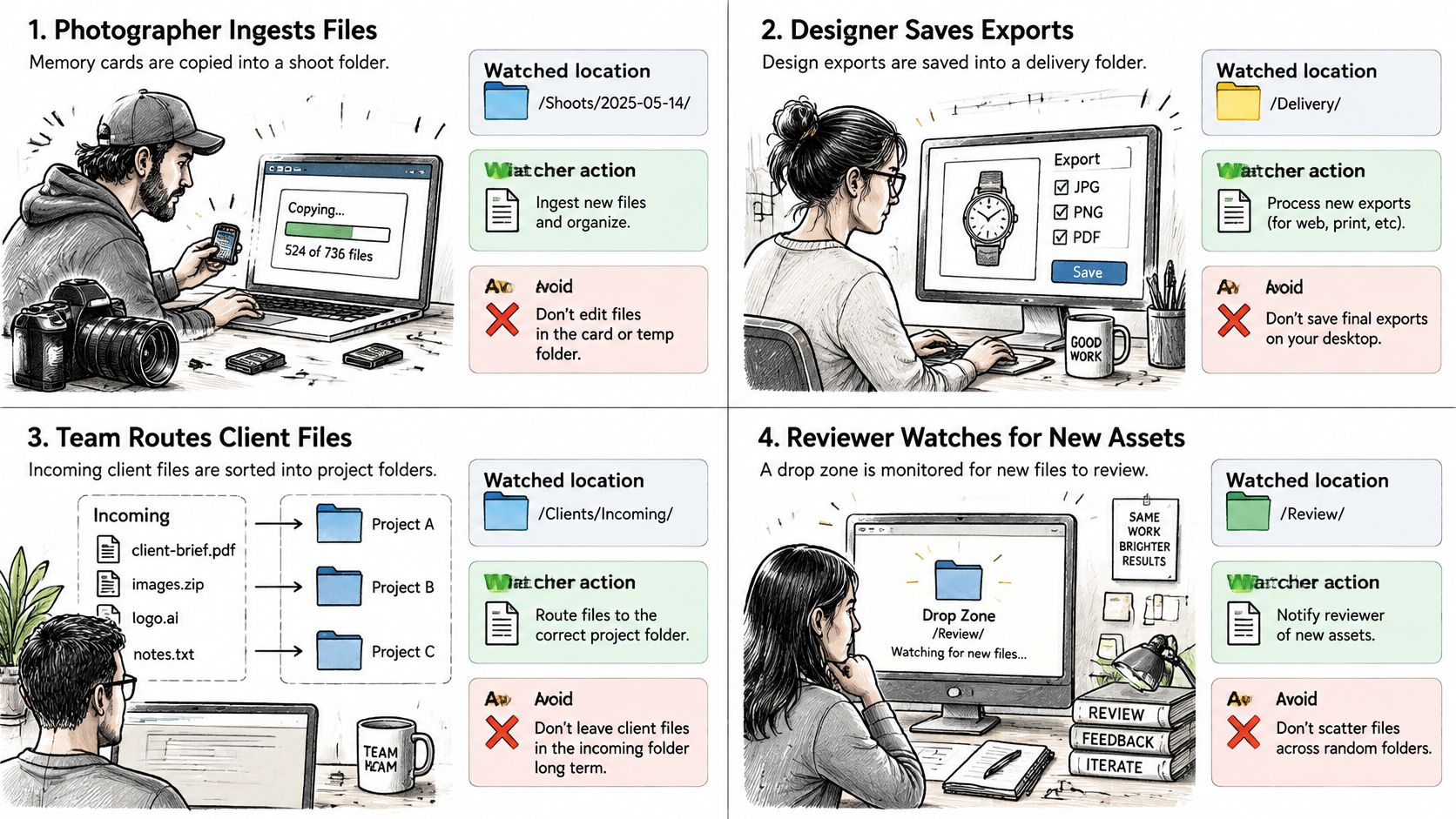
Photo ingest. A photographer dumps each card into Pictures/Shoots/2026-04-12-Nguyen. The new event folder gets an icon you can spot in a crowded Pictures or Desktop list. The RAWs inside are not moved. The risk is pointing the watch at all of Pictures, including export folders a delivery script already uses by path.
Edit bay, one folder per client. A video editor keeps ~/Movies/Clients/Acme. The styled project folder signals status at a glance, and the footage inside is unchanged. Do not restyle a folder that lives on a shared drive if collaborators on other Macs will see a custom icon they cannot revert, or if the volume's sync client treats icon files as content to upload.
Developer exports, not the repo. Watch ~/Projects/acme/exports or an assets folder, not the git root. Build output becomes recognizable. Source paths stay intact for scripts and version control. Styling .git or node_modules wastes cycles and can confuse anyone reading the tree as code. A sensible project folder structure keeps generated folders in one place so the watch root can be that place only.
Course or term folders. A student or researcher uses ~/Documents/Courses/Biol-204. A consistent color family per subject helps recall when the term folder is one of forty similar names. The risk is styling a folder that reference-manager software addresses by a stored path and also mirrors to a lab share. Keep the watch on the local course root, not on the share.
The same pattern fits any recurring set: matters, seasons, clients, semesters. The win is visual, and it only stays a win if the watched location was chosen narrowly.
Pick Your Watcher and Set It Up Today
Choose by the change you are willing to make.
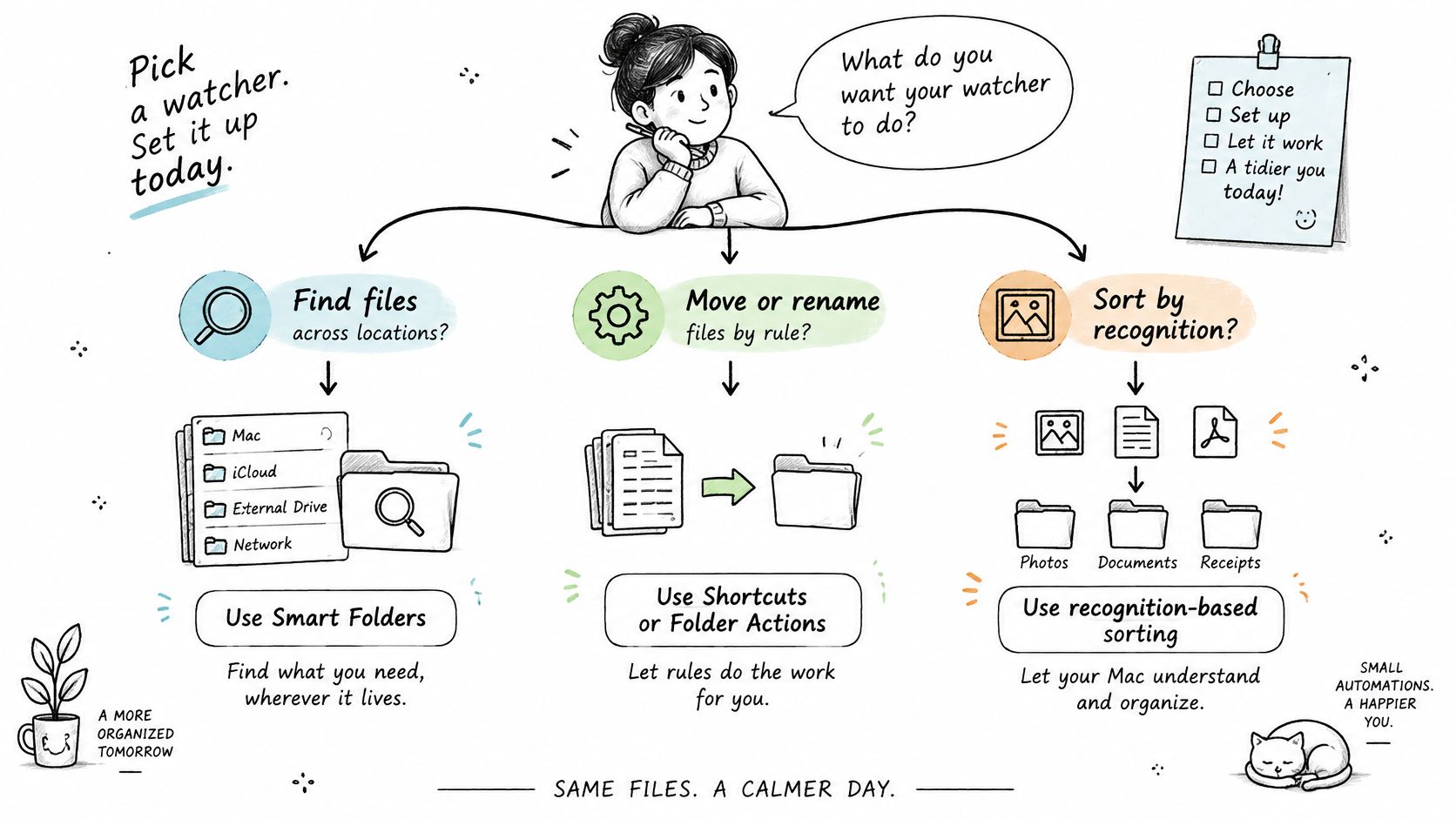
If you need to find files that already live in many places, use a Smart Folder. If you need files moved or renamed by a rule, use Shortcuts or Folder Actions, and test the rule on copies. If you need to recognize many similar folders without changing paths, use a styling watcher. If the team is on both Windows and Mac, shortlist a cross-platform monitor only after you have read what that vendor does to files.
For the styling case, Tintd's Folder Watcher styles new folders from their names. Smart Color and Smart Icon look at colors and icons already given to neighboring folders and choose a color that fills a gap on the color wheel, so a new client folder does not disappear into a row of identical blue. The Lifetime plan is a one-time purchase that gives access to all features, unlimited generations, automatic folder icons, smart icons based on folder name, and more than 11,000 icons and emojis. Custom folder icons are stored locally on each Mac, so you set them up separately on each machine. There is no cloud copy of your icon choices to sync for you.
A setup you can finish within the hour
- Pick one watched location, such as
~/Projectsor~/Pictures/Shoots. Leave the rest of the disk out. - Run the single-folder timing test and the fifty-folder burst. Confirm one style per folder and a CPU drop when the pass ends.
- Walk the privacy checks: no surprise network calls, Full Disk Access only for the watcher, and a clear off switch in System Settings.
- Revert the test folder to the default macOS icon before you style anything you care about.
- Add a second watched location only after those results hold.
I would start with that one root and a handful of test names, not with your entire home folder on day one.
Tintd styles new Mac folders with colors and icons based on their names, on your Mac, without moving the files inside. If watch folder software that sorts by relocating content is the wrong trade for paths your apps already use, visual styling is the piece that was missing. Visit Tintd to try Folder Watcher on one project folder and revert it if it is not what you wanted.