
A Downloads folder full of screenshots, invoices, design exports, and installers is easy to ignore until you need one file quickly. The same problem appears inside project directories, where every new client folder needs a familiar name, color, structure, or set of subfolders. Repeating those actions by hand wastes attention, especially when the work spans Finder, a browser, a code editor, and communication apps.
The best macOS automation tools aren't interchangeable. Some build visual workflows, some watch folders continuously, some launch commands from the keyboard, and others control windows, input devices, scripts, or persistent background jobs. Choosing well means matching the tool to the trigger and the type of work, not collecting the longest feature list.
This comparison focuses on setup effort, trigger depth, file and folder suitability, privacy, ongoing cost, and recovery when a workflow changes. If you're also reviewing your broader stack, this guide to developer tools for 2026 provides useful context. The list starts with native workflows, then moves through file watching, input control, launchers, scripting, and background scheduling.
1. Apple Shortcuts
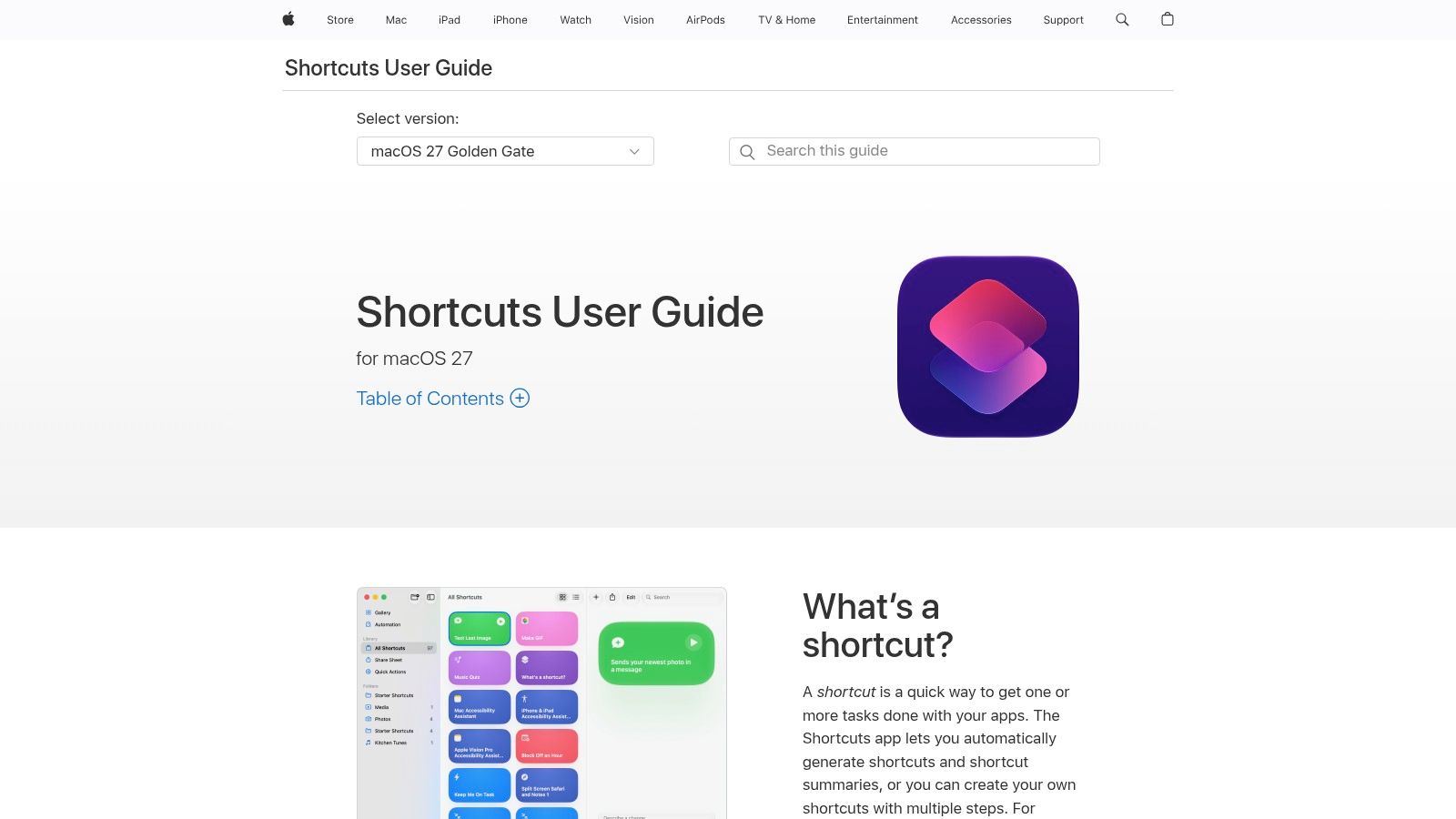
Apple Shortcuts is the sensible first stop for native Mac automation. Its visual editor lets you connect actions across Finder, Apple apps, and compatible services without writing an entire program. A shortcut can rename files, move items, create project structures, extract text, or pass information from one app to another.
For a practical folder workflow, create a shortcut that receives a folder from Finder, makes standard subfolders such as Assets, Exports, and Archive, then opens the result in Finder. You can run it from Finder, the menu bar, a widget, or a keyboard shortcut. That low friction makes Shortcuts useful for occasional project setup and repeatable personal routines.
Apple positions Shortcuts as part of a broader Mac automation history that includes AppleScript, shell scripting, and Automator. Its documentation also describes actions for running AppleScript and shell scripts, while most Automator workflows can be migrated into Shortcuts through Apple's transition path. The result is continuity rather than a clean break with older Mac automation methods. Apple's Shortcuts guide for Mac explains the native environment, while Apple's WWDC explanation of Mac automation shows how the layers fit together.
Where Shortcuts stops being comfortable
Shortcuts works best when the trigger is explicit and the workflow is reasonably predictable. It becomes less attractive when you need continuous folder monitoring, detailed failure handling, or precise Finder metadata control. A shortcut that works when launched manually may not answer what should happen after a renamed folder, a duplicate destination, or a partially completed batch operation.
For a broader comparison of native and third-party options, see these Mac automation apps. Start with Shortcuts when you want a private, on-device workflow and can tolerate launching it deliberately. Add another tool only when you can name the exact trigger or recovery problem Shortcuts isn't solving.
2. Keyboard Maestro
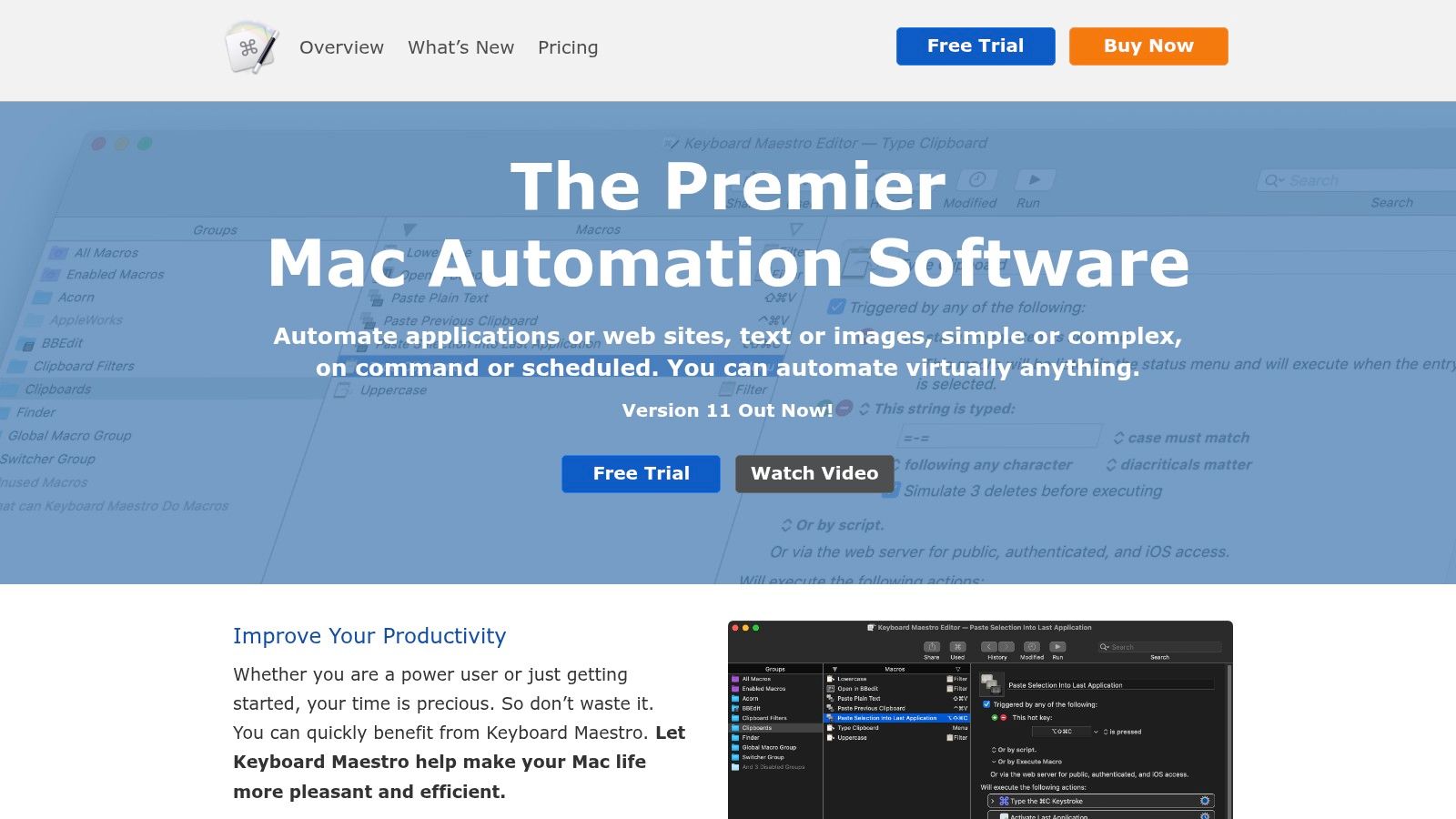
Keyboard Maestro is the choice for Mac users who have outgrown simple shortcuts but don't want to build every workflow from scratch in code. It combines visual actions with conditions, variables, macros, application control, window management, clipboard handling, and typed-string triggers. That gives it a much wider operating range than a basic file renaming workflow.
A typical use case starts with a hotkey. Press it while a project folder is selected, and Keyboard Maestro can open the folder, launch the related applications, arrange their windows, paste a prepared value, and run a script against the selected files. It can also react to application state, clipboard changes, connected devices, USB or MIDI input, and scheduled times. The Keyboard Maestro website documents the macro engine and its available trigger and action model.
The tool earns its place when an automation crosses several applications. A photographer might select a shoot folder, open it in an editor, create a review note, and move completed exports. A developer might open a repository, terminal, documentation page, and issue tracker with one command. These are not just file operations, and a file watcher won't replace the interaction logic.
The trade-off is depth
Keyboard Maestro's strength can intimidate new users. You need to design conditions carefully, decide what happens when an application isn't ready, and test variables against real folder names. It also requires a paid license, unlike Apple's built-in Shortcuts.
For Finder-wide folder styling, Keyboard Maestro can launch a script or an application, but it isn't purpose-built for maintaining visual folder metadata. It can orchestrate the process, yet a dedicated folder tool may provide clearer history, restoration, and batch controls.
3. Hazel 5
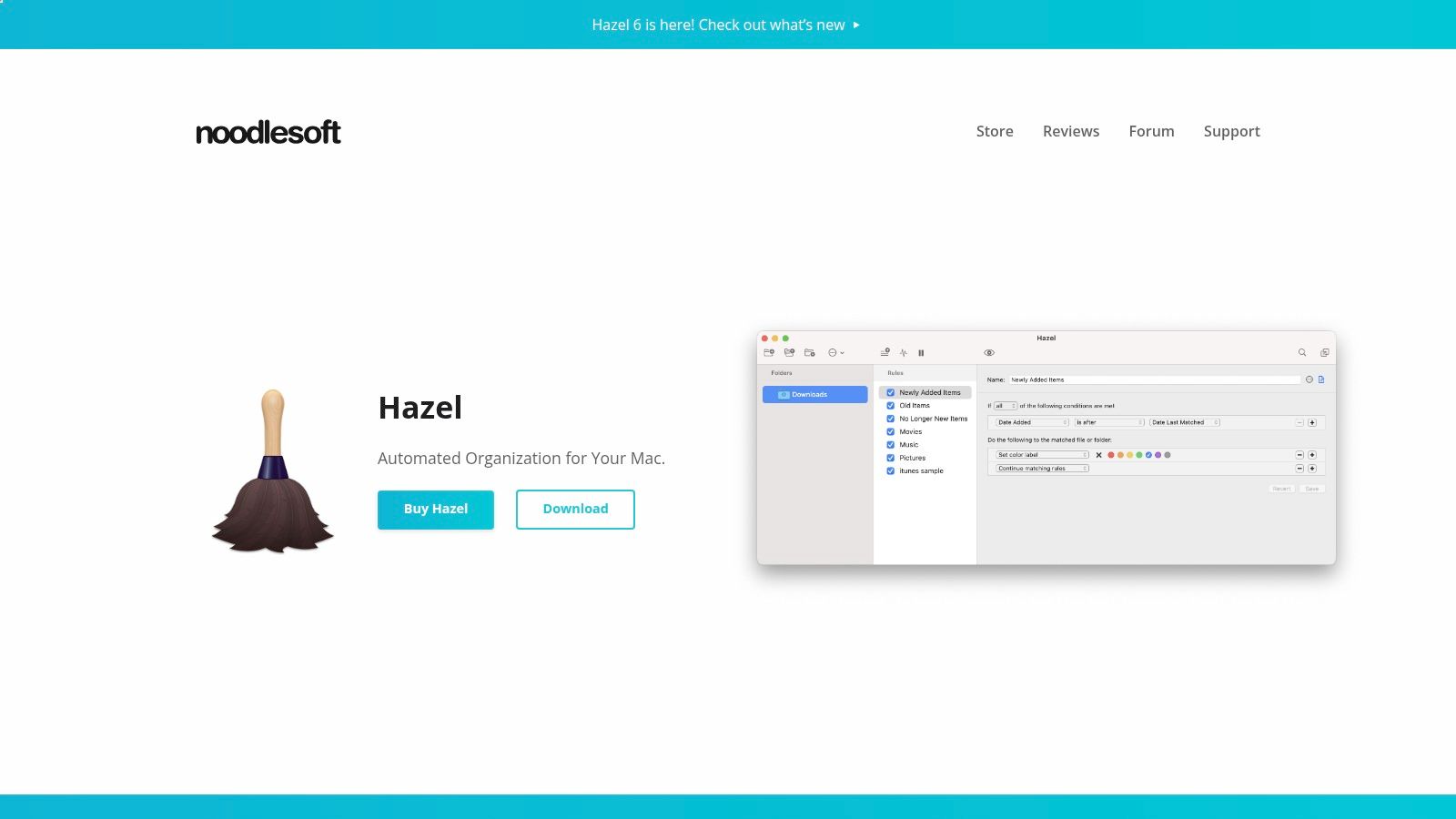
Hazel is built around one job, watching folders and applying rules to files. You define conditions such as file name, extension, date, kind, tags, or location, then assign actions including renaming, moving, tagging, and conversion. Once configured, Hazel works in the background instead of waiting for you to launch a macro.
That makes it a strong fit for Downloads. A rule can move screenshots into a Screenshots folder, send installers to an archive, rename incoming invoices according to a pattern, or file exported images into a client directory. The important distinction is that Hazel responds to the state of a folder. You don't need to remember a keyboard shortcut after every download.
The Noodlesoft Hazel site provides the product's rule-based approach and background monitoring details. Its GUI keeps the setup approachable, but you still need to think through rule order and exceptions. A broad rule that moves every PDF can easily catch a document that belongs somewhere else.
Best for file states, not desktop behavior
Hazel isn't a general macro engine. It won't reliably manage a sequence of window actions, interpret a complex visual interface, or replace a script that needs application-specific logic. Its boundaries are useful because they keep file rules easier to inspect.
Use Hazel when the rule can be expressed as, “When a file looks like this, perform that file operation.” Use Mac utilities for file organization as a separate research path when the job involves Finder presentation rather than filing logic.
Before enabling a rule on a large directory, point it at a duplicate folder and observe the result. Add exclusions for folders that must never be touched, and make destinations explicit. A set-and-forget workflow is only reliable when its conditions are narrower than the file collection it manages.
4. BetterTouchTool
BetterTouchTool starts with physical input. It lets you turn trackpad gestures, mouse actions, keyboard shortcuts, Touch Bar controls, and Stream Deck buttons into commands. Those commands can manage windows, manipulate the clipboard, open files, run scripts, or chain external actions.
This is useful when your hands already perform a repeated gesture. A three-finger action can place a Finder window beside a code editor. A dedicated mouse button can open a project directory and launch its tools. A Stream Deck key can trigger a script that processes the currently selected files. The BetterTouchTool website covers its input, window, clipboard, and device integrations.
The difference from a launcher is tactile speed. You don't need to stop and search for a command. You perform the gesture or press the mapped control that matches the physical action you already want to take.
Strong trigger layer, uneven workflow layer
BetterTouchTool is excellent at turning input into action, but it isn't the clearest place to maintain a large file-processing system. Its many settings and combinations can become difficult to audit, particularly when a gesture triggers a chain that calls scripts and external applications.
For example, use it to trigger a “prepare project” routine, then let Shortcuts, a shell script, or a dedicated file utility perform the actual folder work. That separation keeps the input mapping simple and makes the file operation easier to test.
A one-time automation license option can make it attractive for users who want frequent input customization without building a subscription-dependent workflow. The main cost is learning the configuration model. Begin with one gesture and one visible result, such as opening a known project folder, before connecting it to a destructive or recursive file action.
5. Alfred 5
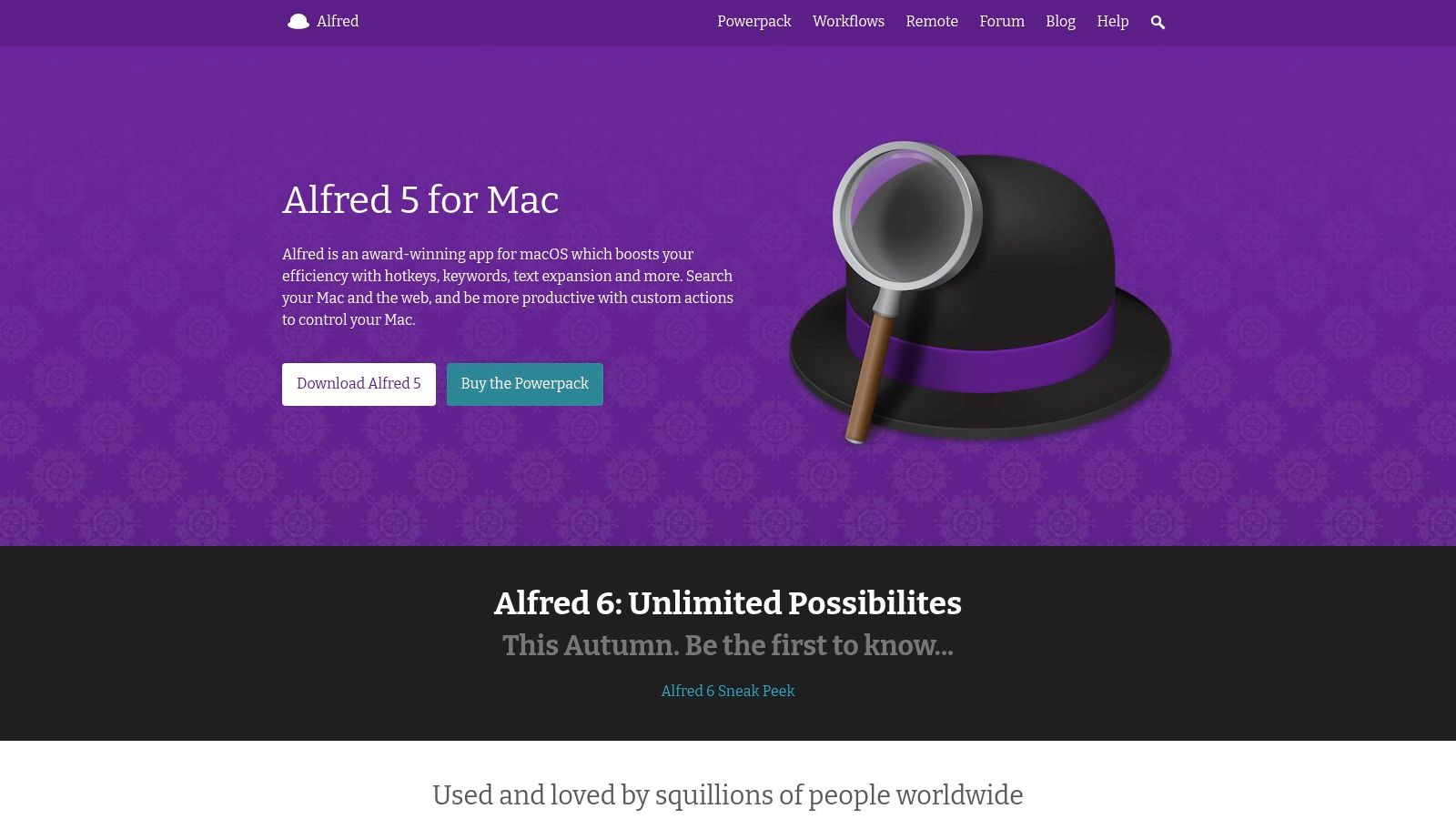
Alfred is a keyboard-first launcher that becomes a substantial automation tool with its Powerpack. Its workflows can connect searches, scripts, file actions, clipboard content, and external services through a visual editor. You type a keyword, pass an argument such as a folder path, and let the workflow do the rest.
That interaction works well for commands you use repeatedly but don't want to place in a menu. Type a project keyword to find its directory, open it in Finder and your editor, or pass the selected path to a script that creates a standard structure. Alfred can also support snippets, clipboard history, file navigation, and custom themes.
The Alfred website is the right place to review its launcher and workflow model. Its community and workflow gallery are useful for discovering patterns, but third-party workflows deserve the same caution as shell scripts. Review what a workflow executes and which folders or services it can access.
A good command surface
Alfred's main advantage is speed. It keeps the trigger close to the keyboard and avoids a large configuration screen for simple commands. The paid Powerpack is required for advanced workflow features, so the free launcher and the automation version are different propositions.
The tool is especially effective for deterministic commands. If you know the project name, folder path, or action keyword, Alfred can dispatch the job quickly. It is less suitable for “watch this folder forever” behavior, where Hazel or a launchd-based utility has a more natural design.
See these Mac productivity apps if you're comparing launcher-centered workflows. Choose Alfred when you want a mature keyboard command layer with a one-time license option and don't mind assembling the workflow logic yourself.
6. Raycast
Raycast takes the launcher model and adds a developer-oriented extension ecosystem. Its commands can search files, manage windows, expand snippets, connect services, and expose custom actions through extensions. Developers can build extensions with TypeScript and React, which makes the launcher a practical front end for small internal tools.
A useful folder workflow might search a client name, reveal its directory, copy a path, and pass that path into a script. Another command can open a repository and its related documentation. Because commands are discoverable through a searchable interface, Raycast works well for teams that don't want every shortcut memorized.
The Raycast platform offers its extension ecosystem, developer API, snippets, file search, window tools, and optional cloud or AI features. That optional layer matters for privacy and cost decisions. A local command may need only the free plan, while advanced features can introduce subscription requirements.
Choose it for discoverable commands
Raycast is a strong fit when users need many commands but don't want to maintain a dense collection of hotkeys. It also suits developers who want to turn a script or API call into a polished command surface. The extension model adds flexibility, though it means each extension has its own maintenance and permission considerations.
Like Alfred, Raycast isn't a replacement for a folder watcher. It starts an action when you invoke a command, rather than continuously enforcing a rule as new folders appear. It also isn't the best place to hide complicated recovery logic.
A reported survey cited by launcher usage reporting found that 41% of macOS developers use a launcher daily. Separate figures in the same source list Alfred, Raycast, and LaunchBar usage as overlapping values, not exclusive market shares. The practical conclusion is modest but useful: many Mac power users already understand launcher-based commands, so Raycast can be a low-friction entry point for script-backed folder actions.
7. Hammerspoon
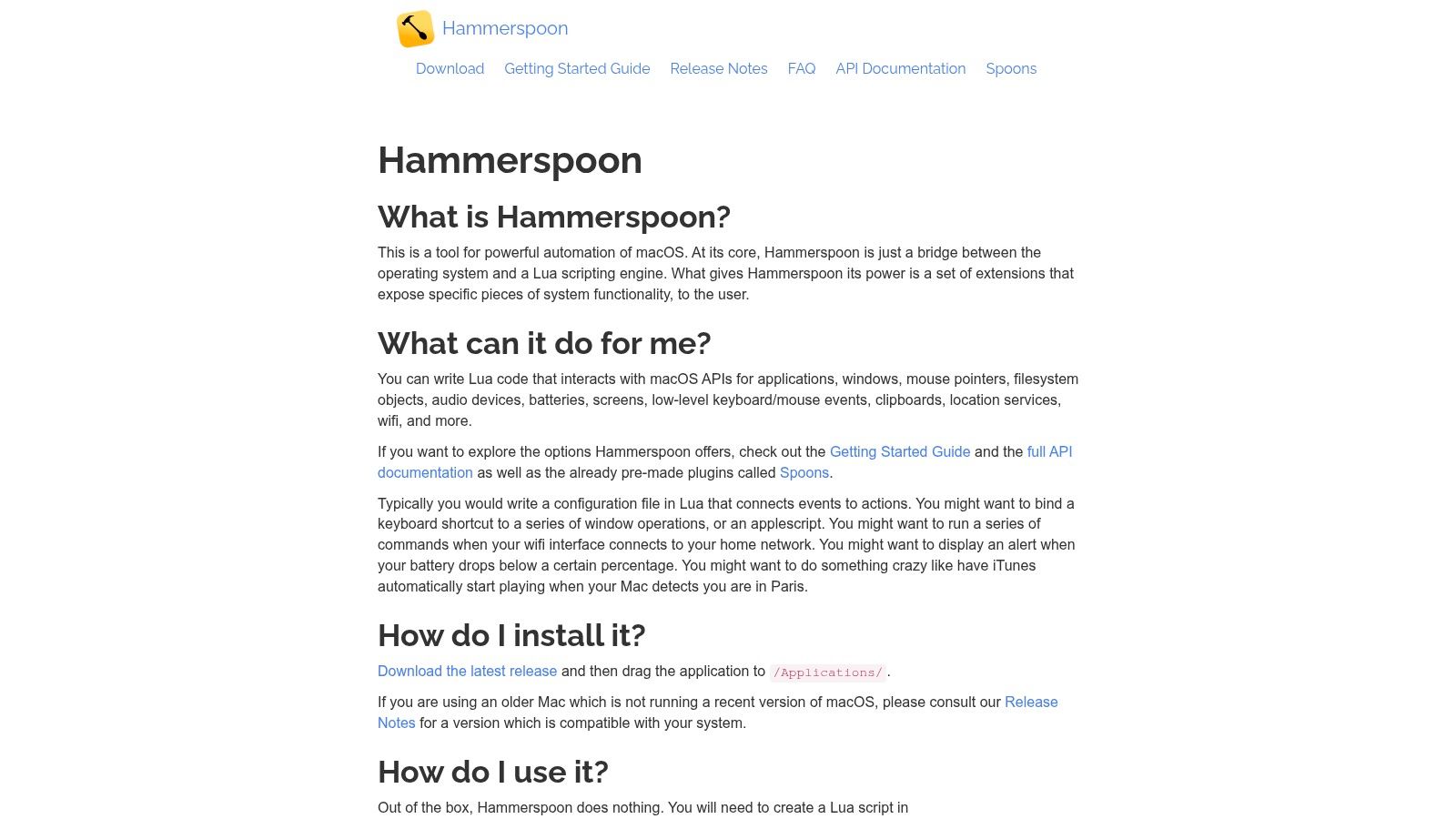
Hammerspoon is for users who want to script macOS behavior directly. It uses Lua and exposes bindings for windows, applications, hotkeys, events, and other system interactions. Instead of dragging actions into a visual editor, you define the behavior in configuration files and reload the configuration as you develop it.
That approach handles highly specific requirements. You can create a hotkey that moves a window according to the current display arrangement, react when an application launches, or build rules around frontmost applications. You can also use community “Spoons”, which package reusable functionality for common automation patterns.
The Hammerspoon documentation covers its Lua environment, macOS bindings, plugins, and supported builds. It is free and open source, which removes license cost but not implementation cost. You need enough scripting knowledge to read errors, manage state, and maintain the configuration when macOS permissions or application behavior changes.
Control beats convenience
Hammerspoon makes sense when no GUI tool expresses the exact condition you need. It can be more dependable than simulated clicks because the logic is explicit, but it can also fail if the script doesn't handle missing applications, inaccessible folders, or changed window titles.
Use it for system control and custom event logic, then delegate specialized file operations to shell scripts or file-focused applications. Keep scripts small. A single configuration that controls window placement, folder processing, notifications, and application state becomes difficult to debug.
Hammerspoon isn't the easiest starting point for a nontechnical Mac user. It is the right choice for a developer or power user who values unlimited customization and is comfortable treating automation as maintained code.
8. Dropzone 5 Pro
Dropzone is a drag-and-drop action palette. Open its menu bar grid, drag files onto an action, and let the tool upload, convert, move, or pass them to a script. That makes it useful when the files are already visible and the main problem is reducing a repetitive sequence to one physical action.
A designer could drag a group of images to a conversion action, then move the results into an export folder. A developer could drop a log file onto a script that extracts relevant content. A researcher could route downloaded documents into a prepared filing action. The Dropzone website describes its action grid, integrations, and script support.
The visual palette is easier to understand than a large macro canvas. You can see the destination or operation before releasing the files, which reduces the mental overhead of remembering command names.
Best for deliberate file handoffs
Dropzone isn't a continuous organizer and it doesn't aim to control the entire desktop. It works when a person is present to supply the files and choose the action. If the requirement is “whenever a new folder appears, style it automatically,” use a watcher instead.
Its file-centric design is also a benefit. You don't need to build a full workflow for a small action you perform repeatedly. A lifetime license option can suit users who prefer a one-time purchase, but the important evaluation is whether drag-and-drop matches your working habits.
Keep actions reversible where possible. For moves and conversions, use clearly named destinations and retain the original until you've verified the result. For scripts, make the input and output folders obvious so the palette remains a reliable handoff rather than a hidden transformation.
9. Lingon Pro
Lingon Pro provides a graphical way to create and manage macOS launch agents and daemons. It handles the scheduling and launching layer, allowing scripts to run at login, on intervals, or in response to file changes without manually editing property list files. The Lingon Pro website explains its launchd-oriented approach.
This is the tool to consider when an automation must persist beyond an open app. A script can check a work directory, maintain a generated folder, process an incoming export, or perform a routine action after login. Lingon gives that script a durable operating-system trigger and a place to inspect whether the job is configured.
The boundary is clear. Lingon doesn't replace the script's logic. It won't decide which project folder should receive a file, how to interpret a naming convention, or how to recover from a failed command. It starts the task, and the task must report or handle its own result.
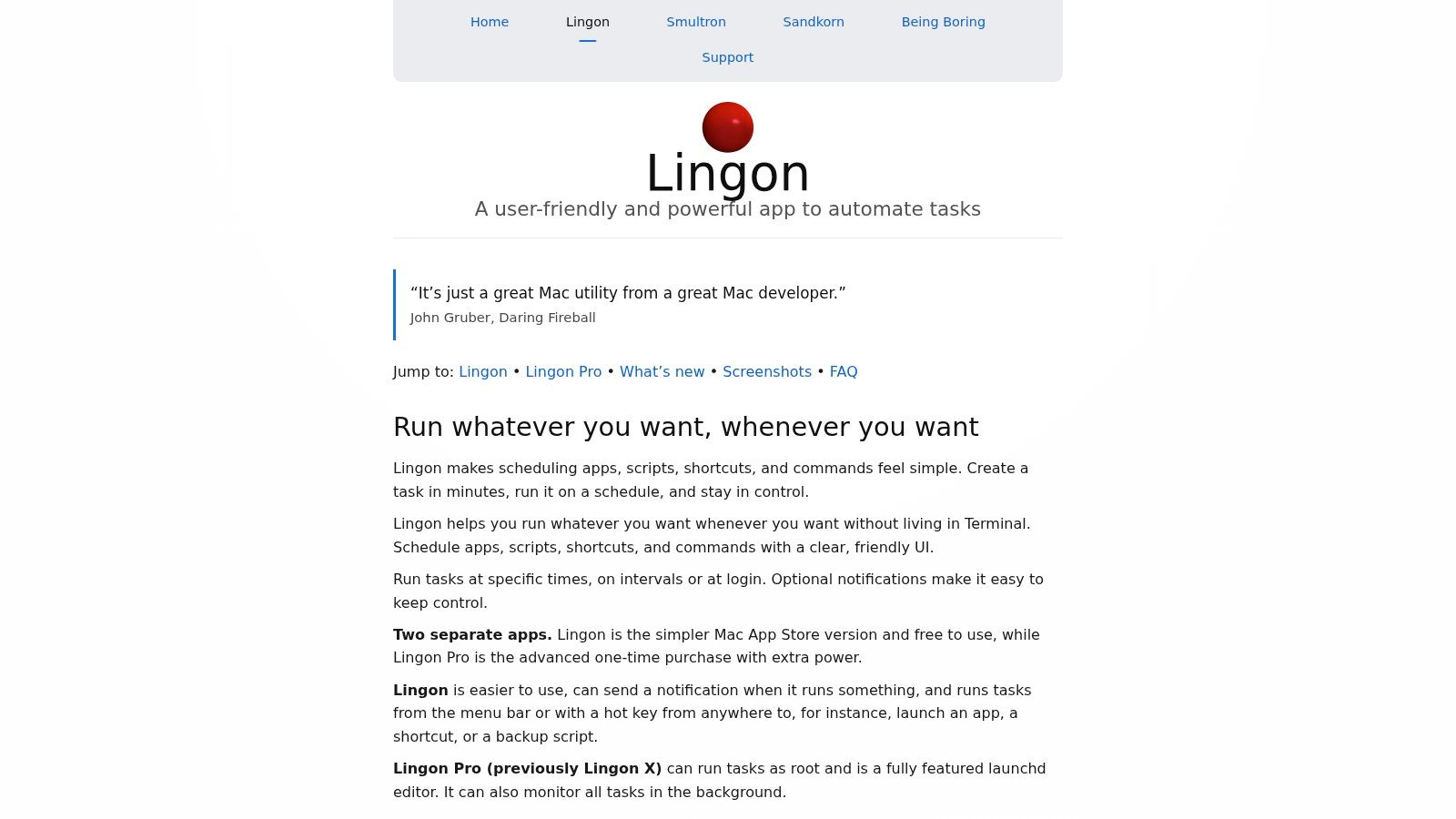
Scheduling requires operational discipline
Persistent jobs can be more reliable than a workflow that depends on remembering to open an application, but they can also run when you're not watching. Use absolute paths, write meaningful logs, and protect against repeated processing. A script that moves the same files back and forth can cause trouble if its conditions aren't idempotent.
Lingon supports per-user and system-level tasks, including jobs that need administrator rights. Treat that capability carefully. A folder organizer should usually run with the narrowest permissions it needs, not as an administrator by default.
Choose Lingon when the difficult part is keeping a script alive or scheduled. Choose Hazel when you want the file rules themselves to be configured visually. Choose Keyboard Maestro or Hammerspoon when the job needs interaction with applications and windows.
10. Shortery
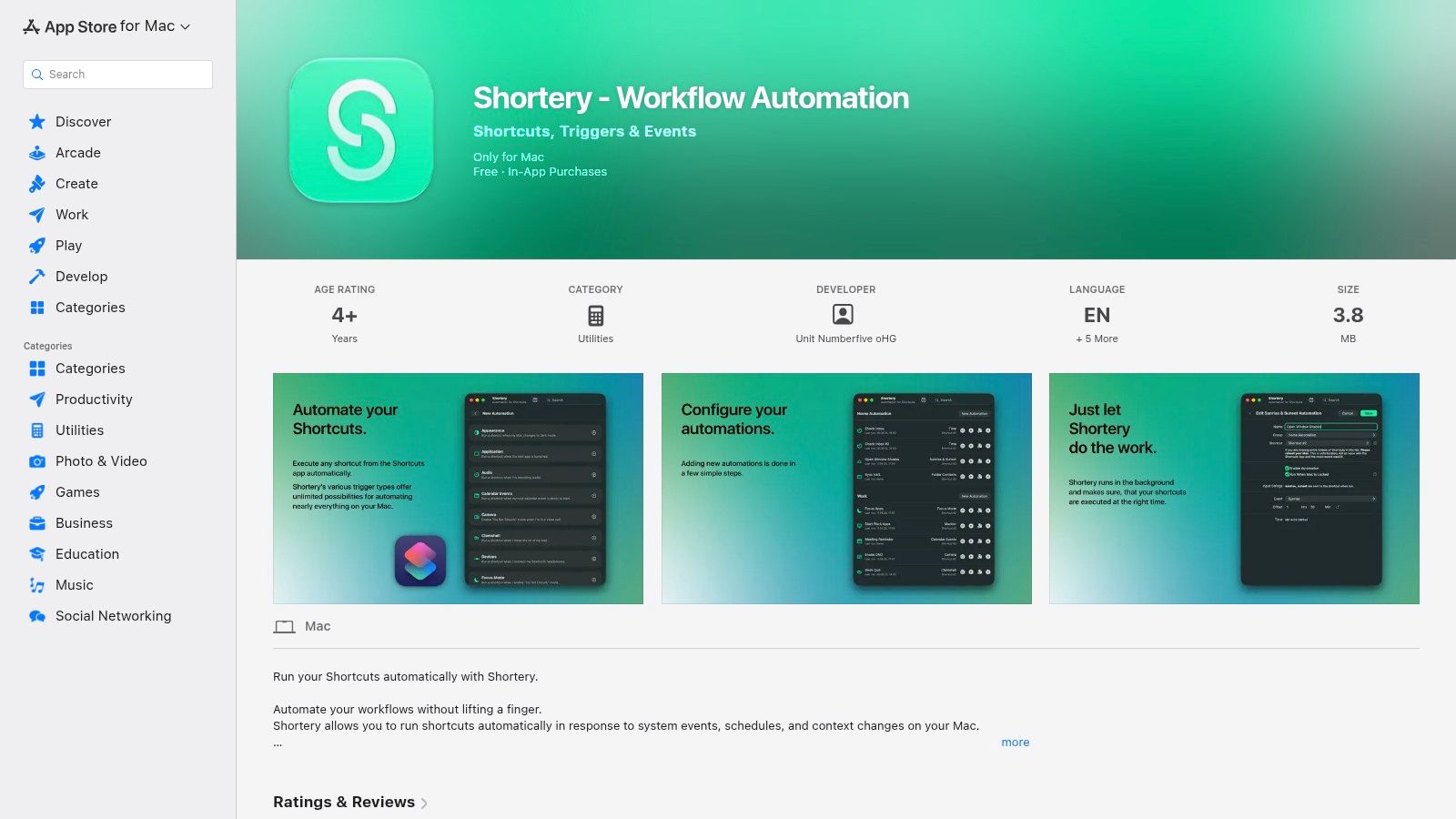
Shortery fills a specific gap around Apple Shortcuts. It adds Mac triggers that can launch existing shortcuts when applications open, devices connect, folders change, Wi-Fi conditions change, or other system events occur. That means you can keep Shortcuts as the workflow editor while using Shortery as the event layer.
Consider a new project folder. A folder-change trigger can invoke a shortcut that checks the name, creates an initial structure, and opens the location. Another automation can respond to a connected device and run a file-import routine. The appeal is that you don't need to rebuild the workflow in a separate macro engine.
The Shortery listing on the Mac App Store describes its trigger categories and integration with existing shortcuts. It also offers background and cooldown-related controls, which matter when a folder watcher or event can fire repeatedly.
A useful bridge, not a new macro engine
Shortery is most valuable when you already like Shortcuts but need events that aren't convenient to configure natively. It keeps the visual workflow familiar, but it doesn't remove the underlying limitations of shortcut logic. Complex conditions, precise UI control, and advanced recovery may still call for Keyboard Maestro, Hammerspoon, or a script.
The free-to-try model lowers the risk of testing a trigger against a duplicate folder. Some reliability optimizations and advanced options require in-app purchases, so check the current terms before building a workflow that depends on them.
Shortery is a narrow tool, and that's its advantage. Use it to make a Shortcut event-driven, not because every Mac automation problem needs another layer.
Top 10 macOS Automation Tools, Feature Comparison
| Tool | Core features | ✨ Unique strengths / 🏆 | ★ Reliability / Quality | 💰 Price / Value | 👥 Target audience |
|---|---|---|---|---|---|
| Apple Shortcuts | Visual editor, multi-step actions, Finder/Quick Actions, cross-device | ✨ Native macOS integration, local/private suggestions | ★★★★ | 💰 Free | 👥 Casual users, macOS newcomers |
| Keyboard Maestro | Macro engine, variables, UI control, rich triggers | ✨ Deep UI scripting & triggers, massive action set 🏆 | ★★★★★ | 💰 Paid (one‑time license) | 👥 Power users, automation pros |
| Hazel 5 | Rule-based file ops, folder watching, rename/tag/move | ✨ Set‑and‑forget file organization 🏆 | ★★★★ | 💰 Paid (one‑time) | 👥 Users needing downloads/project filing |
| BetterTouchTool | Custom gestures, hotkeys, Touch Bar, window snapping | ✨ Tactile input automation, Stream Deck support 🏆 | ★★★★ | 💰 One‑time / lifetime options | 👥 Trackpad/mouse power users |
| Alfred 5 (Powerpack) | Launcher, Workflows, clipboard/snippets, file actions | ✨ Fast keyboard workflows, large community gallery 🏆 | ★★★★ | 💰 Free basic; Powerpack one‑time | 👥 Keyboard-driven productivity users |
| Raycast | Modern launcher, extension store, dev API | ✨ Developer-friendly extensions, optional AI/cloud | ★★★★ | 💰 Free tier; Pro/sub for advanced | 👥 Developers, extensible-workflow users |
| Hammerspoon | Lua scripting bridge, extensive macOS bindings | ✨ Unlimited code-driven customization 🏆 | ★★★★★ | 💰 Free (open source) | 👥 Developers and scripting tinkerers |
| Dropzone 5 Pro | Menu‑bar drag/drop action grid, quick file actions | ✨ Instant low‑friction file workflows 🏆 | ★★★★ | 💰 Paid (Pro, one‑time) | 👥 Users with repetitive file tasks |
| Lingon Pro | GUI for launchd, schedule/run background jobs | ✨ Makes OS-level scheduling approachable 🏆 | ★★★★ | 💰 One‑time purchase | 👥 Admins, scheduled-task users |
| Shortery | Adds macOS triggers to Shortcuts (folders, devices, etc.) | ✨ Expands Shortcuts with richer automatic triggers 🏆 | ★★★★ | 💰 Free to try; In‑app Pro upgrades | 👥 Shortcuts users wanting automation triggers |
Build a Mac Workflow You Will Actually Keep
The best automation is the one you can still understand after the novelty wears off. Start with Apple Shortcuts for native multi-step tasks such as creating a project structure, renaming a selected group of files, or passing information between Mac applications. It has the lowest barrier to entry and keeps the workflow close to macOS.
Choose Hazel when the requirement is continuous file organization. It suits Downloads cleanup, rule-based filing, renaming, tagging, and conversion because it watches folders and applies conditions in the background. Use Keyboard Maestro when the workflow crosses applications, depends on context, or needs substantial UI and window control. Its larger action library is worth the learning curve when a simple shortcut has become a fragile chain.
For command-driven work, Alfred and Raycast are the practical choices. Alfred is a mature keyboard launcher with powerful workflows through its Powerpack. Raycast offers a developer-friendly extension model and a broad command surface. Neither should be treated as a replacement for a folder watcher, but both can make script-backed actions quick to discover and run.
The narrower tools have clear roles. BetterTouchTool is ideal when a gesture, mouse button, keyboard combination, or Stream Deck key is the natural trigger. Dropzone is excellent for deliberate drag-and-drop file handoffs. Hammerspoon gives technically confident users script-level control over windows, applications, and events. Lingon Pro makes persistent launchd jobs easier to deploy, while Shortery adds event triggers to existing Shortcuts workflows.
macOS automation has developed as a layered system, from AppleScript and shell scripting through Automator and Shortcuts. Apple's own transition guidance supports combining visual actions with scripts rather than forcing every user into one tool. That history explains why the most reliable setup often uses a small number of focused layers instead of one oversized automation system.
Use this sequence before expanding a workflow:
- Pick one repetitive task: Start with a single Downloads rule, project-folder setup, or export routine.
- Test a duplicate: Run the automation against a small test folder before exposing it to a working directory.
- Record the trigger: Write down whether it starts from Finder, a hotkey, a folder change, an app launch, or a schedule.
- Name the destination: Make the output folder explicit, especially for moves, conversions, and recursive actions.
- Add safeguards: Include exclusions, confirmation steps, logging, or one-click restoration where the tool supports them.
- Test change conditions: Rename a folder, create a duplicate, interrupt the operation, and confirm what happens next.
Tintd belongs in a different category from general task runners when the goal is visual folder organization. It processes locally, integrates with Finder's contextual menu, supports bulk editing, offers smart icon and color suggestions, and includes a Folder Watcher for styling new folders. Its icon and emoji library contains 11,000+ options, and it can restore standard macOS folder icons with one click. These product details are available from Tintd's Mac folder organization app.
The important distinction is operational. Keyboard Maestro can launch a folder action, Hazel can file items, and Shortery can trigger a Shortcut. Tintd focuses on the Finder layer itself, applying icons and colors to make project directories easier to scan while keeping folder names and processing on the device. For creative projects, code repositories, research folders, or client workspaces, that focused purpose may be more maintainable than forcing a general macro tool to manage visual metadata.
Choose the smallest tool that handles the trigger, action, and recovery requirements. Build the first workflow conservatively, observe it in real use, and add complexity only when the current layer has a specific limitation.
Tintd adds local, Finder-based folder styling to the macOS automation toolkit, with smart icon and color suggestions, bulk editing, history, and a Folder Watcher for new folders. If your workflow needs clearer visual organization rather than another general-purpose macro, visit Tintd and see how it fits your Mac folders.