
You've downloaded an app, opened the file in Downloads, and now you're staring at an Applications shortcut, an installer window, or a warning that won't let you continue. Meanwhile, the app's website says to double-click and get started.
The useful way to think about how to install software on Mac is to separate installation, Gatekeeper approval, and privacy permissions. Copying an app onto your Mac doesn't approve its developer, and approving its launch doesn't give it access to your project folders or screen. Work out which stage you're at before changing anything.
Pick the Install Method That Matches the File
Choose the row that matches what the developer provides, not the procedure you remember from another app.
Four ways to install software on a Mac
| Method | Use it when | What you open | Updates | First check |
|---|---|---|---|---|
| Mac App Store | You want an Apple-listed app with built-in updates | Get or Buy in the App Store | App Store | Apple review before listing |
| DMG drag and drop | A developer site gives you a disk image with an .app | .dmg, then drag the .app to Applications | In-app updater or a new download | Gatekeeper on first open |
| PKG installer | Setup needs drivers, system files, or a guided installer | .pkg | New package or in-app updater | Gatekeeper checks the package |
| Homebrew | You want Terminal installs for tools or desktop casks | brew install or brew install --cask | brew upgrade | Source and signing of that formula or cask |
The App Store is a good starting point when the app you want is available there. It handles downloading and updates without leaving you to manage installer files. A developer download can offer a different release channel or components that need a guided installer, but you're responsible for choosing the right download and keeping it updated.
Homebrew is useful when you deliberately manage software from Terminal. It isn't a prerequisite for installing ordinary desktop apps, and installing a package manager just to avoid dragging an app into Applications usually adds work.
Read what's inside the download
A DMG is a container, not necessarily the installation method. Open a disk image containing Firefox.app, and you'll usually copy that app into Applications. Open a disk image containing an installer package, and you must run the package instead.
A Homebrew cask can install an ordinary desktop app such as VLC. A formula usually installs a command-line tool such as wget; the distinction is about how Homebrew packages the software, not whether Terminal can launch it.
The Store's familiarity has a long history: Apple's Mac App Store announcements describe its January 2011 launch, more than 1 million downloads during its first day, and downloads surpassing 100 million by December 12, 2011. Developer downloads never disappeared, so the Store feeling like the default doesn't make it the correct route for every app.
Keep app installation separate from system repair
Installing an application shouldn't require reinstalling your operating system. If you're also repairing a separate Windows machine, NeoTeo's Windows reinstallation walkthrough addresses that different job. Don't apply Windows recovery instructions to a Mac app that needs copying or approval.
Use only the matching procedure below. Skip the other methods rather than installing overlapping copies of the same app.
Install from the App Store a DMG a PKG or Homebrew
Run the procedure for your download, then launch the installed copy. The filenames below are concrete examples; your developer's download may include a version number or a different name.
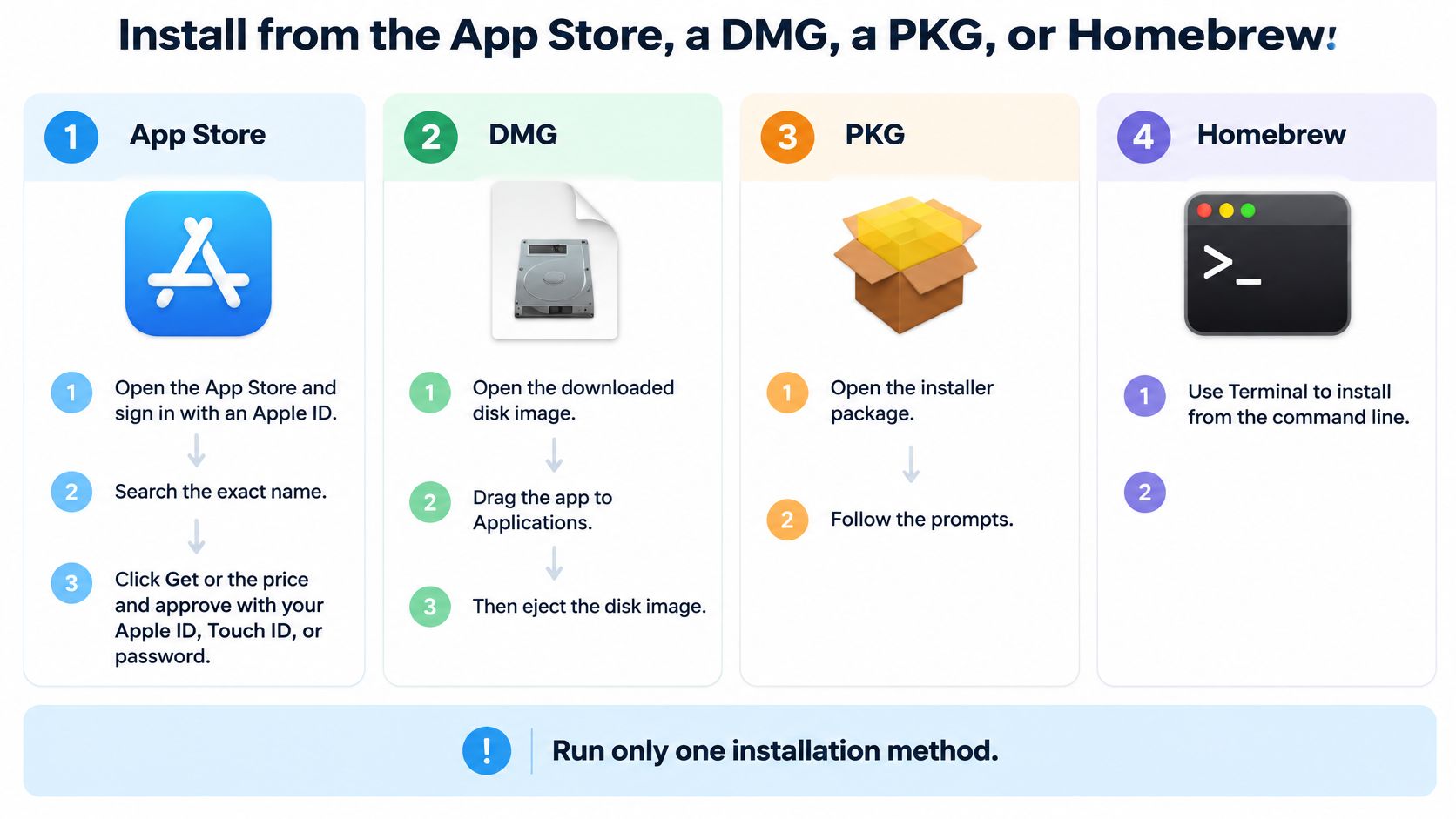
These paths show where the installation work happens.
App Store installation
- Open the Store. Launch
App Store.appfrom Applications and sign in with your Apple Account, previously called an Apple ID, if requested. - Find the exact app. In
App Store.app, search for Tintd, which is available on the Mac App Store. Check the listing rather than choosing a similarly named result. - Approve the download. In
App Store.app, click Get or the displayed price. Complete any account, password, or Touch ID confirmation. - Confirm completion. Wait for Open in
App Store.app, then check Finder's Applications folder for the downloaded app. Don't treat a progress indicator as a finished installation.
DMG installation
- Download from the developer. Save the official disk image, such as
Firefox.dmg, into Downloads. Avoid download portals and advertisements that imitate the developer's download button. - Check the file when a checksum is supplied. For
Firefox.dmg, runshasum -a 256 ~/Downloads/Firefox.dmgif the developer publishes a SHA-256 checksum. Compare the entire result with the value for that exact release. - Mount the image. Double-click
Firefox.dmg. Finder should show its contents; opening the image alone hasn't installed anything. - Copy the application. Drag
Firefox.apponto the Applications shortcut inside the image window. If there's no shortcut, drag it into Finder's Applications folder. - Eject the image. Once copying finishes, click Finder's eject control beside the mounted
Firefox.dmgvolume. Close the app first if Finder says the image is in use. - Launch the installed copy. Open
/Applications/Firefox.app, not the copy inside the mounted image.
Apple's guidance for downloaded Mac software supports using the official distribution channel, copying the application into Applications or running its supplied package, and checking compatibility. Keeping the final app in Applications also makes it clear which copy you're opening.
PKG installation
- Open the package. Double-click the official
.pkg, such asZoom.pkg. If it arrived inside a DMG, open that image first and then the package inside it. - Inspect the choices. In the installer for
Zoom.pkg, read the destination and use Customize when available to review optional components. Don't accept unrelated extras just to finish faster. - Authenticate deliberately. When
Zoom.pkgrequests administrator approval, confirm that this is the package you intended to run. Packages can install beyond the application bundle. - Finish and clean up. Click Close after
Zoom.pkgfinishes, eject any enclosing image, and launch the installed application from Applications.
Homebrew installation
- Check that Homebrew works. Open
/Applications/Utilities/Terminal.appand runbrew --version. If the command isn't found, complete Homebrew's official setup before trying package commands. - Choose a formula or cask. In
Terminal.app, runbrew install wgetfor a command-line tool, orbrew install --cask vlcfor the desktop appVLC.app. Use the package's exact Homebrew name. - Read the caveats. Keep
Terminal.appopen until the command finishes. Follow any relevant PATH instructions, then testwget --helpor open/Applications/VLC.app.
For a development setup, our guide to developer tools for Mac can help you choose tools before installing a stack you don't need.
This video provides a visual reference for the installation workflow.
Before launching, check Apple menu > About This Mac against the developer's requirements. An Apple silicon Mac may need an Apple silicon or Universal build, or Rosetta for a supported Intel app. A valid signature won't make software run on an unsupported macOS version.
What Gatekeeper Checks the First Time You Open It
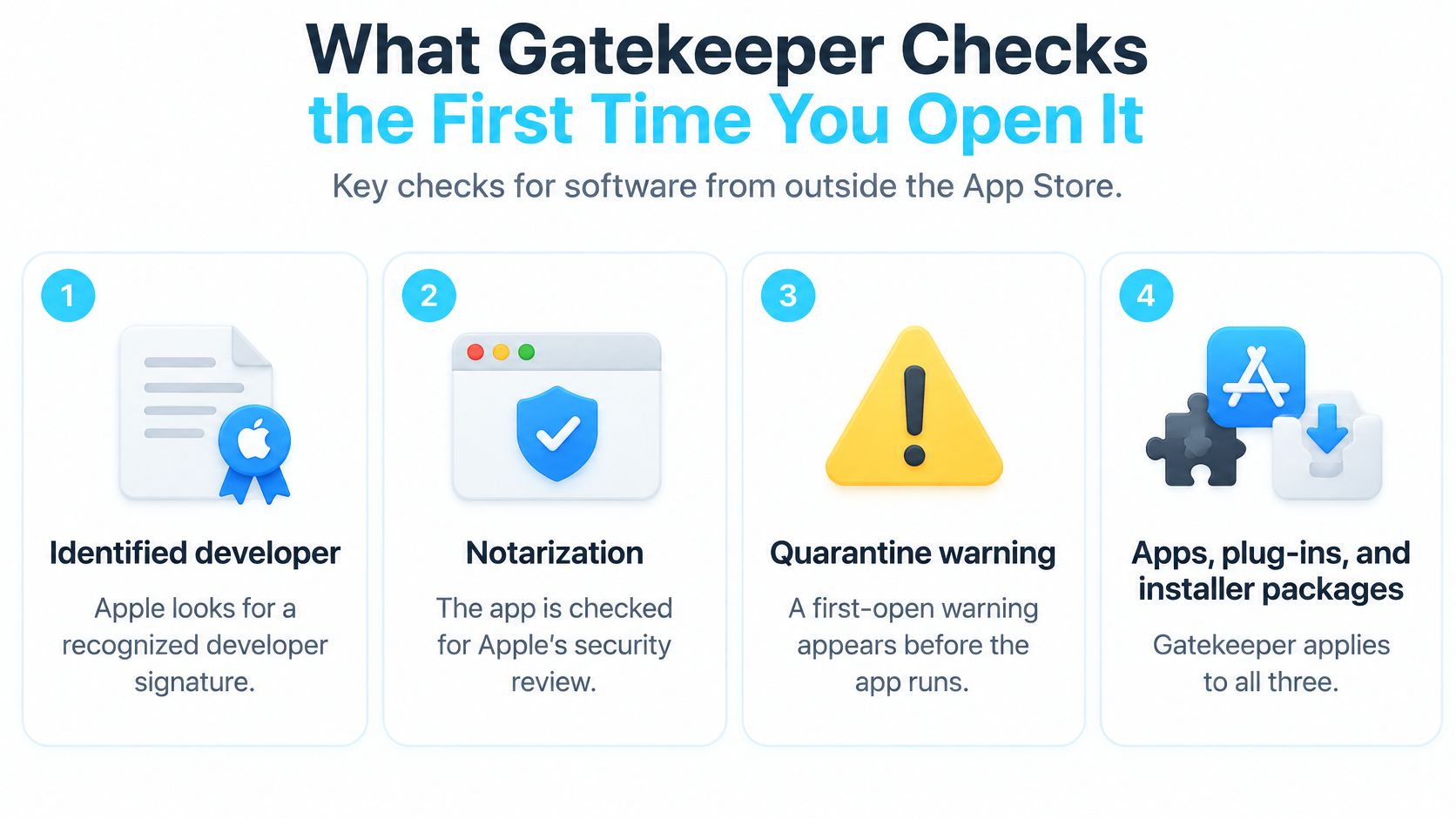
Gatekeeper approval concerns the downloaded software, not whether you copied it correctly. An app can sit in Applications and still be blocked when you launch it. Installer packages and plug-ins obtained outside the App Store are also subject to checks.
Apple's platform security guide says Gatekeeper verifies an identified developer, Apple notarization, and whether software has been altered since signing; it also explains that macOS Catalina and later generally require notarization for software distributed outside the App Store. Notarization means Apple scanned the submitted software for known malicious content and found none at that review stage.
The first-open checks help distinguish a routine confirmation from a trust problem.
Translate the checks into useful questions
- Developer identity. Does the signing identity fit the publisher you intended to download from? A company name can differ from the product name, but an unexplained mismatch deserves investigation.
- Notarization. Has this distributed build passed Apple's automated review? A missing review is a different problem from a download that macOS identifies as malicious.
- Integrity. Does the downloaded software still match what its developer signed? Altered contents aren't something to fix by repeatedly clicking through a warning.
- Internet origin. A note that an app was downloaded from the internet is an ordinary first-open confirmation. Read the app name and source before agreeing to open it.
The review isn't a promise that every feature is safe or appropriate. You still need to judge whether the developer's site, the application's purpose, and its later requests make sense together.
For example, a video player from its official publisher has a straightforward job. A supposed video player distributed through an unrelated advertising page, with instructions to weaken security before installation, deserves a different decision.
A warning is a question about this file, not a reason to weaken checks for every future download.
Network and workplace restrictions
macOS can check online for known malware and revoked developer certificates. An offline launch may therefore behave differently from an online launch; don't assume a successful offline test establishes the app's current trust status.
If a legitimate app behaves unexpectedly while offline, reconnect to a trusted network and retry before changing settings. That won't repair an invalid signature, but it avoids treating unavailable verification information as an installation failure.
A workplace or school Mac may allow only App Store software. If management policy blocks an app, ask IT for approval rather than trying to defeat the restriction.
Our selection of Mac apps can help you compare what you need. A recommendation still doesn't replace checking the particular publisher and download you're about to open.
Permissions to Grant After the App Is Already Installed
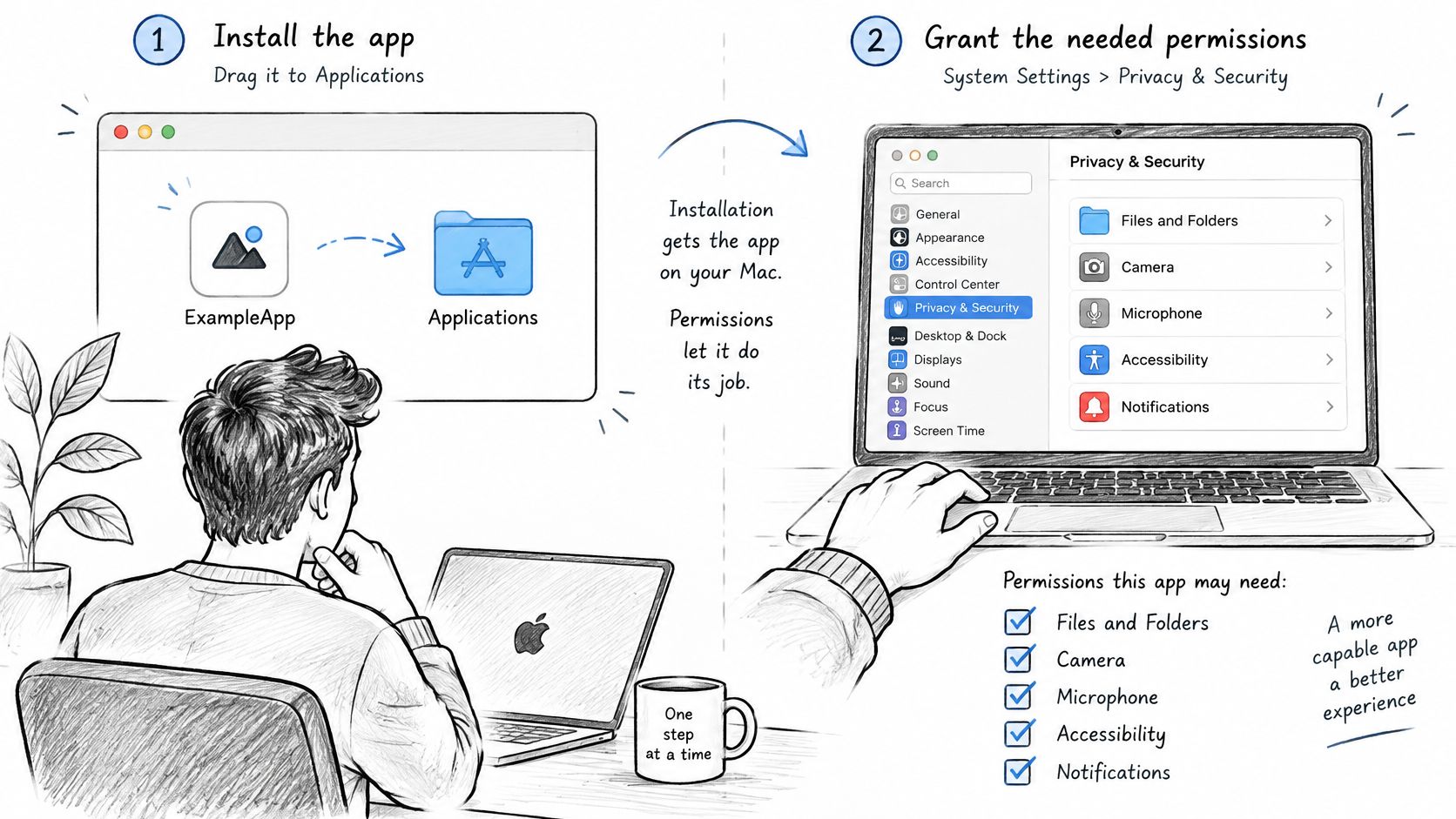
An icon in Applications doesn't mean the app can do its job. Privacy authorization is separate from installation and launch approval, so an app may open normally yet fail when it tries to read a protected folder or capture your screen.
Grant access for a feature you've deliberately used, not for every capability the app could potentially request. The setup sequence below keeps those decisions separate.
Match the permission to the task
- Trigger the intended feature. Open
Tintd.appand enable Folder Watcher only if you want automatic styling. Our Folder Watcher requires Full Disk Access, which macOS asks you to grant the first time you enable it. - Inspect the request. Open
System Settings.appand select Privacy & Security. Find the named category rather than enabling unrelated toggles. - Grant the required access. In
System Settings.app, approve the application under the appropriate permission. Quit and reopen the affected app if macOS requests it. - Revoke access when it's no longer needed. Return to the same category in
System Settings.app, switch the app's access off, and retest the features you still use.
Manual folder colorizing doesn't require Full Disk Access. That's a useful distinction: enabling our automatic watcher justifies a permission that changing a folder's color by hand doesn't need.
| Permission or setting | A task that can justify it |
|---|---|
| Files and Folders | Opening or saving files in protected locations |
| Removable Volumes | Working with projects on an external drive |
| Full Disk Access | A documented feature that needs broader protected-file access |
| Automation | Controlling another app, such as Finder |
| Screen Recording or Screen & System Audio Recording | Capturing the screen for a recording or meeting |
| Background Items | Running a helper when the main window is closed |
Background Items may be managed under General > Login Items & Extensions, rather than in the privacy pane. Setting names and locations can change between macOS releases, so search System Settings for the label shown in the prompt.
A denied request isn't always your mistake
Apple's macOS Sequoia release notes explain that app-group containers can be protected by System Integrity Protection, and improperly entitled apps may prompt for access or be denied. A developer may need to fix the app; a broader user permission isn't automatically the answer.
Creative tools, development utilities, and student project apps often encounter restrictions when opening folders, loading extensions, or starting helpers. Note the feature that failed before changing access.
Allow screen access for a recorder you intentionally started. Refuse an unexplained Contacts, Photos, or screen request from an app whose only advertised job is editing local text files, and check the developer's explanation before proceeding.
Fix a Blocked Download or an App That Will Not Open
Read the warning before acting. A developer-identification problem, a damaged download, and an unsupported build need different fixes, even if all of them prevent the app from opening.
Use the wording and behavior to choose a diagnostic row. Don't run Terminal commands from an old tutorial because they promise to remove the warning.
Mac install warnings and what to do
| What you see | Usual cause | Safe next move |
|---|---|---|
| Unidentified developer | No Developer ID signature | If the official source is trusted, attempt opening once, then use Privacy & Security > Open Anyway |
| Apple cannot check it for malware | Not notarized | Re-download from the developer; use Open Anyway only for that trusted app |
| App is damaged and can't be opened | Corrupt download or a file changed after signing | Delete it and download again; don't bypass |
| Will not launch on this Mac | Intel-only build, missing Rosetta, or macOS too old | Check the developer's chip and macOS requirements |
| App disappeared after eject | It was launched from the DMG, or a temporary copy was later removed from Downloads | Copy the .app into Applications and open that copy |
| Installed, but a feature fails | A privacy toggle is still off | Enable only the permission that feature needs |
When an individual exception is reasonable
The first two rows are the only candidates here for an intentional security exception. Even then, knowing the website isn't enough: you should know why you need the app and have a credible explanation for its missing signature or notarization.
Apple's guidance on safely opening Mac apps describes the Open Anyway recovery path for software you trust and explains that macOS Sequoia no longer permits spctl to disable Gatekeeper. A system-wide security downgrade isn't an appropriate repair.
For a trusted app such as an official Firefox.app build that unexpectedly triggers an identity warning, verify that you downloaded the intended release before considering an exception. A mainstream app presenting an unusual warning is a reason to investigate, not automatically approve.
- Attempt the launch. Open the affected
.app, such as/Applications/Firefox.app, once and dismiss the block. This lets macOS record the attempted launch. - Review the exception. Open
System Settings.app, choose Privacy & Security, and look for Open Anyway beside the blocked app's details. - Approve only that app. In
System Settings.app, select Open Anyway, authenticate if requested, and confirm the launch. If the control isn't available, don't substitute a global bypass.
When to stop troubleshooting
A damaged-file warning belongs on the re-download path. Remove the suspect app and installer, obtain a fresh copy from the official developer, and don't use commands that strip security metadata to force it open.
If macOS identifies malware or says the app will damage your computer, stop. That isn't the same situation as an unidentified developer, and it isn't a candidate for the exception procedure.
Contact the developer when the official build still fails after a clean re-download on a supported Mac and macOS version. Include the exact warning, application version, chip type, macOS version, and whether the failure happens at launch or during a particular feature.
Final check: Official site, warning matched to a diagnostic row, and at most an app-specific exception.
Uninstall the App You Do Not Want Then Stop
Removing a trial app is sensible maintenance. You don't need to keep software because installing it took effort, and you don't need a cleaner utility just to remove an ordinary application bundle.
Quit the app first. If it has a menu-bar helper or background service, quit that too before removing the main application.
Remove it through the matching route
- App Store app. Move an app such as
Pages.appfrom Applications to the Trash. Launchpad deletion is another option on macOS versions that provide it. - Drag-installed app. Move
/Applications/Firefox.appto the Trash, then empty the Trash once you're sure you no longer need it. DeletingFirefox.dmgalone only removes the installer image. - Package-installed software. If the publisher supplies an uninstaller for software such as
Zoom.app, use it. A package may have installed helpers or other components that dragging the main app to the Trash won't remove. - Homebrew software. Open
Terminal.appand runbrew uninstall wgetfor the formula orbrew uninstall --cask vlcfor the desktop cask. Use the same package name you installed.
Leftover preferences don't justify deleting random folders from Library. Follow the developer's documented removal instructions if you need to reset settings or remove additional components.
Decide whether another app is actually useful
If the app you wanted opens and has only the permissions its features need, you're finished. Don't turn a successful installation into an afternoon of unnecessary system changes.
If your original problem was a desktop full of identical blue project folders, Tintd is an optional next install from the Mac App Store. We let you colorize folder icons in a few clicks, and any customized folder can return to the original macOS Finder folder icon with one click.
That's an organization choice, not part of making other software install correctly. If folder icons don't matter to your workflow, stop without adding another app.
Tintd offers folder colors and customized icons to make project folders easier to distinguish in Finder. If that's the next problem you want to solve after installing your software safely, visit Tintd and choose whether manual styling or Folder Watcher fits your workflow.