
Your Mac can feel disorganized before you've opened a single project. The menu bar is crowded, Downloads is full of files you meant to sort, folders blend together in Finder, storage warnings interrupt your work, and passwords live across several browsers. Installing every highly rated utility won't fix that. The best apps for Mac solve different friction points, so choose the tool that matches the problem you face daily.
This list covers seven practical categories: launching work, organizing Finder, capturing ideas, automating files, controlling the menu bar, reclaiming storage, and securing accounts. I'm prioritizing macOS fit, privacy, automation potential, visual clarity, and licensing trade-offs, with recommendations that complement rather than duplicate Apple's built-in tools. If you want a broader productivity-tool comparison, see SleekPost's tool comparison guide. For readers who want Finder folders to become easier to scan, Tintd is the standout choice. The other apps solve separate workflow problems.
1. Tintd for making Finder visually scannable
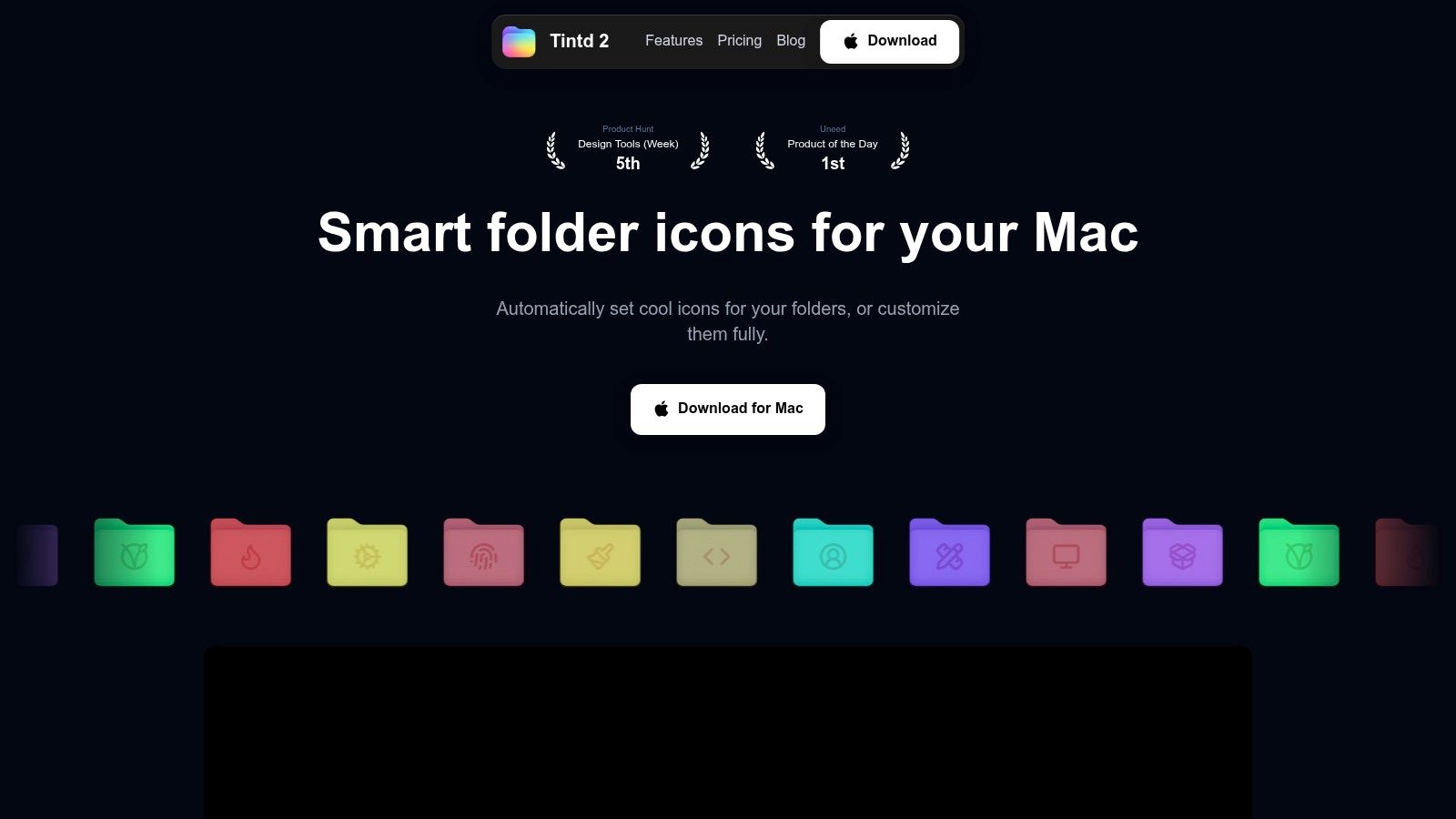
A Finder window packed with identical blue folders slows down visual scanning. Tintd turns folders into recognizable visual markers with colors, overlays, emojis, and custom images, either manually or automatically. That helps when you switch among client projects, research, code repositories, and media libraries throughout the day.
Tintd uses an on-device Smart Icon and Smart Color engine, a library of 11,000+ icons and emojis, custom image support, and controls for icon size, color, and placement. Its suggestions can interpret folder names in 11 languages, while the consistency engine keeps related folders visually cohesive. Processing stays local on your Mac, with no cloud or external AI calls.
Style one folder or an entire system
Tintd's right-click Finder integration keeps folder styling beside the files you already manage. Style one folder, apply changes to multiple folders and subfolders, reuse a design from history, or restore the standard macOS icon with one click. You can test a visual system without permanently committing to it.
For folders that appear constantly, use Folder Watcher. Choose locations for Tintd to monitor, and it can style new folders as they are created. Folder Watcher requires Full Disk Access, so review that permission before turning on automation.
Tintd suits designers, photographers, developers, students, researchers, and knowledge workers with large folder trees. It also complements newer macOS features. Apple's macOS Tahoe overview covers built-in Finder folder tinting and broader Spotlight actions. Tintd adds semantic icon suggestions, bulk styling, mixed-language recognition, history reuse, and a more deliberate visual system.
The trade-offs are clear. Styles remain local and do not automatically sync across Macs, and Tintd runs only on macOS. The app offers a free trial and lifetime access through a one-time purchase, currently listed at $9.99, marked down from $49.99, on its website. Read the Tintd folder icon customization guide for the workflow and current feature details.
2. Alfred for launching work without hunting through folders
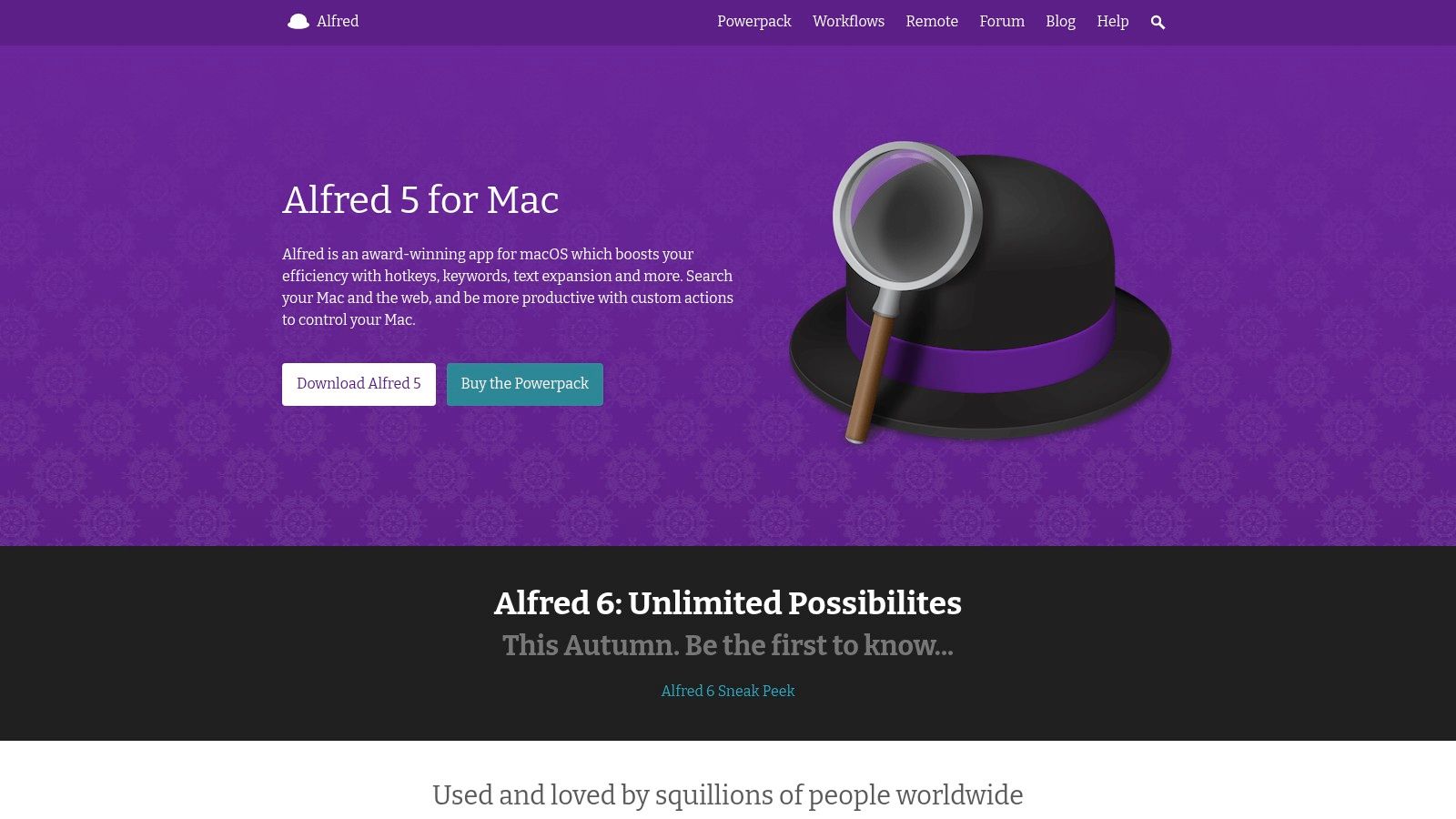
Alfred is the best choice when your main Mac frustration is the pause between deciding what to do and finding the app, file, command, or snippet that helps you do it. Invoke it with a shortcut, type a few characters, and move directly to an application, document, calculation, web search, or system action.
It goes beyond a launcher. Alfred includes file navigation, clipboard history, snippets, text expansion, and Universal Actions that let you act on selected files or text from different apps. Its Workflows system connects searches and commands into repeatable automations, which makes it useful for developers, writers, support teams, and anyone who repeats the same small sequence throughout the day.
The right fit for keyboard-first Mac users
Alfred runs locally and has a large community ecosystem, so you can start with basic launching and add more advanced workflows when a pattern becomes obvious. Use it to open a project folder, search a knowledge base, expand a frequently typed response, or pass selected text into another action.
The catch is the learning curve. The free experience handles core launching well, but many advanced features require the Powerpack. Community workflows can also vary in quality, and you'll need to understand what each workflow does before giving it access to files or services.
Alfred is excellent when you want one keyboard-driven command center. It isn't the best first purchase if your problem is visual Finder organization rather than access speed.
Start with one workflow you perform repeatedly. Once Alfred reliably launches apps and handles your common searches, explore its automation features. For ideas that combine Alfred with other utilities, this guide to Mac automation apps offers useful context. Visit the official Alfred website for the current feature and Powerpack details.
3. CleanShot X for capturing and explaining ideas
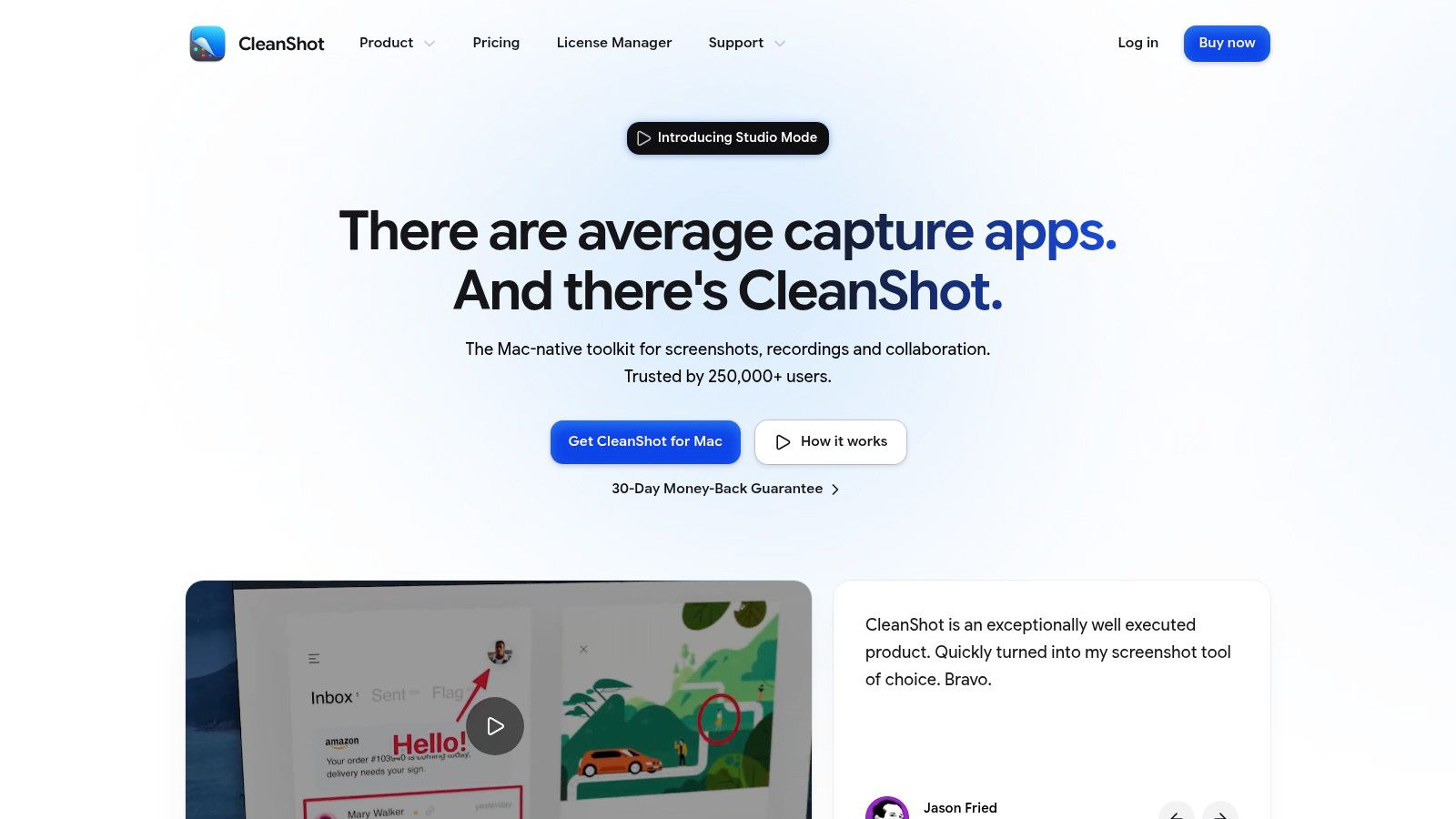
A screenshot utility becomes valuable when capturing an image is only the beginning. CleanShot X handles screenshots, scrolling captures, screen recordings, annotations, blur and redaction, OCR, and quick exports from one polished interface. It's a strong pick for designers sharing feedback, developers reporting bugs, educators preparing instructions, and teams communicating through visual examples.
The built-in editor keeps you from bouncing between a capture tool and a separate image application. Add arrows, highlight a control, obscure sensitive information, extract text with OCR, or save an image using a preset. Scrolling capture is useful for long webpages and documents that don't fit in one screen.
Choose it when communication is the bottleneck
CleanShot X also includes a video Studio Mode with animated zooms. Optional CleanShot Cloud sharing makes it easy to send a capture without manually preparing an attachment, though teams should review cloud settings before using it for confidential material.
The app requires macOS 13 or later, and its licensing model deserves attention. A one-time license includes one year of updates, while continued updates or broader cloud use may require renewal or a Pro subscription. That's reasonable if you use screen capture every day, but unnecessary if you only take occasional screenshots.
Use CleanShot X when you need to explain a problem clearly, not just save an image. Its value comes from shortening the path from capture to useful communication. Check the CleanShot X website for current system requirements, license terms, and cloud options.
4. Hazel for hands-off file management
Hazel is the app to install when you keep sorting the same files manually. It watches selected folders and applies rules that can rename, move, copy, tag, archive, or delete files based on conditions such as name, extension, date, kind, or other attributes.
A simple Downloads rule might move invoices into an accounting folder, send images to a media folder, and place installers in an archive. More advanced setups can support paperless workflows, project intake, and structured filing systems. Hazel can also connect with AppleScript and Automator when built-in actions aren't enough.
Start with rules you can explain
Hazel's strength is its flexibility, but that flexibility creates responsibility. A poorly designed rule can move or delete files in ways you didn't expect. Build one rule at a time, test it on a dedicated folder, and use clear conditions before expanding it to your whole Mac.
The app includes App Sweep tools for removing application leftovers and Smart Trash features for cleanup. Those extras are useful, but Hazel's core value is folder automation. If you only need to sort a small Downloads folder occasionally, manual organization may be simpler.
Hazel is a better complement to Finder than a replacement for it. It handles repetitive filing in the background, while Finder remains the place where you browse and work. See the official Hazel website for rule capabilities and current licensing information.
5. Bartender for taking control of the menu bar
A crowded menu bar creates constant visual noise, particularly on smaller Mac screens. Bartender lets you hide and reorder menu bar items, group related controls, search for hidden items, and reveal them through hotkeys or triggers. It's the clearest recommendation for anyone whose menu bar has become a row of icons with no obvious priority.
You can create different profiles for different contexts. A focused work profile might show communication and calendar tools, while a travel or presentation profile keeps only essential controls visible. Bartender also provides a second Bartender Bar for organizing items outside the primary menu bar.
What Bartender adds beyond hiding icons
Bartender 7 and Bartender Pro separate the product into different feature levels, which makes the pricing worth checking before you commit. The Pro tier adds Top Shelf, a space near the MacBook notch for widgets, clipboard tools, and file shortcuts. That turns the utility from a visual organizer into a small command area.
The trade-off is complexity in the licensing choices. Depending on the edition, you may encounter a one-time purchase, a Pro subscription, or access through Setapp. The subscription model won't suit every Mac user, especially if you only need basic hiding and reordering.
Bartender is most useful when menu bar clutter slows recognition rather than when you need another automation engine. Configure it around the controls you use, and avoid turning Top Shelf into another crowded dashboard. Visit the Bartender website to compare the current editions.
6. DaisyDisk for reclaiming storage with a clear visual map
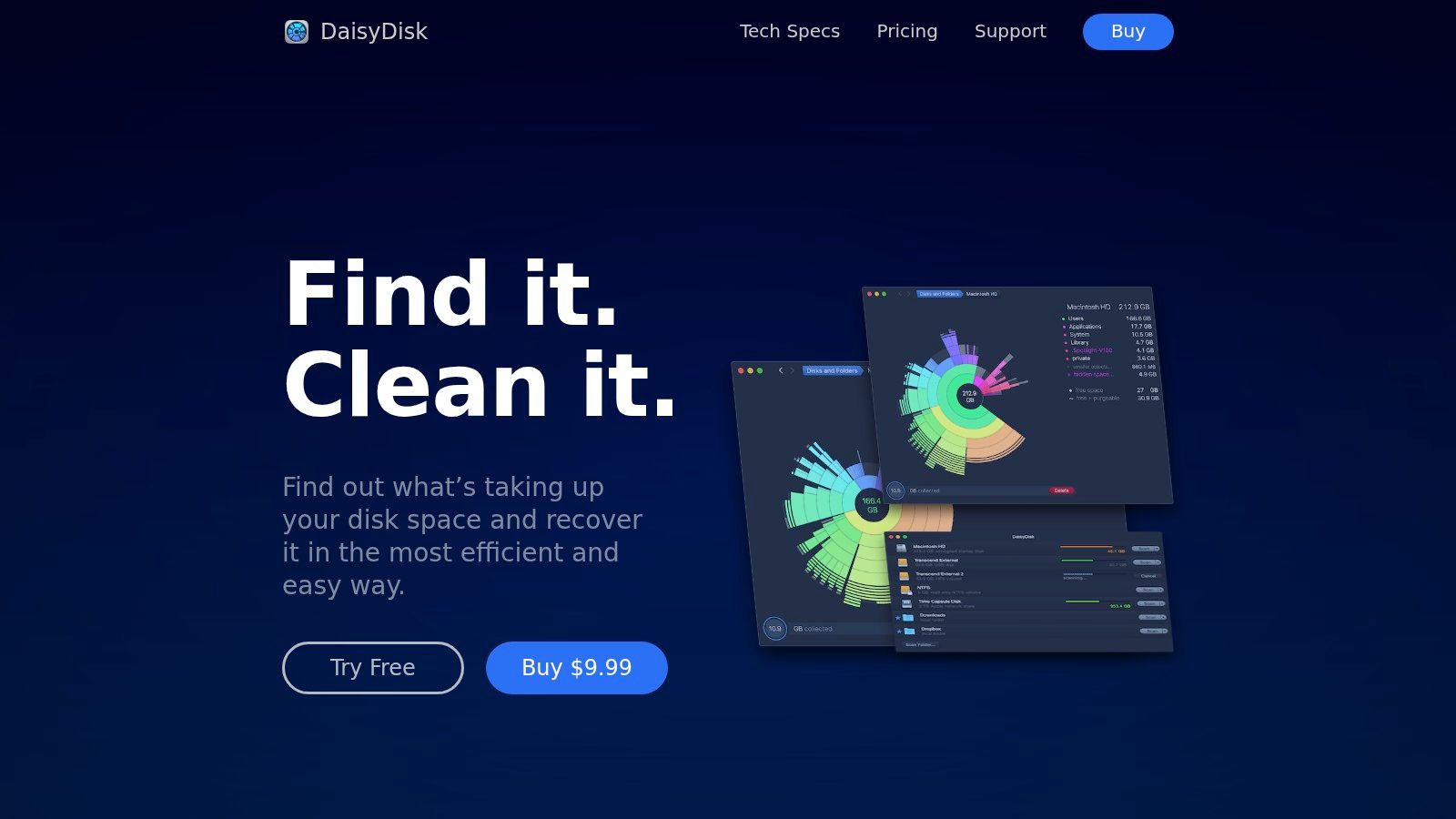
When macOS warns that storage is running low, Finder's list view can make the cause difficult to see. DaisyDisk gives you an interactive sunburst map of disk usage, so large folders and files stand out immediately. You scan a drive, inspect the biggest sections, collect items for removal, and delete them through a drag-based workflow.
That visual approach is useful when you don't know where the space went. Old video exports, application data, downloads, device backups, and forgotten archives become easier to distinguish from essential project files. DaisyDisk can scan local and external drives, along with some network drives.
Use visibility before deletion
DaisyDisk analyzes storage locally, which suits users who want a fast, privacy-friendly diagnostic tool. Its focus is narrow, and that's a benefit. It doesn't try to become a general system optimizer or file automation suite.
Choose the standalone edition if you need the full feature set. The Mac App Store edition has some limitations compared with the standalone build. The license is a one-time purchase that can be used on up to five personal Macs, according to the product notes, so it may work well for users with several personal machines.
DaisyDisk works best as an occasional storage audit rather than a background cleaner. Use it before moving projects to external storage or deleting old exports. For a broader look at practical Mac utilities, see this guide to the best Mac utilities, then review the current editions on the DaisyDisk website.
7. 1Password for securing accounts across devices
Password problems rarely stay inside one browser. You may have credentials saved in Safari, Chrome, an old notes file, or a password list that hasn't been updated in years. 1Password gives those accounts a structured home with encrypted vaults, autofill, browser extensions, secure document storage, and sharing features for families.
Its Watchtower feature helps identify weak, reused, or compromised passwords, while Travel Mode can remove selected data from devices during travel and restore it later. Family management lets people share selected information without making every private vault visible to everyone else.
The subscription trade-off is clear
1Password's security architecture includes end-to-end encrypted vaults and Secret Key protection. The company also describes regular audits, but you should still review its current security documentation and account-recovery model before moving sensitive data into any password manager.
The main drawback is licensing. 1Password is subscription-only, with no perpetual license, and the best rates generally require annual billing. That ongoing cost buys cross-device apps, browser integrations, sharing, and monitoring, but it may feel excessive if you only need a basic password vault.
Use 1Password when you want a polished system that covers personal accounts, family sharing, secure documents, and password hygiene together. If you're choosing it for a household, agree on which vaults are shared and which remain private before importing credentials. See the official 1Password website for current Personal and Family plans.
Top 7 Mac Apps: Feature Comparison
| Product | 🔄 Implementation Complexity | ⚡ Resource Requirements | ⭐ Expected Outcomes | 📊 Ideal Use Cases | 💡 Key Advantages |
|---|---|---|---|---|---|
| Tintd | Low–Medium; simple UI, Folder Watcher needs Full Disk Access | macOS-only; on‑device processing; one‑time purchase | Faster visual navigation; consistent folder systems; high privacy | Creatives, developers, knowledge workers organizing many folders | Large 11k+ icon library; Smart Color/Icon suggestions; bulk tools; Finder integration |
| Alfred | Medium; simple launcher -> advanced workflows require setup | Local app; Powerpack (paid) for advanced features; community workflows | Rapid app/file access and automation; productivity boost | Power users, automation builders, keyboard-centric workflows | Very fast; huge community workflow library; privacy-friendly local runs |
| CleanShot X | Low; intuitive capture UX, editor adds moderate complexity | macOS 13+; one‑time license (updates/cloud optional via subscription) | High-quality screenshots/recordings; fewer external tools needed | Content creators, documentation, support, tutorial makers | Polished editor, OCR, scrolling capture, built‑in sharing |
| Hazel | Medium–High; rule design requires learning and tuning | Background agent; local rules; one‑time license | Automated file sorting/cleanup; saves repetitive-management time | Downloads cleanup, paperless workflows, repeatable project organization | Flexible rule engine; AppleScript/Automator hooks; proven reliability |
| Bartender (7/Pro) | Low–Medium; basic use easy, profiles/triggers add complexity | macOS app; Pro tier subscription for Top Shelf; multiple pricing options | Decluttered menu bar; contextual access to items | Users with crowded menu bars, small screens, context-based profiles | Hide/reorder items, conditional profiles, Top Shelf for widgets/shortcuts |
| DaisyDisk | Low; simple scan-and-clean workflow | Local disk scanning; one‑time license (MAS edition limited) | Rapid identification of large files; reclaim disk space | Disk cleanup, storage audits, freeing space on Mac | Interactive sunburst map; fast scans; drag-to-delete cleanup |
| 1Password (Personal/Family) | Low; straightforward UX; family setup adds admin steps | Subscription; cross-platform apps and browser extensions | Strong password security; centralized vaults and sharing | Individuals and families needing secure password management | End-to-end encryption, Watchtower breach alerts, Travel Mode, secure sharing |
Build Your Mac App Stack Around Friction
There isn't one universal winner among the best apps for Mac because each recommendation removes a different kind of drag. Choose Alfred when launching apps, files, searches, and repeatable commands takes too long. Choose Hazel when you keep sorting the same folders by hand. Choose Bartender when menu bar clutter makes essential controls difficult to find.
For visual communication, CleanShot X is the practical pick. For storage visibility, use DaisyDisk. For account security across browsers and devices, choose 1Password. For Finder organization, especially when folder names blur together in a large project library, Tintd gives you the clearest visual improvement.
Your setup sequence matters. Start with the problem you encounter every day, install one app, and test it in that workflow before adding another utility. If you constantly search for files, begin with Alfred. If Downloads needs attention every morning, begin with Hazel. If you can't tell which folder contains the current client project, begin with Tintd.
Add automation only after the manual process is clear. A rule that reflects a consistent habit is easier to trust than a complicated setup built around guesses. The same principle applies to permissions. Review Full Disk Access for Tintd's Folder Watcher, file access for automation tools, and cloud settings for apps that offer online sharing.
Licensing deserves the same scrutiny as features. Tintd uses a one-time purchase model, while 1Password uses a subscription. CleanShot X combines a license with an update period and optional Pro services. Bartender offers different editions, and DaisyDisk has standalone and Mac App Store versions with different capabilities. Check current terms before buying because pricing, compatibility, and included features can change.
Privacy is also workflow-specific. Local processing suits folder metadata, storage analysis, and launcher data. Cloud sharing may be convenient for screenshots, but it should be deliberate. The best stack is small, understandable, and matched to the friction you experience, not a collection of utilities you rarely open.
Tintd makes Finder folders easier to scan with on-device Smart Icon and Smart Color suggestions, bulk editing, Folder Watcher automation, custom images, and a library of 11,000+ icons and emojis. If visual folder organization is the gap in your Mac workflow, visit Tintd to try a faster, more consistent way to organize Finder.