
A new Mac on day one always starts the same way. The Xcode download is still crawling, the terminal has no package manager, and the projects folder is already filling up with "new folder" clones. By the end of the first hour, the question isn't which apps exist. It's which developer tools for Mac earn a spot on the machine and which ones just add another icon to the Dock. This list keeps the focus on the setup job each tool does, from installing software to inspecting network traffic, so you can build a usable Mac without installing everything at once. For a broader look at how Mac utilities fit into a developer workflow, the guide to DevEx tools for Electron teams is a useful companion.
1. Homebrew
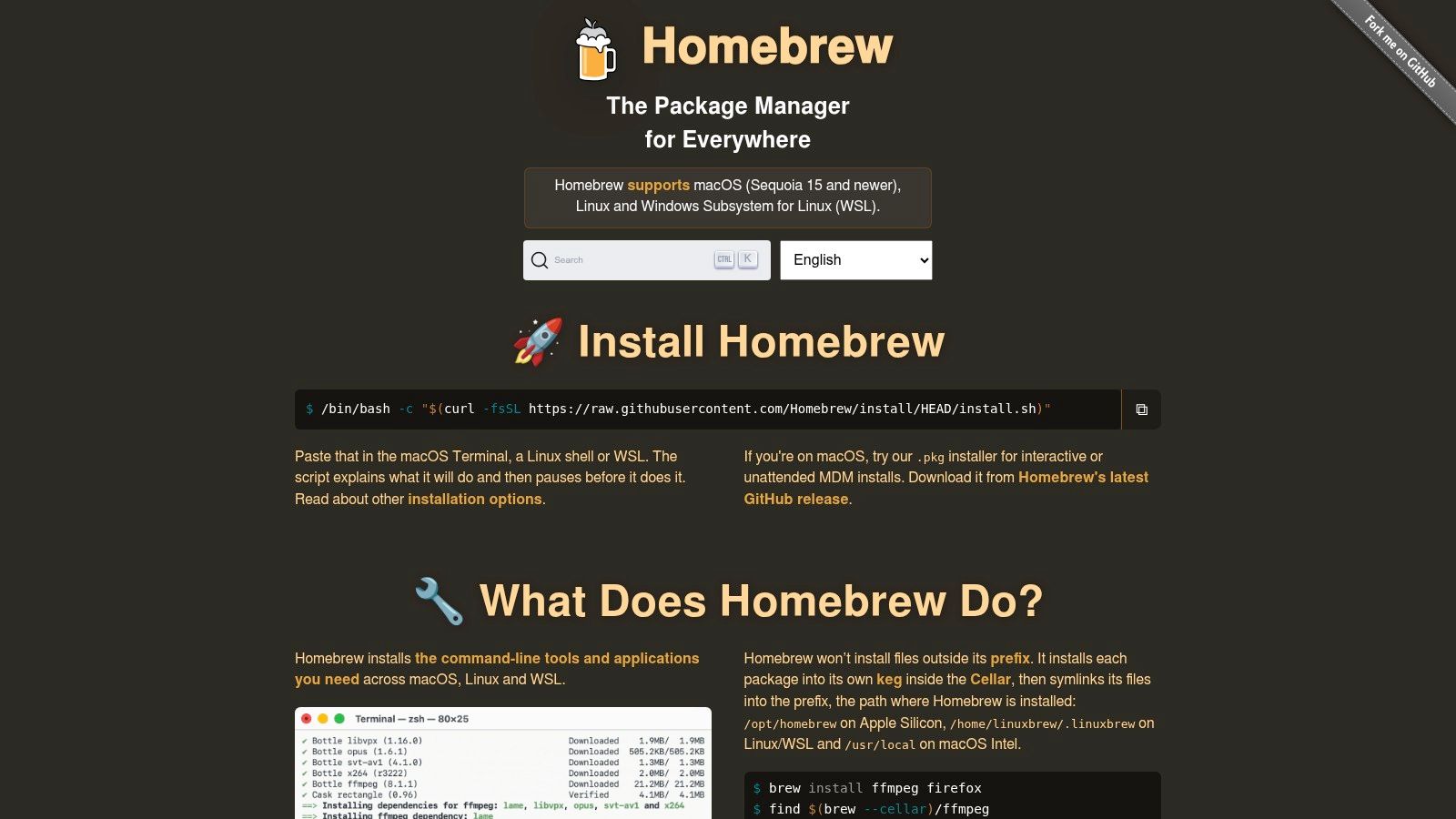
A fresh Mac gets useful fast once Homebrew is in place. It replaces manual installs for command-line tools, desktop apps, and background services, so Git, Node, PostgreSQL, and a GUI utility do not all require a separate download hunt. The official Homebrew site describes it as the package manager for macOS, which is the right starting point.
What it replaces
Homebrew cuts out browser downloads, drag-and-drop installs, and the odd shell script you only remember after the machine is already set up. It also makes repeat setups easier, because a Brewfile can record the apps and packages you want, then restore them later with one brew bundle run. On Apple Silicon, it handles the install path and defaults in a way that matches the hardware instead of fighting it.
For more utilities worth installing early, see our roundup of the best Mac utilities alongside Homebrew.
The limitation is simple. Homebrew is not a perfect fit for every fleet or older macOS release, and some enterprise setups need workarounds. Even so, it is the cleanest base layer for most Mac developers. A Brewfile checked into dotfiles means a rebuilt Mac restores Git, Node, and PostgreSQL in one brew bundle run.
2. Xcode
Xcode is the one tool you can't fake if you build for Apple platforms. It's the official IDE and SDK suite for macOS, iOS, iPadOS, watchOS, tvOS, and visionOS, and Apple describes it as the place where code completion, simulators, profiling, and debugging all live together in one environment. The Apple App Store listing for Xcode is the direct download path, and the Apple developer resources page shows how broad the toolchain has become over time.
A lot of developers underestimate how much setup Xcode replaces. It covers coding, signing, testing, asset handling, device simulation, and distribution prep, which means fewer separate tools are needed just to get a build on a device. Apple also exposes older versions, command-line tools, and beta software through its developer resources, and it doesn't require Apple Developer Program membership just to download those tools.
Why it belongs on the base image
Xcode matters because it defines the rest of the Mac development stack. If you work on Apple apps, you need it for SDKs and simulators. If you work on tooling around Apple apps, you still end up touching it for command-line utilities, compilers, or profiling.
The downside is obvious. It's large, it updates often, and it's focused on Apple platforms. That's not a flaw if your job involves Apple software, but it's a bad fit if you only need general-purpose editing and never touch Apple SDKs.
For macOS work, Xcode is less a convenience and more a dependency. It's the anchor that makes the rest of the Apple-specific setup possible.
3. Visual Studio Code
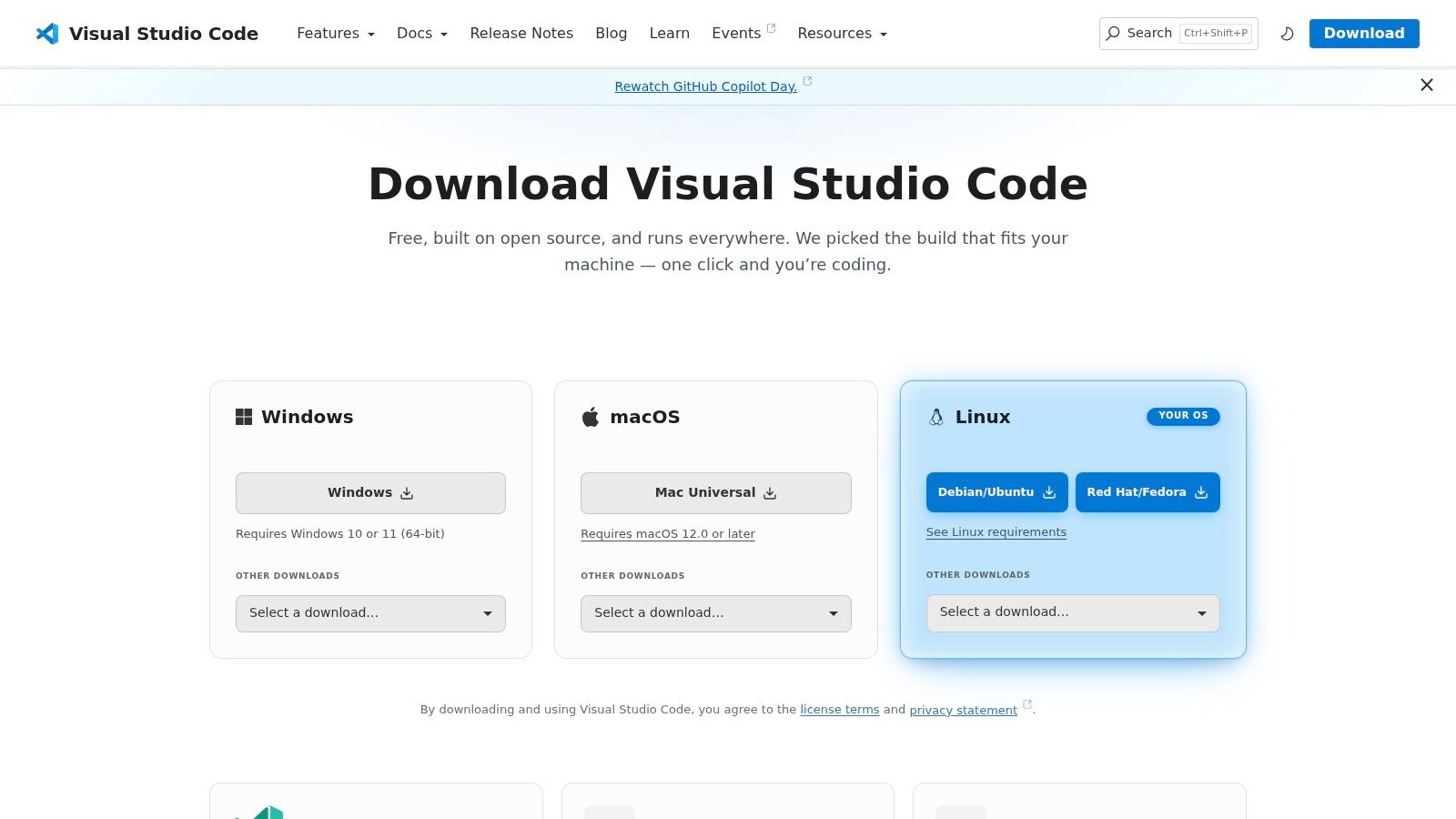
Visual Studio Code is the editor I see on more Mac desks than anything else, and the reason is practical, not fashionable. It handles TypeScript, JavaScript, Python, C and C++, remote development, containers, and a huge extension ecosystem without forcing you into one language family. The Visual Studio Code download page makes the breadth obvious, but the day-to-day value comes from how much setup it absorbs once your projects start multiplying.
The job it replaces
VS Code replaces a pile of smaller tools. It becomes the editor, the lightweight debugger, the Git surface, and often the remote entry point into a container or dev environment. In the setup notes I keep for web work, the editor becomes the center of linting, formatting, and language support rather than a place to just type code. The Tintd utility roundup is a good reminder that this kind of Mac workflow usually includes a few visual helpers too, not just code tools.
The trade-off is extension sprawl. VS Code stays flexible only if you keep the extension list under control. Once it starts carrying too many language packs, themes, and helper plugins, it feels heavier than it should. That isn't a reason to skip it, but it is a reason to be selective.
Why it stays installed
It stays because it's the fastest way to open almost any codebase on a Mac and get productive. It also plays nicely with remote folders, which matters when the code lives in containers or on another machine. If you want one editor that can cover a huge amount of ground, this is the safest default.
4. iTerm2
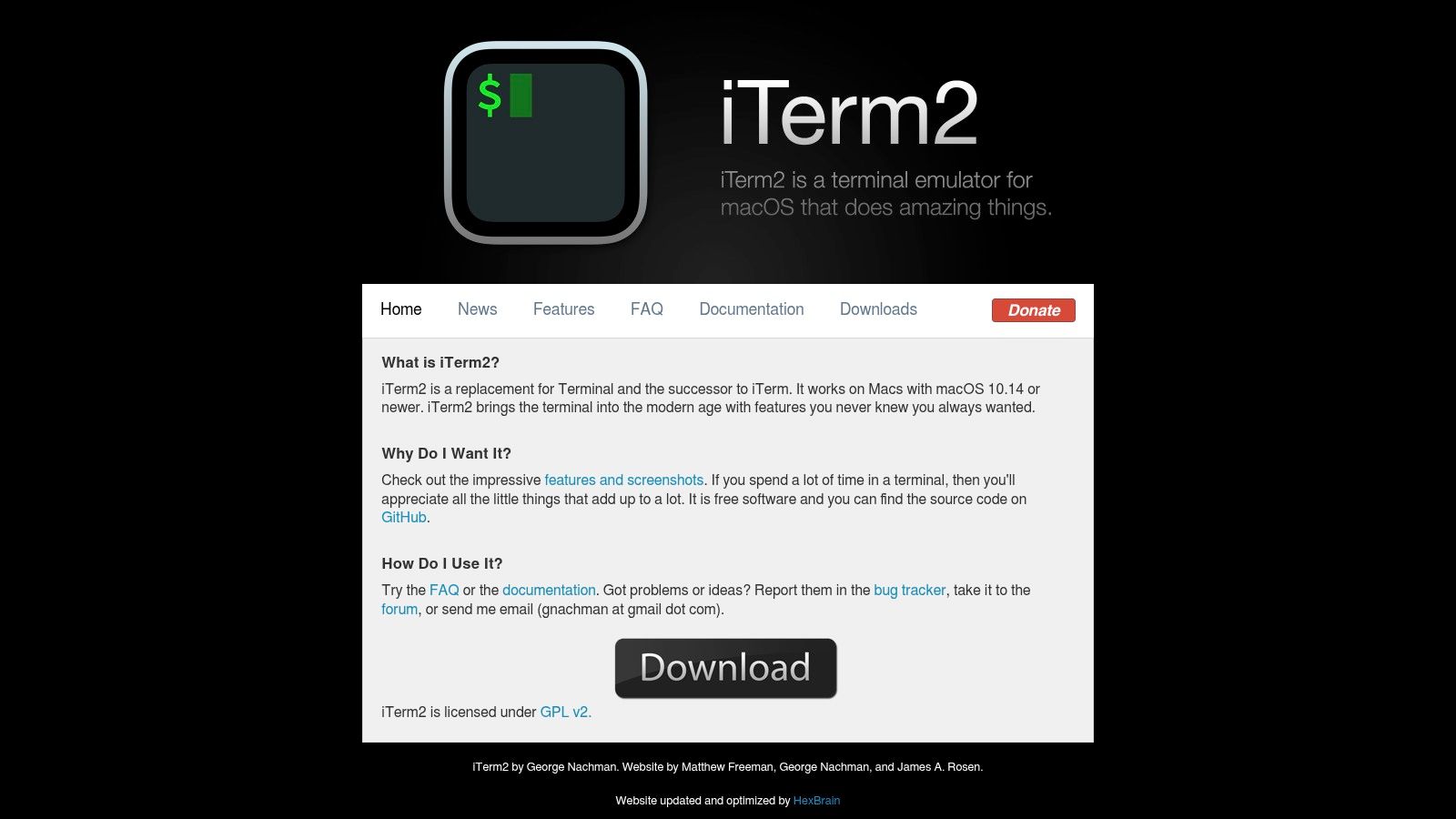
iTerm2 is the terminal emulator I keep coming back to because it stays out of the way while still giving me the controls a plain terminal often hides. Split panes, profiles, search, broadcast input, and the hotkey window make it easier to run several local services at once without juggling windows. The iTerm2 site is straightforward about what it is, a Mac-native terminal emulator, not a full development environment.
What it replaces day to day
It replaces the default Terminal app when you need more control over sessions. That usually means running a local server, tailing logs, connecting over SSH, and comparing output from multiple commands side by side. For a Mac developer, the big win is not visual polish. It's session management.
A terminal is only “good enough” until you have three services running and one of them starts failing on startup.
The limitation is also clear. iTerm2 is still a terminal emulator. It doesn't turn into a broader dev platform, and it doesn't add cloud sync or built-in AI just because the rest of the market is chasing those features. That's fine if you want a reliable shell front end and not a guided workflow.
I keep iTerm2 because it's predictable. When I'm debugging a local environment, predictability matters more than novelty.
5. Warp
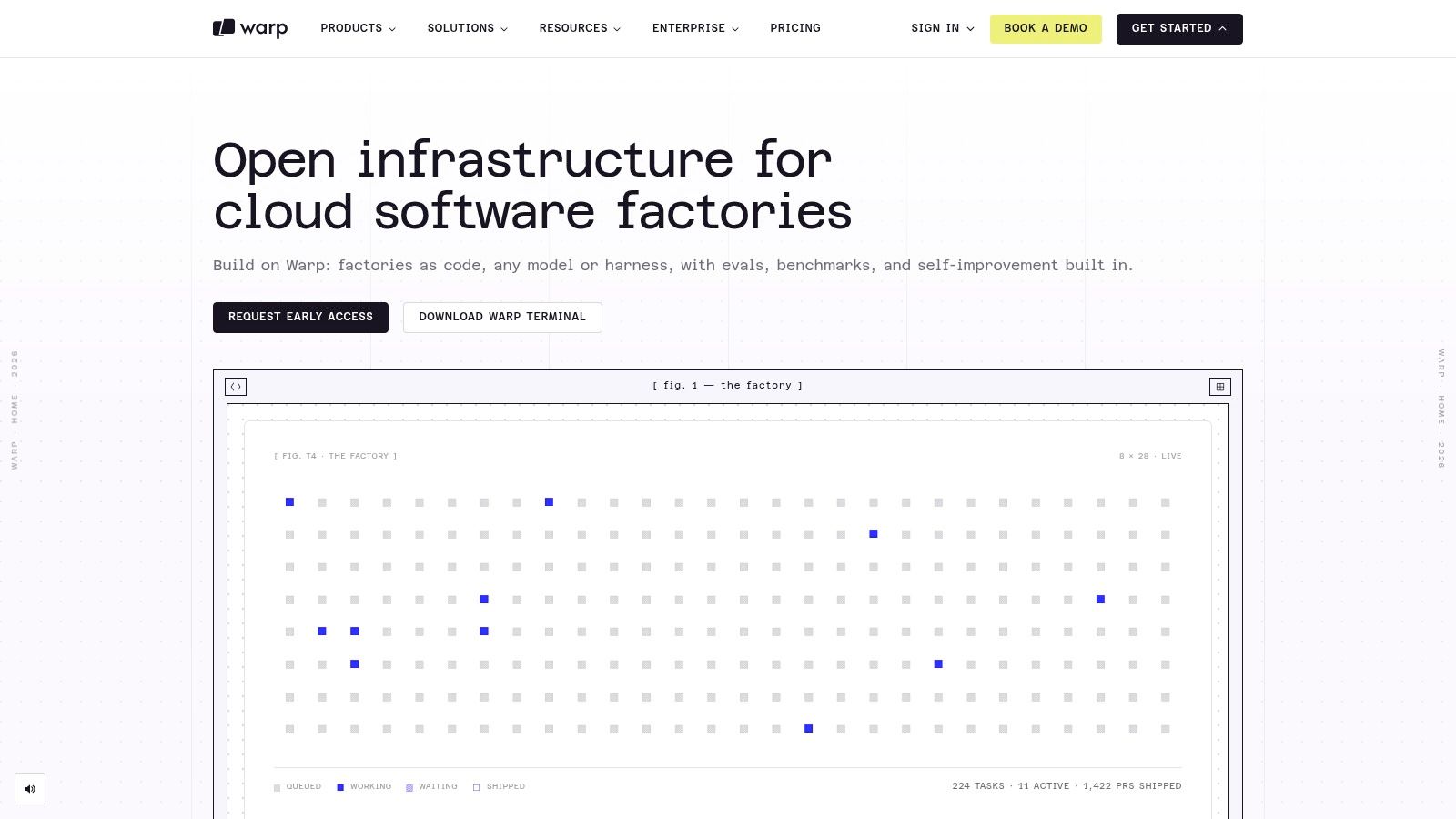
Warp sits in a different lane from iTerm2. It's a modern terminal with a command-palette interface, workflows, team features, and optional AI assistance, which makes it easier to discover commands when you're not living in the shell every hour. The Warp website positions it as a more guided terminal, and that's exactly the appeal.
Where it helps
Warp helps most when a setup task is more procedural than creative. New commands are easier to discover, sharing terminal workflows is less awkward, and the UI can reduce the friction of repeating a command sequence across projects or teammates. That makes it useful for newer developers and for experienced developers who are tired of retyping the same shell incantations.
The trade-off is that some of its best-known features lean on paid plans or AI usage credits. If you want a classic terminal with no extra layer, Warp can feel like too much guidance. That's not a dealbreaker, but it does matter if your workflow depends on staying close to raw shell behavior.
The macOS automation tools discussion lines up with the way Warp is often used in practice, as part of a broader automation mindset rather than as a standalone replacement for everything else.
Best fit
I'd choose Warp when the team wants a friendlier terminal and the workflow benefits from discoverability. I'd choose iTerm2 when the priority is total familiarity and the least possible abstraction.
6. Docker Desktop for Mac
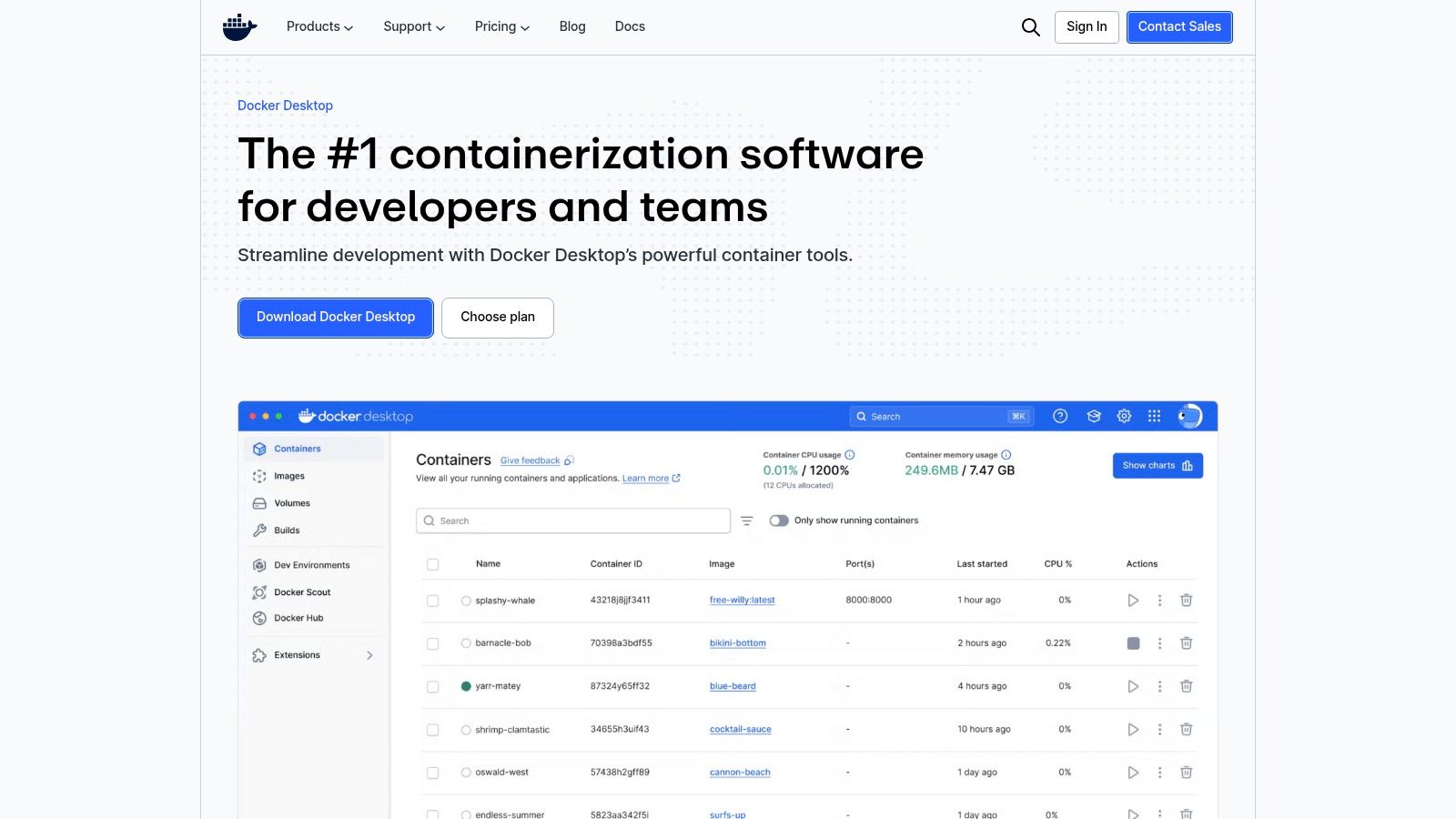
Docker Desktop for Mac is the tool that makes local container work feel normal on a Mac instead of awkward. It gives you an environment for building, running, and debugging containers locally, plus Docker Compose support, Kubernetes support, and an extensions marketplace. The Docker Desktop product page covers the current downloads for Apple Silicon and Intel Macs, which still matters on mixed hardware teams.
What it replaces
It replaces a patchwork of manual local services, ad hoc VM setups, and “works on my machine” excuses. For web, backend, and QA work, Docker Desktop is often the fastest way to get a database, cache, or API dependency running in a reproducible state. That's why it shows up so early in a serious Mac dev setup.
The limitation is resource use. Docker Desktop can be heavy, especially on machines that are already juggling an IDE, browser tabs, local databases, and a few background agents. Larger companies may also need to care about licensing, which makes it worth checking the pricing page before standardizing it across a team.
Clearcote Labs Playwright Docker is a good example of why containerized local and test environments keep showing up in Mac developer workflows.
Practical takeaway
Use Docker Desktop when a project needs container parity. Don't install it just because other developers did. If your stack is simple, it can be overkill, but when it's needed, it saves time quickly.
7. TablePlus
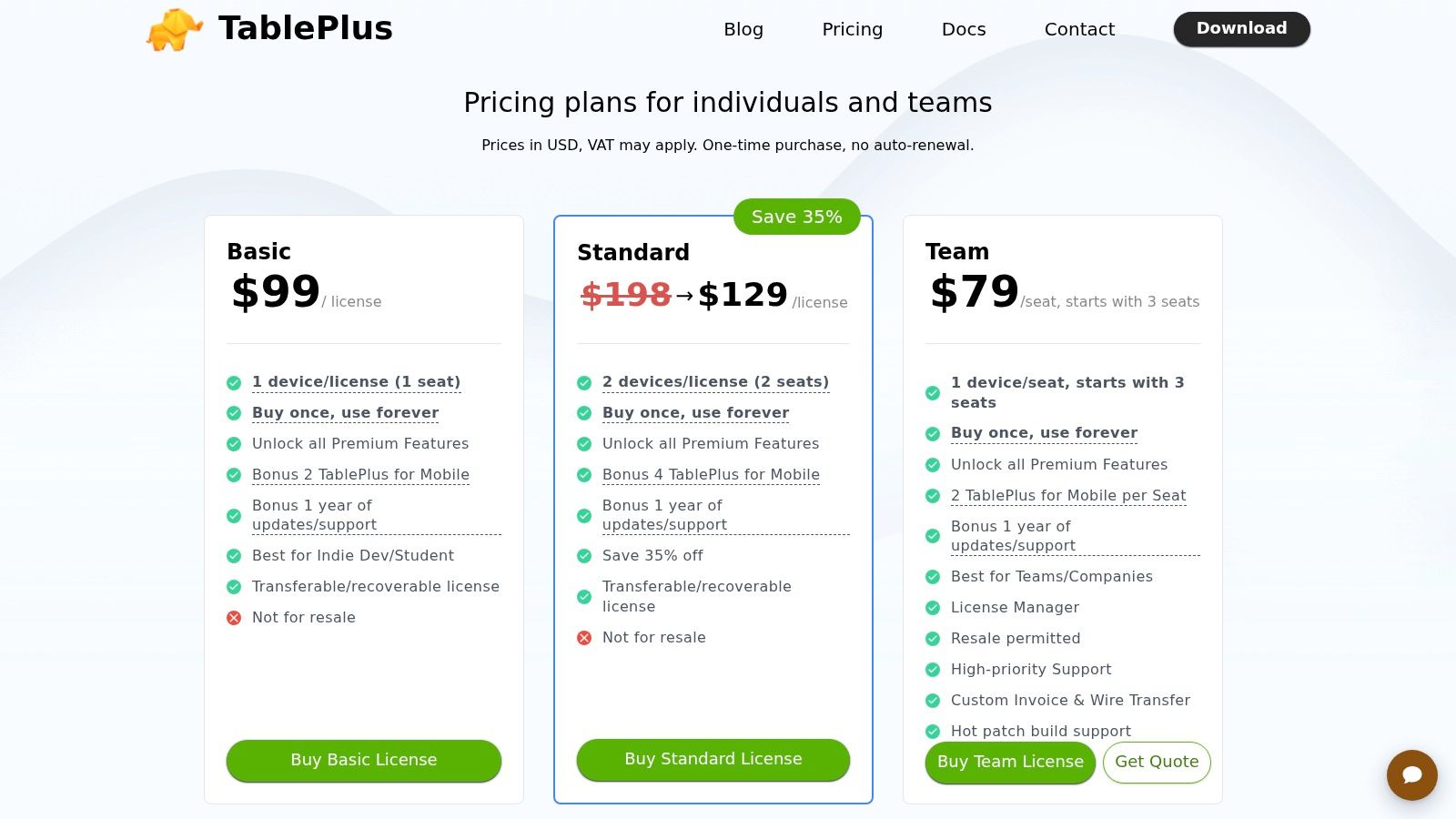
TablePlus is the database GUI I reach for when raw SQL is enough but the command line stops being the fastest place to inspect data. It supports PostgreSQL, MySQL, MariaDB, SQLite, SQL Server, Redis, and more, and the TablePlus pricing page makes its licensing model clear.
Why developers keep it around
TablePlus replaces a mix of terminal clients, web consoles, and database admin panes when you need to inspect rows, edit values, or run ad hoc SQL quickly. Its polished Mac-native interface matters more than it sounds like it should, because database work is already mentally dense. A cleaner UI reduces the time spent fighting the tool.
The buy-once structure is also part of the appeal. There's a perpetual license model with one year of updates, and seats are transferable, which is different from the subscription-only pattern many dev tools have drifted toward. The limitation is the trial and renewal structure, because advanced use eventually runs into license boundaries and update windows.
When it's the right choice
Use TablePlus when the database is part of the daily workflow and you want a faster feedback loop than a browser admin panel can give you. If you only touch a database once a week, it may be more tool than you need. If you spend half a day inside one, it pays for itself in fewer clicks.
8. Tower
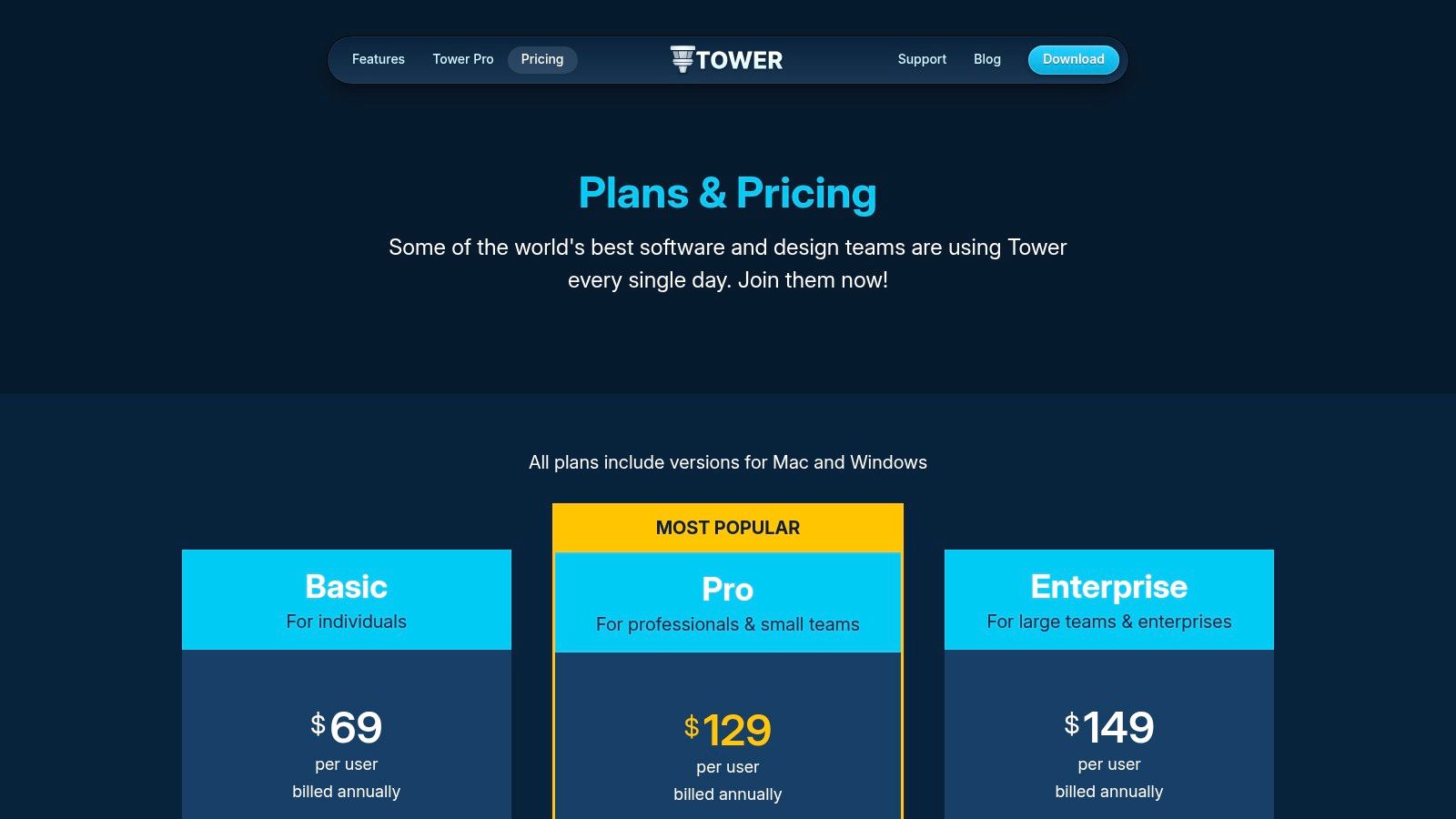
Tower is the Git client for people who want visual control over version control without giving up serious Git operations. It handles interactive rebase, cherry-pick, undo flows, pull request integrations, custom workflows, and team features, and the Tower pricing page makes the commercial terms easy to check.
What it replaces
Tower replaces the “I guess I'll do this in terminal and hope I don't rewrite history badly” mode of Git work. That matters for developers who are comfortable with Git in theory but want a safer visual path for branch cleanup, conflict handling, and commit review. It's especially helpful when onboarding someone who's still learning the shape of Git.
The trade-off is the subscription model. Power users often prefer the command line because it's faster for them and less opinionated. That doesn't make Tower weak, it just means Tower is optimized for a different comfort level.
The API workflow tools roundup is a reminder that visual tooling tends to help most when collaboration matters, not just personal speed.
Good fit, bad fit
Tower is a good fit for team environments where Git mistakes are expensive and visual clarity helps. It's a weaker fit for terminal-first developers who already have every branch command memorized. I'd keep it as a rescue layer, even if the command line remains your primary Git interface.
9. Postman
Postman belongs on a Mac when the job shifts from writing code to coordinating APIs. It gives backend, frontend, and QA teams a shared place to design, test, document, and monitor APIs, and the Postman pricing page is the right place to check current plan boundaries.
Why it's still on many machines
Postman replaces scattered curl commands, shared docs, and half-broken local notes when an API needs to be tested consistently across a team. Collections and workspaces keep requests organized, mock servers reduce dependency on unfinished services, and collaboration features make it easier to standardize how an endpoint is exercised.
The downside is plan complexity. Some advanced features and higher AI usage sit behind paid tiers, and changes to the 2026 plan structure mean teams should reassess whether Postman still matches their workflow instead of assuming it always will. That's not a reason to avoid it. It's a reason to read the pricing page before building a process around it.
Best use case
Postman makes the most sense when several people need the same API context and you don't want that knowledge trapped in one engineer's shell history. It's less useful if you only fire off one-off requests and never share them. In that case, it's probably too much surface area.
10. Proxyman
Proxyman is the tool I install when I need to see what an app is doing on the network, not what the code claims it's doing. It's a Mac-native HTTP(S) debugging proxy for capturing, inspecting, mocking, and rewriting traffic, and the Proxyman pricing page covers the licensing options for macOS, Windows, Linux, and the companion mobile apps.
Why it matters
Proxyman replaces a lot of guesswork. If a request fails only on iOS, only on a specific endpoint, or only after a rewrite, a proxy makes the problem visible in a way logs alone often don't. Breakpoints and map local or remote features are especially useful when you want to intercept traffic, compare responses, or test alternate backend behavior.
Its limitation is that some of the same territory is covered by open-source tools, so the decision is less about whether the feature exists and more about whether you want the Mac-native experience and commercial support. Team features also sit on higher tiers, so solo use and team use can land in different pricing conversations.
For mobile and web debugging, Proxyman often becomes the difference between “it should work” and “here's the exact header that broke it.”
Top 10 Mac Developer Tools: Feature Comparison
| Tool | Primary Use | Standout Capabilities | Best For | Value & Trade-offs |
|---|---|---|---|---|
| Homebrew | macOS package management | Formulae, casks, Brewfiles, Apple Silicon support ✨ | 👥 Developers automating Mac setups | 💰 Free; ★ scriptable with strong community docs |
| Xcode | Apple-platform app development | SDKs, simulators, debugging, signing, App Store tools ✨ | 👥 Developers building for Apple platforms | 💰 Free; 🏆 First-party tools, but large downloads |
| Visual Studio Code | Cross-platform code editing | Extensions, Git, debugging, containers ✨ | 👥 Developers seeking a flexible editor | 💰 Free; ★ broad ecosystem, though extensions can add overhead |
| iTerm2 | Terminal emulation | Split panes, profiles, triggers, hotkey window ✨ | 👥 Mac users who want a customizable terminal | 💰 Free and open source; ★ mature and well documented |
| Warp | Modern terminal | Guided command discovery, workflows, team features, optional AI ✨ | 👥 Developers who value assistance and collaboration | 💰 Some features or AI use may cost extra; ★ approachable interface |
| Docker Desktop for Mac | Local container development | Compose, Kubernetes, extensions, Intel and Apple Silicon support ✨ | 👥 Developers and teams using containers | 💰 Free for some users; larger companies may need a paid license |
| TablePlus | Database management | Multi-database support, smart editors, data visualization ✨ | 👥 Developers working with SQL and databases | 💰 Perpetual license option; ★ polished Mac experience, updates may require renewal |
| Tower | Visual Git management | Interactive rebase, cherry-pick, undo, pull request integrations ✨ | 👥 Developers who prefer visual Git workflows | 💰 Subscription; eligible students and educators may qualify for free access |
| Postman | API development and testing | Collections, workspaces, monitoring, mock servers ✨ | 👥 API, backend, frontend, and QA teams | 💰 Advanced features and some AI usage are paid; ★ strong collaboration tools |
| Proxyman | HTTP(S) traffic debugging | SSL inspection, breakpoints, request mapping, scripting ✨ | 👥 Web and mobile developers debugging network traffic | 💰 Perpetual personal licenses; team features may require higher-tier plans |
Build Your Mac Toolkit One Layer at a Time
Don't install all ten at once. Start with Homebrew so the rest of the machine is manageable, add Xcode if you build Apple platform apps, and choose one editor and one terminal before you add anything else. After that, bring in Docker, TablePlus, Postman, or Proxyman only when a project needs them. That keeps the Mac fast, the Dock readable, and the setup closer to the way you work instead of the way a tool vendor wants you to work.
For the folder layer of a tidy project tree, Tintd applies icons and colors to Finder folders on-device, which fits the part of this stack that the code tools never touch. It gives local project folders a visual system without uploading names or relying on cloud-side automation. If your Mac setup still turns into a wall of identical blue folders, visit Tintd and see how it can make the filesystem easier to scan without changing how you work.
Tintd gives Finder folders a clearer visual system with custom icons and colors, all processed on-device. If you're building out a Mac developer setup and want the project tree to stay readable, Tintd adds the folder layer that the usual dev tools leave behind.