
You're ready to send a project, but the editable file is on your Desktop, the approved PDF is in Downloads, and another export is buried in a folder called Final_New. You can probably reconstruct what happened. Someone else opening the project can't.
A useful project folder structure makes those decisions less dependent on memory. It gives incoming material, editable work, and delivered files predictable homes, then gives you a way to retire the project without losing its context. On a Mac, start with names and folders. Add visual cues only after the underlying arrangement makes sense.
Copy a Template and Build the Top Level
Choose the closest template below. These are starting arrangements, not requirements imposed by macOS.
| Project type | Top-level folders | Where final files go |
|---|---|---|
| Design | 01_Brief, 02_References, 03_Source, 04_Working, 05_Exports, 99_Archive | 05_Exports, with a subfolder per format |
| Software development | docs, src, tests, assets, build, 99_Archive | build, kept out of src and version control |
| Research | 01_Admin, 02_Data_Raw, 03_Data_Clean, 04_Analysis, 05_Outputs, 99_Archive | 05_Outputs, with versioned reports |
| Client work | 01_Contract, 02_Brief, 03_Working, 04_Deliverables, 05_Invoices, 99_Archive | 04_Deliverables, containing sent copies only |
The important separation is inputs, editable work, and outputs. A downloaded reference image isn't your working design, and an exported PDF isn't a substitute for its editable source. Keeping those roles apart makes it easier to identify what you can regenerate and what you must preserve.
Apple makes a more fundamental distinction in its File System Programming Guide: /System contains resources required to run macOS and shouldn't be modified, while /Users contains users' home directories. Keep your project root in user-managed storage, not among operating-system resources.
Choose the template by how you work
For a design project, define the difference between 03_Source and 04_Working before anyone saves files. A practical convention is to keep supplied assets and reusable masters in Source, with compositions and active revisions in Working. If you can't explain the distinction clearly, merge those roles rather than maintain ambiguous destinations.
For research, preserve incoming data in 02_Data_Raw. Put transformed datasets in 03_Data_Clean and record how you produced them. That way, a corrected analysis doesn't require you to guess whether someone edited the original spreadsheet.
Software development is the deliberate exception to the numbered pattern. Use the directory names your repository, framework, and build tools expect. Treat build as generated output, and configure version-control exclusions accordingly; don't manually relocate files that a tool expects elsewhere.
For client work, Deliverables means what you sent. A candidate presentation belongs in Working until it's handed off. This avoids presenting an unapproved draft as the delivery record.
Build the project in Finder
Choose a permanent root. Create a Projects folder inside Documents or your home folder, then put active projects there. The reason is practical: you need a destination you'll use even when you're rushed. The common slip is starting work on the Desktop and promising to organize it later. Desktop storage isn't invalid, but it makes temporary saving too easy to confuse with deliberate filing.
Give the project a recognizable identity. Combine a client code or meaningful date with a short descriptor, such as
Acme_RebrandorYYYY-MM_Acme_Rebrand. Choose the identifier people use in conversations and handoffs. Avoid vague roots such asNew_Project, and don't add a client level unless you regularly manage multiple projects for that client.Create the folders from your chosen row. For numbered templates, use two-digit prefixes followed by underscores. Treat
01as administration, briefs, or contracts;02as references or incoming material;03as working content where appropriate; later positions hold analysis, outputs, exports, or invoices according to the template. Reserve99_Archivefor retired material. The numbers establish an order, not a universal classification system.Write a README at the root. State the project's purpose, its owner, and what belongs in each folder. Include any distinctions that a newcomer could misunderstand, especially Source versus Working or Outputs versus Deliverables. The common slip is writing only a folder list. Explain the decisions: whether raw data may be edited, where approvals live, and which directory contains the handoff record.
Save an empty copy as your template. Remove project-specific assets, private contracts, and client details before retaining it for reuse. Keep the folder descriptions and replace the owner and purpose with clear prompts. Copying an old live project without cleaning it first can carry obsolete files and assumptions into the next job.
Don't create every possible subfolder in advance. Begin with the destinations you can explain, then add detail when actual material needs it. A template should remove repeated decisions, not force you to sort through empty categories.
Finish with the column-view test in Finder. Sort by name, open the project root, and read the top level in sequence. You should be able to describe the flow from incoming material to work to delivery without opening every folder.
Naming Rules That Keep Folders in Sequence
A name should help you distinguish nearby items without opening them. It also needs to make sense when the item appears in search results, outside its original folder.
Use a compact checklist rather than inventing conventions during each save.
- Keep prefixes consistent. Mixed padding makes an ordered list harder to maintain. Bad:
1_Admin,02_References,3_Working. Good:01_Admin,02_References,03_Working. - Choose predictable separators. Use underscores between meaningful words and hyphens within dates or codes. Bad:
Acme / Brand & Web. Good:Acme_Brand_Web. - Write dates from largest unit to smallest. Use
YYYY-MM-DDwhen chronological sorting matters. Bad pattern:DD-MM-YYYY_Review. Good pattern:YYYY-MM-DD_Review. - Keep the distinguishing words visible. Remove filler instead of enforcing an arbitrary character limit. Bad:
All_The_Working_Documents_For_The_Acme_Rebrand. Good:Acme_Rebrand_Working. - Avoid unnecessary punctuation. Plain letters, digits, underscores, and hyphens are easier to handle in scripts. Bad:
Client's Draft (Approved?). Good:Acme_Proposal_v03. - Use one term for one role. Don't alternate between Exports, Output, and Rendered when you mean the same destination. Bad: sibling folders called
ExportsandExported_Files. Good: one documented05_Exports. - Separate versions from approval. Bad:
logo FINAL new 2.ai. Good:Acme_Logo_v03.aiinside03_Sourceif that's your defined home for editable masters. Record approval in the delivery record, not by appending Final again.
Rename deliberately
A version number identifies a revision; it doesn't prove approval. Likewise, a folder called Old doesn't explain whether its contents are superseded, rejected, or retained for reference.
A useful name describes the item. A useful record explains what happened to it.
Names remain meaningful when files are copied, synced, or archived. Color and icons can't carry that responsibility alone.
For an existing collection, use a preview-first process such as the one described in our guide to batch file renaming on Mac. Check for duplicate destinations and linked files before applying changes.
Name the project folder at creation and keep it stable unless its scope changes. Record any rename in the README, including the previous name and the reason.
Why Folders, Tags and Smart Folders Each Do a Different Job
Folders are library shelves. Tags are sticky notes attached to books. Smart Folders are saved searches that show every book matching a condition, without taking it off its shelf.
That distinction matters because you're answering different questions: Where does this belong? What needs attention? What do I want to see together? Apple's Finder organization guide describes nested folders, tags, and Smart Folders as complementary ways to organize and retrieve items.
| Mechanism | Moves files? | Best for | Where it goes wrong |
|---|---|---|---|
| Nested folders | Yes, when you relocate items into them | Stable ownership such as client, phase, or asset type | Too many levels, or status words that change every week |
| Color tags | No | Temporary priorities such as Review or Urgent | Applied to every file, so the tag loses its meaning |
| Smart Folders | No | Saved rule-based views such as PDFs edited this month | Rules so broad that the view shows everything |
Creating an empty folder doesn't move anything. The distinction in the table is that filing changes an item's physical location, while tagging and saved searches don't.
Keep a stable home and a changing view
Say you're preparing a client presentation. The editable deck belongs in the project's Working folder. Apply a Review tag while feedback is outstanding, then remove it when the review finishes.
You don't need to move the deck into a separate Needs_Review tree. That would make its location depend on a temporary condition and could leave collaborators searching its previous home.
A Smart Folder answers a broader question. You might collect recently edited PDFs across active projects, or show files carrying a Work tag. Refine the rules until the results support a specific task rather than reproduce your entire file collection.
For navigation techniques that support these views, our Mac Finder tips provide additional context. Choose a view for the job: column view for tracing location, or a visual preview when identifying an asset by appearance.
Keep attention cues selective
Urgent stops being useful when everything carries it. Define what qualifies for each action tag and who removes it; otherwise, yesterday's priority becomes permanent decoration.
If maintaining attention is part of the difficulty, Jan Kutschera's organization tips for founders with ADD offer a complementary resource for thinking about personal organization. Keep your own tag vocabulary small enough that you can apply it without debating the label.
Use this decision rule: if the answer changes during the project's life, use a tag. If it stays the same until the project ends, use a folder. Use a Smart Folder when you want a reusable view across those locations.
How Deep to Nest Before a Structure Breaks
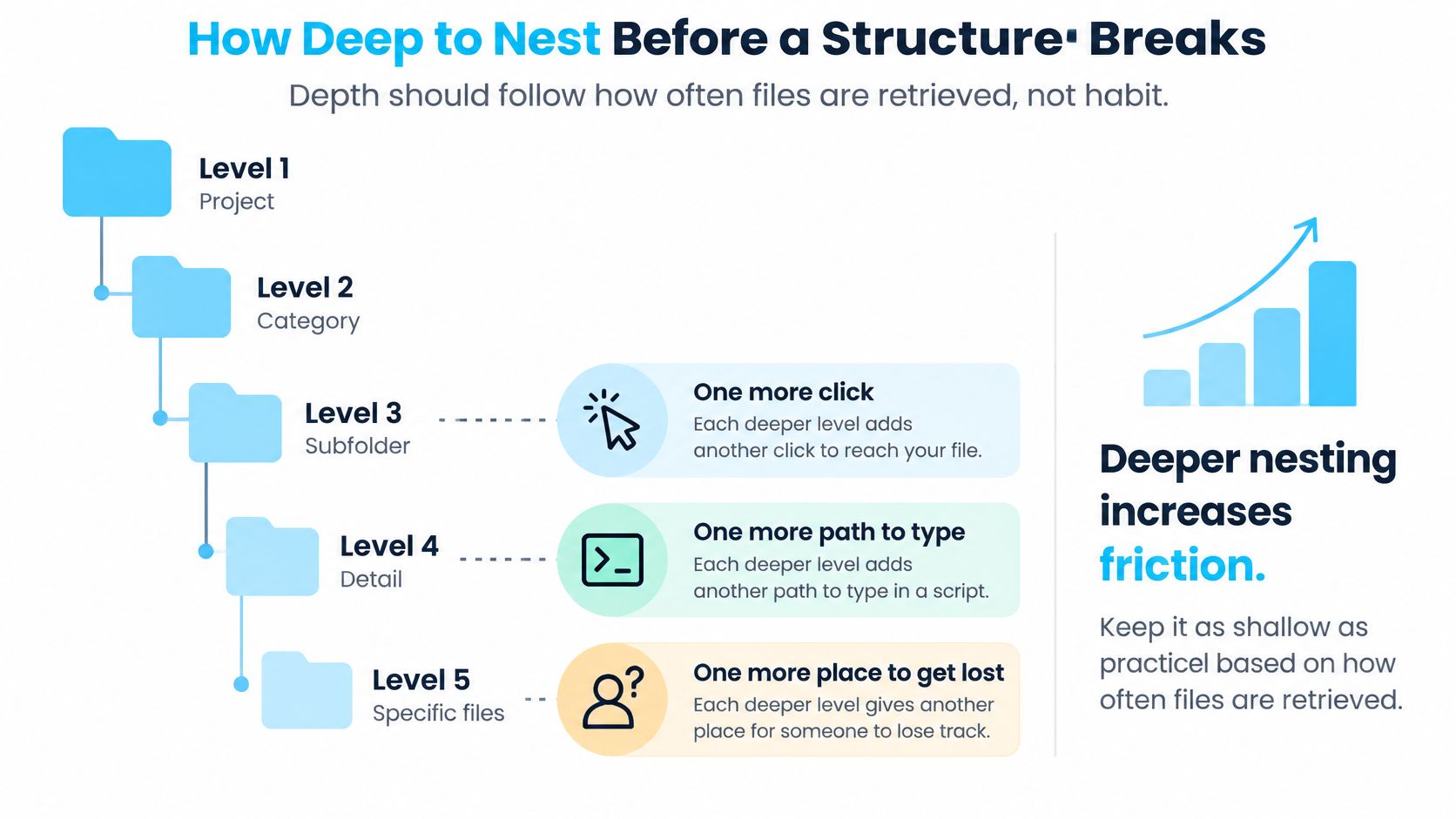
Depth should follow retrieval needs, not habit. A separate folder is worthwhile when it narrows the search in a way people understand. It's less useful when it merely adds another container called Project, Files, or Assets.
The paper Evaluate, Reorganize, and Share describes semantic organization as a way to help users reason about locations rather than memorize exact paths. That's the right test for a new level: does its name make the remaining choices clearer?
The diagram highlights the navigation costs that accumulate as a tree grows.
Give each level a job
Treat these as suggested layouts, not measured limits. Count levels beneath the project root, and add another only when it represents a useful distinction.
| Situation | Levels | Trigger to add a level |
|---|---|---|
| Small personal project | Category, then files | A category contains distinct groups you repeatedly retrieve separately |
| Ongoing client or studio work | Category, asset group, then files | A phase or asset type has its own separate deliverables |
| Shared team project with separate owners | Responsibility, work category, then files | Collaborators need separately managed areas and permissions |
| Multi-year research or code archive | Period, project, category, then files | Repeated retrieval difficulty reveals a missing grouping |
A folder named for a collaborator doesn't protect anything by itself. Configure access permissions separately where protection is required.
Consider a hypothetical path buried beneath Working, Concepts, Campaign, Digital, Social, Approved, Revised, and Export. Flatten it to 04_Working/Social/Acme_Campaign_v03.ai, with the generated delivery copy in the designated export destination. The filename identifies the revision without requiring a folder for every decision.
Test retrieval rather than counting clicks
Ask a colleague to find a reference asset, an editable file, an approval record, a delivered output, and an archived revision. Watch where they hesitate and record whether they find the correct item, not merely something plausible.
- Repeated backtracking suggests overlapping category names.
- Opening every sibling folder suggests the grouping doesn't match the retrieval task.
- Finding an obsolete revision suggests version or delivery records need attention.
Extra levels also complicate shared handoffs and make it harder to inspect backup selections. Add subfolders where content justifies them, not wherever a perfectly symmetrical tree would look tidy.
Add a Color and Icon Layer Without Breaking Anything
A colored binder spine helps you spot the binder. Its label still tells you what's inside. Folder styling should work the same way: a glanceable cue, not the authoritative record.
The physical-folder analogy makes the distinction easy to see.
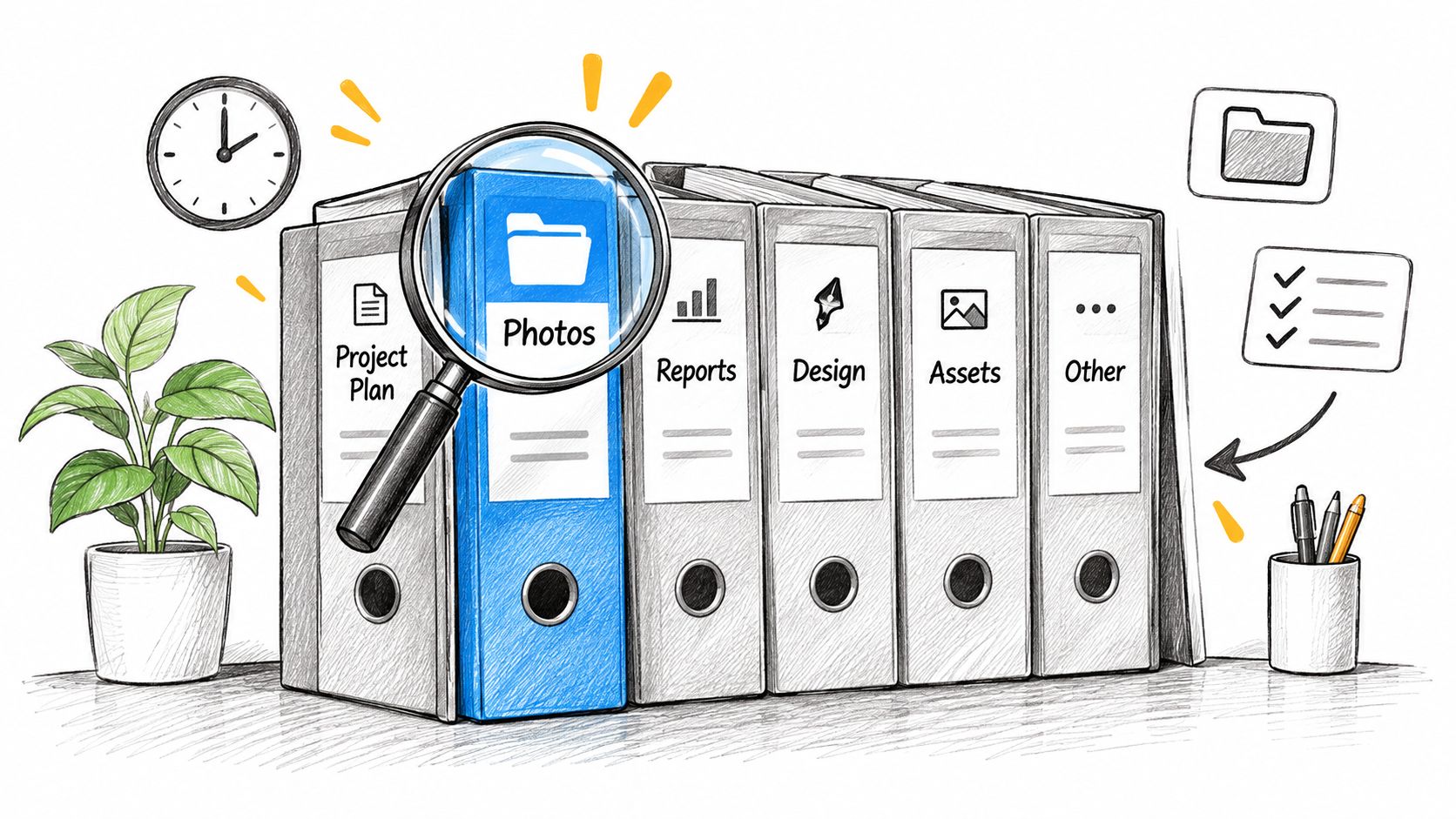
Choose a color family for lifecycle stage and an icon for content role. Those dimensions can coexist: a working video folder can use an active-work color and a film icon.
| Meaning | Color or icon | Typical folders |
|---|---|---|
| Active work | One color family, such as blue | 03_Working, 04_Analysis |
| Deliverables | One color family, such as green | 04_Deliverables, 05_Outputs |
| Archive | Neutral grey | 99_Archive |
| Footage | Film icon | Video source folders |
| Design assets | Brush icon | 02_References, 03_Source |
| Code | Code icon | src, tests |
| Documents | Page icon | 01_Admin, 01_Contract |
Apply a small, repeatable vocabulary
Don't give every project a completely different visual language. Reserve meaningful differences for distinctions you need while scanning Finder.
Apple's documentation of extended attributes establishes that filesystem items can carry associated metadata. Treat folder presentation as that kind of supporting information, separate from project contents and directory placement.
In Tintd, our Folder Watcher detects new folders in chosen locations and automatically applies a matching color and icon based on their names. Our batch editor can apply an icon across selected folders, while Finder's right-click menu handles individual changes; any customized folder can return to the original macOS icon in one click.
Changing a folder's icon or color is purely cosmetic. It doesn't affect the files or subfolders inside it or change their paths.
The demonstration below gives context for applying the visual layer.
Plan for other Macs and other tools
Custom folder icons are stored locally on each Mac, so set up icon customizations separately on every Mac your team uses. Distribute the mapping as written instructions rather than assuming everyone sees the same appearance.
For a broader explanation of this approach, see our guide to a visual file manager. The useful distinction is between faster recognition and reliable interpretation: a familiar icon can help you spot a directory, but a newcomer still needs its name and documented purpose.
Copies, syncs, or archives made with tools that drop metadata can lose styling. Test the actual handoff method before depending on its appearance, and keep the README as the record of what the visual conventions mean.
Run a Quarterly Archive Review to Keep It Working
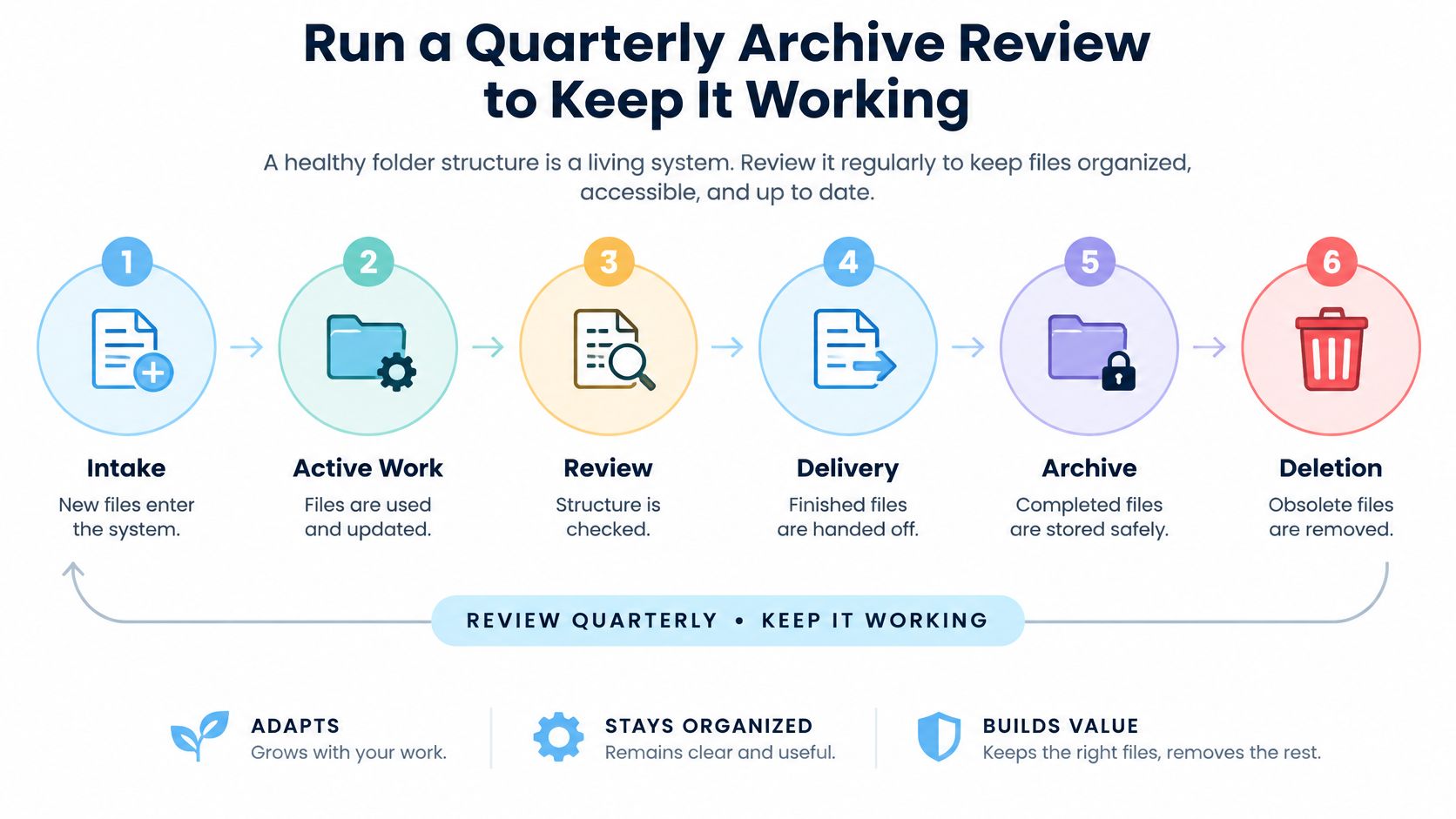
A project folder structure is a living system. New collaborators, revised deliverables, and unexpected source material can all make a sensible starting arrangement less useful.
The University of Arizona's data-organization guidance supports separating originals from working files and documenting how material is organized. Make that an ongoing responsibility rather than a setup task you never revisit.
Use the lifecycle below as a review rhythm.
Move projects when their responsibilities change
- Intake to active work: Move incoming material into its proper category once you've identified its purpose and owner.
- Active work to review: Review the arrangement when a phase ends, a collaborator joins, or people repeatedly misfile material.
- Review to delivery: Freeze the approved output and retain the exact copy handed off.
- Delivery to archive: Archive when the owner confirms that active obligations are complete.
- Archive to deletion: Delete only after the applicable retention requirement ends and the responsible owner approves disposal.
Archiving isn't backing up, and neither action establishes permission to delete. Keep those decisions separate.
Name an organization owner in the README, using the actual person's name rather than a vague team label. That person approves reorganizations and records what changed, so collaborators don't independently redesign shared paths.
Run the quarterly check
Compare the active top level with the template, then inspect the exceptions.
- Resolve drift: Rename unclear additions after checking links, scripts, and collaborators' dependencies.
- Remove empty structure: Delete unnecessary empty folders and merge overlapping categories after inspecting their contents.
- Retire finished work: Move the complete project into a parent-level
99_Archiveor an archive volume. - Preserve context: Leave a dated README with the project's status, owner, delivery location, and retention instructions.
Don't move a project inside its own archive subfolder. Use the internal archive for superseded material during production and the parent archive for completed projects.
If planning happens visually, explore visual note-taking insights from Walling for complementary ways to capture decisions. Bring the resulting decisions back into the project record.
Consistency doesn't mean identical depth everywhere. Keep useful exceptions and remove categories that no longer help. Today, create a recurring quarterly review appointment, schedule a post-completion check for your current project, and save a clean template for the next project this week.
Tintd adds custom folder colors and icons to the structure you've defined, with batch controls for existing folders and automatic styling for new ones. Visit Tintd to give your active work, deliverables, and archives consistent visual cues without changing the files inside.