
Your camera dump still has names like IMG_2041.JPG, and the client folder beside it has the same misspelled project code throughout. You want useful filenames, but you don't want to scramble the photo sequence or discover that your rename changed the extensions too.
Those are different jobs. Batch file renaming on a Mac works best when you choose by the rule you're applying, not by how many files you've selected. Use Finder for a one-off change, save a workflow for repeated imports, and reach for Terminal only when the pattern needs it. Decide how you'll check and reverse the result before you commit.
Pick a Batch Rename Method
Start by writing the intended change in plain English. Replace ACNE with ACME is a Finder job. Apply the delivery date and a fresh sequence to every export is an automation job. Remove SCAN_ only when it starts the filename is a pattern job.
Don't build a script just because the folder looks busy. A large selection with a simple rule is still a simple rename. Conversely, a small selection can need careful pattern matching if the same text appears in different positions.
Which Mac batch rename to use
| Method | Use it when | What it changes | Getting back |
|---|---|---|---|
| Finder Rename | One visible selection, done once | Replace text, add text, or a name plus index, counter, or date | Command-Z immediately, before another action |
| Automator Quick Action | The same rule on every import or delivery | Sequential names, padded numbers, and a date prefix in a saved flow | Test on a copy until the example names are right |
| Shortcuts | A small repeatable action on current macOS | An add or replace step, or a tested shell action, launched from the menu | Test on a duplicate folder first |
| Terminal mv loop | A pattern, prefix, or date order Finder cannot express | Whatever the loop or substitution describes | Print the planned names before any mv |
| Dedicated renamer app | Multi-step recipes or camera dates in the filename | Preview grids and chained rules beyond built-in actions | Check the app's preview, undo support, and developer site for current pricing |
Choose the smallest tool that fits
Finder is the right starting point when you've already selected the items. Its Replace Text, Add Text, and Format modes cover substitution, prefixes or suffixes, and a custom name with an index, counter, or date. There's no reason to install something for a repeated client-code typo.
Automator earns its setup when you're rebuilding the same rule regularly. Say your weekly photo import always needs a common base name, a sequence, and an import date. Save that combination rather than remembering the settings every time.
Shortcuts suits a compact action you want available from Finder or the menu bar. Treat Automator and Shortcuts as alternative ways to save a repeatable operation, not tools you must combine.
Know when a dedicated app is worth it
A dedicated renamer makes sense when you want to inspect every proposed filename while chaining several transformations. Camera capture dates are another reason to consider one, especially when you need names derived from EXIF rather than the day you imported the files.
Check the developer's own page for current features and pricing. Don't assume that every renamer handles camera metadata, sidecar files, collisions, or undo equally well.
Before choosing, write down a representative before-and-after pair. For example, SCAN_contract_SCAN_final.pdf should become contract_SCAN_final.pdf, not contract_final.pdf. That distinction tells you more than the folder's size.
Choose one route and test it. For a typo in an existing selection, stop at Finder. For recurring deliveries, save a workflow. For position-sensitive changes, use a readable Terminal loop or a visual renamer with an equivalent rule.
Rename Files in Finder
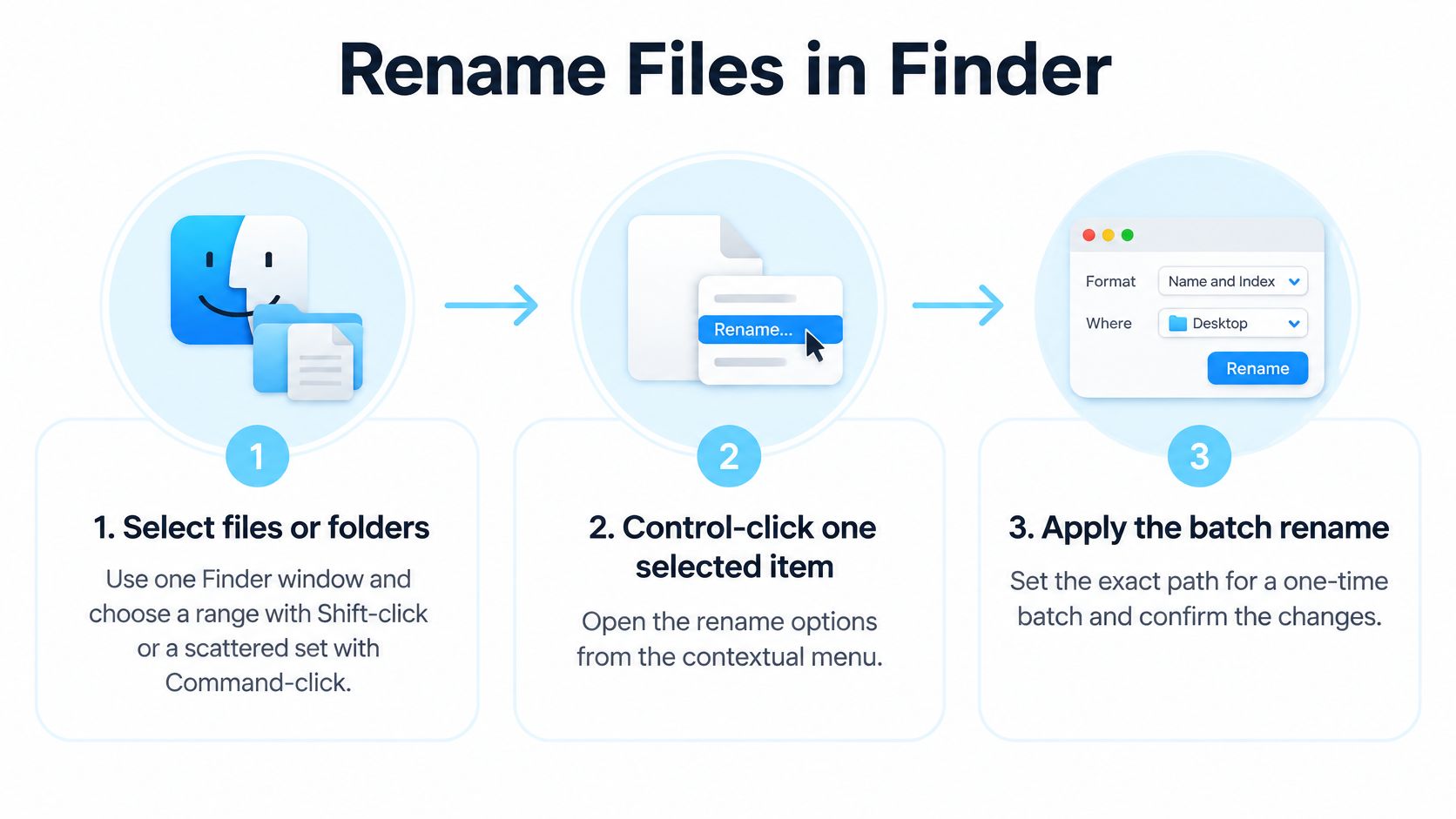
Finder handles ordinary batch renames without extra software. The Apple guide to renaming files, folders, and disks documents selecting multiple items, Control-clicking the selection, and using Replace Text, Add Text, or Format.
Say you're organizing a vacation camera dump. You might keep the camera identifiers and add Lisbon-, replace IMG_ with Trip-, or discard the original stems and create a fresh sequence. Those choices preserve different information, so choose the outcome before opening the dialog.
The basic selection-to-rename workflow looks like this:
Make the selection and set the rule
Open the working folder in Finder. Use a duplicate folder if you're replacing useful camera identifiers. Switch to List view when it makes the filenames easier to inspect.
Select the intended files. Shift-click selects a range; Command-click lets you select scattered items without including everything between them. Check that unrelated exports or folders aren't highlighted.
Control-click a selected item and choose Rename. Keep the selection intact. The rule will apply to all selected items, not just the one under the pointer.
Choose the mode that matches your intended result. For the vacation photos, use Replace Text to turn IMG_ into Trip_, or Add Text to prepend Lisbon- while retaining the camera name.
For a completely new naming scheme, choose Format. Select Name and Index, Name and Counter, or Name and Date. Put the shared stem, such as Lisbon-Trip-, in Custom Format, then choose whether the generated component belongs before or after it.
Set Start Numbers At when using a numbered format. Read Finder's example carefully, including the separator, generated digits, and extension. Click Rename only when that example matches the structure you intended.
The shared text belongs in Custom Format, not in the starting-number field. Entering a starting number doesn't supply a descriptive filename by itself. Include the hyphen or underscore you want in the custom stem.
Keep the camera identifier or replace it deliberately
Replace Text doesn't create a fresh sequence. Replacing IMG_ with Trip_ keeps the original camera number, so IMG_2041.JPG becomes Trip_2041.JPG. That's useful when someone may need to match an edited image to the original camera dump.
Add Text preserves still more information. Prepending Lisbon- produces Lisbon-IMG_2041.JPG, which is longer but easy to trace.
Format replaces the original stem with your chosen scheme. Use it when you want a delivery sequence rather than camera identifiers. Check the actual counter width in Finder's example; don't assume Name and Index produces a particular amount of zero-padding. If your delivery specification requires an exact width, use a workflow with explicit padding controls.
Finder's command isn't limited to photographs. You can apply the same approach to selected project folders or documents, while disk naming is also covered by Apple's rename workflow. For selection and navigation habits that make these jobs less fiddly, use our Mac Finder tips.
After applying the rename, inspect the first and last items and a few names between them. If the result is wrong, press Command-Z immediately, before doing another Finder operation. Don't make a second corrective rename first and assume the original batch will remain straightforward to recover.
If you're repeating these settings for each import, save the operation instead of rebuilding the dialog.
Repeat the Job with Automator or Shortcuts
A saved rename is useful when the input changes but the rule doesn't. A weekly photo import might need a common stem and an import-date prefix; a research dataset drop might need a consistent sequence for downstream processing.
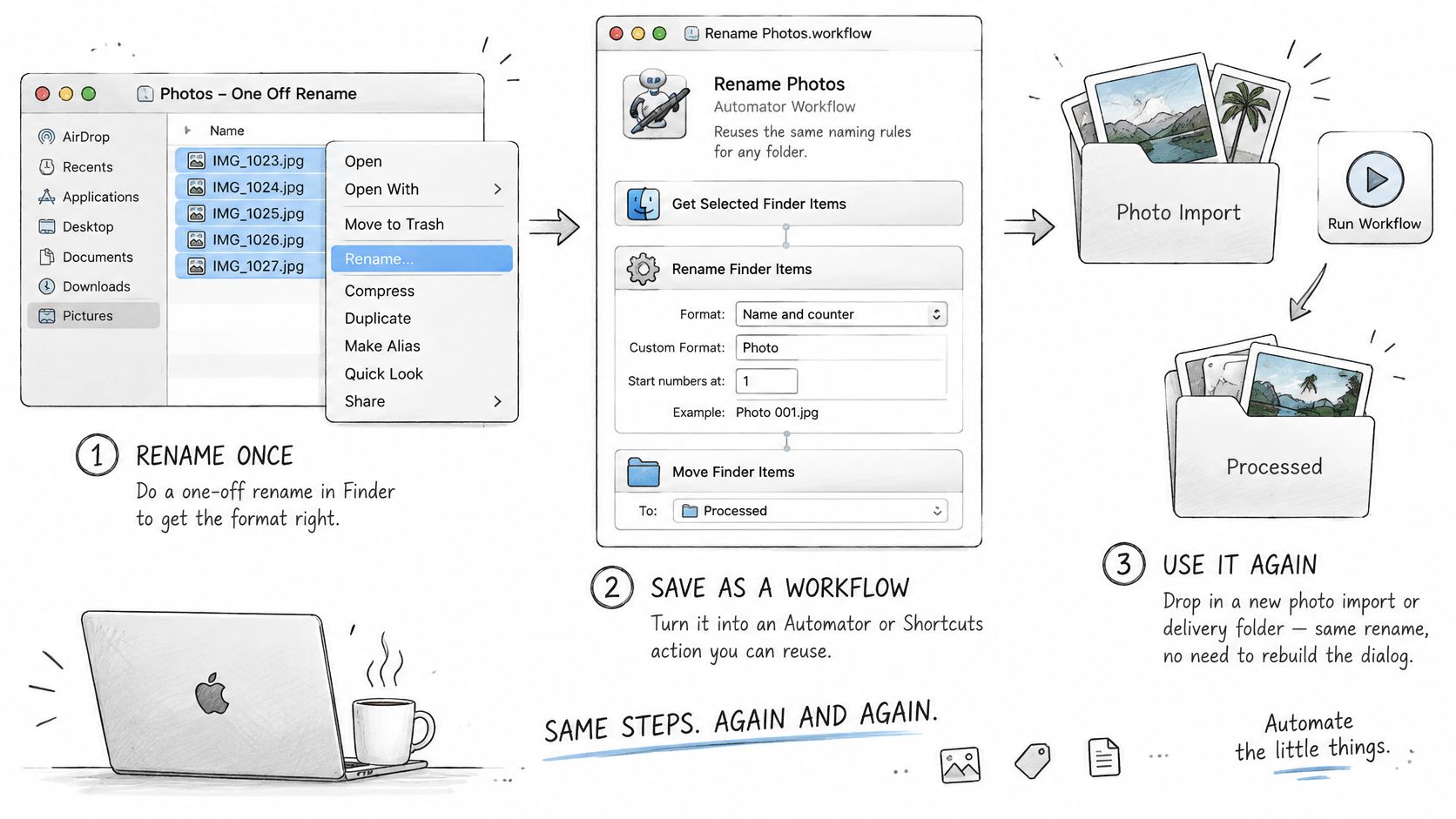
Automator lets you assemble that operation from Finder actions. This illustration shows the workflow approach:
Save a date-and-sequence Quick Action
In its photo automation walkthrough, Apple demonstrates sequential renaming with three-digit numbering and leading zeros, followed by adding the current date with a dash. That gives you a concrete recipe to adapt rather than a collection of unrelated rename steps.
Open Automator and create a Quick Action. Set the workflow to receive files or folders in Finder. This makes the selected Finder items the workflow's input.
Search for Rename Finder Items and drag it into the workflow. When Automator offers to add Copy Finder Items, accept if you want the workflow to work on duplicates. Set an explicit destination for those copies.
Configure the rename action to Make Sequential. Supply a new base name, choose the separator, and enable the number-width control with leading zeros. For this recipe, match the width in Apple's example.
Add another Rename Finder Items action after the sequential step. Choose Add Date or Time, use the current date, put it before the name, and select a dash separator. Check the displayed date format rather than relying on your regional default.
Save the Quick Action as Date and Sequence. Select a small duplicate set in Finder, open Quick Actions, and run it. Inspect the actual output before using the workflow on an original delivery folder.
Padded sequences remain consistent in software that compares filenames character by character. Finder often sorts numbers naturally, but the recipient's upload system, script, or archive viewer may not. Build filenames for the destination, not just for the way your Finder window looks.
For a weekly photo import, label the date clearly: current date means processing date, not camera capture date. For a research dataset, confirm that assigning a new sequence won't break identifiers used in a spreadsheet or analysis script.
Use Shortcuts as a compact launcher
For a new Shortcut, enable Use as Quick Action and Finder in its details, then accept files as input. Use Repeat with Each and Rename File for a simple transformation, or Run Shell Script for an already-tested naming rule. If using a shell action, pass the selected files as arguments rather than assembling paths from unquoted text.
Keep the first version narrow. A shortcut that adds a project code is easier to verify than one that renames, moves, sorts, and deletes in the same run.
For a visual companion to the workflow setup, use this walkthrough:
Tech Today's simple task automation steps offer useful context for identifying repetitive work before automating it. Our Mac automation apps guide can help when your rename also needs a dependable launch method.
Keep an untouched copy of the first batch until the output matches your naming specification. A workflow that runs successfully can still produce the wrong names.
Use Terminal for Pattern Renames
A prefix-only change is where Finder's plain replacement becomes too broad. If SCAN_ appears both at the beginning and inside a filename, you may want to remove only the leading occurrence. A date rearrangement needs similar precision.
A standard macOS installation doesn't provide a general-purpose rename command. The dependable built-in approach is mv inside a zsh loop, with a print-only preview before you move anything.
Preview a prefix change
Open Terminal, type cd , drag a duplicate working folder from Finder into the window, and press Return. Confirm you're in the copy before proceeding. These examples assume ordinary filenames without embedded line breaks.
Preview adding a project prefix:
for f in *.jpg; do
  echo "$f -> Project_$f"
done
Read every proposed destination. Once they're correct, the corresponding rename is:
for f in *.jpg; do mv "$f" "Project_$f"; done
The lowercase pattern matches .jpg, not every possible capitalization of the extension. Narrow matching is useful here: it prevents you from processing a broader selection than you intended.
To remove SCAN_ only from the front, preview a parameter expansion:
for f in SCAN_*; do
  new="${f#SCAN_}"
  echo "$f -> $new"
done
${f#SCAN_} removes the matching prefix, leaving a later SCAN_ untouched. After checking the destinations, replace the preview line with mv -i "$f" "$new"; the interactive flag asks before overwriting an existing destination.
Don't approve an overwrite just to keep a loop running. A collision means your naming rule needs another check.
Rearrange a date with a readable regex
Suppose a note named 03-12-2024-meeting.txt uses day-month-year and should become 2024-12-03-meeting.txt. Preview the change with:
for f in *.txt; do
  new=$(echo "$f" | sed -E 's/^([0-9]{2})-([0-9]{2})-([0-9]{4})/\3-\2-\1/')
  echo "$f -> $new"
done
The capture groups represent day, month, and year. The replacement puts the year first while preserving the rest of the filename. sed -E enables extended regular expressions, so the repetition braces don't need extra backslashes.
This checks the shape of the date, not whether it's a valid calendar date. Confirm that the source really uses day-month-year before applying it.
After reviewing every line, use the same substitution with a guarded move:
for f in *.txt; do
  new=$(echo "$f" | sed -E 's/^([0-9]{2})-([0-9]{2})-([0-9]{4})/\3-\2-\1/')
  if [[ "$f" != "$new" ]]; then
    mv -i "$f" "$new"
  fi
done
Quoted variables preserve spaces. The comparison skips unchanged names instead of trying to move a file onto itself.
A third-party rename installed through Homebrew can shorten regex operations, but different implementations have different syntax. Skip the installation if a readable loop already handles the job.
Terminal renames don't come with Finder's undo. Keep the original folder, and don't run a command you can't explain aloud, including which files it selects and what each destination will be.
Protect Order Metadata and Undo
Unpadded numbers can produce an unexpected order in tools that sort names lexically. Finder's natural-number sorting may conceal that weakness until you upload the folder or hand it to someone using another application. Treat the filename as a portable ordering rule, not just a label that looks right locally.
Before numbering, decide what the sequence represents. Alphabetical camera order, file creation order, and actual capture order aren't interchangeable. In a mixed-camera folder, inspect the proposed sequence rather than assuming a visible date column represents the moment each photograph was taken.
Run a pre-flight check
Use this table against the duplicate folder before touching the actual batch.
Rename mistakes and the fix
| Mistake | What you see | Fix |
|---|---|---|
| Unpadded numbers | In lexical sorting, 1, 10, 11, then 2 | Format numbers as 001 or wider |
| Replace hits the extension | File opens in the wrong app or loses its type | Check the preview still ends in the original suffix |
| No preview | The whole folder is wrong at once | Check Finder's example line, or an echo loop, on a copy first |
| Case-only change | mv says it is the same file | Rename to a temporary name, then to the final case |
| Date starts with the day | Dates group by day rather than chronologically | Put the year first, YYYY-MM-DD |
| Files still open | An app recreates the old name | Close those apps, then rename |
Extensions deserve a separate glance. A broad replacement aimed at jpg might also alter .jpg, while a script that rebuilds the whole name might omit the suffix entirely. Renaming an extension doesn't convert the file's contents.
Case-only changes need care on the usual case-insensitive Mac volume. For a shell rename that reports the source and destination as the same file, move through a unique temporary name first. Check that the temporary name doesn't already exist.
Separate filenames from file contents
A normal rename changes the directory entry, not the bytes inside the file. It doesn't rewrite EXIF capture dates, document text, or the names of files inside a renamed folder. Don't promise that every filesystem, cloud service, or accompanying workflow will leave all timestamps untouched, though.
Close files in their editing applications first. Some applications can continue working with an open file; others save another copy under the old name or lose track of a linked asset. Media catalogs, design documents, and code projects may require relinking after external renames.
For ongoing naming conventions, our digital file organization guide helps connect readable names with a folder structure you can maintain. A polished naming scheme won't repair broken references inside a project.
Recovery depends on the method. Use Finder's immediate undo for a mistaken Finder batch. For automation and Terminal, rely on untouched originals rather than assuming Command-Z will reverse the operation. A shell move doesn't send the old filename to the Trash.
Preview on a copy, pad the numbers, leave the extension alone, then rename the real set.
Once the names are consistent, we offer folder colors and icons to make those projects easier to scan in Finder. Visit Tintd to style several folders in one action, or use Folder Watcher to give new folders matching colors and icons based on their names.