
You open Finder and see a row of identical blue folders. The desktop is covered with screenshots, downloads, and exports. Somewhere in the middle sits a folder named “stuff” that nobody has opened in months. The files may be stored correctly, but the structure is hard to scan because every destination looks the same.
Color, icons, and layout add visual signals before you read every folder name. That can make a deep project hierarchy easier to move through, provided the signals stay consistent. The underlying idea goes back to the Macintosh Finder, where folders became a central way to browse files with the original Macintosh in 1984. Apple introduced a fully hierarchical model with Finder 5.0 and HFS in September 1985, making nested folders practical for projects and topics (Macintosh Finder history).
This list ranks visual organization tools by the navigation problem they solve, not by brand popularity. You'll find folder icon and color tools first, then app theming and window placement utilities, followed by visual boards for planning and research. Each pick has a useful job, a realistic use case, and a limitation worth knowing before you install it. If your clutter includes working documents, pair visual styling with a practical document version control guide so appearance doesn't replace clear file history.
1. Tintd
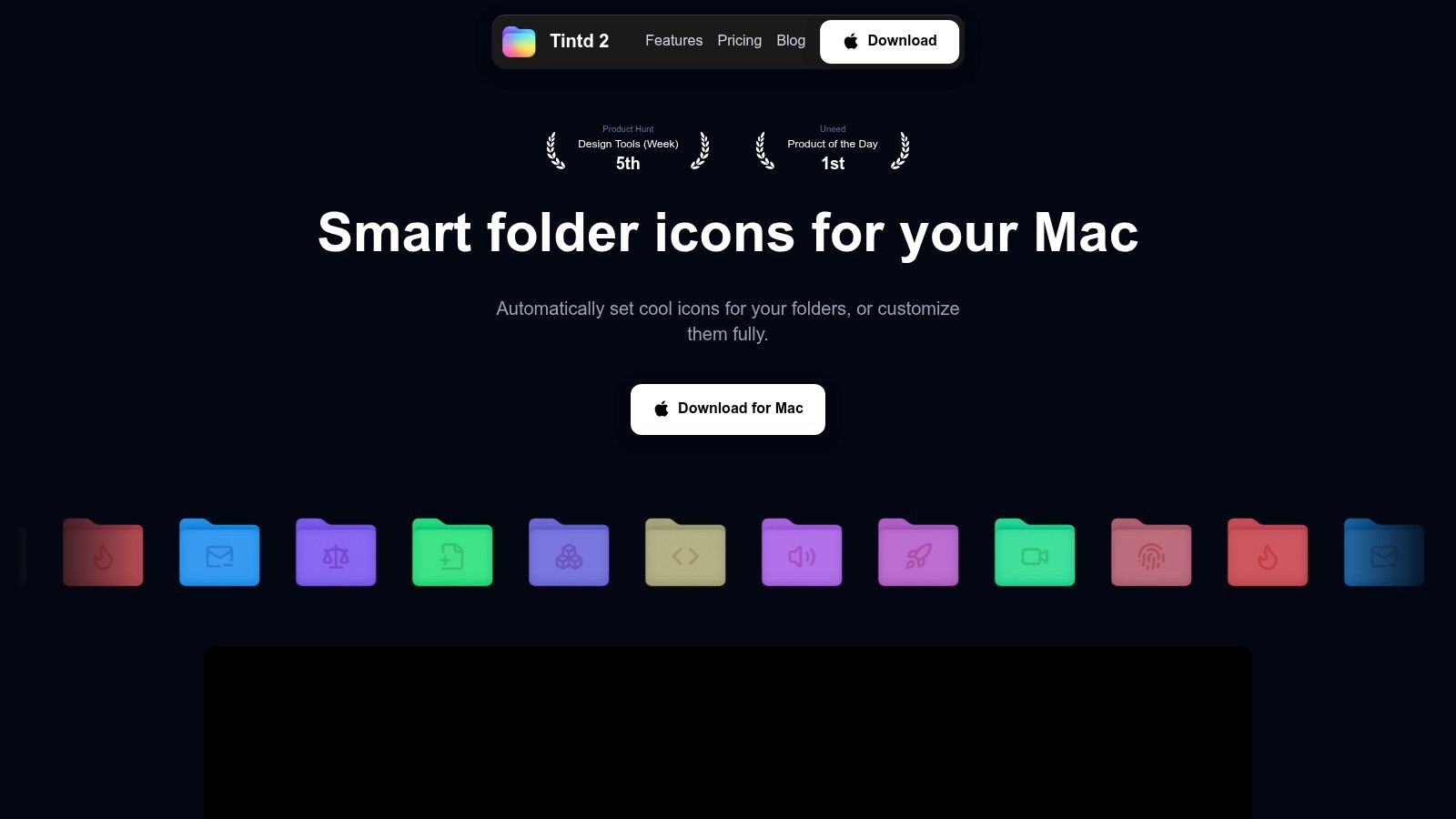
Tintd fits the first problem in this list. Folder icon labeling at scale. If a Mac has a deep Finder tree with client folders, exports, drafts, and archives mixed together, visual cues need to stay readable after the first round of cleanup. That is where this tool is useful.
It lets you apply colors, icons, emojis, and custom images to folders by hand, or use on-device suggestions based on folder names and nearby folders. In practice, that matters more than having a huge style library. A folder system only helps if the visual rules still make sense a month later, when the hierarchy has grown and someone else needs to scan it quickly.
The app includes a curated library of icons and emojis, plus controls for icon size, color, and placement. You can import your own image, reuse an earlier style from history, or apply changes across folders and subfolders with batch tools. Finder context-menu integration also keeps the work close to the folder itself, which is faster than opening a separate editor every time.
Best for private automation
Tintd processes everything locally. Folder names stay on the Mac, and suggestions do not rely on cloud processing. It also supports mixed-language recognition, which helps if folders combine client names, abbreviations, code-like labels, and more than one language.
Its consistency engine is the main draw. Instead of assigning bright colors at random, it can suggest styles that match nearby folders, while you reserve stronger contrast for states such as active, archived, or urgent. That gives the hierarchy a visual grammar.
The Folder Watcher can style new folders as they appear in selected locations. I like that for repeat intake folders and shared handoff directories. The trade-off is permissions. It requires macOS Full Disk Access, so privacy-conscious users should check that before turning it on. Styles are also stored locally per Mac, which means they do not automatically sync between machines.
Pros: Local and offline processing, smart icon and color suggestions, Folder Watcher, large icon library, mixed-language recognition, custom images, batch styling, Finder integration, history, one-click restoration, and a one-time purchase model with no subscription.
Cons: Mac-only, local per-device customization, and Full Disk Access is required for automatic folder watching.
2. Folder Colorizer for Mac
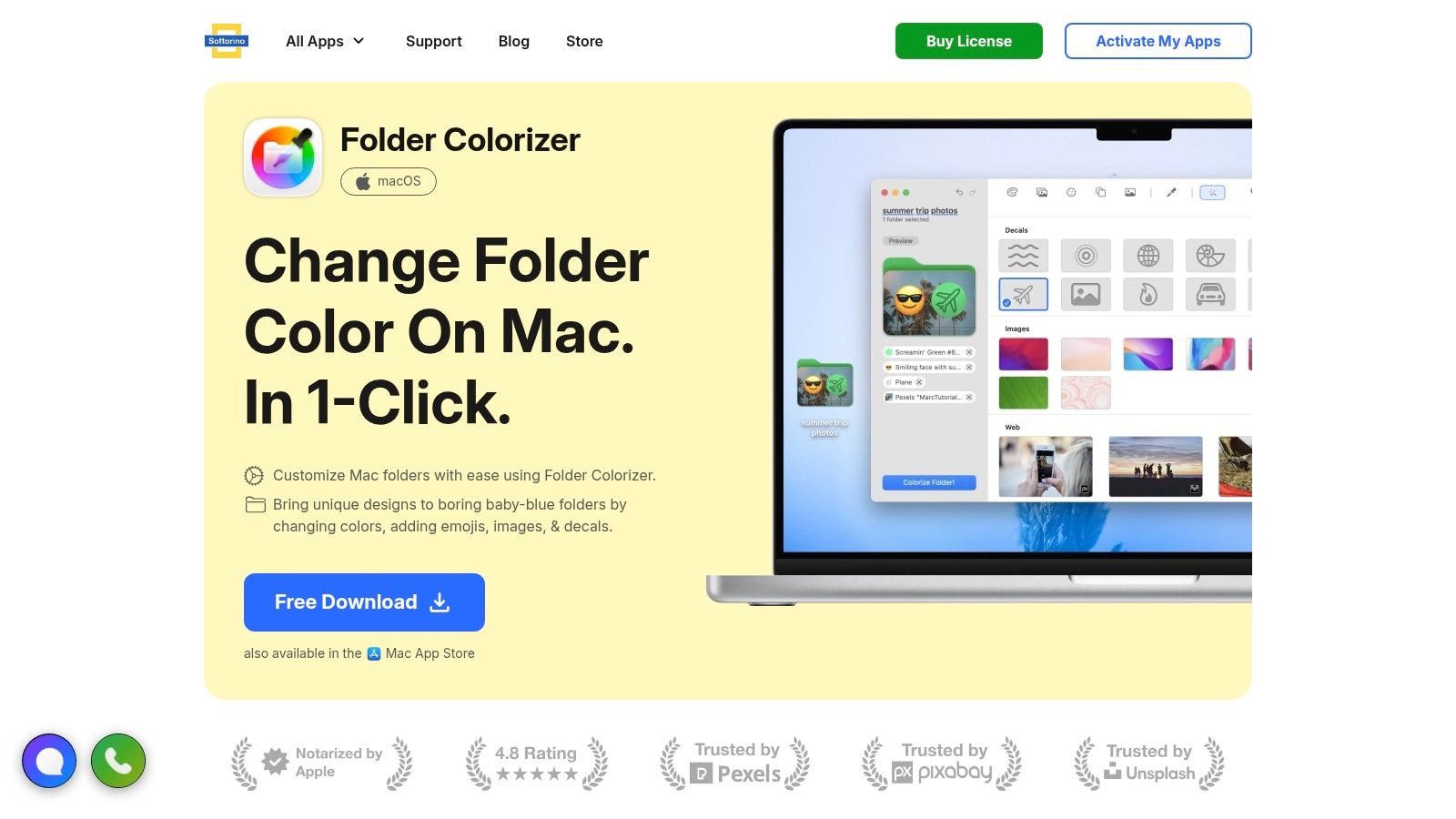
Folder Colorizer for Mac is aimed at people who want quick visual labels without building a full icon system. It offers one-click recoloring and lets users add emojis or graphics to project directories. The workflow is guided and approachable, so you don't need to understand image formats, Finder metadata, or custom icon preparation.
That simplicity is its main strength. If your folders are hard to distinguish and you only need a handful of broad categories, fast color changes may be enough. A designer might use one color for client work, another for personal projects, and an emoji overlay for a recurring campaign type.
The trade-off is depth
This tool focuses on simple colorizing rather than fine-grained icon composition or extensive rule-based automation. That makes it less suitable for a large folder tree where you want related folders to receive coordinated styles automatically.
Softorino also positions the app within a broader utility toolkit. That can be useful if you want several Mac utilities from the same company, but it may feel unnecessary if folder color is your only requirement. Before choosing, compare the licensing model with a focused option such as Tintd's approach to changing folder colors.
Pros: Easy setup, friendly guided workflow, quick color and emoji labeling, and system-wide folder changes that persist after uninstall.
Cons: Less control over detailed icon design, and licensing is tied to a broader Softorino model that some users may not need.
Folder Colorizer for Mac fits best when speed matters more than taxonomy depth.
3. Image2icon
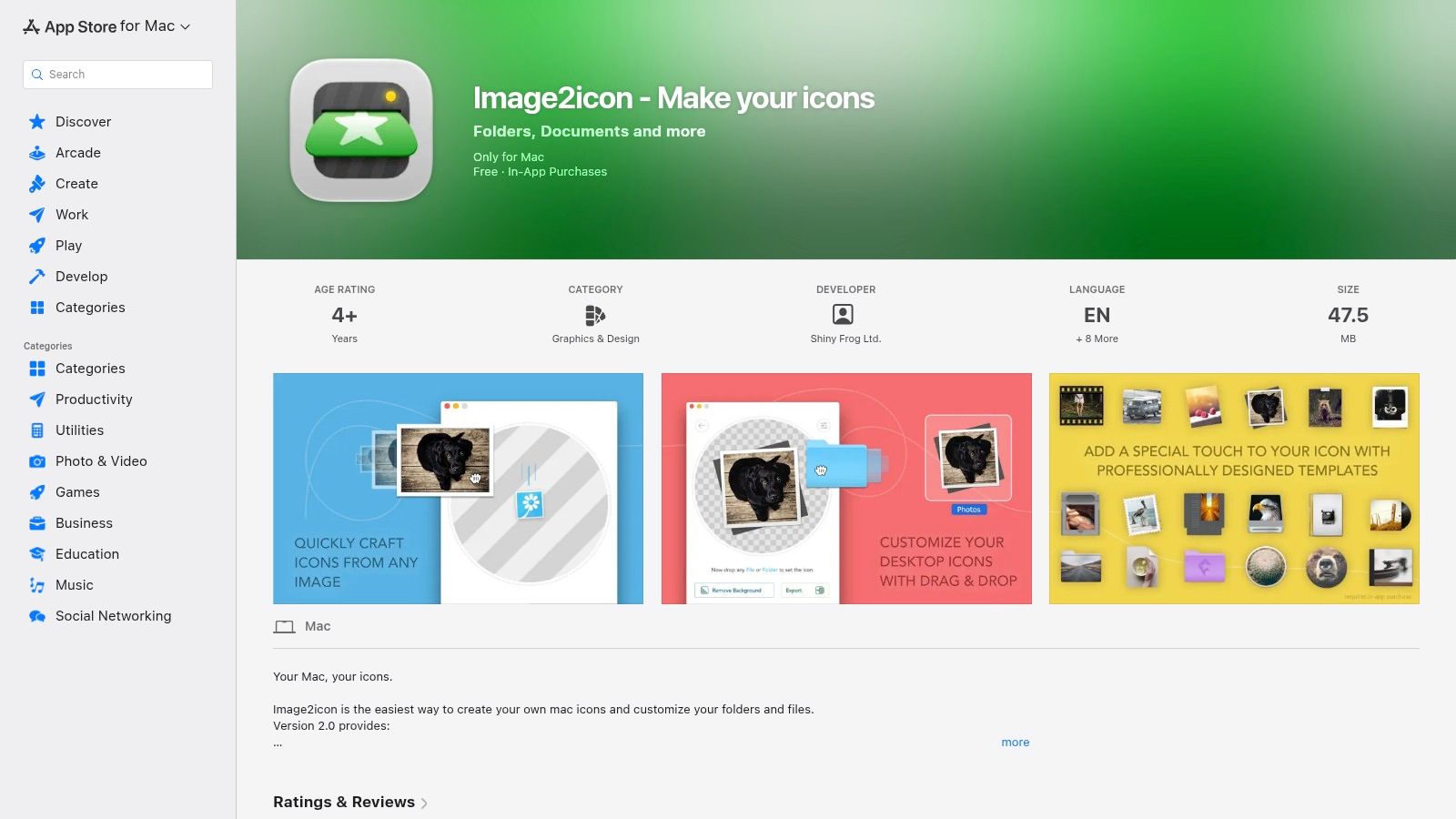
Image2icon solves a narrower problem well: turning a specific image into a polished folder or file icon. Drag an image into the app, refine it, and apply the resulting icon to a folder or file. This is a good match for branded project systems, production teams, and anyone who wants custom artwork instead of a standard color or emoji.
The app supports exports such as ICNS, folder icons, iconsets, and favicons. JPG, PNG, and ICO export options are available through an in-app purchase. A background removal tool can help isolate a logo, object, or illustration before it becomes an icon.
Strong for one-off design work
Image2icon gives you more control over icon fidelity than a simple folder color utility. A creative team could create a recognizable icon family for campaign folders, deliverable stages, or internal departments. Its Shortcuts actions also support setting and restoring custom icons on macOS, which helps users who want to connect icon changes to repeatable actions.
The limitation appears when you need to style hundreds of folders. Image2icon is primarily an icon creation and application tool, not a folder taxonomy engine. You may still need another utility for recursive rules, automatic suggestions, or ongoing maintenance.
Pros: Strong custom-art workflow, drag-and-drop creation, useful export formats, background removal, and Shortcuts support.
Cons: Some exports and templates require in-app purchases, and bulk folder automation isn't its central strength.
Image2icon is the better pick when brand consistency matters more than speed. If you also need a format conversion step, this PNG to ICO converter can handle that separate task.
4. Folder Studio
Folder Studio takes a ready-made styling approach. It lets you create attractive Mac folder icons with colors, gradients, emoji, and text overlays, then apply or restore them through a native app. The result is more expressive than a plain folder color, but the workflow remains approachable for users who don't want to design icons from scratch.
This is useful for personal project libraries, coursework, and creative archives where visual grouping helps but complex automation would be excessive. A folder labeled “Research,” for example, can receive a text or symbol treatment that remains readable in Finder without requiring a custom image workflow.
Good for local styling
The app emphasizes local, offline operation and doesn't depend on a cloud service for folder customization. That makes it a reasonable fit for users who don't want folder labels or project themes sent elsewhere. Its materials library also provides a starting point when you want a visual result quickly.
Folder Studio is less compelling for a large, changing directory tree. It doesn't appear centered on recursive batch rules or a watcher that continuously handles new folders. Pricing details also aren't especially prominent on the site, so check the purchase path before committing.
Pros: Straightforward styling, gradients and overlays, local operation, and a simple apply-and-restore workflow.
Cons: Limited automation for large folder trees, and pricing information requires closer inspection.
Folder Studio is best for users who care about attractive folder themes but don't need a maintenance system.
5. FolderForge
FolderForge is the practical choice for users who want open-source folder styling with rules. It supports presets, gradients, symbols, text, and images, then applies those styles across folder trees using name or pattern-based rules. That moves it beyond manual decoration and toward a reusable visual taxonomy.
Suppose every folder containing a particular project code should receive one style, while folders matching an archive pattern should receive another. A rule-based approach can reduce repeated manual work. Recursive styling is especially useful when a project has the same internal structure across multiple clients or production cycles.
Automation without a subscription
FolderForge is distributed through GitHub and the Mac App Store, with signed and notarized builds listed by the project. Its open-source model may appeal to technical users who want to inspect the project, avoid a paid license, or adapt their workflow around presets.
The cost is polish. Community-driven software can have uneven documentation, changing interfaces, and a less predictable support experience than a paid utility. Test it on a copied folder tree first. Styling rules are powerful, but a poorly scoped pattern can affect more folders than intended.
Pros: Free, open-source, privacy-friendly, preset-based, and suited to recursive pattern rules.
Cons: User experience and documentation may vary, and the project ecosystem is still developing.
FolderForge fits developers and technical Mac users who value control and automation over a polished consumer workflow.
6. IconChamp
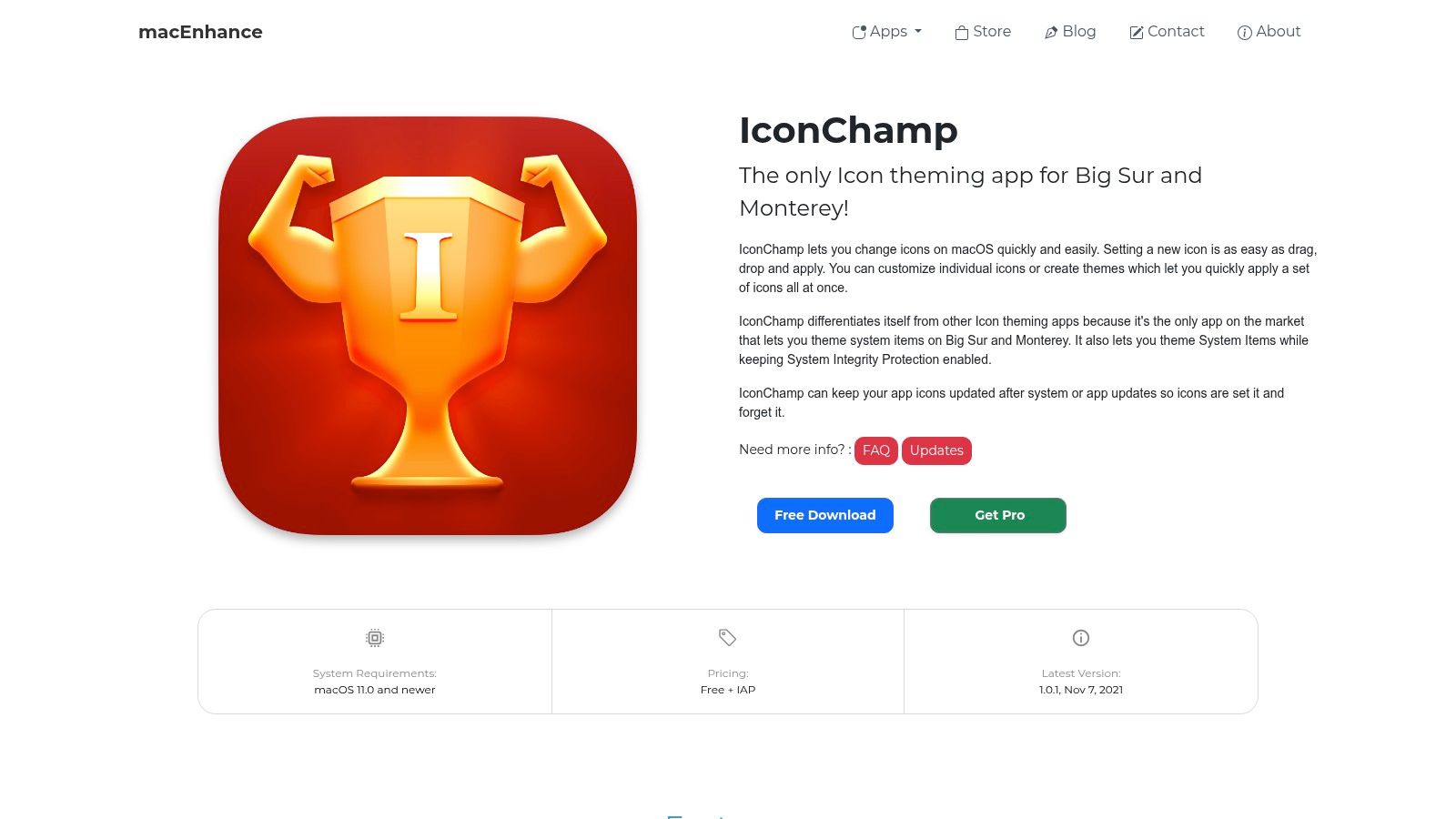
IconChamp addresses a different navigation layer. Instead of styling Finder folders, it themes app icons, including some system applications, on newer macOS versions where standard customization methods can be restricted. This matters when the clutter isn't in your folders. It may be in a Dock full of visually similar application icons.
A consistent app theme can make a development setup, creative toolset, or client environment easier to recognize at a glance. It also lets a team or individual create a more coherent visual language across the Dock and app grid.
Check macOS compatibility first
Icon theming at the system level is more fragile than changing a folder icon. macOS updates can alter permissions, app bundles, or system protections. IconChamp attempts to keep themes persistent after app and system updates, but reliability can vary by macOS version, and not every system icon is guaranteed.
Some features also require a Pro upgrade. Read the FAQ before applying themes to a work machine, especially if you depend on automatic updates or managed security settings.
Pros: Extends visual organization to apps and some system icons, supports a consistent Dock or app-grid language, and is part of a broader customization family.
Cons: Setup and reliability depend on macOS versions, some features are gated, and system coverage isn't universal.
IconChamp is for desktop theming. It won't fix a folder tree with weak naming or inconsistent project structure.
7. Magnet
Magnet solves the problem that appears after you open the right files: too many windows in the wrong places. It snaps windows into halves, thirds, and quarters through edge dragging, keyboard shortcuts, or menu controls. A cluttered desktop becomes easier to inspect when the Finder window, editor, browser, and reference document each have a predictable area.
This is especially helpful on multiple monitors, including vertical displays. You can move from a loose collection of overlapping windows to a repeatable arrangement for writing, coding, research, or design review without manually resizing every window.
Useful, but not a file organizer
Magnet doesn't change folder icons, classify files, or create a project board. It organizes the viewing environment, not the stored information. That limitation is also why it feels focused. If your problem is window placement, a full project-management system would add unnecessary structure.
It supports customizable trigger areas, shortcuts, multiple monitors, and iCloud sync for settings. The app uses a one-time purchase model rather than a subscription, but check its current App Store terms before buying.
A tidy window layout can expose a bad file structure. It can't repair one.
If you want a broader Mac utility comparison before choosing a window manager, review these best Mac utilities.
Pros: Fast, lightweight, reliable, useful across monitor layouts, and simple to learn.
Cons: It only handles window placement, and power users may want deeper automation.
Magnet is the right answer when your folders are fine but your workspace is not.
8. Milanote
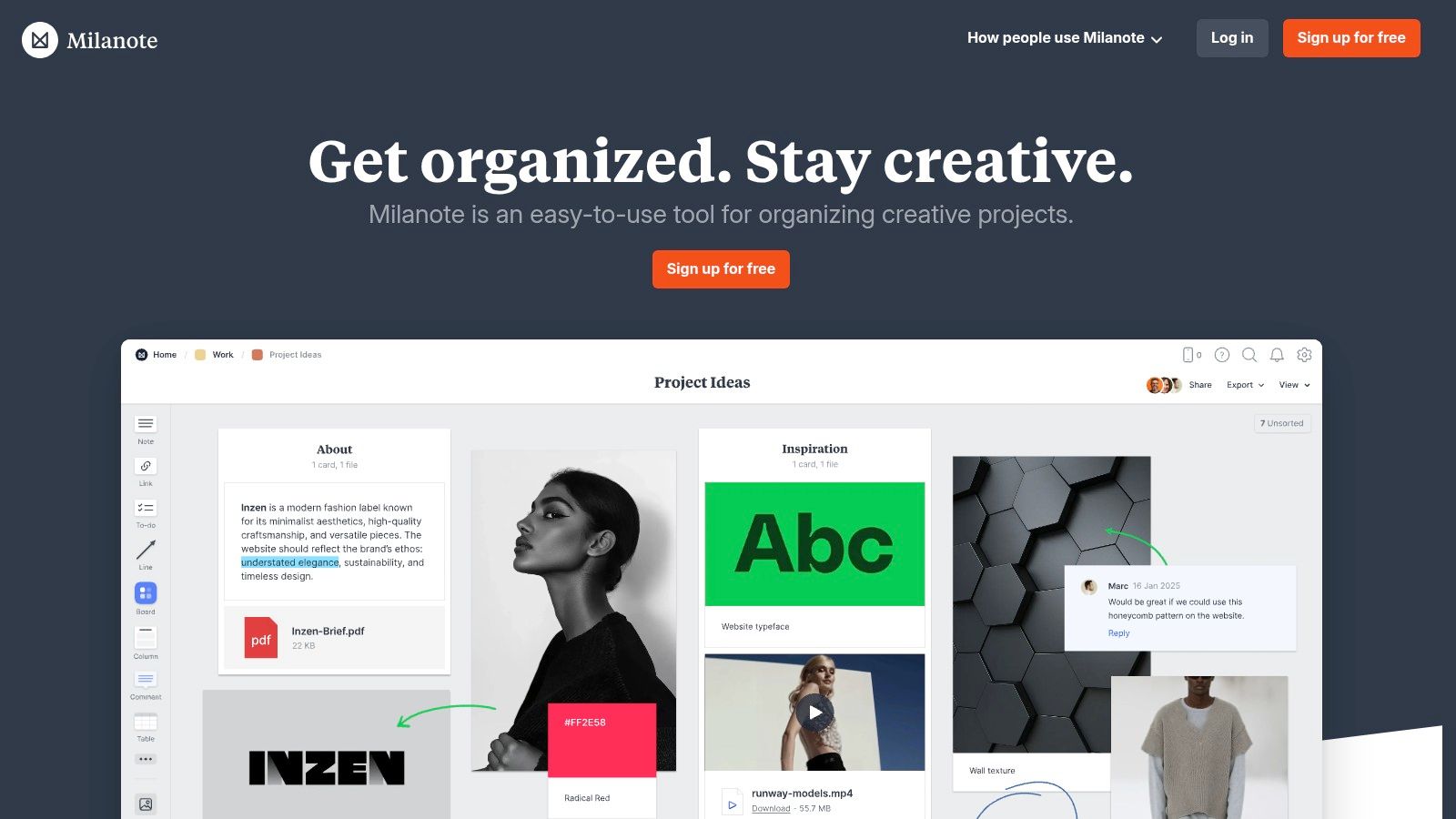
Milanote is built for visual project boards, not Finder navigation. It combines notes, images, links, files, moodboards, and tasks on an open canvas. That makes it useful before a project has a clean folder structure, when references and decisions are still moving around.
A creative director can collect visual references beside notes and client feedback. A filmmaker can arrange research, scene ideas, and production material spatially. A content team can place source links, draft angles, and task notes together without forcing every thought into a linear document.
Strong with clients and creatives
Milanote's interface is approachable for non-technical collaborators. Shared boards, comments, templates, desktop and mobile apps, and a web clipper make it easy to gather material from different places. The board becomes a visual project surface rather than a storage folder.
The free plan has limits on cards and uploads, and per-person plans can become expensive as a team grows. Milanote is also better at collecting and arranging visual material than enforcing a strict file taxonomy. Keep final assets in a dependable storage system and use the board for context, direction, and decisions.
Pros: Intuitive canvas, strong moodboard workflow, collaboration, templates, and support for mixed media.
Cons: Free-plan limits, rising per-person costs for larger teams, and less control over local Finder organization.
Milanote is the best fit here when the mess is still an idea, not yet a folder tree.
9. Miro
Miro is the broadest collaboration option in this list. It provides infinite whiteboards, diagrams, templates, integrations, and real-time or asynchronous collaboration. The value appears when several people need to map a process, synthesize research, plan a roadmap, or align around a complex project.
Its integration ecosystem connects visual work with tools such as Jira and Asana. Paid tiers include collaboration controls for guests or visitors, while enterprise features include SSO, data residency, and governance controls. Miro also includes AI tools for synthesis, diagram generation, and workflow automation.
Powerful enough to feel heavy
Miro works well when a team needs a shared visual language. It can hold workshop output, diagrams, sticky-note clusters, and planning artifacts in one place. It also suits distributed teams that need asynchronous access to the same canvas.
For a solo user who only wants to sort personal research or make a small moodboard, the interface may feel oversized. Seat-based pricing grows with team size, and the online model is a poor match for workflows that must remain local.
Before selecting a board for project work, compare the options in these Mac project management tools, then review this guide to workflow visualization strategies for 2026.
Pros: Extensive templates, integrations, collaboration, enterprise controls, and support for large visual workflows.
Cons: Heavy for simple personal use, dependent on an online workspace, and more expensive as teams add seats.
Miro is for shared thinking at scale, not for making Finder folders easier to identify.
10. Obsidian Canvas
Obsidian Canvas is the local-first choice for visual research and connected knowledge. It lives inside Obsidian and lets you arrange notes, text cards, images, and media on an infinite board. The source notes remain in your vault as local Markdown files, while canvas files use the open JSON Canvas format.
That file-based model changes the trade-off. You get spatial organization without moving your research into a closed visual board system. A student can place source notes around a question. A researcher can cluster evidence, counterarguments, and follow-up tasks. A developer can connect technical notes without turning every relationship into a folder path.
Local files, steeper learning curve
Obsidian Canvas is free and supports an extensible plugin ecosystem. Its local structure suits privacy-focused workflows and users who want durable files rather than a board that exists only inside a web service.
The limitation is collaboration. Shared work generally requires plugins or third-party sync arrangements, and Obsidian's vault model takes time to understand if you're used to conventional documents. Canvas also doesn't replace Finder styling. It organizes the relationships between ideas, while Finder organizes the files themselves.
Pros: Local and offline, file-based, extensible, privacy-friendly, and useful for connecting notes with visual structure.
Cons: Collaboration takes extra setup, and the vault model has a learning curve.
Obsidian Canvas is the strongest choice when your visual organization problem is research context rather than desktop appearance.
Top 10 Visual Organization Tools, Feature Comparison
| Tool | Core features | UX / Quality | Value & Price | Target audience | Unique selling points |
|---|---|---|---|---|---|
| 🏆 Tintd | Smart icon/color suggestions, Folder Watcher, 11k+ icons, batch & Finder right‑click | ★★★★★ | 💰 One‑time $9.99 (lifetime) | 👥 Creatives, devs, students, productivity users | ✨ Offline suggestions & privacy; consistency engine; bulk styling |
| Folder Colorizer (Softorino) | One‑click folder colors, emoji/graphic overlays, system‑wide persistence | ★★★★☆ | 💰 Part of Softorino toolkit (paid) | 👥 Non‑designers, casual Mac users | ✨ Fast guided workflow for quick labeling |
| Image2icon (Shiny Frog) | Drag‑drop icon creation, export formats, bg removal, shortcuts | ★★★★☆ | 💰 One‑time + IAPs for extra exports | 👥 Designers, teams needing branded icons | ✨ High‑fidelity exports; multi‑format support |
| Folder Studio | Themed folder icons, gradients, emoji, text overlays, local processing | ★★★★☆ | 💰 Paid (App Store/developer) | 👥 Users wanting ready‑made styles | ✨ Stylish presets; local/offline operation |
| FolderForge (open‑source) | Presets, gradients, symbols, rule‑based recursive styling | ★★★☆☆ | 💰 Free & open‑source | 👥 Power users, automation‑minded users | ✨ Rule/pattern automation across folder trees |
| IconChamp (macEnhance) | App/system icon theming, persistence attempts across updates | ★★★☆☆ | 💰 Paid (tools suite; Pro features) | 👥 Teams wanting consistent app theming | ✨ Extends theming beyond folders to apps |
| Magnet (window manager) | Drag‑to‑edge snapping, keyboard shortcuts, multi‑monitor support | ★★★★★ | 💰 One‑time purchase (App Store) | 👥 Users wanting tidy window layouts | ✨ Minimal, reliable window tiling; iCloud sync |
| Milanote | Visual boards, notes/images/links, templates, collaboration | ★★★★☆ | 💰 Freemium; per‑user paid plans | 👥 Creatives, agencies, client work | ✨ Intuitive moodboards & client‑friendly boards |
| Miro | Infinite whiteboards, real‑time collaboration, templates, AI tools | ★★★★☆ | 💰 Seat‑based paid tiers (enterprise options) | 👥 Distributed teams, enterprises | ✨ Rich integrations, scalable collaboration & AI |
| Obsidian Canvas | Local canvas files, place vault notes, plugin extensibility | ★★★★☆ | 💰 Free (local; optional paid sync/plugins) | 👥 Knowledge workers, privacy‑focused users | ✨ Local JSON canvas; bridges notes + visual layout |
Match the Tool to the Mess You Actually Have
Start with the layer that causes the delay. If you open Finder and spend time distinguishing identical folders, choose a folder styling tool. Tintd is the most complete option for Mac users who want suggestions, batch changes, local processing, and automatic styling for new folders. Folder Colorizer for Mac is simpler, Folder Studio favors ready-made themes, Image2icon suits custom artwork, and FolderForge gives technical users rule-based automation without a paid license.
If the problem sits above the file system, choose a theming or window tool. IconChamp changes the visual identity of apps and some system icons, which can make a Dock or app grid easier to scan. Magnet handles a different kind of clutter by placing windows into predictable areas. Neither tool improves naming, folder hierarchy, or retrieval from Spotlight. They make the working view clearer.
Visual boards solve a planning problem. Milanote works well for moodboards, references, and client-friendly creative planning. Miro is better for distributed collaboration, workshops, diagrams, and connected team workflows. Obsidian Canvas suits local research and knowledge work where notes should remain files on your Mac.
Test one real folder set for 15 minutes before committing. Pick a project with enough depth to reveal whether colors and icons help, then try locating common destinations without reading every name. Check whether your chosen conventions still make sense in list view, through Spotlight, and on another Mac. The strongest system uses redundant cues, such as an icon plus a color, because color alone can be ambiguous or inaccessible. Evaluate it with time-to-target, errors, and whether you remember the intended mapping later.
Also check platform support, permissions, storage behavior, and pricing. Tintd and the other folder utilities are Mac-focused, while Milanote and Miro depend more heavily on shared online workspaces. Folder watchers may need broader macOS access. App theming may change behavior after a system update. Local tools offer privacy and control, but synchronization and collaboration may require extra work.
The practical goal isn't to make every folder bright or every board elaborate. It's to reduce the number of visual decisions you make before reaching the right place. Choose one convention, apply it to a contained workflow, and restore the default icons if the decoration becomes harder to interpret than the original blue folders.
Tintd turns Finder folders into a locally managed visual system with smart icon and color suggestions, bulk editing, custom images, and a watcher for new folders. If your Mac is full of identical directories, visit Tintd and test it on one project set before styling the rest.