
You plug in an archive drive, open New Folder (3), and find camera raws, Photoshop documents, and JPEGs named final beside each other. A client wants the image delivered last spring, but you can't tell which export they received or which original produced it. Photography file organization becomes urgent at exactly this moment, when taking another picture is easier than finding the work you've already made.
Why Photo Libraries Break Down Faster Than You Expect
Say that folder contains an untouched ARW file, a retouched PSD, a full-resolution TIFF, and several JPEG crops. They're related, but they aren't interchangeable. Delete the wrong file and you might lose editable layers; send the wrong JPEG and the client gets an earlier crop.
A collection can mix NEF, CRW, ARW, or IIQ camera originals with working documents and delivery derivatives. The Library of Congress digital preservation guidance distinguishes image formats by preservation considerations and recommends retaining the highest available resolution, bit depth, and color information. For a photographer, the practical consequence is straightforward: identify each file's role before deciding where it belongs or whether it's expendable.
The failures that waste your editing time
Most messy libraries have recognizable problems:
- No clear original. Copies sit on the desktop, an external drive, and a delivery folder, with no reliable indication of which is authoritative.
- Disconnected editing history. Someone reorganizes files outside the editing application, leaving adjustments attached to missing paths rather than accessible photographs.
- Unsearchable projects. Folder names describe temporary circumstances, such as
New,To sort, orDesktop backup, instead of the shoot.
The expensive part isn't necessarily losing an image. It's losing the relationship between the capture, the edit, and the delivered result. A JPEG might still open perfectly while giving you no clue where its layered master lives.
Organization is measured by how quickly you can find and restore work, not by how tidy the drive looks.
Define success before reorganizing
Use a practical acceptance test: aim to find a delivered image and its original within a minute. That's a workflow target, not an industry benchmark. Try it with an older job rather than yesterday's shoot, which you can probably locate from memory.
If you fail, note where the search stalled. An unclear project name needs a naming fix; a missing original needs a path or storage fix; an unknown delivery version needs a versioning fix.
Folders, filenames, catalog records, metadata, and backups need to agree. A migration plan matters just as much, because a beautiful empty structure won't help the archive already scattered across your drives.
A Folder Structure You Can Keep for Decades
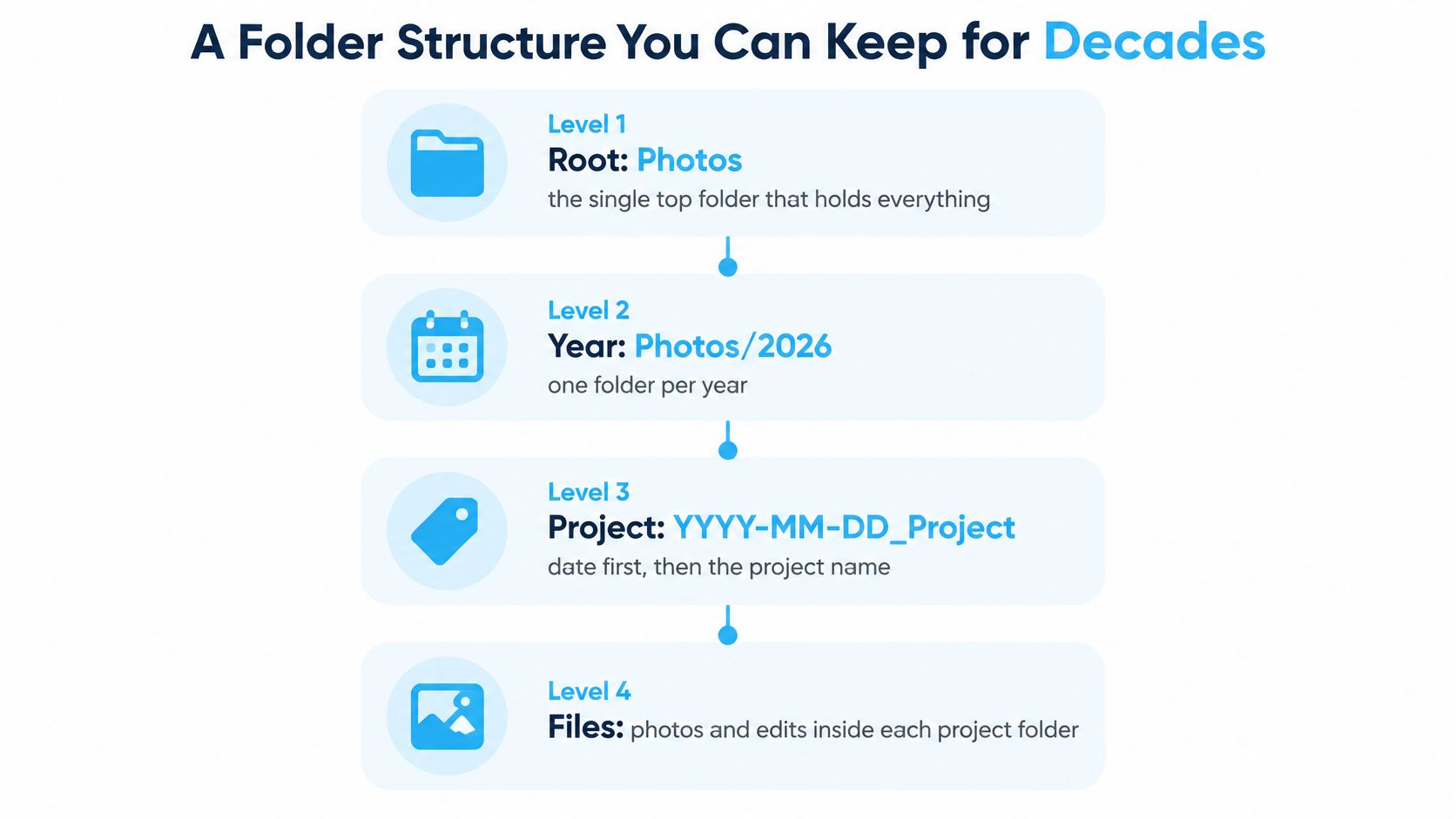
Use a shallow structure that describes when the project started, what it was, and which stage each file belongs to. The dates below are example project names, not claims about a particular shoot.
Folder levels for a photo library
| Folder level | Example name | What it holds |
|---|---|---|
| Root | Photos | The single top-level folder for the whole library |
| Year | Photos/2026 | All projects started in that calendar year |
| Project | Photos/2026/2026-03-14_Hamburg-Wedding | One shoot or client job, created before import |
| Stage | 01_Originals, 02_Working, 03_Exports | Untouched camera files, catalog-linked edits and PSDs, and delivery versions |
This diagram shows the hierarchy to copy before your next import.
Create the destination before the files arrive
- Choose the root. Put
Photoson the main storage drive with enough room for active work. Avoid splitting current projects between Downloads, Desktop, and external disks. - Add the year folder when needed. Use the project's starting year consistently, even if editing continues into the next year.
- Create the project before import. Use
YYYY-MM-DD_Project, with the shoot date rather than the date you finally copied the card. - Add the stage folders. Send captures to
01_Originals, layered documents and external-editor results to02_Working, and delivery files to03_Exports. - Give masters a distinct home. Use a sibling
Mastersfolder for archival TIFFs. Don't bury them among small web JPEGs or imply that an edited master is an untouched camera capture.
The stage split establishes handling rules. Originals remain intact, working documents change, and exports are generated for a particular use. Retaining delivered exports is still useful because they record what left your studio, including the crop and output treatment.
Catalog-based adjustments don't need a separate rendered file for every change. 02_Working is for documents the workflow creates, not an invitation to export unnecessary intermediate TIFFs.
Keep subjects out of the physical hierarchy
A tree organized by client, then location, then camera, then subject feels precise until a photograph belongs to several categories. You either duplicate it or spend time remembering which category you chose.
Keep the proposed structure to the root, year, project, and stage levels. Use searchable fields for overlapping subjects rather than adding branches. The same principle applies beyond photography, as this guide to project folder structure explains.
If a team needs shared approvals, controlled distribution, or a searchable asset portal, folders alone may be insufficient. Creators Toolbox's brand asset management tools compared is useful for evaluating that different requirement before buying another storage drive.
For a visual walkthrough alongside your own setup, use the video below.
Test the structure with a delivered image. Set yourself an under-thirty-second target for finding its original folder; if you need to open unrelated projects, revise the project labels rather than adding more nesting.
Naming Files and Versions So They Stay Findable
Use a common stem for every derivative of a capture. For a hypothetical Hamburg wedding, the relationship should be obvious:
- Original capture:
2026-03-14_Hamburg-Wedding_0001.NEF - Web delivery:
2026-03-14_Hamburg-Wedding_0001_web.jpg - Alternate layered edit:
2026-03-14_Hamburg-Wedding_0001_v2.psd
The unchanged stem connects the files. The suffix explains why the derivative exists.
Filename parts and what each one does
| Part | Example | Purpose |
|---|---|---|
| Date | 2026-03-14 | Sorts the project in date order in Finder |
| Project or client | Hamburg-Wedding | Groups related shots and makes them searchable |
| Sequence | 0001 | Identifies a capture and keeps sequence sorting consistent |
| Suffix | _web, _v2, _master | Marks the export type or the version of an edit |
Make names stable rather than exhaustive
Put the date first so alphabetical sorting also groups projects chronologically. Use zero-padded sequences, such as 0001 and 0010, so software doesn't place a shorter numeric string in an unexpected position.
Don't encode every searchable fact into the filename. Client, location, subject, usage rights, and project status belong in descriptive fields, where you can update them without changing the asset's identity.
A camera counter reset needs special handling. Add a session token such as _A or _B to distinguish incoming batches before they collide with existing names. Don't renumber an established delivered project merely to make a new batch fit.
For alternate edits, _v2 is better than really_final, but it still needs context. Keep a brief delivery note identifying the approved version and export preset. A filename can distinguish revisions without carrying the entire approval conversation.
Let the catalog manage its own paths
Rename and move cataloged photographs inside the catalog application, not Finder. Adobe's Lightroom Classic catalog guide explains that the catalog records image locations, editing instructions, and metadata, while folders, collections, keywords, labels, and ratings provide separate ways to organize and retrieve photographs.
A Finder rename changes the file's address without necessarily updating that record. The image hasn't vanished, but the application may require you to locate it again before editing or exporting.
For loose files that haven't entered a catalog, a Mac batch file renaming workflow can help establish consistent names. Once those files are cataloged, use the catalog's controls instead.
Write a short naming policy and pin it beside the import workflow. Include the date convention, project spelling, sequence format, session tokens, and allowed suffixes. Test it by asking whether you can identify an original and its alternate edit from their names without opening either file.
Keeping Metadata Searchable Across Cameras and Exports
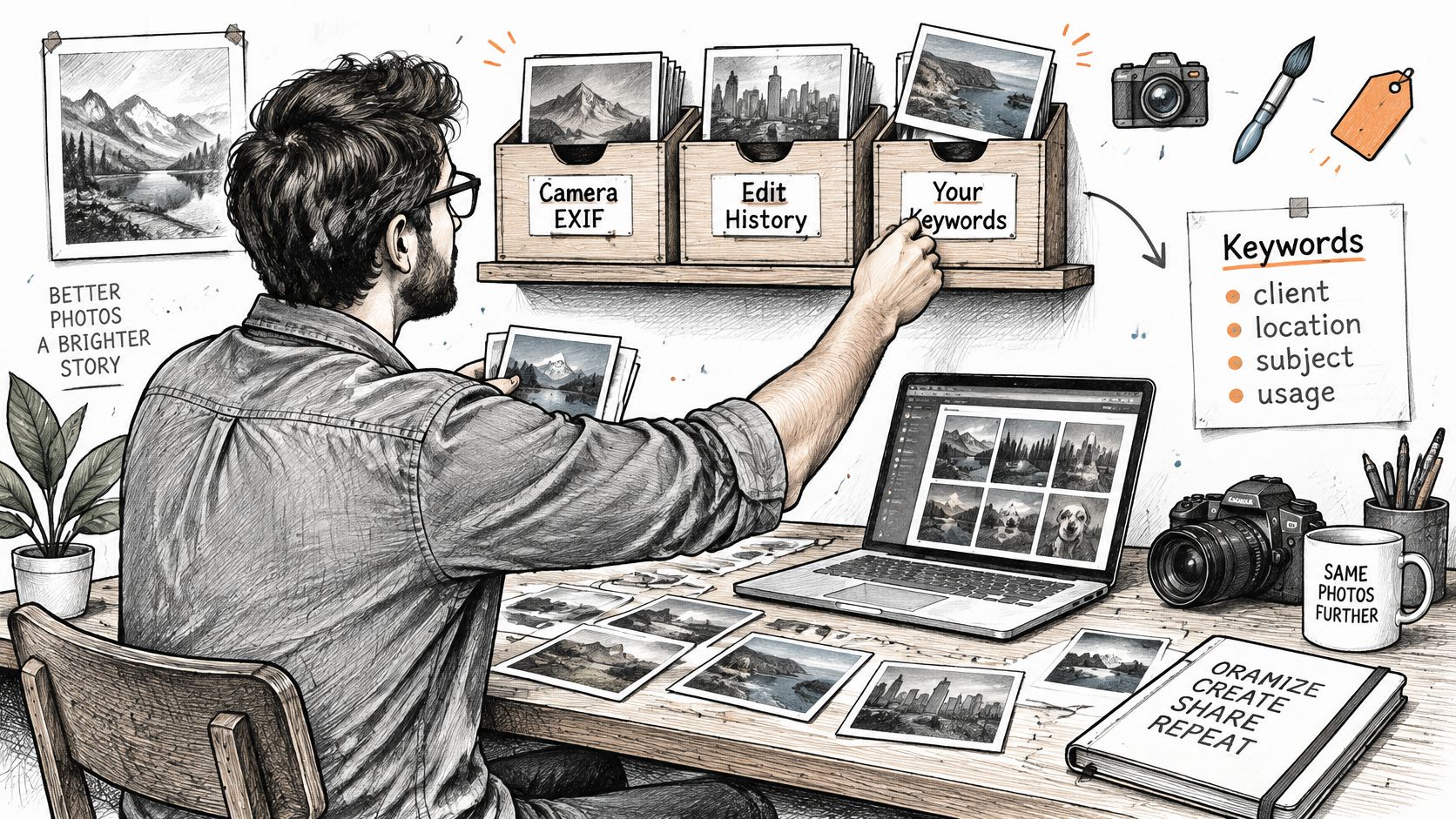
Folders tell you where a photograph lives. Metadata tells you what it depicts, who created it, and how it may be used. Those descriptions need to remain useful after the image leaves your editing application.
The ImageDB metadata documentation addresses the complications of managing image information across tools. Applications may write into the image, use sidecars, or maintain their own records, so apparently identical copies can contain missing or conflicting descriptions.
Metadata families and where they live
| Metadata family | Where it is written | What it holds |
|---|---|---|
| EXIF | Written by the camera at capture | Shot data such as date, lens and exposure |
| IPTC | Added during editing or export | Descriptive and rights fields such as client, creator and copyright |
| XMP | Sidecar file for raw files, or embedded in JPEG, TIFF and PSD | Edits, keywords and labels |
Decide what should travel
After culling, apply a consistent set of fields covering client, location, subject, usage rights, and project status. Use the application's dedicated rights and creator fields where available rather than putting everything into keywords.
For proprietary raw originals, save supported adjustments and descriptions to XMP sidecars without rewriting the captures. Keep each sidecar beside its corresponding raw file with the matching base name. Sidecars don't necessarily reproduce every application-specific feature, so don't treat them as a complete editing-system replacement.
For delivered JPEGs or TIFFs, embed the descriptive and rights information the recipient needs. Creator and copyright should travel with the image; internal status notes and private client details may not need to.
The distinction between catalog information and portable file information is easiest to manage while you're still editing.
Verify the delivery copy
Run this survival check whenever you change an export preset or delivery platform:
- Export a test image. Use your normal preset, for example
2026-03-14_Hamburg-Wedding_0001_web.jpg. - Open it elsewhere. Inspect the exported file in a different metadata-capable application, not just the originating catalog.
- Read the actual fields. Confirm keywords, copyright, and creator name are present and correct.
- Check location privacy. Remove GPS coordinates from public copies when they would expose a home, private venue, or sensitive subject.
Don't assume a successful local export guarantees a successful online delivery. A DAM, website, or CDN may create resized derivatives that omit fields; Content Credentials also need separate verification rather than an assumption based on visible copyright text.
Download the recipient-facing version and inspect it. If the platform strips necessary information, provide a separate downloadable copy whose fields you've checked, while retaining an intact master.
Test the export, not the original.
Backing Up Everything a Library Needs to Restore
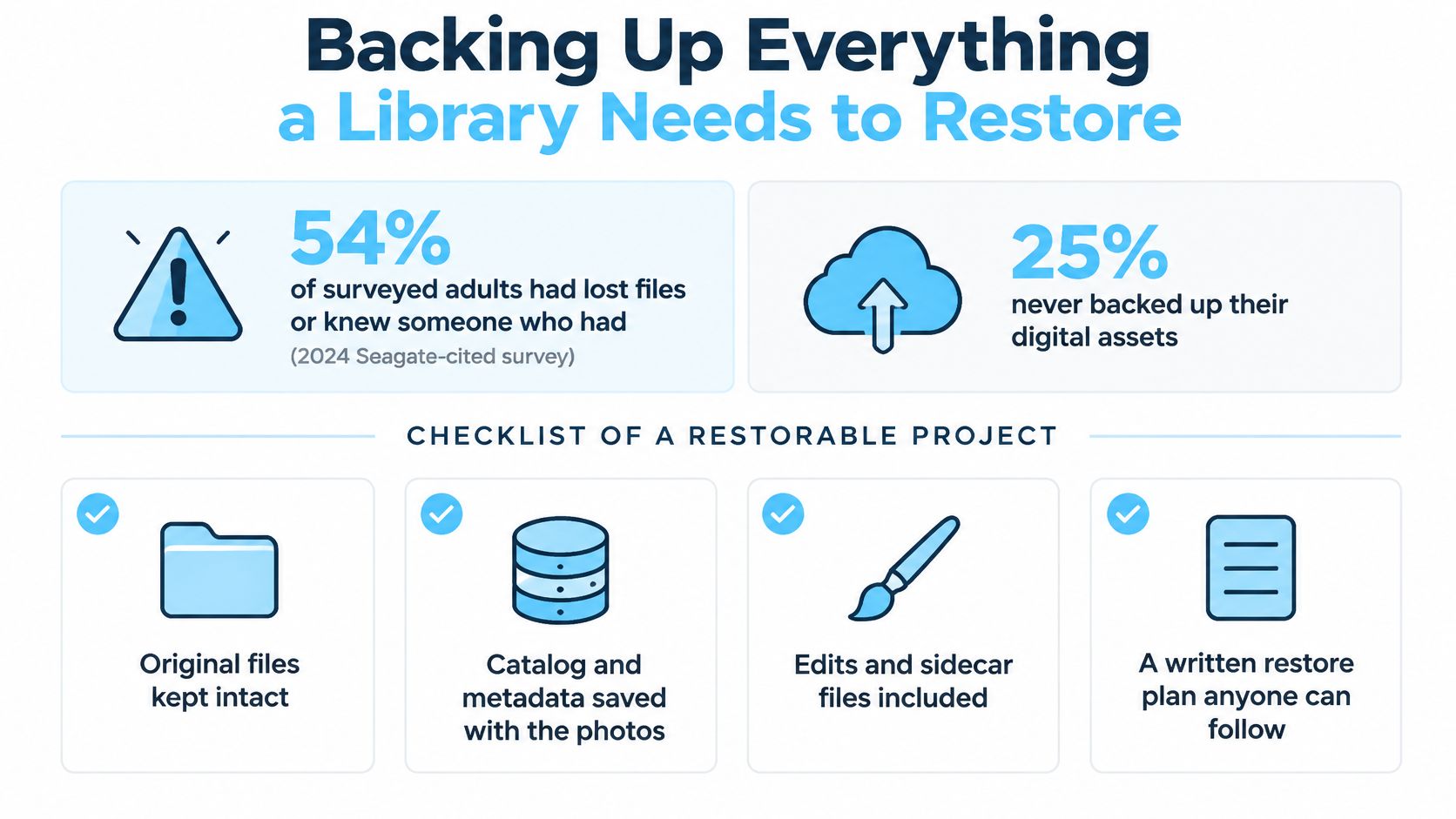
In 2024, 54% of surveyed adults said they had personally lost files or knew someone who had, while 25% never backed up their digital assets, according to Seagate, citing a Harris Interactive survey. Those figures describe surveyed adults, not a measured failure rate among professional photographers. They still expose the weakness in assuming that important files will somehow remain available.
A drive full of copied raws isn't necessarily a restorable photography library. If the retouching lives in a missing PSD or the adjustments exist only in a lost catalog, the captures alone won't reproduce the delivered work.
Back up the project and its instructions
A recovery manifest should include:
- Original captures and sidecars. Preserve their names and relative locations.
- The catalog and associated project databases. Include whatever your editing application requires to reopen the work.
- Layered working files and masters. Keep retouching that can't be reconstructed from raw adjustments.
- Delivered exports and delivery notes. Record the approved result rather than relying on memory.
- Required presets or external dependencies. Include custom resources needed to reproduce the intended output.
This checklist is a useful reminder before you automate copying.
The Aftershoot photography workflow guide recommends the 3-2-1 approach: three copies, two media types, and one off-site copy. Treat the catalog backup as a component of that plan, not an additional image copy that magically satisfies it.
Copies in a 3-2-1 backup plan
| Copy | Location | Protects against |
|---|---|---|
| Working copy | Internal drive or main catalog drive | Daily access only, not protection |
| Local backup | Separate drive, scheduled | Drive failure and accidental deletion |
| Off-site copy | Cloud or a second location | Fire, theft and flood |
| Catalog backup | Scheduled copy of the catalog file | Lost edits, keywords and metadata |
Choose backup software with retained versions. A mirror that immediately repeats an accidental deletion can leave every current copy equally incomplete. Similarly, an off-site disk isn't current protection if you haven't updated it since before the project began.
Schedule catalog backups around editing activity, not only card imports. Use the application's supported backup method, and ensure the resulting backup files also reach protected storage. Saving a catalog backup beside the live catalog on the same failing disk isn't sufficient.
Run a restoration drill
I recommend a quarterly drill using a finished project:
- Select a completed job with raw adjustments, keywords, and an external-editor document.
- Restore its folder and catalog backup to a new location, keeping the live library untouched.
- Open the restored catalog and relink missing media to the restored files.
- Verify the result. Check edits and keywords, open the layered document, and generate a comparison export.
- Record the date and outcome. Note missing dependencies and correct the backup job before declaring success.
For a large archive, finished projects can move to cold storage while their catalog entries remain searchable. Label the physical drive clearly and record which projects it contains. Offline previews can help you locate a photograph, but you still need the source drive connected for operations requiring the original.
Don't erase the previous storage copy until the migrated files and their backups have passed inspection. An untested backup is a hope, not a demonstrated recovery path.
Migrate a Messy Library and Start This Week
Start with the drives you already own, not an empty folder template. Keep the existing archive intact while you establish which files are authoritative. A rushed cleanup can replace a confusing library with a neatly organized incomplete one.
Move in controlled batches
- Inventory every location. List external drives, desktop folders, downloads, and old delivery directories. Mark whether each contains originals, working documents, exports, or suspected duplicates.
- Choose the permanent root. Create
Photoson the main storage drive and add year folders for existing work. - Bring loose folders into the catalog. Use its import controls to register or copy uncataloged files to their intended destinations. For folders already cataloged, use the application's folder-management controls.
- Apply naming changes selectively. Start the new convention with new projects. Leave historical filenames alone until you reopen a project and can check its dependencies.
- Review duplicates conservatively. Confirm the retained original is accessible in the catalog and backed up before deleting a candidate copy. Compare contents and roles, not filenames alone.
A matching filename doesn't prove duplication. An identically named PSD may contain different layers, and a smaller JPEG may be the exact file a client approved. Put uncertain candidates in a review queue rather than making irreversible decisions during a bulk move.
Add visual cues after the structure works
Choose a single commitment before your next shoot: create the dated project and its stage folders before inserting the card. Then use a restored finished project to test whether your storage, catalog, and backup arrangements work together.
Add Finder colors and icons only after that. In Tintd, we can apply a color and icon to selected folders in one action, making states such as active, delivered, and archived easier to scan. These changes are cosmetic and don't affect files or subfolders inside.
Our icon and color suggestions run locally on your Mac, and folder names never leave the device. Custom folder icons are stored on each Mac, so repeat the setup on every machine you use rather than assuming the appearance will follow the archive.
If you're considering automated setup, this guide to Automator folder actions helps distinguish folder-triggered tasks from the catalog operations that should remain under your control. Automate predictable setup, not uncertain deletion or asset movement.
Tintd offers bulk folder colors and custom icons so you can recognize project states in Finder without altering your photographs. Visit Tintd to add a consistent visual layer to your dated project folders, then keep filenames, metadata, and tested backups responsible for the underlying organization.