
Your Downloads folder fills up again by mid-afternoon. Screenshots sit beside invoices, installers, scans and photos you meant to resize, and sorting them by hand eats the time you wanted for actual work. Automator Folder Actions can handle that sorting the moment files land, but only if you set them up as event-driven workflows and test them like you would any automation you plan to trust.
What Automator Folder Actions Do and When to Use Them
Say your Downloads folder collects mixed files every afternoon and you want PDFs filed, images resized and scans renamed without opening anything. A Folder Action is built for exactly that. It's a workflow attached to a Finder folder that runs when items are added, passing those files or folders in as input.
That's different from a standard Automator workflow, which waits for you to press Run. The macOS Automation guide to Folder Actions traces the underlying system to Mac OS 8.5 and notes Automator's documented support from macOS 10.4 and later. You don't need more history than that to use it well.
What the workflow actually does
Each workflow is a chain of actions, such as Get Specified Finder Items, Scale Images, Rename Finder Items or Print. Shell commands, AppleScript and JavaScript can extend the chain when built-in actions run out. If you're sorting Downloads, start by deciding the naming and destination rules first, and it helps to create clear file naming conventions before you automate moves you'll later regret.
| Folder use case | Workflow action | Example result |
|---|---|---|
| Sort Downloads by file type | Move Finder Items | PDFs go to Documents, images go to Pictures |
| Rename incoming scans | Rename Finder Items | Scans get a date prefix, such as 2025-01-15_scan.pdf |
| Resize incoming photos | Scale Images | Photos capped at 2000 px on the longest side |
| Archive new project folders | Create Archive | Zip file saved beside the original |
| Print incoming documents | Sent to the default printer |
If the job must run on every new file, use a Folder Action. If you only need it now and then, a standard workflow is simpler to debug, and comparing other Mac automation options can help you pick the lighter tool.
How to Create and Attach a Folder Action Workflow
Build the workflow and attach it as two separate jobs. Most "it never runs" failures come from doing the first job well and skipping the second, so work through both in order and test with files you can afford to lose.
Build the workflow
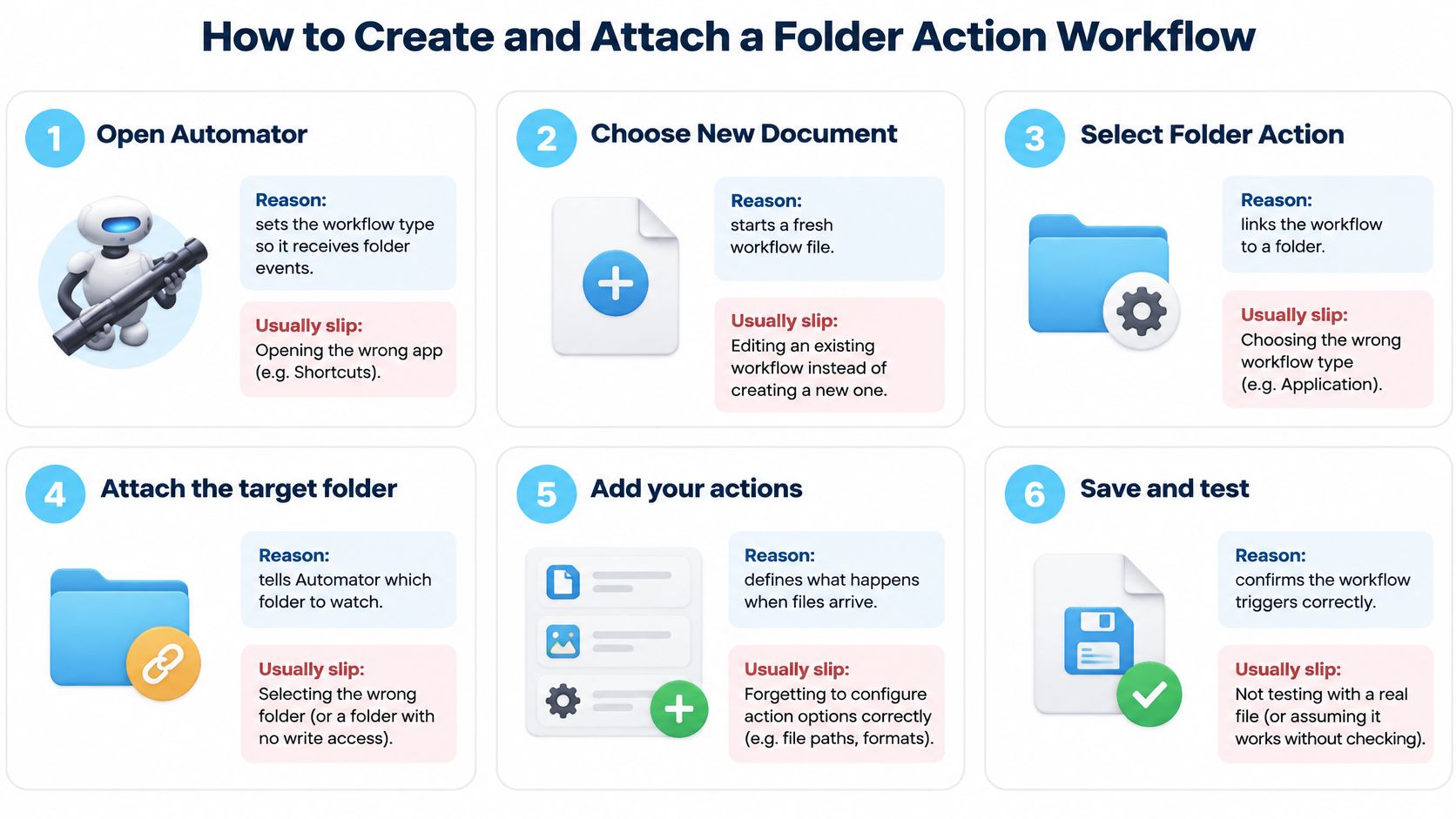
Open Automator and choose Folder Action: Click New Document, then select Folder Action as the type. The type determines that incoming items become the workflow's input, and Apple's Automator guide to creating a Folder Action documents that the workflow runs when items are added and passes those files into the workflow. Picking a standard workflow type is the usual first slip.
Pick the target folder in the top dropdown: Set the folder the action receives files added to, and use a disposable test folder first, not Downloads. You'll be dropping, duplicating and deleting files here, and a test folder keeps mistakes cheap. Pointing a half-built workflow at a live folder is how files get moved twice.
Add actions from the Library: Drag in actions such as Get Specified Finder Items, Filter Finder Items or Move Finder Items, and keep each action's input set to the incoming files. For rename jobs, the same ordering discipline you'd use for batch renaming files on Mac applies here. Add one real operation at a time, because a long chain that fails tells you nothing about which step broke.
Save with a descriptive name: Use a name like "Downloads PDFs to Documents" rather than "Workflow 3". That name is what you'll see later in Folder Actions Setup when you're trying to remember which script does what. Vague names turn future troubleshooting into guesswork.
Attach and enable it
Open Folder Actions Setup from Finder: Control-click the folder and open Folder Actions Setup, then attach your saved workflow. A saved workflow does nothing until it's attached, and forgetting this step is the most common reason a correct workflow appears inert.
Verify both enable controls: Tick the global Enable Folder Actions box and the folder-specific On checkbox. Ticking the folder while leaving the global control off is the classic slip here, and the workflow will sit idle with no error to warn you.
Drop in one test file: Copy a single disposable file into the folder and confirm the action ran and produced the expected output. Don't start with a batch, because one file gives you one clear result to check.
You can also disable an individual action later without deleting the workflow. That's useful for staged rollouts, since you can pause one folder, adjust the workflow and re-enable it without rebuilding the attachment.
How to Test a Folder Action Before You Trust It
Start by replacing the operation with a logging step that writes each received file path to a plain text file. Drop in one disposable file and read the log. The incoming list may hold several items from a single event, so you need to see exactly what the workflow receives before you let it move or rename anything.
Run the matrix before the real operation
| Test case | How to run it | Pass condition |
|---|---|---|
| Single file copied in | Drop one disposable file into the folder | Log shows one run with the correct path |
| Burst of new files | Copy 120 small files in at once | Every file processed once, none skipped |
| Nested folder | Place a file two levels deep | Action fires only where intended |
| Duplicate copy | Copy the same file twice | Output is not duplicated |
| Restart and relogin | Restart the Mac, then add a file | Action still attached and runs |
| Large file still writing | Copy a multi-gigabyte file slowly | Script waits until file size is stable |
| Synced file arrival | Move a file in from iCloud Drive | Log shows whether the action fired |
The single-file test confirms the basic trigger works. The burst test is the one I'd weight most heavily, because it exposes skipped files and double processing that a single drop will never reveal.
The nested folder test shows whether the action fires only at the level you intended. That matters if your workflow writes output back into the watched folder, since output landing in a subfolder can trigger another run. The duplicate copy test checks whether a repeated arrival repeats the work.
Restarting and adding a file after you log back in confirms the attachment survives a relogin, which is when many quiet failures first appear. The slow large-file copy tests whether your script starts processing while the file is still being written.
Only after the matrix passes should you swap the logging step for the actual operation, such as moving, renaming or invoking a script. Then repeat the single-file and burst tests with the operation in place.
Keep a count of expected files against processed files for the burst test. Any gap means the workflow needs a stable-size check or a staging folder before you rely on it.
Why Bursty and Synced Files Break Folder Actions
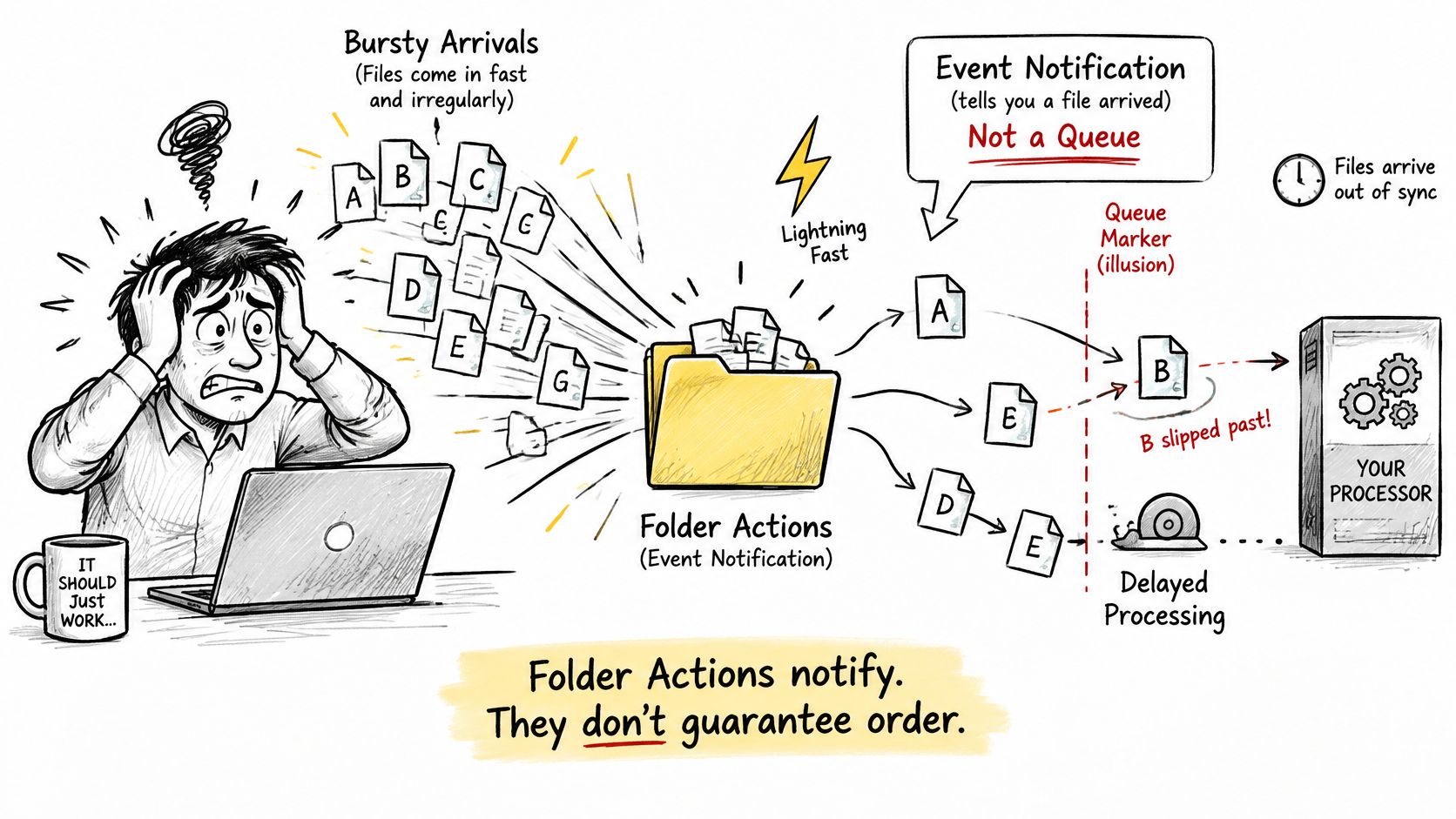
The misconception that causes most failures is simple. Folder Actions are event notifications, not a guaranteed queue. Treating them as a transactional pipeline, where every file is processed exactly once in order, sets you up for skipped and duplicated work.
Discussions in the Apple Support Community thread on Folder Action behavior describe actions that activate before a large batch has finished arriving, process only the items observed in that event, and behave unpredictably when files appear through external drives, backups or synchronization services. Items synced from other devices through iCloud may not trigger Folder Actions consistently either.
Local drag-and-drop is the most predictable arrival type. The file is complete, the event follows quickly, and a simple workflow usually handles it. Even here, debounce the script so it waits for a few seconds of quiet before acting.
Network volumes add lag between a file appearing and its content being readable. The risk is processing a partial file, so check that each file's size is stable across two readings before you touch it.
Cloud-sync folders are trickier, because the folder entry can appear before the content has downloaded. Process synced arrivals from a local staging folder instead of directly in the synced location, and don't assume the event fired at all.
Bulk imports create bursts of events that can arrive before the batch finishes. Photographers importing a card, developers unpacking assets and research teams copying datasets all hit this. Copy arrivals into a staging folder, process them there and mark completion with a deterministic file name, then compare the expected count with the processed count after every bulk import.
Answer one question for your own folders before you trust the setup. Can the workflow stay correct if files land rapidly or arrive indirectly through sync or backup?
Fixing Folder Actions That Stall, Duplicate or Skip Files
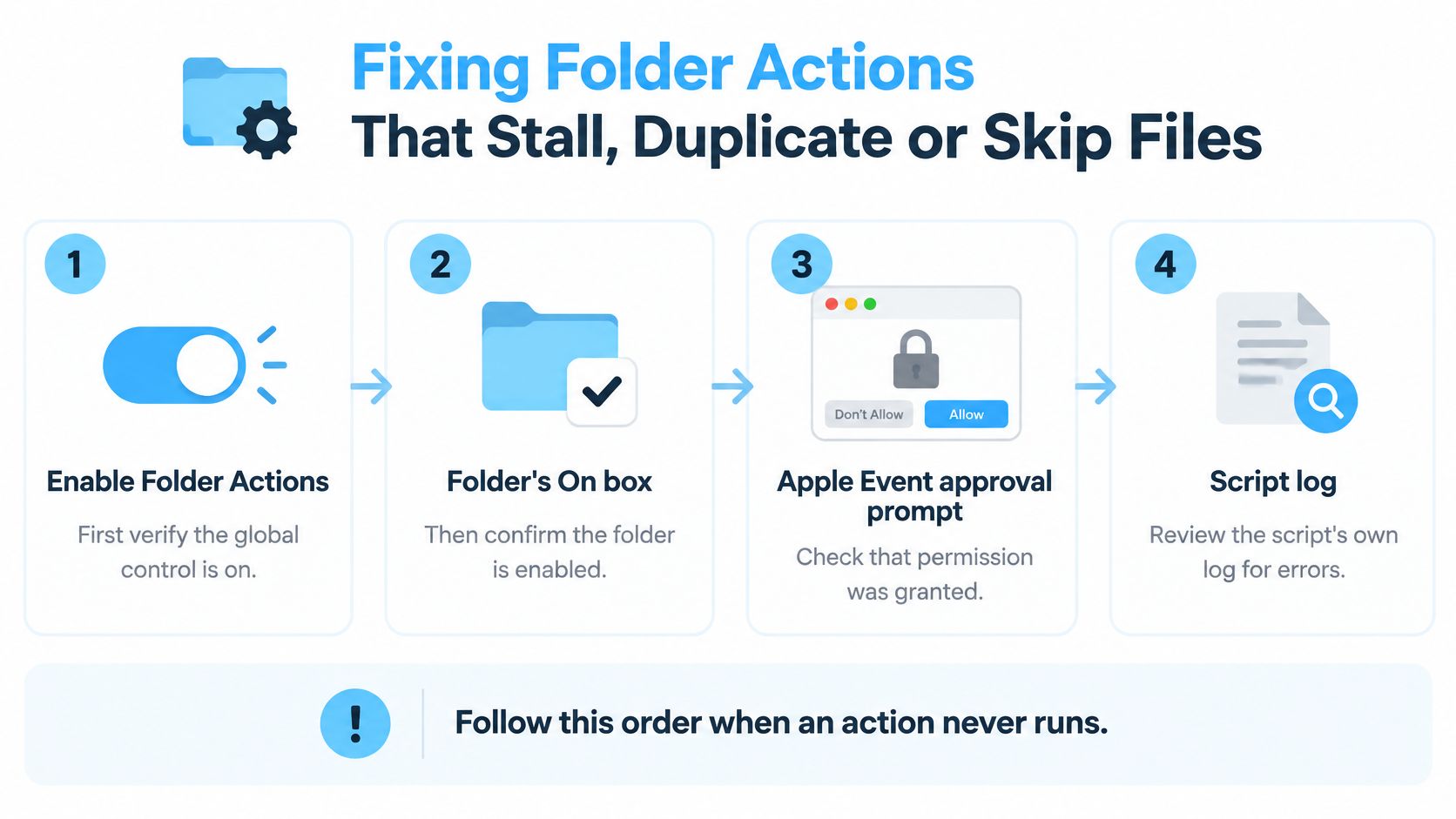
When an action never runs, check in a fixed order and don't start by rewriting the script. First confirm the global Enable Folder Actions control, then the folder's On box, then any pending Apple Event approval prompt, then the script's own log. Only after those pass should you suspect the script logic itself, since the macOS Automation overview of Folder Actions documents that the background FolderActionsDispatcher process runs these workflows separately from the workflow files you save.
For duplicates, add a completion marker or check whether the output already exists before processing. A repeated event then becomes harmless instead of producing a second copy, a second archive or a second print job.
For skipped files, move the heavy work into a staging folder and wait for a stable file size before acting. Filter by file type and filename first, verify the file still exists, and record failures to a log rather than discarding them.
The backlog problem
Scripts that make network calls, run recursive scans or convert large images hold up the dispatcher and delay later events. The whole action then looks unreliable even when the logic is correct. Keep each script short, return promptly and move slow steps into the staging stage where they can't block the trigger.
| Symptom | Likely cause | Fix |
|---|---|---|
| Action never runs | Global Enable Folder Actions off, or folder On box unchecked | Enable both controls in Folder Actions Setup and test again |
| Same file processed twice | Repeated event or burst delivery | Add a completion marker or check whether the output exists first |
| Some files in a batch skipped | Script returned before the file finished writing | Copy to a staging folder and wait for a stable file size |
| Script blocked after macOS update | Apple Event approval needed again | Approve the security prompt on the next run |
| Inconsistent runs with iCloud files | Sync delay before the file is complete | Process synced files from a local staging folder |
| Permission denied in the log | Script host cannot access the folder | Grant the needed access to the app running the script, then retest |
Work down the table from the most likely cause. Keep an ongoing checklist too. Confirm the attachment, read the log after every burst, keep scripts short and re-run your audit after each macOS update or permission change.
Permissions, Auditing and Cleanup After Setup
A watched folder looks exactly like any other folder. Folder Actions Setup shows no Finder badge on it, so a stale action is easy to forget and hard to discover months later. That invisibility is why workflows seem to stop working without notice after security changes, permission changes or a move to another Mac.
The macOS Automation page on Folder Actions Setup describes that management interface, where you can view watched folders and enable or disable attached scripts. Since macOS Mojave, workflows containing Apple Event scripts require user security approval the first time they run. After approval they run without another prompt, but an update or permission change can require approval again.
Run this audit routinely
- List every watched folder: Open Folder Actions Setup and note each one, because you can't audit what you haven't inventoried.
- Open each attached script: Note what it reads, writes or calls, since that is the actual access surface you're granting.
- Disable stale actions instead of deleting them: You can restore a disabled action later, while a deleted workflow has to be rebuilt.
- Check the volume type: Note any folder on an external, network or synced volume, because those locations change event behavior and access.
- Retest after updates: Re-run the single-file test after every macOS update or permission change to confirm the attachment still fires.
Local automation isn't automatically private. Filenames can reach scripts, logs, third-party binaries and cloud-mounted folders, so log paths and counts rather than file contents. The same inventory habit helps when you're choosing a workspace for research notes, since you need to know what any tool can read before you trust it with working material.
Our own permission split follows that narrower model. Folder Watcher requires Full Disk Access, which macOS asks you to grant the first time you enable it, while colorizing folders manually doesn't require Full Disk Access. Icon and color suggestions run locally on your Mac, folder names never leave the device and Tintd doesn't call any AI service.
Confirm what a script touched by checking four things in its log, the timestamp, input path, output path and any access denied entries.
Set Up Tintd Folder Watcher as Your Next Step
Split the responsibilities cleanly. Your Folder Action moves and processes files, while our Folder Watcher detects each new folder created in chosen locations and automatically gives it a matching color and icon based on its name. That pairing works well alongside the approaches covered in guides to watch folder software, as long as the two tools aren't competing for the same location.
Here's the visual result you're aiming for once new folders get styled consistently.
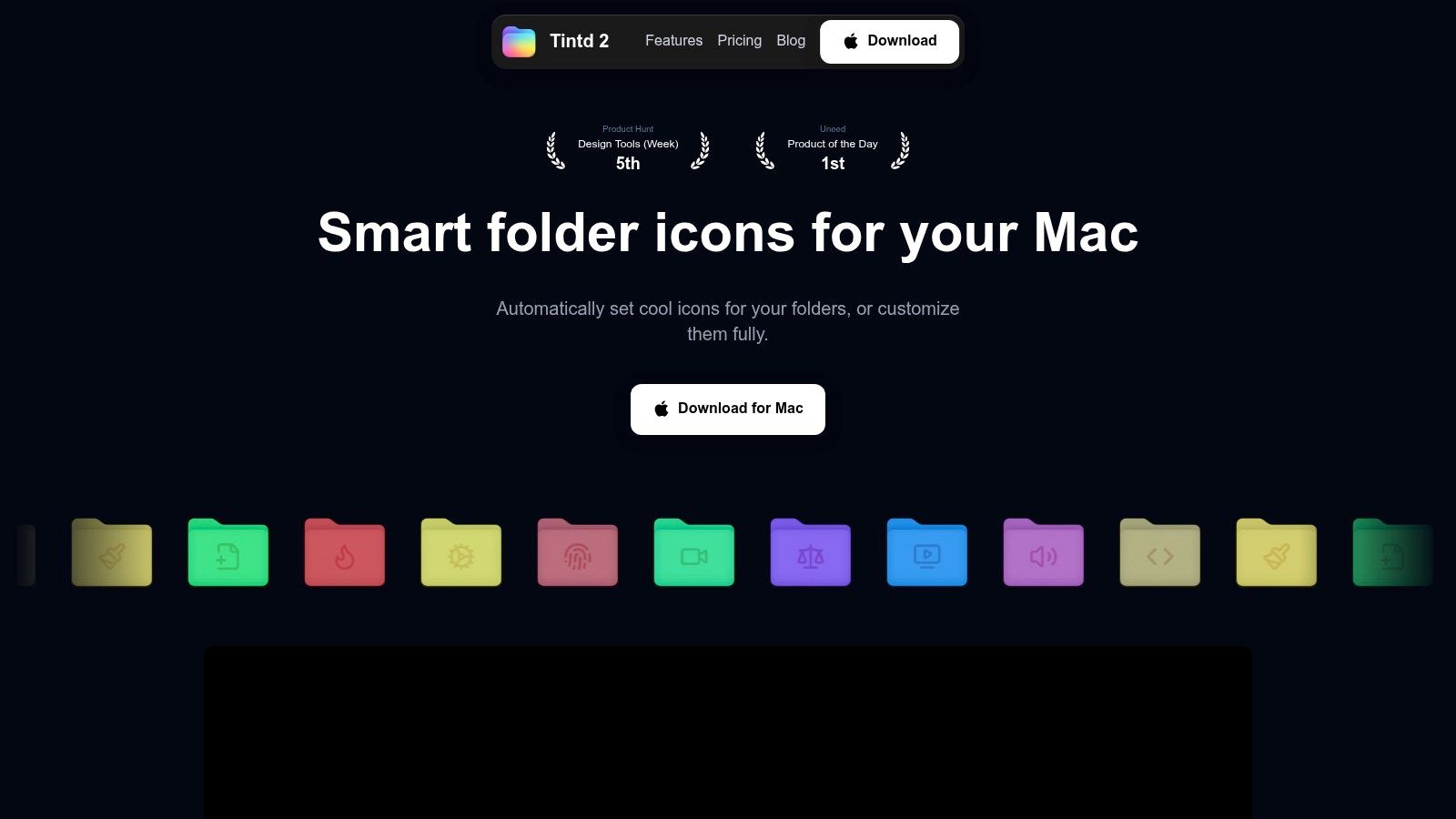
Folder Watcher can be turned off at any time in System Settings. It requires Full Disk Access, which macOS asks you to grant the first time you enable it, while manually colouring folders doesn't need that access. Icon and color changes are purely cosmetic and don't affect files or subfolders inside, and custom folder icons are stored locally on each Mac, so you set them up separately on each machine.
A safe first run
- Pick one test location that holds no important files.
- Enable Folder Watcher there and grant Full Disk Access when macOS asks.
- Create a new folder and check that it receives its color and icon.
- Add your real folders only then, once the test location behaves.
Keep Folder Watcher on a different location from any Folder Action that moves or renames files, so the two don't compete for the same events. The short walkthrough below shows the watcher styling new folders as they're created.
After a macOS update, use your test matrix to confirm both the Folder Action and Folder Watcher still behave before you assume either one is running.
If your Automator Folder Actions now sort files reliably, let Tintd handle the visual side by giving each new folder a matching color and icon automatically, with all suggestions running locally on your Mac. Visit Tintd to set up Folder Watcher on one test location today and see your next new folder styled the moment you create it.