
You've settled into your seat for a long flight, opened your Mac, and pulled up a half-finished proposal. The document loads, but your supporting notes don't. Your task list wants to reconnect, and the reference file you thought you'd downloaded is still a cloud placeholder.
Your work shouldn't stop when the Wi-Fi does. Good offline productivity apps let you write, organize, and plan against data that's already on your device. The important distinction isn't whether an app displays an offline badge. It's whether you can open your work, change it, close the app, and return to those changes without contacting a server.
Offline access, private processing, and cross-device sync are separate capabilities. Check each one rather than assuming they come together.
The apps below cover different situations: finding project folders, developing research notes, clearing a task backlog, drafting documents, and preparing for meetings. None can fetch a file that never reached your Mac.
If your workflow also includes personal journaling on another platform, these multimedia diary apps for Android offer a separate starting point. For your Mac, start with the job you need to finish without signal.
1. Tintd
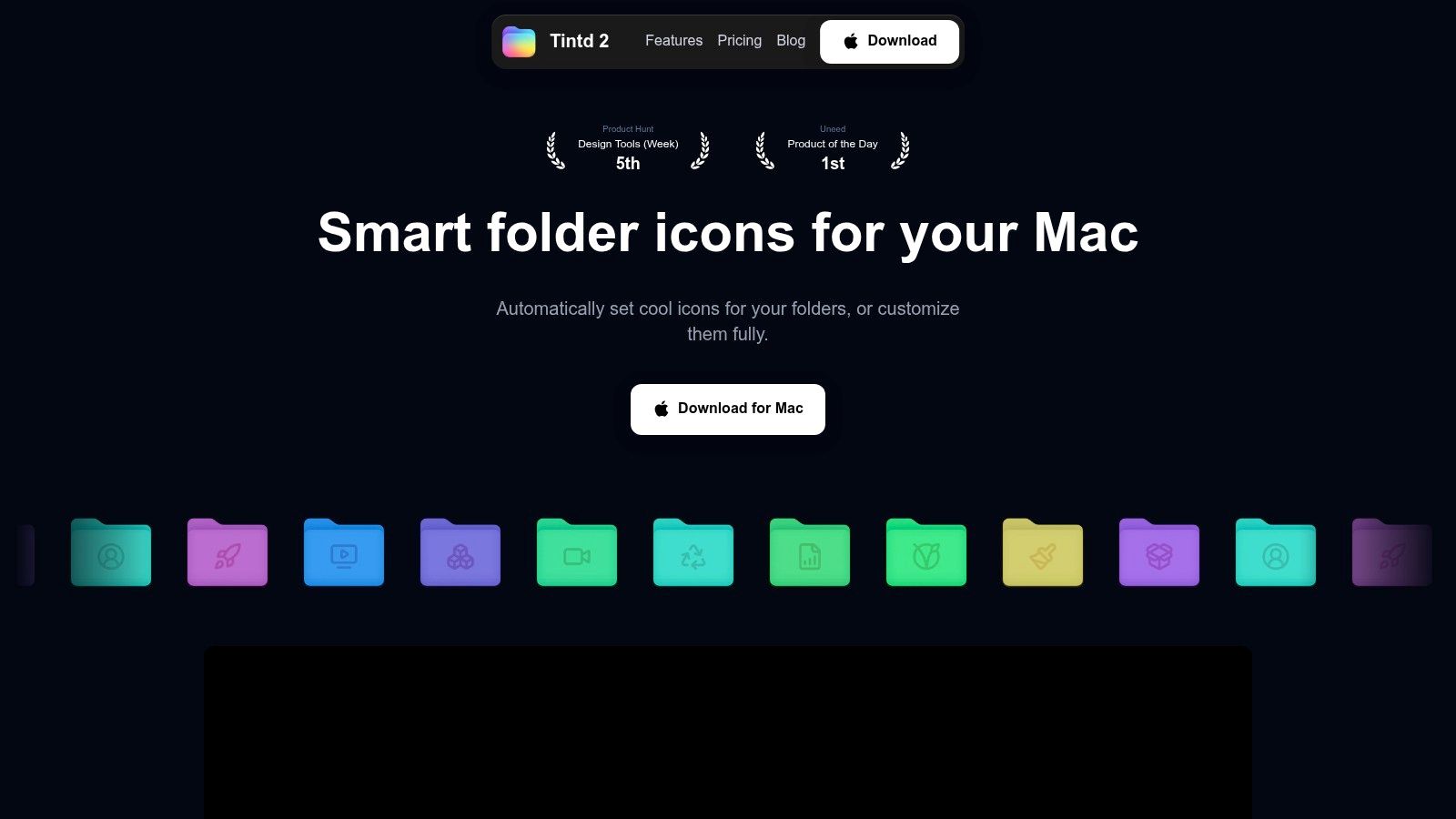
Best for finding your way through locally stored folders. When Finder contains research, photographs, coursework, and archived projects, another task manager won't make those folders easier to distinguish.
Tintd assigns colors, icons, and emojis to Mac folders, with suggestions based on folder names and the styles already used nearby. Everything runs on your Mac: folder names never leave the device, and suggestions don't call external AI services. You can work manually through Finder's right-click menu, batch-style folders and subfolders, import your own images, and reuse earlier styles from history.
Build a visual system, not a decoration project
Use color for a consistent distinction, such as active versus archived material, and icons for content type. Descriptive names and logical hierarchies still matter, as Trinity College Dublin's Mac file-organization guidance emphasizes. Treat styling as a layer over that structure.
The library holds more than 11,000 icons and emojis, and name matching works across 11 languages, which helps when a project folder mixes languages in its naming. Smart Color looks at the colors already assigned to neighboring folders and picks one that fills a gap on the color wheel, so a new folder stays consistent with the set. Folder Watcher applies a matching color and icon to each new folder created in the locations you choose, keeping a growing archive styled without extra passes.
- Permission boundary: Folder Watcher requires Full Disk Access. Manual folder colorizing doesn't, and you can turn the watcher off in System Settings.
- Recovery: Any customized folder reverts to the standard macOS Finder icon with one click, so testing a different convention carries little risk.
- Batch editing: Randomize folder colors or apply one icon across many folders at once, rather than styling each folder separately.
The app is a one-time purchase rather than a subscription, and its terms restrict use to your own private, non-commercial purposes. Don't assume it covers client work or folders you maintain on someone else's behalf.
2. Obsidian

A train journey is a useful time to turn scattered reading notes into an argument. Obsidian suits that work because its vaults are folders containing local Markdown files, rather than pages you can only reach through a website.
You can link concepts, search your notes, and draft a project outline without connectivity. The plain-text format also gives you an exit route: your writing remains readable outside Obsidian instead of depending entirely on its interface.
Keep the vault simpler than the project
Start with project notes, source notes, and an index that links them. Add plugins only when you can name a specific problem they solve, because extensions introduce their own configuration and potentially their own network dependencies.
For coursework, the broader guide to Mac apps for students can help you place a notes tool alongside document and planning software. Obsidian works particularly well when you need to connect ideas across subjects, rather than merely collect lecture transcripts.
Where offline use stops: another device won't receive your changes until your chosen sync system runs. Optional Obsidian Sync or a separately configured file-sync workflow handles that transfer, but linked web pages and remotely stored attachments still need their own preparation.
I'd choose Obsidian for a durable research library. I wouldn't choose it just to avoid deciding how to organize notes, because that decision still belongs to you.
3. Joplin
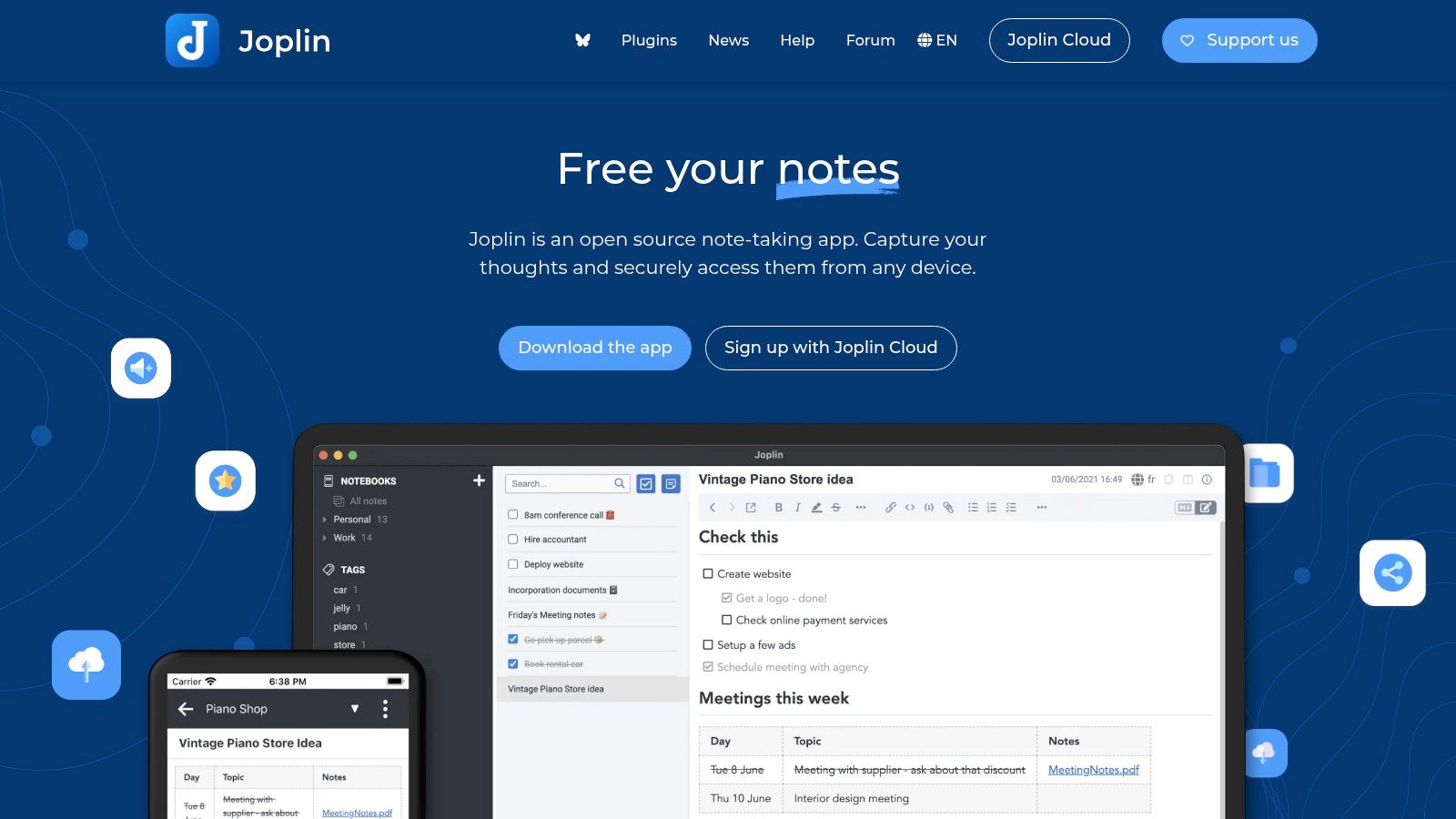
Choose Joplin when notebooks make more sense to you than a network of linked ideas. It combines notes and to-dos in an open-source, offline-first app, with optional synchronization rather than a mandatory cloud workspace.
Say you're preparing a research trip. You can organize background material, questions, and travel notes into notebooks, then work with locally available content while disconnected. Markdown support gives you structured writing without requiring a full word processor.
- What works well: Notebook-based organization is straightforward for separating subjects, projects, or areas of responsibility.
- What takes preparation: Sync targets and optional end-to-end encryption need deliberate setup before you depend on another device.
- What needs checking: Confirm that the attachments you'll need are available locally, not merely represented by entries in a note.
The web clipper is useful while gathering material online. It isn't a way to capture an unavailable website after you've lost signal, so collect the material before departure.
Joplin's trade-off is control versus polish. You get a free core app and flexibility over synchronization, but you may spend longer learning its settings than you would with a simpler Apple-focused notebook.
For offline work, test a complete notebook rather than an isolated text note. Open its attachments, edit a to-do, and confirm that your chosen sync arrangement transfers those changes after reconnection.
4. Standard Notes

Sometimes the requirement is narrower than a knowledge base: you want private notes that don't require an account. Standard Notes supports local-only offline use, with an application passcode available to protect offline data.
That makes it a practical candidate for personal reflections, sensitive planning, or drafts you don't want automatically replicated elsewhere. Its free offering includes plain-text notes, tags, and offline access, so basic writing doesn't depend on upgrading.
The Stillware explanation of local-first software makes the underlying distinction useful: a local primary copy isn't the same arrangement as a temporary cache of server-owned data. For your own setup, inspect account and sync settings rather than relying on the word offline.
Decide whether these notes should travel
With an account, Standard Notes offers end-to-end encrypted syncing. Without one, local-only notes won't automatically appear on your phone or another computer, so you need an intentional backup and recovery plan.
The limitation is scope. Some richer editing, organization, and file capabilities require paid access, and this remains a notes app rather than a full project manager.
Choose it when the privacy boundary matters more than elaborate formatting. Don't add synchronization merely because the option exists if keeping those particular notes on the device is the point.
5. Bear
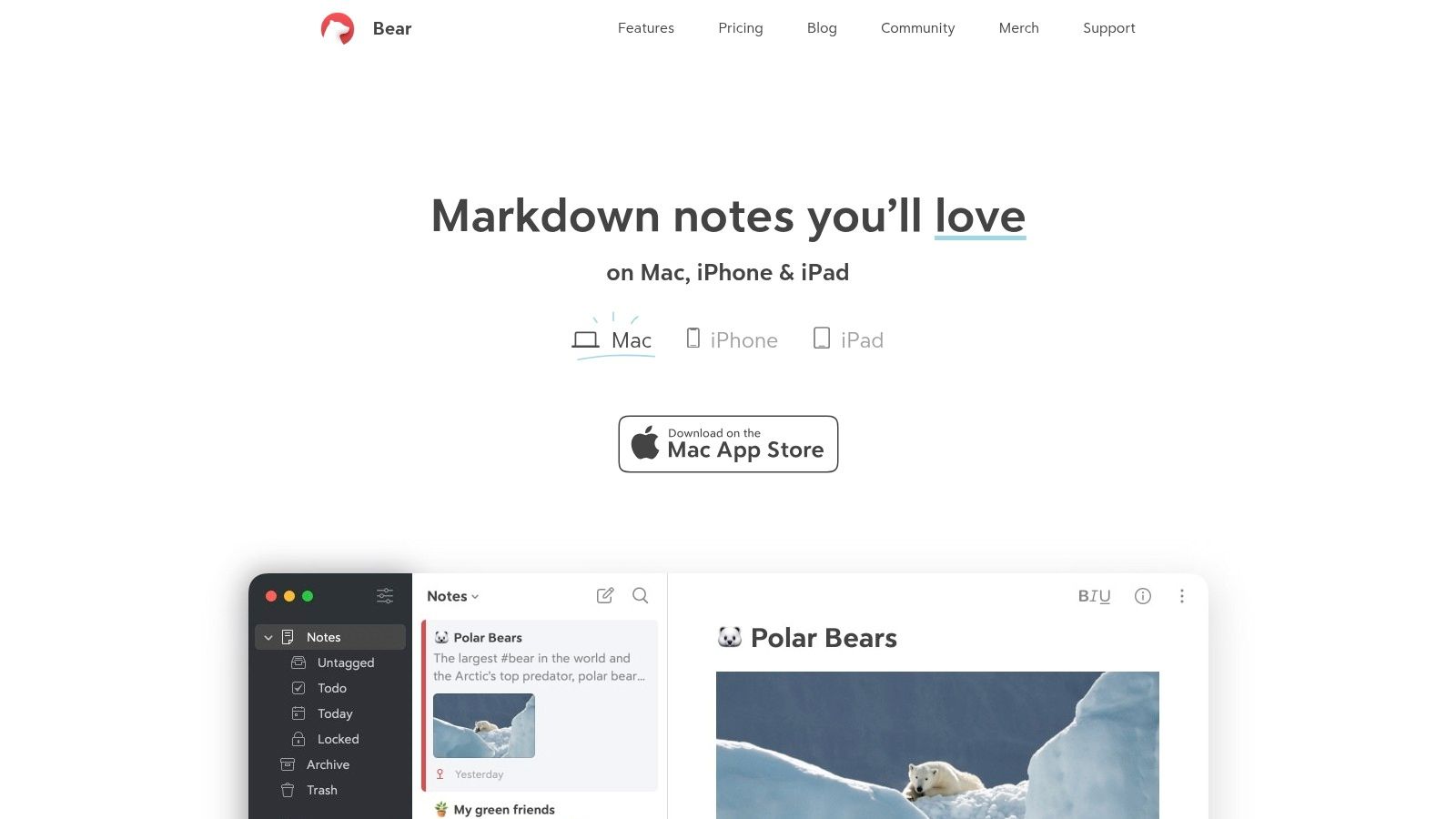
Open a note and start writing. That's the strongest reason to pick Bear over a more configurable knowledge-management system when your immediate problem is finishing a draft.
Bear combines Markdown writing with tags, including nested tags, plus search, note linking, and tasks within notes. Local note access is available in the free tier, which makes it useful for writing on your Mac without turning every note into a cloud-service decision.
Use tags without creating another filing job
For a proposal, you might keep background ideas, an outline, and the working draft under a shared project tag. Add a status tag only if you'll use it to find unfinished writing.
- Best fit: Apple users who want a focused writing environment with lightweight organization.
- Main compromise: Bear isn't a broad cross-platform choice for people moving between macOS, Windows, and Android.
- Offline boundary: Bear Pro and iCloud provide optional syncing, which won't transfer new edits while you're disconnected.
Some expanded export and customization features are also paid. If the final step of your offline session involves handing a document to someone else, verify that your available export format suits that handoff before you leave.
Bear is less attractive when you want a user-managed folder of Markdown files as your primary workspace. Its appeal is the integrated writing experience, not the same file-oriented approach you get from Obsidian.
6. Things 3
When you've got a backlog but no signal, use the time to decide what deserves attention. Things 3 organizes personal work into areas, projects, tags, and to-dos, with scheduling and recurring tasks for ongoing responsibilities.
Its strength is a clear personal plan. Capture loose tasks, move actionable work into projects, and distinguish work you intend to tackle from work you're merely keeping for later.
- Ownership model: The apps are separate purchases for different Apple platforms rather than a required recurring subscription.
- Sync option: Things Cloud is optional and free, but device-to-device updates still require connectivity.
- Collaboration limit: This isn't a shared team workspace or a browser-accessible task system.
For a wider view of where a task manager belongs, compare the complementary tools in this guide to Mac productivity apps. A task list should point you toward the document or folder you need, not become a duplicate copy of everything inside it.
Separate planning from fresh information
Your local task plan can remain useful while disconnected. Calendar-related planning, however, shouldn't be mistaken for a guarantee that you're seeing fresh changes from an external calendar service.
I'd choose Things for personal execution when ease of review matters more than extensive configuration. If you need detailed custom views for a complicated backlog, OmniFocus gives you more machinery, along with more decisions to make.
7. OmniFocus
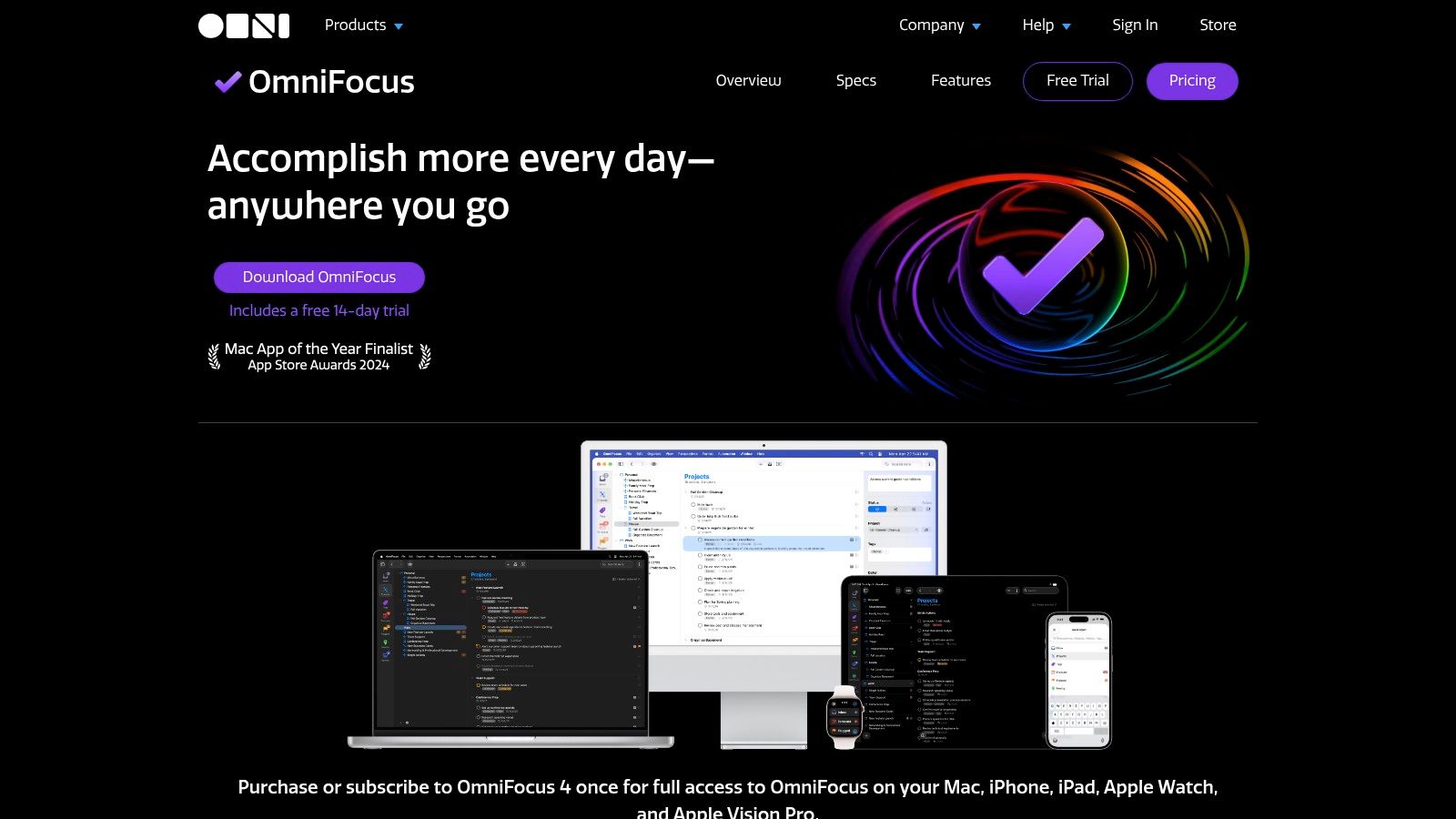
OmniFocus earns its complexity when you need to review a substantial backlog, not just remember errands. Projects, folders, tags, custom task views, and Quick Entry support a detailed personal planning system.
An uninterrupted journey can be useful for reviewing stalled projects and clarifying next actions. Instead of repeatedly moving vague tasks to tomorrow, you can separate actionable work from projects that still need a decision.
Activate before you disconnect
For perpetual-license customers, the developer documents offline use after activation. That qualification matters: buying or installing an app isn't the same as confirming that its license is ready for an offline trip.
Test the activated native app before departure. A web-access entitlement doesn't turn a browser into a dependable offline workspace.
OmniFocus offers perpetual licenses and subscriptions, while web access requires a subscription. Choose according to where you'll work, rather than paying for browser access you don't need.
Its planning depth is also its main drawback. If maintaining perspectives and project structure takes longer than reviewing your work, simplify the setup or choose a lighter task manager.
For workflows that extend beyond personal next actions, this comparison of Mac project-management tools helps distinguish task planning from broader coordination. Offline access won't supply missing conversations, fresh shared information, or decisions that another person hasn't sent yet.
8. LibreOffice
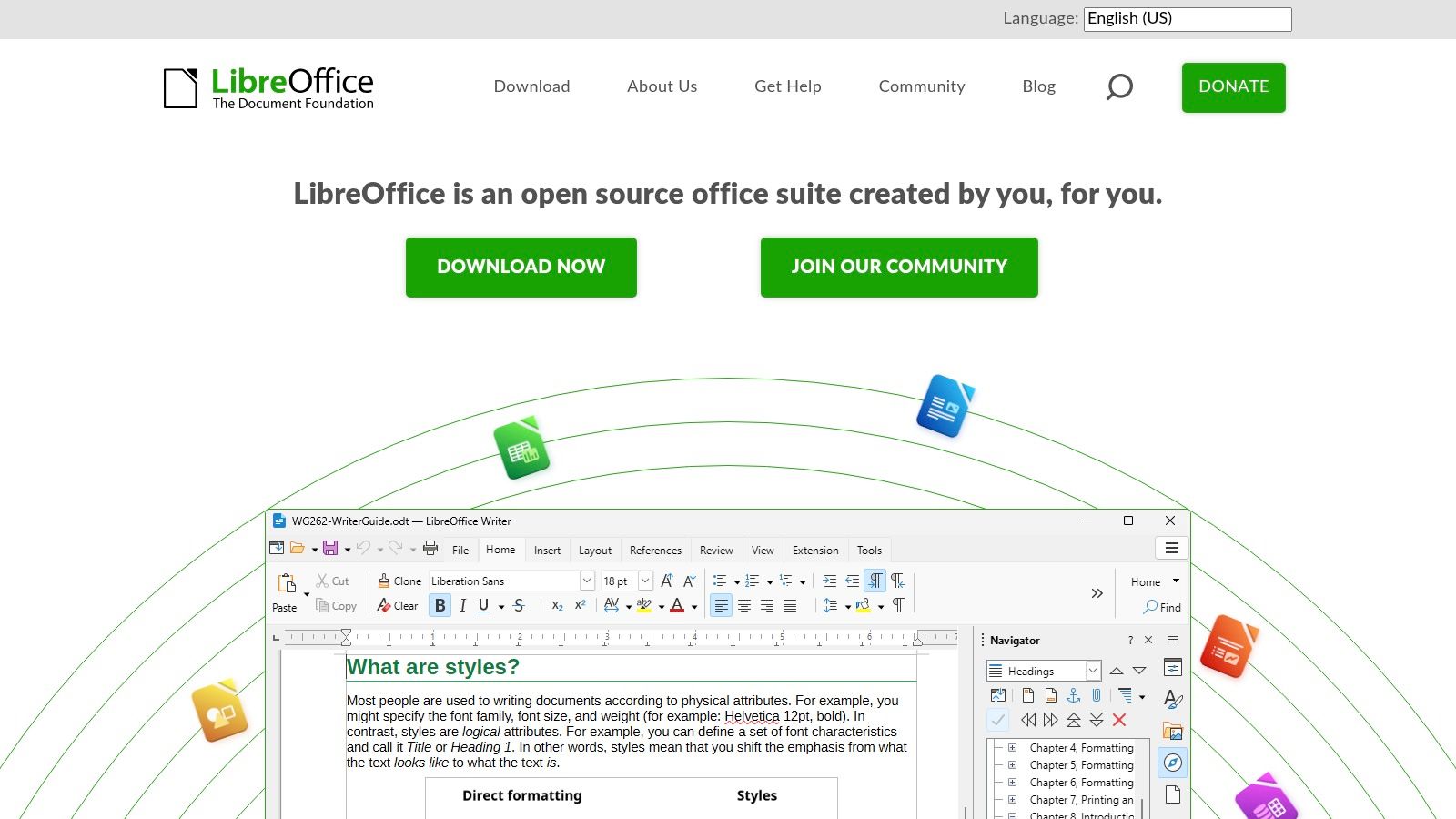
A proposal needs more than a notes app when you're working with tables, document styles, or a spreadsheet budget. LibreOffice provides a free, open-source desktop office suite that works with locally stored files.
Writer handles documents, Calc handles spreadsheets, and Impress handles presentations. Draw, Base, and Math extend the suite to diagrams, databases, and mathematical formulas, without requiring a subscription for the desktop tools.
- Before departure: Save the actual working files locally and open them in the relevant LibreOffice application.
- During the session: Draft, calculate, and revise against those local documents rather than relying on browser tabs.
- Before delivery: Check the saved output in the format your recipient expects, especially when exchanging Microsoft Office files.
Compatibility is the practical trade-off
Support for OpenDocument and many Microsoft Office formats doesn't mean every complex document will appear identically. Layouts and advanced workflows may need adjustment, so a deadline-sensitive handoff deserves a compatibility check before you're stuck without alternatives.
LibreOffice is strongest for individual document production. It isn't primarily a live collaboration environment, and working offline means you won't see someone else's changes arrive while you edit.
I'd keep it available for substantial local document work, even if other tools handle notes and tasks. The important preparation is opening the proposal, workbook, or presentation, not merely confirming that the application launches.
9. Freeplane
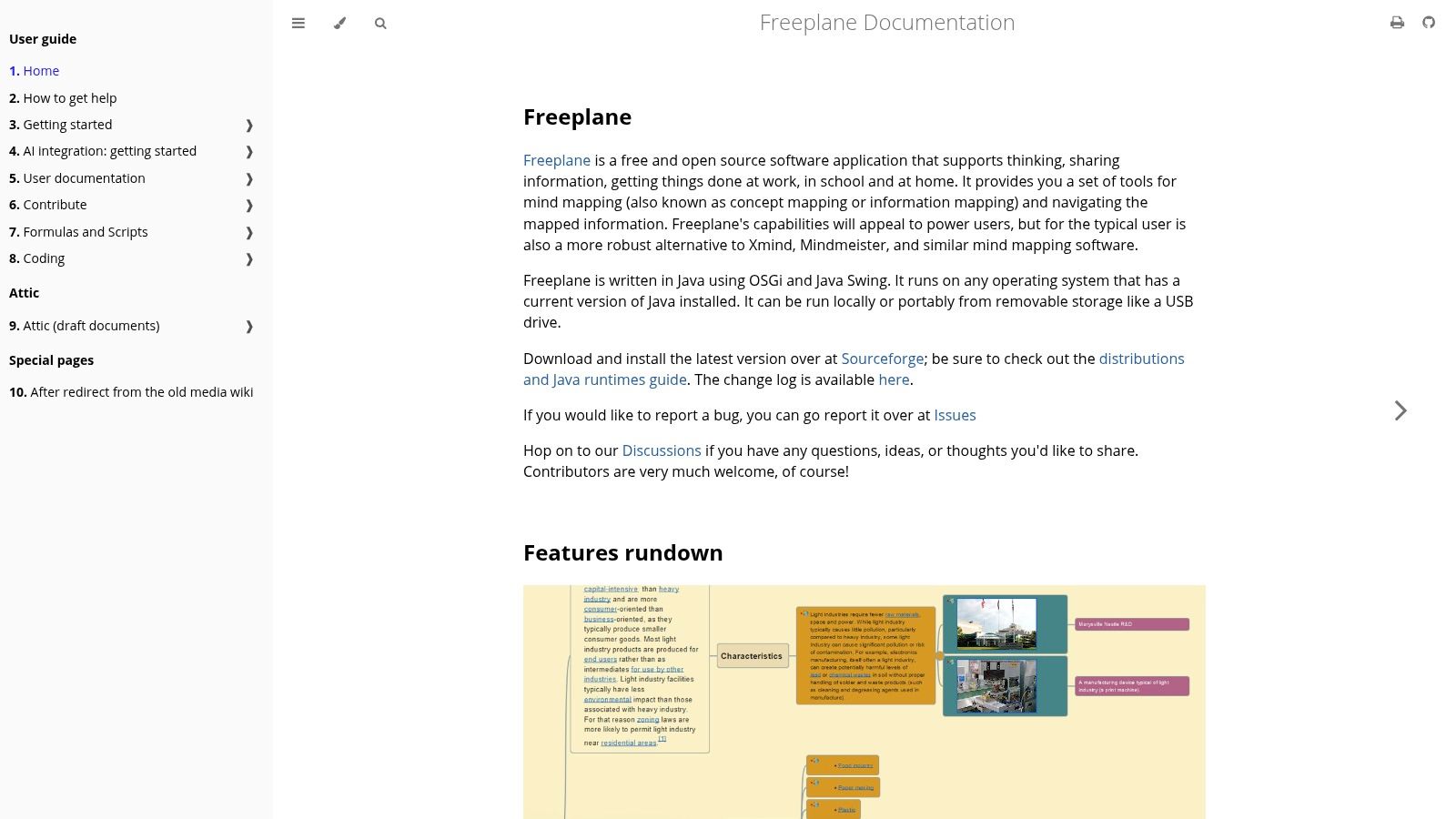
You don't always know the right sequence before you start planning. Freeplane gives you a local mind-mapping workspace for exploring relationships before forcing everything into a linear document.
For a dissertation chapter, put the central question at the root, then branch into arguments, evidence, objections, and unresolved questions. For a software project, use branches for components, dependencies, and implementation choices.
Map the problem before polishing the diagram
Freeplane saves maps as local files and offers formatting, scripting, add-ons, and advanced map features. That gives you substantial control, but it also creates opportunities to spend your entire offline session adjusting the map instead of developing the idea.
- Setup dependency: It requires a suitable Java runtime, so install and launch it before relying on it away from connectivity.
- Learning trade-off: The interface can feel less approachable than simpler brainstorming tools.
- File responsibility: Local map files need deliberate backup and transfer if you want to use them elsewhere.
For long-form fiction, a map can organize plot threads, but it isn't a continuity checker. If that's the requirement, compare Scrivener with continuity-checking apps rather than expecting a general mind map to identify narrative inconsistencies.
Choose Freeplane when spatial planning helps you think. Skip it when you already know the outline and need to write the document.
10. Agenda
Meeting notes become more useful when you can place them in time. Agenda connects notes with dates and calendar events, making it a natural fit for preparation, meeting records, and project timelines.
Before a workshop, collect the questions and decisions you need in the relevant project. During an offline session, work with locally available notes instead of assuming the calendar invitation contains everything you need.
Keep the record separate from the live feed
Agenda supports Mac, iPhone, and iPad, with optional syncing through iCloud or Dropbox. That lets you choose a synchronization arrangement, but it doesn't remove the need for a connection when transferring changes between devices.
Calendar-linked notes also need a practical distinction: your written preparation is one thing, and fresh calendar information is another. Don't assume a disconnected Mac knows about a recently moved meeting.
- Strong fit: Dated project notes and meeting records that you'll revisit by context and time.
- Weak fit: A free-form knowledge base where most notes have no meaningful date.
- Purchase consideration: Some advanced capabilities require optional paid access.
Agenda is particularly useful when a plain note list leaves you wondering which discussion produced a decision. It's less compelling if you mostly want undated reference material.
Prepare the relevant notes before disconnecting, then reconcile calendar and device updates when you're online again. A useful local record doesn't have to be a live one.
Offline access, pricing model, and best use case for each app
The table below summarizes what each app can do without a connection, how you pay for it, and the work it suits best.
| Item | Offline Access | Pricing Model | Best For |
|---|---|---|---|
| Tintd (recommended) | On-device suggestions work offline | Free trial, then one-time lifetime purchase; check tintd.app for current pricing | Styling and organizing Mac folders |
| Obsidian | Notes stored locally and available offline | Free core app; optional paid Obsidian Sync | Linked notes, research, and personal knowledge bases |
| Joplin | Offline-first; notes stored locally | Free and open source; optional paid cloud plan | Local notes with flexible sync options |
| Standard Notes | Offline use available without an account | Free plan; some features require a paid plan | Private, secure note-taking |
| Bear | Local note access in the free tier | Free tier; optional paid Bear Pro | Focused writing and notes on Apple devices |
| Things 3 | Native task manager; optional cloud sync | One-time purchase per app; sync is free | Personal task and project planning |
| OmniFocus | Offline use supported for perpetual-license apps | Perpetual licenses or subscription | Detailed task and project workflows |
| LibreOffice | Works with local files offline | Free and open source | Offline office documents and spreadsheets |
| Freeplane | Runs locally and saves maps as files | Free and open source | Mind mapping and information structuring |
| Agenda | Notes work locally once synced to the Mac; syncing via iCloud or Dropbox is optional | Free access with optional paid features | Notes organized around dates and calendars |
Two patterns are worth reading out of this table. One-time purchases, including Tintd, Things 3, and OmniFocus perpetual licenses, keep working indefinitely once activated, while subscription features stop when payment lapses. And "works offline" has edges: Agenda notes must reach the Mac before you disconnect, and anything that depends on syncing to receive new content is only as current as your last connection.
Build an Offline Stack You Can Test Without Signal
Choose a notes app, a task manager, and a document tool around your work. Bear or Standard Notes covers straightforward writing, Obsidian or Joplin holds research, and Things or OmniFocus organizes next actions. LibreOffice handles the documents that need more structure than a note.
Resist installing everything on this list. Overlapping tools create a second problem: remembering which copy of your work is the authoritative one.
Test the workflow, not just the launch screen
An app that opens offline proves almost nothing. Turn off Wi-Fi for a full working day using disposable material before trusting the setup on a trip. Create a note, revise a document, complete a task, then reopen each app and confirm the changes persisted.
- Prepare locally: Download documents and attachments, finish installation, and complete any required activation. Some apps request a license check or sign-in on first run, and that request will fail without signal.
- Check dependencies: Try the plugins, exports, calendar references, and file links you rely on.
- Verify reconnection: Let your chosen sync system run, then inspect the result on another device.
- Keep recovery separate: Maintain a backup, since synchronization copies deletions as faithfully as it copies edits.
Hold off on editing the same important material on two disconnected devices until you know how your setup resolves conflicts. An app can preserve local changes perfectly and still hand you a painful reconciliation afterward.
Set a privacy boundary you can explain
Ask three questions per app: where the primary copy lives, whether an account is required, and what leaves the device once connectivity returns. A workflow designed to keep sensitive files off cloud servers requires deliberate storage choices, not just a temporary network outage.
Permissions deserve the same scrutiny. Full Disk Access is a broad grant, so enable it only for features you intend to use. With a tool like Tintd, manual folder colorizing works without it; reserve the permission for background automation such as the Folder Watcher, which styles new folders as they appear and can be switched off in System Settings.
The best offline productivity apps leave you with predictable limits. You know which work stays available, which updates must wait, and how you'll recover if a file disappears. That's a more useful standard than an offline badge, and you can verify it before you leave home.
Tintd offers on-device folder colors, icon suggestions, and bulk styling to make your personal Finder folders easier to scan without Wi-Fi. Visit Tintd to try a consistent visual system on a small set of folders, then expand it once the colors and icons make sense to you.