
A new semester starts the same way on a Mac. The desktop is full of downloads, one folder is named something useless like “New Folder 3,” lecture PDFs are scattered in Messages and Mail, and next week's reading list is already heavier than your backpack. The fix isn't one magic app. It's a small stack that follows how a semester moves, from file organization to planning, notes, PDFs, citations, and memorization.
The best mac apps for students don't all do the same job. Some clean up Finder so you stop hunting for files. Others keep assignments visible, make class notes easier to scan, or turn a stack of PDFs into something you can study from. This list follows that workflow in order, so you can set up each stage before the work piles up.
1. Tintd
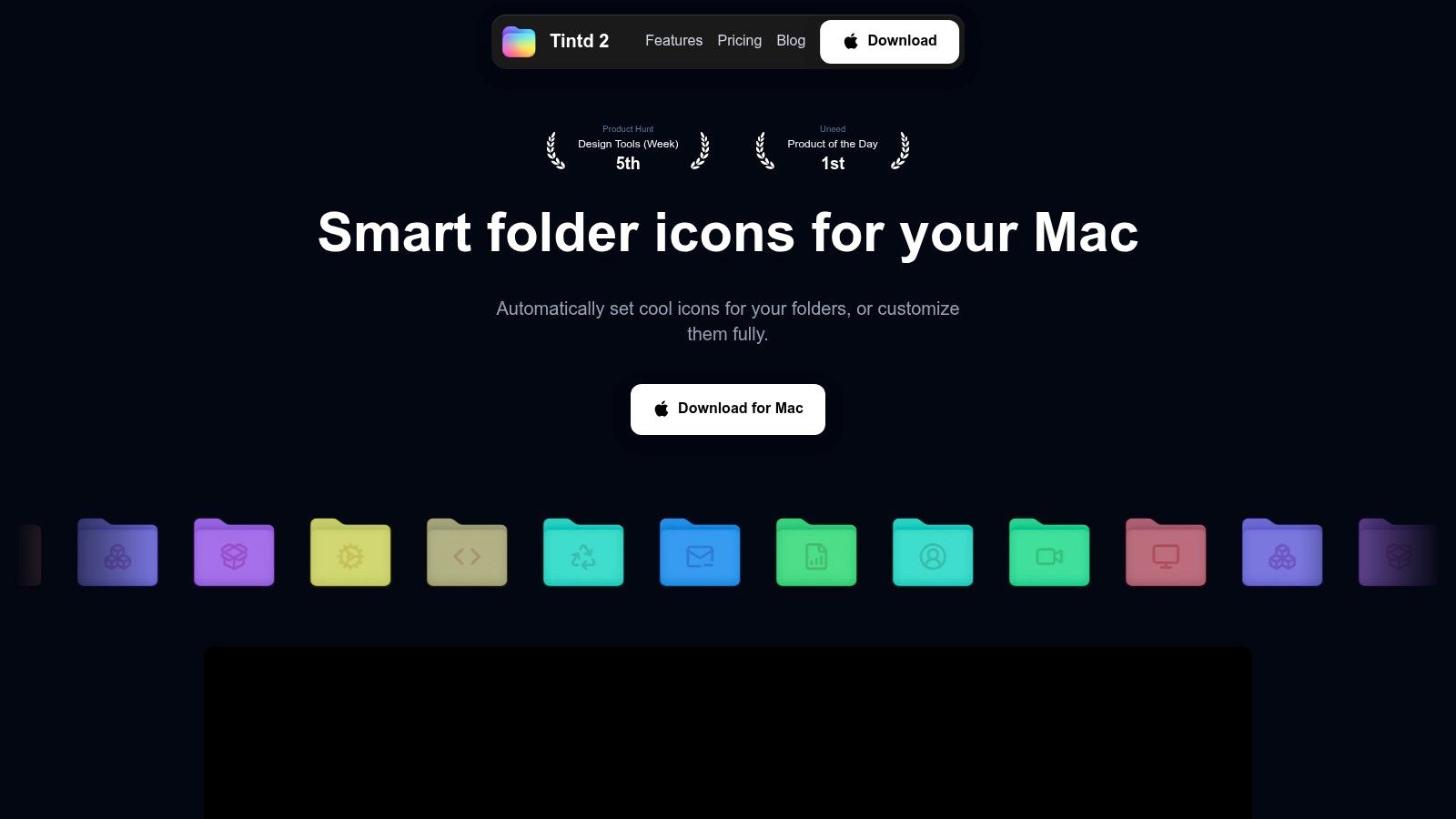
The first app I would install is Tintd, especially if your Mac files already feel scattered. It stays inside Finder, which matters when you spend your day inside folders for classes, labs, and group work. It works locally, so your folder names and structure stay on-device, and it makes it easier to tell a BIO-201 folder from an internship folder or a side project at a glance.
Why it fits a student workflow
A student file system usually falls apart in the same places. You start with a clean course folder, then add downloads, draft papers, revised drafts, and random exports from group work. Tintd helps turn that mess into a visual map you can read quickly in Finder, instead of relying on memory and search.
That matters if you are juggling coursework, research, and multiple classes at once. Use one color for BIO-201, another for lab reports, and a different style for reading folders or final submissions. A folder tree like BIO-201/Lab Reports and BIO-201/Readings becomes much easier to scan when the folders look different before you even open them.
Tintd also works well for nested folders. Batch editing lets you style a whole course structure at once, and one-click restore gives you an easy way back to default macOS icons if you change your mind. That makes it a good fit for students who want a cleaner setup without locking themselves into something they may want to undo later.
Where it beats manual organization
Manual Finder cleanup works for a while, then classes get busy and consistency slips. Tintd fills that gap by keeping the visual system steady even when your attention is elsewhere. It is strongest for students who want a local, private, low-friction layer on top of Finder instead of another cloud workspace.
If you want a broader look at how Tintd fits into a fuller student stack, the best Mac productivity apps guide is a useful follow-up. The tool itself is built for the moment you need to find the right course folder fast, not after you have already lost ten minutes in Downloads.
2. Things 3
If your deadlines live in three places, Things 3 pulls them back into one calm list. It works well for assignments, labs, readings, and due dates because it keeps planning simple. You do not need a heavy project system to use it well, just a clear place to put what has to happen this week and what can wait until later. Things 3 fits that setup without adding noise.
There is no collaboration layer here, and that suits a personal planner. Use it to map out tomorrow's reading, a lab due Friday, and the reminder you need a few days before a quiz. It is a better match for students who handle most work alone, or who already use a separate app for group projects.
What works best
Things 3 fits a simple weekly rhythm. Put readings in Upcoming, homework in Today, and project milestones in a separate area. Natural-language date entry is handy when you are moving fast, and the macOS integration makes it feel like a real Mac app instead of a web tool in disguise.
- Best for solo planning: Keep assignments, readings, and reminders in one clean place.
- Best for quick capture: Add tasks fast without building a complicated setup.
- Best for Mac users who value design: The interface makes it easier to stick with the system.
For a broader view of how task planning fits into student time management, Kohru's guide to beating deadlines is a useful external read. If you want a lighter planning tool for a packed semester, Things 3 helps you open Today and see exactly what is due tomorrow without checking the syllabus first.
3. Notion
Some students build their whole semester inside Notion. Others try it, add too many pages, and quit. The difference is whether your classes need a workspace that can hold notes, assignments, reading lists, and group work in one place. For majors that mix writing, collaboration, and planning, Notion fits well.
The trade-off is focus. Notion can become a system you keep building instead of one you rely on daily. If you enjoy databases, linked pages, and dashboards, it gives you a lot of control. If you mainly want to write lecture notes and track homework, it can feel heavier than you need.
Where Notion fits best
Notion works especially well for group projects, club work, and classes with shared materials. You can keep a class dashboard, a weekly reading log, and a project tracker in one place. That makes it useful for students who need collaboration as much as personal note-taking.
It also helps when a class produces many small, connected pieces of work. A reading note can link to an assignment page, which can link to a project tracker, which can link back to source material. If you are weighing Notion against other options, our guide to Mac project management tools breaks down the alternatives. That linked structure works well in majors where a semester builds on itself.
The downside is that it asks you to commit to a structure. If you do not set one up, Notion gets messy fast. It fits students who like building a system once and then using it across the term. For highly personal note-taking, simpler tools can be easier to live with.
4. Microsoft OneNote
When a professor sketches a reaction mechanism on the board, a text-only notes app loses part of the lesson. OneNote handles that moment well. It works for lecture capture, handwritten diagrams, screenshots, audio snippets, and loose class organization. That makes it a good fit for courses where notes are not just text. Microsoft OneNote is also a familiar choice in schools that already use Microsoft 365.
The notebook, section, and page structure works best when you organize by layer. Put each class in a notebook, split it by unit or week, then use pages for lecture days or topics. That simple setup makes a real difference when you need last Tuesday's notes fast instead of digging through a giant scroll of mixed content.
Good and bad for students
OneNote works well if your notes include pasted material. Screenshots of slides, copied formulas, audio clips, and annotated images all fit without much fuss. It also helps if you move between a Mac and other devices during the week, because cross-device sync is part of the appeal.
The trade-off shows up when notebooks grow. Large notebooks can feel bulky if you never clean them up, and OneNote rewards some structure. If you dump everything into one running notebook without sections, clutter builds quickly.
Students who need a free app with strong mixed-media handling will get a lot from it. Students who want a lighter, text-focused system may find it more app than they need.
5. PDF Expert
PDF Expert belongs in the middle of the semester, when the readings get serious. It's the app you want when your classes hand out lecture slides, journal articles, scanned packets, or forms you need to sign and return. PDF Expert is faster and easier than many students expect, and that matters when you're annotating several readings at once.
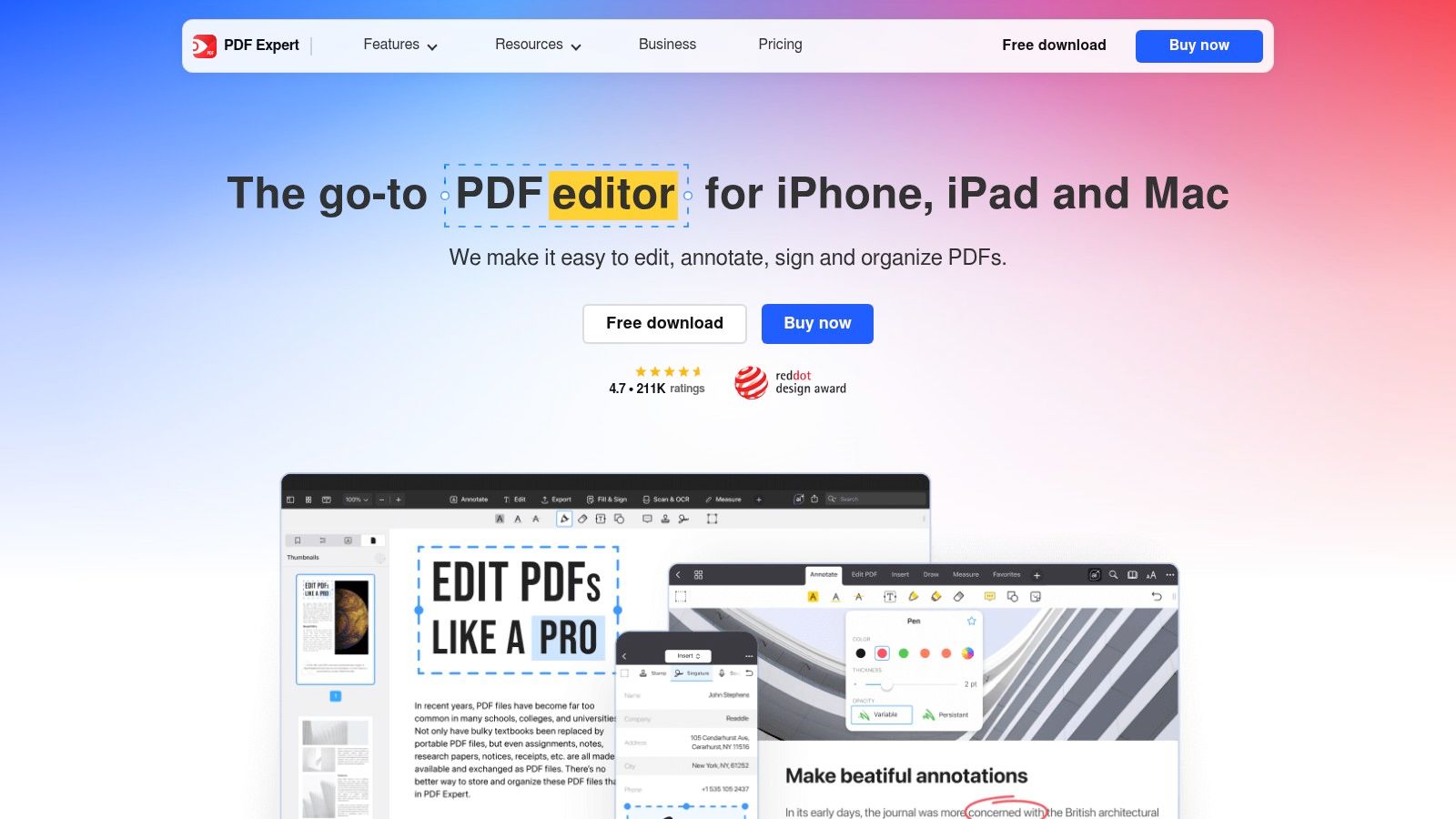
The value is not just reading. It's making PDFs usable. Highlights, notes, shapes, stamps, page reordering, text edits, image edits, OCR, and form filling all matter when a course expects you to interact with PDFs instead of just open them.
Why students end up needing it
A lot of academic reading happens in PDF form now. You highlight different kinds of information, mark important definitions, and sign the occasional form. PDF Expert does that without making the interface feel like a pro-only tool you need training to use.
It's also helpful for students who bounce between Mac, iPhone, and iPad. That cross-device flexibility matters if you read on one device and review on another. The app is strongest when your academic workflow has a lot of marking, merging, and cleanup, not just passive reading.
The trade-off is simple. Some advanced features sit behind premium pricing, so if you only need basic highlights, it may be more than you require. But for students dealing with heavy reading loads, scanned packets, or submission forms, it's a solid fit.
6. Zotero
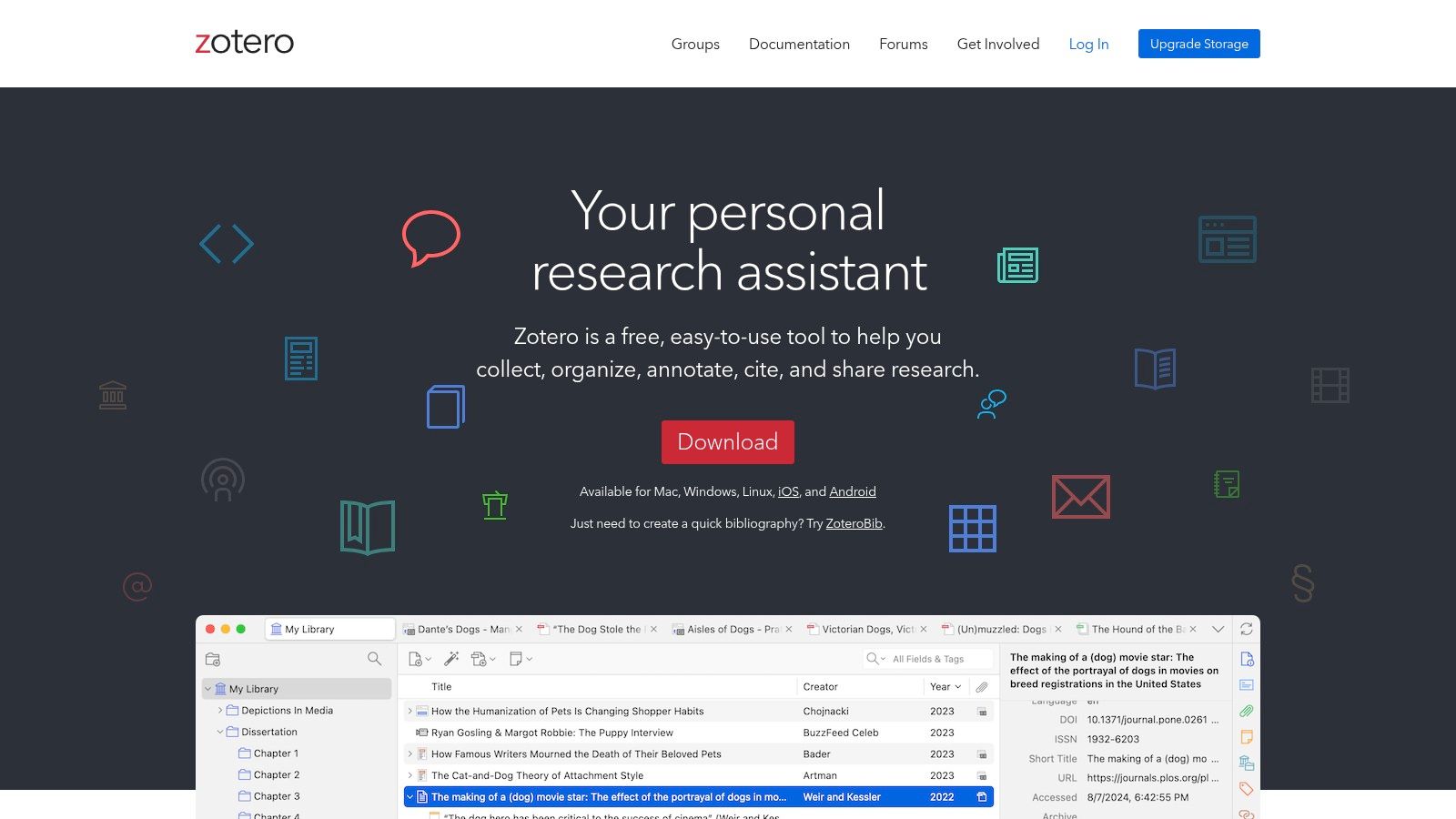
The first time a bibliography breaks at 2 a.m., you understand why Zotero exists. It fits the citation stage of the semester, when you're collecting sources, annotating PDFs, and building a bibliography that has to be right the first time. Zotero works well in an essay class, a lab course, or a thesis project.
The main strength is capture. When you find a source you know you'll cite later, Zotero keeps it attached to your project instead of leaving it buried in browser history. It also helps when you are juggling PDFs and need a clean way to search, annotate, and cite without rebuilding your references by hand.
Best use cases
Zotero is a strong fit for literature reviews, lab reports, essays, and any class where sources matter more than summaries. It works especially well if you write in Word or Google Docs and want citations to drop in without fighting format every time. Shared group libraries also make sense when several people need access to the same source set. If you are choosing between reference managers, this software for references compared walkthrough covers the trade-offs.
A lot of research workflows start here for a reason. It cuts out the small, repetitive work that eats evenings. Instead of reformatting citations by hand, you spend more time reading and writing.
The trade-off is setup. If you ignore naming, folders, and storage, the library gets messy fast. Pairing Zotero with good digital file organization makes the whole system more durable, especially across semesters.
7. Anki
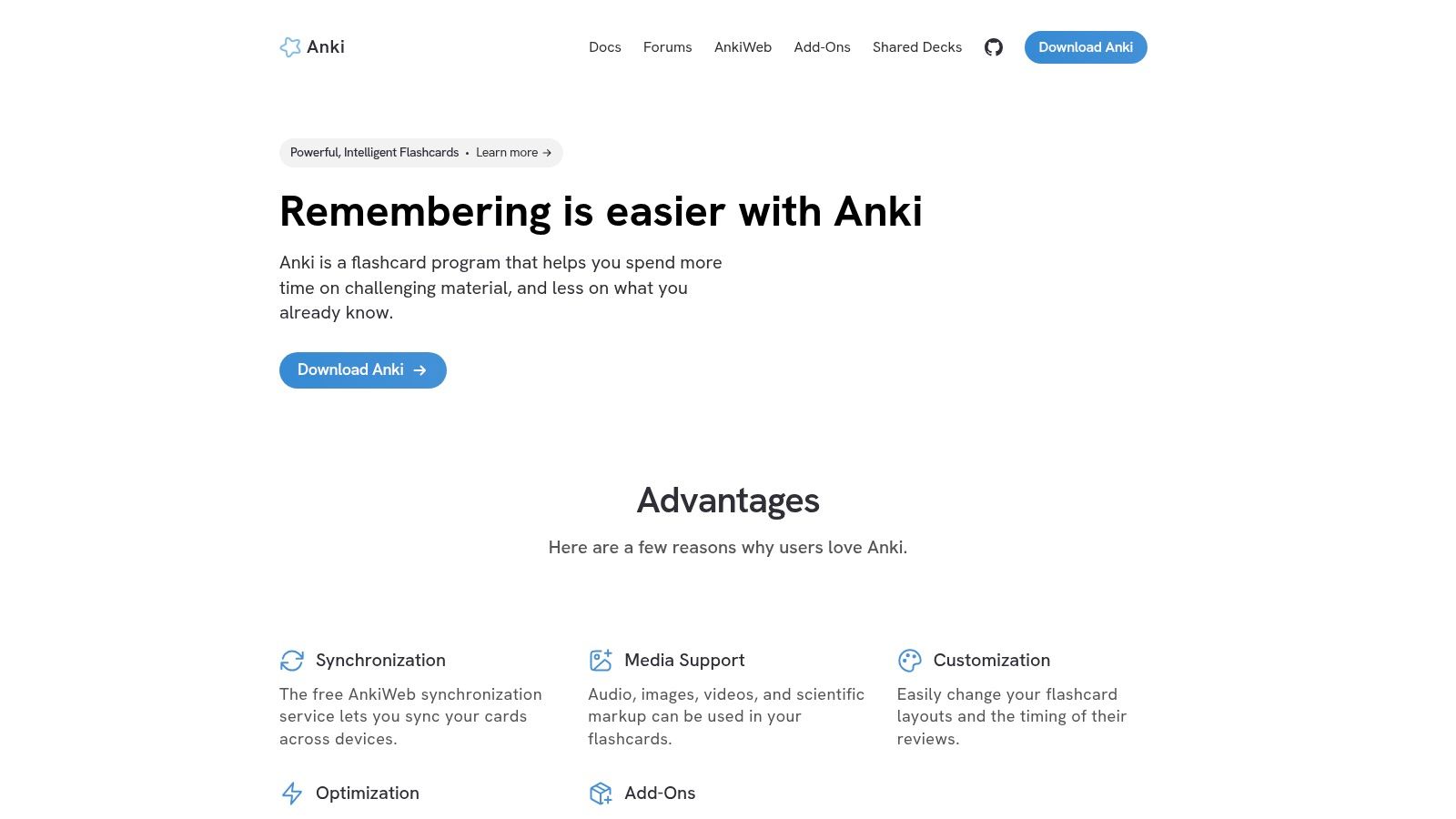
Cramming works once. Recall has to hold up every week. That gap is what Anki is built to close. It fits language learners, medical students, law students, STEM courses, and any class where you need to remember facts, terms, or formulas under pressure. Anki uses spaced repetition, so you review cards right before you are likely to forget them.
The desktop app is free, which matters if you want something powerful without another subscription. It handles images, audio, and LaTeX, so you can build cards for vocabulary, anatomy, diagrams, and formulas in one place. If you want to skip manual card writing, the Knobee AI study tool can generate flashcards from your notes.
What makes it stick
Anki works only if you keep showing up. Make useful cards, review them daily, and it stays useful. Make vague cards or skip reviews for a week, and it turns into a cluttered deck fast.
Use it after class, once your notes and readings are already organized. Pull out definitions, formulas, timelines, and key concepts while the lecture is still fresh. Then let the spacing do the work instead of trying to relearn everything the night before an exam.
The learning curve is real. You need a little time to understand card quality, scheduling, and how much you can review without overloading yourself. Once that habit holds, exam-week prep turns into short refreshers instead of all-nighters.
Top 7 Mac Apps for Students, Feature Comparison
| Tool | 🔄 Implementation Complexity | ⚡ Resource Requirements | ⭐ Expected Outcomes / 📊 Impact | Ideal Use Cases | 💡 Key Advantages |
|---|---|---|---|---|---|
| Tintd | Low, native macOS app; simple install (Folder Watcher needs Full Disk Access) | macOS only; lightweight; one‑time purchase (offline, on‑device) | ⭐⭐⭐⭐, faster visual scanning and bulk styling of folders | Visual file organization, creatives, devs, large folder collections | Massive icon/emoji library, batch editing, privacy‑first on‑device suggestions |
| Things 3 | Low, polished, minimal setup; per‑platform license model | Mac/iPhone/iPad; one‑time purchase per platform (no subscription) | ⭐⭐⭐⭐, improved daily planning and task follow‑through | Personal task management, daily/weekly planning, focused work | Elegant UI, natural‑language dates, deep macOS integrations |
| Notion | Medium, highly flexible; initial configuration and structure design | Cross‑platform cloud app; offline desktop support; can be resource‑heavy | ⭐⭐⭐⭐, centralized notes/projects and collaboration | Class notes, project dashboards, group collaboration | Flexible pages/databases, multiple views, real‑time collaboration |
| Microsoft OneNote | Low, straightforward notebooks; best integrated with MS365 | Cross‑platform; free standalone; best features with Microsoft 365 | ⭐⭐⭐⭐, reliable mixed‑media notes and multi‑device sync | Mixed‑media lecture notes, institutions using Microsoft 365 | Free, strong multimedia embeds, Class Notebook and Office integrations |
| PDF Expert | Low, intuitive PDF tools; quick to learn | Mac/iPhone/iPad; iCloud sync; some advanced features require premium | ⭐⭐⭐⭐, fast, polished PDF reading and annotation workflows | Annotating slides, editing PDFs, form filling and signing | Fast annotation, OCR, text/image edit, robust page management |
| Zotero | Medium, learning citation workflows and library organization | Desktop + cloud sync; core app free; paid storage for large attachments | ⭐⭐⭐⭐, accurate reference management and bibliography generation | Research papers, theses, collaborative reference libraries | One‑click capture, citation plugins, group libraries, open source |
| Anki | Medium, learning curve for SRS setup and best practices | Cross‑platform; free desktop, mobile sync via AnkiWeb; add‑ons ecosystem | ⭐⭐⭐⭐⭐, exceptional long‑term retention when used consistently | Memorization-heavy courses (languages, medicine, law, STEM) | Evidence‑based spaced repetition, media‑rich cards, highly customizable |
Build Your Student Mac Setup Before Week One
A good student setup doesn't start in the middle of the semester, when deadlines are already stacked. It starts with one session where you decide what each app is responsible for. Use Tintd to clean up Finder first, because file clutter is the easiest problem to fix and the most annoying one to live with.
After that, set your planning layer. Things 3 works well if you want a personal task system, while Notion is better if your classes involve shared pages, project trackers, or research dashboards. OneNote fits students who need mixed-media notes, and PDF Expert handles the reading pile when everything arrives as a PDF.
Then add the deeper academic tools. Zotero belongs wherever citations and source management matter. Anki belongs wherever memory matters. If you use them together, you get a workflow that follows the semester instead of fighting it.
The best part is that you don't need to install everything at once. Pick one app for each stage, set up the basics in a single sitting, and test the system on one real assignment before the term gets busy. That's how you find out what helps and what just looks productive.
Tintd gives you the fastest win in this whole stack because it makes Finder easier to read immediately. If your semester files already feel scattered, start there and build the rest of your system around it. Visit Tintd to see how folder colors, icons, and local Finder organization can make student life easier from day one.