

Your desktop is covered in screenshots, Downloads has become a holding pen, and a folder named stuff contains things you probably need. Open your current project and you're staring at identical blue folders, trying to remember which contains source files, approved assets, or the version you sent.
The right macOS utility apps remove different kinds of friction. Some move and rename files. Others make folders easier to recognize, put commands under your fingertips, or show you what's consuming storage. Those jobs overlap less than app descriptions sometimes suggest.
The useful distinction is organization versus access versus appearance. A launcher can find a document without fixing its location. A folder-styling tool can make a project easier to scan without sorting its contents. A disk analyzer can expose a huge archive without knowing whether you should delete it.
- Messy folders: Tintd improves visual recognition; Hazel handles recurring filing.
- Slow access and repetitive actions: Alfred, Raycast, and BetterTouchTool reduce navigation and input.
- Storage and uninstall leftovers: DaisyDisk helps you inspect disk usage; AppCleaner focuses on removing applications.
Start with the problem you repeat every day, not the utility with the longest feature list.
1. Tintd
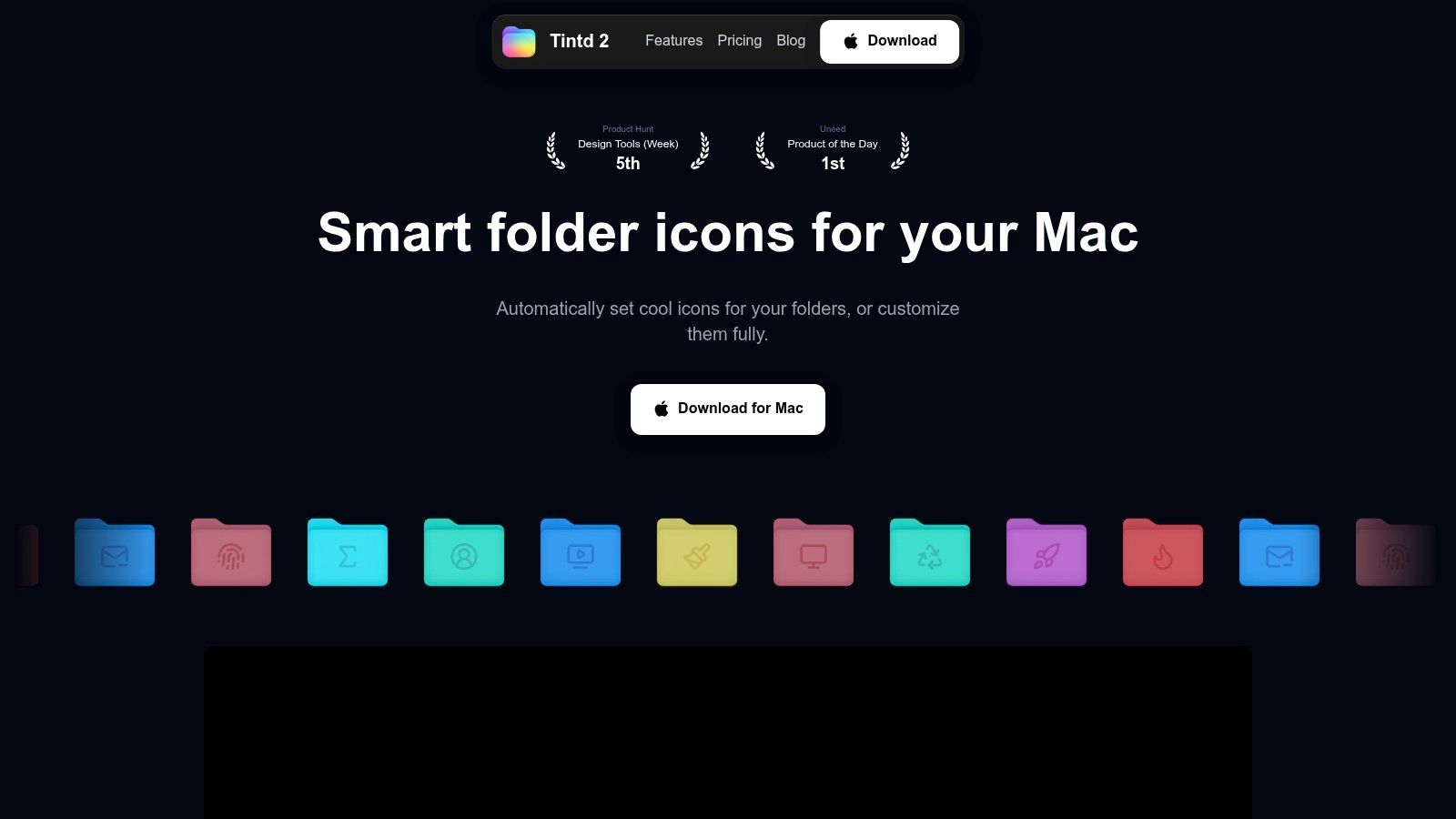
Best for making an existing folder structure easier to recognize. Tintd changes Finder folder icons and colors; it doesn't move documents, rename downloads, or decide where your files belong. That makes it a visual companion to organization tools rather than a replacement for them.
Say a design project contains Briefs, Source, Exports, and Approved folders. Distinct overlays help you recognize their roles, while a consistent color scheme makes the same structure familiar across projects. Keep descriptive names, though: an icon should reinforce a folder's purpose, not become its only explanation.
Build a visual system you can maintain
Smart Icon matches folder names against more than 11,000 icons and emojis. Smart Color and Smart Icon also consider neighboring folders, helping new styles fit an existing set. You can adjust appearance manually, import an image, or select an emoji and drag it onto a folder.
Batch editing lets you apply an icon and color to selected folders together, including work across subfolders. Finder's right-click menu reduces the need to interrupt browsing, while history helps you reuse styles instead of rebuilding them.
- Automatic upkeep: Folder Watcher styles new folders in selected locations based on their names.
- Local processing: Suggestions work offline, folder names stay on your Mac, and the app doesn't call an AI service.
- Reversible changes: Restore the original macOS Finder icon with one click.
The limits matter. Customizations are stored locally and must be configured separately on each Mac; they don't sync through iCloud. Folder Watcher requires Full Disk Access, while manual folder colorizing doesn't.
I'd use distinctive icons for folder roles and reserve colors for a small, deliberate set of categories. Tags and Smart Folders remain better for retrieving related files across locations. Styling is most useful when you already know where you're working and need to scan that hierarchy faster.
2. Hazel
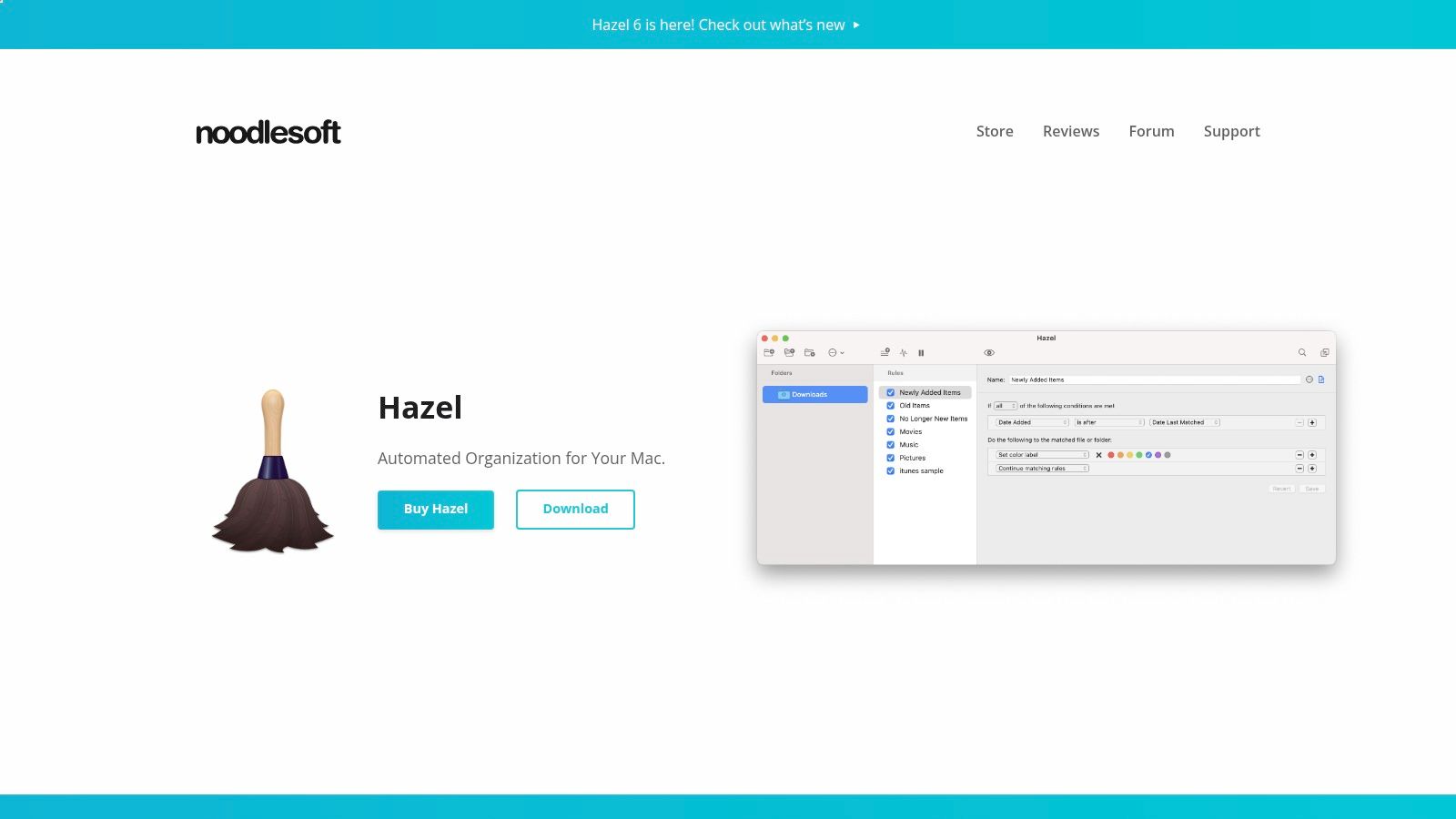
Downloads keeps filling up because filing is a recurring task, not a cleanup you finish permanently. Hazel addresses that problem by watching selected folders and applying rules when files arrive or change.
A useful starting rule might identify invoice PDFs by their names, rename them consistently, and move them into an accounting folder. Other rules can add tags, archive files, open them, or organize subfolders using attributes such as type and date. Hazel also offers Trash management and App Sweep for finding support files associated with removed apps.
Automate a decision you already understand
The difficult part isn't making Hazel perform an action. It's defining conditions that match the right files without catching unrelated ones.
Start with a narrow input folder and an obvious file pattern. Test with disposable copies before allowing rules to move important documents, and keep the destination easy to inspect. Broad rules applied to a busy Downloads folder are harder to troubleshoot than focused rules for a predictable workflow.
- Strong fit: Repeated sorting, renaming, tagging, and archiving with clear conditions.
- Main trade-off: Complex rules take thought, and overlapping conditions can produce unexpected results.
- Useful pairing: Let Hazel determine file placement and a styling tool handle folder recognition.
Hazel supports Shortcuts and AppleScript integrations when basic rules aren't enough. The broader guide to Mac automation apps is useful if you're deciding whether a task needs folder monitoring or a manually triggered workflow.
Hazel offers a one-time license rather than a subscription. Choose it when you keep making the same filing decision, not merely because your folders look untidy.
3. Alfred
Choose Alfred when reaching for the mouse interrupts your work. Its core job is keyboard-driven access: launch an app, find a file, move through folders, or invoke an action without browsing through windows.
The distinction from Hazel is straightforward. Alfred helps you act on demand; Hazel watches for conditions in the background. Alfred can retrieve a badly filed document, but successful searching doesn't mean your underlying folder structure is organized.
Its optional paid Powerpack adds workflows, searchable clipboard history, snippets, and text expansion. Those features make sense when you repeatedly paste standard responses, retrieve copied material, or perform a predictable sequence of actions.
Build a workflow around an action you already repeat. Don't turn a simple app launch into an automation project.
Keep the keyboard layer focused
Start with launching and file search, then add a workflow only when you can explain the shortcut's benefit plainly. For example, a project-opening workflow might be worthwhile if you otherwise repeat the same navigation every time you resume work.
- What works: Fast keyboard access, contextual file actions, and workflows built around specific tasks.
- What costs extra: Many advanced productivity features require Powerpack.
- What needs attention: Clipboard history requires macOS Accessibility permission.
Alfred says its clipboard history stays local. That's useful for an on-device workflow, but retained clipboard contents still deserve care, especially when you copy confidential material.
I'd choose Alfred over a broader command hub if focused search and custom workflows are the main attraction. If Spotlight already meets your needs and you won't use the advanced features, adding another launcher may create more configuration than benefit.
4. Raycast
A calculator, clipboard manager, snippet tool, emoji picker, and window manager can become a crowded collection of separate utilities. Raycast puts those functions behind a keyboard-accessible command interface, alongside app launching and extensions.
Its free tier includes that broad everyday toolkit. Paid plans add options such as cloud sync and AI features, so the buying decision depends on which capabilities you plan to use, not just whether you want a launcher.
Raycast versus Alfred is mostly a workflow choice. Raycast suits someone who wants an existing collection of searchable commands and extensions. Alfred is compelling when focused launching and a personally configured workflow system are the priority.
- Best reason to choose it: Replace several small utilities with a command hub you'll use regularly.
- Main drawback: More commands and extensions mean more choices to configure and remember.
- Privacy consideration: Review optional online features and connected services before enabling them.
Avoid paying for duplicate functions
If Raycast handles your window positioning, there's little reason to configure another utility for the same shortcuts. Likewise, running competing clipboard managers or assigning the same launcher shortcut to different apps creates avoidable confusion.
Extensions can connect Raycast to other tools, but each connection deserves scrutiny. A local calculator and an extension that talks to an online service have different access requirements.
For broader workflow planning, the guide to Mac productivity apps helps place a launcher alongside other tools. I'd start with Raycast's built-in commands, then add extensions only for actions that remain awkward. It improves access and execution; it doesn't automatically reorganize the files those commands open.
5. BetterTouchTool
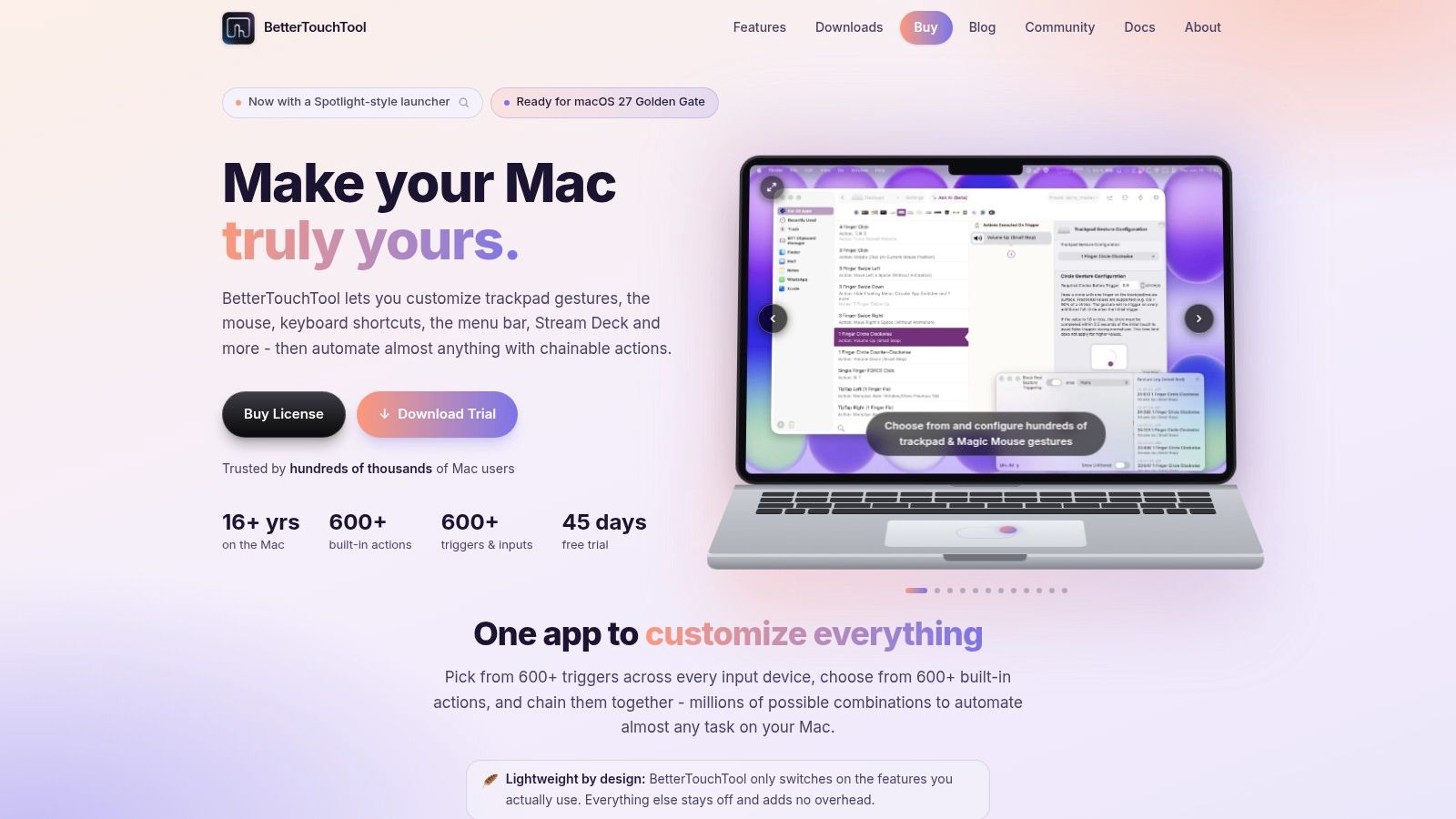
Your bottleneck might not be finding commands. It might be invoking them comfortably while switching between a trackpad, mouse, keyboard, and application-specific controls.
BetterTouchTool connects gestures, shortcuts, and other triggers to actions. It also includes window management, clipboard tools, scripting options, and Stream Deck support. The appeal is detailed control over how you operate the Mac, rather than another place to search for things.
Configure the interaction, not the whole Mac
Say you regularly arrange a reference window beside an editor. A deliberate gesture or shortcut can handle that layout without sending you through menus. For a more specialized task, chain actions together or configure behavior around a particular application.
That flexibility is also the drawback. A large collection of gestures can be harder to remember than the commands it replaces, and sensitive triggers can fire when you meant to scroll or click normally.
- Good starting point: Map a deliberate gesture to a frequent, low-risk action.
- Useful expansion: Add application-specific shortcuts or window layouts after the basic mapping feels natural.
- Poor fit: Expecting the tool to sort documents or make folder icons meaningful.
BetterTouchTool overlaps with Raycast in window management and with launcher workflows in automation. Give each app a clear responsibility instead of configuring parallel systems for the same task.
It offers a trial and different license types, with terms that vary by license. I'd recommend it to users who already know which interaction annoys them. If you can't name that friction yet, its extensive settings may become a distraction rather than a solution.
6. DaisyDisk
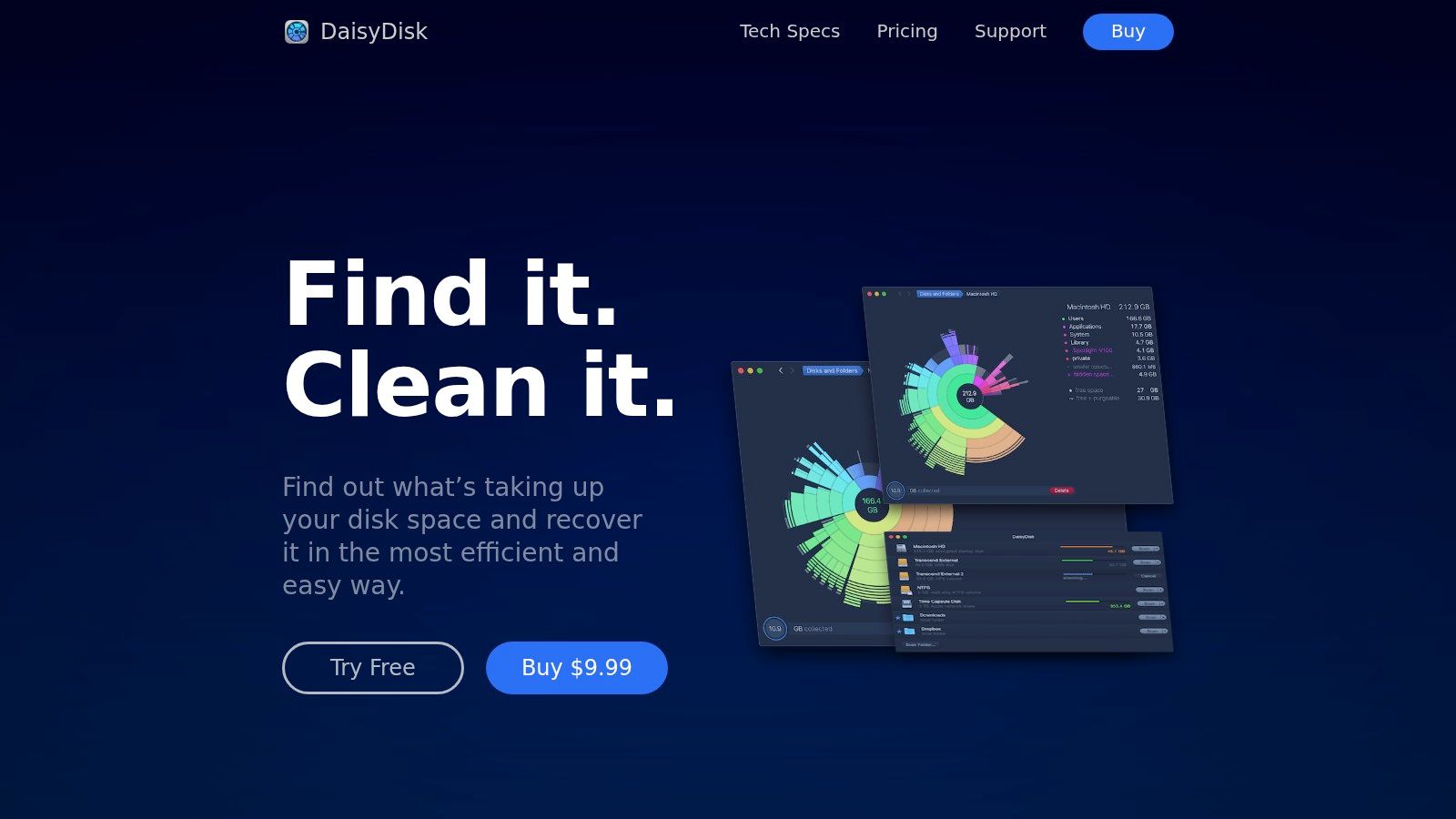
A nearly full disk needs inspection before deletion. DaisyDisk scans disks and folders, then presents a visual map that makes large space consumers easier to locate.
This is disk analysis, not automatic housekeeping. You inspect the results, preview files, and reveal items in Finder before deciding what to remove. It can scan connected file systems, including supported cloud disks, but the trial restricts features such as deletion and cloud-storage scanning.
A large folder isn't necessarily waste. Video source material, photo libraries, development assets, and archives may be both substantial and essential. The useful question is whether you understand the item's purpose and have a safe plan for it.
Inspect before you remove
- Start with recognizable material: Old exports, duplicate installers, and abandoned archives are easier to evaluate than unfamiliar support folders.
- Use Finder for context: Reveal an item to inspect its location and relationship to a project.
- Protect working libraries: Don't remove internal files from a managed library just because an individual component looks large.
DaisyDisk's developer says the app doesn't collect or transmit user data. That privacy position is relevant for a utility examining storage contents, but it doesn't change your responsibility to make careful deletion decisions.
The guide to Mac utilities provides broader context if you're separating storage inspection from other maintenance tasks. DaisyDisk won't rename your files or keep Downloads organized afterward.
I'd use it when storage pressure is the immediate problem. For recurring clutter, combine an occasional disk review with better filing rules rather than repeatedly deleting whatever happens to be largest.
7. AppCleaner
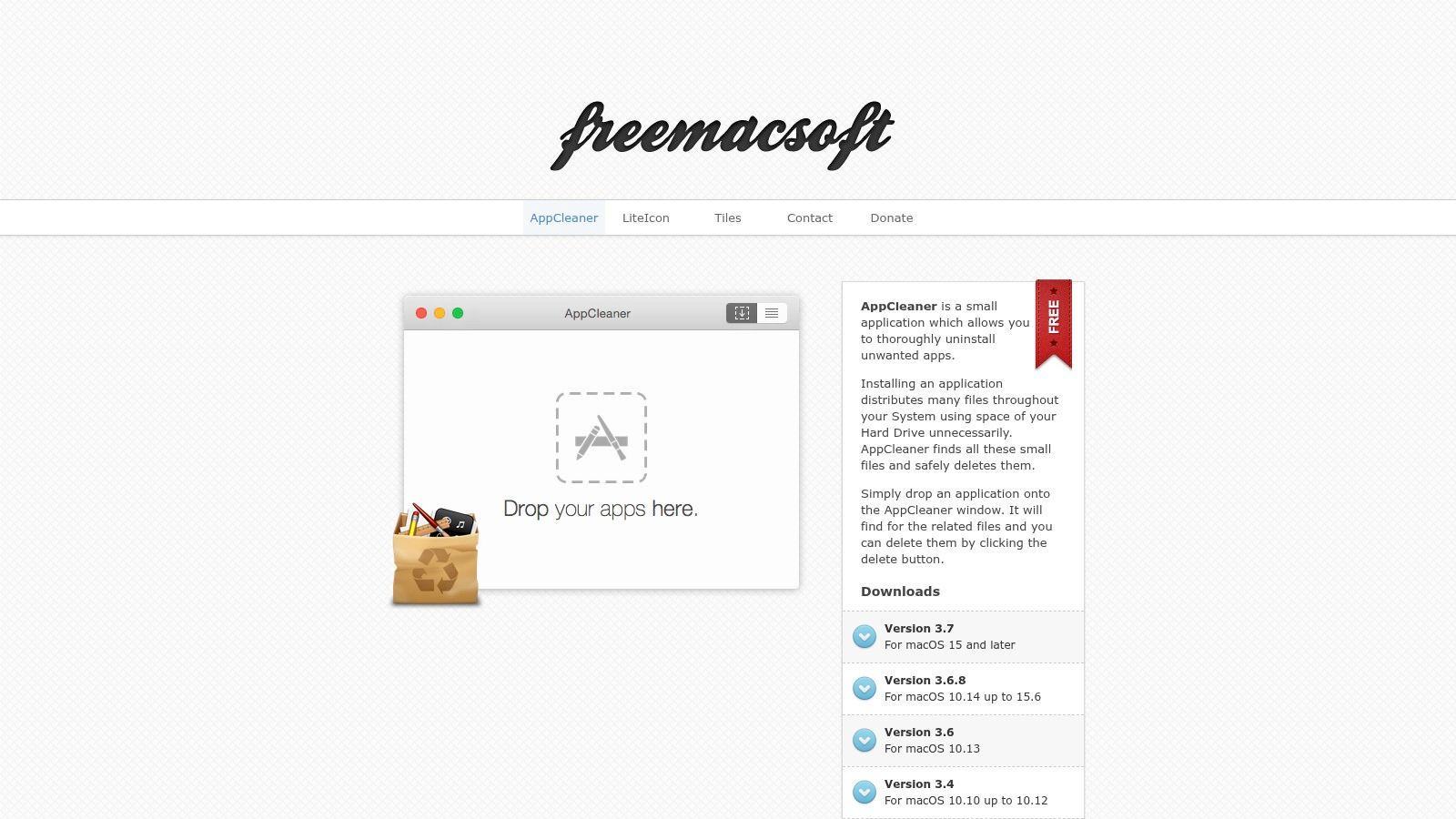
App removal is a narrower job than disk cleanup. AppCleaner helps locate preferences and support files associated with an application, giving you a chance to review what might otherwise remain after dragging the app to the Trash.
The workflow is straightforward: drop an application into its window, inspect the related files it finds, and choose what to delete. It's free to download, and the developer offers separate builds for different macOS generations.
Unlike DaisyDisk, AppCleaner starts with an application rather than a map of storage usage. Unlike Hazel, it doesn't provide general rules for organizing incoming files. Its focused scope is the reason to choose it.
Finding a related file doesn't automatically make that file disposable. Review saved settings and support data before confirming removal.
Know when to use the app's own uninstaller
Applications that install background services, drivers, or other system components may require their own removal procedure. AppCleaner doesn't replace a dedicated uninstaller when the developer requires one.
It may also need Full Disk Access to locate some related files. Granting that access should be a conscious decision tied to the cleanup you're performing, not a routine response to every permission prompt.
- Best fit: Reviewing leftovers while removing an ordinary application.
- Main limitation: It isn't a general-purpose maintenance suite or folder organizer.
- Overlap to avoid: Hazel's App Sweep also targets application support files, so you may not need both approaches.
Keep any data you might want when reinstalling the app, and maintain a backup before removing unfamiliar support folders. I'd choose AppCleaner for a simple, deliberate uninstall workflow, not as a reason to perform constant maintenance on a Mac that's working normally.
How the seven macOS utility apps compare on main job, pricing model, and best use case
The rows below sort each app by the job it performs, so overlaps are visible before you pay for two tools that do the same work.
| Item | Main Job | Pricing Model | Best For |
|---|---|---|---|
| Tintd | Customize macOS folder icons and colors | One-time purchase with perpetual access; price not listed | Styling and organizing Finder folders visually |
| Hazel | Automate file sorting and folder rules | One-time license; price not listed | Automating recurring file-organization tasks |
| Alfred | Search, launch apps, and run workflows | Free core app; paid Powerpack for advanced features | Fast keyboard access and custom workflows |
| Raycast | Launch apps and access commands and utilities | Free tier; paid plans for cloud sync and AI | A customizable keyboard-driven productivity hub |
| BetterTouchTool | Customize gestures, shortcuts, and automation | Trial and paid licenses; terms vary | Tailoring macOS controls and input workflows |
| DaisyDisk | Visualize disk usage and find large files | Trial; one-time personal license | Finding and reviewing files that use storage |
| AppCleaner | Remove apps and find related leftover files | Free | Uninstalling apps and reviewing associated files |
Read the Main Job column first. Tintd and Hazel both touch folders, but one changes how they look while the other decides where files go. Where a pricing cell says "price not listed," confirm the current figure on the Mac App Store or the developer's site before buying.
Building a Mac Utility Stack That Fits How You Work
A stack built around a problem stays small. A stack built around a good article gets bloated. Start with the task that costs you the most time: identifying folders, filing documents, reaching commands, reclaiming storage, or removing unused applications. Install for that job first, then expand only when another bottleneck becomes clear.
For creative professionals, students, researchers, and anyone navigating large project trees, visual folder cues and filing rules serve different purposes. Tintd distinguishes folder roles at a glance; Hazel handles repeatable decisions about where files should go. They stack cleanly because appearance and placement are separate responsibilities, so there is nothing to configure twice.
For keyboard-focused work, pick Alfred or Raycast as your primary launcher and commit to it. Alfred suits focused search and customized workflows, while Raycast offers a broader built-in command toolkit. Running both creates two muscle memories competing for the same shortcut. BetterTouchTool belongs beside either one when a gesture, device trigger, or application-specific control solves something the launcher doesn't.
- Folder order: Use clear names and a stable hierarchy before adding styling or automation.
- Faster access: Give your launcher the main keyboard shortcut and avoid duplicate clipboard systems.
- Storage review: Use DaisyDisk to understand disk usage, then make informed removal decisions.
- Uninstalling: Use AppCleaner to review app-related leftovers, while respecting dedicated uninstall procedures.
Keep permissions tied to actual features. Folder watching, clipboard access, and connected extensions don't all need the same level of trust or system access. Grant access when you enable the feature that requires it, disable capabilities you don't use, and make sure you understand how to reverse an automated change before relying on it.
You can also find productivity tools for your MacBook, but treat any wider list as a set of options rather than an installation plan. A compact stack with clear responsibilities is easier to troubleshoot than a collection of overlapping utilities.
For folder styling, Tintd is available on the Mac App Store and offers a one-time purchase without a subscription, so you can test whether it suits your workflow on a familiar project folder. Apply a consistent visual scheme, then judge whether you can recognize the right destination faster. One caveat: icon customizations are stored locally, so plan to set them up separately on each Mac you use.
Tintd gives Finder folders meaningful icons and colors, with local suggestions, batch editing, and optional automatic styling for new folders. Visit Tintd to try a visual organization system that complements your filing habits without moving your files or sending folder names off your Mac.