
Your Mac probably isn't broken, it's just carrying too much. The desktop has three screenshots, the Downloads folder is full of old PDFs, and there's a folder named stuff that you haven't opened since spring. That kind of clutter isn't just ugly, it slows you down every time you hunt for one client file, one lecture note, or one export you swear you saved five minutes ago. Good macOS organization is mostly about removing friction, not performing a perfect cleanup ritual.
The good news is that macOS tips and tricks for folder organization already live inside Finder. You can customize icons, tag folders, pin favorites, build live searches, and automate repetitive cleanup without changing how the Mac works at heart. Apple's own Finder tools are more capable than typical users utilize, and they're built to support mixed folder hierarchies, tags, Smart Folders, and right-click workflows Apple's Finder tagging and Smart Folder guide. If you want a lighter desktop and a clearer system, start there.
ShortGenius automated ad generation is a reminder that a lot of workflow noise comes from trying to do everything manually when native tools already cover the basics.
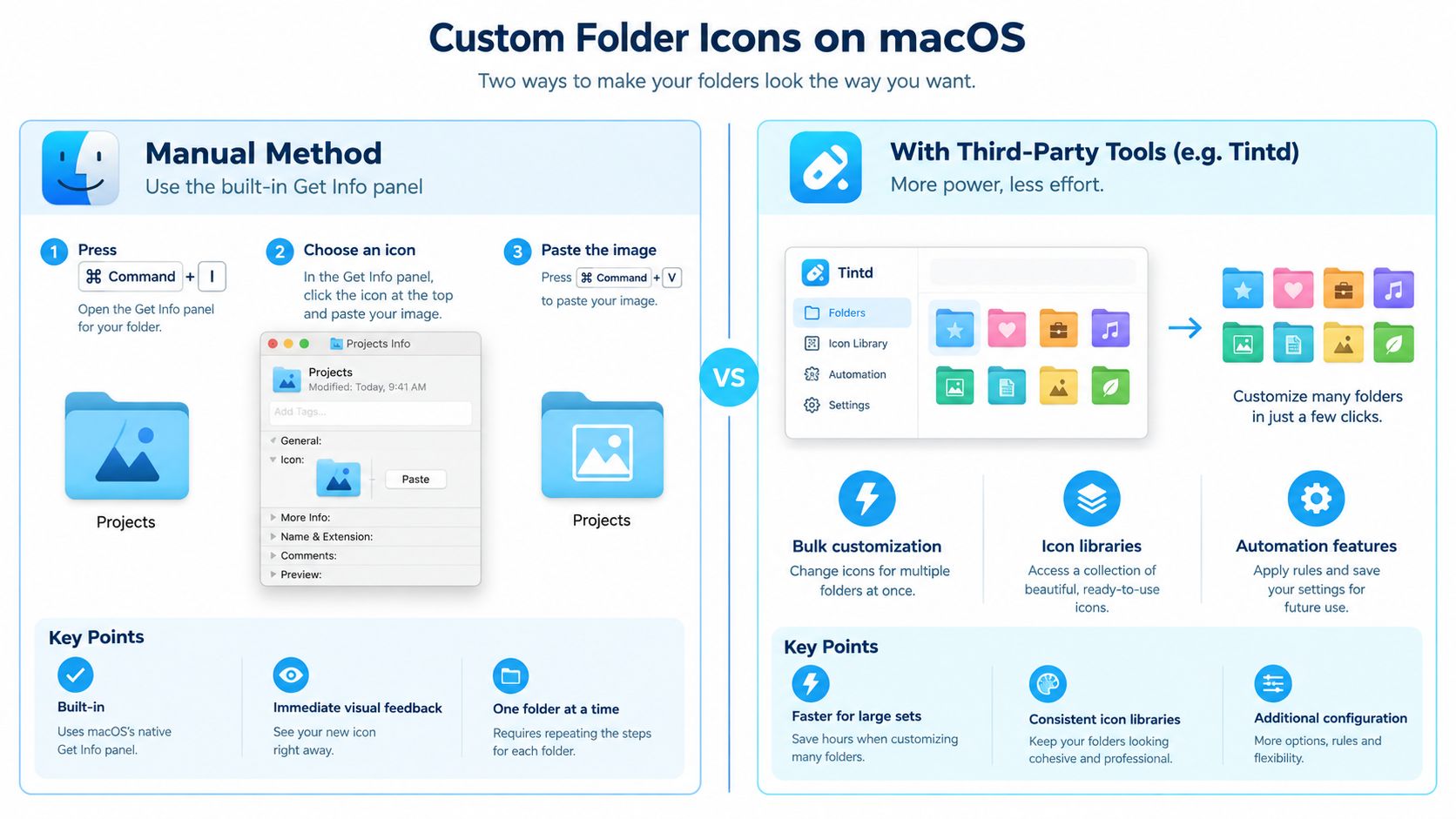
1. Set Custom Folder Icons with Get Info
A custom folder icon is the quickest way to make a crowded Finder window easier to scan. Select a folder, press Command+I, click the small icon in the top-left corner of the Get Info window, then paste an image with Command+V or drag one onto it. Apple documents this Get Info icon swap in its Mac Help guide, and it works well for folders you open every day Apple's Finder guide.
A photographer can give every client shoot folder a camera icon and spot active jobs at once. A student can assign each course folder a different icon so a semester folder list does not all look the same.
Keep the image simple
Square images with transparent backgrounds usually look best. Busy artwork turns into noise when Finder shrinks it, and that defeats the point.
If you want a manual baseline, this is the same workflow many third-party folder styling tools build on, including how to customize folder icons in Finder. To remove a custom icon, open Get Info again, click the icon, and press Delete. That is fine for one folder. For dozens, the repetition gets old fast, which is why bulk tools can be worth adding later.
2. Color-Code Folders with Finder Tags and Keyboard Shortcuts
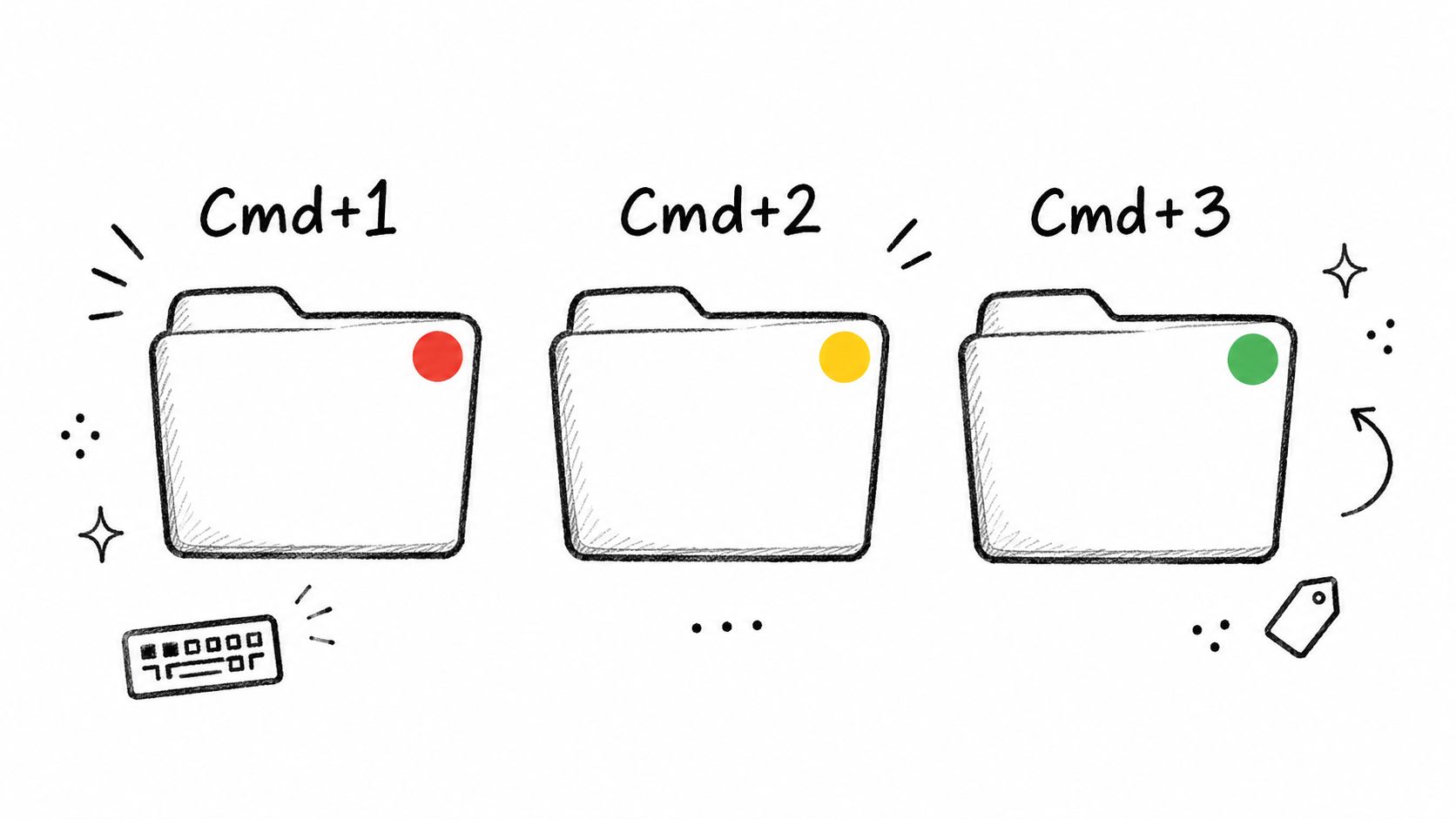
Finder tags are the native way to build a visual status system for folders. You can apply multiple tags, including color tags, and then find tagged items through Finder or Spotlight wherever they sit. That matters because one folder can belong to more than one bucket at once, such as client, urgent, and review.
Select a folder, then use the contextual menu to add a tag. If your setup already has tag shortcuts assigned, use those keys instead. The point is speed. Once the system is in place, color becomes a scan tool, not just a label.
A designer might tag active client work red and archived work gray. A researcher might tag literature green and datasets blue, then move between drives without rethinking the system each time.
Make the colors mean something
Random color use breaks fast. Two months later, red means urgent in one project, draft in another, and personal in a third. At that point, the tags stop helping.
- Pick one meaning per color: keep red for urgent, green for complete, or whatever map fits your workflow.
- Combine tags with icons: use color for status and icons for category, so the same folder carries two signals.
- Select several folders at once: hold Command while clicking folders before tagging them, so you are not repeating the same action over and over.
For a more structured example of visual organization, see organize folders on Mac with a consistent system. Once your color map is set, Finder's tag tinting makes status visible before you even open the folder.
3. Customize the Finder Sidebar for Instant Access
The Finder sidebar is the easiest shortcut you're probably underusing. Drag any folder into Favorites, and it stays one click away in every Finder window. That is the difference between a system you can move through quickly and a system you keep re-navigating from scratch.
A developer can pin the current sprint folder and a shared assets folder. A knowledge worker can keep three active client folders in the sidebar and remove them when the work closes out.
Keep the list short
The sidebar should feel like a launch panel, not a landfill. If you pin everything, you create a second clutter problem inside the sidebar itself.
- Keep five to eight folders max: any more, and the visual scan gets noisy.
- Pair favorites with distinct icons: a custom icon makes the folder easier to spot than a plain name alone.
- Review pinned items monthly: remove finished work before the sidebar turns into a museum of old projects.
Finder's sidebar is especially effective when combined with tags and icons, because it turns one click into a meaningful jump instead of a blind folder hunt. If you work across several active projects, this is one of the cleanest macOS tips and tricks you can adopt without changing any underlying habits.
4. Create Smart Folders for Dynamic Saved Searches
Smart Folders are one of Finder's most practical native features because they do not move your files around. They show files that match rules such as file type, modification date, or a selected tag, while leaving the originals in place Apple's Finder guide. That makes them a good fit when you want a live view of a category instead of another folder to maintain.
Press Command+Option+N to create one, set your criteria, then save it. Finder updates the folder as files change, so you can track active work without sorting it by hand every day.
A videographer might build a Smart Folder that shows recent .mov files across project drives. A researcher might use one for PDFs tagged “to read” across course folders.
Treat it like a dashboard
A Smart Folder should answer one question fast. If it tries to do too much, it gets harder to trust.
Keep the search scope as narrow as possible. A smaller, relevant scope is easier to read and usually faster to use.
Give Smart Folders clear names and distinct icons so they do not blend into regular folders. Add them to the sidebar once they become part of your daily routine. If you are tired of digging through Recents or broad search results, this small change cuts out a lot of tiny interruptions.
5. Batch Rename Multiple Files and Folders
Manual renaming is fine for one folder. It's painful for thirty. Finder can rename multiple items at once, which is one of those quiet macOS tips and tricks that feels small until you're cleaning up a real project archive.
Select the items, right-click, and choose Rename. Finder gives you options to replace text, add text before or after the name, or format names with sequential numbers.
A photographer exporting hundreds of images can add a client name and date prefix in one pass. A developer can standardize asset folders so they sort cleanly with lowercase names and hyphens.
Build names that sort well
You want folder names that behave predictably in lists. That means being consistent, not clever.
- Use a date prefix when order matters: a format like
YYYY-MM-DDkeeps project folders sorted chronologically. - Keep one naming language per set: if you mix languages, do it with a clear pattern so future you can still parse the names.
- Test on a duplicate first: renaming at scale is hard to undo, so check the pattern before applying it to the main set.
The biggest trade-off is speed versus caution. Batch rename saves time, but it also spreads a mistake quickly if the pattern is wrong. Use it when the structure is already stable, not when you're still deciding what the folders should mean.
6. Automate New Folders and Files with Folder Actions and Shortcuts
A folder should not sit there waiting for you to clean it up. With Folder Actions, Finder can run a script or workflow when files are added, removed, or changed. Shortcuts adds another layer, so you can turn those events into real cleanup work without opening the same folder every hour. Apple's on-device approach helps here too, especially when your automation handles folder names and paths in Apple's macOS Security Overview.
A good first rule is simple: a designer can drop screenshots from Downloads into a dated project folder, and a finance team can tag incoming invoices as soon as they land in a shared folder.
Start with one small job. If you want a broader setup later, a guide to macOS automation tools for folders can help with styling rules, such as applying matching icons or colors to new project folders as they appear. That matters when you manage lots of folders, but the core win still comes from native macOS automation.
Keep the first setup plain.
- Test on sample files first: check that the action runs the way you expect.
- Document the rule: if nobody remembers why it exists, maintenance gets harder.
- Keep the trigger narrow: one folder and one clear result is usually enough.
A simple rule is easier to trust, and easier to fix when something breaks.
7. Use Stacks and Group By to Organize the Desktop and Finder Views
A busy Mac gets cluttered fast because the desktop becomes the first stop for downloads, screenshots, and loose files. Stacks fixes that by gathering items into piles based on kind, date, tag, or similar rules, so you can scan the desktop instead of cleaning it every time.
Finder gives you the same kind of control from the window toolbar and View Options. Press Command+J in a Finder window, then use Group By to sort a folder by kind, date, or another view rule. A Downloads folder grouped by kind separates PDFs, images, and archives without moving anything by hand.
That makes a practical difference. A designer can keep screenshots stacked by date so each day's captures sit in one pile. A researcher can group Downloads by kind and separate reading material from compressed files in seconds.
Use each option where it fits.
- Use Date Added for temporary clutter: it works well for folders that only hold incoming files.
- Use Kind for reference folders: documents, images, and archives stay easier to spot.
- Keep long-term work out of the desktop: treat it as a landing zone, not a filing cabinet.
Stacks and Group By do not replace a folder system. They reduce friction while you keep that system tidy. For a crowded Mac, that small change makes the desktop feel easier to live with.
8. Finder Tabs and Go to Folder for Faster Movement
Finder tabs cut down on window clutter. Press Command+T to open a new tab, then keep related folders in one Finder window instead of spreading them across the screen. If your folder tree runs deep, Command+Shift+G opens Go to Folder, where you can type a path directly.
A developer can keep the repository, assets, and build folders open in three tabs. A videographer can jump straight to a footage archive on an external drive without clicking through a stack of nested folders.
Use movement shortcuts with intent
The goal is to stop repeating the same clicks.
- Command+Up moves you up one folder level.
- Command+Down opens a selected folder.
- Tilde in Go to Folder starts from your home folder when the destination sits under your account.
If you already know the path, type it. If you only know the parent folder, use tabs and keep your place visible. That is a practical macOS tip for cutting clutter without changing how you file anything.
9. Show the Path Bar and Use Title-Bar Navigation
When a folder is buried several levels deep, the path bar gives you instant context. Turn it on from View > Show Path Bar, and Finder shows the full location at the bottom of the window. Each folder in that path is clickable, so you can jump back up without opening extra windows.
You can do the same from the title bar. Command-click the folder name at the top of the Finder window to reveal the hierarchy above it. That is handy when you are inside a semester folder and need the course root, or when you are checking a build directory before you run anything.
Keep the path visible
If you work in nested project folders, leave the path bar on. It saves time every time you need to confirm where you are.
The status bar helps too. Press Command+Option+S to show item counts and available disk space at the bottom of the window. Apple also documents how Finder can show file and window information in its own interface Apple's Mac Help page.
The strongest setups combine location, color, and naming, so no single signal has to carry all the meaning.
10. Reset Folder Icons and Maintain a Consistent Visual System
A folder system only stays useful if you keep it tidy. When a project ends, remove its custom look so old cues do not stick around. In Finder, open Get Info, select the folder icon at the top, and press Delete to return it to the default appearance.
A creative studio can reset finished client folders and keep custom styling only for active work. A knowledge worker can keep one icon map across years of archives, so the visual language stays readable later.
Keep the legend simple
If every folder has a special meaning, none of them do. Keep the system small enough to remember.
- Create one icon legend: use one color for clients, another for internal work, or any other simple rule you can follow.
- Review folders at project close: clear the styling when the work is done.
- Restore when needed: return a folder to default if the icon no longer helps.
Statcounter's macOS version share data shows a meaningful split between recent and older macOS releases, so durable Finder habits matter more than version-specific tricks Statcounter's worldwide macOS version data. Keep the core system built on folders, tags, colors, and search. Add third-party folder styling only if it fits that structure. Clean visuals beat a clever setup that nobody can read later.
10 macOS Finder Tips, Quick Comparison
| Method | Implementation 🔄 | Resources ⚡ | Expected Outcomes 📊 | Ideal Use Cases | Key Advantages ⭐ | Quick Tip 💡 |
|---|---|---|---|---|---|---|
| Set Custom Folder Icons with Get Info (Cmd+I) | Manual, per-folder steps; low technical skill | No extra app; image files and time | Distinct visual icons for folders; immediate Finder cues | Small sets, personal projects, photographers, designers | Native, reversible, immediate visual recognition ⭐ | Use square PNGs with transparency; remove via Get Info → Delete |
| Color-Code Folders with Finder Tags and Keyboard Shortcuts | Very low; Cmd+1–Cmd+7 shortcuts | Built-in tags; minimal setup | Fast color-based filtering; searchable via Spotlight | Status/priority tracking, cross-folder categories | Quick keyboard-driven categorization; searchable ⭐ | Define consistent color meanings and document them |
| Customize the Finder Sidebar for Instant Access | Very low; drag folders to Favorites | None; keep a short curated list | One-click access across all Finder windows | Frequently used project folders, shared assets | Always-available launcher; no extra software ⭐ | Pin 5–8 folders; pair with distinctive icons |
| Create Smart Folders for Dynamic Saved Searches | Low–medium; define and save search criteria | No extra software; familiarity with criteria | Live, updating views of matching items across drives | Surfacing recent files, tagged items, cross-folder collections | Dynamic searches without moving files; powerful discovery ⭐ | Limit scope to relevant folders to improve speed |
| Batch Rename Multiple Files and Folders | Low; select items → Rename dialog | None; test copies when unsure | Standardized names; better sorting and grouping | Large exports (photos), asset standardization | Fast bulk renaming; improves organization ⭐ | Test on duplicates first; use YYYY-MM-DD prefixes |
| Automate with Folder Actions and Shortcuts | Medium–high; scripting or Shortcuts workflows | Time to build/test scripts or Shortcuts | Automatic processing (tagging, moving, styling) on changes | Repetitive imports, team workflows, automated tagging | Fully automates repetitive tasks; consistent results ⭐ | Test on samples; keep rules simple; consider Tintd Folder Watcher |
| Use Stacks and Group By to Organize Desktop & Finder Views | Very low; toggle Stacks or Group By | None | Collapsed, grouped piles; reduced visual clutter | Desktop cleanup, organizing Downloads or captures | Automatic grouping; non-destructive tidying ⭐ | Use Date Added for transient items; Kind for reference files |
| Navigate Faster with Finder Tabs and Go to Folder (Cmd+T, Cmd+Shift+G) | Low; keyboard shortcuts and path entry | Knowledge of paths speeds use | Faster navigation; fewer windows, direct jumps | Power users, deep folder hierarchies, external drives | Consolidates views; precise path access ⭐ | Use ~ for home; Cmd+Up/Down to move between levels |
| Show the Path Bar and Use Title-Bar Navigation | Very low; enable View → Show Path Bar | None | Clear folder location and quick upward navigation | Working in deep project trees, verifying current path | Improves spatial awareness; fast backtracking ⭐ | Keep path bar visible; combine with status bar for counts |
| Reset Folder Icons & Maintain a Consistent Visual System | Low (manual) but slow at scale | Time to review; documented scheme helps | Restores defaults; keeps visual system consistent | Teams, long-term archives, project closeouts | Non-destructive reset; supports consistent styling ⭐ | Create a legend for icons/colors; use batch tools for large sets |
Pick Three Tips and Build the Habit This Week
Don't try to fix your whole Mac in one afternoon. Start with the desktop cleanup, then add one structural change, like pinning your five to eight most important folders to the Finder sidebar. After that, choose one automation or naming habit, such as batch renaming project folders or creating a Smart Folder for active files.
The fastest wins usually come from combining two or three native features instead of chasing a perfect system. For example, you can tag active folders, pin them in Favorites, and show the path bar so you always know where you are. If you manage a lot of folders, that is usually enough to make Finder feel lighter without installing anything.
If you want a stronger visual layer later, Tintd fits into that same workflow because it styles Finder folders with icons and colors, works on-device, and supports bulk editing and new-folder watching. That makes it a sensible optional layer after the native system is already in place, not a replacement for it.
Choose three tips from this list, apply them to one real folder set today, and review the result after two weeks. If the folders are easier to scan, easier to reopen, and easier to keep consistent, the system is working. If not, simplify the colors, cut the sidebar list, and keep the parts that save time.
Tintd helps you style Finder folders with custom icons and colors while keeping the work on your Mac. If you want to build on the native macOS organization habits in this guide, visit Tintd and see how it handles manual styling, batch edits, and automatic folder watching.