
You find a silver MacBook Pro in a closet, or spot one in a used listing, and the seller calls it a “Mid-2009.” That sounds like a model name, but it doesn't tell you enough to judge what the laptop can do. Apple sold 13-inch, 15-inch, and 17-inch versions with different processors, graphics, ports, and prices.
The useful question isn't whether this old Mac can be made new again. It's which version you're looking at, and whether it still suits a limited job such as offline writing, local file organization, or running older software.
What a Mid-2009 MacBook Pro Actually Is
The label "Mid-2009" covers three different laptops. Apple refreshed its MacBook Pro line that June with 13-inch, 15-inch, and 17-inch models, and they differ in processor, graphics, ports, and original price. Two machines carrying the same badge on the lid can behave like very different computers, so the exact size and configuration matter before anything else does.
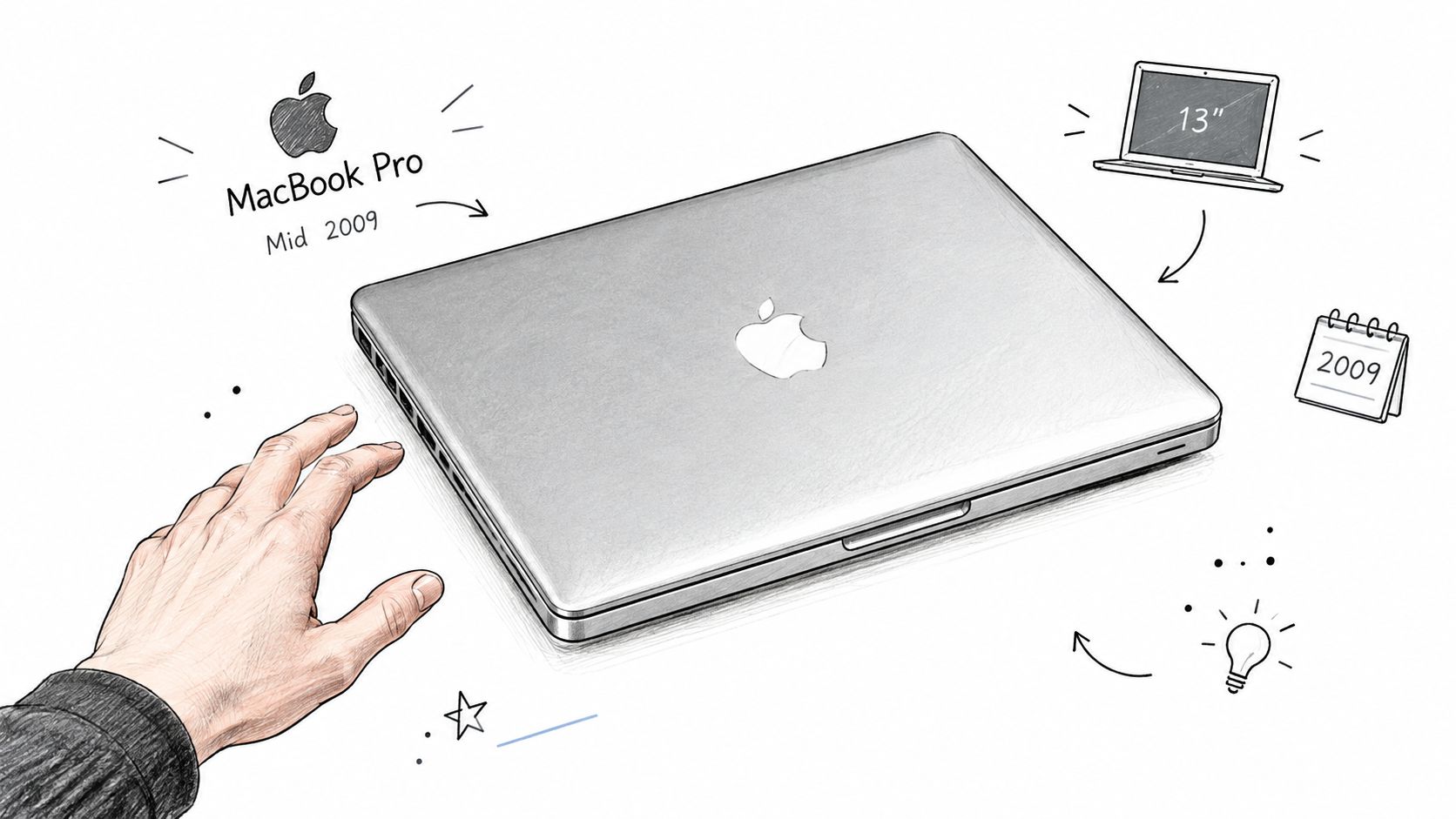
Screen size is the first clue you can check without powering anything on. The 13-inch model is the smallest and lightest of the three. The 15-inch sits in the middle, was offered with dedicated graphics hardware the 13-inch never got, and some versions carry an SD card slot on the side. The 17-inch has a display large enough that the chassis is easy to spot in any listing photo.
Identify the machine before choosing upgrades
Ask the seller for the model identifier, or find it yourself in macOS if the Mac boots. A serial number lookup confirms it further. Then write down a short label you can search with, such as "13-inch, 2.53 GHz" or "15-inch, 9400M and 9600M GT." Parts, advice, and upgrade guides all assume you know which of the three you own.
If the Mac won't start, work with what you can see: screen size, the ports along the side, any model text on the underside. When a machine needs work before you can even evaluate it, a service provider's MacBook repair services from Steel City IT can show what repair help looks like before you commit.
Whichever size you find, its role stays modest. These machines suit a secondary or mostly offline job, and getting the size and identifier right first makes every later decision simpler.
Launch Specs and Price Points
A used listing that just says "2009 MacBook Pro" could describe three meaningfully different machines. Apple sold this family in tiers, with processor, memory, storage, and graphics shifting as the price climbed, and the launch materials priced each size separately.
| Model | Processor | Memory and storage | Graphics | Launch price |
|---|---|---|---|---|
| 13-inch entry configuration | 2.26 GHz Intel Core 2 Duo | 2 GB of 1066 MHz DDR3, 160 GB hard drive | Not specified in the launch details cited here | HK$9,288 |
| 13-inch higher configuration | 2.53 GHz Intel Core 2 Duo | 4 GB of RAM, 250 GB hard drive | Not specified in the launch details cited here | HK$11,688 |
| 15-inch base configuration | 2.53 GHz Intel Core 2 Duo | 250 GB hard drive | NVIDIA GeForce 9400M | $1,699 |
| 15-inch higher configuration | Not specified in the launch details cited here | 320 GB hard drive | NVIDIA GeForce 9400M and 9600M GT | $1,999 |
| 17-inch configuration | 2.8 GHz processor | 500 GB hard drive | Not specified in the launch details cited here | $2,499 |
The spread between sizes was wide. Apple's launch announcement put the entry 13-inch at HK$9,288 in Hong Kong and the 17-inch at $2,499 in the US, a gap that bought a larger display, a faster 2.8 GHz processor, and a 500 GB drive. The 15-inch sat in between, starting at $1,699 with GeForce 9400M graphics, while the $1,999 configuration added a 320 GB drive and the GeForce 9600M GT alongside the 9400M. Even the 17-inch figure carried a message: Apple cut it by $300 from the previous model's price, repositioning the biggest machine at launch.
The two 13-inch configurations show why clock speed alone misleads. The HK$9,288 machine paired a 2.26 GHz Core 2 Duo with only 2 GB of memory and a 160 GB drive. Paying HK$11,688 moved you to 2.53 GHz, doubled the memory to 4 GB, and raised storage to 250 GB. For a machine you plan to run offline or as a secondary Mac, that memory gap matters far more than the modest processor bump.
Treat launch prices as history, not a valuation
Across the family, launch speeds ran from 2.26 GHz to 2.8 GHz, and storage from 160 GB to 500 GB. Those figures explain the pecking order, and they explain why two same-year MacBook Pros can deserve very different prices today.
A launch price tells you where a configuration sat in 2009. It says little about what a used unit is worth now. Condition does that job: a working battery, an included charger, and storage that still functions outweigh whatever Apple originally charged. Confirm the configuration first, then let its condition and your intended role set what you're willing to pay.
Battery Ports and the 2009 Design Shift
The 2009 refresh changed the power design first. Apple built the battery into the case across the updated family and claimed up to 40 percent longer battery life for it, according to Apple's launch announcement. A built-in pack works like a camera battery that's been screwed inside the body: it performs well until the day it doesn't, and then replacement takes tools rather than a latch. Keep that in mind when you inspect a used unit.
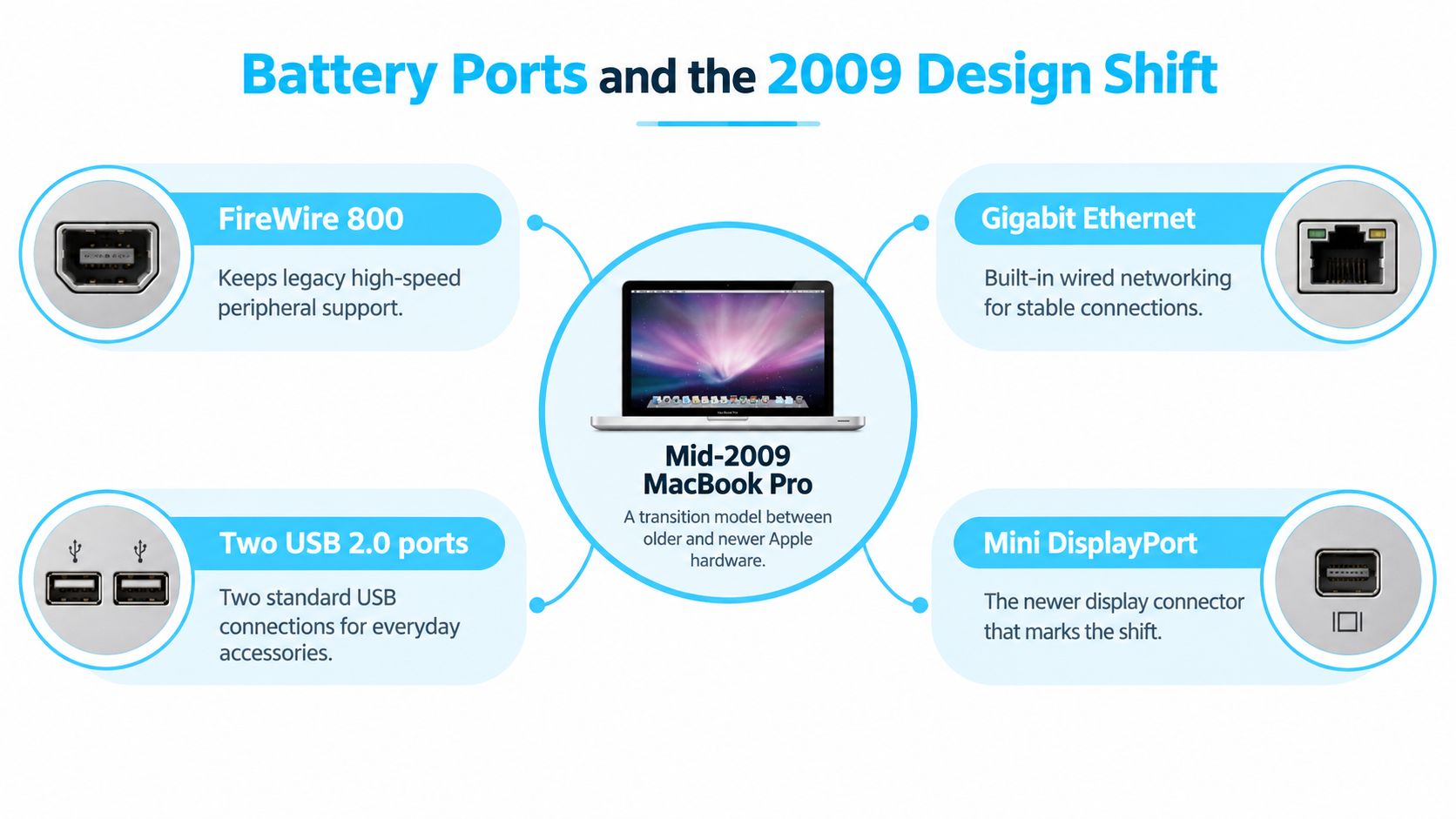
The connector side of the case still feels generous. FireWire 800, Gigabit Ethernet, two USB 2.0 ports, and Mini DisplayPort cover most of what an offline or secondary machine needs. FireWire 800 suits era-appropriate external drives, Ethernet gives you a stable wired option for moving files around a local network, and Mini DisplayPort feeds an external monitor with the right adapter. USB 2.0 handles a mouse, keyboard, or printer without complaint. It crawls when you push a large photo library through it, so treat big transfers as a FireWire or Ethernet job.
The three sizes share the idea, not the details
The 13-inch model pairs its ports with the lightest body of the family: 12.78 by 8.94 inches and 4.5 pounds, where the 15-inch weighs 5.5 pounds. Inside, Apple's technical specifications, as noted earlier, list 3 MB of shared L2 cache, two SO-DIMM slots supporting up to 8 GB of 1066 MHz DDR3 memory, and 5,400-rpm Serial ATA hard drives, with solid-state options of 128 GB and 256 GB.
Some 15-inch configurations add an SD card slot and switchable GeForce 9400M and GeForce 9600M GT graphics, which helps if you plan to run period creative software. The 17-inch keeps the same connector family in a larger chassis that wants to live on a desk. Whichever size you pick, test power delivery early; if the machine misbehaves while plugged in, a walkthrough of when your MacBook Pro won't charge helps you work out whether the fault sits with the charger, the battery, or the computer before you buy replacement parts.
What This Laptop Can Do in 2026
In 2026, a Mid-2009 MacBook Pro still earns its keep for basic offline writing, local file organization, and some legacy software. Current browsers, video calls, modern creative applications, and security-sensitive online work are a different proposition. Those tasks lean on the operating system as much as the processor, and this aging 64-bit Intel platform has limits in both places.
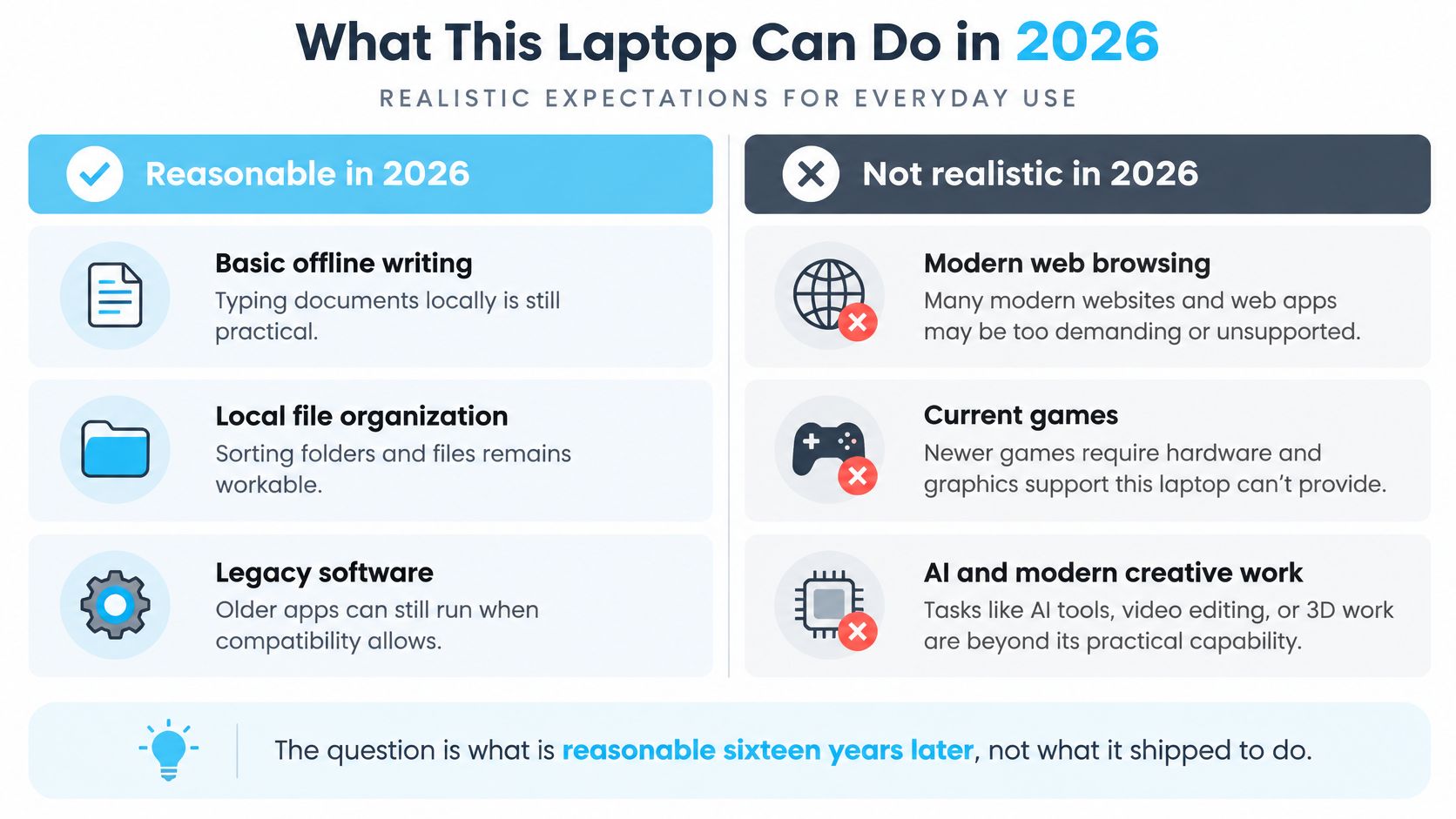
A common shortcut is to say, "Install a newer macOS and it'll be fine." That skips the hard part. Community patching tools can carry some of these machines past Apple's last supported release, yet an unofficial installation can bring trade-offs in graphics acceleration, Wi-Fi reliability, system updates, application support, and security. Passing a compatibility check doesn't make a patched install equivalent to a supported, current Mac.
Give it a job that fits
Decide what you'll ask the computer to do. A laptop for typing drafts with no network connection has different needs from one handling banking, client video calls, or daily web browsing. If the operating system can't safely support the services you rely on, a working keyboard and a booting desktop won't rescue it.
Size changes the answer, too.
As the earlier spec breakdown showed, the 13-inch sits at the modest end of the family's processor range, while 15-inch and 17-inch configurations shipped with faster chips, and the largest model adds screen space that suits side-by-side document work. A single compatibility list covering several years and sizes doesn't mean every machine shares the same graphics, display, or overall experience.
A useful label is more honest than a promise: "offline secondary Mac" or "not suitable for my needs."
If you want to explore Mac applications for a limited, lightweight setup, this guide to useful apps for Mac can help with the software side. Keep one distinction clear: an app being useful doesn't mean it supports every old macOS release, or that it turns the laptop into a safe primary computer.
Realistic Upgrades and Daily Performance
Suppose the 15-inch Mid-2009 is the machine on your desk. Its Core 2 Duo processor sits on Intel's 45 nm Penryn design, paired with a 1066 MHz front-side bus and either 3 MB or 6 MB of shared L2 cache. As noted earlier, Apple's technical specifications for this model document the hardware and its port speeds.
That front-side bus explains the ceiling. It works like a single road between the processor and everything else, so once traffic gets heavy, no tweak inside the machine opens a second lane. All three sizes, 13-, 15-, and 17-inch, share this basic platform. None of them has a hidden path around it.
The graphics situation splits the 15-inch lineup in two. The GeForce 9400M integrated graphics draws less power and creates less heat. Higher-end configurations add a GeForce 9600M GT with dedicated GDDR3 memory, which handles older 3D applications and GPU-accelerated tasks more confidently. Useful for legacy creative software. It still won't behave like a modern workstation.
Upgrade for the work you'll actually do
Match spending to the job. For writing, email drafts, and file sorting, memory and storage do more for you than anything else on the machine. The 15-inch panel runs 1440×900 natively, so big visual libraries already feel tight, and a slow hard drive makes every preview wait longer. Styling a folder icon is light work. Scrubbing through a large media archive is not.
A sensible order looks like this:
- Check the memory configuration. Add memory only if the installed amount and your workload justify it, and confirm the limit for your exact model and screen size.
- Address a slow or failing hard drive. Swapping a spinning drive for a solid-state drive makes everyday file access feel quicker, though it can't fix operating-system compatibility.
- Use external storage selectively. USB 2.0 tops out at 480 Mbps and FireWire 800 at 800 Mbps. With a compatible drive and cable, FireWire 800 is the better fit for large media libraries.
The 15-inch body also carries Mini DisplayPort, Gigabit Ethernet, two USB 2.0 ports, and an SD card slot, which keeps it friendly with older peripherals. Keep the goal modest: a responsive offline or lightweight secondary Mac, whether yours is the 13-, 15-, or 17-inch version. Simple improvements earn their cost; a full restoration chasing modern speed usually doesn't. If you want to compare supporting software for that kind of setup, see these Mac utility recommendations.
How to Organize Files on an Aging Mac
A folder full of blue Finder icons doesn't use much computing power, but it can still be a nuisance. When every project looks the same, you end up opening folders just to remember what's inside. On an older Mac, the most sensible approach is the one that makes your files easier to scan without adding unnecessary background work.
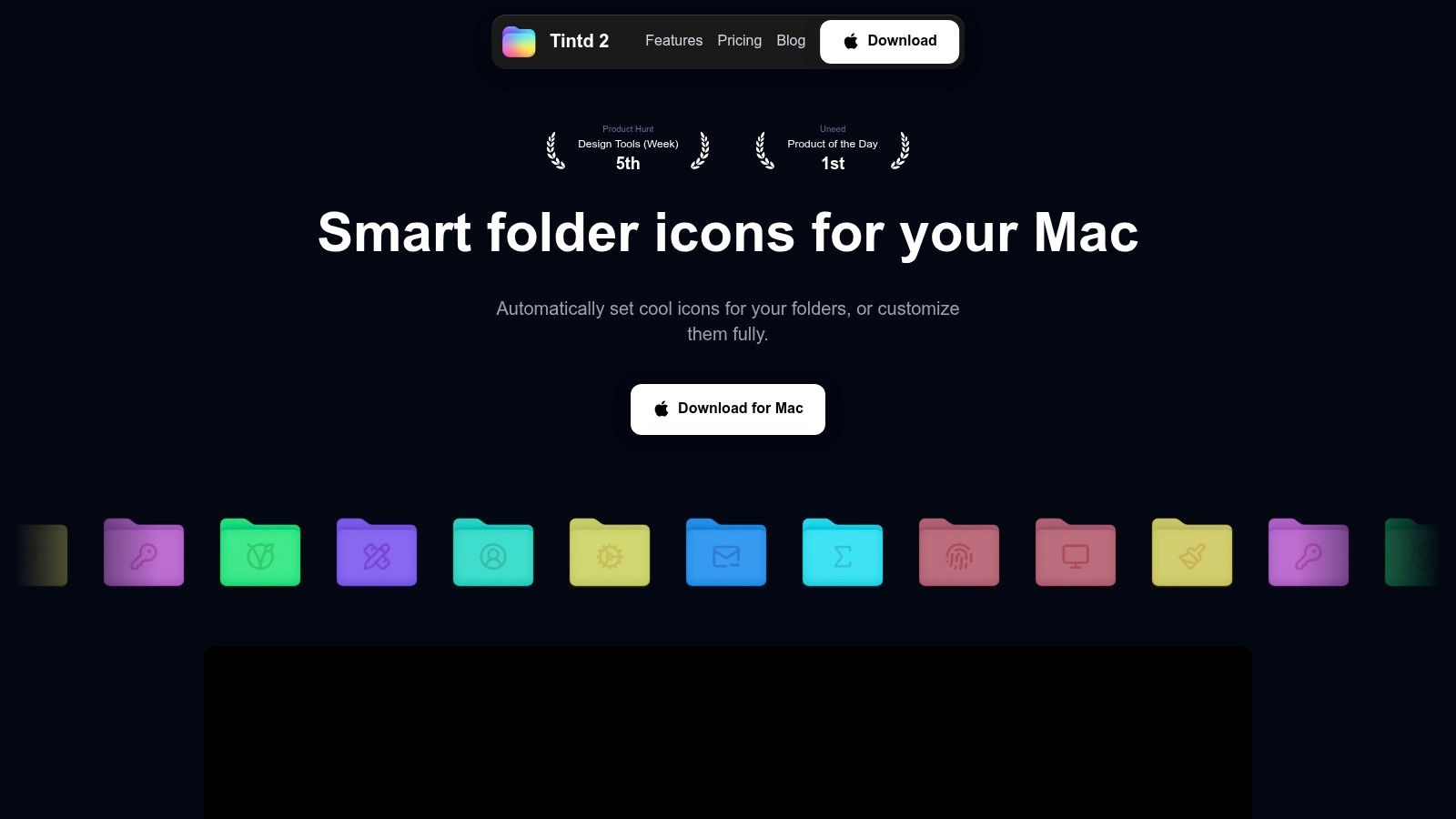
There are three reasonable ways to handle it. You can leave Finder alone, change a few folder icons by hand, or use a local tool when the folder tree is too large to style one folder at a time. Doing nothing keeps things simple, but doesn't help much when you're sorting coursework, photo folders, or archived projects. Manual changes are fine for a handful of folders, then become repetitive.
Choose the amount of help you need
A local folder-styling app such as Tintd is designed to assign custom icons and colors to Finder folders, either automatically or manually. It operates on the device, with no cloud or AI calls, so the folder names and metadata don't need to be sent to an outside service for styling. Its features include suggestions based on folder names, a watcher for new folders, batch edits, a Finder right-click action, custom images, history, and one-click restore to the default icons.
Tintd also includes an icon and emoji library, supports mixed-language folder names, and offers controls for custom colors and icon placement. Those tools are most useful when you're sorting many related folders and want a consistent visual system. If you have only a few folders to distinguish, manual Finder changes may be all you need.
The important performance distinction is between changing an icon and browsing a large library of images. Styling folders is lightweight work; loading and navigating large visual collections still depends on storage, graphics, and the old display. An offline workflow can suit a laptop that you've decided to use for local organization, but it won't remove the machine's broader limits.
For a broader approach to arranging project folders, this guide to digital file organization offers more ways to make a folder structure easier to use.
If you'd rather see the interaction before deciding how to organize your folders, this video shows the app in use.
Buying Checks and a Practical Next Step
Treat a used Mid-2009 MacBook Pro as a specific old computer, not as a generic bargain. Before paying, confirm the screen size and model identifier, ask whether it boots, and check whether the charger is included. Then find out whether the battery holds a charge and whether the memory and drive can still be serviced.
That check matters more than a seller's description of the machine as “fast” or “fully upgraded.” A laptop can start up and still be a poor fit for the work you need to do. If you're comparing it with other used options, a guide to finding a reliable refurbished laptop can help you think beyond the appeal of one particular model.
Decide before spending on upgrades
Walk away if you need a secure primary Mac for modern browsing, video calls, banking, or current creative apps. The operating-system and hardware limits don't disappear because the computer has a clean case or a replacement drive. A buyer who wants a dependable daily machine should compare it with newer used hardware rather than assume an unofficial operating-system install will solve everything.
Keeping it can make sense if you're a writer, student, or archivist looking for a secondary computer for offline notes, local folders, or software that still runs on its installed system. Back up your files before replacing a drive. Keep the operating-system choice within the limits already discussed, and don't put upgrade money into the machine if the total starts approaching the cost of a newer used Mac.
If it stays, start with the work you want it to do, not the work the computer used to be able to do. Open your main project folders, check that your backup is usable, and decide whether clearer folder icons would make the machine easier to live with.
Tintd adds custom colors and icons to Finder folders, with manual controls and on-device suggestions that work offline. If this Mac will handle local files or archived projects, visit Tintd and see whether its folder tools fit the way you plan to use the machine.