
A beautiful icon library is only useful if it matches your folders, works with your Mac, and fits the way you work. The most popular advice is to pick a style you like and change everything to match. That can make a Dock or Finder window look polished, but it doesn't guarantee that you'll find a client folder faster or that its custom icon will appear everywhere you access it.
Start by separating folder-specific packs, application icon collections, searchable icon libraries, and tools that can automate folder styling. A ready-made ICNS folder pack is a different purchase from an app-icon collection, and a broad marketplace may require you to assemble a set yourself. The options below focus on what each resource does well, where setup gets fiddly, and whether it suits Finder organization, Dock customization, or a coordinated visual system.
Meaning matters more than novelty. A controlled icon study found better visual search and recall with distinctive, semantically meaningful icons than with generic ones, but those results don't guarantee a productivity boost in every Mac workflow. The practical takeaway is straightforward: choose recognizable symbols, use a consistent visual convention, and don't expect custom icons to replace clear names or Finder tags.
1. macOSicons
If you want breadth before you commit to a visual style, macOSicons is a useful place to search. Its community catalog includes more than 30,000 macOS-style icons for apps, games, and folders, with designs influenced by macOS releases from Big Sur through Sequoia. Because contributors add the artwork, you can often find both familiar application icons and folder designs that fit a broader Mac aesthetic.
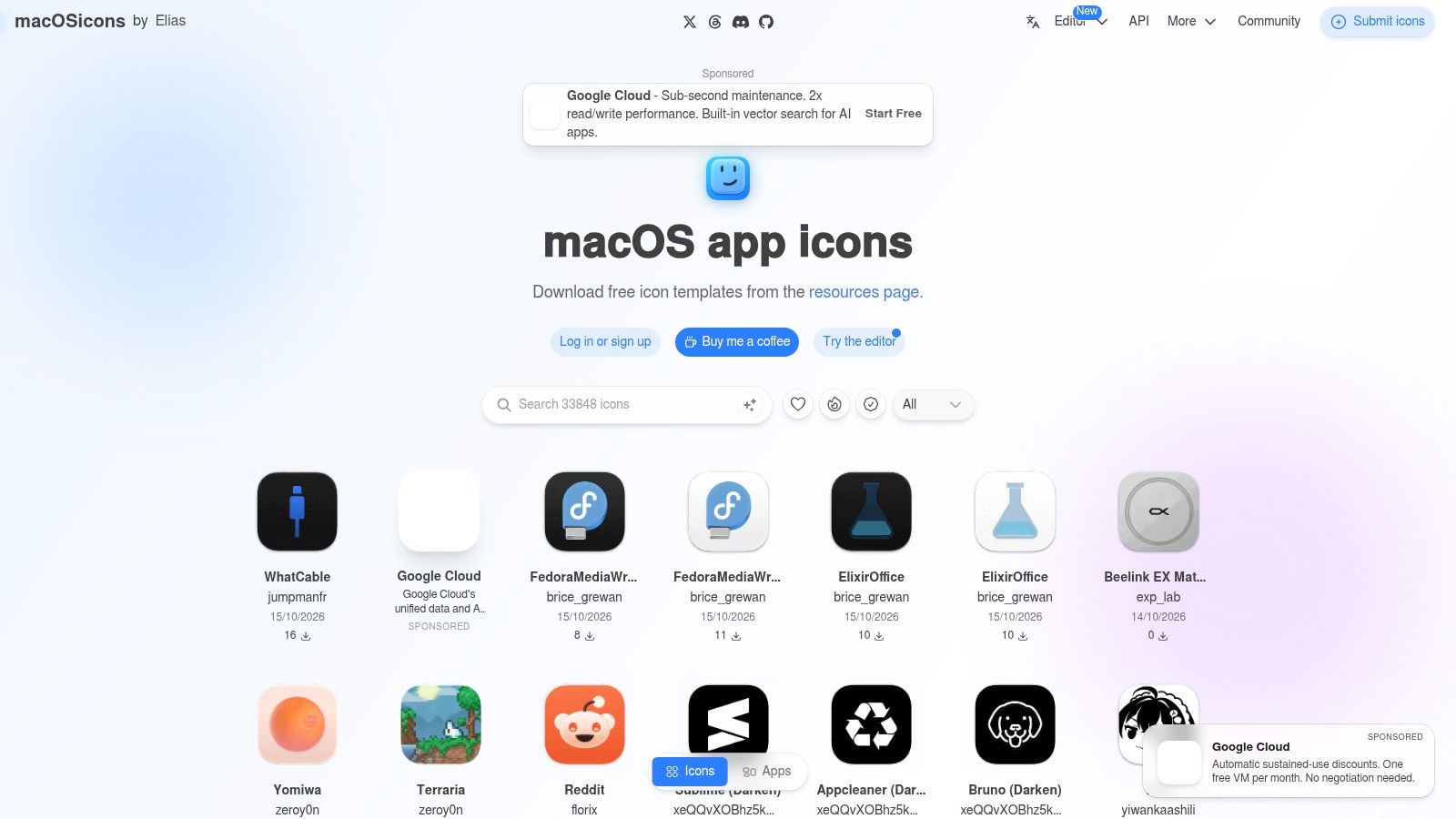
The search function makes it easier to look for an app or category than to browse an unfiltered image folder. Downloads are available as ICNS or PNG where provided. ICNS is the convenient option when the file is intended to replace a Mac app or folder icon. PNG is useful when you want to build or edit a custom overlay, but it may require extra preparation.
The trade-off
The library's size is also its main drawback. Community contributions can vary in finish, and a search result that looks right at a large preview may not read clearly at Finder size. Check the icon at the size you'll use, then test it alongside neighboring folders before applying a whole set.
Free browsing and downloads make it easy to try options, with donations available for users who want to support the project. Licensing varies by icon, so check the specific terms before using a contribution in commercial work. For personal Finder or Dock customization, macOSicons is a strong starting point, but it's a library to curate, not a guarantee of a perfectly matched pack.
2. The Iconfactory Freeware Icon Sets
Some Mac icon styles have a history that newer libraries don't try to reproduce. The Iconfactory's freeware collection includes curated sets with classic hardware themes, folder designs, seasonal imagery, and other distinctive concepts. The studio has a long association with Mac icon design, and many of its free sets feel more like complete visual ideas than isolated search results.
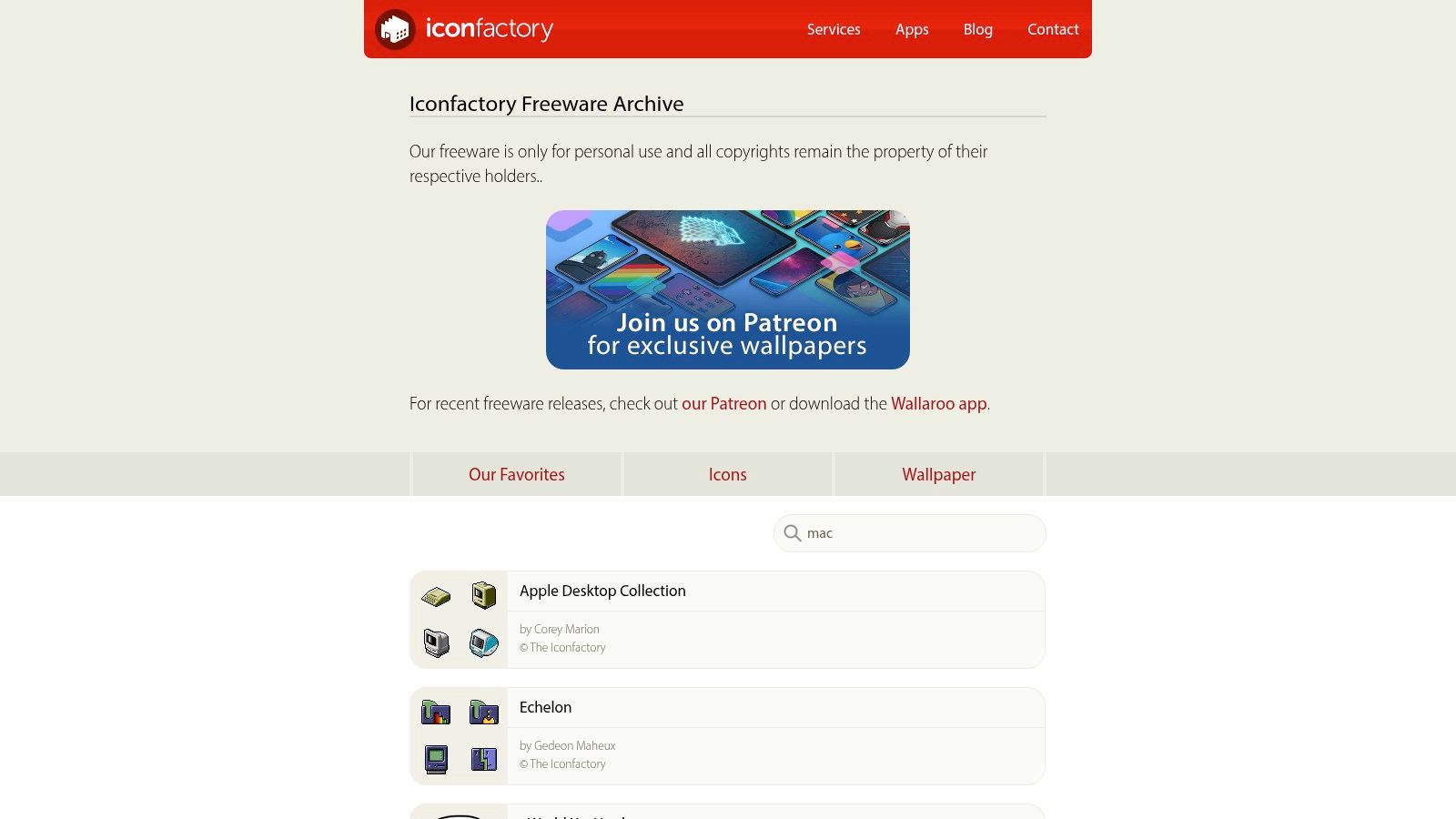
The collection suits Finder customization when you want a theme with personality rather than a modern, uniform set. Some designs use older Mac conventions, which can be a benefit if you enjoy classic interface art. It can also make them look out of place beside newer app icons, so preview the set in your actual Finder window before investing time in installation.
Check the format and terms
Sets have historically used Mac-friendly formats such as ICNS and iContainer. ICNS files can be applied individually; iContainer sets may require a compatible workflow or the instructions supplied with the download. The Iconfactory provides guidance for using iContainer files on macOS, so read that material before assuming every pack installs with a simple drag and drop.
Licensing varies by set. Read the included readme rather than assuming that a free download permits every kind of reuse. This is a good source for users who value unusual themes, folders, and classic Mac design. It's less suitable if you need every icon to match a current macOS look or want a single uniform collection covering all your apps and projects.
3. The Noun Project for Mac
A folder called “Research” or “Invoices” can be easier to recognize with a concrete symbol than with a color alone. The Noun Project for Mac helps you find and customize that kind of imagery through a native Mac app. Its concepts range widely, which is useful when a general-purpose folder pack doesn't include a symbol that matches a specific project or subject.
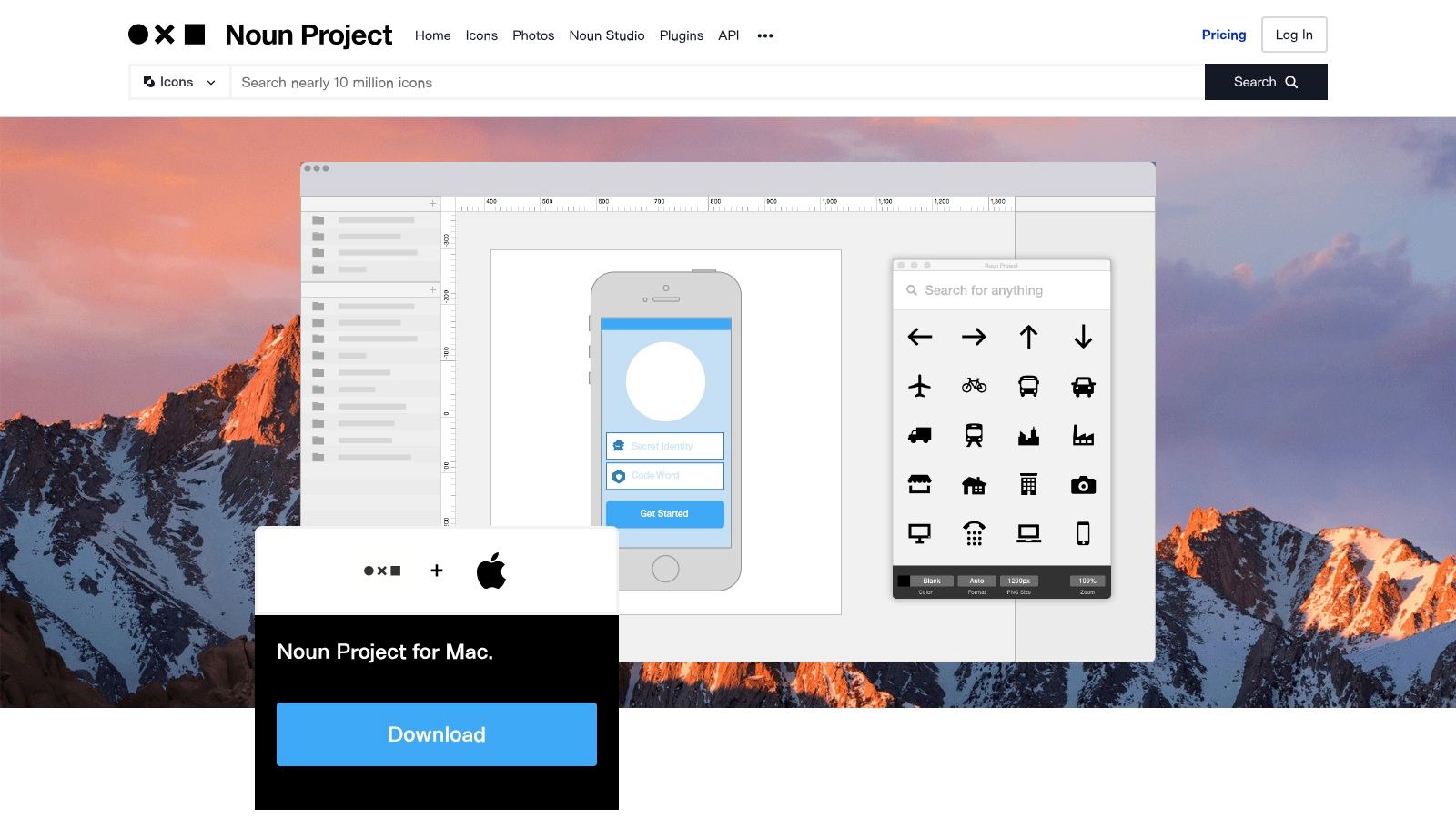
The app supports drag-and-drop exports in SVG, PNG, and PDF, and offers color controls. That makes it a flexible source for creating a folder overlay or assembling a personal set, but it isn't a collection of ready-made macOS folder icons. You'll need to choose imagery, decide how it should sit on a folder, and prepare files for your preferred Finder workflow.
Useful for specific meanings
The free starter collection includes 100 icons. Access to the full library of millions of icons requires a Noun Pro subscription. That arrangement works well if you want to test the app before paying, or if you regularly need symbols for niche topics. It's less compelling if all you need is a small, finished pack of folder replacements.
Keep icons recognizable at small sizes. A detailed illustration may look attractive in the app but turn into visual noise when it's reduced to a Finder folder overlay. Choose a simple, concrete image, then use color as a supporting cue rather than expecting a hue change to communicate the folder's meaning by itself.
4. IconScout Desktop App for Mac
IconScout's desktop app connects Mac users to a large marketplace of icons and other design assets. The broader catalog includes 3D assets, Lottie files, and illustrations as well as icon sets, so it's a better fit for people who already work with design assets than for someone looking only for a ready-to-apply folder pack.
A key advantage is choice within a visual family. When you find a cohesive set, you can use it to create a consistent group of folder overlays, rather than combining unrelated symbols from different sources. The app also offers color customization and drag-and-drop support into common tools, which can reduce friction if you're preparing assets in a design workflow before applying them in Finder.
A marketplace is useful when you want to curate a visual system. It won't make the curation decision for you.
The desktop app is free, but licensing for marketplace assets is handled through individual purchases or subscriptions. Commercial licensing is available for teams and client work, but check the terms attached to the specific asset and plan before using it in a deliverable. The best fit depends on whether the marketplace's selection and licensing options justify the extra browsing and assembly.
IconScout isn't focused specifically on Mac folder icons. You'll need to check whether an asset is suitable for the size and format you need, and you may have to create the folder treatment yourself. Choose it when broad asset access is valuable; choose a dedicated folder pack when you'd rather download a matched set and get straight to Finder.
5. Icons8
Icons8 is a large icon catalog with consistent visual styles and Mac-friendly download options. Its main practical advantage is that you can search for related symbols and keep them within the same design language. That's useful for project folders where several labels need distinct icons without making the Finder view feel visually scattered.
The catalog offers PNG and SVG. Free small PNG downloads require attribution, while paid plans offer SVG and larger PNG files. Bulk and API options may suit teams or workflows that need to manage assets beyond a handful of folders, but those features don't turn the catalog into a prebuilt Finder folder pack. You'll still need to select a style, choose symbols, and assemble the set.
Build a set around folder meaning
Start with the folder names you scan most often. For a creative workspace, a camera or image symbol might suit photography assets, while a recognizable code or terminal symbol could mark a development project. Avoid assigning the same visual treatment to unrelated categories: if every folder is decorated, the signal gets weaker.
For more on using visual cues as part of Finder organization, see Tintd's guide to a visual file manager. Icons8 works best when you're willing to curate a consistent set and follow the download terms. It's not the quickest choice for someone who wants a color-coded folder library ready to apply, but it gives you control over style and coverage.
6. Tidewater by GoMain
Tidewater by GoMain is purpose-built for themed folder styling. Rather than asking you to assemble a set from a general icon marketplace, it offers ready-made packs with matching designs for common folders. The themes include scenes, lines, shapes, paper, and pixels, giving you a choice between more illustrative and more restrained treatments.
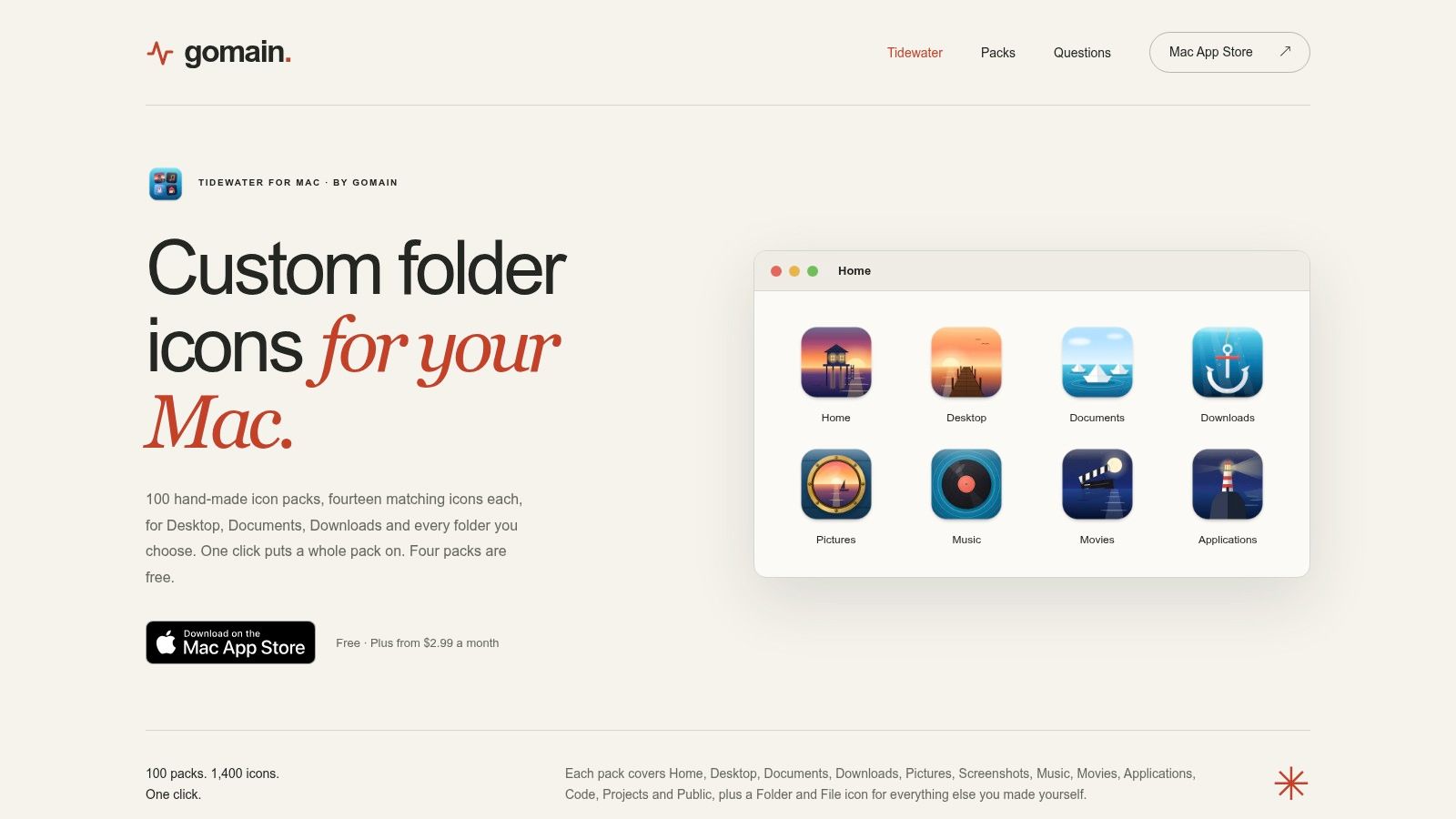
Each pack contains 14 matching folder icons. Tidewater offers more than 100 themed packs, and the designs are intended to remain clear at small Finder sizes. That combination makes it a practical choice for users who want a cohesive look without spending time finding individual overlays. Several packs are available in the free tier; Tidewater Plus grants access to all packs.
Bulk styling or manual installation
Tidewater can apply icons in bulk to standard locations such as Desktop, Documents, and Downloads. It also provides a Finder extension and lets you export individual icons as ICNS, so you can use a manual workflow when that suits your setup better. The app requires macOS 13 or later, which makes compatibility an important first check if you use an older Mac system.
This is one of the more direct choices for folder customization rather than app-icon replacement. Its trade-offs are the system requirement and a subscription for full pack access. If you want a ready-made folder theme that can be applied in bulk, Tidewater avoids some of the work involved in building your own set. If you want fine control over each symbol or use a Mac that doesn't meet the requirement, a downloadable ICNS pack or icon library may fit better.
7. macOS Colored Folders, 56 ICNS Pack
If you already have a reliable naming system and want a simple visual layer, the macOS Colored Folders pack focuses on color rather than pictographic symbols. It provides 56 colored folder icons in ICNS format, intended as replacements for standard Finder folders. You don't need to search a broad library or assemble a group of overlays to begin color coding.
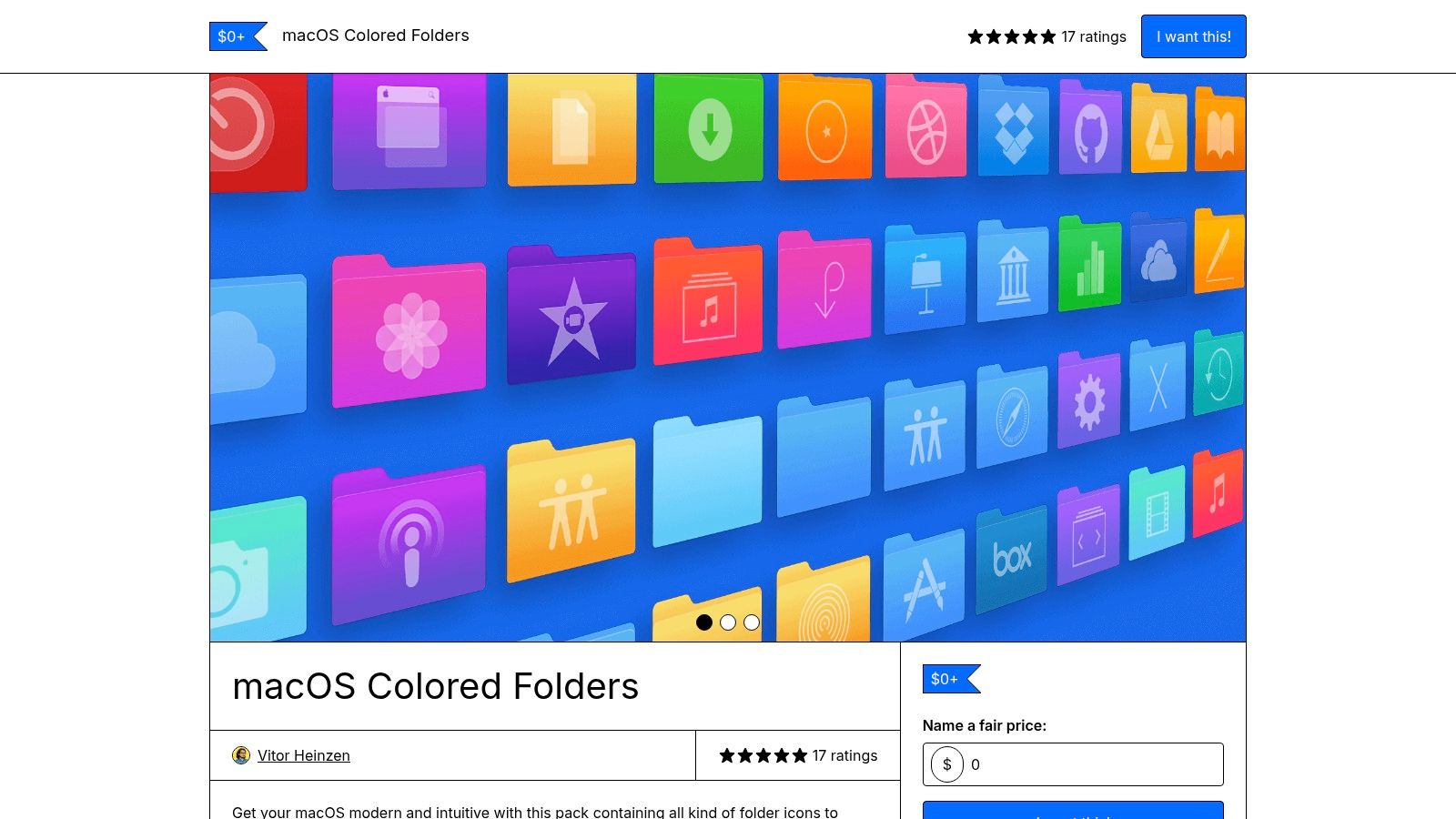
ICNS is a useful format for manual Finder customization because the pack is already supplied as folder icons. A color system can also work well across a hierarchy: for example, use one color family for active client work and another for personal projects, while keeping names explicit enough to stand on their own.
Color is a cue, not a taxonomy
The pack's strength is also its limit. It's built for folder color coding, not for distinctive pictographic overlays. If several folders share the same hue, color alone may not tell you which project you're looking at. Pair the visual convention with descriptive names and Finder tags when you need more precise distinctions or cross-folder filtering.
Price and licensing may vary by the Gumroad listing, so review the seller's current terms before buying or using the files beyond personal customization. This pack suits users who want to replace blue folders consistently and are comfortable applying ICNS files manually. It's less suitable if you want symbols tied to folder meanings or a tool that automatically styles new directories.
8. Juice by Pixelresort
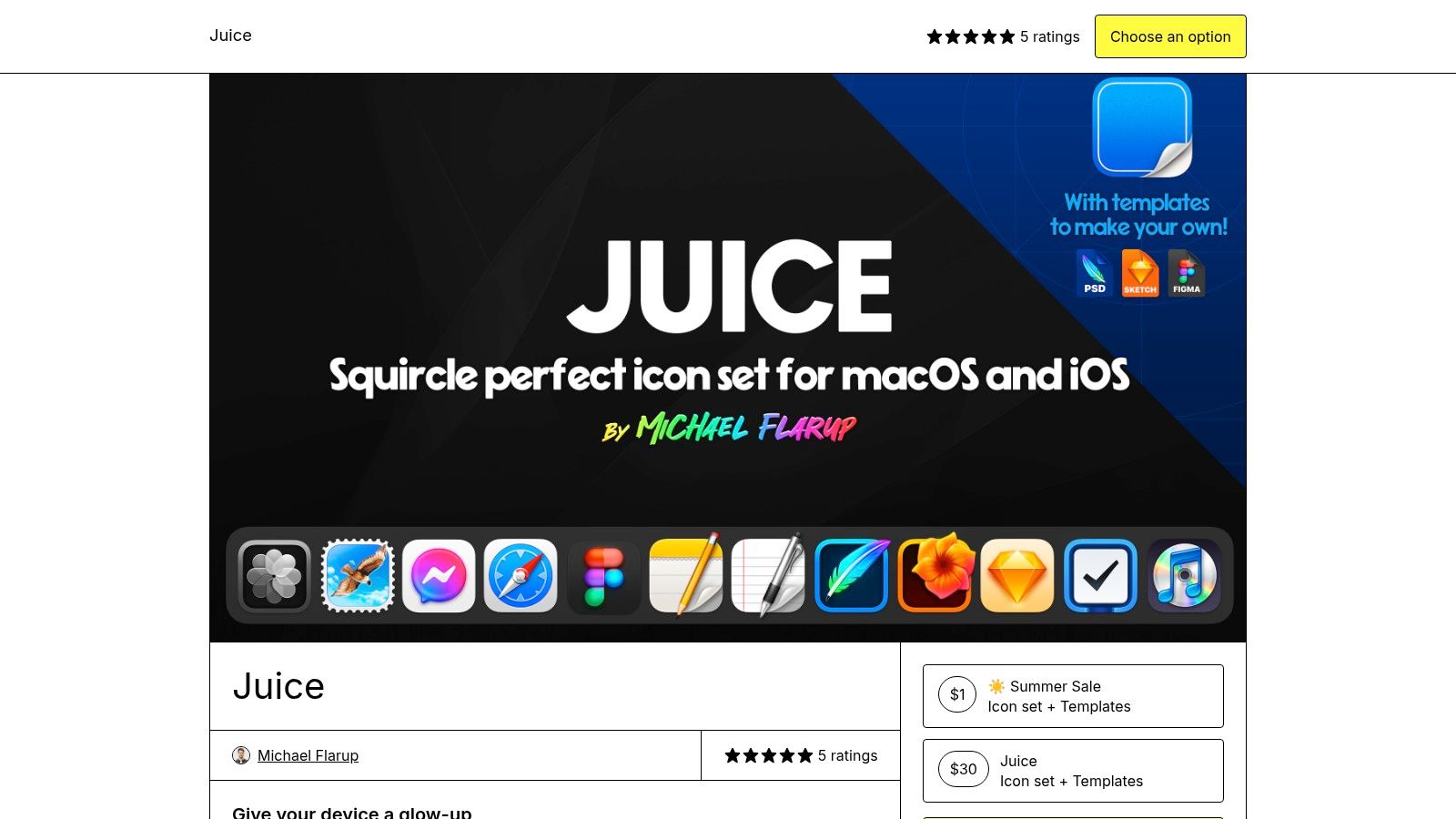
Juice by Pixelresort is a professionally designed app-icon pack by Michael Flarup. Its cohesive macOS squircle style is aimed at users who want popular apps to feel visually aligned in the Dock, rather than users looking for a complete Finder folder system.
The download includes ICNS files for macOS and high-resolution PNG assets for iOS. Native ICNS files make it a natural option for Mac app customization, while the iOS assets may appeal to people who want their devices to share a related look. The finished designs are the draw here: you're buying a coordinated art direction rather than a searchable catalog of individual icons.
Verify the coverage before buying
Juice is focused on apps, not Finder folders. Check the current app coverage list before purchasing, especially if you want to change a particular Dock favorite. The pack is paid, with creator-set pricing, so its value depends on whether it covers the apps you use and whether you want to replace their existing identities.
For folder-specific instructions, see Tintd's guide on how to customize folder icons. Juice is the more relevant option if your goal is a polished Dock or app-icon set. If you're organizing a crowded Finder window, choose a folder pack or a tool that adds meaningful folder overlays instead. One product category doesn't substitute for the other.
9. Obsidian Glyphs
Obsidian Glyphs combines Mac app icons with custom folder icons in a dark, embossed style. That makes it a more unified option than an app-only pack if you want your Finder folders and applications to share the same subdued visual treatment.
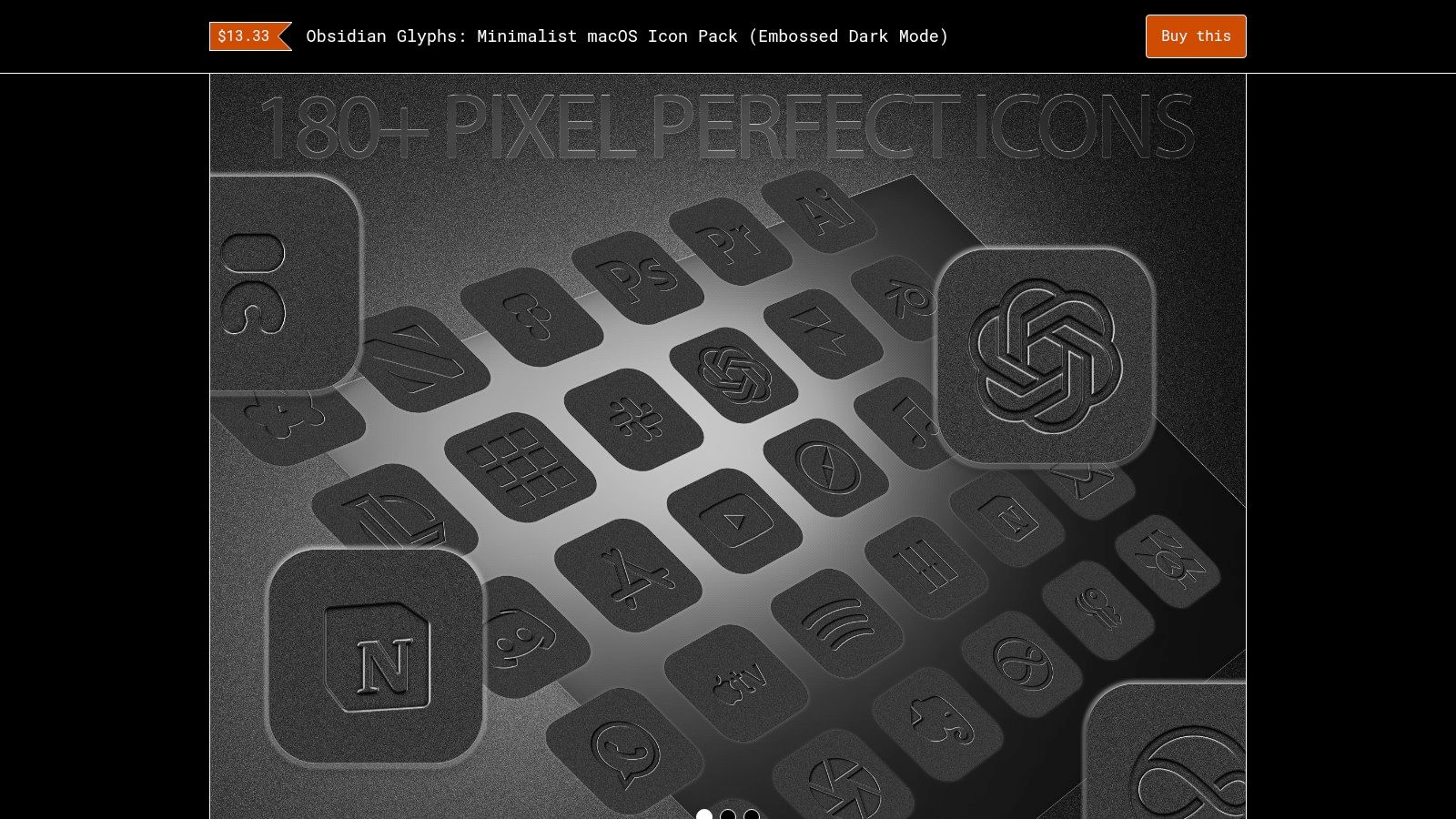
The listing includes ICNS files for macOS, 18 custom folder icons, and wallpapers. The monochrome look can suit a dark desktop, a minimal Dock, or a setup where bright folder colors would compete with the work on screen. Because the design is deliberately restrained, the symbols may be less effective if you depend on color to distinguish project categories.
A specific style, with specific limits
The pack is a paid download with creator-set pricing. Review the current app and folder coverage before buying, since a coordinated style only helps if it includes the icons you'll use. Also consider whether the embossed treatment remains recognizable at the sizes you use in Finder. If similar symbols appear too alike at a glance, their visual consistency may come at the expense of quick identification.
Obsidian Glyphs is a good fit for someone who wants a complete dark aesthetic across apps and folders. It isn't the flexible choice for a colorful workspace, and it doesn't provide the breadth of a searchable marketplace. Treat the included folder icons as a curated set, then keep folder names and Finder tags as the reliable way to identify and search for content.
10. Onyx Icon Pack
Onyx Icon Pack is another dark visual system, this time designed for a high-contrast black aesthetic across macOS customization. It includes ICNS, ICO, and PNG files, which gives users options for Mac workflows as well as other uses supported by the supplied formats.
The native ICNS files are the most relevant for a Mac user changing app or folder icons. Multiple formats are helpful if you also use assets elsewhere, but format variety doesn't tell you whether the pack covers your specific apps or folder categories. Check the listing's coverage and icon quantity before purchasing.
Choose it for consistency, not range
Onyx is a paid download with creator-set pricing, and its dark-only style offers limited color variation. That can create a strong visual match with a dark wallpaper and Dock, but it's not a natural fit if you use color coding to separate clients, classes, or research topics. A repeated black treatment can make a workspace feel coordinated while making neighboring folders harder to distinguish.
Use it as a deliberate aesthetic choice, not as a replacement for naming or search. For broader Finder organization advice, Tintd's guide to Mac folder organization covers visual styling alongside folder structure. Onyx suits users who value a unified dark look and have checked that the supplied icons cover their needs. If your priority is meaningful Finder navigation, choose a set with clearly distinct symbols or colors.
Top 10 Mac Icon Resources: Feature Comparison
| Tool | Core offering | Finder workflow & customization | Library / standout feature | Best suited for | Price & value |
|---|---|---|---|---|---|
| Tintd | Folder icon and color styling app | ★ Smart suggestions, batch editing, Finder menu, folder watcher, restore defaults | ✨ 11,000+ icons/emojis; offline, on-device, 11-language matching | 👥 Users organizing many folders who value privacy and consistency | 💰 One-time purchase; no subscription |
| macOSicons | Community icon library | Download icons and apply manually | ✨ 30,000+ searchable macOS-style icons | 👥 Users seeking broad app and folder coverage | 💰 Free; optional donations |
| The Iconfactory Freeware Icon Sets | Curated downloadable icon sets | Manual Finder customization; Mac-friendly formats | ✨ Distinctive classic, themed, folder, and seasonal designs | 👥 Users seeking art-led or nostalgic styles | 💰 Many sets free |
| The Noun Project for Mac | Icon search and customization app | ★ Drag-and-drop SVG, PNG, and PDF exports; color controls | ✨ Millions of icons for niche concepts | 👥 Users creating custom overlays and icon sets | 💰 100 free icons; subscription for full library |
| IconScout Desktop App for Mac | Marketplace for icons and design assets | Customize and export assets for manual folder use | ✨ Millions of icons, plus 3D, Lottie, and illustrations | 👥 Designers and teams needing varied assets | 💰 App free; paid assets or plans |
| Icons8 | Large, style-consistent icon catalog | Download assets and assemble folder icons manually | ✨ PNG/SVG formats; bulk and API options | 👥 Users building consistent visual systems | 💰 Free small PNGs with attribution; paid plans |
| Tidewater by GoMain | Themed macOS folder icon packs | ★ Bulk application, Finder extension, ICNS export | ✨ 100+ packs with 14 matching icons each | 👥 Users wanting ready-made coordinated folder themes | 💰 Some packs free; subscription for all packs |
| macOS Colored Folders, 56 ICNS Pack | Colored folder icon collection | Manual ICNS replacement in Finder | ✨ 56 coordinated colored folders | 👥 Users who want simple color-coded folders | 💰 Price and license vary by listing |
| Juice by Pixelresort | Premium app icon pack | Manual ICNS application; not folder-focused | ✨ Polished, cohesive macOS squircle style | 👥 Users refreshing popular app icons | 💰 Paid download; creator-set price |
| Obsidian Glyphs | Dark-themed app and folder icon pack | Manual ICNS application | ✨ Embossed monochrome look; includes 18 folder icons | 👥 Users seeking a subdued dark-mode aesthetic | 💰 Paid download; creator-set price |
| Onyx Icon Pack | Dark macOS icon pack | Manual use of ICNS, ICO, or PNG files | ✨ High-contrast, coordinated dark style | 👥 Users styling apps and folders around a dark theme | 💰 Paid download; creator-set price |
Build a Finder System That Stays Consistent
A folder pack can make Finder easier to scan, but installing a set is only the start. Pick a core visual style, then reserve the most distinctive icons for folders you open often, active client work, current research, or high-volume creative projects. If every directory gets an unrelated symbol, visual novelty can make the hierarchy harder to learn rather than easier.
Give each cue a job. Use icons for rapid visual recognition, Finder tags for filtering across locations, and descriptive folder names for dependable search. Apple supports applying tags to files and folders, and tags can carry multiple labels, so they can complement a folder hierarchy instead of competing with it. A custom icon is a local visual cue, not a searchable taxonomy.
That distinction matters when you move between Finder, Spotlight, the Dock, aliases, and iCloud Drive. Independent macOS coverage reports that custom folder icons may appear in Finder views and searches while remaining the default blue in Spotlight results, the Dock, or some aliases. Custom icons stored in iCloud Drive may also appear only on the Mac that created them, rather than on other Macs or devices. Keep essential categories in names and tags, and treat the icon as an aid where it's displayed.
For system folders, check compatibility before planning a complete redesign. Apple's documentation notes that some system folders, including Applications, Library, System, and Users, can't be customized. A tool can make regular project folders easier to style, but it doesn't remove that system limitation.
Tintd is one option for applying a consistent folder style without preparing each icon manually. It offers more than 11,000 icons and emojis, custom colors, Smart Icon and Smart Color suggestions based on folder names and nearby folders, batch editing, and Folder Watcher for styling new folders in selected locations. Its processing happens on-device, without cloud or AI calls, and it includes one-click restoration to standard macOS folder icons.
The most useful setup is the one you can maintain. Choose a small set of visual rules, apply them to folders where quick recognition matters, and keep names and tags clear enough to work when the icon isn't visible. Try a pack on a handful of folders first, then expand the system only if it improves your everyday Finder workflow.
Tintd lets you apply custom icons and colors to Finder folders manually or in batches, with suggestions and Folder Watcher for new folders. If you want a local way to build a consistent Mac folder system, visit Tintd to explore its features.