
A project folder can become part of how you find your work. A blue folder might mean an active client, a green one archived jobs, and a distinctive image the project you need at a glance. Then Finder shows the same default folders everywhere, or a macOS update resets a custom icon you'd been relying on.
A Mac icon changer can mean a built-in Finder feature or a dedicated app. The right choice depends on how many folders you're styling, how much control you need, and whether you have a way to restore your setup later.
Three Ways to Change a Mac Folder Icon
macOS lets you customize folders without installing anything: use Finder's Get Info panel to paste an image, or use its folder-customization controls for a color and symbol.
| Method | Best for | Scale | Cost |
|---|---|---|---|
| Get Info paste | One or two folders with your own artwork | One folder at a time | Free, built into macOS |
| Finder folder customization | Quick color and symbol changes on a few folders | One folder at a time | Free, built into macOS |
| Icon app such as Tintd | Dozens of folders, recurring setups, automatic styling | Batches and folder watcher | Usually paid |
Apple's instructions for customizing folders and files describe both the familiar Get Info workflow and newer controls for folder colors, symbols, or emoji. In Get Info, you select an individual folder or file and apply a new icon. That makes Finder a good fit for occasional changes, but repeated work still means repeating the process.
Get Info paste is the flexible choice when you have specific artwork, such as a client logo or a project image. Finder's built-in folder controls are quicker when a color or symbol is enough. Dedicated apps can add icon libraries, batch editing, and automatic styling, which matters when you want the same system to handle new folders as well as existing ones.
Styling five client folders by hand is a small job. Styling sixty means a long run of similar clicks, and a mistake is easier to make when every folder looks nearly the same before you change it. That's the point where batching starts to earn its place. If you're deciding whether to use a Mac icon pack, consider whether you want ready-made symbols, your own image, or just a quick color distinction.
Start by counting the folders you plan to change. A few folders suit Finder; a large project tree calls for a batch workflow that can preserve a consistent visual system.
Which Folders macOS Lets You Customize
Folder icons work as spatial memory: the shape and color you spot before you read a name is what gets you to the right place without thinking. That only helps if the folder accepts a change in the first place, so sort your targets before you start styling.
Protected system locations resist the normal customization workflow. Your Home folder and folders your account can write to are the practical targets for personal styling and project organization.
| Location | Icon can be changed? |
|---|---|
| Home folder | Yes |
| Your own folders, such as Documents or project folders | Yes |
| Applications | Typically cannot be changed |
| Library | Typically cannot be changed |
| System | Typically cannot be changed |
| Users | Typically cannot be changed |
macOS reserves those directories for the operating system and shared account data, so a bulk tool should skip them instead of treating them like ordinary folders and failing partway through a batch.
Say you want a bright icon on Library so you can spot it quickly. Leave it alone. Put the material you organize yourself in a folder you own inside Home, then customize that folder while Library stays untouched. Keeping your own folders visually distinct also makes it easier to organize digital files on a Mac without depending on changes to system locations.
A folder you own can still reject an icon if your account lacks write access. In Finder, select the folder, open Get Info, and look under Sharing & Permissions to confirm your account can write to it. Fix the permission first, then apply the icon again.
Before starting a batch, split targets into two groups: folders you own and can write to, and protected locations to leave alone. That check keeps unsupported targets from interrupting an otherwise clean setup, and it keeps your icon system stable when you rearrange or update folders later.
How to Change a Folder Icon Step by Step
The manual method works by copying the image's contents in Preview, then pasting them onto the folder's small icon in Finder's Get Info window. Copying the file itself isn't the same thing, and can leave you with a generic JPEG or PNG thumbnail instead of the image you wanted, as Apple's folder-icon instructions explain.
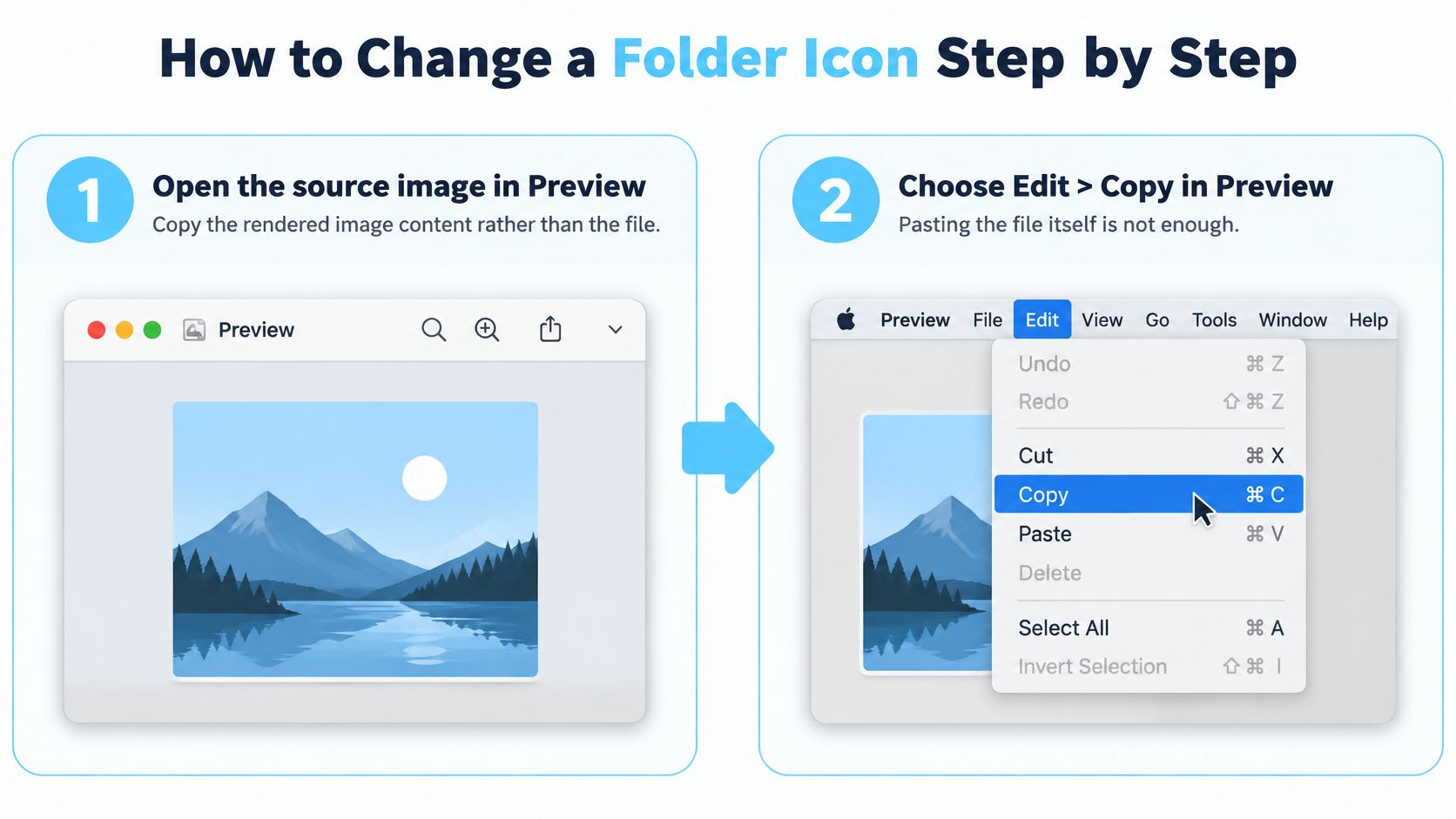
Open the source image in Preview. Find the artwork you want to use and open it in Preview. This gives you the rendered image content to copy, rather than the file object in Finder.
Choose Edit > Copy in Preview. Use the menu to copy the image. If you copy the image file in Finder instead, the clipboard may contain the file itself, which is a common reason the wrong thumbnail appears.
Select the folder in Finder and open Get Info. Click the target folder, then press Command-I. Check the folder name in the window so you know you're applying the icon to the right item.
Click the small icon at the top-left of the Info window. Select the little folder icon near the window's title area. Clicking the folder name can put it into rename mode, so make sure the icon itself is selected.
Press Command-V. The folder icon should change as soon as you paste. If nothing happens, check that you selected the small icon in Get Info and copied the image in Preview.
Close Get Info and check Finder. Look at the folder in the view you normally use, including list or icon view. A successful change should be easy to distinguish at the size Finder displays, not just in a large preview.
For example, open a briefcase image in Preview and copy it, then paste it onto a folder named Client Work. That visual cue can help you pick the folder out of a group, while the name still tells you what it contains.
To undo the change, open Get Info, select the small icon, and delete it to restore the default. If your macOS version offers a folder-customization option for colors and symbols, use that for simple color-coding instead of preparing an image. The image method is best when you need a specific piece of artwork.
Using Apps to Batch Change Many Folders
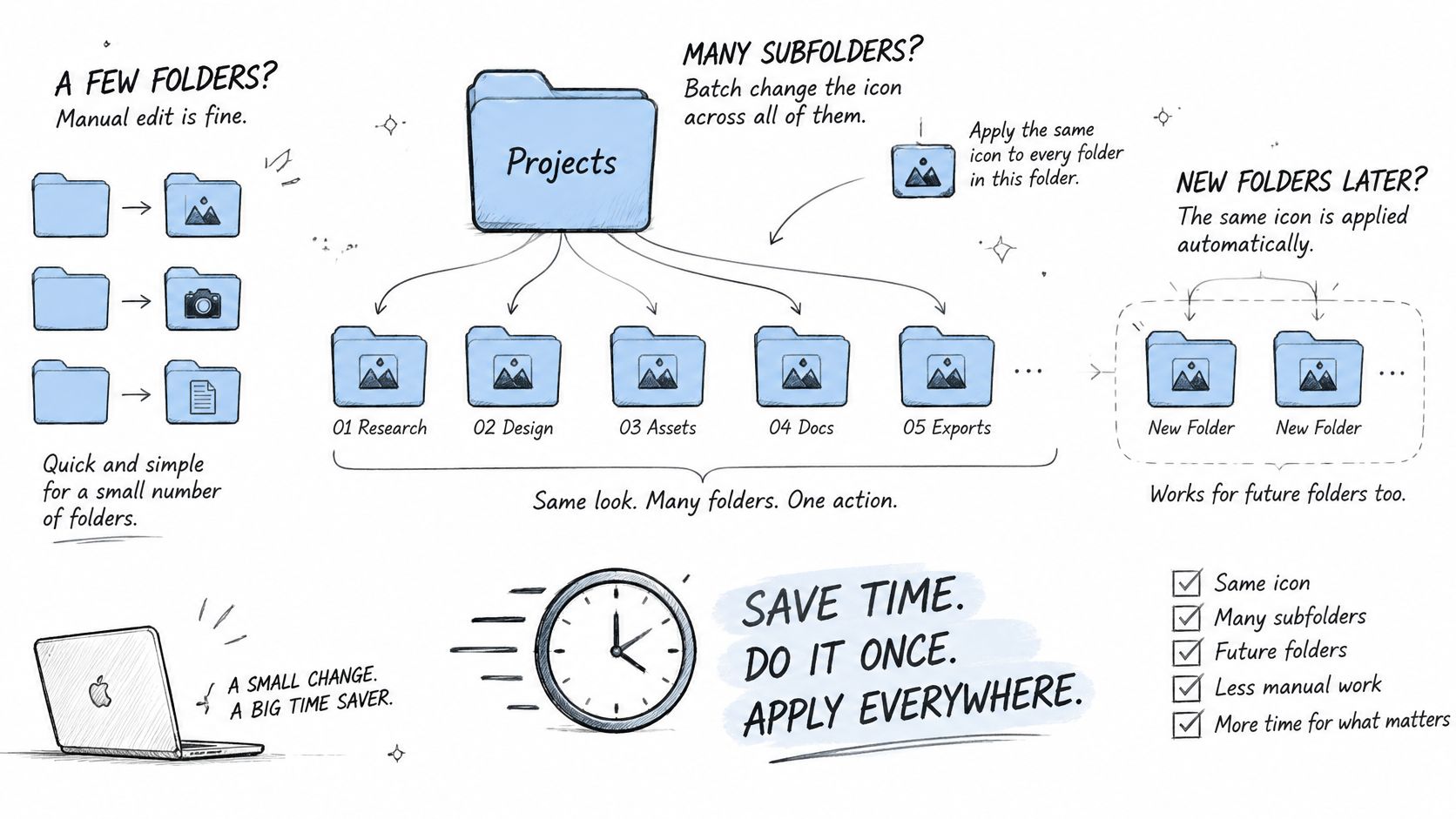
Manual changes make sense for a few folders. A parent folder with dozens of projects, or a system where you create new folders regularly, is a better fit for batching. An app such as Tintd adds a Finder right-click route for individual folders, along with batch tools and a Folder Watcher for chosen locations.
A tidy batch starts with a clear rule for what each appearance means. Apply different colors or icons to groups you can name, such as active client work and archived projects, instead of giving every folder the same look.
Choose a parent folder. Start with a location such as Projects, then select only folders you intend to style. Keep system locations and folders you don't own out of the selection.
Select several folders and apply a style in one action. This is the main time-saver: several folders can receive a color and icon together. Use a shared look only when the folders belong to the same recognizable group.
Assign different looks to different groups. For example, choose one style for active clients and another for archived work. Those visual distinctions are useful only if each style keeps a consistent meaning.
Enable Folder Watcher for the parent if you want new folders styled automatically. It detects each new folder created in selected locations and applies a matching color and icon based on its name. That can keep a recurring project structure from drifting as new work arrives.
Test the setup on a throwaway folder first. Apply the rule, check Finder's display, then restart the Mac and confirm the icon still appears before rolling the style out to important folders.
Folder Watcher needs the macOS access it requests to work in selected locations. Manual folder colorizing doesn't require Full Disk Access. Grant only the access needed for the task, and test the result before expanding to a larger tree.
There's a real trade-off: one icon applied across dozens of unrelated folders can erase the visual distinctions you wanted. Keep groups small enough that each color or symbol remains meaningful. I'd start with three folders, check them after a restart, and only then expand the batch. For a single folder, the Finder right-click menu can be the quicker route.
Fixing Icons That Revert or Look Wrong
A generic JPEG or PNG thumbnail usually means you copied the image file instead of its rendered contents. Reopen the picture in Preview, choose Edit > Copy, then paste it onto the small icon in Get Info. That's the first fix to try before changing permissions or repeating the whole setup.
| Symptom | Likely cause | Fix |
|---|---|---|
| Generic JPEG or PNG thumbnail appears | The image file was copied instead of its rendered content | Reopen the image in Preview, use Edit > Copy, and paste again in Get Info |
| Icon reverts after a macOS update | Updates and Finder refreshes can reset folder icon metadata | Reapply the icon from your list or the app's history |
| Custom icon shows as a generic folder on an alias | Alias presentation differs from the original folder | Apply the icon to the original folder, not the alias |
| Icon missing on a second Mac | Custom icons are stored locally on each Mac | Set up the icon again on each machine |
| New icon does not appear | Finder has not refreshed the display | Option-click the Finder icon in the Dock, choose Relaunch, then check again |
Icons can also revert after an update or Finder refresh, and an alias may display as a generic folder even when the original folder has a custom icon. Apple's guidance on applying and restoring folder icons explains the basic customization workflow but doesn't cover how those icons behave across updates, external volumes, aliases, or large folder trees. The practical distinction is that the icon belongs to the original folder; the alias may present it differently. Apply the icon to the original rather than relying on the alias display.
Custom icons are stored locally on each Mac. If you use more than one Mac, plan to set them up separately on each one. And if Finder hasn't refreshed, Option-click its Dock icon, choose Relaunch, then check the folder again.
Keep a recovery record
Don't make your visual organization depend on memory. Once a month, and before a major macOS update, keep a plain-text or spreadsheet record with the full folder path, the source image file, and the date applied. To detect a reset, compare the list with the folders in Finder or open Get Info on the items that matter most.
Restore priority folders first, especially the ones you use as visual landmarks in daily navigation. Reapply each icon from its recorded source image using Preview and Get Info. If you use an app with icon history, previously applied styles can be quicker to restore; any customized folder can also be returned to the standard macOS Finder icon with one click.
A reset isn't the only reason a Mac can become harder to use. If the problem extends to startup rather than folder appearance, this guide to troubleshoot a Mac that won't start covers a different set of checks. Keep that situation separate from icon troubleshooting so you don't mistake a Finder display issue for a startup problem.
Privacy Facts Before You Install an Icon App
Changing a folder's color or icon is cosmetic; it doesn't alter the files or subfolders inside. The more sensitive question is what the app reads to suggest a style. Folder names can reveal client, project, or research details, so name-based suggestions deserve a closer look than a simple manual color change.
Tintd's icon and color suggestions run locally on your Mac. Folder names don't leave the device, and the app doesn't call an AI service. That's a specific approach to name-based suggestions, but it's still sensible to review an app's privacy policy and permissions before installing it. For a comparison of the kinds of options available, see this guide to a folder color app for Mac.
Use this checklist before you grant access:
- Read the privacy policy. Check what it says about folder names, usage data, and whether information leaves your Mac.
- Review requested permissions. Make sure each permission makes sense for the feature you want to use.
- Watch what's visible when sharing your screen. Close Finder windows that show sensitive client or project names before a call or recording.
- Keep a local record of your choices. A folder-to-icon list gives you a way to rebuild the visual system after a reset.
The trade-off is straightforward: automation can reduce repetitive styling, but it may need to read folder names to choose a matching icon. Choose the method that gives you the convenience you need without sharing more of your folder structure than you're comfortable with.
Set Up Your First Icon Rule This Week
Choose one parent folder with several subfolders, such as Projects, and use the Get Info method to customize one folder. Restart your Mac, then check whether the icon is still there. If it is, extend the style by hand for a few folders or batch-apply it if you have a larger group.
Before styling anything else, record each folder's full path and the image you used. The test passes when the icon survives a restart and your record makes it possible to restore a missing style; it fails if the icon never appeared or has reverted. In that case, use the matching symptom in the troubleshooting table to choose what to try first.
If you use Tintd, the app keeps every icon you've made in its history, so a previous style stays one click away. Tintd is available on the Mac App Store. Record the result in your folder list so the next update starts with a known setup, not a reconstruction from memory.
Tintd offers batch folder styling, automatic matching for new folders, and a local history for reusing icons, all designed for Finder-based organization. If you're ready to turn a visual system into a repeatable workflow, visit Tintd and see whether it fits the way you organize your Mac.