
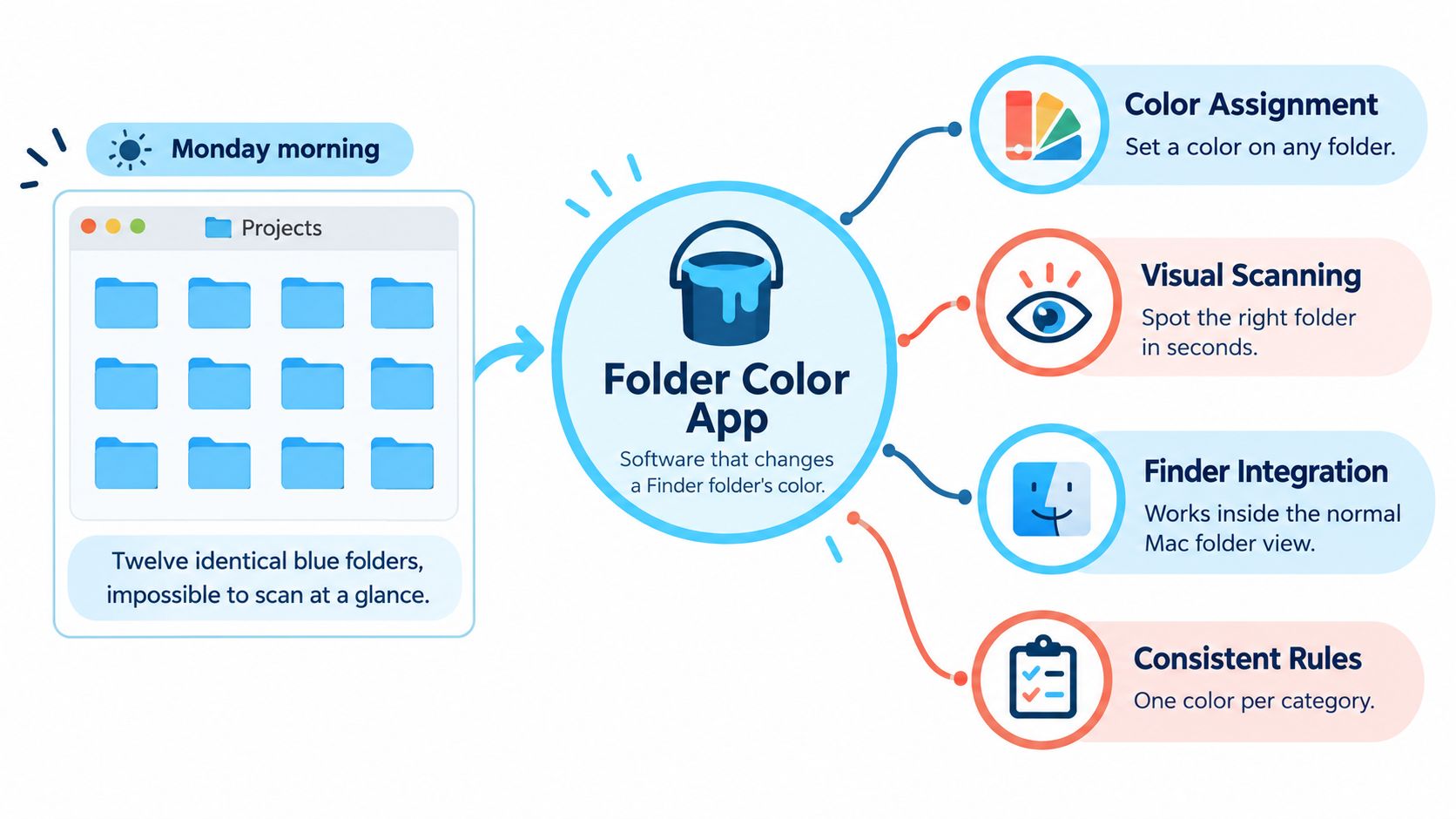
It's Monday morning, and your Projects folder is a grid of identical blue folders. Say there are twelve of them: current clients, paused work, an export you need to send, and something you should have archived. You know the folder names, but you still read each one to find the right project.
A folder color app can make that scan easier. The useful question isn't how many colors it offers, though. It's whether you can apply a readable system, undo it safely, and recover when syncing or switching Macs strips away the styling.
What a Folder Color App Does on a Mac
A folder color app changes a Finder folder's color, symbol, emoji, or image without renaming or moving the folder. Dedicated utilities add bulk controls and automation, so you're not rebuilding the same look for every project.
The distinction between appearance and organization matters. Finder tags are the label on a filing cabinet drawer; folder color is the colored tab that helps your eye find the drawer before you read the label. Keep descriptive names and searchable tags, then use styling as another navigation cue.
Start with Finder's built-in controls
Apple's folder-customization guide describes selecting a folder, choosing Customise Folder, and picking a colored circle, symbol, or emoji; it also explains custom image replacement through Get Info and identifies protected locations including Applications, Library, System, and Users.
For image replacement, copy the image, open the folder's Get Info window, select the small icon at the top, and paste. These are item-by-item workflows, and the controls available on your Mac depend on its macOS version. Don't install a utility until you've tried the native option on an ordinary folder you own.
The useful relationship between styling and everyday Finder navigation looks like this.
Pay for less repetition, not more decoration
Consider a hypothetical archive of 120 client folders. If each manual change takes about 20 seconds, that's roughly 40 minutes before correcting mistakes. The point isn't a promised speed improvement. It's that repeated interactions become the main cost.
Batch application, rules for new folders, and consistent treatment of sibling folders are the meaningful upgrades. Tintd reads a folder's name and picks an icon and color that fit it, making the starting point a suggestion rather than an empty menu.
For photographers, keep the visual system aligned with the editing pipeline. RevelRaw's guide to RAW photo editing software for Mac is useful when deciding which working, source, and export folders your editing tools really need.
Feature Checklist for Comparing Folder Color Apps
Compare apps against the same scorecard rather than their most attractive screenshots. Use 0 for missing, 1 for partial, and 2 for works as described as your own evaluation scale. A feature deserves full credit only when it works on your folders, with your permissions and storage locations.
Start with batch editing and subfolder scope. A beautiful icon library won't compensate for opening every folder individually, and an uncontrolled recursive operation can decorate an entire project tree unintentionally.
Folder color app features, what good looks like and how to test them
Treat each quick test as a short hands-on trial, not a vendor performance benchmark.
| Feature | What good looks like | Why it matters | Quick test |
|---|---|---|---|
| Batch editing | Select many folders and apply a color or icon in one action | Replaces repetitive manual changes | Select a sample group, apply a color, and time the action |
| Subfolder scope | You choose whether changes reach nested folders | Prevents accidental styling deep in a tree | Apply to a parent and inspect its children |
| Icon and emoji library | A searchable library returns relevant icons and emojis | Covers real folder names, not just broad categories | Search your common folder names and record useful matches |
| Finder integration | A right-click action starts icon assignment | Keeps work close to Finder | Try the context menu on unrelated folders |
| Auto-apply rules | New folders in chosen locations receive styling | Avoids recurring setup work | Create a folder in a watched location |
| Smart suggestions | Names and neighboring folders inform suggestions | Helps maintain visual consistency | Compare suggestions across sibling folders |
| On-device processing | Names are analyzed locally without cloud calls | Protects sensitive directory labels | Read the privacy policy and monitor test-session network activity |
| Permission scope | Full Disk Access is tied to features that need it | Avoids granting broad access unnecessarily | Record which actions trigger permission prompts |
| One-click revert | The original macOS folder icon returns | Makes experimentation reversible | Style a disposable folder, then restore it |
| Mixed-language names | Names in different languages produce useful matches | Supports multilingual archives | Test a folder named in another language you use |
| Custom image import | A logo or image becomes the folder icon | Supports recognizable client folders | Import a logo and inspect it in Icon view |
Judge the workflow, not just the total
I'd treat an app missing three or more of these capabilities as a novelty for a demanding workflow. That's a buying rule, not an industry benchmark. Weight your essentials more heavily: a manual-only user may not need a watcher, but reliable restoration should never be optional.
A right-click launcher also isn't necessarily a complete in-menu editor. Check whether the action opens an app window, whether your selection survives, and whether you can finish without selecting the folders again.
Folder styling won't replace task ownership or deadlines. Tuff's guide to scheduling client projects without per-user costs addresses that separate problem, while our guide to Mac organization apps helps distinguish visual tools from search, cleanup, and file-management utilities.
Privacy, Permissions and Icon Libraries to Check
A folder named Smith Divorce reveals sensitive context before anyone opens a document. Acquisition Target and Patient Records do the same. Folder names deserve the same care as other business metadata, even when a utility never reads file contents.
A cloud-based suggestion system may need to transmit those names for processing. A local design can match them without that transfer. Don't assume an app is local because it feels fast or continues displaying previously generated icons while offline.
Separate suggestions from permissions
Tintd's icon and color suggestions run locally on your Mac, folder names never leave the device, and we don't call any AI service. That answers the processing question directly; it doesn't mean you should ignore the permissions a feature requests.
Manual colorizing doesn't require Full Disk Access. The folder watcher needs that permission to detect new folders in chosen locations as they appear, so enable it only if automatic styling is part of your workflow. If you only want occasional manual changes, there's no reason to enable the watcher for convenience.
Broad access should support a feature you deliberately use, not become an installation habit.
On a managed work Mac, follow your organization's software policy. Don't change ownership, weaken security settings, or work around an administrator's restrictions just to recolor a folder.
Search quality matters more than catalog size
Our Smart Icon feature matches folder names against a library of more than 11,000 icons and emojis. The useful test is whether it finds a recognizable mark for your actual names, including abbreviations, mixed languages, and messy inherited labels.
Try a deliberately awkward sample: Client Assets OLD, Lecture Notes, Render Queue, and a project named in another language. A sensible result should remain recognizable when displayed small. An elaborate illustration that needs a large preview isn't necessarily a useful Finder icon.
Ask any other vendor these questions before granting access:
- Processing location: Are folder names analyzed on the Mac, sent elsewhere, or handled differently by different features?
- Logging and analytics: Can folder names appear in diagnostics, crash reports, or usage analytics?
- Permission mapping: Which specific features require broader access, and can you leave those features disabled?
A network monitor can help check observed behavior, but a quiet test session isn't proof of a complete privacy policy.
Recommended Folder Color Workflows by Role
A growing client archive becomes tedious when every new project requires another round of manual styling. Batch selection solves the repeated action: in our app, you can select several folders and give them a color and icon together.
You can also randomize colors across a selection while applying the same icon to all of them. That's useful for distinguishing unrelated folders without pretending their colors represent formal categories. Don't use randomization where people are expected to learn a stable color meaning.
Folder color workflow by role
These are workflow rules to configure and test, not assumptions that a watcher understands your entire project hierarchy automatically.
| Role | Typical folder pattern | Batch approach | Auto-apply rule |
|---|---|---|---|
| Designers and photographers | Client > Year > Project > Raw or Export | Use client colors and stage icons for Raw and Export | Watch the client location where new projects are created |
| Videographers | Project > Footage, Audio, Graphics, Delivery | Color by media type and distinguish delivery stages with icons | Watch Projects for new shoots; test nested media folders separately |
| Developers | Repositories > service > assets or docs | Color repository categories and leave generated output unstyled | Watch Repos while excluding bundles and build-output locations |
| Knowledge workers | Client > Quarter > Deliverables | Apply client colors and icons for deliverable types | Watch the client root where quarter folders appear |
| Students and researchers | Course > Semester > Readings or Assignments | Use course colors and assignment-type icons | Watch Courses and verify how new semester folders are handled |
Give each visual property a job
Use color for the stable category and an icon for the working stage or purpose. For client work, the category might be the client; inside a media project, it might be footage versus audio. Keep the interpretation consistent within each sibling group rather than forcing a universal scheme onto unrelated work.
A photographer's Raw and Export folders should be recognizable without opening them. A researcher's Readings and Assignments folders need a different vocabulary. Our digital file organization guide is useful for settling the underlying hierarchy before applying visual rules.
For a developer's Repos folder, color the repository folders you move through directly. Leave build outputs and low-value asset directories at their defaults unless you repeatedly need to identify them by sight. Generated folders can disappear and return, making cosmetic maintenance wasted effort.
Apple's Files and Finder documentation explains that Finder resolves directory icons differently when a directory is a bundle. Leave applications, frameworks, and other package-like folders alone unless you have a specific reason to customize them.
- Define the boundary: Write down the folder levels you intend to style.
- Exclude disposable material: Skip caches, dependencies, generated output, and temporary exports.
- Preserve exceptions: A manually chosen client logo shouldn't be casually overwritten by a broad batch operation.
The stopping point matters. Style the levels you move through, not every directory the software happens to create.
Where Custom Folder Icons Break Across Devices
A folder can look perfectly organized on your Mac and appear plain blue on a colleague's machine. That doesn't mean the project transfer failed. It means you treated a Finder presentation detail as though it were guaranteed shared content.
Changing a folder's icon or color is cosmetic and doesn't affect the files or subfolders inside it. The icon belongs to the presentation and metadata side of the workflow, not the project's actual deliverables.
Don't mistake customization for portable meaning
Apple's folder-customization guide explains how to change appearance, but it doesn't establish that those changes survive cloud synchronization or appear for collaborators. For our workflow, custom icons are stored locally on each Mac, so set up styling separately on every device.
Services such as iCloud Drive and Dropbox may ignore or reset custom icons. Don't promise a teammate that your visual system will follow the folder, even if a particular transfer appeared to preserve it during testing.
Folder icon persistence by scenario
| Scenario | Icon usually stays? | What to do |
|---|---|---|
| Same Mac, same folder | Yes | No action unless you notice a reset |
| Folder moved within the same disk | Usually yes | Inspect the icon after moving it |
| iCloud Drive synced to another Mac | May be ignored or reset | Reapply styling on the receiving Mac |
| Dropbox synced folder | May be ignored or reset | Check after sync, then rerun the styling workflow |
| Network volume or external disk | Not guaranteed across formats, servers, and Macs | Test an ordinary folder before relying on it |
| New Mac or clean macOS install | Don't assume local styling will return | Set up the app and reapply your rules |
| Shared with a collaborator | Don't expect your custom icons to appear | Keep meaning in names and agreed tags |
| Revert before handover | The default icon returns locally | Restore the default before preparing the handoff |
Keep a recovery recipe
Write the rule somewhere outside the styling app: which locations are watched, which categories receive which colors, and which folders are excluded. Keep the source files for imported icons too. Our guide to a Mac icon pack can help you choose a consistent set rather than collecting unrelated images.
After migration or a clean install, test a local folder first, then a synchronized folder. If styling resets only in the synchronized location, investigate that workflow before granting broader permissions or repeating a drive-wide operation.
A shared folder's name must explain what it contains even when every custom icon disappears.
Before handover, restore shared folders where a neutral appearance is preferable, confirm the contents are intact, and use explicit names for status. An alias or shortcut isn't proof that the destination's appearance will behave the same way on another Mac.
Accessibility and Color Systems That Stay Readable
More color doesn't automatically make folders easier to use. Similar hues, detailed overlays, and inconsistent symbols can leave you reading names more slowly than before. A useful system removes ambiguity rather than adding decoration.
Never make color the only carrier of meaning. People with color-vision deficiencies may have difficulty separating your chosen hues, and anyone can misread a small, low-contrast icon on a crowded display.
Build in another way to recognize meaning
Apple's Finder display guidance covers adjustable icon and text presentation, but it isn't a complete accessibility recipe for a folder taxonomy. Choose symbols, descriptive names, and consistent placement alongside color.
For example, use blue for client work, a circle symbol for active projects, and a check symbol for archived projects. Keep those stage symbols in the same position. If a category matters independently of stage, retain it in the folder name or a searchable tag rather than expecting the stage symbol to communicate both.
I'd start with a deliberately small palette of clearly separated hues. Add another only when you can explain its meaning without consulting a legend.
Check the view you actually use
Inspect the result in both Icon and List views, at your normal working size. A recognizable overlay in a large preview can become an indistinct mark in a compact list. Check dark mode too, especially for pale colors and thin outlines.
Our Smart Color and Smart Icon features consider neighboring colors and icons, choosing a color that fills a gap on the color wheel. That helps avoid near-duplicates, but color-wheel spacing doesn't guarantee accessible contrast or recognition.
- Run a grayscale check: View the folder set without color and confirm that symbols and names still communicate the categories you need.
- Favor bold shapes: Prefer simple, distinguishable marks over detailed images, particularly for low-vision use.
- Reduce clutter: Remove unnecessary overlays before increasing icon size or adding more colors.
The final test is practical: can someone identify the folder without first learning your entire palette?
Set Up Your First Folder Color Workflow
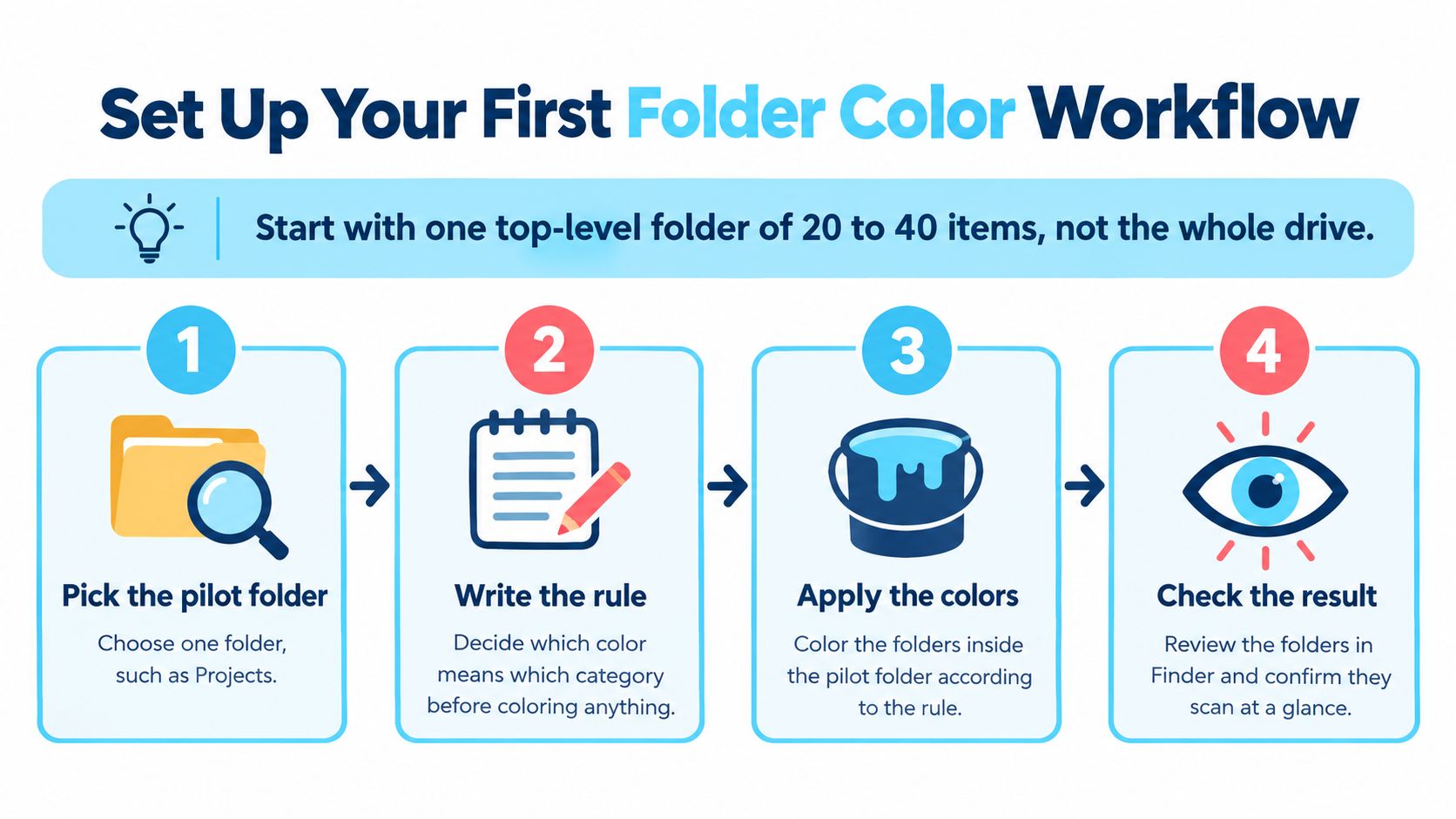
Start with a pilot, not your whole drive. For example, choose a top-level Projects folder containing 20 to 40 ordinary folders. That's a manageable test set, not a requirement or a claim about ideal folder counts.
Choose folders you own and can safely experiment with. Avoid system locations, production-critical shared roots, and directories whose permissions you don't understand.
This overview shows the basic sequence before you add automation.
Run a controlled pilot
Pick the pilot folder. Use a location such as Projects with recognizable names and a few meaningful categories. Keep unrelated archives and generated folders outside the selection so you can judge the result clearly.
Write the rule before styling. Use a sentence such as color equals category, icon equals stage, followed by the actual mappings. Include exclusions and decide which manually customized folders should remain untouched.
Test Finder access and restoration. Our app can be opened from Finder's right-click menu to set a folder icon. Apply a style to a disposable folder, then use the one-click restoration control and confirm the original macOS Finder icon returns.
Apply the pilot styles in batches. Select folders that share a category and apply their color and icon together. Inspect the selected paths before confirming, especially if you enable changes to subfolders.
Enable automation only where needed. Our Folder Watcher detects new folders in chosen locations and automatically assigns a matching color and icon based on their names. Grant Full Disk Access if you choose that feature, and watch the narrowest useful parent location.
Create a fresh test folder. Give it a realistic name and confirm that automatic styling happens promptly and matches your intent. If nothing changes, check the watched location, permission state, and whether the watcher is enabled before expanding access.
Validate your other Macs separately. Recreate the intended rules and run the same small test on each machine. Include a synchronized folder if that's part of your daily workflow, rather than testing only local storage.
For a visual walkthrough, use the video alongside your pilot rather than applying changes across your archive immediately.
Review before expanding
Give the pilot a normal working week as a practical trial. Look for near-identical colors, icons you repeatedly misread, and folders that lose styling after synchronization. Record exceptions instead of repeatedly correcting them without understanding the cause.
Check whether the system really reduces hesitation when opening folders. If you still read every name because the colors are arbitrary, simplify the mappings rather than adding more visual detail.
Expand only if the app passes your essential feature tests and the pilot behaves reliably. Add other user-created project locations in controlled batches; don't interpret success as a reason to style protected or package-like directories. If the workflow remains confusing or fragile, stop and choose a simpler setup or another app.
Tintd offers local icon and color suggestions, batch editing, and a Folder Watcher for building a consistent Finder workflow without sending folder names elsewhere. Visit Tintd to try a small project-folder pilot, test restoration, and decide whether automated styling fits the way you work.