
The best Mac organization app depends on your main bottleneck: choose Tintd for visual folder organization, Hazel for automatic filing, and DEVONthink 4 for searchable archives. If you're bouncing between folders, Downloads, and search results just to keep work moving, the right utility can remove a specific snag without asking you to rebuild your whole system.
Mac users don't all organize files the same way. A study of Macintosh users found distinct ephemeral, working, and archived information states, with people varying in how they nested folders and how they retrieved files. Many relied on navigating familiar locations before turning to search, which is why visual cues, reliable filing rules, and searchable archives solve different problems, not one universal problem (study of how Mac users find and file computer files).
This roundup compares seven apps by the Mac workflow they improve: visual navigation, automatic filing, knowledge management, advanced search, remote transfers, Open and Save dialogs, and temporary staging. Each has a different setup cost and permission profile, so start with the friction you feel. If you're also choosing a place to capture class notes, see this guide to AI note apps for students.
1. Tintd for Visual Folder Organization
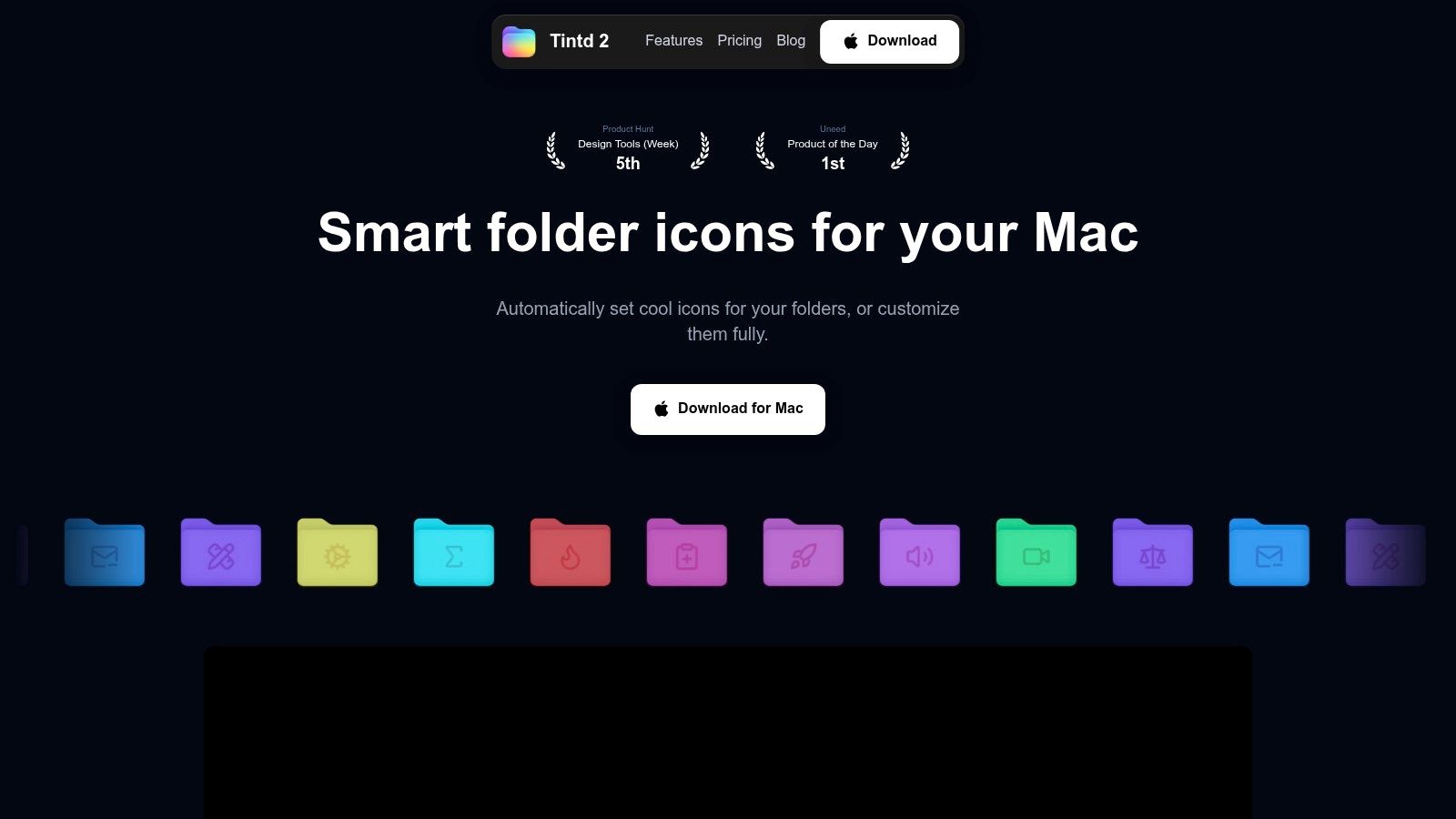
Open a crowded Finder window and the problem shows itself fast: every folder is the same blue shape, so you end up reading names instead of spotting locations. Tintd targets that specific snag. It applies custom colors and icons to folders, with Smart Icon and Smart Color suggestions based on folder names and neighboring folders, so a familiar project hierarchy becomes scannable without renaming anything.
The app ships with a library of more than 11,000 icons and emojis, plus custom image imports, detailed style controls, history, and bulk editing. Styles apply from Finder's right-click menu, and Folder Watcher can style new folders in locations you choose. It also reads folder names across 11 languages, which helps when client or research folders mix naming conventions. Related folders can share one look without hand-styling each one.
Where Tintd fits, and where it doesn't
Folder names are processed on-device, the app works offline, and there are no cloud dependencies or external AI calls. Experiments are reversible through a one-click restore.
The costs are real. Folder Watcher requires Full Disk Access, and customizations don't sync through iCloud, so a second Mac means recreating your styles by hand. If you work on one machine and rely on visual scanning more than search, that trade is cheap. If you split work across several Macs, factor in the duplicated setup.
Tintd is sold as a one-time purchase, currently $9.99 against a listed regular price of $49.99. Treat that figure as promotional, use the free trial first, and confirm the price on the Tintd website before buying. For context on how a utility like this fits a typical setup, the 2021 Mac Apps Report found an average of 31 installed apps, with roughly one-third used daily, and reported that security led users' considerations when choosing a new Mac app (2021 Mac Apps Report).
2. Hazel for Automatic Filing
Hazel is for the files that arrive predictably but land in the wrong place. Set rules for folders such as Downloads or Desktop, and Hazel can move, rename, tag, or color-label files when they match your conditions. It can also run scripts or Shortcuts, and it supports text recognition in PDFs.
The payoff is less manual cleanup. The trade-off is that rules need deliberate setup: decide what Hazel should match, what it should do, and what should happen when a file doesn't fit neatly. A rule that is too broad can create new clutter by filing something incorrectly, so start with a narrow folder and inspect the results before expanding automation.
Hazel runs locally and supports Apple Silicon and macOS Ventura or later. It may need permissions such as Full Disk Access to monitor and process selected locations. Version 6 adds support for reading encrypted PDFs. Pricing is a one-time $42 for a single user or $65 for a family, with a free trial available. See the Hazel website for current details.
Automation works best when the rule is easier to maintain than the habit it replaces. If you keep changing your filing logic, automation may add work instead of removing it.
3. DEVONthink 4 for Searchable Archives
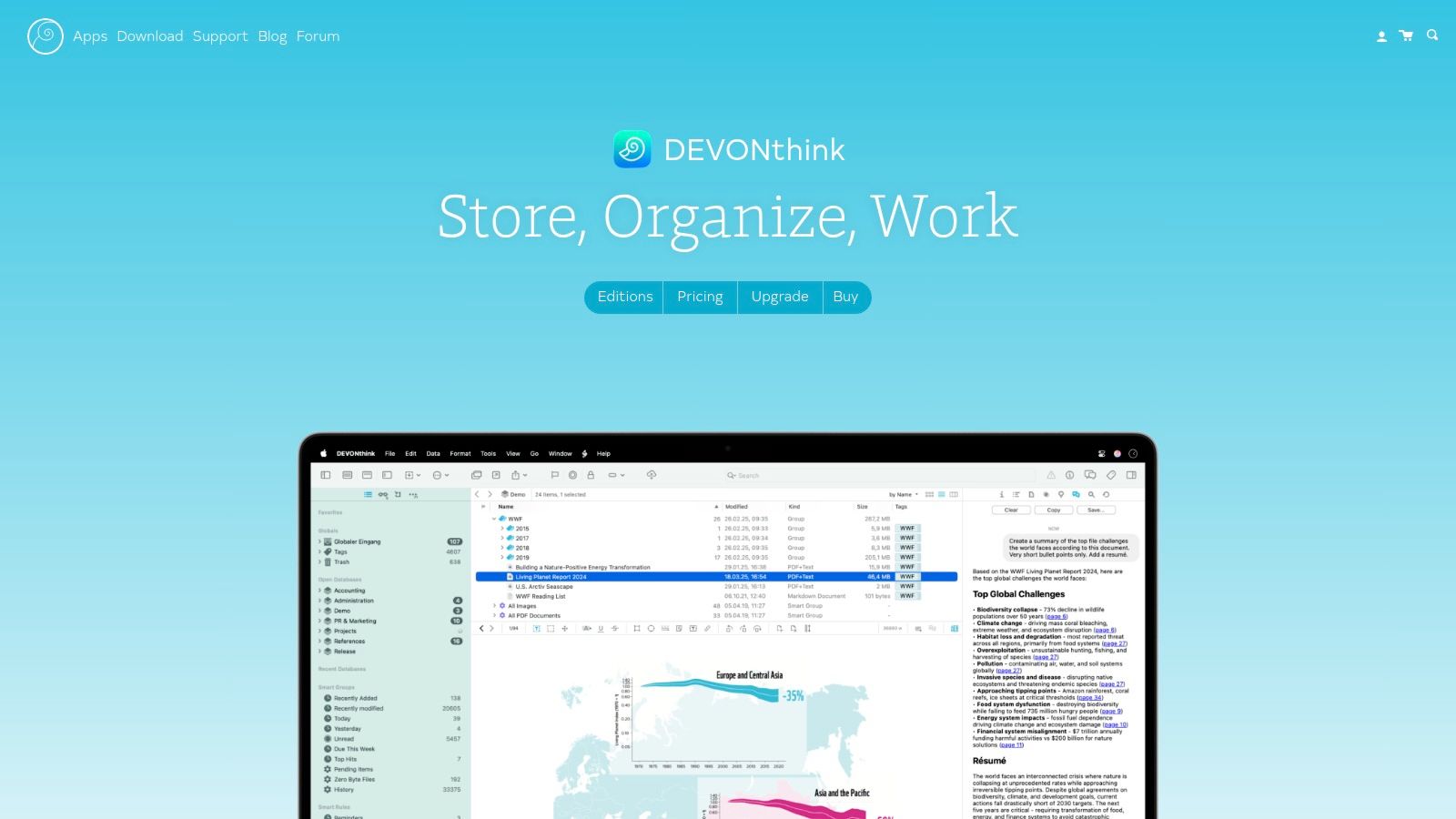
When Finder folders have turned into a long-term reference library, DEVONthink 4 offers more than basic filing. It brings PDFs, scans, notes, email, and other materials into databases with tags, smart groups, reminders, and versioning. OCR and advanced search help surface information inside documents, while scripting and smart rules can support repeatable workflows.
DEVONthink is designed for research collections, records, and personal knowledge bases that need to remain useful over time. It stores data locally, with optional encrypted sync. Pro adds AI-assisted discovery and categorization, while an optional mobile companion extends access; web access is available with the Server edition. That breadth is powerful, but it also means you'll need to learn how databases, groups, and automation fit together before the system feels natural.
Choose a tier around your workflow
The editions are Standard at $99, Pro at $199, and Server at $499. A free trial is available, and macOS Ventura or later is required. Review the DEVONthink 4 editions and features before choosing, especially if mobile access, web access, or AI-assisted features matter to you.
DEVONthink makes sense when you want a durable archive with multiple ways to find material. It is excessive if you need to keep Downloads tidy or distinguish project folders at a glance. For a wider set of Mac workflow ideas, browse more Mac app recommendations.
4. HoudahSpot 6 for Advanced Search
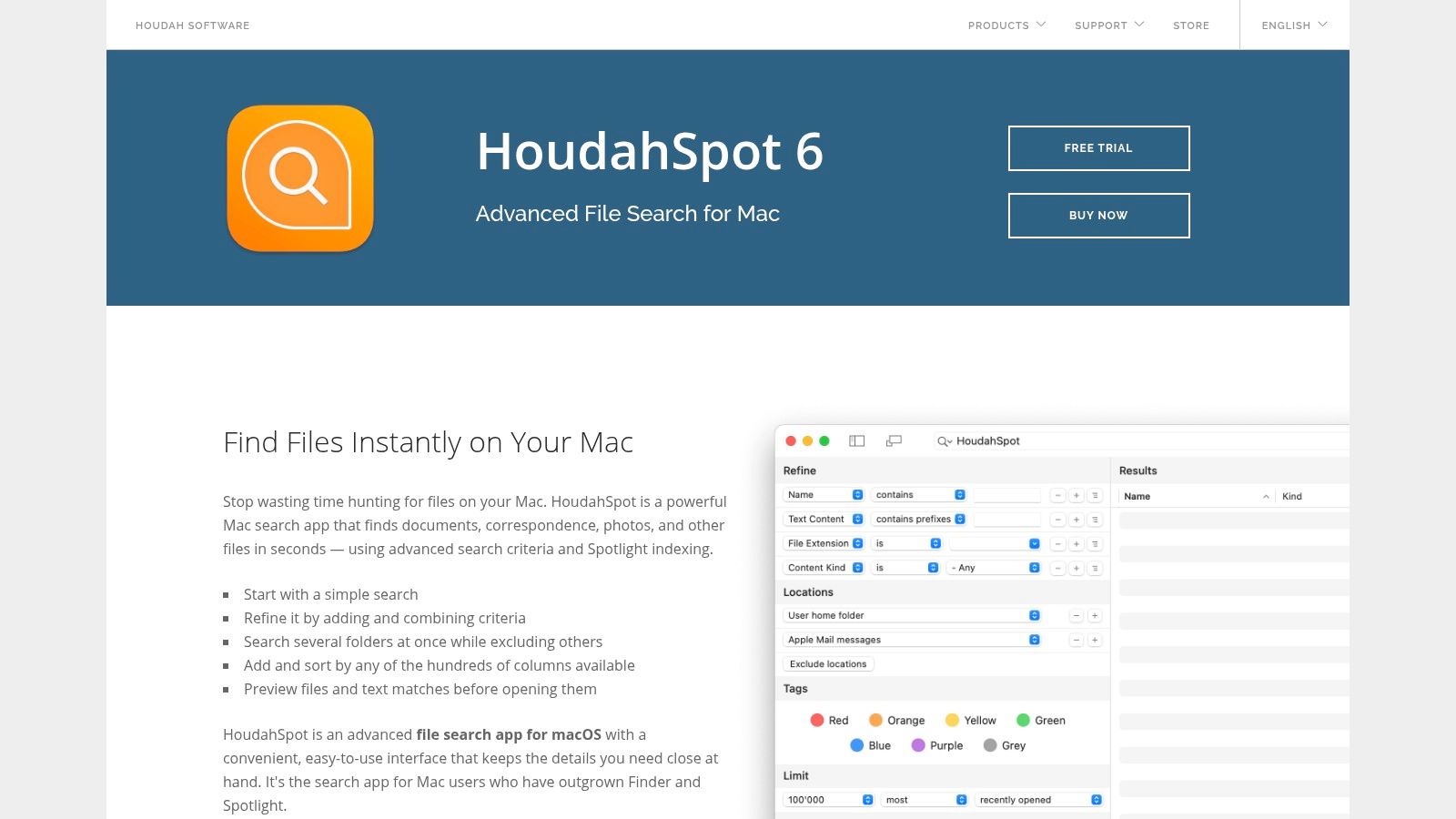
Finder search is fine when you know the filename or a simple keyword. HoudahSpot is more useful when the query needs several conditions, such as file type, date, size, tags, text, or image resolution. Its visual query builder lets you combine criteria without having to remember a search syntax, then save useful searches as reusable templates.
The app uses the existing Spotlight index, which keeps searches integrated with macOS. That's also its main dependency: if Spotlight is disabled or its index is damaged, HoudahSpot can't compensate with an independent index. Previews, results management, Boolean searches, Smart Folder export, and Apple Mail message file search make it a practical upgrade for people who routinely need to narrow broad results.
A single-user license costs $39 one time, with paid upgrades. There's a free trial, and HoudahSpot is also available through Setapp. Check the HoudahSpot website for current licensing options.
5. ForkLift 4 for Remote Transfers
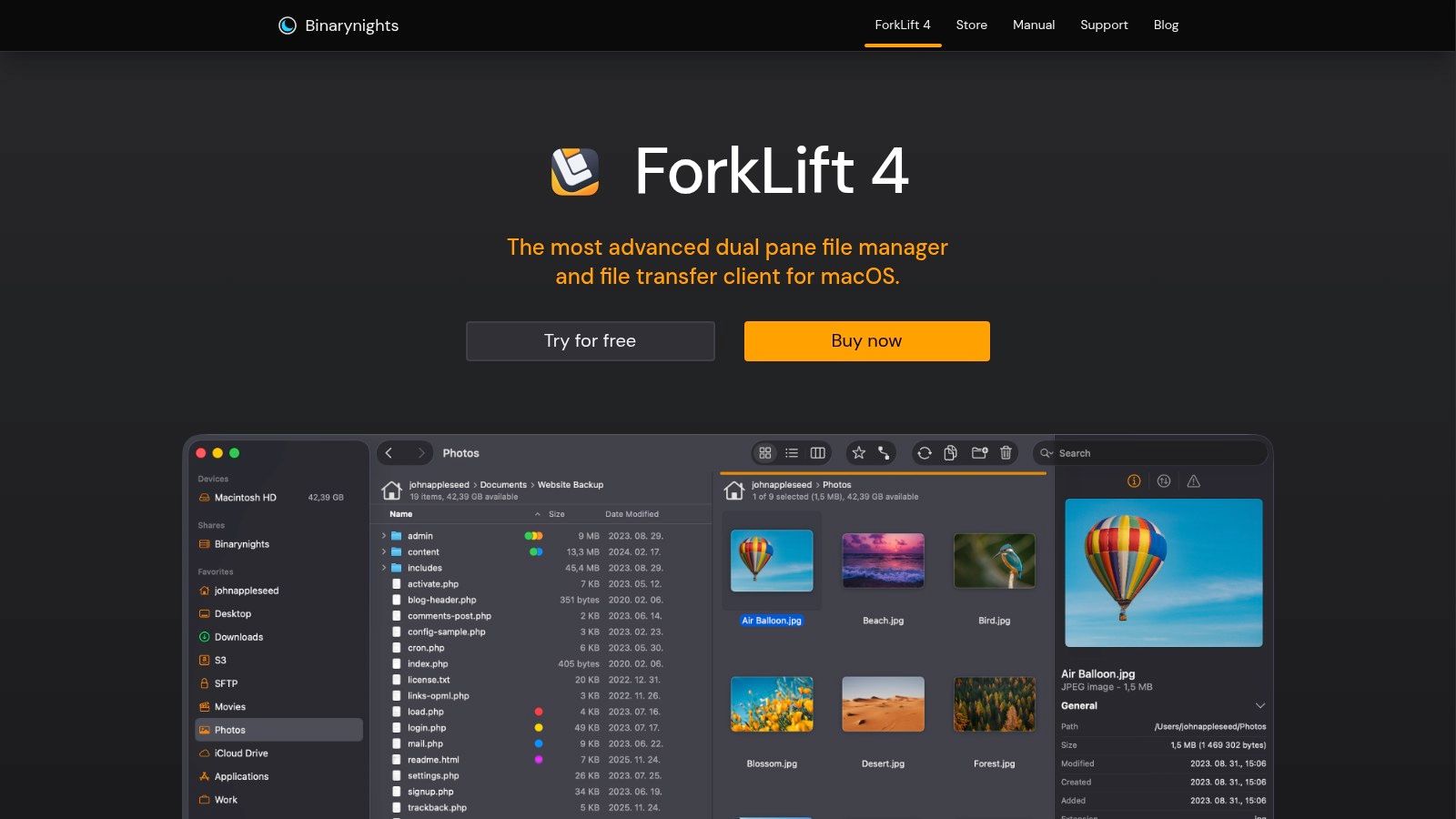
ForkLift is a dual-pane file manager for people who move files between local folders and remote storage often enough that Finder feels limiting. Two panes make it easier to compare locations and transfer files without repeatedly opening and arranging windows. Tabs, workspaces, quick search, previews, and editing for local and remote files support larger file operations.
It connects to services including SFTP, WebDAV, S3, Backblaze B2, Google Drive, OneDrive, and SMB. Folder synchronization can compare locations and run one-way or two-way syncs, while batch renaming helps clean up file sets. These capabilities suit people who understand their remote storage setup and want more control over transfers. If your work rarely leaves the Mac's local folders, ForkLift may be more interface than you need.
Lifetime licenses start at $19.95 for a single Mac and include one year of updates, with a free trial available. Some features assume intermediate file-management knowledge, and later updates may require a new license after the included update period. Review the ForkLift website for current license terms.
6. Default Folder X for Open and Save Dialogs
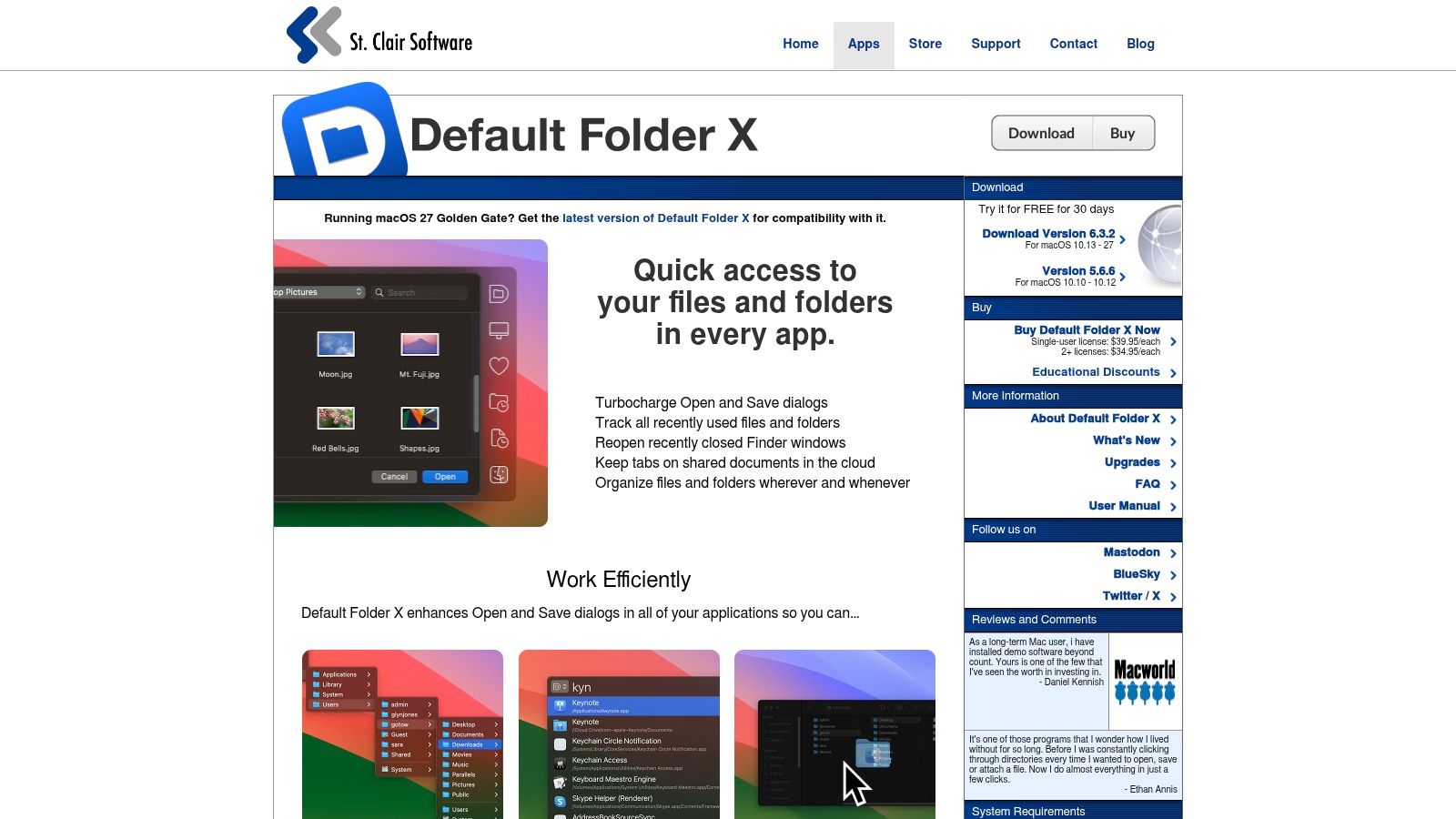
Default Folder X improves a routine that can waste time: choosing where to open or save a file. It adds quick access to favorite and recent folders, Finder windows, and per-app default folders inside Open and Save dialogs. You can also rename or move files from those dialogs, with a menu-bar hub for quick access to files and folders.
This is especially useful if different apps need different destinations. Set a writing app to open from a documents folder and a design app to save into a project location, then use the dialog shortcuts instead of navigating through the same folder tree each time. It won't organize files already on disk, but it can help prevent misfiling at the moment you save.
Default Folder X requires Accessibility and Automation permissions to provide its dialog features. A one-time license and a 30-day trial are available; the price is shown at checkout, and major upgrades are paid. The developer provides documentation and updates for recent macOS releases, including the Sonoma and Sequoia era. Check the Default Folder X website for current compatibility and purchase details.
For people who frequently open and save files, the utility can remove repeated navigation. If you rarely use file dialogs or prefer choosing destinations manually, the extra controls and permissions may not justify adding another tool. More options for smoothing everyday Mac workflows are in this guide to Mac productivity apps.
7. Yoink for Temporary File Staging
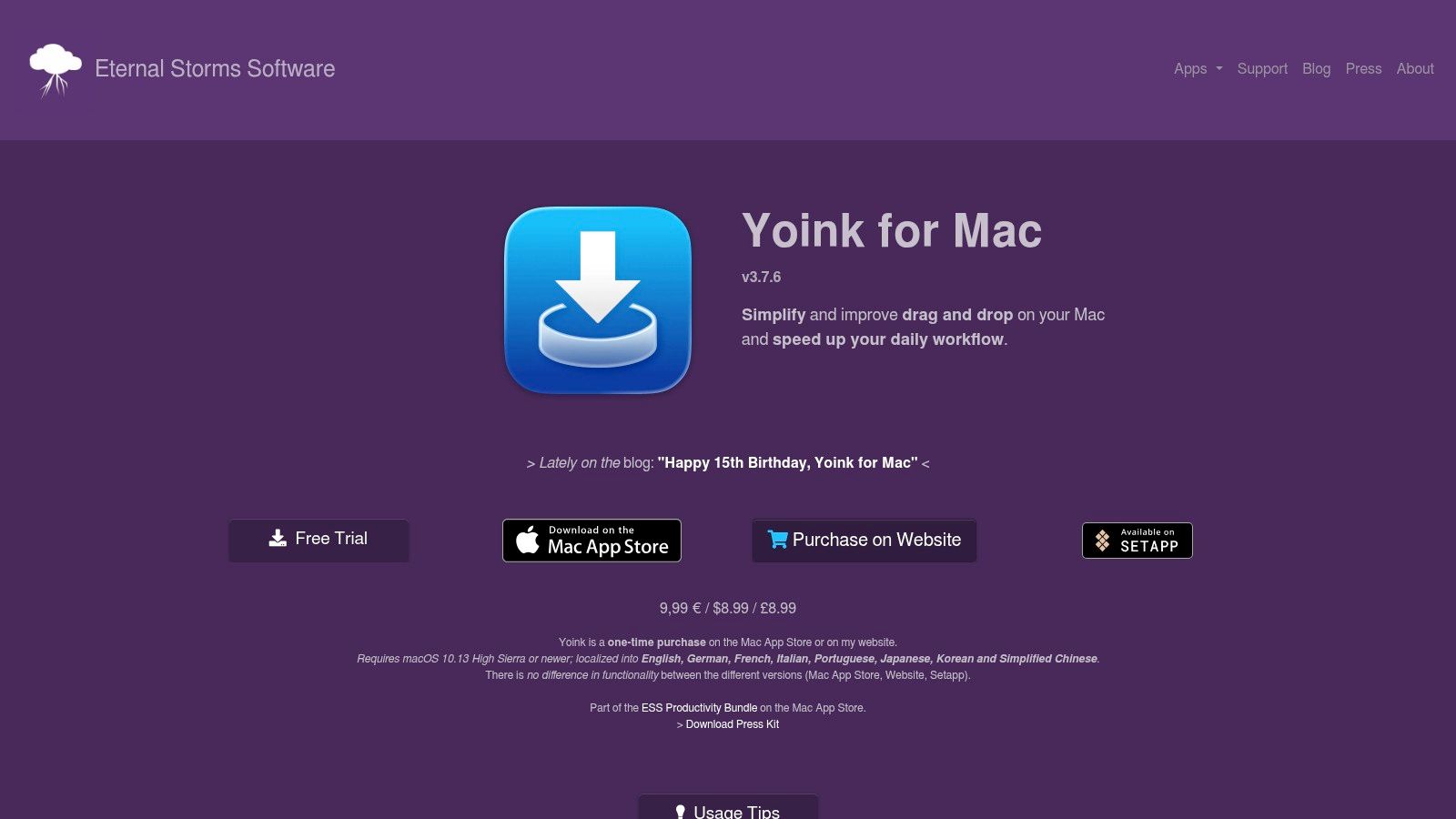
Yoink gives you a temporary shelf for files and other content you're moving between windows, apps, or Spaces. Start dragging, and the shelf appears at the edge of the screen so you can park items, switch destinations, then pick them up again. It's a small but useful fix for the awkward stretch where the source and destination aren't visible at the same time.
The shelf can hold multiple items, work with Quick Actions, Services, and Shortcuts, and follow you across Spaces and full-screen apps. You can customize its appearance and behavior; Handoff with the iOS app is also available if you use the separate iOS version. The Mac app is listed at $8.99 in the U.S. App Store, and the developer offers a free trial.
Yoink complements Finder rather than replacing it. It won't build an archive, automate file rules, or manage remote storage. It's best for temporary staging, especially when you often drag files between windows and don't want to rearrange your desktop just to complete a transfer. See the Yoink website for current features and trial information.
Top 7 Mac Organization Apps: Feature Comparison
| Tool | 🔄 Implementation complexity | ⚡ Resource requirements | 📊 Expected outcome | 💡 Ideal use case | ⭐ Key advantage |
|---|---|---|---|---|---|
| Tintd | Low; automatic suggestions, bulk editing, and optional folder watching | macOS; Folder Watcher requires Full Disk Access; one-time purchase | More recognizable, consistently styled folders | Visually organizing folders and project hierarchies | 11,000+ icons and emojis; works offline |
| Hazel | Moderate; requires creating and refining rules | macOS; permissions such as Full Disk Access; one-time purchase | Automatic file sorting, renaming, tagging, and processing | Keeping Downloads, Desktop, and other watched folders tidy | Flexible rules and local file processing |
| DEVONthink 4 | High; setup and learning curve for databases and advanced features | macOS; paid editions; optional encrypted sync | Searchable, structured archive for documents and information | Research, long-term records, and large knowledge bases | Advanced search, OCR, and automation |
| HoudahSpot 6 | Low to moderate; visual query builder and reusable templates | macOS; relies on the Spotlight index; one-time license | Faster, more precise searches using multiple criteria | Finding files when Finder search is insufficient | Complex searches built on the existing Spotlight index |
| ForkLift 4 | Moderate; some features benefit from file-management experience | macOS; remote-service setup as needed; paid license | More efficient local and remote file operations | Managing transfers, synchronization, and large file sets | Dual-pane workflow with broad remote-storage support |
| Default Folder X | Low; integrates with Open and Save dialogs | macOS; Accessibility and Automation permissions; paid license | Faster access to preferred folders when opening or saving | Frequent file opening and saving across apps | Favorites, recents, and per-app default folders |
| Yoink | Low; appears as a temporary drag-and-drop shelf | macOS; lightweight; optional iOS app for Handoff | Fewer interruptions when moving items between windows | Temporarily staging files, snippets, and clippings | Simple file staging across windows and Spaces |
Build a System You Will Actually Keep Using
The best Mac organization setup is usually a small combination of tools, not one oversized app trying to handle every job. Start with the friction you notice most. Choose Tintd when folders are difficult to distinguish visually, Hazel when Downloads or Desktop collects repeatable file clutter, and HoudahSpot when finding an existing file takes more effort than filing it.
Add DEVONthink 4 when you need a searchable reference archive, ForkLift 4 when local and remote transfers dominate your work, Default Folder X when Open and Save dialogs interrupt your flow, or Yoink when you need a temporary place to stage files. The 2023 Mac Apps Report found that the average Mac user uses 15 apps per day, and that more than 75% preferred automatic updates plus access across platforms and devices (2023 Mac Apps Report). For a focused organizer, that points to a practical test: does the tool fit into the workflow you already have, without creating another system to maintain?
Before installing several utilities, define the folders and habits you want to improve. Test permissions on a small directory, check how each app handles reversals or mistakes, and keep your structure shallow enough to remember. File organization is personal, so a tool that helps one person scan project folders may add little for someone who retrieves everything by search. If you're sorting email alongside Mac files, see SpecStory's inbox organization advice.
Review the process after you've used the tool in your normal work. Keep the apps that remove a recurring annoyance, and remove the ones whose setup or permissions outweigh their benefit. A dependable system is one you can maintain without thinking about it every day.
Tintd adds custom colors, icons, and on-device suggestions to Finder folders, with bulk editing, offline processing, and a watcher for new folders. If visual navigation is the friction in your Mac workflow, visit Tintd to explore its features and try it before buying.