
You open Finder to retrieve a document, then pause at a wall of folders with similar names and identical blue icons. Some belong to current work, others to projects you barely remember. You know the file is somewhere on your Mac, but recognizing where to start takes more effort than it should.
Start With a Finder Workspace You Can Recognize
A useful Finder workspace answers practical questions before you open anything. Which folder belongs to the current client? Where should a downloaded reference go? Which project needs attention today? Organization should make those decisions easier, not give you another system to maintain.
The Mac Finder app is both a file browser and a place to build visual recognition. Names tell you what something is. Folder relationships provide context. Tags and carefully chosen appearances can add signals that help you distinguish otherwise similar items.
That doesn't mean every folder needs a custom icon. A bright folder named Miscellaneous still leaves you guessing about its contents.
Start With the Point of Hesitation
Open a location you use regularly and notice where you slow down. Perhaps project names are vague, completed work sits beside active assignments, or every client folder looks alike. Treat that hesitation as a clue about what to change.
- Unclear identity: Rewrite names so you can understand them without opening the folder.
- Unclear destination: Decide where that kind of material belongs.
- Unclear priority: Consider a status tag rather than moving the folder repeatedly.
- Hard-to-distinguish neighbors: Add a restrained visual distinction after the underlying structure makes sense.
These are different problems. Applying color to all of them won't necessarily solve any of them.
A good starting point is a folder set you already understand, such as current coursework or active client projects. You'll be able to judge whether the revised setup helps you recognize things rather than making them look different.
Aim for a workspace you can explain in ordinary language: current work goes here, reusable material goes there, and this symbol identifies a particular kind of content. If you need a complicated legend before you can save a document, simplify the system.
Understand Finder's Core Organization Model
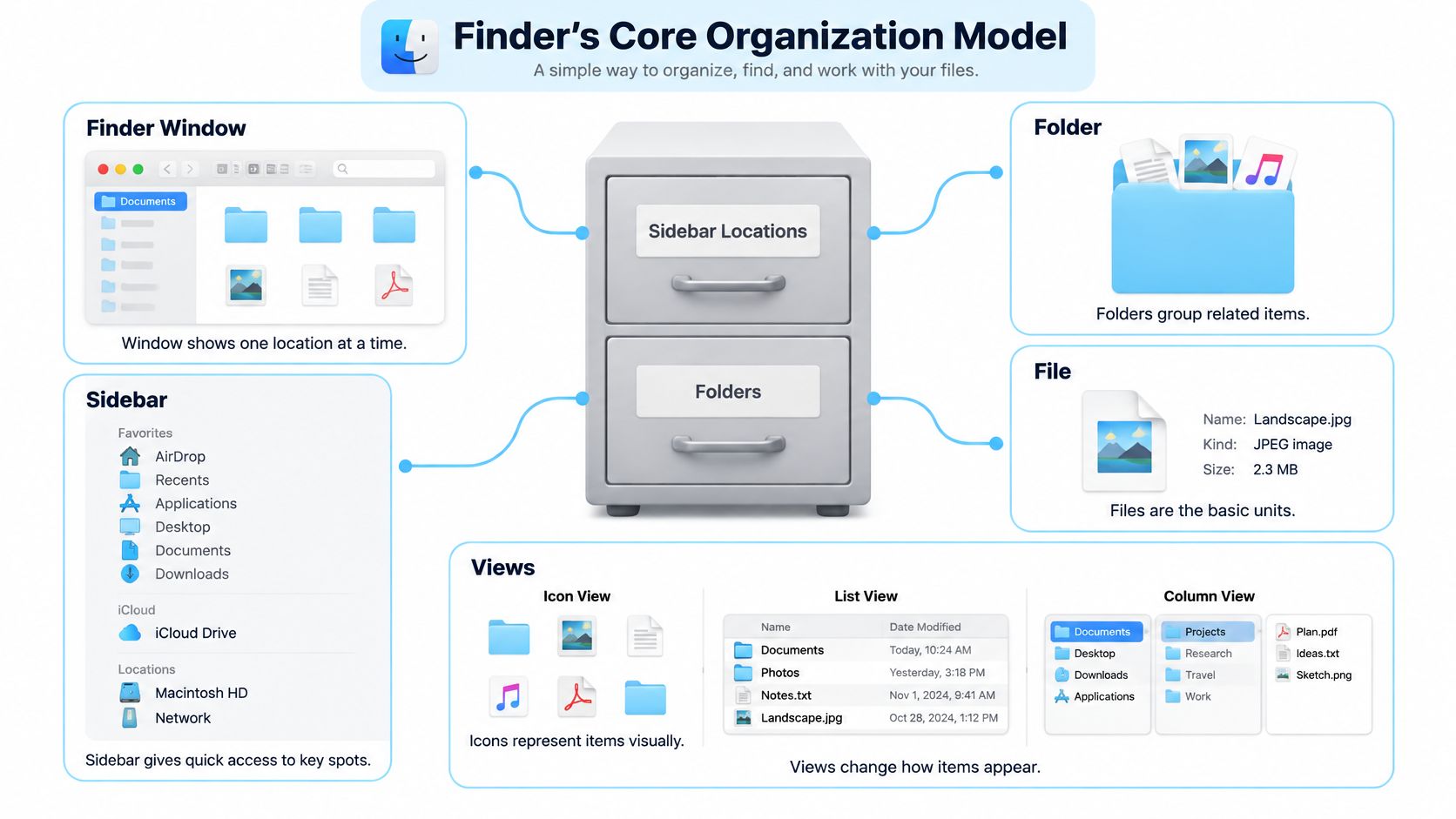
Think of Finder as the front of a filing cabinet. The cabinet contains locations, folders group related material, and files hold the actual documents, photographs, or other work. The Finder window is how you inspect those contents, not the contents themselves.
The distinction matters because where an item lives and how it looks are separate decisions. A folder's path is its address within the storage structure. An icon is its visual representation. Changing the representation isn't the same task as moving the folder or renaming it.
This diagram separates the underlying items from the controls used to browse them.
Separate the Address From the Appearance
Suppose you keep a Proposal folder inside a client project. Giving Proposal a document-style icon should change its appearance, not its name, contents, permissions, or place in the project.
Use the following distinctions when deciding what to adjust:
| Finder element | Think of it as | Question it answers |
|---|---|---|
| Name | An identifying label | What is this? |
| Location and hierarchy | A filing address | Where does it belong? |
| Sidebar | Access to useful locations | Where do I start browsing? |
| View | A way of inspecting items | What information do I need to see? |
| Tags and appearance | Additional signals | What should I recognize about it? |
Metadata means information associated with an item rather than the document's main contents. A tag such as Waiting for Review describes a folder without becoming part of its filename.
Visual metadata isn't a new idea on the Mac. Finder's color organization traces back to System 7 in 1991, with labels returning in Mac OS X 10.3 Panther in 2003 and expanding into named, multiple tags in OS X 10.9 Mavericks in 2013, as described in this history of Mac labels and tags.
The useful mental model is straightforward: structure gives an item a home, naming identifies it, and presentation helps you recognize it. Don't ask appearance to carry information that belongs in the name or address.
Use Finder Views, Search, Tags, and Icons Together
Choose a Finder control according to the question you're trying to answer. Comparing document details, tracing a folder hierarchy, and recognizing a photograph are different tasks. You don't need the same presentation for all of them.
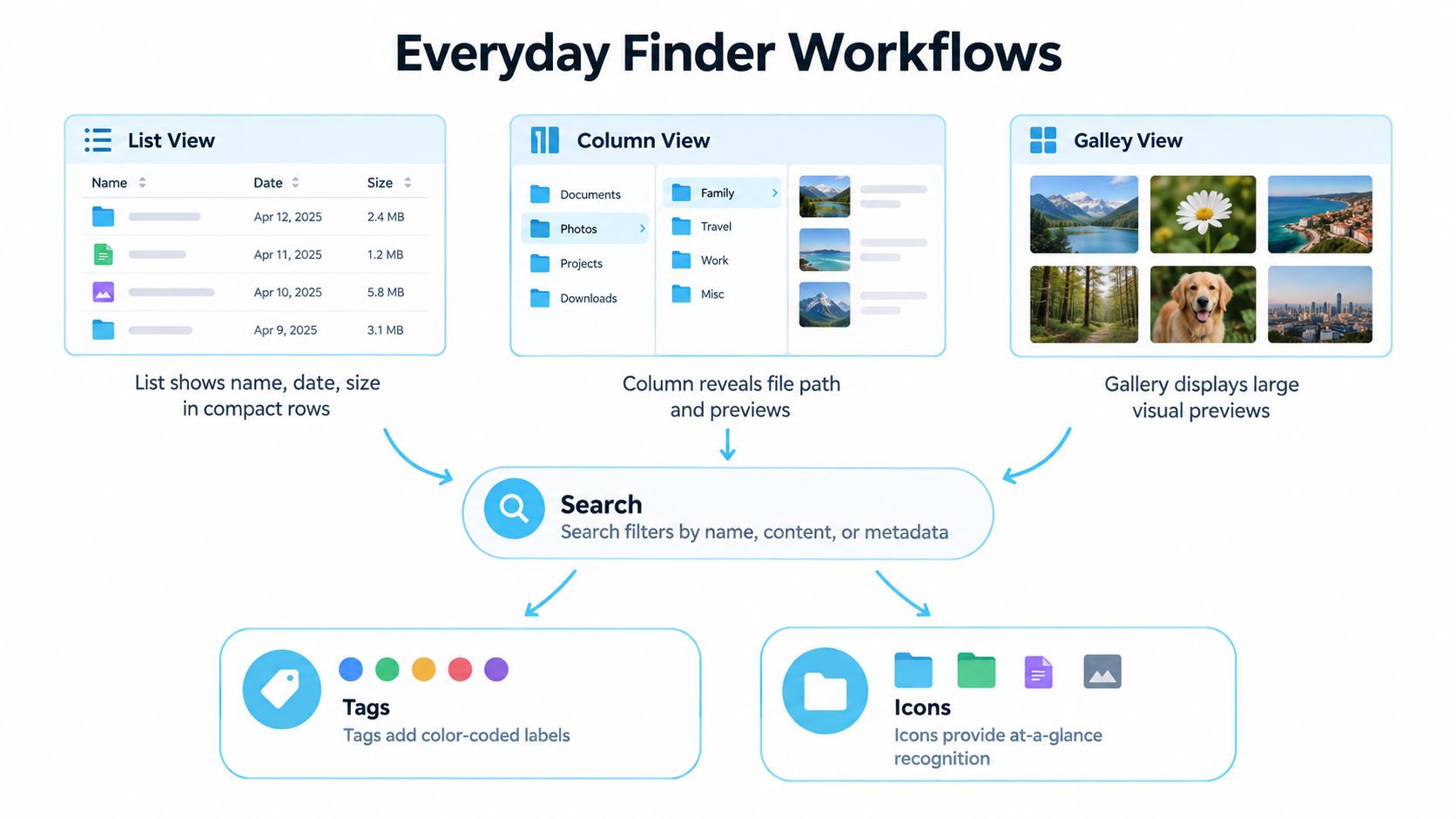
The workflow map below shows how browsing, retrieval, and visual recognition fit together.
Match the Control to the Task
Use list view when you want compact rows and comparable details. Choose column view when the relationship between enclosing folders matters. A gallery-style presentation is useful when recognizing the content visually matters more than reading neighboring filenames.
Navigation and selection also serve different purposes. Browsing gets you to a location; selecting identifies the item or group you intend to act on. Before applying a tag or appearance change, check the selection rather than assuming everything visible is included.
| Your immediate need | A suitable starting point |
|---|---|
| Reach familiar working material | Sidebar access and folder navigation |
| Compare neighboring items | List view |
| Understand a nested folder structure | Column view |
| Inspect visual content | Gallery-style presentation |
| Retrieve something without remembering its home | Search |
| Revisit a recurring search | A Smart Folder |
| Mark a category across locations | Tags |
| Recognize a familiar folder while browsing | A distinctive icon or color |
Search is for retrieval, while a Smart Folder represents a saved search rather than another physical container. Treat that distinction carefully: finding related items together doesn't necessarily mean they share the same storage location.
For an additional visual walkthrough, use the video alongside your own Finder window.
Keep Tags Useful and Specific
A tag such as Awaiting Feedback can connect work across unrelated projects. It shouldn't replace a descriptive name such as Harbor Website Proposal.
In a 2023 TidBITS reader survey, 56% never used Finder tags, 26% used them occasionally, and 18% relied on them regularly, according to the Finder tag usage report. That report also describes the fixed default tag palette and relatively subtle colored dots, useful limitations to remember before making tags your main visual cue.
You might move by project, search by document name, and use a tag only for work awaiting a response. Adding every available signal can make the workspace harder to interpret.
Build a Finder System That Scales With Your Work
Start with the folders you use, not an idealized filing structure. If your daily work involves client projects, research PDFs, household records, and temporary exports, give those materials understandable destinations before applying visual styles.
Apple's Finder organization guidance covers native organization tools, but its folder-customization instructions focus primarily on individual items rather than coordinating hundreds of project folders. A larger workspace needs rules that you can apply repeatedly.
Establish Broad Homes Before Fine Detail
Separate active projects, reusable reference material, personal records, and temporary work according to how you use them. These are suggested categories, not mandatory folder names.
- Active work: Keep material connected to an ongoing commitment together.
- Reference material: Give reusable resources a home independent of the project that introduced them.
- Personal records: Use categories you can recognize outside your working routine.
- Temporary output: Identify exports and scratch material so they don't become permanent reference files.
Avoid nesting folders merely to make the top level look tidy. Each extra layer should add meaningful context. If you repeatedly open a folder only to open another folder with nearly the same meaning, reconsider that boundary.
Define a Repeatable Project Pattern
For client work, a pattern such as Client Name / Project Name / Source, Review, and Delivery can be easier to maintain than inventing a new arrangement for every assignment. For coursework, course names and assignment topics might provide more useful context than software names.
Choose a filename pattern that matches how you'll look for the work. Client, subject, and document purpose are useful ingredients; vague suffixes such as final-again usually aren't. For broader guidance on arranging these relationships, use this digital file organization guide.
Next, reserve tags for information that remains useful across those project boundaries. Review Needed might belong on unrelated folders, while the client's identity is already clear from the hierarchy.
A maintainable system gives new material an obvious destination without requiring a fresh design decision.
Apply appearance only after these decisions feel stable. Decide whether styles belong to project categories, folder roles, or working status, and record that rule somewhere accessible.
Finally, revisit inactive material when your workload changes. Archive completed commitments according to your own retention needs, remove obsolete status tags, and check whether your temporary area still contains temporary work. Maintenance should clarify what deserves attention, not force you to redesign the library.
Compare Native Finder Customization With Automated Tools
A good test is frequency. Changing one archive folder before tax season is a Finder task; giving every new client folder the same color and role icon is a system task.
Native controls fit the first case. If only a few important folders need stronger visual identities, working directly in Finder gives you a deliberate, item-by-item process without adding another application.
Repetition changes the decision. When each new client, course module, research project, or code repository needs the same visual treatment, manually recreating those choices becomes part of setup. An optional folder-styling application can then carry out rules you have already defined.
Compare the Work Behind the Appearance
Tintd is one such option: it operates on-device and provides folder icons and colors, bulk editing, a Folder Watcher, mixed-language recognition, and restoration to standard macOS folder icons. Its library contains more than 11,000 icons and emojis.
| Consideration | Native Finder workflow | Optional automated styling |
|---|---|---|
| Manual control | Suitable for deliberate individual changes | Look for both manual choices and automation controls |
| Repeated styling | Requires repeating the relevant actions | Bulk tools can apply an established choice across a set |
| Newly created folders | Plan to customize them yourself | A watcher can apply styles in selected locations |
| Semantic organization | Tags support categories beyond appearance | Styling should sit alongside tags |
| Visual resources | Choose an appropriate native or supplied image treatment | A dedicated library can broaden the available symbols |
| Reversibility | Understand the native removal process | Check restoration behavior before applying batches |
Suggestions based on folder names and neighboring folders can provide a starting point, though their meaning still needs review. A folder named Assets might contain illustrations, code resources, or financial records. Recognition is contextual.
Useful conveniences include Finder context-menu access, reusable style history, custom-image import, and adjustments to icon placement. They apply decisions; they do not decide what a folder represents.
Give Automation a Narrow Job
A watcher is most useful when the watched location has a predictable purpose. A dedicated client-project directory is a clearer target than a miscellaneous download location containing unrelated material.
Batch editing works best when the selected folders share a role. Review the selection and intended style before applying it across subfolders.
For a broader perspective on choosing repeatable tasks, consult this guide to Mac automation apps. The key question is whether the task follows a dependable rule.
Choose native customization when changes are occasional and individual judgment matters most. Consider automation when folder creation and styling recur together. Keep privacy and portability separate: on-device processing describes where the application runs, while consistent appearance across devices is a separate question involving sync, accounts, and how the icon is stored.
Apply Folder Icons and Colors to Real Workflows
Consider a proposed visual legend in which color identifies a category and an icon identifies a folder's role. This isn't a universal standard. It's an example you can adapt to the way you recognize your own material.
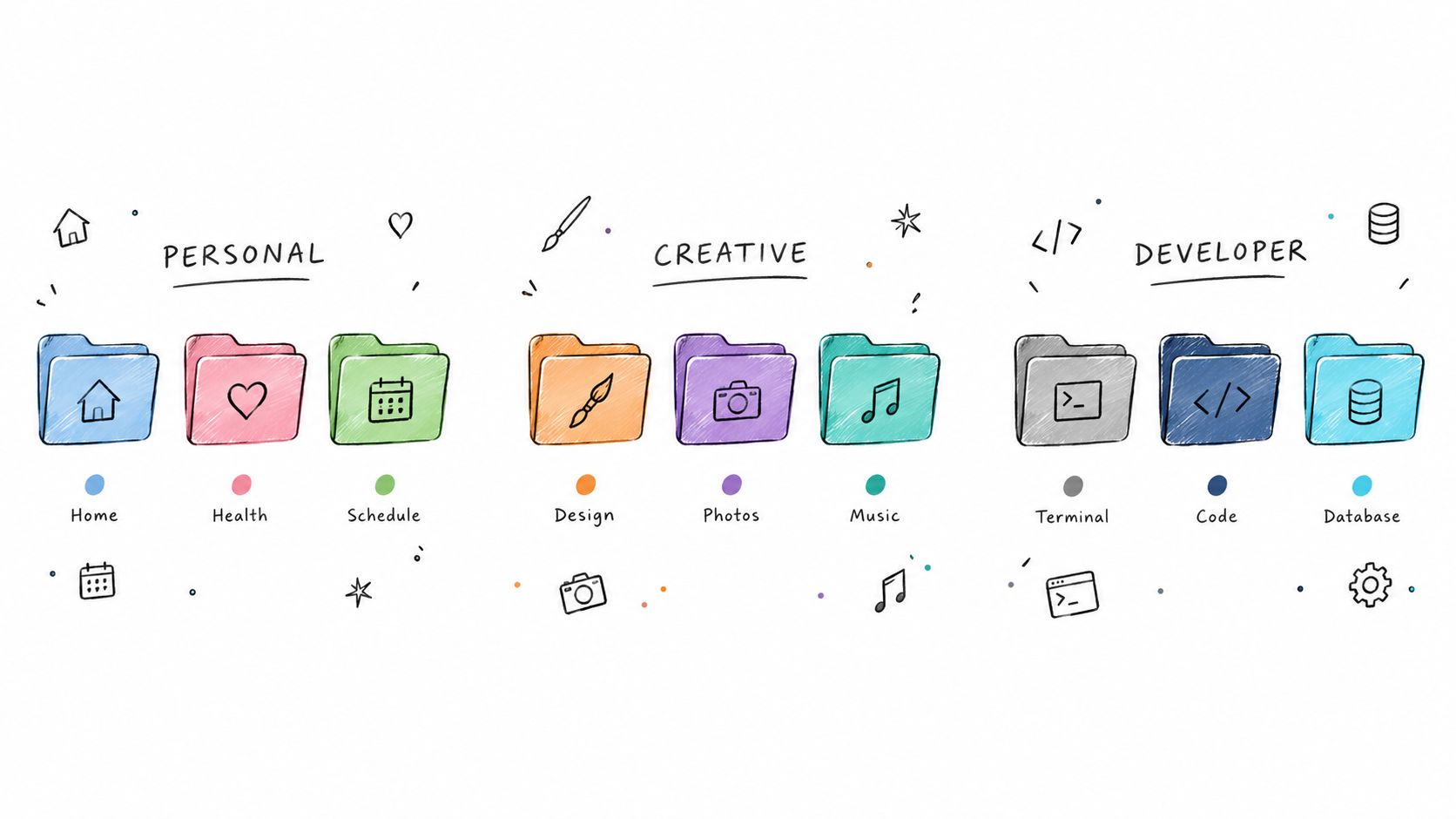
For personal files, you might use a consistent household color across records, then distinguish travel plans with a suitcase symbol and receipts with a document symbol. The names should remain readable without those cues.
The examples below show how recognizable symbols can separate broad kinds of work.
Give Creative Work a Consistent Family
Suppose a photographer keeps a project folder for each client assignment. Related project folders could share a restrained color family, while a camera symbol identifies originals and a delivery symbol identifies exported work.
That leaves filenames free to describe the assignment. You don't need a unique decorative theme for every shoot, and you don't need to remember whether a particular shade once meant a client, a deadline, or a file type.
For developers, a similar legend might distinguish source code, documentation, and design assets through symbols. For students and researchers, a book symbol could indicate reading material, while a writing symbol marks drafts.
| Proposed workspace | Color meaning | Symbol meaning |
|---|---|---|
| Personal records | Life category | Record type |
| Creative projects | Project family | Production role |
| Technical work | Repository or work area | Code, documentation, or assets |
| Coursework | Subject | Readings, notes, or assignments |
Test the Design Where You Actually Browse
Finder supports colors, symbols, emoji, and custom images for item appearance. Apple's folder customization instructions also cover view-level icon sizing and grid spacing, which matter when judging legibility.
An intricate custom image may look recognizable at a large size but indistinct in your usual working view. Try a simple symbol before a detailed illustration, and check the result alongside neighboring folders.
For a practical treatment of color choices, consult this guide to changing folder color. Keep the color's meaning stable across the chosen workspace.
Descriptive folder names also provide better context for smart suggestions than vague names. With mixed-language names, review the suggested symbol for the intended meaning rather than accepting it merely because it looks plausible. A suggestion should help you express the legend you've chosen.
Avoid Finder Organization Mistakes and Recovery Traps
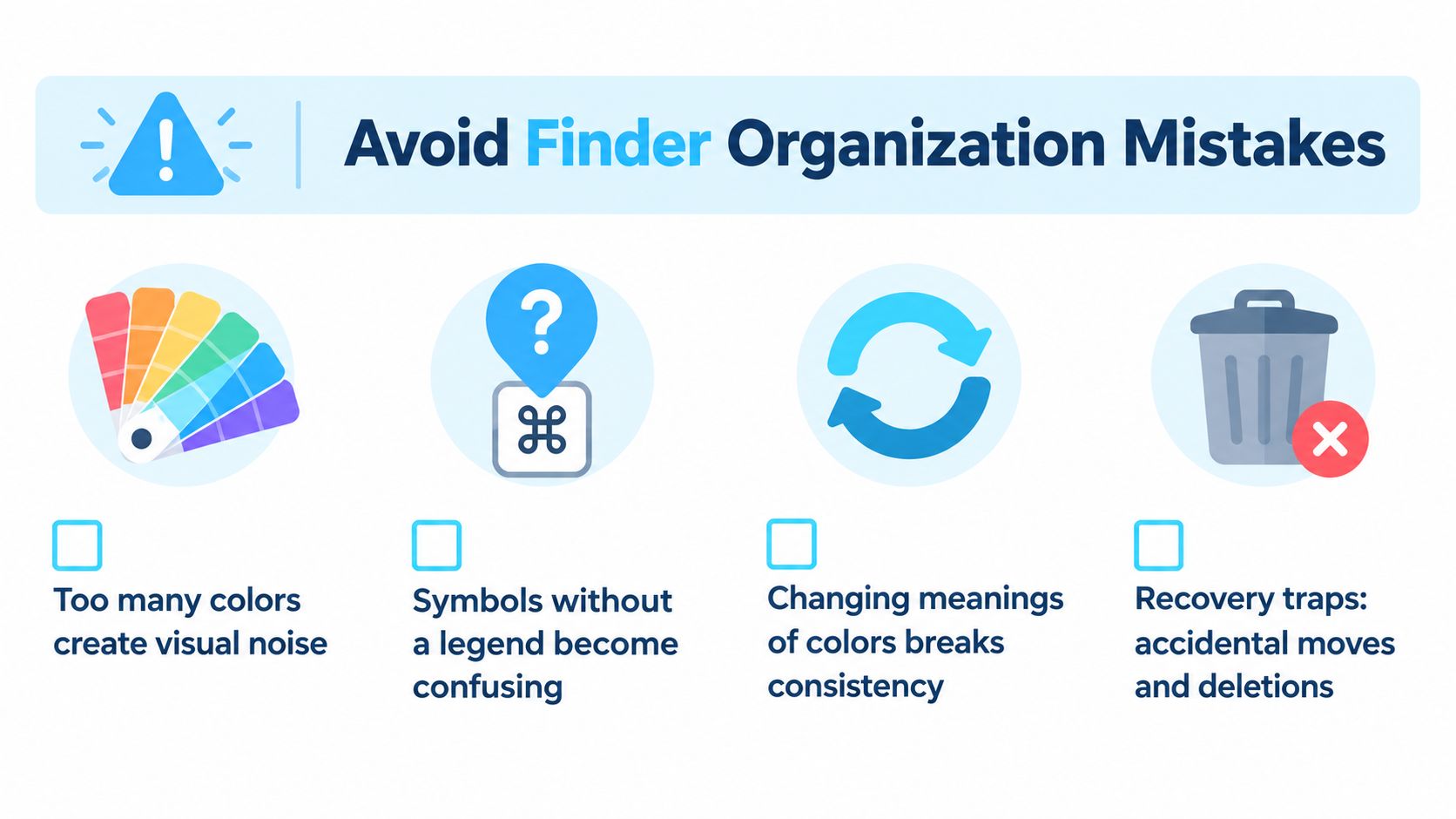
More customization isn't automatically better organization. If every folder has a different color and unfamiliar symbol, you've created another set of details to memorize. The result may be attractive without being useful.
The warning signs are inconsistent meanings, decoration that competes with names, and no clear way to undo a change.
Separate Local Appearance From Portability
Don't assume a customized folder will look identical after synchronization, copying, archiving, or migration. Apple's guidance on tagging files describes tags on local and iCloud files, but that isn't a blanket guarantee for every custom-icon workflow.
Folder appearance involves item metadata. Apple documents an approximate 32 KiB aggregate limit on syncable extended attributes per item for File Provider synchronization in its extended-attributes documentation. That technical limit isn't a practical promise that a particular icon will transfer successfully.
The native customization guidance referenced earlier also excludes protected folders such as Applications, Library, System, and Users. Don't treat those locations as ordinary batch-styling targets.
Review Before Expanding
Use a small sample to check your assumptions:
- Meaning: Can you explain each color and symbol without guessing?
- Visibility: Does the design remain recognizable in your normal Finder view?
- Transfer: Does a copied or synchronized sample retain the information you need?
- Restoration: Can you return the sample to its standard appearance?
- Safety: Are moves, deletions, and appearance changes clearly separate actions?
Storage cleanup is a separate job from visual organization. If you're also deciding what to remove, check with Nerds 2 You Edmonton for a Mac space-cleanup resource before mixing deletion decisions into a styling session.
Keep meaningful names and a dependable backup routine regardless of the visual system. Restoring a default icon isn't the same as recovering deleted work.
Create Your Finder Organization Workflow
Begin with a representative folder set rather than your entire Mac. Choose material that includes both familiar items and folders you regularly struggle to distinguish. That gives you a useful test of whether the changes support your actual work.
Write down a naming pattern, a visual legend, and the purpose of your tags. Then use the native controls already discussed to try the arrangement before deciding whether repeated styling deserves automation.
Choose According to Your Working Pattern
- Personal users: Prioritize recognizable destinations for records and current commitments.
- Creative professionals: Test the legend through an entire production cycle, from source material to delivery.
- Developers: Judge whether symbols help distinguish neighboring work areas without distracting from repository names.
- Students and researchers: Make subject and assignment context understandable even when viewed outside the original course folder.
- Knowledge workers: Focus on the distinction between active responsibilities, waiting work, and reusable reference.
After using the sample in ordinary work, ask where you still hesitate. Change the rule responsible for that hesitation instead of adding another visual layer.
Keep the reset path you tested, and remove styles that no longer communicate anything useful. Expand only when the sample feels predictable enough that creating a new folder doesn't require another round of design decisions.
The most useful Finder workflow supports memory and judgment. You should be able to recognize where to begin, understand what you're looking at, and return to the work itself without maintaining an elaborate decorative system.
For recurring folder-styling tasks, customized icons, colors, bulk editing, and a Folder Watcher can help apply your chosen visual rules consistently. Visit Tintd to explore an on-device option, then test it on a small project folder set before expanding your workflow.