
People don't usually lose files on a Mac. They lose the ability to find them quickly. A 2025 Smallpdf survey of 1,005 U.S. employees found that respondents spent an average of 4.5 hours per week searching for files, emails, or links they had already accessed. That's most of a morning, every week, spent re-finding things that were already there.
Finder isn't the weak link. It ships with a sensible default map, fast keyboard navigation, tags, smart folders, and a Spotlight index that can surface a document from three letters of its name. What breaks is the upkeep. The Desktop fills with screenshots, new project folders get named five different ways, and the color scheme you set up in January no longer matches the folders you created in June.
That's why Mac file management works better as a routine than as a project. You build the structure once, then spend ten minutes a week keeping it honest. The layers go in a fixed order: default folders first, then keyboard habits, then tags and smart folders, then visual cues, then the storage sweep. Skip a layer and the ones above it wobble.
Default Mac Folders and Where Files Belong
The Desktop is where disorder shows up first, and it's the cheapest place to fix. macOS gives every account the same six folders, and many users only ever touch a couple of them. Here's the map, with what each one is for.
| Default folder | Best use | Move here from Desktop |
|---|---|---|
| Desktop | Items you are working on today | Screenshots, scans and drafts waiting for a decision |
| Documents | Finished work and records you will reopen | Contracts, reports and signed PDFs |
| Downloads | Temporary incoming files, emptied monthly | Installers, archives and attachments |
| Pictures | Photos and image libraries | Exported images and screenshot folders |
| Movies | Video projects and screen recordings | Exports and recordings |
| Music | Audio files and sound projects | Podcast episodes and sound exports |
The logic is simple. Desktop holds what you're touching today, not what you're storing. Documents holds finished work you'll reopen, which is why a signed contract belongs there and a screenshot from lunch does not. Downloads is a loading dock: things arrive, you unpack them, you empty it. Pictures, Movies, and Music exist so media stops colonizing your Documents folder, which it tends to do over time.
A predictable top level is what makes every later layer work. Tags, smart folders, and search all get faster when you can guess where a file lives before you look, so this map is less about tidiness and more about giving your weekly upkeep a fixed starting point. If you build client or project folders underneath that top level, follow a repeating project folder structure so the third folder down means the same thing whether you're opening Acme or Zenith.
Run this test now. Pick any file on your Desktop and name the folder it belongs in within five seconds. If you hesitate, the file isn't the problem. The map doesn't match your work yet, and the fix is a small adjustment to where things land rather than a new app or a weekend of reorganizing.
Finder Shortcuts That Speed Up Navigation
Shortcuts separate a Mac that feels quick from one that feels like a maze. The table below is worth skimming once, then keeping nearby for a week while your hands learn it.
| Action | Shortcut | Use it when |
|---|---|---|
| Go to Home folder | Shift-Command-H | You need your user folder fast |
| Go to Documents | Shift-Command-O | Opening finished work |
| Go to Folder (typed path) | Shift-Command-G | Reaching any path, including hidden Library folders |
| Switch to list view | Command-2 | Comparing dates and sizes across files |
| Switch to column view | Command-3 | Tracing nested folders |
| Show path bar | Option-Command-P | Checking where the open window sits |
| Quick Look preview | Space | Checking a file without opening an app |
| Move to Trash | Command-Delete | Removing an item you can still restore |
Three ideas hold that list together. The Go menu reaches your default folders in one keystroke, so Shift-Command-H and Shift-Command-O replace a lot of sidebar clicking. Shift-Command-G opens Go to Folder, a text field that accepts any path, including the hidden ~/Library folder Finder keeps out of sight. Type it, press Return, and you're inside. Option-Command-P turns on the path bar at the bottom of the window, so you can read where you are instead of inferring it from the title.
Two more earn their place daily. Space opens Quick Look, which previews a document, image, or video without launching an app, and pressing Space again closes it. Command-Delete sends a file to the Trash rather than deleting it outright, which means a mistake stays reversible until you empty the Trash.
The test of progress is physical. You should be able to reach a file three folders deep inside a nested project without touching the mouse, in under ten seconds. If reaching it still takes a hunt through the sidebar, the folder names are probably doing too little work.
Choosing Between Folders, Tags and Smart Folders
A file sits in exactly one folder, yet it can carry several tags and surface in every smart folder whose rules it matches. That single fact resolves most of the confusion between these tools. Folders decide where a file lives. Tags decide how it can be found. Smart folders decide what gets gathered for you, and aliases solve the narrower problem of reaching one file from two places.
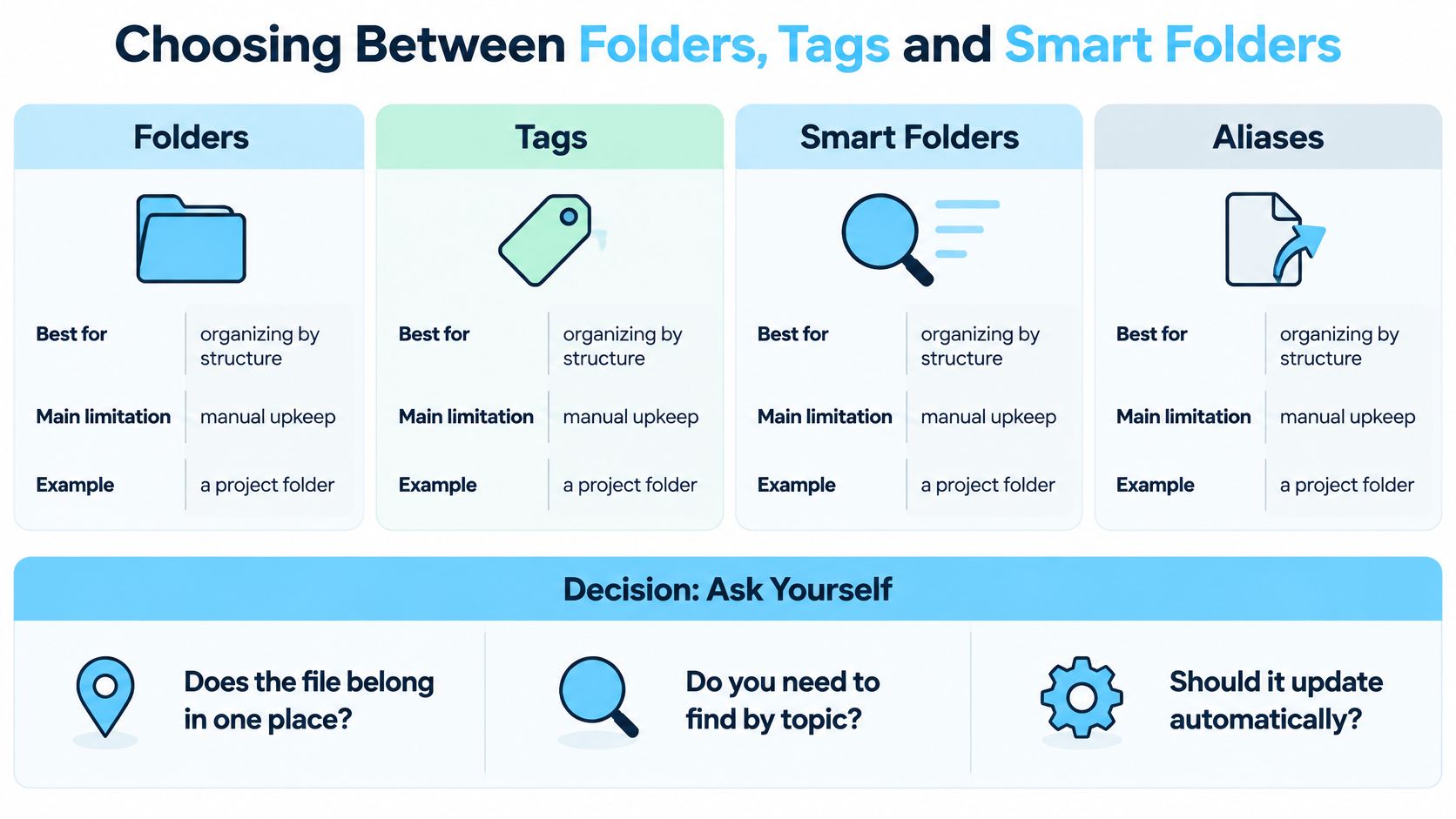
Three questions settle almost every case. Does the file belong in one place or in several categories? If one, use a folder. If several, use a tag, because a tagged file lives in one location and appears under multiple labels. Will you find it by browsing a location or by searching a category? Browse means folder, search means tag. Does anyone else need to see it? Shared folders travel with the project. Idiosyncratic tag schemes rarely survive a handover.
| Method | Best for | Main limitation | Example |
|---|---|---|---|
| Folders | Ownership of projects and clients | One item lives in one place | Clients/Acme/2026/Invoices |
| Tags | Cross-cutting status such as Waiting or Signed | Only useful when applied consistently | A contract tagged Tax and Acme |
| Smart folders | Live views built from rules | Show results, not storage | PDFs modified this month |
| Aliases | One file reachable from several places | Break if the original moves | Alias of a project file on the Desktop |
Apple introduced Finder Tags with OS X Mavericks in 2013, describing them as a way to organize and find files "anywhere on your Mac or in iCloud," with tagged items appearing in the Finder sidebar for browsing by project or category (Apple's Mavericks announcement). Adoption stayed uneven, and a large share of Mac users never apply a single tag. That is why folders remain the skeleton of this system, with tags working as a layer on top of the structure.
The working rule is short: folders for ownership, tags for status, smart folders for live views. Give a contract a home in Clients/Acme/2026, then tag it Tax and Acme so it surfaces in both lists without being copied. The mistake to avoid is rebuilding your folder tree as a tag list, because tags decay the moment you skip them on busy days. Keep the set small enough to apply without thinking: Waiting, Signed, and one per active project is plenty.
A color, symbol, or emoji on the folder works purely as a scan aid. It draws the eye to the folder that matters this week while the name still does the structural work, and changing it affects nothing inside.
If you'd rather watch the workflow than read it, this walkthrough covers the same organization steps in Finder.
How to Organize Files in Finder Step by Step
Set aside twenty minutes and work through this on one folder you use. Each step names the reason and the mistake that usually follows it.
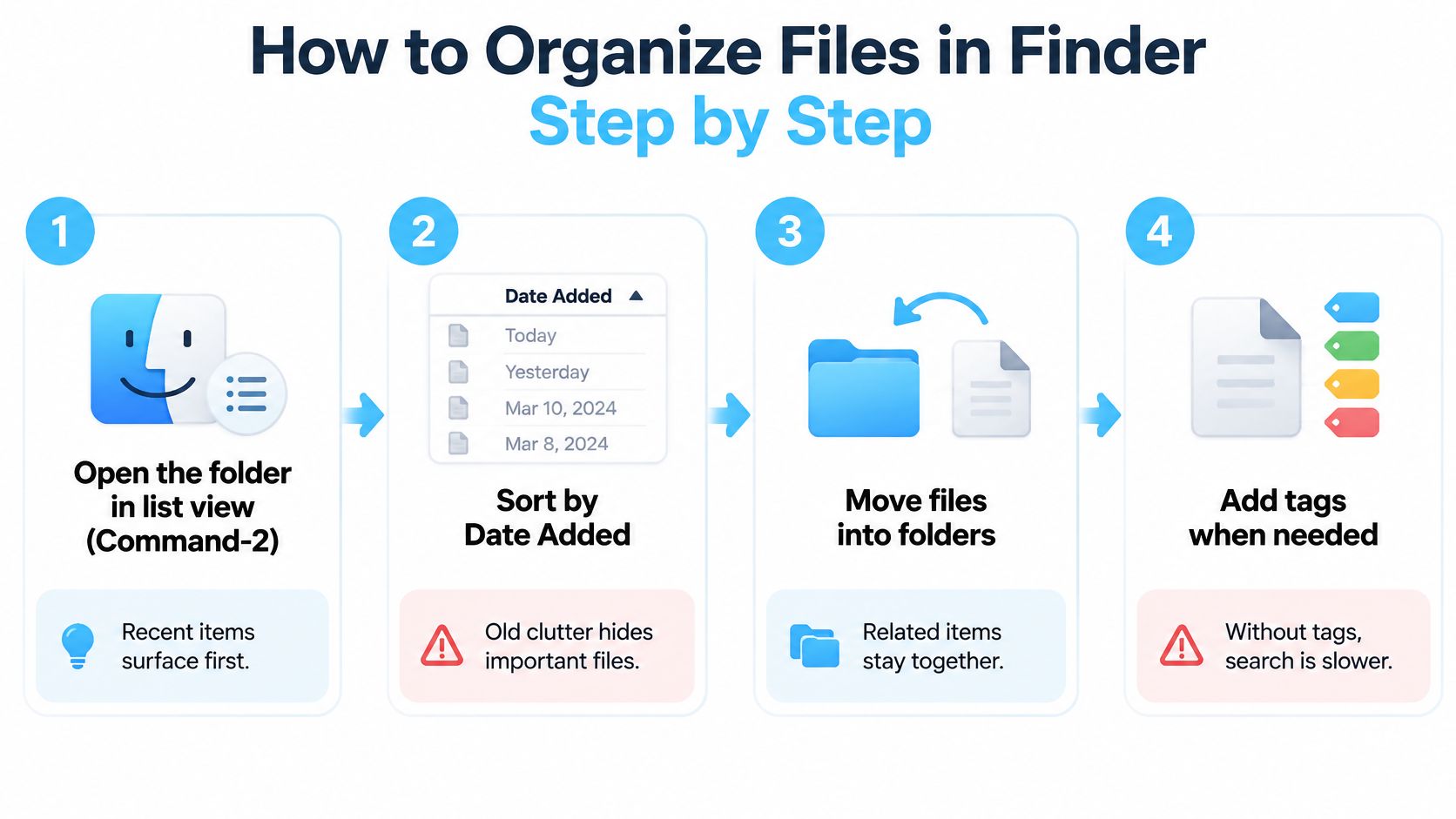
- Open the folder in list view (Command-2) and sort by Date Added. Recent items rise to the top, which is where your attention should go first. The usual slip is sorting by name, which scatters what arrived last week somewhere in the middle.
- Create one holding folder called Sort Me (Shift-Command-N). Unsorted items get one place to wait instead of being shuffled between real folders before you've decided anything.
- Drag each item to its destination. Moving within the same disk moves the file; dragging to a different disk copies it. Hold Command while dragging to force a move across drives.
- Rename project folders to one predictable pattern: client or topic first, then year.
Acme 2026rather than2026 Acme invoices final. Names that start with the same token sort together everywhere, and a consistent file naming convention saves you from inventing a scheme per project. - Tag only the items that belong to more than one category. Control-click, choose Tags, pick the label. Tagging everything defeats the purpose; a tag on 90% of your files is not a filter.
- Turn on Groups from the View menu and group by Kind. Media clumps together, near-duplicates show up as matching names and sizes, and you can delete the second copy of a file you dragged twice.
- Finish with a ten-minute check. Empty Sort Me, confirm no folder sits deeper than four levels, and note today's date somewhere you'll see it. That date is when the next sweep is due.
Batch renaming handles the tedious part. Select a run of files, right-click, choose Rename, then use the Format option with a name and counter, such as Acme 2026 - 01, and the whole set gets labeled in one pass.
A sorted folder looks unremarkable: a handful of top-level folders, each with obvious current subfolders, an Archive folder for last year, and nothing loose at the top older than a month.
Icons, Labels and Folders macOS Locks
Finder lets you give a folder a color, a symbol, an emoji, or a full custom image, and the image route runs through Get Info (Command-I): select the folder, open Get Info, click the small icon at the top, and paste a new one.
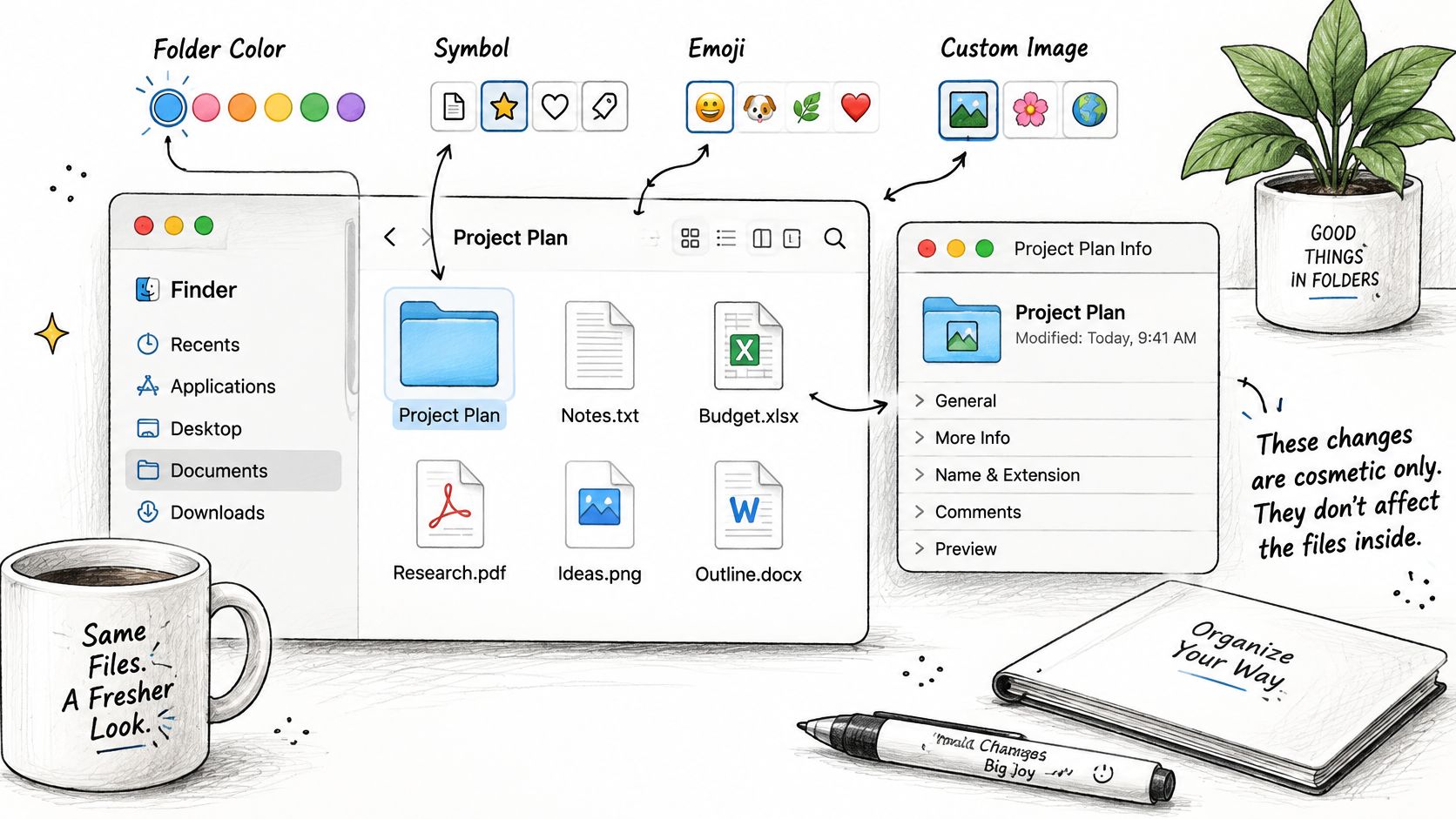
That gives you two practical paths. Lightweight decoration, such as a color per client, works for fast scanning. Full icon replacement works for branded or project-specific systems. macOS supports both natively (Apple's Finder guide).
Two limits catch people out. Custom icons are stored locally on each Mac, so an icon set you build on a desktop has to be set up again on a laptop or a second machine. And system-managed locations including Applications, Library, System, and Users can't be customized through the standard Finder interface, so bulk changes should target your own folders rather than protected system directories.
The reassuring part: changing a folder's icon or color is purely cosmetic and doesn't touch any file or subfolder inside. Nothing breaks, and nothing moves. To undo it, open Get Info on the folder, select the icon at the top, and press Delete to return to the standard macOS folder icon.
Visual cues support a clear name. They never replace one. A red folder called
stuff2is still a folder calledstuff2.
Storage Habits and Fixes When Files Go Missing
Most file problems have a small set of causes. Find your symptom first, then apply the fix.
| Symptom | Likely cause | Fix |
|---|---|---|
| Desktop refills within a week | Downloads and screenshots saved to the Desktop | Sweep the Desktop weekly and move captures to a dated folder |
| Cannot find a file by name | Vague filenames without dates or client names | Search Spotlight by date and client, then rename with a date-first pattern |
| Disk looks full but folders look small | Purgeable space and local snapshots | Review Storage in System Settings, then empty Downloads and Trash |
| Same file appears in two places | Duplicate copies from drag-and-copy | Keep one master and replace the other with an alias |
That third row confuses people most, and the storage system explains why. Since macOS 10.13 High Sierra, APFS has been the default file system, and its containers allocate space on demand: unused capacity moves to whichever volume needs it, and each volume uses only what it currently requires, alongside features like snapshots and encryption (Apple's Disk Utility guide). The Finder hierarchy you see sits on top of that, which is why a disk can look full while your folders look small.
Set a maintenance cadence rather than reacting to emergencies. Sweep the Desktop weekly, empty Downloads monthly, and each quarter move finished projects older than a year into an Archive folder or onto an external drive. Ten minutes on a Friday beats three hours in a panic.
When a file vanishes, search in this order: Spotlight with Command-Space first, Recents in the Finder sidebar second, the Trash last. Search by date and client name, not vague words like "invoice final", because the filename you're picturing is rarely the one you saved. If you also work across platforms, this guide on how to restore lost files on Windows from Finchum Fixes IT walks through the recovery side on the other system.
Separate the fixes that take minutes, such as renaming a file or pointing an alias at the right master, from the habits that need about a week to settle, such as keeping the Desktop clear. The second group is what lasts.
Set Up Your Mac Folder System This Week
If you only need a structure you can trust, folders and Finder habits are enough. If you want matching colors or icons across every new project folder without applying them by hand each time, a dedicated tool earns its place.
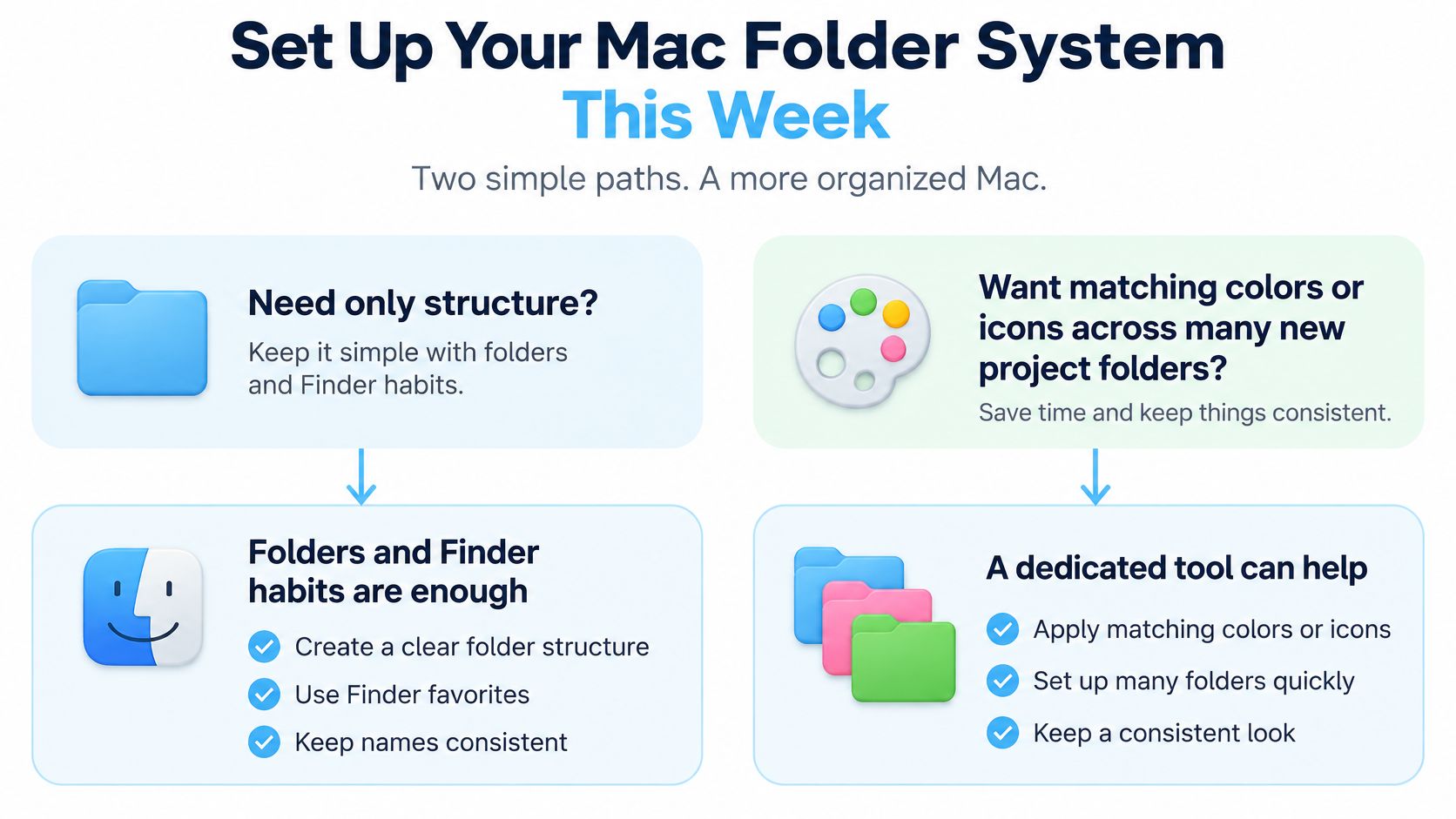
That's the case Tintd handles. Its Folder Watcher detects each new folder created in the locations you choose and gives it a matching color and icon based on the name. Suggestions run locally on your Mac, so folder names never leave the device, and any folder can be reverted to the original macOS icon with one click.
If you'd rather automate the rest of the workflow, these Automator folder actions cover rules that fire when files land in a directory. And if you're weighing a wider set of utilities, this comparison of Mac work management apps puts the options side by side.
Three things to do today:
- Build the folder map. Move every Desktop item into Desktop, Documents, Downloads, Pictures, Movies, or Music.
- Learn three shortcuts. Home, Documents, and Go to Folder, used on real work before the day ends.
- Run the routine on one folder. Pick the folder you open most and work through the seven steps on it this week.
Tintd is a macOS app for giving Finder folders the colors and icons that make a large project tree scannable at a glance, with smart suggestions drawn from folder names and the folders beside them, batch tools for styling dozens of directories at once, and a library of more than 11,000 icons and emojis. Everything runs on your Mac, so the folder names that describe your clients and projects stay on your device. Build the structure first, then visit Tintd when you're ready to make it visually consistent.