
You're scanning a Finder window for last month's client files, and every folder is the same flat blue. The names help, but you still have to read each one. That friction adds up. In 2023, 48% of employees surveyed by Adobe Acrobat said they had difficulty finding documents quickly when asked about digital organization at work, according to Adobe's digital organization and workplace survey. Folder icons won't fix a messy archive on their own, but used as a navigation system, with each color and symbol assigned a single meaning, they let you spot the right folder before you read the label. This guide covers How to Change Folder Icons on Mac using Apple's native tools first, then bulk methods for larger folder trees.
Change a Folder Icon in Finder in Under a Minute
Open almost any project folder and you'll get a row of identical blue folders. Deliverables, Invoices, Assets, Archive. They differ only by name, so your eye has nothing to lock onto. The fastest fix is Apple's built-in customization, and for a color or a symbol it's all many users need.

The fastest native route
- Select the folder in Finder or on the Desktop, so you're styling the item you use every day.
- Control-click it and choose Customize Folder, which opens Apple's built-in styling panel directly.
- Pick a color from the swatches shown. Keep it consistent across related folders rather than choosing at random.
- Add a symbol or an emoji from Apple's built-in choices to mark the category at a glance.
- Close the panel. The change applies at once, with nothing to save.
Once you know where the panel sits, each folder takes roughly 30 seconds. Apple documents this direct route in its folder personalization guidance for Mac, which lists three built-in visual dimensions, color, symbol, and emoji. That's a real step forward from the older clipboard workflow, because there's no image to prepare and no Info window to hunt through.
Where the native tool stops
Apple draws clear boundaries around what you can style. Your Home folder can be customized, but protected standard folders, Applications, Library, System, and Users, cannot. That's macOS reserving system locations, not a fault in your technique, so don't waste time trying to force those.
The other limit matters more in daily work. This route handles one folder at a time, and it doesn't offer custom artwork. You can't drop in a client logo or a project photo from that panel, and there's no way to apply the same look across a whole tree in one pass.
Style one folder natively first. If the color and symbol read clearly at your normal Finder size, you've got a pattern worth repeating.
You now have one styled folder and a clear sense of the trade-off. The native tool is quick, free, and already on your Mac. When the built-in swatches can't express what the folder contains, you need the older method, which takes any picture you give it.
Use Your Own Picture or Emoji With Get Info
A color swatch can't represent a specific client. If you want a company logo on its folder, or a key photo on a project folder, you need your own artwork, and that still runs through Finder's Get Info window. It's more clicks than Customize Folder, but it accepts custom pictures, icons downloaded from the web, or an icon copied from another file or folder.
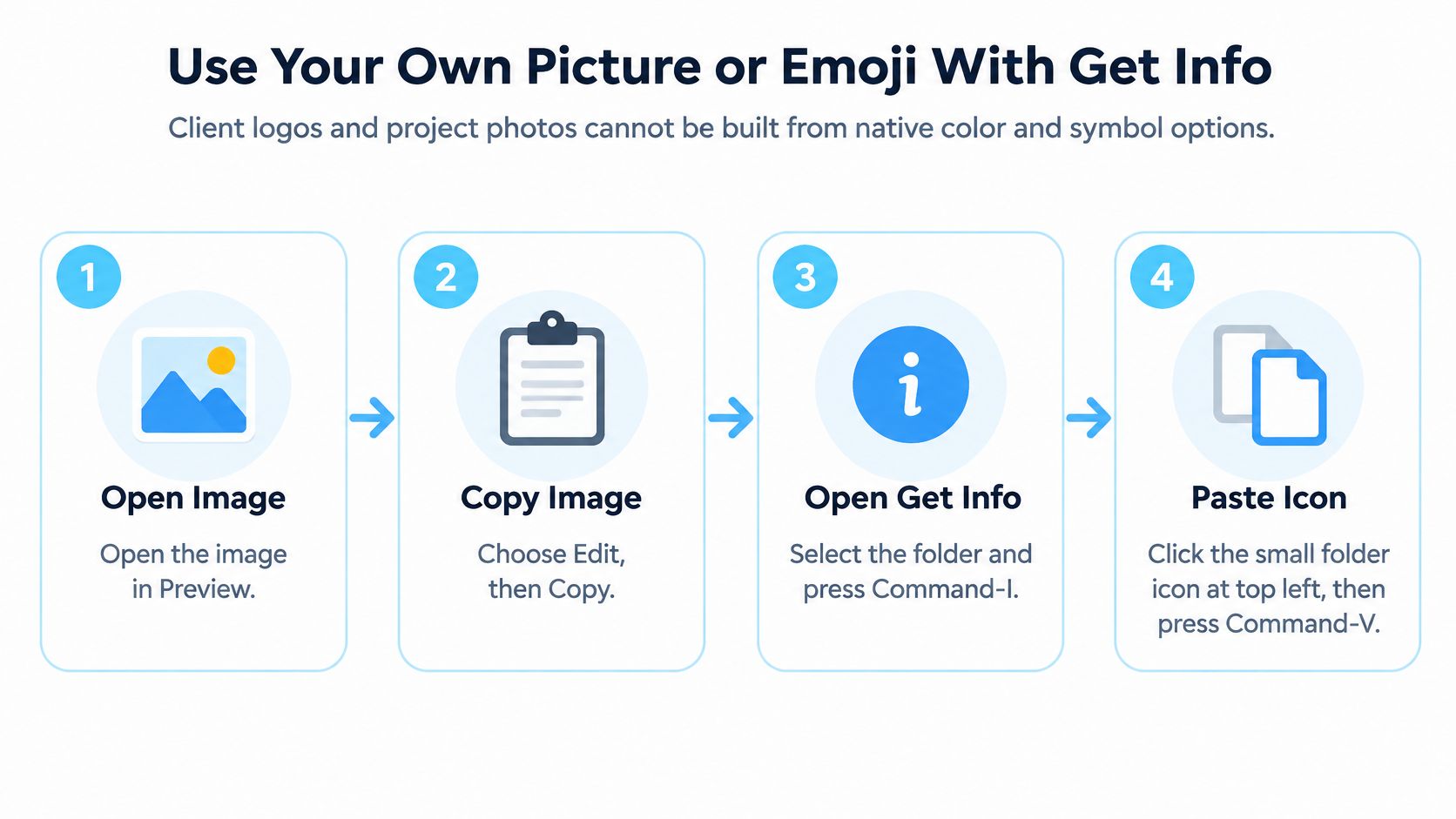
The four main actions in this workflow are laid out below.
The Get Info steps
- Open the image in Preview and choose Edit, then Copy. Copying the picture itself, not the file in Finder, is what puts usable artwork on the clipboard.
- Select the folder in Finder and choose File, then Get Info. This opens the metadata window where the icon lives.
- Click the small icon at the top of the Info window. That's the actual target, and you'll see it highlight when selected.
- Choose Edit, then Paste. The small icon changes immediately if you've hit the right spot.
- Close the Info window and check Finder. Judge the result at the size you normally browse, not zoomed in.
Here's the workflow demonstrated on screen.
Apple lays out this exact sequence in its macOS 15.0 guide to custom icons, and it makes a distinction that trips up almost everyone the first time. The small icon at the top is not the larger preview icon below it. Click the large preview and pasting does nothing useful. Click the small one and the same paste works first try. If Paste appears greyed out, you've almost certainly selected the wrong target.
Getting a clean result
Artwork choice decides whether the icon reads well. A square crop with transparent edges looks cleaner than a rectangle, because Finder shrinks the image into a small square space. A busy photograph with fine detail turns to mush at list-view size. A simple logo or a single bold subject survives the shrink.
You also have options for where the artwork comes from. An icon can be downloaded from the web, exported from your own design tool, or copied straight from another file's Get Info window if a folder you've already styled has the look you want. A designer I know pastes one client logo into each new client folder this way, and each one takes under a minute once the logo file is open in Preview.
If you're building a matched set of designs rather than using one-off logos, it's worth looking at what a curated Mac icon pack includes before you hunt down images one at a time. Consistent line weights and proportions across a set read far better than images grabbed from different places.
The method itself never changes, and that's its weakness. Every folder means the same five stages again, prepare, copy, locate, open Get Info, paste. For three folders that's fine. For a full client archive, the repetition is the problem.
Changing Dozens of Folders at Once
A single folder takes seconds either way. A client archive with forty subfolders, each needing the same color logic applied, turns a one-minute task into an afternoon of identical clicks. That's the decision point. Below a handful of folders, Apple's tools are enough. Above that, you want batch application.
| Task | Native Finder | Tintd |
|---|---|---|
| Change one folder's color and symbol | Control-click, then Customize Folder | Right-click in Finder or drop the folder into the app |
| Use a custom image | Get Info, paste into the small icon | Import an image and apply it to the selected folders |
| Apply one style to many folders | Repeat the steps for each folder | Batch across selected folders and their subfolders |
| Style new folders automatically | Not available | Folder Watcher applies matching styles to new folders in chosen locations |
| Revert to the default icon | Select the icon in Get Info and press Delete | One-click restore to the standard macOS icon |
Why the native route doesn't scale
The gap is structural, not a matter of speed. Apple's instructions describe selecting "the file or folder" in the singular, and neither the Customize Folder panel nor the Get Info workflow includes a batch step. There's also no automatic suggestion, no folder watching, and no way to push one style down through subfolders. You repeat the full sequence per folder, and every repetition is a chance to pick the wrong swatch.
How the bulk route works
- Open Tintd and drop in the parent folder, or right-click it in Finder if you'd rather stay where you are.
- Accept a Smart Icon or Smart Color suggestion based on the folder name and its neighbors, or pick manually from the library of over 11,000 icons and emojis.
- Apply the style to the selected folders and their subfolders in one pass, then check the result in Finder.
The suggestion step is where the time saving really sits. Instead of deciding forty times, you review a proposed icon and color per folder and adjust only the misses. If you're new to the concept, this overview of what batch editing means in practice explains the apply once, review everywhere pattern in more depth.
Folder Watcher covers the folders you haven't created yet. Point it at a Projects location and each new folder gets styled as it appears, using the same naming-based matching. That keeps the system intact without a cleanup session every month. Because the batch tools work through the same Finder context you're already in, you keep your existing habits. You're not learning a new file manager, you're skipping repetition.
Build a Folder Icon System That Stays Consistent
A blue folder with a red tag tint gives two visual cues. If blue means finance and red means urgent, it is unclear which signal to follow. Folder icons work as a navigation system only when each visual signal has one defined job. Set those jobs first, then apply them consistently.
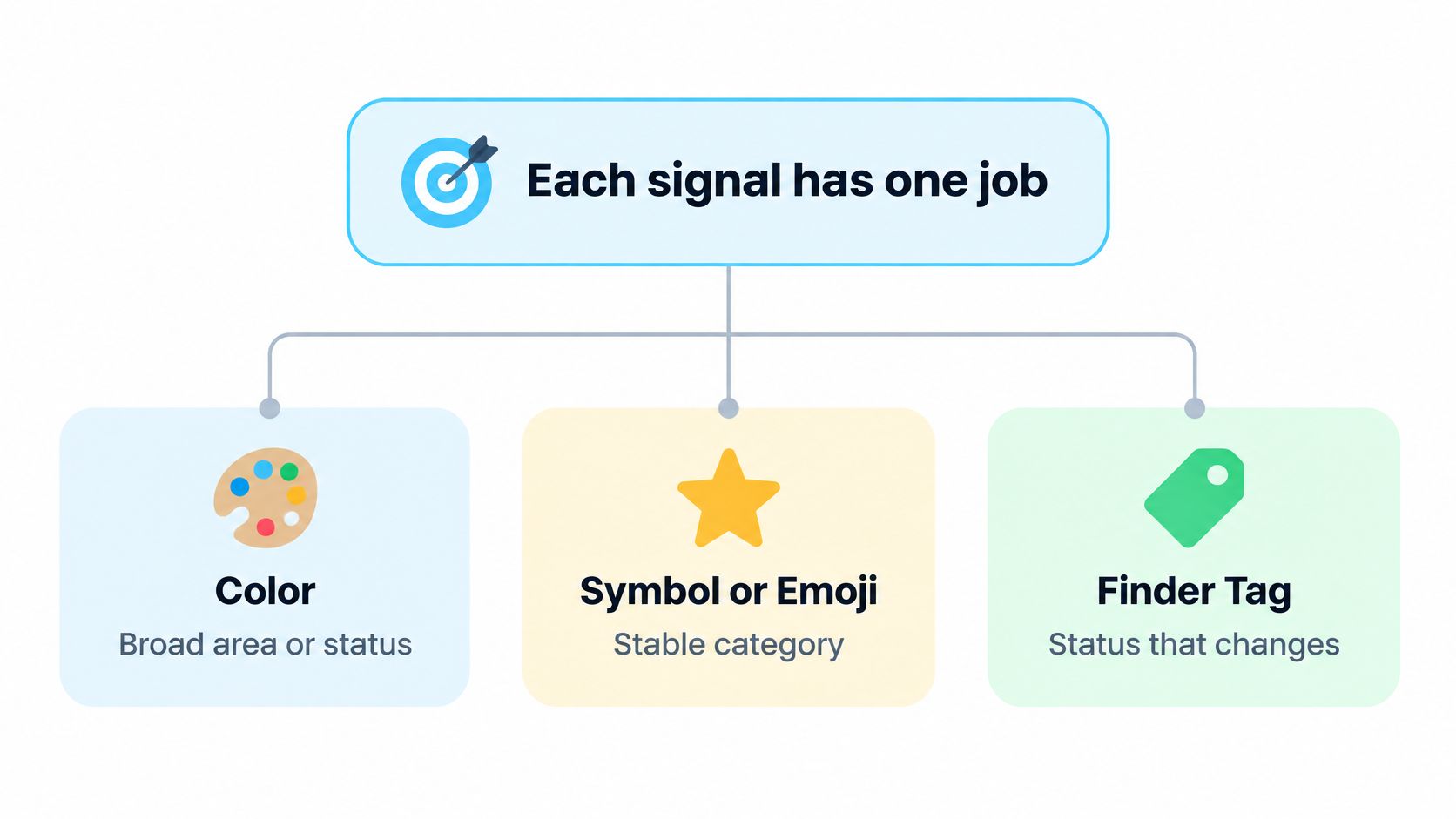
Give each signal one job
- Color for broad work area: assign a color to a major area of work, then use it consistently.
- Symbol or emoji for stable category: use it for what the folder contains or represents, such as a type of work.
- Finder tag for changing status: add or remove tags as workflow state changes.
macOS can blur those roles. Its "Tint folders based on tags" setting applies a color tint to folders with Finder tags. Apple explains how to configure tags and folder tinting in its guidance on tags and folder tinting. A tag tint can override the visual message of a custom folder icon. For example, a blue finance icon may also show red when you apply an Urgent tag. Choose which signal controls color: turn off tinting, or select tag colors that do not conflict with your icon palette.
A photographer could use a camera symbol for shoot folders, a color for each year of work, and a tag for delivery status. Add the delivery tag when a shoot is sent, then remove it when the job is archived. Each cue answers a different question, so folders are easier to scan without decoding overlapping signals. For the file structure behind a visual system, see these principles for digital file organization that scales.
Check neighboring folders as a group. Five nearly identical blue shades are hard to tell apart, even when each folder technically follows the rule. Tintd's consistency engine balances colors among neighboring folders, helping the set remain readable as folders are added.
Write down the convention before applying it. Specify what each signal means and what each color represents across the archive. That short reference prevents conflicting choices when you style folders later.
Restore Default Icons and Fix Ones That Will Not Stick
Restoring a folder is the quickest job in this whole guide. You don't need the original image, and you don't need to know how the icon got there.
Restore the default icon
- Select the folder and press Command-I to open Get Info.
- Click the small icon at the top of the Info window.
- Press Delete. The folder returns to the default macOS icon immediately.
Tintd does the same job across many folders with a one-click restore, which saves you opening an Info window per folder when you abandon a scheme entirely.
| Symptom | Likely cause | Fix |
|---|---|---|
| Custom icon gone after moving or copying | Copy or sync tool dropped the icon metadata | Reapply the icon in the new location and keep a master copy of the image |
| Icon looks soft or blurry | One small PNG scaled up by Finder | Build an .iconset with all sizes and convert with iconutil -c icns |
| Change not visible | Finder window has not refreshed | Reopen the window, or relaunch Finder |
| Icon will not change on a system folder | Applications, Library, System and Users are protected | Apply the icon to a folder inside your Home folder instead |
| Get Info click does nothing | Clicked the large preview, not the small icon | Click the small icon at the top of the Info window |
Fixing a blurry icon properly
The blurry case deserves a fuller explanation, because pasting a bigger PNG only half fixes it. macOS renders icons at multiple sizes and scale factors, including 16, 32, 48, 128, 256, and 512-point representations at 1x and 2x densities, as set out in Apple's high-resolution icon implementation guidance. One small image gets scaled up and goes soft on Retina displays. The correct route packs every size into one file.
- Export the artwork as PNGs at 16, 32, 128, 256 and 512 points, with a 2x variant of each, keeping transparency intact.
- Create a folder named icon.iconset and place every size inside it under the expected filenames.
- Check that no size is missing, then run iconutil -c icns icon.iconset in Terminal.
- Preview the resulting .icns file, copy its image, and apply it through Finder's Get Info workflow.
The common pitfalls are mundane. People omit the .iconset suffix, use inconsistent filenames or dimensions, or flatten transparency during export. Each one produces a conversion error or a soft result, and each is fixed by checking the iconset contents before running the command, not after.
For the simplest symptom, an icon that changed but doesn't show, reopen the Finder window first. If the old icon still stares back, relaunch Finder. The change usually applied fine, and the window just hasn't refreshed.
Privacy and Limits of Folder Icon Tools
Folder names can expose client identities, project codes, and personal matters. Treat them as private information when choosing a folder-icon app: check its privacy policy and permissions before granting access, especially if the tool scans folder names to make suggestions. Tintd is one option for applying icons, but its privacy and data-handling details should be checked in the app's current documentation rather than assumed from how it works on your Mac.
What stays on the device
A folder-icon tool may need access to folder names or locations to apply styles or offer suggestions. Review the permissions it requests and decide whether they match the job. If you cannot confirm how an app handles this information, use Finder's built-in Get Info controls for individual folders instead. They cover basic icon changes without requiring another app.
Where any icon approach falls short
A custom icon is stored in the folder's metadata rather than its contents. That metadata may not survive every transfer. Zipping a folder, using some cloud sync services, or moving it to another operating system can remove the icon, leaving the folder with its default appearance.
Test the route your shared work really uses. Move a test folder to the shared drive or external disk you use, then confirm its icon survived. If the icon disappears, keep using icons as a local navigation aid, but give folders descriptive names so colleagues can identify them without relying on color or symbols.
An icon is a local visual cue, not portable data. Treat it as a layer on top of good names, never a replacement for them.
Apple's built-in tools also restrict changes to protected locations such as Applications, Library, System, and Users. That limitation applies to Apple's native options; third-party apps may behave differently, so check their documentation and permissions before using them on protected folders. For ordinary working folders, Finder's controls or a dedicated icon app can support a consistent visual system without changing those locations.
Start With One Folder Convention This Week
- Pick one folder group you use daily, such as current client work, rather than your whole drive.
- Write down each signal's meaning, which color is which area, which symbol is which category, which tag is which status.
- Apply it to five folders by hand with the Finder method, and test one custom image through Get Info.
- If the change would repeat on more than about twenty folders, download Tintd and run the bulk tools on a copy of the tree before touching originals.
- Add Folder Watcher for a Projects location if new folders arrive often, through Settings, Folder Watcher, granting Full Disk Access when macOS asks.
The convention matters more than the tool. A clear rule applied by hand beats an automated mess every time.
If your five test folders read clearly and the next step is applying that convention across a whole archive, Tintd handles the repetitive part with batch editing, a large icon and emoji library, and a folder watcher that styles new folders as they appear, all processed on your Mac. Start with one project tree, check the result in Finder, and expand only when the system proves itself.