
You open a project folder and every directory is the same blue shape. Client work, exports, invoices, and old drafts only differ by the words underneath, so you slow down and read instead of recognizing the folder you wanted. Folder symbols fix that scan, but only when you treat them as a navigation system you govern. A symbol should name a stable kind of work, stay consistent, and survive a copy. Decoration that you cannot search, reset, or explain to a collaborator just adds noise.
Add a Folder Symbol on Mac
Five routes cover almost every case, from a single piece of artwork to a watched location that styles new folders on its own. Pick the row that matches how many folders you are changing and how much risk you will accept.
| Method | Where you do it | Best for | Main limit |
|---|---|---|---|
| Finder Get Info, paste an image | Get Info panel | One or two folders with custom artwork | Manual, one folder at a time |
| Right-click styling with Tintd | Finder context menu | Quick changes to a few folders | Needs the Tintd app installed |
| Drag an emoji onto a folder | Tintd emoji library | Emoji symbols across a folder set | Needs the Tintd app installed |
| Folder watcher | Tintd Folder Watcher | New folders styled automatically | Needs Full Disk Access |
| Scripts or Terminal commands | Terminal or a script | Bulk jobs for technical users | Easy to break folder metadata |
The native Get Info route
Finder's Get Info panel is the right start when you have custom artwork for one or two folders and you do not want another app in the path. You paste an image into the folder's own icon well. That is a normal Finder operation, not a filter painted on top of the window.
- Copy the image from Preview, a browser, or a file. A square PNG with a transparent background usually looks cleanest on the blue folder shape. Start with a larger image than the icon size you use day to day, so the symbol stays sharp when you switch to large icons.
- Click the folder once, then press Command-I to open Get Info.
- Click the small folder icon in the top-left corner until its highlight border shows. That border is the target. If you miss it, the paste can land in the wrong place or do nothing.
- Press Command-V. The symbol replaces the blue folder.
- Close Get Info and check the folder in icon, list, and column views. A symbol that reads well as a big tile can turn into a smudge in a narrow list.
I would start with this route for a logo, a client mark, or any artwork you already exported. It is slow on purpose. You see the result on that one folder before you commit a style to dozens of siblings. You can also bring in your own image later through an app if you outgrow one-at-a-time pasting. Changing a folder's icon or color is purely cosmetic and does not alter files or subfolders inside it.
When the other routes earn their place
Get Info does not scale, and pretending it does is how people end up with three different camera symbols for the same kind of folder.
Right-click styling is the faster manual path for a handful of folders. You open Tintd from Finder's context menu and set the icon there, without hunting through Get Info each time. It still asks for a decision per folder, which is what you want while the visual language is still unsettled.
Emoji suits a set that should share one readable mark, such as a receipt, a camera, or a folder of contracts. Any emoji can be a folder icon. You select it in the emoji library and drag it onto the folder. If you are choosing marks for a whole tree, the emoji folder icons guide is a useful pass before you drag the same face onto everything.
A folder watcher is a different kind of tool. It styles new folders as they appear, and macOS will ask for Full Disk Access before that monitoring can run. Manual color changes do not need that permission. Colorizing folders by hand stays inside the normal Finder workflow, so you can tint a few directories without granting broad disk access to a background process.
Scripts and Terminal commands are the bulk path for people who already live in a shell. They are also the easiest way to damage the metadata Finder uses to draw the symbol. A script that copies folders, strips attributes, or writes a partial icon record can leave you with a default blue folder, a blank well, or a custom look that vanishes on the next copy. If you go this way, change one test folder, confirm all three Finder views, and only then point the script at a real tree.
Choosing Between Symbols, Tags and Colors
A symbol, a tag, and a tint answer different questions. Mixing them without a job for each one is why a “colorful” Finder becomes harder to read than the plain blue default.
| Signal | Best for | Searchable | Works well when |
|---|---|---|---|
| Tags | Status, priority or workflow stage | Yes, as searchable metadata | One folder needs several labels |
| Symbols | Stable content type, such as Clients or Photos | Only by folder name | You want recognition at a glance in icon view |
| Colors | A few lifecycle states, such as Active or Archived | Only by folder name | You keep to a small, fixed set of meanings |
Apple's Mac Help on tags documents tags as searchable metadata and notes that Finder can tint folders based on tags, while customized folder icons, colors, symbols, and emoji are a separate treatment. The help pages show how to apply each feature. They do not give you an information architecture for combining them, and that gap shows up the moment one red folder means “urgent” and another red folder means “photos.”
Tags carry cross-cutting facts. Status, priority, and workflow stage belong here because one folder can hold several tags, and you can search for them later. A Clients folder can be tagged Review this week and still keep a client symbol. You do not burn the symbol on a temporary state.
Symbols should name what the folder is, not where it sits in a pipeline. Clients, Photos, and Invoices stay meaningful for years. They earn their place in icon view, where shape beats a column of text. They are a weak search tool. Finder will not find “every camera symbol” the way it finds a tag, so a symbol-only system is hard to automate and hard to audit.
Colors work when the set of meanings is tiny and stable. Active and Archived can be two tints you never reuse for content type. The failure mode is reuse. The same hue for unrelated ideas forces you to remember a private legend, and that legend collapses the week you are tired.
A short policy that stays readable
Say you are a photographer with three parent folders: Clients, Archive, and Active.
- Put a camera or person symbol on Clients, and keep that symbol for every client folder that is the same kind of container.
- Tint Active and Archive with two lifecycle colors, and do not use those colors for RAW, exports, or invoices.
- Tag a shoot with Rush or Waiting on selects when the state will change. Remove the tag when the state ends. Leave the symbol alone.
Document the exceptions in shared or collaborative folders. A producer who cannot see your legend will read a red folder as “stop” or “delete.” Write the exception next to the folder name, or skip the custom look on anything you hand to someone else.
A short, consistent set of symbols usually beats a large collection of unique ones. Recognition comes from repetition, not from a new mark on every directory.
More decoration is not a better map. If you want patterns for naming and grouping before you assign marks, the notes on folder organization ideas pair well with this split between type, state, and tag.
How Finder Decides What Each Folder Shows
Drop a PNG into the same window as a folder and nothing about that folder changes. The image sits there as a file. Finder does not treat “a picture nearby” as an instruction to restyle the directory.
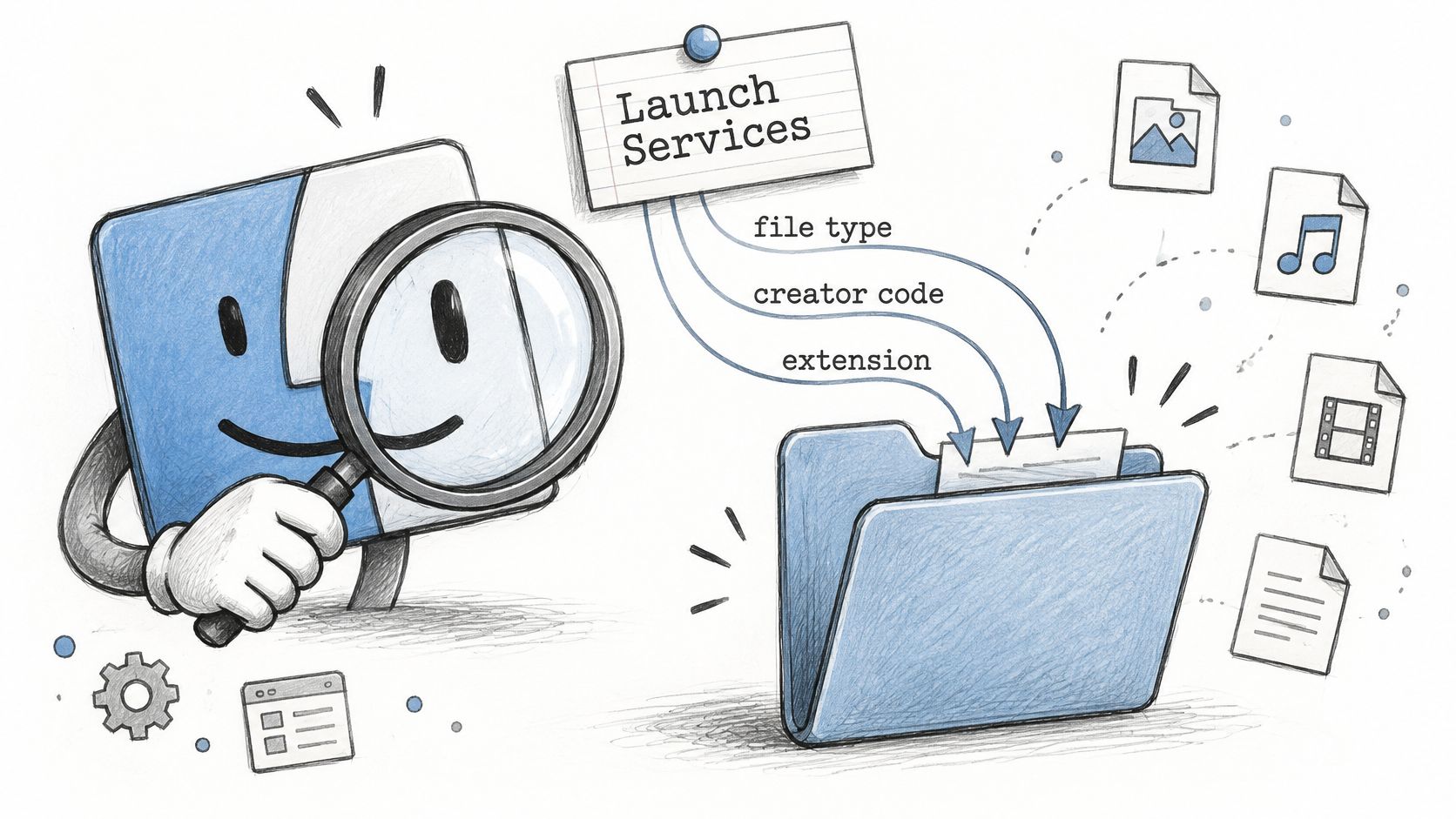
Finder builds the picture you see from several layers, not from whichever image happens to share a parent. Apple's File System Programming Guide describes how the system resolves what to draw. Finder consults Launch Services for file and folder icon information. File type, creator code, bundle status, filename extension, and user settings can all influence the result. An app bundle, a disk image, and an ordinary directory are not the same kind of object, so they do not share one drawing rule.
Ordinary directories get the generic folder icon unless macOS or a customization you applied supplies a specific treatment. That is why renaming a folder to “Photos” does not grow a camera, and why parking artwork beside the folder fails. Reliable styling writes the folder's recognized icon metadata. A utility that only renames files, or only drops an image in the same directory, is not styling the folder.
The same rule explains a clean reset. Finder falls back to the standard directory picture only after that customization state is removed or cleared. Deleting the PNG you used as source art does nothing if the folder still carries the custom icon record. Apple's documented Get Info workflow, pasting an image into the icon well, is a native Finder operation. It is not an application-specific trick that only one utility can see.
Three checks when a symbol fails
When the folder still looks blue, or an old mark will not leave, work through the display path before you paste again.
- Confirm the icon well. Open Get Info and look at the small icon in the top-left. If your image is not sitting there with the highlight available, Finder never received the customization.
- Reopen the Finder window. Close the parent window and open the folder's location again. A stale view often keeps the previous drawing after the metadata is already correct.
- Restart Finder if the old icon persists. Option-click the Finder icon in the Dock and choose Relaunch. Check icon, list, and column views after it returns.
If the well shows the right image and every view is still wrong, the problem is no longer “which picture did I copy.” Something in the folder's stored customization is incomplete or was stripped, which is a different repair from pasting a prettier PNG.
Remove or Reset a Folder Symbol
A symbol you no longer want is clutter, not a harmless extra. Reset the folder when the mark described an old project, duplicated a meaning you now reserve for tags, or failed to read at small sizes.
Finder returns the generic blue folder only after the customization state is cleared. Deleting an image file that happens to sit beside the folder does not do that job. The directory still points at its custom icon until you remove that record.
- Select the folder and press Command-I to open Get Info.
- Click the folder icon in the top-left corner so the highlight border shows.
- Press Delete. The custom image leaves the well and the blue folder returns.
- Close Get Info and reopen the parent window. Confirm the default icon in icon, list, and column views.
Any customized folder can also be reverted to the original macOS Finder folder icon in one click, which is the practical path when dozens of folders share a retired style. Run that restore on one test folder first. Check the three views, then expand to the rest. A bulk reset you cannot undo in a single step is how a careful palette disappears on a Friday afternoon.
If the old symbol is still there after you reopen the window, relaunch Finder from the Dock and look again. A cached drawing can outlive a correct Get Info panel for a minute or two.
Keep a copy of each original image before you change or reset a folder. Get Info does not hand the artwork back to you as a tidy file on the Desktop. If you might reapply the same mark next month, the PNG in a known folder is the backup, not the icon well.
Keeping Symbols Through Copies, Backups and Macs
A custom folder look is metadata attached to the folder, not a pixel baked into every file inside it. The exact record depends on how the customization was made and which generation of macOS wrote it. Copy tools that keep file bytes and drop attributes will deliver a full folder with a plain blue icon.
Technical inspection of newer custom folders, discussed in this Stack Exchange thread on changing icons from Terminal, identifies two extended attributes that are jointly required for the custom rendering to appear correctly. com.apple.FinderInfo is a 32-byte Finder metadata structure. com.apple.icon.folder stores the symbol or emoji presentation details. Miss either one and the folder can fall back to the generic icon even though the other attribute is still present.
Traditional arbitrary icons use a different path. Finder can store the icon in a hidden file named Icon followed by a carriage-return character inside the folder, with related Finder or resource metadata held in extended attributes. Bulk edits and watchers have to preserve existing attributes and handle that hidden file safely, then verify the Finder display after the write. A script that “cleans” hidden files will delete the traditional icon and leave the contents untouched, which feels like a successful copy until you look at the folder.
Custom folder icons are stored locally on each Mac, so a set you built on a desktop does not appear by itself on a laptop. You set the customizations up separately on each machine. A backup that restores files but strips extended attributes has the same result as a fresh Mac. The documents are there. The navigation layer is not.
Check the copy before you trust it
- Open Get Info on the original folder and confirm the symbol is in the icon well, not only visible in one Finder view.
- After you copy to an external drive or a backup volume, repeat that Get Info check on the copy. Do not judge only by a quick icon-view glance on the source Mac, where a cached drawing can flatter you.
- If the symbol is missing, reapply it from the original image you kept aside. Do not assume the backup will invent the attribute on the next run.
Test a restore on one folder before you treat a backup as the home for a full symbol set. Restore that single directory, confirm the icon well, then decide whether the backup method is fit for the rest. Filesystems and sync tools differ in whether they keep extended attributes. One successful folder is evidence. A hope that “the drive usually works” is not.
Decide Whether to Automate Your Folder Symbols
Automation sounds like the grown-up version of folder symbols. It is not, unless the set of names is already stable and the folders are ones you are willing to let a watcher see.
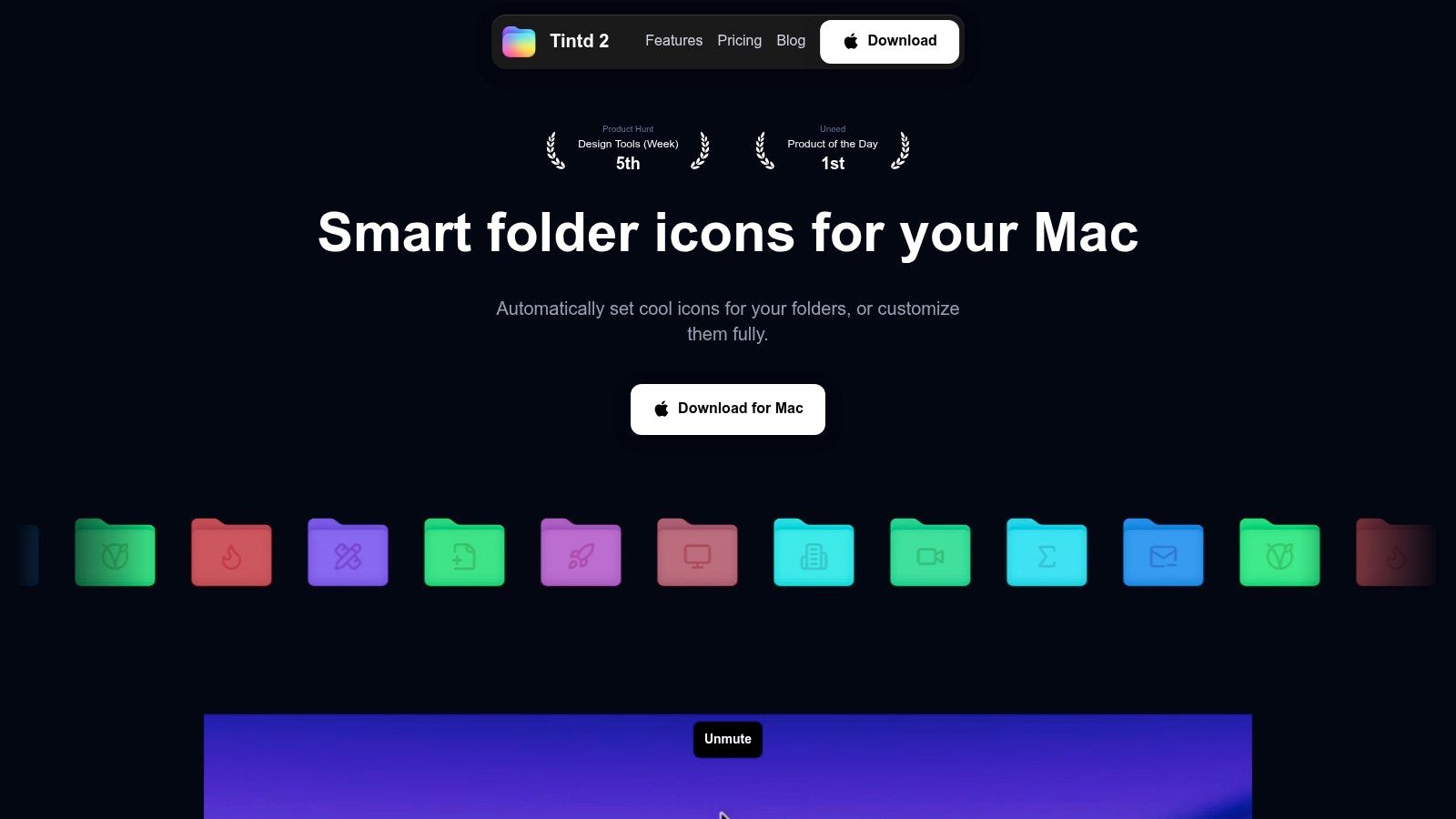
Folder Watcher detects each new folder created in locations you choose and gives it a matching color and icon based on its name. That is useful when you already know that a folder called Invoices should always wear the same mark, and when new folders appear often enough that manual styling will drift. It is a poor fit for a directory whose names are the sensitive part of the work.
The watcher requires Full Disk Access. macOS asks you to grant that the first time you enable Folder Watcher. You can turn the watcher off at any time in System Settings, which matters more than the onboarding screen suggests. A process with broad disk access can observe folder names continuously. It does not need to open a document to learn that a directory is called “Acme acquisition” or “2024 tax dispute.”
Local processing is a real reduction in network exposure. Icon and color suggestions run on your Mac, folder names do not leave the device, and the app does not call an AI service. Local is not the same as risk-free. A compromised or misconfigured app with Full Disk Access can reveal project names, client identities, research topics, or financial categories that a manual Get Info session never had to watch. Exclude those locations. Do not point a watcher at a drive just because the drive is attached.
People who want rules tied to specific folders sometimes reach for Automator folder actions instead. That path has its own maintenance cost, and it still should not be the first experiment on a folder full of client names.
A rollout you can finish on one afternoon
- Pick one non-sensitive folder, such as a test project that contains dummy names.
- Enable the watcher only for that location. Leave every client, finance, and research directory out.
- Create a new folder whose name should match a symbol you already trust, and confirm the color and icon in icon, list, and column views.
- Run the failure cases on purpose. Try an external drive, an iCloud-synced folder, and a restore back to the default icon. Note which copies keep the look and which come back blue.
- Expand to other folders only after every one of those tests behaves the way you expect.
The Lifetime plan gives you access to all features, unlimited generations, automatic folder icons, smart icons based on folder name, and more than 11,000 icons and emojis. A larger library does not remove the permission decision. Buy the catalog if you already know the system. Do not turn on watching so you can browse icons.
The short video below walks through applying symbols in Finder so you can compare the manual result with what a watcher would do on the same names.
Automate a stable folder set you already trust, where a wrong symbol is annoying rather than a disclosure. Keep manual styling for sensitive areas, shared trees, and any place whose names you would not want a background process to enumerate. That split is the governance. The symbols are only as good as the rule that decides which folders get them.
Tintd assigns colors and folder symbols in Finder, by hand or with a watcher that matches new folders to their names, and it does that work on your Mac. If your directories have turned into a wall of identical blue icons, start with one trusted folder and a symbol that names what is inside. Visit Tintd when you want that system on the folders you have already decided are safe to style.