
You open Finder to grab a project folder, then pause because everything looks alike. You might already have tried a custom picture, only to find the blue folder back after copying it to another drive.
Folder icons work best when you treat them as both a classification system and folder metadata. The visual design helps you recognize what belongs where. The metadata determines whether that design survives a move, a copy, or a sync.
Folder Icon Options on macOS at a Glance
Choose the method that matches your workload, not just the appearance you want.
Ways to change a folder icon on macOS
| Method | What changes | Best for | Limit |
|---|---|---|---|
| Finder Get Info with a custom image | Icon artwork you paste in | A small selection of folders with specific images | Manual, one folder at a time |
| Finder color options | Folder tint where macOS offers it | Quick color grouping | Color choices depend on your macOS version |
| Finder Tags | Colored dot labels | Filtering and search | Does not change the folder artwork |
| Third-party app such as Tintd | Icon and color per folder, with batch edits | Many folders and consistent sets | Requires installing an app and granting permissions |
| Terminal commands or scripts | Folder metadata written directly | Advanced users who need full control | Can break if only part of the required metadata is written |
Get Info is the simplest starting point when you have a particular image in mind. You don't need to install anything, and you can inspect the result immediately. The trade-off is repetition: each folder needs its own selection and paste.
Finder's color controls suit quick grouping, but don't assume that every Mac offers the same menu. If your Finder includes Customize Folder, use its available color and symbol controls. If it doesn't, the pasted-image method remains useful.
Choose appearance, search, or automation
Tags answer a different question from artwork. A red tag can help you filter a collection of folders, but it isn't the same operation as replacing their pictures.
A batch tool makes more sense when you're styling a whole project tree or repeating the setup regularly. Some tools can also watch chosen locations and style newly created folders, avoiding another manual task each time you start a project.
Your choice comes down to volume, how frequently folders change, and your comfort with manual work. None of these methods needs to be permanent, provided you retain a way to restore the default appearance.
How to Set a Custom Folder Icon or Color Step by Step
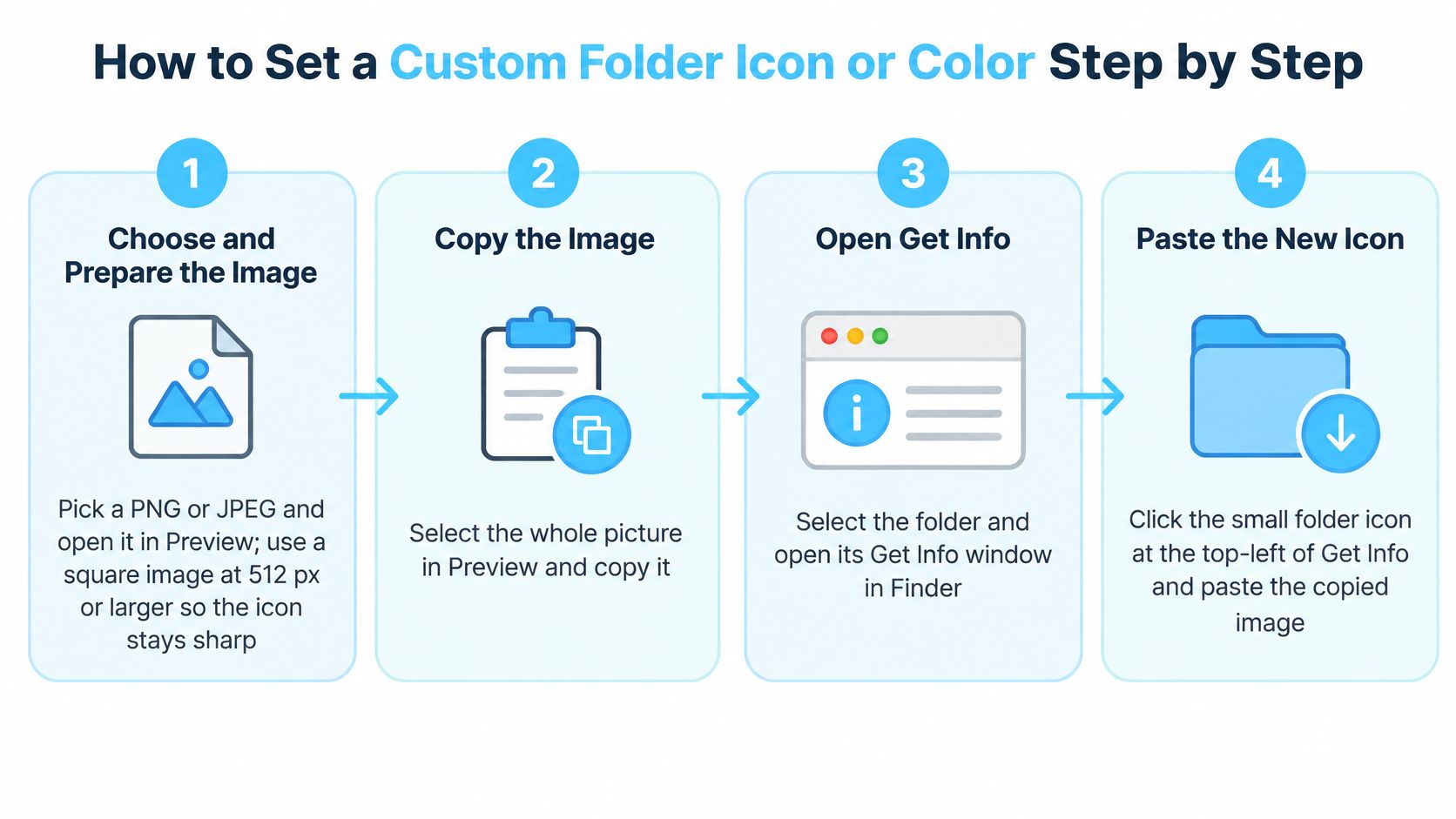
Start with an ordinary folder you own, rather than a protected system folder. For a custom image, you'll use Preview to copy the actual picture and Finder's Get Info panel to assign it.
This illustration shows the basic sequence.
Apply the image in Finder
Prepare your artwork in Preview. Open a PNG or JPEG that you own or have permission to use, preferably with a square canvas and generous resolution. Keep the subject simple and leave some breathing room around it, because fine lettering and crowded details become hard to recognize at Finder's smaller display sizes.
Select the whole picture with Command-A, then copy it with Command-C. Copy from inside Preview rather than merely selecting the image file in Finder, so you're putting image content on the clipboard rather than a file reference.
Select the destination folder. Click it once in Finder, then press Command-I to open Get Info. Check the folder's name at the top before continuing, especially if several similarly named folders are nearby.
Click the small folder icon at the top-left of the Get Info panel. A selection highlight indicates that this is the paste target; the larger preview farther down the panel isn't the control you need.
Press Command-V to paste. The small icon should change to your artwork, and you can then close the panel. If nothing happens, click the small icon again before retrying, since pasting without selecting it is a common reason the folder stays unchanged.
Reopen Get Info and inspect the folder in Finder. Open the folder too, confirming that you're still working with the intended directory and that its contents are accessible.
Use a tint instead of a picture
If Finder offers Customize Folder in the folder's contextual menu, open that panel and choose an available color. Add a symbol or emoji only if it helps distinguish the folder's purpose, rather than making the design harder to read.
For a successful image change, the artwork should appear in Get Info and in Finder wherever the folder icon is displayed, including column view. The apparent detail will change with the display size, so judge it at the size you normally use.
A good folder icon remains recognizable when it's small. If you need to enlarge it to understand it, simplify the design.
To remove pasted artwork, select the small icon in Get Info and press Delete. That removes the custom image assignment rather than deleting the folder.
What Happens Under the Hood When You Change a Folder
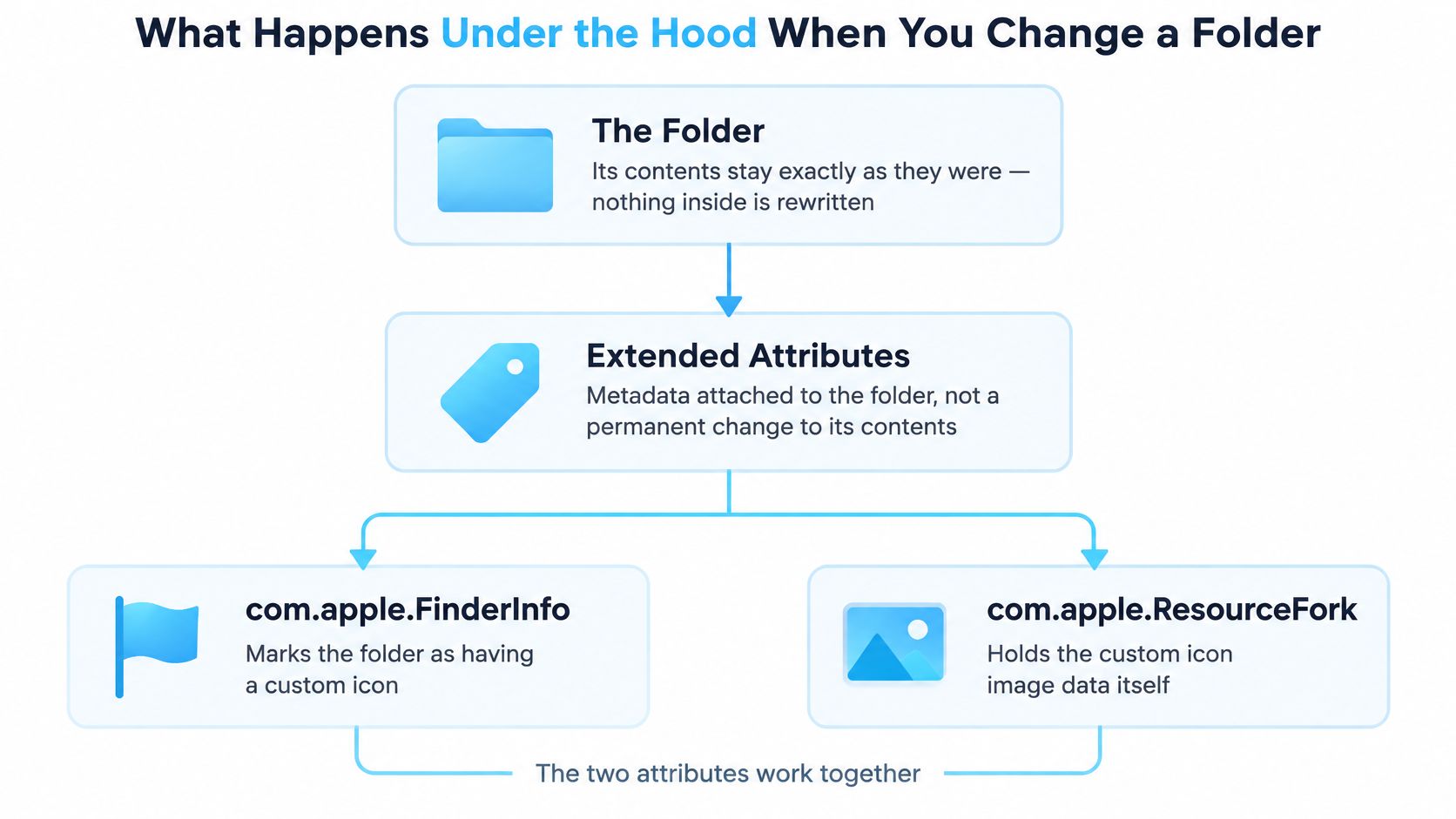
Think of a folder as a container with labels attached. Changing its appearance edits those labels, not the documents inside: changing a folder's icon or color is purely cosmetic and doesn't affect its files or subfolders.
The distinction between the container and its presentation is shown below.
Different customizations use different metadata
Apple's guide to customizing files and folders describes assigning colors, symbols, emoji, and custom images through Finder. These choices aren't all identical under the hood, so a script designed for pasted artwork shouldn't be assumed to handle newer symbol-based styling.
For newer folder styling, the relevant attributes include com.apple.FinderInfo, the 32-byte Finder metadata structure, and com.apple.icon.folder, which records symbol or emoji presentation details. These must be handled together for that customization to display correctly; writing only part of the state can leave Finder showing the standard folder.
The diagram illustrates the custom-image path with com.apple.ResourceFork. Don't confuse that image-storage mechanism with com.apple.icon.folder, or assume that every custom icon uses precisely the same storage arrangement.
Why the distinction matters
Copying a directory's contents isn't necessarily the same as preserving its presentation metadata. A destination filesystem, archive workflow, or sync service may retain your documents while dropping the information Finder uses to draw the custom folder.
For symbol choices, our guide to folder symbols can help you choose an overlay that remains meaningful without relying on color alone.
For a visual walkthrough of the Finder interaction, use this demonstration.
A reliable automation workflow therefore treats appearance as a coordinated metadata change. It records the previous state, writes all metadata required by that styling method, and verifies the result.
For a manual check, reopen Get Info after applying a style. For scripts, inspect the relevant attributes as well as the visible icon, and test restoration before applying changes across important folders.
Fix Folder Icons That Revert or Disappear
A folder turning blue after a copy doesn't necessarily mean the original customization failed. First compare the source folder with the destination: if the source still looks right, investigate the transfer rather than repeatedly editing the original.
Folder icon symptoms, causes and fixes
| Symptom | Likely cause | Fix |
|---|---|---|
| Icon reverts to plain blue after copying to another drive | Destination didn't keep extended attributes | Copy with a metadata-preserving tool or reapply the icon |
| Custom icon missing on a second Mac | Custom folder icons are stored locally on each Mac | Set the icon separately on each Mac |
| Folder looks customized in one app but not in Finder | Only part of the required metadata may have been written | Reapply with a tool that writes the complete customization, then check Get Info |
| Icon looks blurry | Source image is too small or too detailed | Use a larger square source image with a simpler design |
| Icon disappears after a sync | Sync service drops custom metadata | Keep the customized copy on the source Mac or exclude it from that sync workflow |
Separate a quick repair from a workflow problem
An unsuccessful paste or a poor-quality image usually calls for a straightforward reapplication. Replace the source artwork, target the correct Get Info control, and inspect the result at your normal Finder icon size.
A repeated failure after copying or syncing needs a different response. Test your transfer method with an expendable folder before moving a carefully styled collection, then inspect the destination directly.
Custom folder icons are stored locally on each Mac, so plan to set up the customization separately on each Mac. Shared access to the same documents isn't a dependable substitute for configuring their appearance.
Don't exclude important working documents from synchronization merely to preserve their appearance without considering how you'll back them up. Keeping styling local may be the better compromise.
Most repairs call for reapplying the style, not resetting the folder or recreating its contents. If you'd rather start clean, follow our instructions to restore default folder icons, then test a fresh customization on the affected Mac.
Organize Folders with Color and Icon Systems
Start with the folder shape itself. The desktop metaphor developed at Xerox PARC during the 1970s, and the Macintosh helped make it mainstream in 1984, as described in the history of the desktop metaphor. Susan Kare's original Macintosh folder artwork had to communicate its meaning on a constrained black-and-white pixel grid.
That history explains a useful design principle: the shape already tells you that you're looking at a container. You can use color and an overlay to classify the container without inventing a new visual language, a principle reflected in the account of early icon design.
But recognizable artwork won't rescue an overcrowded workspace. A 2024 desktop-organization guide from PC Tips recommended limiting the desktop to 5–6 folders to reduce visual clutter. Treat that as a practical suggestion, not a universal limit.
Give each visual cue a job
Build a small palette around the categories you really use. For a freelance photographer, the scheme might look like this:
- Warm colors for client work: Use related warm shades for commissioned projects, with a camera overlay for shoots.
- Cool colors for personal files: Keep personal photographs and household material visually separate from paid work.
- Neutral colors for archives: Make completed material recognizable without giving it the strongest visual emphasis.
- A bright accent for active work: Reserve the accent for projects currently needing attention, then remove it when their status changes.
Keep the visual grammar consistent. If color means category, don't also use that same color to mean urgency in a neighboring folder.
Choose symbols that describe the folder's purpose: a book for research, a camera for photographs, or a code-related symbol for source files. Match their visual style too, since mixing detailed illustrations with thin outlines can make unrelated folders appear grouped.
Keep names and hierarchy useful
Icons should supplement clear names, not replace them. A camera overlay identifies a type of work, but a folder name still needs to distinguish the wedding shoot from the product shoot.
Keep the hierarchy shallow enough that your top-level categories do useful work. Don't create extra nested folders merely because you've found more icons you like; use our folder organization ideas to plan categories around how you retrieve files.
If every folder gets a unique color and a unique picture, you're memorizing decorations instead of learning a system.
Test your design during a normal task. Look for a client folder by its color family, then confirm it by name and symbol.
If you hesitate, simplify before adding more styling. Merge overlapping categories, reduce competing accents, and retain text labels so you aren't dependent on color perception alone.
Confirm Your Method and Start Customizing Today
Start with a small group of folders you open regularly, not your entire home directory. Apply a consistent color family and a clear symbol choice, then use those folders during ordinary work before extending the scheme.
The built-in Finder method remains free and manual. A tool-based approach becomes useful when repeated edits or newly created folders would otherwise require ongoing attention.
Check the result before expanding
- Inspect the saved appearance: Open Get Info for each test folder and compare it with Finder.
- Open the contents: Confirm that the folder remains accessible and you're working in the intended location.
- Record the location: Note which Mac holds the folders and whether an external drive or sync service is involved.
- Test the exit: Make sure you're comfortable returning to the original appearance before styling a larger collection.
For an automated setup, control and privacy matter alongside the artwork. Our icon and color suggestions run locally on your Mac, folder names never leave the device, and we don't call an AI service.
The Folder Watcher can be turned off at any time in System Settings. Any customized folder can also be reverted to the original macOS Finder folder icon with one click.
Choose a frequently used folder today and give it a visual cue with a specific meaning. Because the appearance can be reverted, the first change is a low-risk way to test whether visual classification suits your workflow.
Tintd offers batch icon and color editing, custom-image imports, and automatic styling for new folders in chosen locations. Visit Tintd if you'd like to apply a consistent folder system without repeating the Get Info routine for every folder.