
The folder you're staring at is the wrong blue. It's a client folder you tinted last spring, or a project that shipped months ago and still carries a custom icon nobody needs, and it sits there among plain folders looking like a mistake.
Knowing how to restore default icons is less about the menu path and more about three smaller things that decide whether the fix sticks: cutting the wrong icon inside Get Info, a Finder cache that keeps painting the old image after a restart, and the surprise of finding that same folder unstyled on a second Mac. Get those three right and the standard blue folder comes back and stays.
Choose Your Restore Method and Test One Folder
Count the folders first, because that number picks the method. One folder carrying a leftover logo needs a different approach than a Clients directory where forty subfolders were color-coded over a year, and reaching for the slow route on a large set is how a restore gets abandoned halfway.
Two methods clear a custom folder icon and bring back the standard blue folder. Every other technique you'll read about is a variation on one of them.
The Finder route suits a handful
Get Info works on any file or folder, needs no extra software, and runs about 30 seconds per item once you know where the small icon lives. It's the right call for one to four folders, and it's the only option when a colleague is standing behind you asking why one specific folder looks wrong.
Batch restoration suits a set
Past a handful, the per-item routine becomes the problem rather than the fix. A batch restore reverts every folder it previously styled in a single pass, without opening one Info window. That matters when a rebrand or a tidy-up left dozens of folders carrying an icon nobody recognizes anymore.
The comparison below puts them side by side.
| Method | Works on | Effort | Best when |
|---|---|---|---|
| Finder Get Info and Cut | One file or folder at a time | About 30 seconds per item | You have one to four folders |
| Tintd one-click restore | Any folder Tintd customized, in batches | One click per batch | You have five or more folders to reset |
Neither method touches your files
Both routes remove the icon assignment and nothing else. The folder keeps its name, its contents, its subfolders and its permissions. There's no move to the Trash, no merge prompt, and no chance of losing a file because you wanted a blue icon back.
Test one folder before the rest
Restore a single folder first, on the same Mac, and watch it until the standard icon appears. Run the rest only after that one works, because a method that fails on one folder fails identically on forty, and undoing forty attempts is duller than doing one test.
Keep one thing in mind before you start: custom icons are stored locally on each Mac. Restoring on your laptop does nothing to the same folder on your desktop machine, so repeat the restore on every Mac you use. A restore changes only the icon, and a folder you strip today can be styled again later in one click.
Have a Mac on a current macOS version, the folder paths, and a few minutes. That's the entire setup. If the icon is still custom after a restart, the cache is the likely culprit, not the icon record.
Checks to Run Before You Reset Anything
Resetting is cheap, but it isn't free. Two minutes of checking stops a wrong reset that costs an afternoon rebuilding a color scheme you liked.
Work through these five checks in order. Each one catches a different failure, and the failures are easier to prevent than to reverse.
- Scan for what's customized. Switch Finder to list view and drag the Icon column wide, or scan the grid in icon view for folders showing a picture or a colored tint. Write the list down. Resetting from memory means you'll miss the three folders in a subdirectory and notice them next week.
- Note which Mac you styled them on. Custom icons are stored locally on each Mac, so a folder that looks styled on the iMac looks plain on the Air. Deciding whether you're resetting one machine or all of them changes the size of the job, and it explains why a folder you already "fixed" can still look custom when you open it on a second Mac.
- Check shared and synced folders. If the folder sits in iCloud Drive or a shared team location, someone else may have chosen that icon for a reason. A one-line message before the reset is cheaper than the follow-up question afterward.
- Screenshot the look before you lose it. If there's any chance you'll want the current design back, capture it. Recreating an overlay, a tint and a matching set for neighboring folders from memory is tedious. In Tintd the history panel keeps every icon you've made one click away, but a folder styled by hand in Finder has no such record.
- Confirm you own the folder. A folder that belongs to another user account, or one inside a managed work Mac with restrictions, may refuse the change outright. Check the Sharing & Permissions section of the Info window before assuming a whole batch will cooperate.
One more thing sits underneath all five checks: the reset touches only the icon assignment, but the folders themselves may hold work you can't rebuild. If they do, spend the same two minutes on the files themselves, not only on the icons. This guide to backup advice for Perth small businesses sets out what a practical backup routine covers, and the same routine applies to a home Mac as much as to a shopfront machine.
The whole check takes about two minutes and saves a second pass through the same folders.
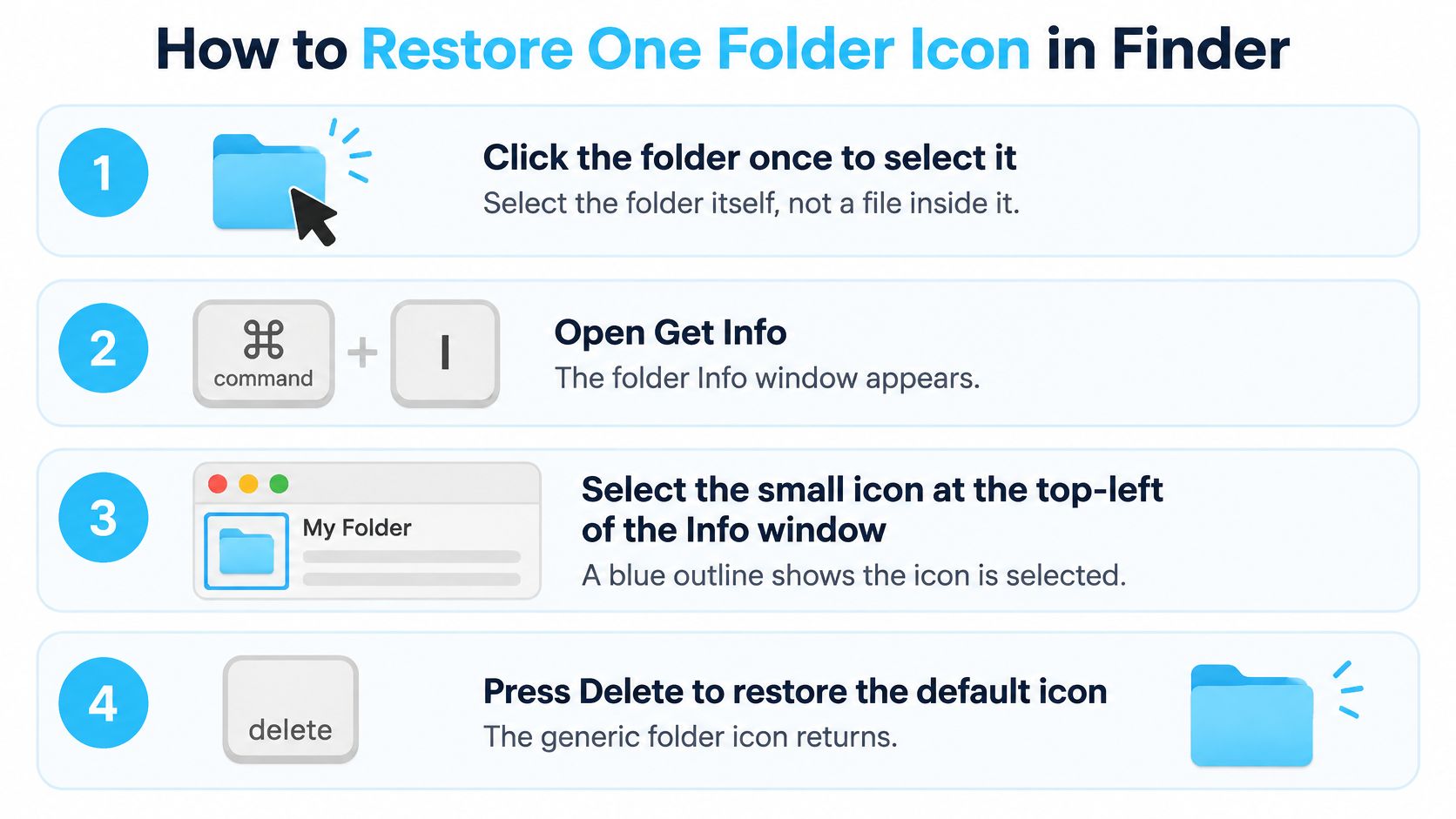
How to Restore One Folder Icon in Finder
Open Finder and follow this with the folder on screen. Each step matters for a reason, and step 3 is where most restores go wrong.
- Click the folder once to select it. Select the folder itself, not a file inside it and not the parent folder. Get Info edits whatever is selected, so a stray click before Command-I sends the whole operation to the wrong item.
- Open the Info window. Press Command-I, choose File > Get Info, or right-click the folder and pick Get Info. The panel opens with a large preview image near the top, which is not the control you want.
- Click the small icon at the top-left of the Info window. This is the icon record itself, a different control from the preview below it. Apple's macOS help guide to customizing folders and files treats the two as separate things, and that distinction is exactly why cutting an image in the preview area so often leaves the Finder icon untouched. When the small icon is selected, it picks up a highlight border.
- Choose Edit > Cut, or press Command-X. Current macOS versions also accept Delete with the small icon selected. Either way the custom assignment is cleared and the item falls back to its original system icon. Cut removes the record, not the contents: nothing inside the folder is touched and the folder doesn't move.
- Close the Info window and look at the folder. The standard blue icon should be there immediately. If it isn't, the record wasn't cleared, and step 3 is the first thing to redo.
The same sequence, laid out as a flow, looks like this.
What a successful restore looks like
The folder shows the standard macOS folder shape in Finder, with no tint, no overlay and no picture. Reopen Get Info and the small icon at the top is blank, with no custom image sitting in it.
That blank icon is the reliable signal. A folder can look almost right in Finder while still holding a stale record, and the Info panel is where you see the truth.
The identical routine works on files, since the Info window treats a document the same way as a folder. It's also the fallback for any folder a batch tool didn't reach.
A blank small icon in Get Info means there's no custom icon, whatever the Finder preview was showing a second ago.
Going back the other way
Stripping an icon is the easy direction. Rebuilding one by hand is fiddly, and the reverse process, adding an icon to a folder on Mac, is worth reading before you start pasting images into Info panels. Understanding how the record gets created makes it obvious why cutting the preview image never removes it.
Resetting Dozens of Folders Without Redoing Each One
The set you want to reset usually sits inside one parent folder. Open Projects or Clients, switch to list view, and sort by name so the styled folders appear in clusters instead of scattered down the window. That sort tells you whether you're resetting a whole branch or picking eight folders out of two hundred. Here's the layout you're working with.
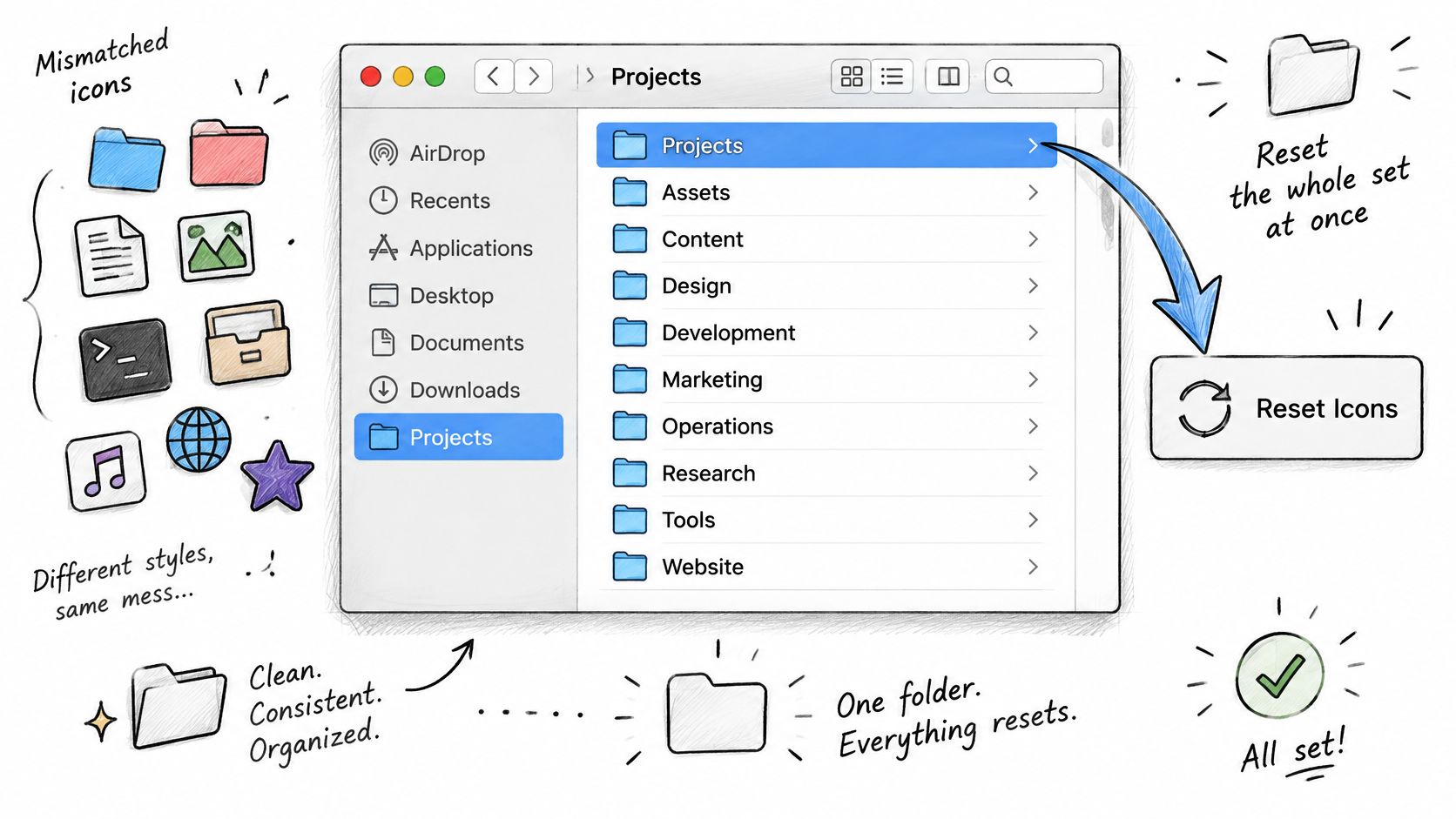
Once the batch is visible, select the folders, right-click, and open Tintd from the Finder context menu. Its one-click restore reverts any folder Tintd customized to the original macOS Finder folder icon, so a selection of forty comes back as forty blue folders in one action. Restoring at scale is the mirror image of the batch editing that created the look in the first place: one selection, one action, every folder in the set.
The restore is cosmetic. Changing a folder's icon or color doesn't affect the files or subfolders inside it, and neither does reverting it, so resetting a parent folder carries none of the risk of moving or merging one. Nothing inside gets rewritten.
Two situations need care before you trigger a batch.
- A styling watcher is active on that location. Pause it first. Otherwise any folder created during the reset gets styled again on arrival and you'll be back in the same spot tomorrow.
- Some folders were styled by hand. A folder whose icon you pasted manually in Get Info may fall outside a batch tool's reach. Those need the small-icon routine, one at a time.
Check three folders across the batch
Pick three folders from across the set, ideally one from each cluster, and open Get Info on each. An empty small icon means the record is gone. If one still shows an image, it was probably styled outside the tool and needs the manual route.
Keep a short note of which folders you reset, with a name and a date. When a colleague asks in three weeks why a folder lost its color, the note answers faster than your memory will.
Fixes When a Folder Keeps Its Custom Icon
Most failed restores fall into four patterns. Find the symptom in the table, run the fix, and check the result before trying anything else.
| Symptom | Likely cause | Fix |
|---|---|---|
| Icon still custom after Cut | Preview image was cut, not the small icon | Reopen Get Info, click the small top-left icon, then choose Edit > Cut |
| Icon returns after restart | Finder icon cache has not refreshed | Option-right-click Finder in the Dock, choose Relaunch, or log out and back in |
| Folder looks custom on another Mac | Custom icons are stored locally on each Mac | Repeat the restore on that Mac |
| Icon wrong after iCloud sync | Sync has not finished or is lagging | Wait for sync to complete, then check Get Info again |
The most common miss
Cutting the preview image is the failure to check first. Reopen Get Info, click the small top-left icon, and choose Edit > Cut again. If the small icon already looks blank and Finder still shows the old picture, you're dealing with the cache rather than the icon record, and repeating the cut won't help.
Command-Z undoes the last cut, which brings back an icon you removed by mistake. That's the argument for testing one folder before a batch: undo works item by item, and forty separate undo steps is nobody's idea of a good afternoon.
When the icon comes back after a restart
Finder holds an icon cache that can outlive the change you just made. Option-right-click the Finder icon in the Dock, choose Relaunch, then look again. If the old icon still returns, log out and back in, which forces a fuller refresh than relaunching Finder alone.
Why the same folder looks different on another Mac
A folder restored on one Mac can still carry its icon on a second machine, and nothing is broken or out of sync. Repeat the restore there and the two match again. For folders in iCloud Drive, let the sync finish before judging the result, because opening Get Info mid-sync can show a state that's about to change.
A Get Info re-run takes seconds. A cache fix can need a restart, so budget a couple of minutes before concluding the restore failed. And if the goal is a different look rather than none at all, changing a folder's color on Mac is a shorter path than rebuilding an icon from scratch.
Tintd styles Finder folders with icons and colors, and its one-click restore puts any folder back to the standard macOS folder icon when a design stops earning its place. Batches work the same way: select the set, revert it once, and every folder in it returns to default. If you've been putting off a cleanup because forty folders sounds like an afternoon of clicking, Tintd makes both directions quick.