
Right-click the folder in Finder, choose Customize Folder, then click a colored circle to change that folder's color at once. That's the fastest path when you're searching for how to change folder color on Mac for a single folder.
You're probably staring at a row of identical pale blue folders right now, reading names one by one to find the right client, class, or project. Color should let your eye land in the right place before you read anything. The catch is that macOS gives you several different ways to add color, and they don't do the same job. One changes a single icon, one changes every folder, one adds a searchable dot, and one handles a whole set. Pick by scope first, and the steps get simple.
Choose Your Folder Color Method
Start with scope, not color. If you pick a method built for one folder to style fifty, you'll waste an afternoon. If you change every folder to fix three, you'll lose the meaning you wanted color to carry in the first place.
Folder color methods compared on Mac
| Method | Scope | What You Can Set | Best For |
|---|---|---|---|
| Customize Folder (right-click) | One folder at a time | Colored circle, symbol or emoji, custom image | Single folders you want to stand out |
| Get Info icon paste | One folder | Any copied image or downloaded icon | Custom artwork and logos |
| System Settings Appearance | All Finder folders | One shared folder color | A broad look change or brand color |
| Finder tags | Any file or folder | Seven tag colors, searchable from the sidebar | Status or category, with the icon unchanged |
| Tintd | Many folders and new folders | One-click color and icon, batch editing, folder watcher | Large folder sets and automatic styling |
Those rows split into three kinds of change. Icon changes are visual. They alter what the folder looks like in Finder, whether that's a new color, a symbol, an emoji, or pasted artwork. Tags are searchable labels. The folder icon stays put, but Finder can gather everything carrying that tag from the sidebar. Global changes are broad. They restyle Finder folders as a group, so they're about overall look rather than meaning. Confusing these layers is why people change a setting, see half their folders shift, and assume something's broken.
Tintd sits in the batch row for a specific reason. Tintd lets you colorize your folder icons in just a few clicks, and any customized folder can be reverted to the original macOS Finder folder icon with one click. Its Folder Watcher detects each new folder created in chosen locations and automatically gives it a matching color and icon based on its name. That's a different promise from a one-off right-click, and it's only worth it when new folders keep arriving.
Match the method to your situation
- A few folders should stand out: Use Customize Folder. It's built in, it's immediate, and you control each folder on its own.
- You want a broad look: Change the global color and keep it neutral or on-brand. Don't spend your strongest colors on decoration.
- Color must mean status: Use tags with a short name list. A name like Waiting or Done survives when two categories end up sharing a similar shade.
- You manage large sets: Use Tintd for batch editing and the Folder Watcher, especially when new folders appear weekly and manual styling won't keep up.
Before you roll any method across a set, run a small test. Pick one folder, apply the method, and check it in Icon view and List view. A color that reads clearly in a big grid can disappear at list size, and a detailed image can turn to mush. If it passes both views, repeat it across the set. That one-folder check, paired with a sensible system from a guide to digital file organization, saves you from restyling the same folders twice.
Change and Undo One Folder's Color
For a single folder, Finder's built-in Customize Folder command changes its color without changing the rest of your folder system. Select a color circle, then add a symbol or emoji if color alone would not distinguish it clearly. The provided Apple macOS Finder customization guide covers Finder folder and file customization.
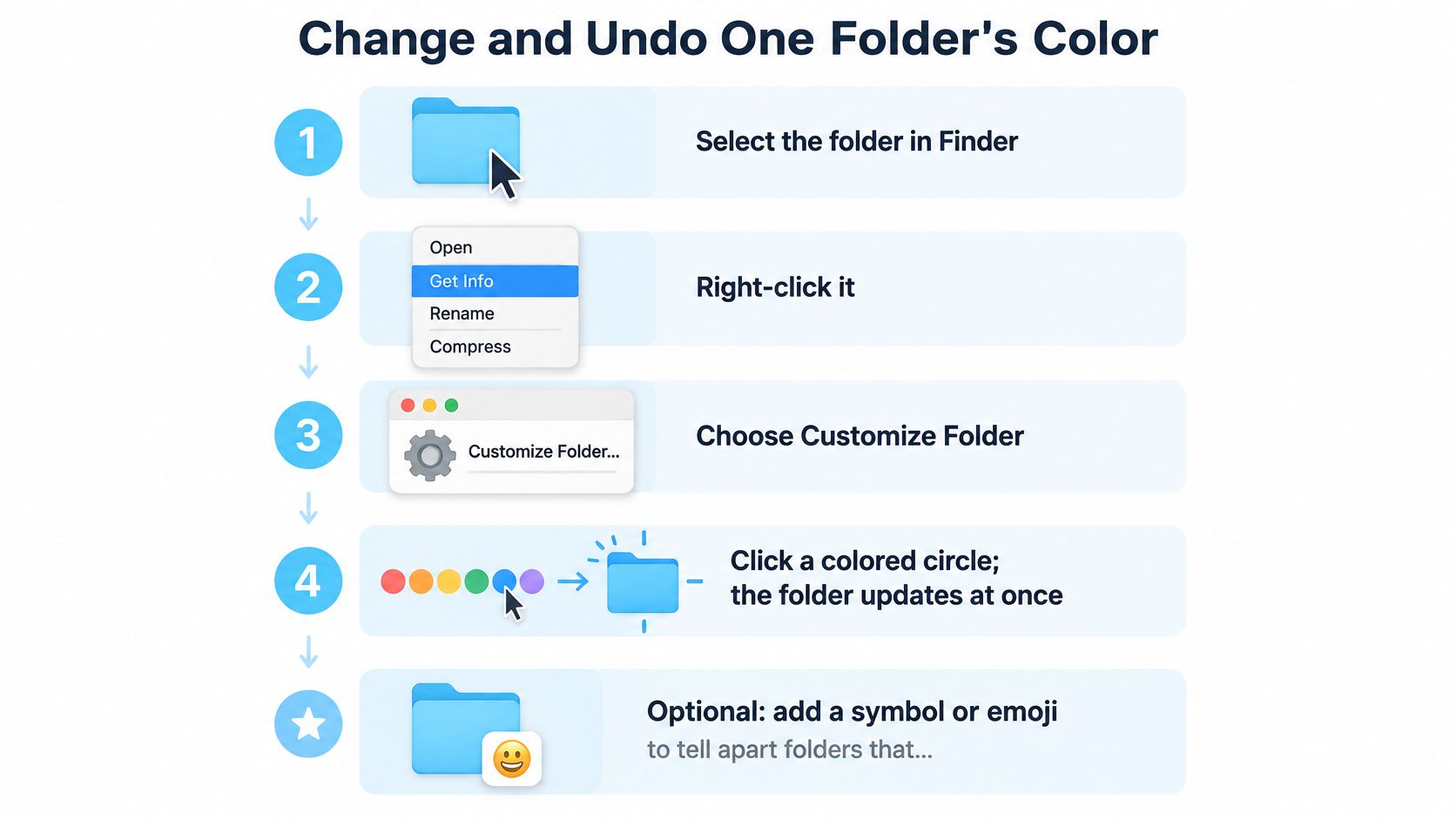
Change one folder step by step
- Select the folder in Finder and right-click it.
- Choose Customize Folder from the menu.
- Click a colored circle. Finder updates the folder immediately, so you can see the result in context.
- Add a symbol or emoji when two folders need different meanings despite sharing a color.
- Check Icon and List views. A color that stands out in a large icon may be less visible in a compact list.
For a custom image, use Get Info. Copy the image, select the folder, press Command-I, click the small icon at the top-left of the Info window, then press Command-V. Select that small icon, not the larger preview below it. Otherwise, Paste may not be available.
Know the limits before you start
The standard interface does not allow customization of every folder. Home can be customized, while Applications, Library, System, and Users cannot. Start with a folder you created, particularly if you only want to try a color before applying a wider visual system.
Changing a folder's icon or color is purely cosmetic. It does not affect the files or subfolders inside, or move the folder. The change applies to that folder, so it is useful for a few personal markers, not a way to make every Finder folder follow one shared color rule.
Undo a single folder
To restore the default icon, select the folder, press Command-I, click the small icon at the top-left, and press Delete. Tintd also lets you restore a customized folder to the original macOS Finder folder icon with one click. Its manual colorizing does not require Full Disk Access.
| Symptom | Likely cause | Fix |
|---|---|---|
| Global color changed, some folders unchanged | Those folders have their own custom color | Reset each folder in Get Info by selecting its icon and pressing Delete |
| Icon looks wrong after changing style | The selected style uses a different folder-color control | Check the Icon, widget, & folder color option in Appearance |
| New folders not styled by the watcher | Full Disk Access has not been granted | Grant access in Privacy & Security, then reopen Tintd |
| Custom icon missing on another Mac | Custom icons are stored locally on each Mac | Set up the icon customization separately on that Mac |
| Batch change feels hard to undo | Many folders changed at once | Restore a small set first, and confirm the result before continuing |
Changing the Color of All Folders in System Settings
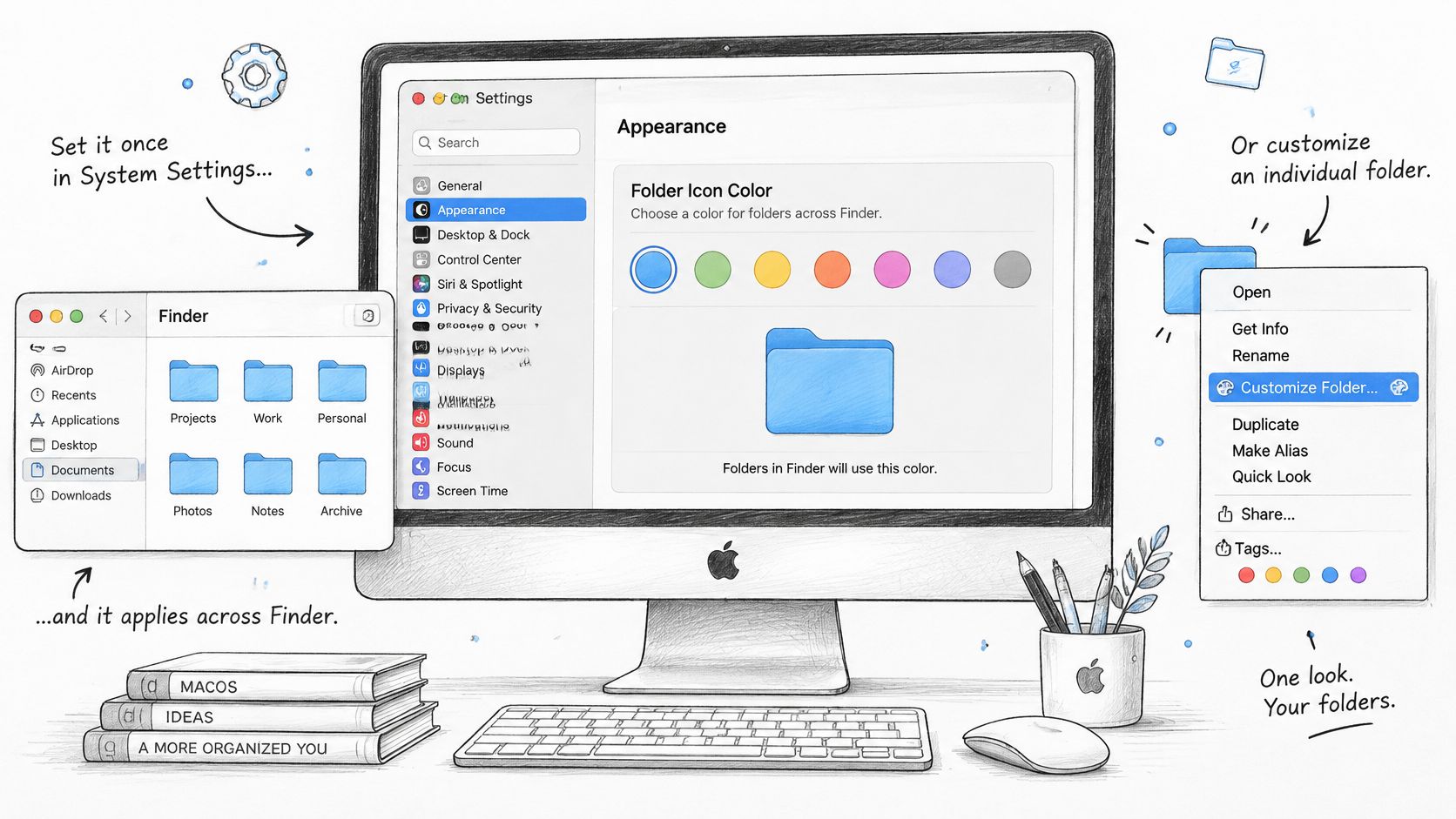
The global control works differently from the right-click command. According to Apple's Appearance settings documentation, System Settings can change the color used for Finder folder icons broadly, while Finder's "Customize Folder" command changes one folder and can also add a symbol or emoji. Treat those as two separate controls, because they are.
The image below shows where this broad setting lives alongside Finder's per-folder options.
Why the setting name may not match the instructions
Your available folder-color option depends on the selected icon-and-widget style. In Tinted mode, Apple labels the control "Icon, widget, & folder color," rather than "Folder color." If you're following steps that name a control you can't find, your icon style is probably set differently from the writer's. Check the style first, then look for the label that matches it. That one check explains most cases where the global instructions seem to fail.
I would keep the hierarchy deliberate. Use global appearance for broad branding, per-folder colors for semantic categories, and symbols or custom icons when color alone is ambiguous. Each layer then answers a different question instead of competing with the others.
Say a freelancer gives each active client folder a green color. That works until a global recolor turns every folder green. At that point green stops meaning active, and the freelancer is back to reading names. A more colorful Finder isn't automatically a clearer one.
Keep the global color neutral or on-brand, and reserve a handful of colors for the categories you check every day.
The short video below walks through the Appearance change so you can see the control in context before you alter your own setup.
To undo a global change, return the Icon, widget, & folder color setting in System Settings to your previous choice. Finder then restores the default folder color across folders that don't carry their own custom icon.
Using Tags as a Color Code Without Changing Icons
Tags give you a second channel for color, and they solve a different problem. A tag doesn't restyle the folder. It labels the folder so Finder can find it again by that label, which makes tags better than icon color when your real need is filtering rather than spotting.
Apply a tag in four steps
- Select the folder in Finder.
- Right-click and choose Tags.
- Pick a color or type a name. You get seven colors, red, orange, yellow, green, blue, purple, and gray.
- Click the tag in the Finder sidebar to list every matching file and folder across your Mac.
The tag appears as a colored dot next to the folder name in list views. The folder icon doesn't change, so a tagged folder won't stand out in an Icon view grid the way a recolored one does.
Say a designer keeps client folders in Documents and tags them red for urgent, yellow for waiting on review, and green for finished. Each morning, one click on the red tag in the sidebar gathers today's urgent work from wherever it sits. No folder needs to move, and no icon needs to change for the filter to work. That's the strength tags add to a plan to organize folders on Mac by structure first.
Keep the system small. A folder can carry several tags, so it's easy to build a list nobody maintains. I would stick to three to five names you use. Colors repeat across categories, so the tag name matters more than its color alone. If you can't remember what purple means, purple isn't helping you.
Recoloring Many Folders at Once with Tintd
The built-in tools handle one folder well. They get tedious at thirty. If you're styling a client archive, a course library, or a photo library folder by folder, you'll either quit halfway or end up with two systems that don't match. Batch editing exists for that exact point.
In Tintd, you select several folders in the app and apply one color and one icon in a single action. Batch editing can also randomize colors across a set when you want variety without picking each shade, or apply one icon to many folders when consistency matters more. If you're new to the idea, this explanation of what batch editing is covers the workflow logic behind applying one change across a set.
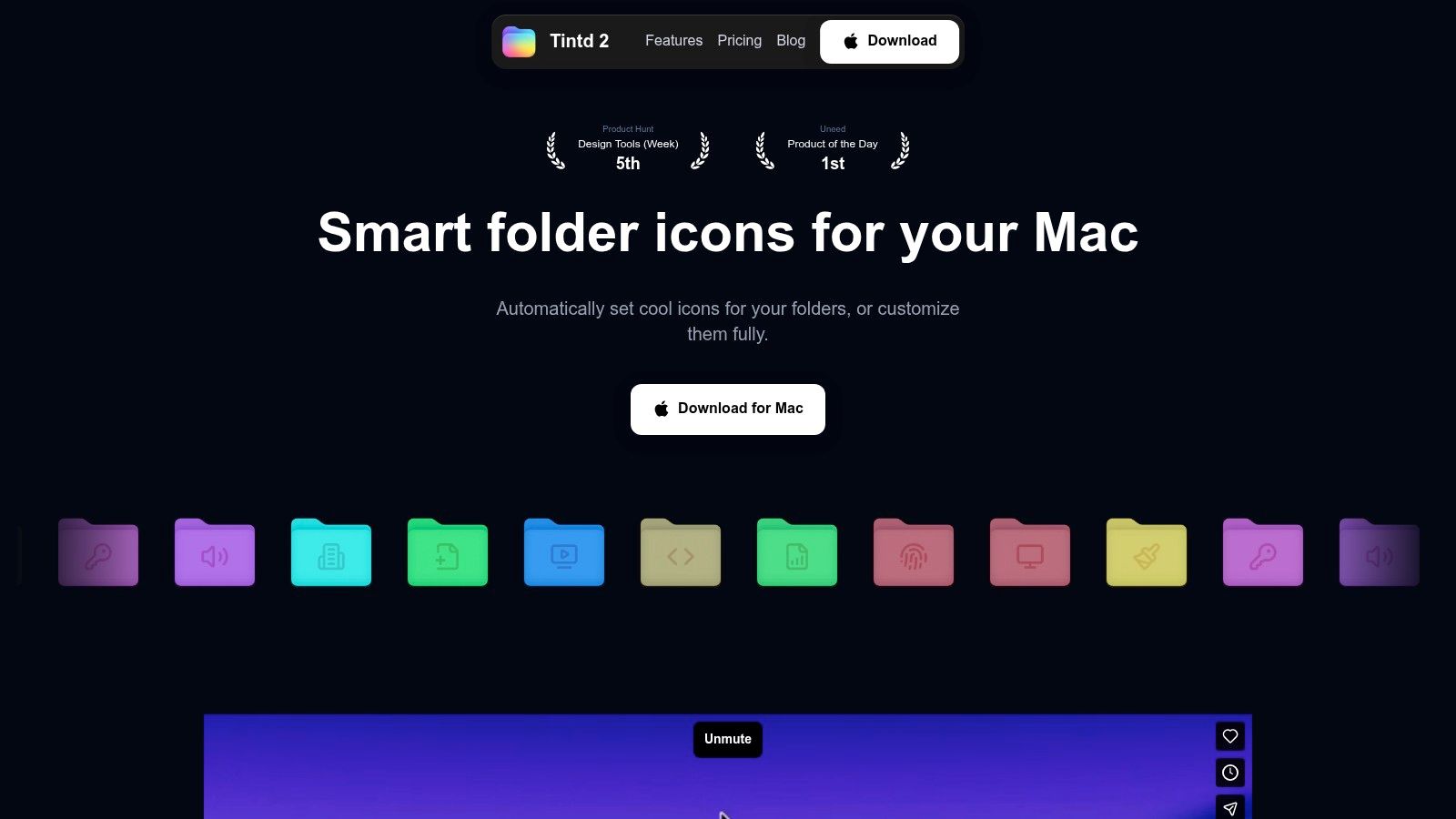
The screenshot below shows the custom icon tools you'd use while building a batch.
Keep a set balanced with Smart Color
Picking colors one by one often produces clusters, three blues in a row and nothing warm anywhere. Smart Color looks at the colors of neighboring folders and picks a shade that fills a gap on the color wheel. The set looks balanced without you playing art director for every folder. You can still override any choice, so treat the suggestion as a starting point rather than a decision.
Right-clicking any folder in Finder also opens Tintd for that folder. That shortcut matters when you're working in Finder already and spot one folder that doesn't match its neighbors. You fix it in place instead of switching apps and hunting for it again.
Set up automatic styling with Folder Watcher
Grant permission before you wonder why nothing happened. Folder Watcher requires Full Disk Access, which macOS asks you to grant the first time Folder Watcher is enabled. Colorizing folders manually doesn't require Full Disk Access, so you only need this step for automation.
- Open Folder Watcher in Tintd settings.
- Add a location, such as your main Projects folder.
- Grant Full Disk Access when macOS asks, so the watcher can see new folders as they appear.
- Create a test folder in that location and confirm it gets styled.
Say a photographer keeps a Shoot folder for each client inside one watched location. Every new shoot folder arrives colored and labeled without a manual step, so the system holds up during busy weeks when tidying is the first thing dropped. Start with one watched location, not your whole drive, until you trust the naming rules.
One limit applies no matter how you style folders. Custom folder icons are stored locally on each Mac, so icon customizations must be set up separately on each Mac. Plan a short repeat setup on a laptop and a desktop instead of assuming the look will follow you.
Fixing Common Folder Color Problems
A folder's appearance can depend on more than one setting. A custom icon can stay in place when the global folder color changes, and a new folder will not be styled automatically if Folder Watcher lacks permission. Check the layer that controls the result before changing it again.
Pause Folder Watcher when you need a clean reset
If new folders keep receiving a color or icon while you are reorganizing, turn off Folder Watcher in System Settings. It can be turned back on when you are ready to resume automatic styling. This is useful when testing a new color system or deciding which locations should be watched.
Folder Watcher requires Full Disk Access to detect new folders in its chosen locations. macOS asks for that permission the first time you enable the feature. If you want to color folders manually, Full Disk Access is not required.
Check the scope of the change
A global color applies broadly, while an individual folder can have its own custom icon and color. That per-folder setting can make a global change appear inconsistent. If only a few folders look different, check those folders' individual settings rather than repeating the global change.
Tags work at another scope: they label folders without changing their icons. For a small number of folders, tags can distinguish categories while leaving the standard Finder appearance intact. For a consistent look across many folders, batch editing can apply a color and icon to several folders in one action. The trade-off is meaning: if one color is assigned to unrelated categories or too many folders, it stops helping you scan the structure.
Tintd can open from Finder's right-click menu to set an icon on a folder, or batch-edit several folders at once. Its changes are cosmetic and do not affect files or subfolders. Custom icons are stored locally on each Mac, so set them up separately on any other Mac where you want the same appearance.
If you are unsure which method fits, keep each color tied to a clear category. Use an individual icon for an exception, tags when the standard folder icon should remain unchanged, and batch editing when a group needs the same visual treatment. For automatic styling of new folders, pause Folder Watcher while adjusting the system, then turn it back on when the chosen locations and rules are ready.
For a different color on one folder, use Finder's built-in controls. Tintd adds manual and batch styling, one-click restoration, and Folder Watcher for new folders. Try it on a chosen location first, then check how the result reads in Icon and List views. Tintd is available on the Mac App Store.