
You open a client folder and face a wall of identical blue folders. Drafts, invoices, assets, and finished work all look alike, so you read every name before opening anything. Changing an icon is easy. Choosing a visual rule that still makes sense across the whole project tree takes more thought.
The useful approach is to separate one-off customization from repeatable organization. Use Finder for a particular image, batch tools for an existing folder tree, and automatic styling for folders you keep creating. Then give each color a clear meaning rather than treating every folder as a fresh design exercise.
Pick the Right Folder Icon Method First
Folder icon methods compared
| Method | Best for | Scope per action | Extra setup | How to undo |
|---|---|---|---|---|
| Manual Get Info in Finder | A small set of folders with a custom image | One folder | None | Cut the custom icon in Get Info |
| Tintd right-click menu | Adding an emoji or icon to one folder | One folder | Tintd installed | One-click restore |
| Tintd batch editing | Recoloring a project tree | Many folders and subfolders | Tintd installed | One-click restore |
| Tintd Folder Watcher | Styling new folders as they appear | Every new folder in chosen locations | Tintd installed and Full Disk Access | One-click restore |
Choose by scope, not by the most elaborate feature. If you already have a client logo and want it on that client's folder, Get Info is enough. Opening an app and building a palette would add work without improving that particular result.
For a project tree, the calculation changes. Repeating the same copy-and-paste operation folder by folder creates more opportunities to select the wrong destination or apply inconsistent artwork. Batch editing lets you make the selection deliberately and review the result as a set.
Use these quick rules:
- A specific image on one folder: Start with Preview and Get Info.
- An existing project hierarchy: Use batch editing and decide explicitly whether to include subfolders.
- A recurring folder location: Use Folder Watcher when you want newly created folders styled automatically.
Our icon and color suggestions run locally on your Mac. Folder names never leave the device, and Tintd doesn't call any AI service, so a private client name doesn't need to become a cloud request.
Changing a folder icon doesn't touch the files inside it. A visual choice that doesn't work is inexpensive to reverse, which makes a small trial more useful than prolonged palette planning.
How to Change a Folder Icon by Hand in Finder
For a single folder with specific artwork, Preview and Finder's Get Info window are the direct route. Apple's guide to customizing folders and files explains how to copy an image, select the small icon in Get Info, and paste.
Copy the picture, not its file
- Open the image in Preview. Use clear artwork with a square crop if possible. Keep the subject's proportions and leave some space around it rather than stretching a wide logo.
- Copy the image contents. Press Command-A, then Command-C in Preview. Copying the image file in Finder does not copy the image contents for this step.
- Select the destination folder in Finder. Press Command-I to open Get Info. Check the folder name, especially if you have several Info windows open.
- Click the small icon at the top-left of Get Info. The large preview below it is not the target.
- Press Command-V, then close Get Info. Check the folder in its usual Finder location, where the icon appears at its actual size.
This visual summarizes the copy-and-paste sequence:
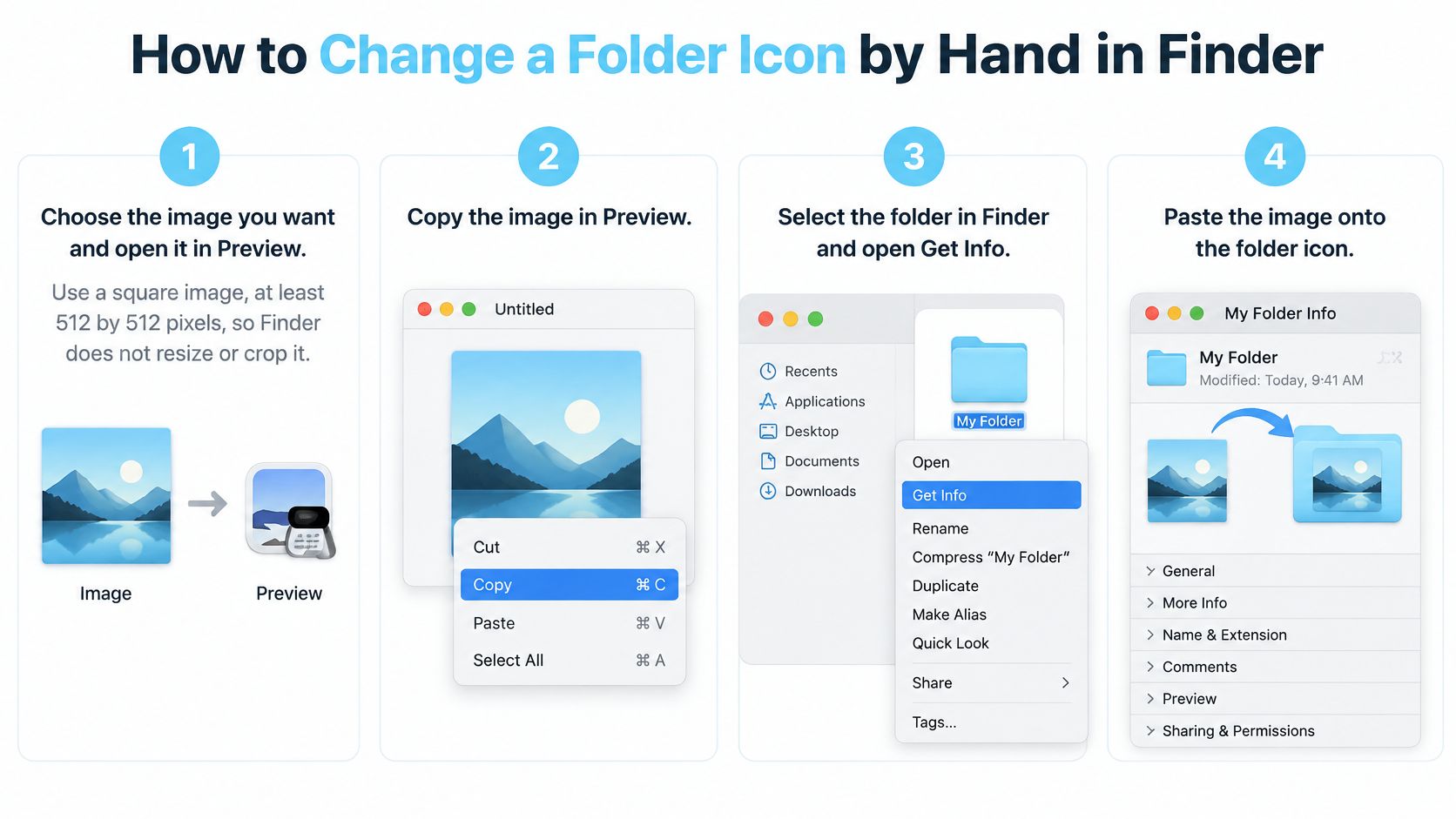
The two common mistakes are pasting into the wrong part of Get Info and selecting an alias instead of the folder itself. If a sync service drops custom artwork, you may need to paste it again at the destination.
Prepare artwork that stays readable
Simple symbols tend to remain clearer than detailed illustrations in compact Finder views. Before pasting, check that the edges look clean and that any transparent areas appear as intended. A coordinated Mac icon pack can help keep artwork consistent.
If you need to enlarge an image first, review choosing image formats for AI upscaling. After enlargement, check the edges and transparency before using the image in Finder.
Manual folder colorizing does not require Full Disk Access. To undo a pasted icon, select the same small icon in Get Info and press Command-X.
Test one folder before repeating the steps. Check it in list and column views, where fine details may disappear even if the artwork looks clear in a large preview.
How to Bulk Change Folder Icons with Tintd
Batch editing is the better fit when you already know which folders belong together. The time saving comes from making a shared decision once, not from giving every folder a different treatment.
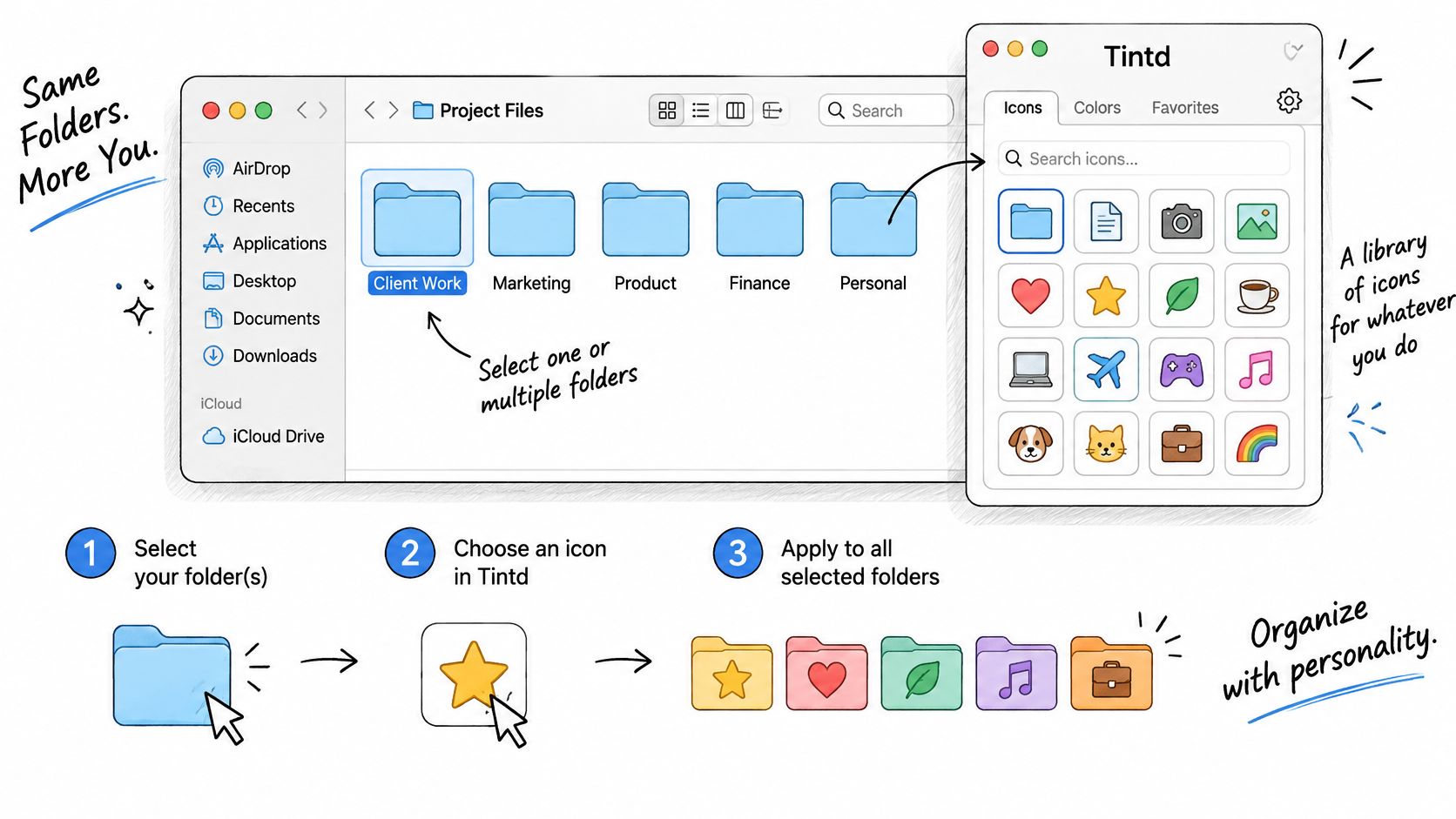
The illustration below shows the customization workflow:
Select the scope before the style
- Open Tintd and choose the parent folder, or select several folders in Finder. Keep unrelated folders out of the selection. A clean scope makes both review and correction easier.
- Choose an icon or emoji from the library. Our library contains more than 11,000 icons and emojis; you can select an emoji in the app and drag it onto a folder. A shared symbol works well when the selection represents the same kind of material.
- Use Smart Icon for name-based suggestions. Check representative folders before accepting the suggestions. A vague name such as Misc gives you less useful context than a descriptive name such as Audio or Invoices.
- Use Smart Color when balancing neighboring folders is the goal. It considers existing neighboring styles and chooses a color that fills a gap. If colors already represent workflow status, keep your status palette instead of accepting a visually balanced but semantically wrong color.
- Decide whether to include subfolders, then apply the change. Don't include every nested folder merely because the option is available. Repeating a strong treatment throughout a hierarchy can make the important entry points harder to distinguish.
- Review the results in Finder and correct outliers individually. An automatic match is a starting point, not a reason to keep an unsuitable symbol.
Our explanation of batch editing covers the underlying approach: select related items, apply a shared operation, and inspect exceptions rather than repeating the entire workflow.
Keep the project recognizable
Say a client tree contains Contracts, Photography, Audio, and Delivery. Name-matched symbols can distinguish those folders while a consistent base color keeps them visibly associated with the client. You don't need a unique color for every branch.
A balanced palette and a meaningful palette aren't necessarily the same thing. When they conflict, keep the meaning.
Randomized colors can help separate otherwise similar folders, but across a large set they can also produce visual clutter. Start with a restrained palette and reserve conspicuous colors for folders that deserve attention.
The video demonstrates applying styles through the app:
Style New Folders Automatically with Folder Watcher
Folder Watcher pays off when you repeatedly create folders in predictable places. A Clients directory that receives new project folders is a better candidate than an arbitrary collection of locations you rarely use.
The permission step is the main setup checkpoint. Folder Watcher requires Full Disk Access, and macOS asks you to grant it the first time you enable the feature. That requirement applies to watching folders, not ordinary manual colorizing.
Set a narrow boundary
- Add the locations you use. Choose a Projects or Clients directory rather than your entire home folder.
- Enable Folder Watcher and grant Full Disk Access. Complete the macOS permission prompt before relying on automatic styling.
- Create a clearly named test folder. Check that it receives a matching icon and color in Finder.
- Try a rename during creation. Create another test folder, change its name promptly, and inspect the final result before using a busy location.
For a newly created folder in a chosen location, the watcher reads its name and applies a matching style. Descriptive folder names therefore remain useful even when you prefer navigating visually.
Test the workflow you actually use
Filesystem notifications aren't a reliable one-notification-per-folder checklist. Apple's File System Events documentation describes change notifications that can be coalesced, which is why testing should include bursts of activity rather than only an isolated folder.
If you normally paste nested project trees, test that operation. If you work on a removable volume, check the behavior after disconnecting and reconnecting it. Don't assume success in a local test proves that every storage location behaves identically.
Start with a short watch list. It's easier to notice an incorrect style and understand its cause when you know exactly which locations are eligible.
Restore Icons and Fix Common Problems
If a folder's appearance is wrong, correct the icon assignment before changing its contents. Tintd can restore a customized folder to the standard macOS Finder icon with one click. For a manually added icon, use the small icon at the top of the folder's Get Info window to replace it.
For a batch that looks inconsistent, restore the affected folders first, then apply one consistent color and icon rule. Changing the existing styles before identifying the problem makes it harder to see which adjustment helped.
Match the symptom to a concrete fix
Folder icon symptoms, causes and fixes
| Symptom | Likely cause | Fix |
|---|---|---|
| Icon disappears after moving to another Mac | Custom icons are stored locally on each Mac | Set the icon up again on that Mac |
| New folder gets no style | Folder Watcher may not have Full Disk Access | Grant access, then check a newly created folder |
| Pasted icon is blurry or cropped | Source artwork has insufficient detail or an unsuitable canvas | Use clearer artwork, then paste it onto the folder's small Get Info icon |
| Icon pasted but folder looks unchanged | Image pasted into the large preview | Paste it into the small icon in Get Info |
| Emoji looks too small | Icon size is set too low | Increase the icon size using Tintd's size controls |
| Batch result looks busy | Colors vary too much across the set | Reapply a restrained palette consistently |
Treat the likely cause as a first check, not a diagnosis. If Folder Watcher already has permission but misses a folder, check the folder's location and whether it falls within the watched locations.
Check the destination before repeating an operation
Custom folder icons are stored locally on each Mac, so set up the customization separately on another Mac. Keep the original artwork somewhere accessible; the customized folder should not be your only copy of a design.
For a paste problem, check the clipboard contents and the target. Reopen the source in Preview, copy the image, then select the small icon in the folder's Get Info window. Repeating the same incorrect paste step will not fix the result.
Before rerunning a batch, check:
- The actual folder: Confirm its name and location, not just a similar-looking Finder window.
- The selected scope: Check whether the operation includes nested folders.
- The rendered size: Judge the icon in the Finder view you use for work.
A failed style does not require moving documents or rebuilding the directory. Correct the icon assignment, source artwork, or watcher setup.
Pick One Color Rule Across Your Folders
Ask what the color should tell you before you read the name. If you can't answer that consistently, a larger icon library won't solve the organizational problem.
Apple's folder customization guide documents native color, symbol, emoji, and image controls. Finder also offers tags, grouping, and sorting. Use icons for recognition within a hierarchy, and tags when you need to retrieve related folders across locations.
Color rule options compared
| Rule | Color means | Icon means | Best for |
|---|---|---|---|
| Status color | Active, waiting, or archived | Neutral or none | Client work that moves through stages |
| Category color | Client, personal, or research | None | Folders you scan by area of life |
| Split rule | Status | Category symbol or emoji | Mixed projects that need both cues |
Choose the meaning you can maintain
Status colors require upkeep. If a project moves from active to waiting, someone must change its color. That can be worthwhile when you review a project dashboard visually, but it's a poor fit if you rarely revisit folder styling.
Category colors are steadier. A research folder usually remains research even when its contents change. The trade-off is that category color doesn't tell you whether anything needs action.
A split rule carries more information, but demands more restraint. For example, use an audio symbol for the category and a status color for whether the work is active or awaiting approval. Don't let the same color mean waiting in one branch and finance in another.
Use this checklist to keep the system focused:
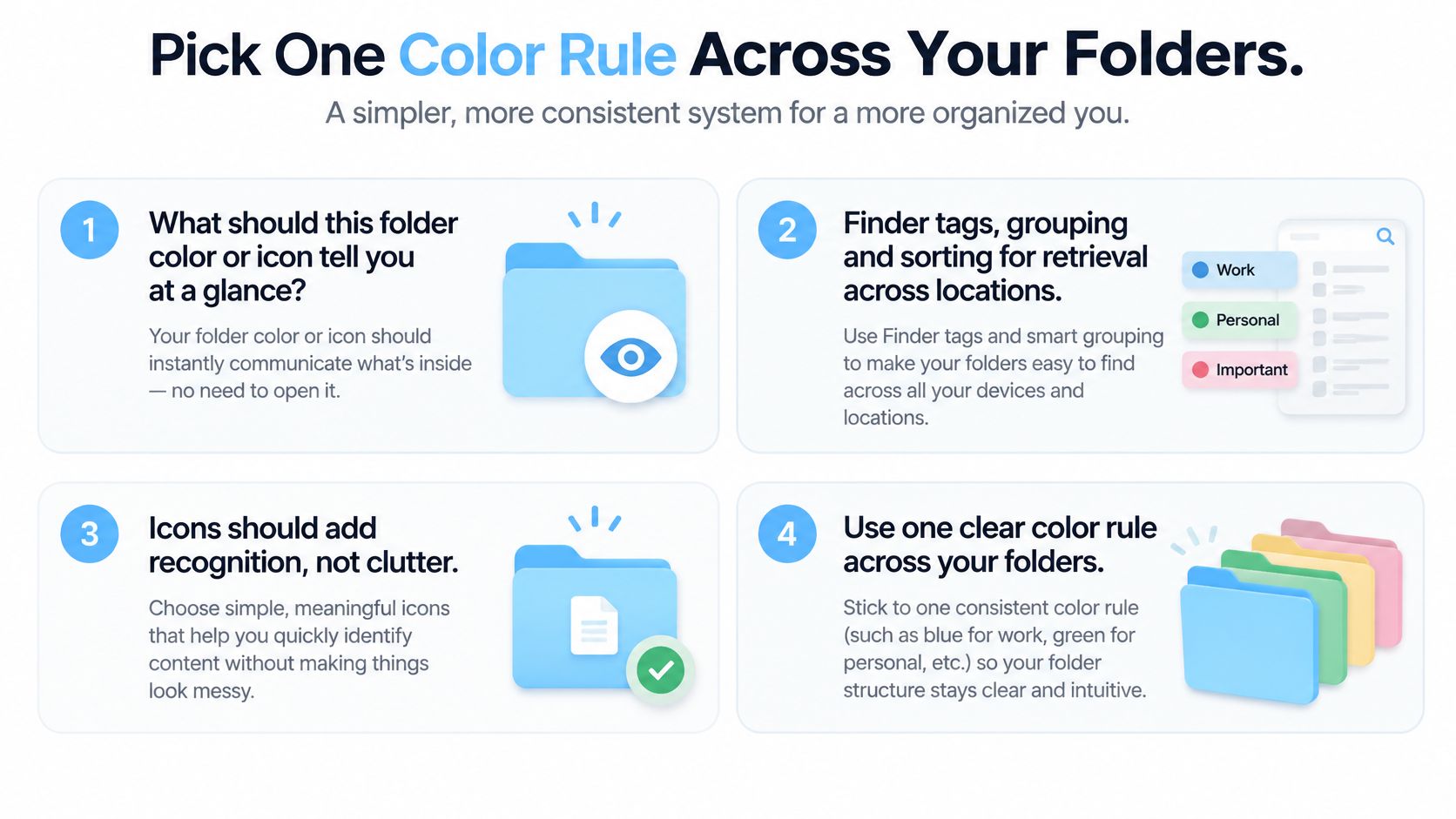
For nested folders, style the top level first and leave deeper branches neutral unless they need a distinct cue. If a folder belongs to multiple contexts, add a tag rather than inventing a blended color. This keeps your digital file organization usable beyond the current Finder view.
Apply the rule to a real tree
- Pick a single rule. Choose status, category, or the split approach.
- Write down a compact palette. Name the meaning beside each color, including what stays neutral.
- Apply it to a parent folder tree. Use a representative project, not your entire storage system.
- Review it after working with it. Remove any decoration that doesn't help you locate or distinguish something.
Before keeping a style, ask:
- Meaning: Can I name what this color means?
- Retrieval: Does this distinction need a tag so it appears in a search or grouping?
- Value: Would I miss the visual cue if it were gone?
Changing an icon or color is purely cosmetic and doesn't affect files or subfolders inside the folder. That freedom is useful, but consistency is what makes the result worth keeping.
Tintd offers manual folder styling, batch editing, and a Folder Watcher for applying a visual system as your projects grow. Visit Tintd, choose a representative project tree, and try a clear color rule before extending it to the rest of your folders.