
You've got a Projects folder open, and every client, draft, and archive inside it wears the same blue icon. You know the folder you need is in there, but you're reading names one by one instead of spotting it at a glance. That slow scan is the actual problem a folder icon changer solves, not decoration for its own sake.
The fix only works if you treat icons as a system. A handful of predictable colors and symbols, applied the same way across a tree and maintained as new folders appear, turns visual scanning into recognition. Style folders at random and you'll create a louder version of the same mess.
What a Folder Icon Changer Can and Cannot Do
Finder controls how folders appear in a window. Its four view modes, Icon, List, Column, and Gallery, each offer settings such as icon size, grid spacing, text size, thumbnail size, preview columns, and filename visibility. Apple explains these controls in its guide to changing Finder view options on Mac. Open them with View > Show View Options or Command-J, then choose Use as Defaults to apply your layout choices more broadly.
Those settings change the layout, not the folder's meaning. Larger icons can make names easier to read, but they won't distinguish active client work from research, exports, or archives.
Presentation Is Not Meaning
Semantic customization adds a visual cue to a folder's role. A camera symbol for raw photos, a consistent color for billable projects, or a distinct mark for reference material can help you recognize a category before reading its name. The cue works only if you apply it consistently across the folder tree and update it when a folder's role changes.
A folder icon changer gives you a way to apply that visual system. Finder provides the controls for viewing folders, while the organizing logic remains yours to define and maintain. A dedicated Mac Finder app that adds tools on top of Finder can help clarify which parts of this workflow Finder handles natively and which may require another tool.
Larger icons make a messy tree easier to read. Meaningful icons make it easier to recognize.
The Boundaries You Cannot Cross
macOS protects some built-in folders from icon changes. Apple lists Applications, Library, System, and Users as folders that cannot be customized, while the Home folder can, in its Canadian guide to customizing folders and files. Build your icon rules around folders you create and control. Avoid relying on custom icons in protected system locations.
Macs also run different macOS releases, so behavior and available controls can vary by version. Prefer a tool that uses standard Finder behavior over one that depends on a version-specific quirk. That reduces the chance that a system update will disrupt how your icon rules apply.
A folder icon changer can assign visual meaning, apply icons across a tree, and help you restore them later. It cannot repair a confusing folder structure, give unclear filenames meaning, or override protected locations. Keep the file structure intact, and use icons to make its categories easier to see.
Changing One Folder Icon Step by Step
Start with one folder before you touch a whole tree. The manual method teaches you exactly what macOS is doing, and it exposes the one mistake that makes people think the feature is broken.
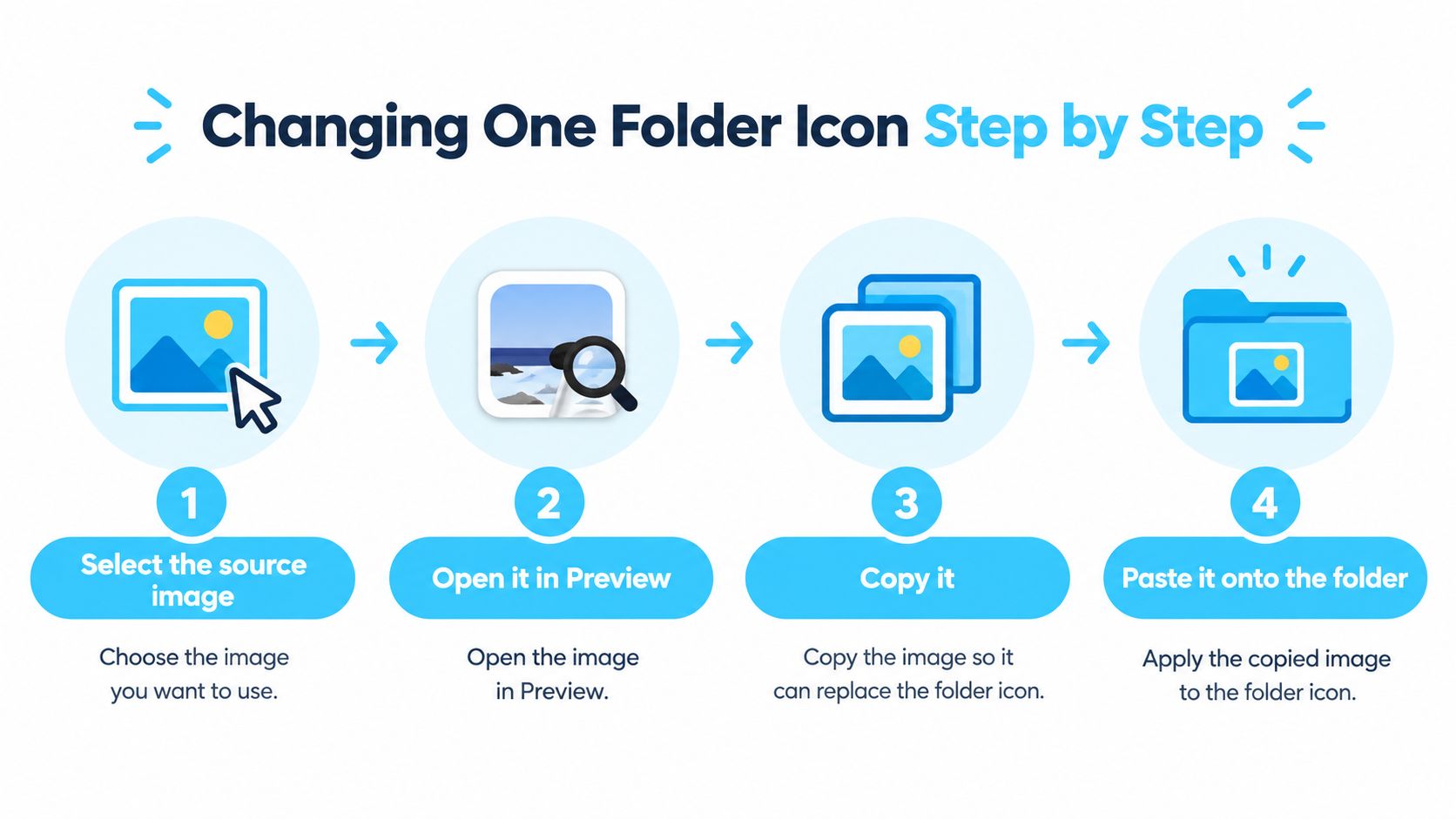
The sequence below lays out the core moves before you try them yourself.
The Supported Manual Sequence
Apple's supported sequence is specific, and the order matters. Follow it exactly the first few times rather than improvising with drag and drop from random windows.
- Select the source image: Pick the image you want to use and open it in Preview.
- Copy the image: Select the image content in Preview and copy it to the clipboard.
- Open the folder's Info panel: Select the destination folder in Finder, then choose File > Get Info.
- Target the small icon: Click the small icon at the top of the Info panel so it's highlighted.
- Paste: Paste the copied image onto that small icon target.
That fourth step is where most attempts fail. The Info panel also shows a large preview image, and it's the obvious thing to click. It isn't the editable target. Apple describes this workflow in its British guide to customizing file and folder icons, and the distinction between the small icon and the large preview is the whole trick.
Choosing an Image That Survives Small Sizes
Finder rarely shows your source image at full size. In Icon view at a modest setting, and especially in List view, your artwork shrinks to a fraction of its original resolution. Fine detail, thin lines, and small text disappear first.
Pick images with one bold shape and strong contrast. A simple glyph on a solid background reads clearly at small sizes, while a detailed photograph turns into an indistinct smudge. Test your choice by switching the folder to List view after applying it. If you can't identify it there, it won't help you scan.
Square artwork is the safest starting point because it fills the icon space without awkward cropping. If you're designing your own, build the image, apply it to a test folder, and view it at your usual working size before committing to it across a project.
Once this single-folder method feels automatic, you've learned the underlying mechanic every bulk tool automates. The limitation isn't quality, it's repetition. Doing this fifty times for a client archive is where the manual approach stops being sensible.
Applying Icons to Hundreds of Folders
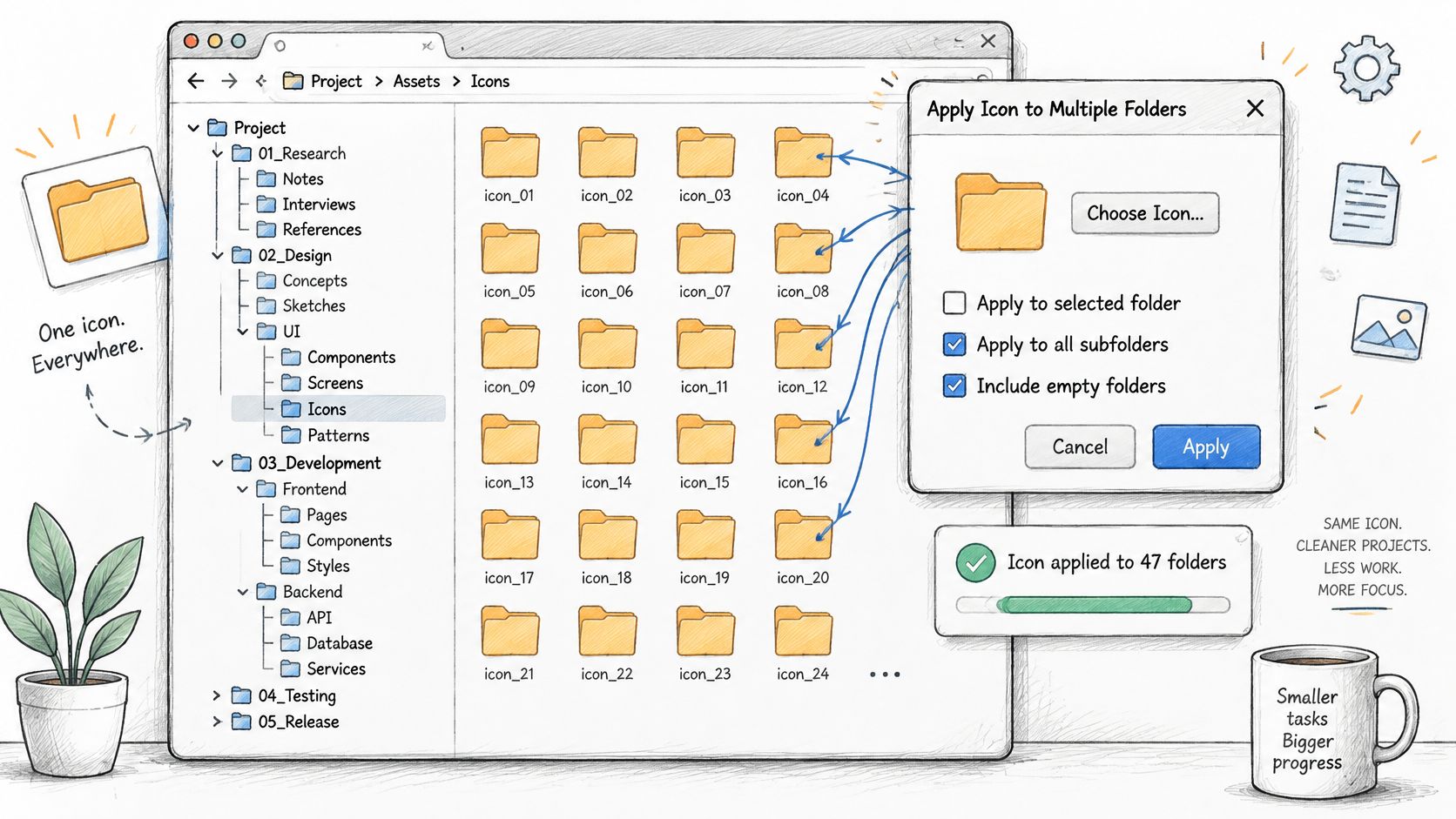
Bulk application changes the question from "can I style this folder" to "can I trust this run." A folder icon changer with batch editing lets you select a parent folder, choose an icon or color, and apply it across the folder and its subfolders in one operation. The time saving is obvious. The risk is applying a wrong or inconsistent style to an entire tree just as efficiently.
This illustration shows the basic shape of that operation, one style decision propagating across many folders at once.
Test Small, Then Scale
Never run your first batch against your real archive. Build a small sample tree that imitates it, apply your styles there, and inspect the result folder by folder. If the sample looks right, scale up with confidence.
A disciplined test set should include the awkward cases, not just tidy empty folders.
- Nested folders: Confirm subfolders several levels deep receive the intended style, or correctly don't.
- Packages: Check that package folders aren't styled or disturbed unless you explicitly selected them.
- Aliases: Verify how aliases display, since an alias can show its own icon state rather than inheriting the target's appearance.
- Cloud placeholders: Include synced folders, because synchronized locations can behave differently from local ones.
The benchmark that matters is reliable completion across repeated, mixed-content operations, not how large an icon catalog looks. Apple notes that native macOS supports folder color, symbols, emoji, and custom images in its guide to customizing folders and files on Mac, so a good tool needs a clear fallback between those modes when an image isn't valid for a particular item.
Verify After Finder Refreshes
A successful write doesn't prove the icon displays correctly. After a bulk run, close and reopen the affected Finder window or refresh the view, then spot-check folders at different depths. Count what applied correctly, note any incorrect matches, and record failures by item type rather than treating the run as pass or fail.
That verification habit is what separates a governed system from a hopeful one. It's also why understanding what batch editing actually involves matters before you point it at hundreds of folders. The mechanics are simple, but the checking discipline is the key skill.
Treat every bulk run as unproven until you've reopened the folder and seen the result with your own eyes.
Naming conventions make all of this more reliable. If your folders follow predictable patterns, such as client name followed by project type, you can match styles to categories with far fewer mistakes. Messy, inconsistent names force you into manual review. For creative teams, developers, and researchers with trees that change weekly, that combination of structured names, small test runs, and post-run verification is what keeps a large visual system trustworthy.
Automating Icons for New Folders with Tintd
Bulk editing fixes the folders you already have. It does nothing about the folder you'll create tomorrow. In active project work, new folders appear constantly in the same few locations, a fresh client folder inside Clients, a new shoot inside Photography, a new experiment inside Research. Each one arrives with the default blue icon and breaks your system until you remember to style it.
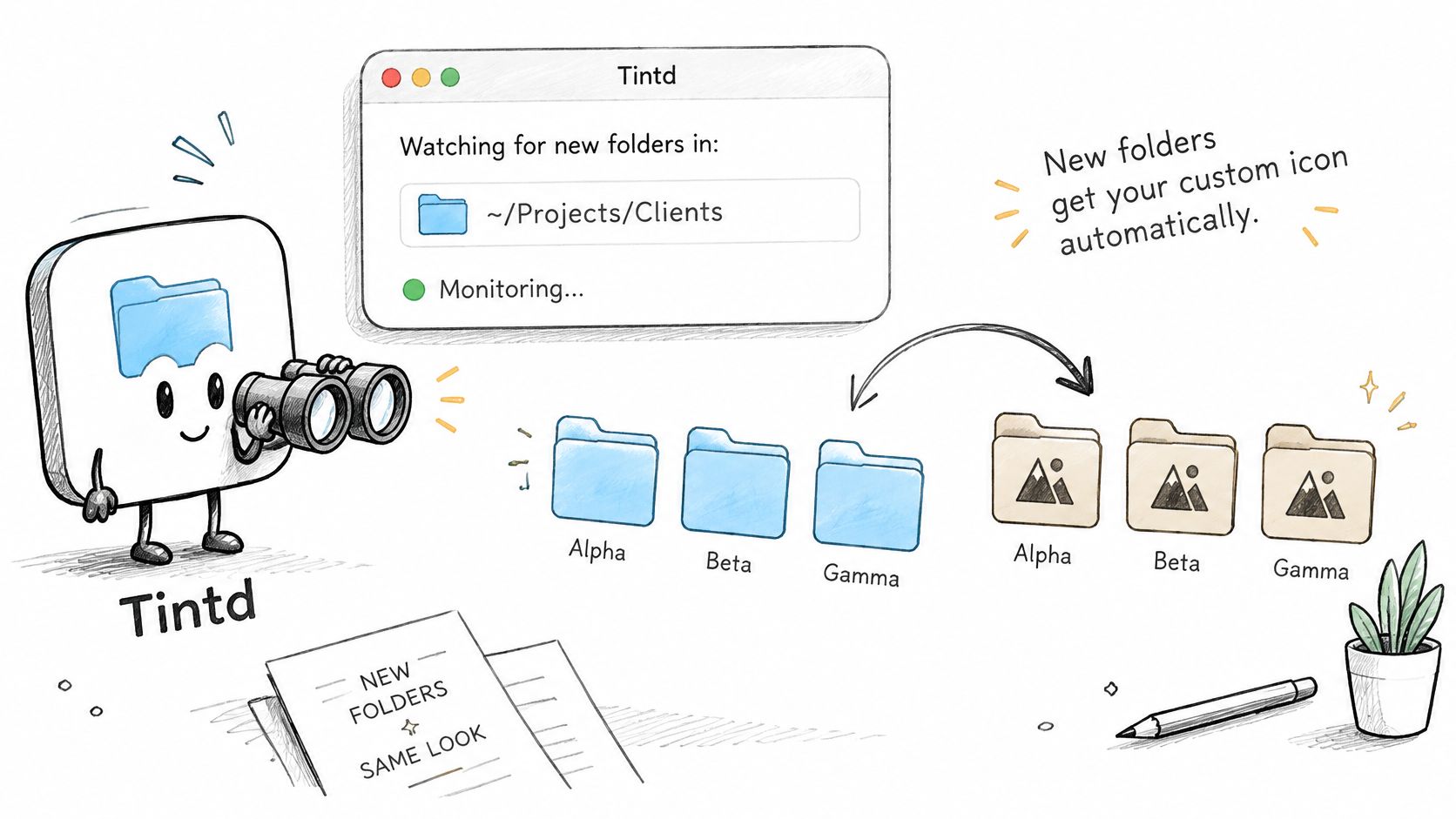
This is the gap a folder watcher fills. The illustration below shows the idea, new folders receiving styles as they appear instead of waiting for your next cleanup session.
How the Watcher Handles a New Folder
Tintd is a macOS app that can watch selected locations and style new folders as they're created. You choose which parent folders to monitor, and when a new folder appears inside one of them, the app applies a matching style. Its Smart Icon and Smart Color suggestions are based on the folder's name and the folders nearby, so a new folder sitting among red client folders doesn't get suggested a clashing green.
Picture a typical week for a freelance designer. Three new client folders land in the Clients directory at different times. Without automation, each one stays plain blue until a tidying session that may never come. With the watcher running, each folder is styled on arrival, consistent with its neighbors, and the system you built with batch editing stays intact without ongoing effort.
The video below walks through that flow so you can see how little interaction it takes once the watched locations are set.
Where Automation Helps and Where It Does Not
You don't have to open the app for one-off changes either. Tintd integrates with the Finder context menu, so you can right-click a folder and apply a style in place. This bridges the gap between full automation and the manual Get Info dance.
Two design choices are worth knowing about. First, suggestions run on-device, offline, with no cloud or AI calls, so your folder names never leave your Mac. Second, the app recognizes mixed-language folder names across 11 languages, which matters if your team names folders in more than one language and still expects sensible suggestions.
- Best case for automation: A small set of busy parent folders where new subfolders follow a predictable pattern.
- Weak case for automation: Locations where every new folder is a different category that needs a human decision.
- Still worth doing manually: The handful of landmark folders you open daily, where a hand-picked custom image beats any suggestion.
Automation doesn't replace judgment about your palette. It protects the palette you've already chosen from the slow erosion of new, unstyled folders. Set your watched locations deliberately, review the suggestions the first few times, and then let it run.
Choosing a Consistent Icon System
You now have three ways to style folders, and they aren't competitors so much as layers. Manual changes suit a few important folders. Batch editing suits an existing tree that needs a one-time overhaul. Automation suits locations that keep growing. People with serious folder trees often end up using at least two of the three.
| Approach | Best For | Main Trade-off |
|---|---|---|
| Manual, one folder at a time | A few landmark folders you open daily | Full control, but it doesn't scale past a handful |
| Batch editing | Existing trees with dozens or hundreds of folders | Fast and consistent, but needs testing and periodic review |
| Automated styling for new folders | Active locations where folders appear constantly | Keeps the system intact, but depends on well-chosen watched locations |
The Palette Matters More Than the Tool
Here's the uncomfortable part. Visual customization can create organizational debt instead of solving it. If every folder gets an arbitrary color because it looked nice in the moment, you've replaced uniform blue with uniform noise, and scanning gets harder rather than easier.
A limited semantic palette avoids that trap. Assign meaning first, artwork second. For example, one color for active projects, another for archives, a consistent symbol set for project stages, and custom images reserved for major clients. When every red folder means the same thing everywhere on your Mac, color becomes information.
If a color doesn't mean the same thing in every location, it isn't a system. It's decoration with extra steps.
If you're making your own icons rather than using a library, the icon design tips from starryai are a useful reference for keeping shapes simple and legible at small sizes. Ready-made libraries save that effort, and browsing what a curated Mac icon pack typically includes gives you a sense of how much coverage you get before you'd ever need custom artwork.
A Decision Rule You Can Apply Today
Match the approach to the rate of change. Static folders you rarely touch need at most a manual pass. A large existing tree justifies one careful batch run with verification. A directory that gains new folders every week justifies automation, because manual discipline won't survive contact with a busy schedule.
Start with a palette small enough to memorize without a reference document. If you need a legend taped to your monitor, you've overbuilt it. Four to six meanings, applied consistently, will outperform twenty meanings applied hopefully, every single time.
Restoring Defaults and Taking Your Next Step
Every customization system needs an exit. Projects end, palettes change, and sometimes you hand a folder tree to a colleague who'd rather see standard macOS folders. Restoring defaults isn't a footnote to the styling process. It's half of what makes experimenting safe.
Restoration Needs Its Own Test
A successful icon write doesn't prove that default restoration works. Those are separate operations, and you should verify them separately. A reliable folder icon changer offers an explicit restore operation that removes the customization and returns the standard macOS look, rather than leaving you to hunt down hidden metadata yourself.
That caution is justified under the hood. Folder custom icons may be represented by a hidden file named Icon followed by a carriage-return character inside the folder, rather than solely by a conventional extended attribute. Deleting hidden files blindly across a tree is exactly how well-meaning cleanups break things. Use the tool's restore path, then confirm the result.
- Restore one folder first: Pick a styled folder, run the restore, and confirm the default icon returns.
- Refresh before judging: Reopen the Finder window or refresh the view, since the display can lag the actual change.
- Then restore in bulk: Only scale up once the single-folder result looks exactly like a factory folder.
Tintd includes a one-click restore that brings back the default macOS folder icon, which keeps the exit as simple as the entrance. The same verification habit from batch application applies here. Check the result after Finder refreshes, not before.
Know the Edge Cases Before You Rely on Them
Some items behave differently, and it's better to learn that on a test tree than on your archive. Aliases can display their own icon state instead of inheriting the target folder's appearance, so test them separately. Removable volumes and synced locations can also handle icon metadata differently from local folders. A defensible target is correct handling for supported local folders, with unsupported cases reported clearly instead of half-applied in silence.
Your First Move
Don't reorganize your whole Mac this week. Pick the one folder group that causes you the most daily friction, the client directory you squint at every morning or the research tree you dread opening. Apply a small, limited palette to just that group, using the manual method for a few folders or a tested batch run for many.
Then live with it for a week. Notice whether you spot folders by color before reading names, and whether any choices confuse you. Adjust the palette while it's still small, because changing four meanings is trivial and changing forty is a project. Once that one group reads clearly at a glance, expand to the next location, and consider automation only for the spots where new folders keep appearing. That's how a governed visual system grows, one verified group at a time, without ever breaking the file structure underneath it.
If your folder trees keep outgrowing one-off manual changes, Tintd can batch-style existing folders, watch busy locations so new folders arrive already styled, and restore the default macOS icon in one click when you change your mind. It runs fully on your Mac, so your folder names stay private while your system stays consistent. Visit Tintd, pick your most frustrating folder group, and give it a palette this week.