
Your Downloads folder has forty items in it, and half of them are named something like Client_Acme_2026 and Client_Borealis_2026. The names are fine. The problem is that every folder is the same pale blue rectangle, so you still read each label one at a time to find the one you want.
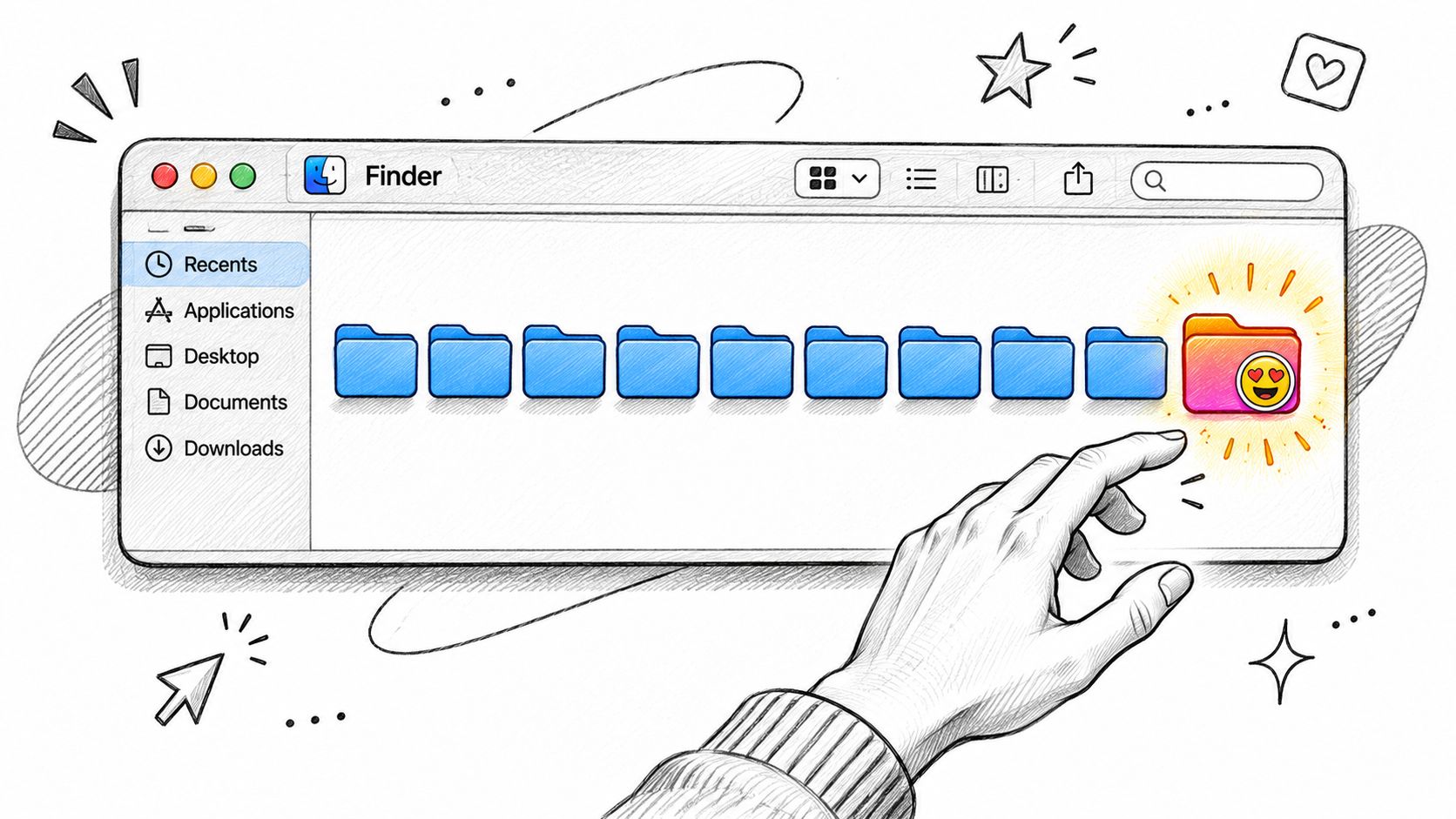
A folder icon app fixes the scanning problem by giving each folder a color, a symbol, an emoji, or a small image of your own. That's the whole trick, and it works. What it doesn't do is organize anything. It doesn't move files, tag them, or make them searchable, and it won't always follow you to another Mac the way you might assume.
That gap between how a folder looks and how it's filed is where most of the confusion about these apps lives. Get it straight first, and you avoid building a color system that falls apart the moment you copy a project to a client's drive or open the same folder on a second machine.
What a Folder Icon App Changes on Your Mac
A folder icon app changes exactly one thing: the picture Finder draws for a folder. Every file and subfolder inside stays where it was, with the same name and the same permissions.
The mechanism matters if you want the change to stick. Finder decides how to draw a directory from several metadata sources: the file's bundle bit, type code, creator code, filename extension, and per-folder user settings, as set out in Apple's File System Programming Guide. An ordinary directory with none of that custom data gets the generic folder icon, while system directories receive purpose-specific overlays. An app that only changes a label inside its own window hasn't changed anything Finder can see.
That architecture explains why a properly customized folder keeps its look across list, column and gallery views: the icon data travels with the folder, not with the app that wrote it. Apple restricts customization of protected locations such as Applications, Library, System and Users, which is why those folders stay stubbornly blue no matter what you throw at them.
The folder glyph itself is standardized. Apple's Human Interface Guidelines list the folder symbol alongside core editing actions such as Cut, Copy, Paste, Delete and Move to, which tells you something useful: a custom color or emoji isn't replacing Finder's semantics, it's layering a second classification on top of a symbol everyone already reads as "folder."
A custom folder icon changes how a folder looks. It never moves, renames or alters what's inside, and it can always be reverted to the standard macOS icon.
A modern app works in three registers: a changed color, a symbol or emoji, or a custom image imported from a file. Anything beyond that, such as smart suggestions, batch runs and one-click restore, is automation wrapped around those three changes, written into Finder's own icon state. See digital file organization for how that visual layer fits into a wider filing system.
Feature Checklist for Choosing a Folder Icon App
Judge a folder icon app on four questions before anything else: are suggestions computed on your Mac, can it undo itself in one action, does it scale past a single folder, and does it keep working after a macOS update. Everything else is preference.
| Feature | What to Look For | Why It Matters | How Tintd Handles It |
|---|---|---|---|
| Icon and emoji library | Large, searchable catalogue | Fewer repeats across folders | More than 11,000 icons and emojis |
| Smart suggestions | Icon and color picked from the folder name | Faster setup without manual searching | Smart Icon and Smart Color read the name and neighbouring folders |
| Folder watcher | Styles new folders automatically in chosen locations | Keeps new folders consistent | Watches selected locations and styles each new folder |
| Batch editing | Apply color and icon to many folders at once | Scales to large project trees | Selects several folders for one action |
| Custom image import | Use your own picture as an icon | Client or brand logos | Imports custom images as folder icons |
| Emoji support | Any emoji usable as a folder icon | Quick personal cues | Any emoji can be used |
| On-device processing | Suggestions made locally | Folder names stay private | Runs locally with no AI service calls |
| One-click restore | Return to the default macOS icon | Easy to undo | Reverts any customized folder in one click |
| Finder right-click menu | App opens from the context menu | Less switching between windows | Opens from Finder's right-click menu |
| Pricing model | One-time purchase or subscription | Predictable long-term cost | Lifetime plan unlocks all features |
Three red flags disqualify an app outright. Cloud-dependent matching means your folder names leave the machine to be analyzed somewhere else, which is a bad trade for a cosmetic feature. No revert path leaves you hand-fixing folders one at a time when a style scheme stops working. No bulk tools turns a two-hundred-folder archive into an afternoon of clicking.
Then rank the rest by volume. A few dozen folders that change a couple of times a year need nothing more than smart suggestions and a decent library. Hundreds of project folders need batch editing and a watcher, because the manual work isn't the first pass, it's every new folder after that. If you're shopping mainly for overlays rather than behavior, Mac icon packs are worth comparing on coverage before you commit.
Where Custom Folder Icons Show Up and Where They Stop
A custom folder icon is a visual cue, not a portable organization system. It survives exactly as far as Finder's own rendering goes, and it stops at the boundary of the app that wrote it, the machine it was written on, and any copy of that folder made outside Finder.
| Location | Custom Icon Shows | Notes |
|---|---|---|
| Finder list, column and grid views | Yes | The icon stays with the folder |
| Finder sidebar | Not always | Colors and symbols may not appear consistently |
| Dock | Not always | Display varies with the icon type |
| Spotlight results | Not always | Results may show the default folder icon |
| Aliases | Not always | The alias may not carry the custom look |
| iCloud Drive and cloud-sync folders | Usually no | Custom icons may stay local to each Mac |
| ZIP archives | Test first | Compress and expand one folder before relying on it |
| External drives | Test first | Check the target drive before styling a whole tree |
Apple's own Mac help documentation covers both visual customization and tags, and notes that colors and symbols may not appear consistently in aliases, the Dock, the Finder sidebar or Spotlight results, and that custom icons can remain local rather than syncing across devices, as summarised in Apple's folder customization guide. Run your own check on those last two rows. A folder that looks right on your desktop and plain on your colleague's is the normal outcome, not a bug you can fix with settings.
Tags are searchable metadata. Right-click a folder, choose Tags, and type a name; that label follows the folder through copies, archives and cloud sync, and it feeds Smart Folders in a way a color never will. When you move, compress or sync a styled folder, open it once afterward and confirm the icon came along. Reapplying takes a click; assuming takes a rebuild.
How to Set a Folder Icon in Finder with Tintd
To give a Finder folder a clearer visual cue, choose an icon and color that remain recognizable at the sizes you use. The change is cosmetic: it does not alter the files or subfolders inside the folder.
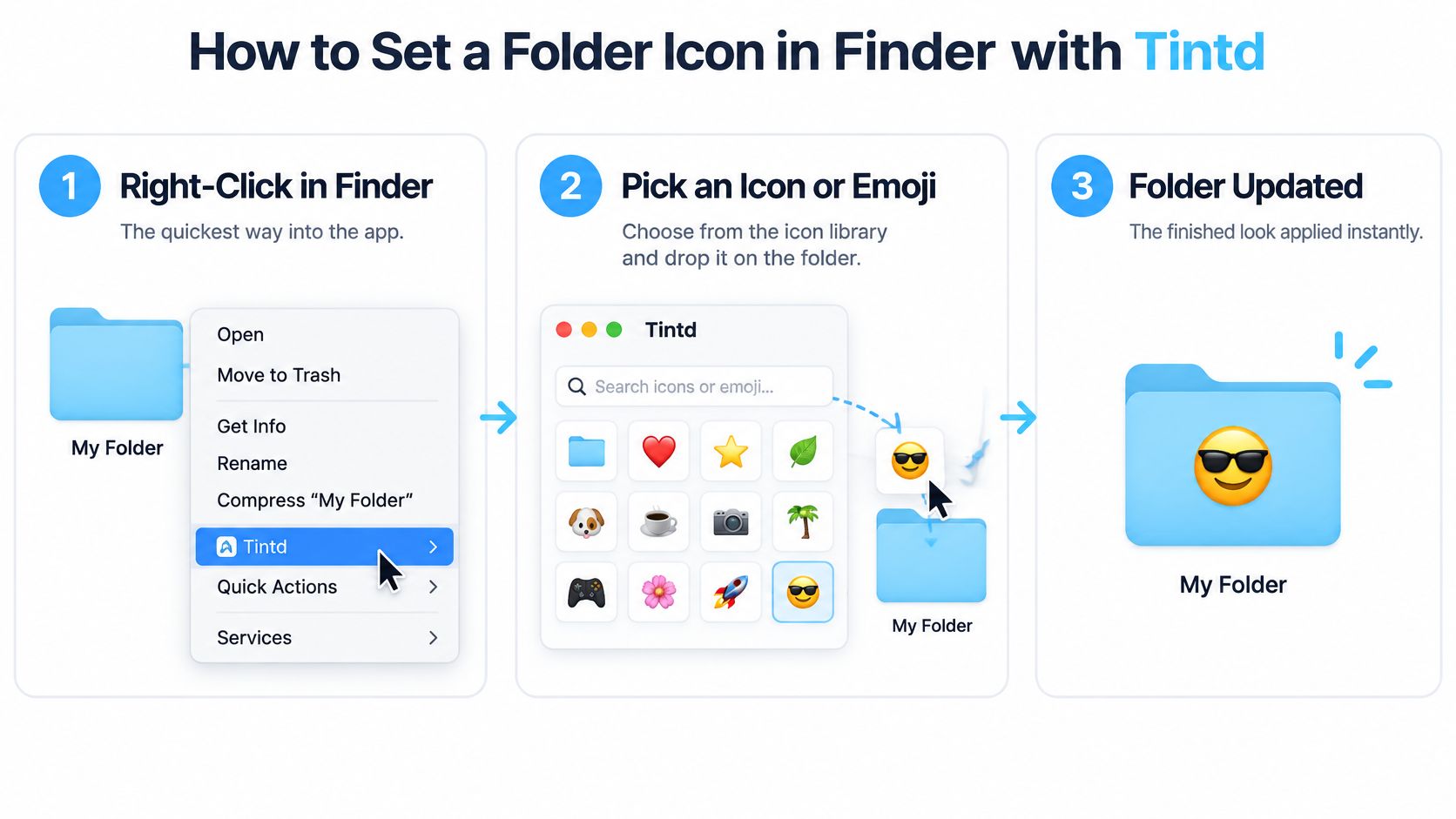
Open Tintd from Finder. Right-click the target folder and choose Tintd from the contextual menu. This opens the app for that folder, so you can apply a style without first selecting the folder inside a separate window.
Drag an icon onto the folder. Choose an option from Tintd's custom icon library, then drag it onto the folder. Clicking an icon alone does not apply it; the drag-and-drop action sets the folder's icon.
Adjust the look. Change the icon's size, color, or placement, and choose a palette color or make your own. For a logo, use a sharp source image; if you need to prep tiny logos for large prints, vector artwork can help preserve clean edges. Tintd also lets you import a custom image to use as a folder icon.
Check it at small sizes. Fine overlay details can disappear when Finder icons are small, especially in list view. Preview the folder at the sizes you regularly use before settling on a design. Finder also lets you adjust view settings for folders, as described in Apple's Mac Help on customizing folders.
Apply a style to several folders when needed. Select multiple folders and assign a color and icon in one action. This is useful for keeping a group visually consistent; individual choices can still make folders easier to distinguish.
Restore the default if the design does not work. Tintd can revert a customized folder to the original macOS Finder icon with one click.
For an emoji, select one from Tintd's emoji library and drag it onto the folder. Any emoji can be used. For one folder, Finder also has a manual option: select it, press Command-I, click the small icon at the top left of the info window, then paste a copied image with Command-V. That route is useful for a quick one-off, while Tintd adds a library, customization controls, and one-click restoration.
Custom icons are visual cues, not a portable organization system. If a folder is copied, synced, or viewed through an alias, check whether its appearance carries over; use Finder tags when classification needs to support searching and travel with the folder.
Avoid trying to customize protected system locations, where macOS may not allow the change.
Batch Styling and Automatic Icons for New Folders
One folder at a time is fine for a handful of folders and untenable for a working archive. There are two ways past it.
The first is batch selection. Select several folders, then apply a color and icon to all of them in one action. This is the right tool for the first pass over a Clients or Projects directory, where thirty folders need the same visual family before you start differentiating them. You can randomize colors and push a single icon across many folders at once, then hand-tune from there.
The second is a folder watcher. Point it at the locations that receive new folders, such as Projects or a staging area where exports land, and each new folder gets a color and icon derived from its name. The consistency logic is the interesting part: Smart Color and Smart Icon look at what neighbouring folders already carry and choose a color that fills a gap on the color wheel, so a new "Acme Retainer" folder in Clients arrives with a hue that sits between the two client folders around it instead of clashing with both.
The trade-off is scope. A watcher only acts in locations you choose, it styles based on the name, so a badly named folder gets a badly matched icon, and it can be turned off at any time in System Settings if the results start to annoy you. Start with one watched location and expand only after a week of results looks right. If you already automate file handling, these Automator folder actions pair naturally with a watcher. The same batch thinking applies when you're managing bulk AI image libraries, where hundreds of output folders appear faster than anyone can style them manually.
Keeping Folder Names Private on Your Mac
Folder names leak more than icons do. "Client Contracts 2026," "Medical Records," "Layoffs Draft" and "Acquisition Diligence" all describe their contents precisely, and those names sit in plain text on your disk. A tool that sends them to a server to be matched against an icon catalogue is exporting your filing system's outline in exchange for a decorative convenience.

Concern about this class of exposure is broad. In a 2025 Deloitte survey, 70% of U.S. consumers said they were concerned about data privacy and security when using digital services, according to Deloitte's connectivity and mobile trends survey. Folder names are exactly the kind of detail people forget to count.
The local design is simple. Icon and color suggestions run on your Mac, folder names never leave the device, and no AI service is called, which is how Tintd is built. Matching happens against a library already on disk. The trade-off is portability: custom folder icons are stored locally on each Mac, so a second machine starts plain and needs setting up again. Neither approach is wrong, but know which one you've bought.
Three questions to put to any vendor before installing:
- Do folder names ever leave the machine, including in crash reports, telemetry or "improve suggestions" settings?
- Do suggestions require an online service, or do they work with the network off?
- Do the icons sync across Macs, and if they don't, is that documented clearly enough that you plan for it?
Test rather than trust. Create a sample folder with an obviously sensitive name, style it, then check whether the app asks the network for anything.
Choose the Right Folder Icon App for Your Workflow
Match the tool to the number of folders and how often they change. For a few dozen folders, manual styling and smart suggestions may be enough; Finder's Command-I route works for one-offs. Hundreds of client or project folders call for batch editing and a watcher, which can apply styles to new folders automatically.
For sensitive folder names, prioritize on-device processing over library size. Tintd's suggestions run locally, and folder names stay on the Mac. That can help protect privacy, but custom icons are stored on each Mac, so they must be set up separately on another machine. Icons are visual cues, not a portable organization system. Use Finder tags when you need a label that works independently of a customized icon.
Tintd's Lifetime plan includes all features, unlimited generations, automatic folder icons, smart icons based on folder names, and more than 11,000 icons and emojis, with no subscription. It is available on the Mac App Store. Check the current plan details at tintd.app before buying.
Check how an icon behaves in your own workflow before styling a whole directory. Copying or syncing folders to another Mac may not carry over the custom icon, so plan to set it up there separately if needed.
Tintd combines its icon and emoji library with Smart Icon and Smart Color suggestions, batch styling, and the Folder Watcher. You can restore any customized folder to the original macOS Finder icon with one click. Download Tintd from the Mac App Store and choose the features that fit your folder workflow.