
You type logo into Spotlight and 47 files come back. Three of them are named final_logo, final_logo_v2 and final_logo_USE THIS ONE. One is a screenshot taken of a PDF. None of them tells you whether the mark is cleared for a paid ad or only for the website.
That isn't a storage problem. Every one of those files is safely stored. It's a description problem, and it's why designers, photographers, students and small studio owners lose whole afternoons hunting for something they know exists.
Digital asset management is the fix, and it doesn't require a brand team or a six-figure software budget. The same principles run on a Mac with Finder, a handful of tags and one naming habit.
What Digital Asset Management Is and What It Stores
Say a designer needs the approved logo for a trade show banner. She searches three drives and two email threads, finds five versions, and picks the one carrying last year's tagline because the file name says final and the modification date looks recent. The banner ships with the wrong mark. Nobody notices until the client does.
Digital asset management (DAM) is a system that stores digital files such as images, video, audio, design source files and documents, together with the information describing each one: who made it, what it's for, which rights apply, when those rights expire, and which version it is.
A library makes the idea concrete. Shelves hold the books, but without a catalog card for each title, finding a specific book means walking every aisle. The card holds the author, the subject, the publication year and the shelf location. A DAM is the catalog card system for your files, and on a Mac the shelves are Finder folders.
Every DAM, whether it costs five figures or nothing, is built from the same six parts.
| Component | What It Does | Mac Equivalent |
|---|---|---|
| Asset storage | Keeps original and derived files in one master location | Finder folders on an internal or external drive |
| Metadata | Describes who, what, when and why for each file | Finder tags, file info and naming conventions |
| Catalog or index | Makes files searchable by description rather than location | Spotlight search and Finder Smart Folders |
| Version control | Tracks revisions and marks the approved file | Version numbers in filenames such as v01 and v02 |
| Access and rights | Shows who may use an asset and until when | Status and expiry tags, with a separate Archive folder |
| Retrieval and delivery | Exports the right format for each use | Export presets in Photos or Preview, shared from Finder |
Here's the test that tells you where you stand. Can you find last quarter's approved logo, with its rights status visible, in under one minute? If the answer is no, you already need a DAM system, even a small one built entirely from Finder.
How an Asset Moves Through a DAM Workflow
An asset isn't managed because it sits in a tidy folder. It's managed because it passes through stages, and each stage leaves it easier to find or safer to use than before.
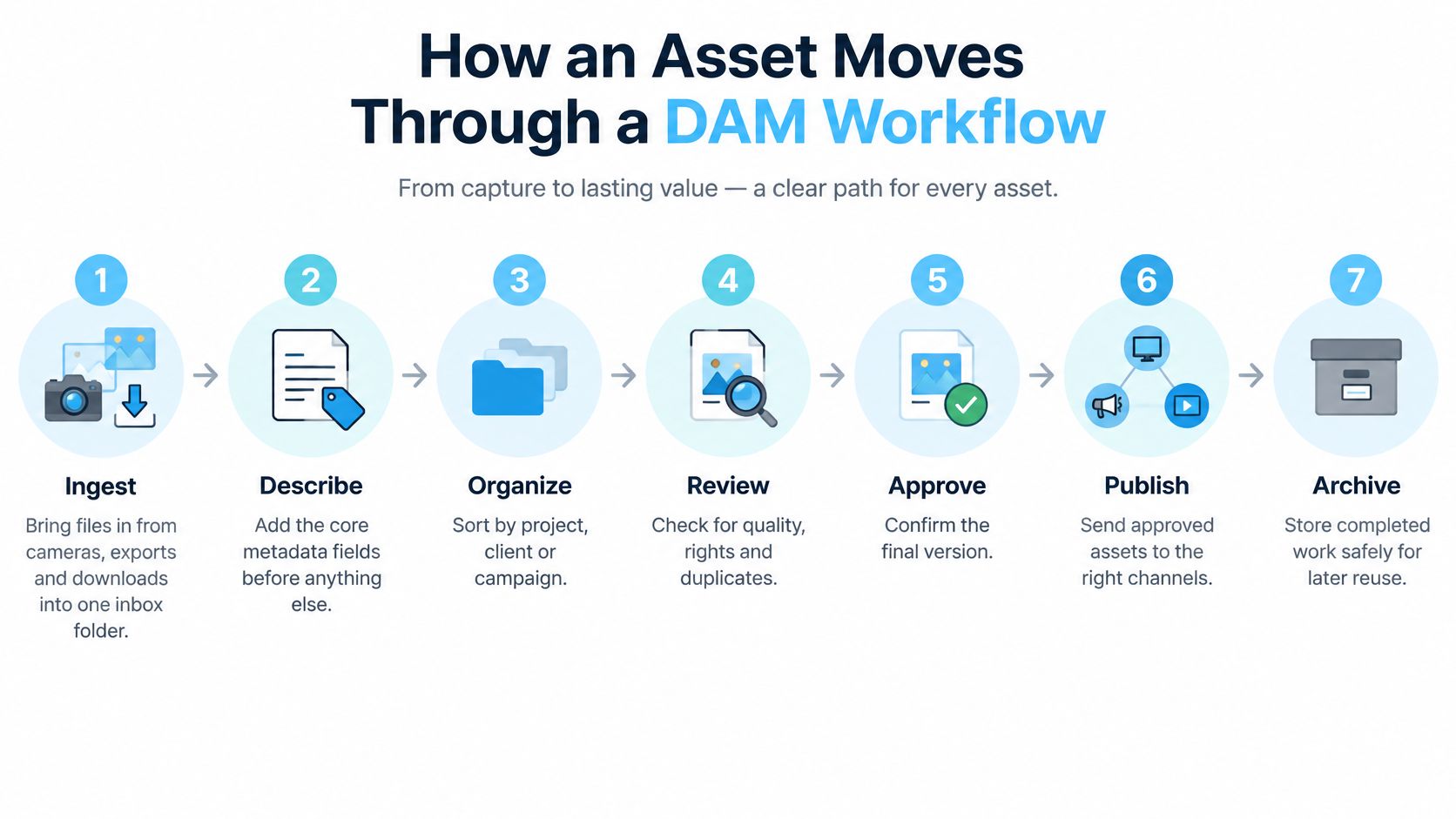
- Ingest. Pull files from camera cards, exports, downloads and email attachments into a single Inbox folder. One entry point means nothing gets described twice and nothing gets forgotten in a Downloads folder.
- Describe. Add the core metadata fields before the file moves anywhere else. This is the stage people skip, and it's the reason libraries rot.
- Review. A named person checks the tags, opens the file and confirms it's the right version before it joins the master library. Automated tagging speeds this up but doesn't replace the check: in Bynder and Censuswide's 2025 survey, 41% of organizations had either fully integrated artificial intelligence into their DAM systems or were scaling its use (State of DAM 2025). More machine-generated labels reaching more libraries means more need for a human to confirm them.
- Store. Move approved masters into the library and keep derived copies, the resized and cropped and compressed versions, somewhere separate. When master and derivative sit side by side, people grab the derivative for print.
- Find. Locate files by tag, Smart Folder and consistent name rather than by remembering which folder you used in March.
- Deliver. Export the format each channel needs and note where the asset went. A one-line delivery log in the file's metadata saves an argument later about which version ran in which campaign.
- Retire. On the date rights end, or the day a newer version is approved, move the old file to Archive. Deleting is a separate decision. Retiring is not.
Read the seven stages as one idea. Every stage either adds information to an asset or protects the information already attached to it.
Metadata Fields and Naming Rules That Make Files Findable
Search quality is decided before any AI feature enters the picture. Structured metadata and consistent naming determine whether a search returns the right file, and automated tagging only adds value on top of those foundations. In a 105-person survey of DAM practitioners, metadata and taxonomy ranked among the leading opportunity themes, and in a separate 2026 survey of DAM vendors, 7 out of 10 respondents named structured metadata and taxonomy as the primary determinant of AI success (DAM Trends 2026).
That's the practical argument for doing the boring work first. A better tagger won't rescue a library where half the files are called IMG_4471.
The fields worth filling in
Keep the list short enough that you complete it. Seven fields is already generous for a solo operator; a small studio can run on five.
| Field | Example Value | Required For |
|---|---|---|
| Asset ID | CLIENT-SPR-0042 | All files |
| Project or client | ClientName_SpringCampaign | Client and project work |
| Asset type | Photo, video, vector, document | All files |
| Date created or shot | 2026-03-14 | All files |
| Usage rights and expiry | Web and social licence, expires 2027-03-31 | Licensed or third-party files |
| Status | Draft, approved or retired | All shared files |
| Keywords | campaign, spring, product | Photos and video |
Make only the fields marked for all files mandatory. A field nobody fills in is worse than no field, because it looks like information and isn't.
One naming pattern to copy exactly
Pick a pattern and stop improvising:
2026-03-14_ClientName_SpringCampaign_HeroBanner_v02
The date sorts chronologically when you list by name, which is why it leads. The client and project group related assets even when they're in different folders. The short description tells a human what the file shows. The version suffix separates a draft from an approval, and it beats final, final2 and final_new because it never needs a sequel. For more patterns that survive contact with real projects, this guide to file naming conventions covers the variations by asset type.
Who owns metadata quality
Name one person per folder as the metadata owner. Not the whole team, because shared responsibility means nobody checks. That person reviews new arrivals weekly, corrects tags, and has the authority to rename files without asking.
Multilingual labels follow the same logic as everything else here. Choose one controlled vocabulary, then map synonyms to it. If your library holds both sofa and couch, pick one as the label and record the other as an alias, so a search for either lands in the same place.
How to Build a Mac Asset Structure Step by Step
A workable Mac library is not complicated. It's six decisions, made once, that keep working because the rules are simple enough to follow on a busy day.
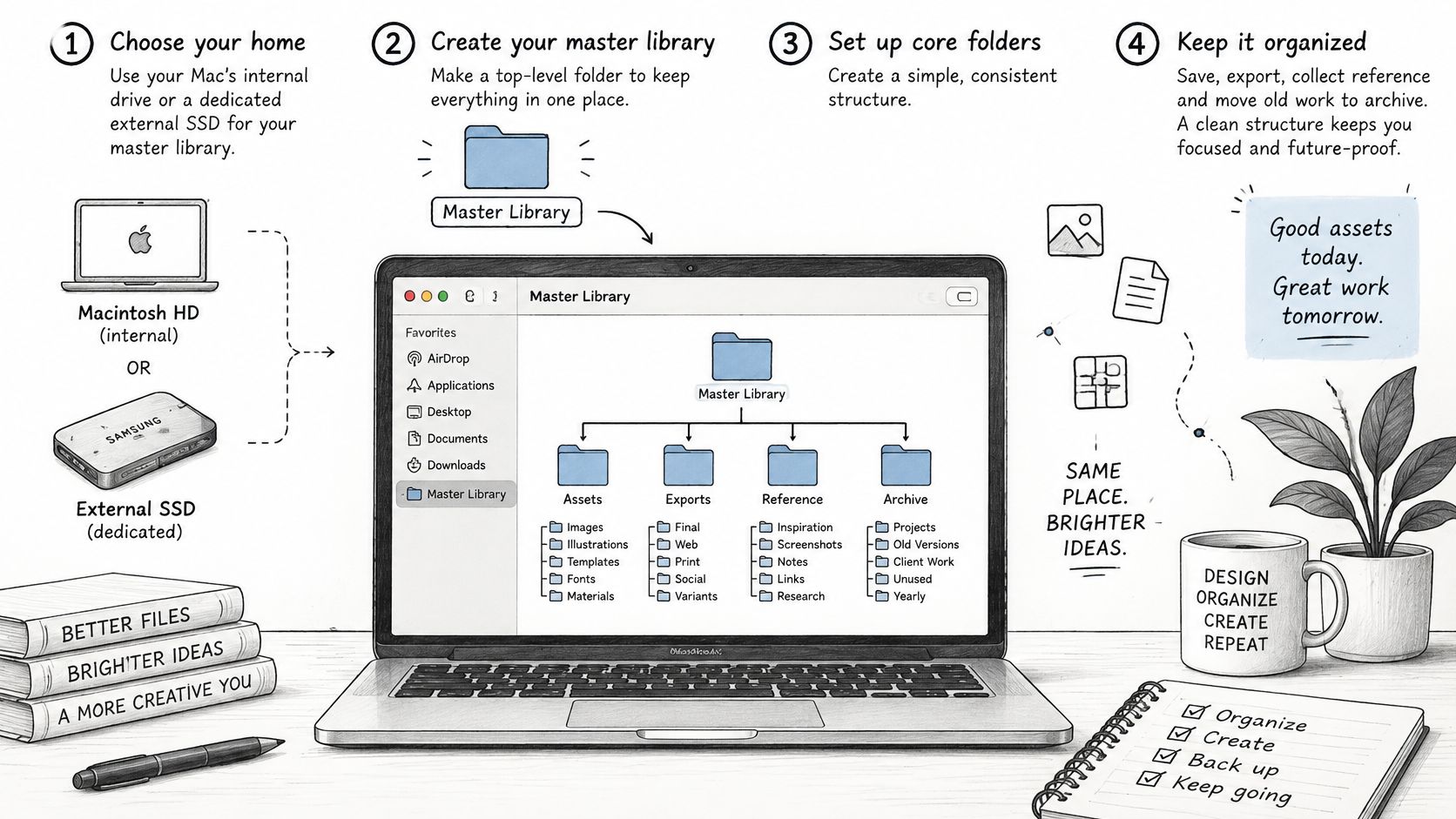
- Choose one master location. Put it on the internal drive or a dedicated external SSD, and never split the master across two drives. Split libraries create the duplicate problem you're trying to eliminate, because two copies both look authoritative.
- Create four or five top-level folders by stage. Inbox, Active, Approved and Archive covers most solo work; swap in client names if you'd rather. Keep the depth to two levels. Deep nesting feels organized and behaves like a maze, so files escape to the desktop where they're easy to grab.
- Set Finder tags for status and rights. Tags travel with the file and cut across folders, which is exactly what folder structure can't do. Two or three tags, applied consistently, beat twenty applied occasionally.
- Build Smart Folders for your repeated searches. A saved search for approved files tagged to one client turns a five-minute hunt into a click. Build the three searches you run most often, then forget about them.
- Give folders consistent colors and icons. Neighboring folders that scan at a glance save time on every single visit. Tintd can apply icons and colors automatically based on folder names, and the Finder right-click menu handles one-off changes. The Lifetime plan includes all features, unlimited generations, automatic folder icons, smart icons based on folder name, and more than 11,000 icons and emojis, so a mixed library still looks like one system.
- Set two backups, not one. Time Machine to a local drive plus a second copy stored off-site covers both drive failure and theft. A backup you've never restored from is a hope, not a plan, so test a restore once.
| User Type | Top-Level Folders | Starter Tags |
|---|---|---|
| Solo photographer | Inbox, Culling, Edited, Delivered, Archive | Rating, client, shoot date |
| Design studio | Clients, Brand Assets, Templates, Archive | Status, client, rights |
| Video team | Ingest, Rushes, Edit, Exports, Archive | Camera card, shoot date, approved |
| Student or researcher | Courses, Research, Sources, Drafts | Topic, source status, due date |
If you'd rather start from a proven layout, this walkthrough of project folder structure breaks the levels down folder by folder.
The structure only earns its keep if it answers real questions. Run three searches you'd make this week: the approved version of a recent project, every asset licensed to one client, and everything created last month. If a search fails, the problem is in the tags or the names, and it's worth fixing before the library grows.
For a visual walkthrough of the folder logic, this short video shows how the levels fit together in practice.
Keeping Sensitive Assets Local or in the Cloud
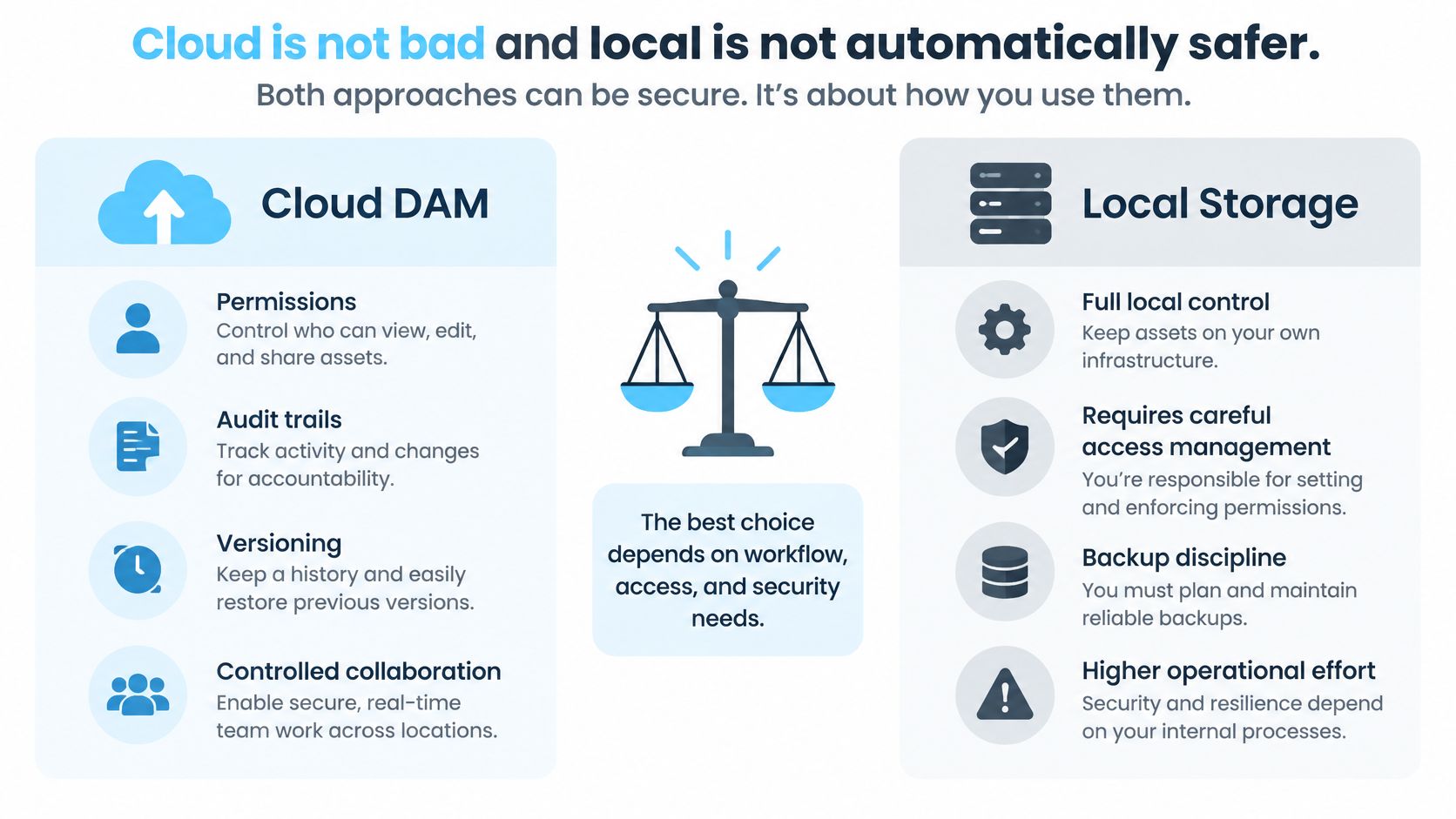
The usual framing is a false choice. Cloud isn't bad, and local isn't automatically safer. A cloud DAM brings permissions, audit trails, versioning and controlled collaboration that a folder tree can't match. Local organization limits unnecessary disclosure and keeps you independent of an outside service. The right answer differs per asset, not per person.
The stakes rise as libraries grow. In a survey of DAM vendors, 8 out of 10 respondents identified asset growth and AI-generated content volume as major pressures, while 6 to 7 out of 10 highlighted governance, rights-management or compliance risks (ResourceSpace DAM trends).
Four questions to ask about each asset
- Sensitivity. Unreleased campaign work, client contracts and research data stay local. Published brand assets don't need that protection.
- Collaboration. If two people must edit or approve a file, it needs shared access. If only you touch it, cloud storage adds exposure without adding capability.
- Retention. Files with a legal or contractual retention period belong somewhere with a documented backup and a clear owner.
- Recovery. The faster a lost file must come back, the stronger the backup needs to be, whether that's local or hosted.
Three rules that follow
Keep unreleased and confidential files on the Mac with an encrypted backup. Move only approved files to shared cloud storage. Classify each asset into a sensitivity tier before it leaves the device, not after.
Filenames and previews leak more than people expect. A file called ClientName_Acquisition_Memo.pdf announces its contents to anyone who sees a directory listing or a thumbnail. Give client and legal work neutral names before it goes anywhere shared.
If you're weighing how to protect the off-site copy, it's worth taking time to compare cloud encryption tools before committing to one, since the encryption model matters more than the storage vendor.
The trade-off is straightforward. Local organization gives you privacy and independence but demands backup discipline, because nobody else is holding a second copy. Cloud gives you sharing and audit trails at the cost of disclosure. Most small teams end up with a hybrid: masters local and encrypted, approved derivatives in shared storage.
Common Problems and How to Fix Them
The approved logo that can't be found is the symptom people notice first, and it's almost never caused by a missing file. It's caused by five files that all claim to be final.
| Problem | Likely Cause | Fix |
|---|---|---|
| Approved logo cannot be found | Inconsistent filenames and no status tag | Rename by pattern and add an approved status tag |
| Duplicate copies across folders | Repeated exports saved in several places | Keep one master, delete derived copies and archive older versions |
| Labels mixed across languages | No controlled vocabulary | Choose one label list and map synonyms to it |
| Expired license still in use | No rights-expiry field | Add an expiry field and move the file to Archive on that date |
| Old folders do not match new rules | Structure built before the DAM | Freeze old folders and migrate one project at a time |
| Automated tags are wrong | Tags were never reviewed | Review tags at stage 3 and correct them against the vocabulary |
Some fixes take a day. Renaming a single project to the pattern, or adding a status tag to one campaign, is an afternoon's work. Others take a week or more: migrating a decade of old folders in batches, or mapping synonyms across a library big enough that the vocabulary has drifted.
Freeze the old folders first. Don't rename anything inside them, just stop adding to them and migrate one project at a time so the new rules get tested on live work rather than on an archive nobody opens.
When a workflow feels slow, the missing piece is usually the describe stage. Files that arrive without metadata force the next person to reconstruct context from filenames, email threads and memory, and that reconstruction is where the time goes.
When Finder and Spotlight Are No Longer Enough
A Mac setup handles a surprising amount. Finder tags, Smart Folders and Spotlight cover a solo library of thousands of files comfortably. The question is when they stop covering it, and the honest answer is a small number of specific signals.
- Search takes longer than a minute. If finding an approved file is a project in itself, the description layer has failed.
- More than one person must approve or download the same master. Finder has no audit trail and no record of who approved what.
- Rights expire on many files each month. Manual expiry tracking breaks and surfaces as a legal problem.
- The library outgrows one drive. Splitting it recreates the duplicate problem you solved.
Map each signal to a workflow stage. When review backs up because nobody can see who signed off, the setup needs shared permissions. When delivery means sending files outside the Mac, it needs controlled links and a log. If you've hit the limit of what saved searches can do, this comparison of Finder alternatives for organizing files covers what changes when you move beyond the desktop.
Before buying anything, run the current structure for thirty days. Count the failed searches, list the metadata fields that got skipped, and note which stage caused the most delay. Those numbers tell you whether the problem is the structure or the tool, and they're the only evidence that matters.
A dedicated DAM can't repair a broken structure. It will index your inconsistencies faster and at greater scale. Fix the naming, the metadata and the ownership first, then move the master library only if the signals persist.
Tintd is built for exactly the moment before a formal DAM: it gives your Mac folders consistent icons and colors so a large library is scannable at a glance, applies Smart Icons from a library of more than 11,000 options based on folder names, and does all of it on-device so private client work never leaves your Mac. If your folder structure is solid but hard to read, that's the layer worth adding next. Visit Tintd to see how it fits your existing setup.