

You're copying client assets from an external drive to a project folder, then uploading selects to a server, then renaming 80 exports so they don't all say final_v2. Finder gives you one window, clumsy search, and a lot of dragging between tabs. That's usually the moment people start hunting for Finder alternatives.
It makes sense that the market is crowded. In March 2025, macOS accounted for approximately 15.7% of worldwide desktop operating-system usage and 28.53% in the United States, according to StatCounter data summarized in Wikipedia's usage share of operating systems page. That's roughly one in six desktops globally, and more than one in four in the US.
None of the ten apps below fully deletes Finder. macOS still leans on Finder for the desktop, mounting drives, and file dialogs, so TechTarget's guide to Mac file managers frames the test as interoperability with Finder, including Reveal in Finder, external volumes, permissions, and cloud providers.
I've mapped each pick to a user type instead of ranking by feature count. Jump to the developer tools, the creative multi-drive tools, or the free open-source options most roundups skip. You'll get honest trade-offs, not marketing copy. If your bigger headache is how information gets sorted before tools enter the picture, you can also find useful material in content archives.
1. Path Finder
If you want one app that tries to do nearly everything Finder won't, Path Finder from Cocoatech is the obvious starting point. It's built for power users who live in large folder hierarchies and get tired of opening extra utilities for routine jobs.
Where it earns its keep
Dual-pane browsing makes moving files between locations fast, and keyboard navigation keeps your hands off the trackpad. You also get folder comparison, synchronization, and merging, which is gold when a backup drive and a working drive have drifted apart. Batch renaming, filtering, hidden-file controls, and customizable panels round out a deep toolkit.
That depth is also the problem. New users face a steeper learning curve, and you'll spend time hiding panels you'll never use. Continued use past the trial requires a paid license, and multi-year or subscription-style licensing won't suit anyone who strongly prefers pay-once software.
Pairing a heavy browser with better everyday habits helps too, and these practical Mac Finder tips for everyday navigation cover the basics worth fixing first. For generalists who want maximum control in one place, I still rate Path Finder as the broadest replacement here.
2. ForkLift
Say your day is less about local folders and more about pushing builds to a server, pulling assets from cloud storage, and keeping a remote folder in sync. That's ForkLift from BinaryNights territory, and it's where the app pulls ahead of prettier browsers.
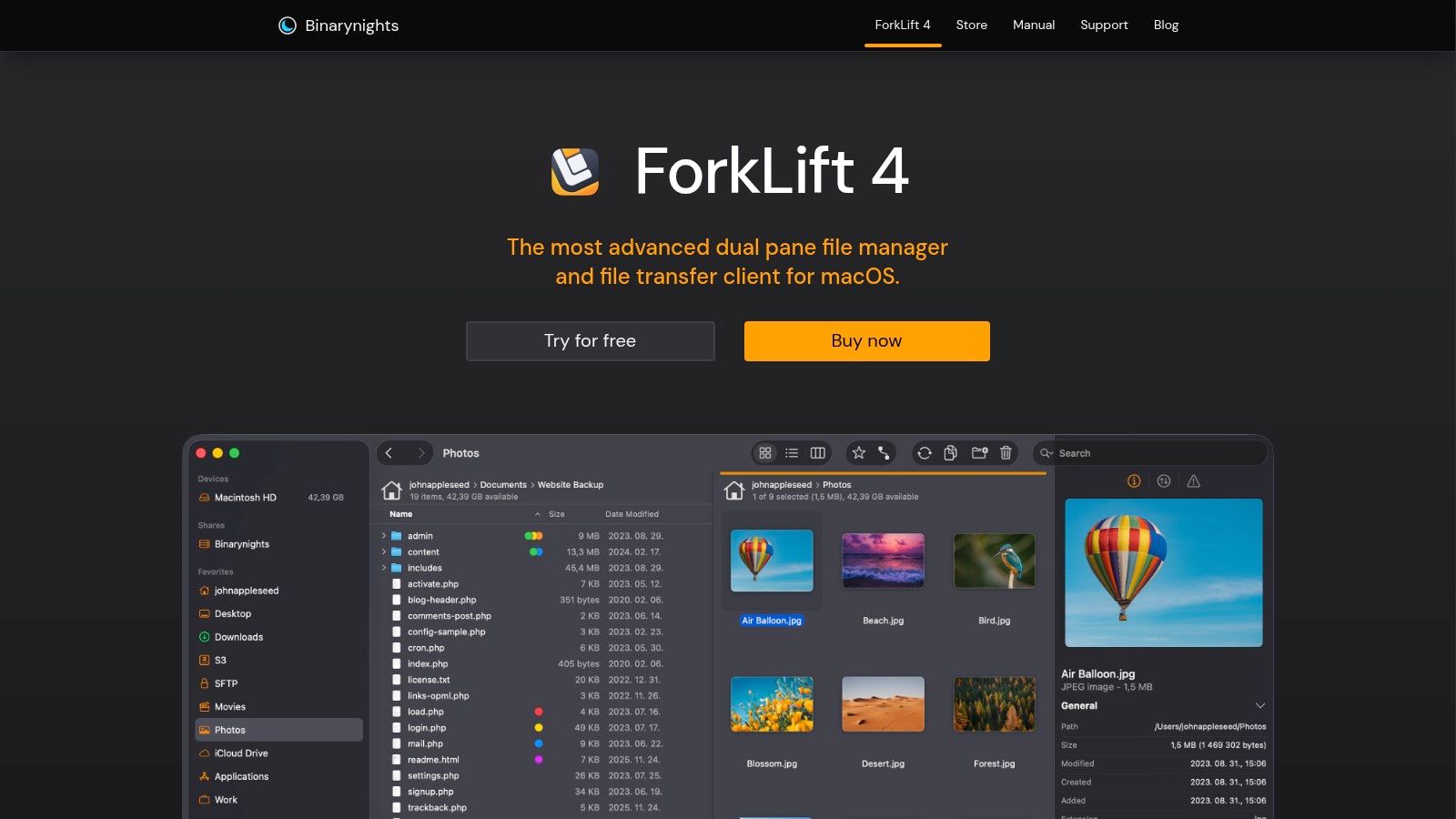
The interface will feel familiar if you're coming from Finder, but the two-pane layout changes how transfers work. Put your Mac on the left, an FTP, SFTP, WebDAV, or cloud connection on the right, and move files without a separate transfer client. Folder synchronization, multi-item renaming, archive handling, and remote file editing make recurring server-to-Mac jobs much less tedious.
- Best for: Developers, web workers, and creatives delivering to remote storage
- Skip it if: You rarely connect to anything beyond your internal drive
- Watch out for: Update periods that end, with newer versions needing a new license
ForkLift isn't trying to reinvent visual browsing. It won't make a messy local drive feel calmer, and the two-pane workflow is unnecessary for casual document hunting. But if transfers are your actual bottleneck, I think it's one of the cleanest Finder alternatives you can install. You're paying for connection breadth, so judge it on that alone.
3. Commander One
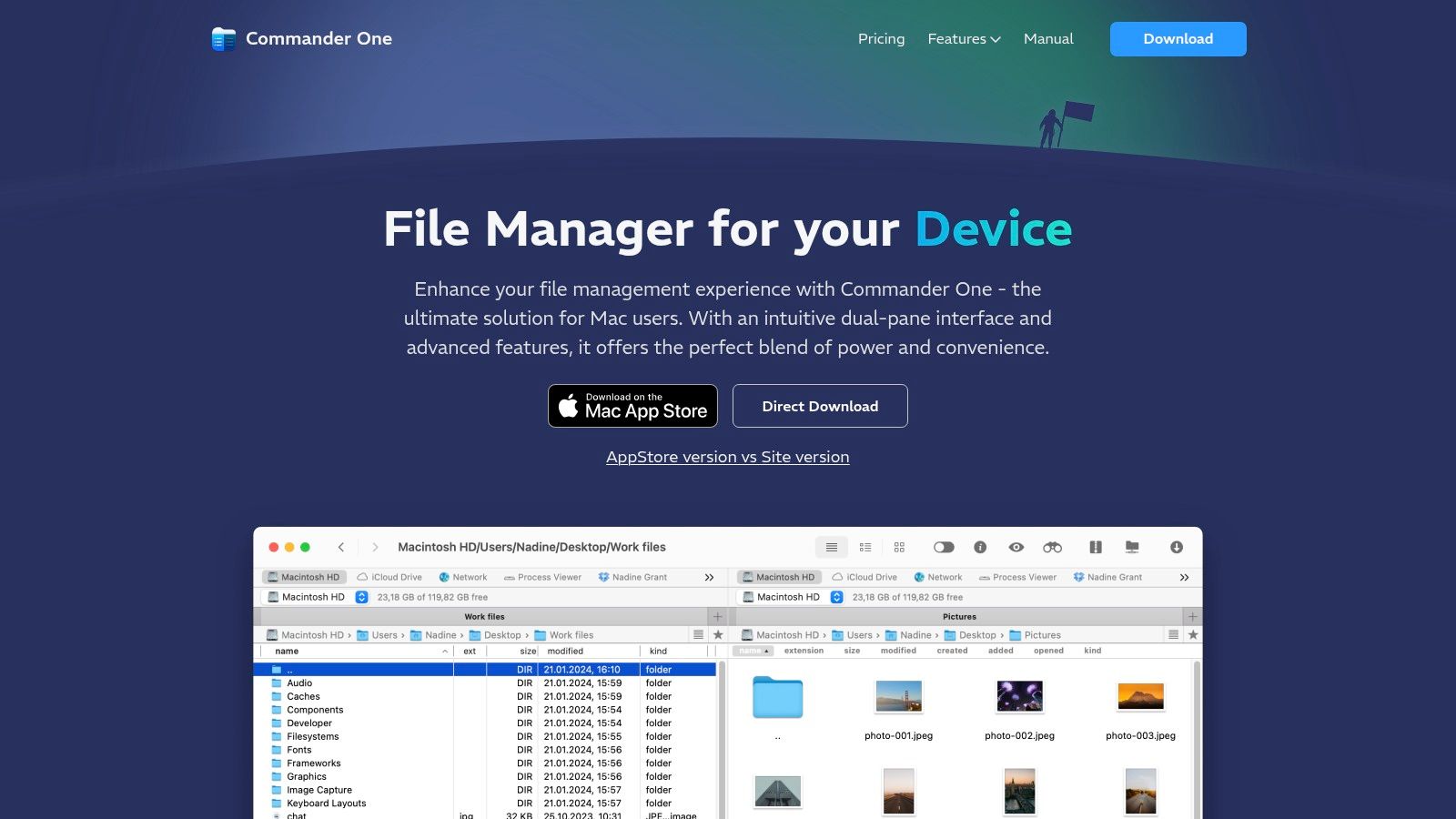
Commander One is the classic dual-pane answer for people who miss old-school file commanders. The free version covers core local work, so you can test whether side-by-side browsing suits you before paying for the PRO pack.
You'll get tabs, hidden-file viewing, and straightforward copying, moving, viewing, and organizing. PRO adds FTP and SFTP connections, cloud services, and broader archive handling for formats including ZIP, RAR, and 7z. For frequent transfers between two locations, that layout beats dragging between stacked Finder windows every time.
The honest limits
Several features you'd probably want, especially remote and archive tools, sit behind payment. Features can also differ between the App Store and direct-download versions, so check which build you're installing before you commit. For basic local browsing, it's more complex than you need.
If your frustration is recognition rather than transfer speed, a visual file manager approach to spotting folders faster may solve more than a second pane will. Commander One suits practical power users who want a free trial of the dual-pane life, with a clear upgrade path if remote work enters the picture later.
4. QSpace
Creatives juggling a camera card, a working SSD, an exports folder, and a client delivery folder will understand QSpace immediately. Two panes aren't always enough, and QSpace lets you build multi-pane layouts that match how multi-drive projects flow.
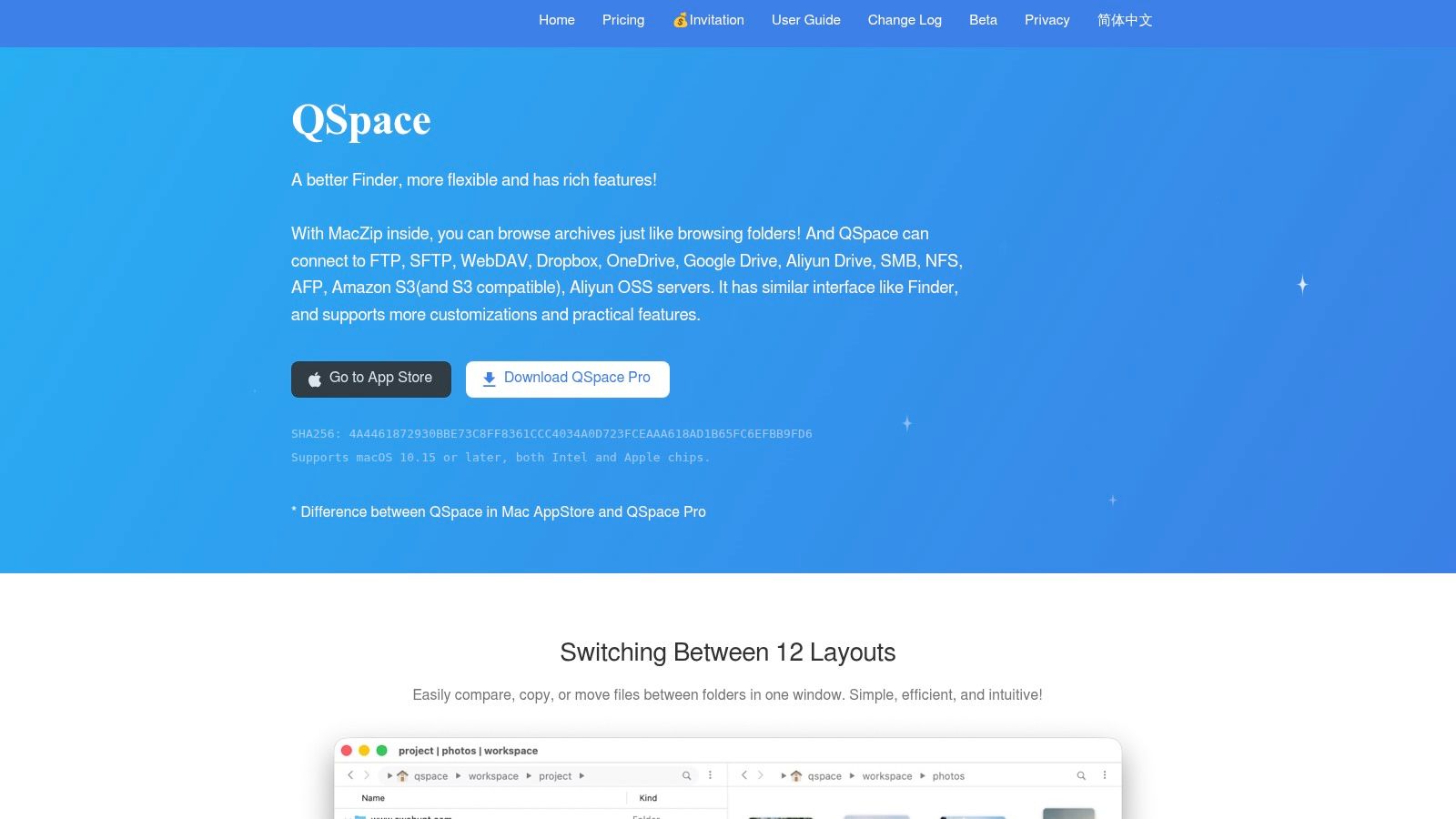
Custom hotkeys, context menus, and file or folder icons give you a lot of control over repeat workflows. Optional extensions add server and cloud connections, batch renaming, archive browsing, and a file stash for collecting items before you move them. A 30-day Pro trial gives you enough time to test it on a real project, not just click around for an afternoon.
The catch is fragmentation. Pro features and extensions are split across versions or purchases, so compare the App Store and Pro editions carefully before buying. The settings depth also takes time to learn, and some people will spend more time configuring QSpace than filing anything.
If you love tailoring every shortcut and layout, QSpace rewards the effort. If you want set-and-forget, it'll feel like homework.
I'd steer photographers, videographers, and designers with sprawling project trees here first. It's flexible, Finder-like enough to learn quickly, and far better than Finder at comparing locations side by side.
5. Marta
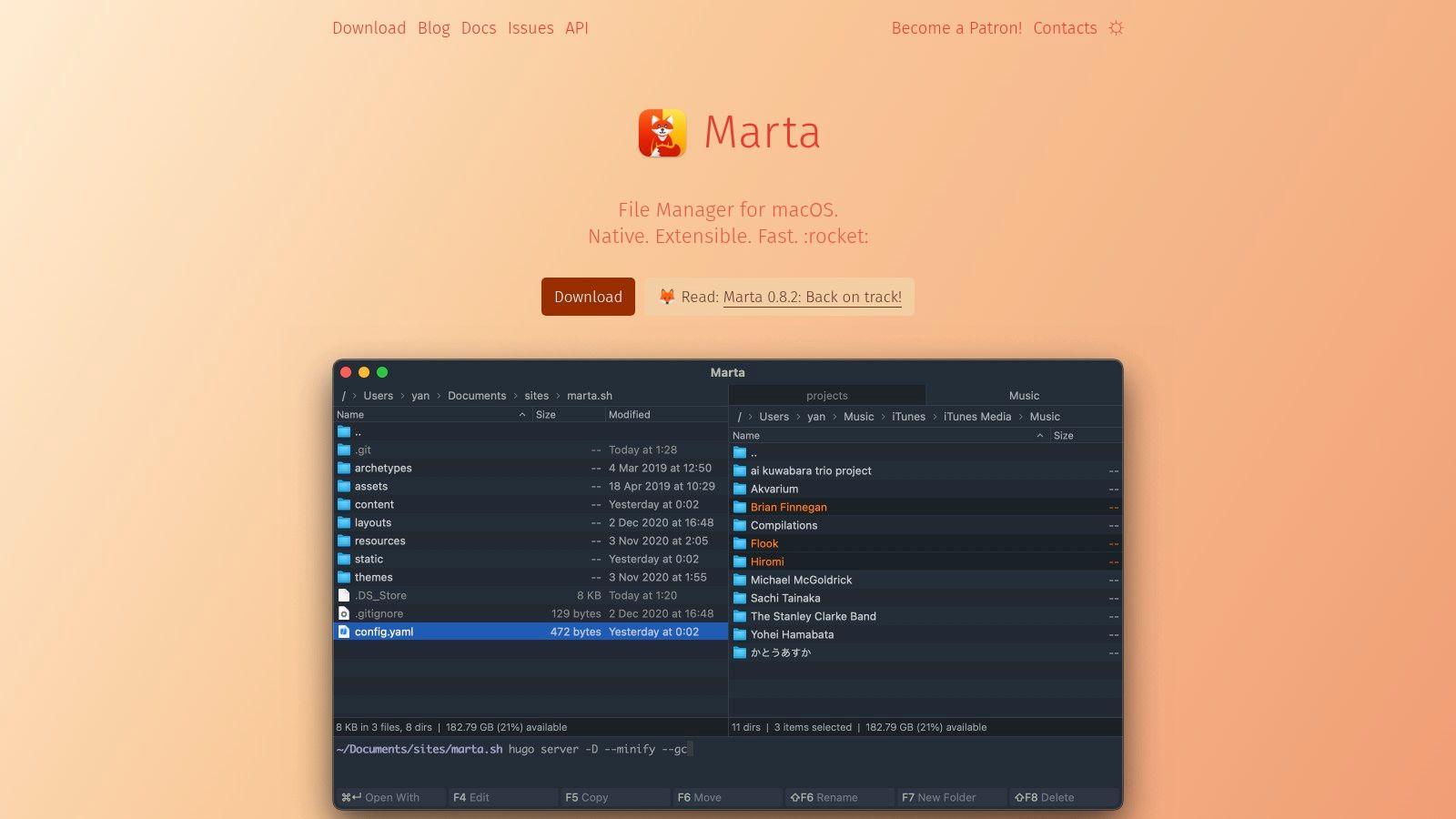
Marta is what I recommend when a developer says Finder feels slow because the mouse is involved. It's a native macOS app written in Swift, built around keyboard navigation and quick search, and it feels fast in the way good native software should.
Built for keyboard people
The built-in terminal stays in sync with your current directory, which removes constant cd commands when you bounce between browsing and shell work. An action panel, ZIP reading and writing plus other archive support, custom themes, and a Lua plugin API let technically inclined users extend it to fit odd workflows.
That customization model won't welcome everyone. Some settings use a text-based configuration language, which is normal for developers and off-putting for casual users. The developer has also indicated that paid licensing may arrive later, so don't build your whole workflow assuming today's terms never change.
Marta doesn't chase visual folder styling or beginner friendliness, and that's fine. It knows its audience. If you already think in shortcuts, keep a terminal open all day, and enjoy tweaking tools until they disappear into muscle memory, Marta is one of the most satisfying Finder alternatives on this list.
6. Nimble Commander
You don't have to pay to escape Finder's limits. Nimble Commander from Magnum Bytes is free and open source, built specifically for Mac, and focused on fast, efficient file operations rather than decoration.
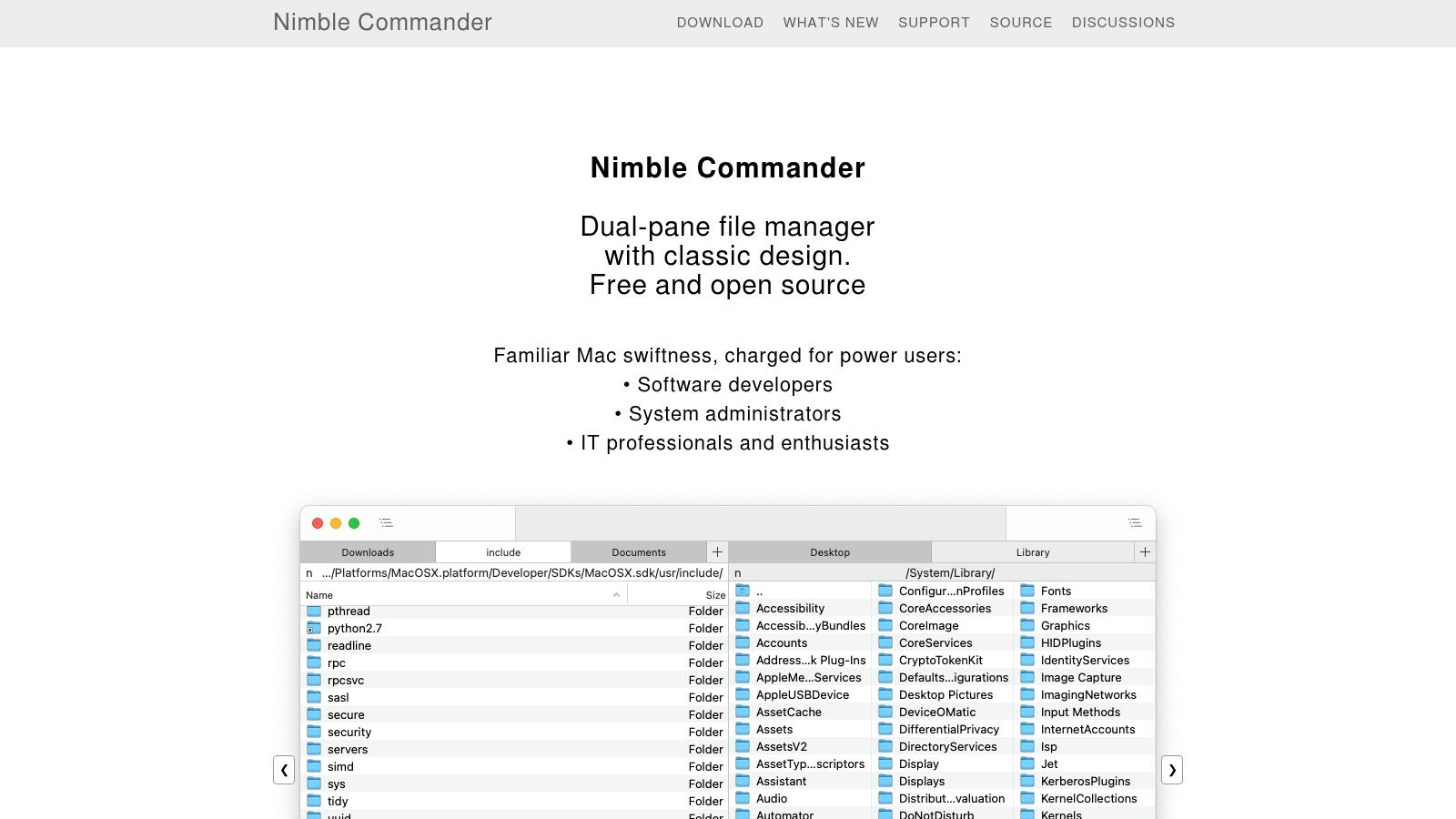
The dual-pane layout covers the basics well, and you get FTP, SFTP, and WebDAV support without buying a separate transfer app. Batch renaming, quick search, and internal text and hex viewers make it handy for developers and anyone inspecting files, not just moving them. Recent releases indicate ongoing maintenance, which matters a lot for free software.
- Strength: Serious remote and renaming tools at no cost
- Strength: Mac-specific design rather than a port
- Trade-off: Traditional two-pane style won't suit people who like Finder's browsing feel
- Trade-off: File operations come first, visual customization barely registers
Some advanced controls clearly target experienced users, and first-time dual-pane users may need a few days to adjust. Still, as a free first step into this category, Nimble Commander is hard to beat. Install it, run your real transfers through it, and you'll know quickly whether the commander style clicks for you.
7. muCommander
If you split your time between a Mac, a Windows box, and a Linux machine, learning three file managers gets old fast. muCommander solves that with one free, open-source, cross-platform dual-pane interface that behaves similarly everywhere.
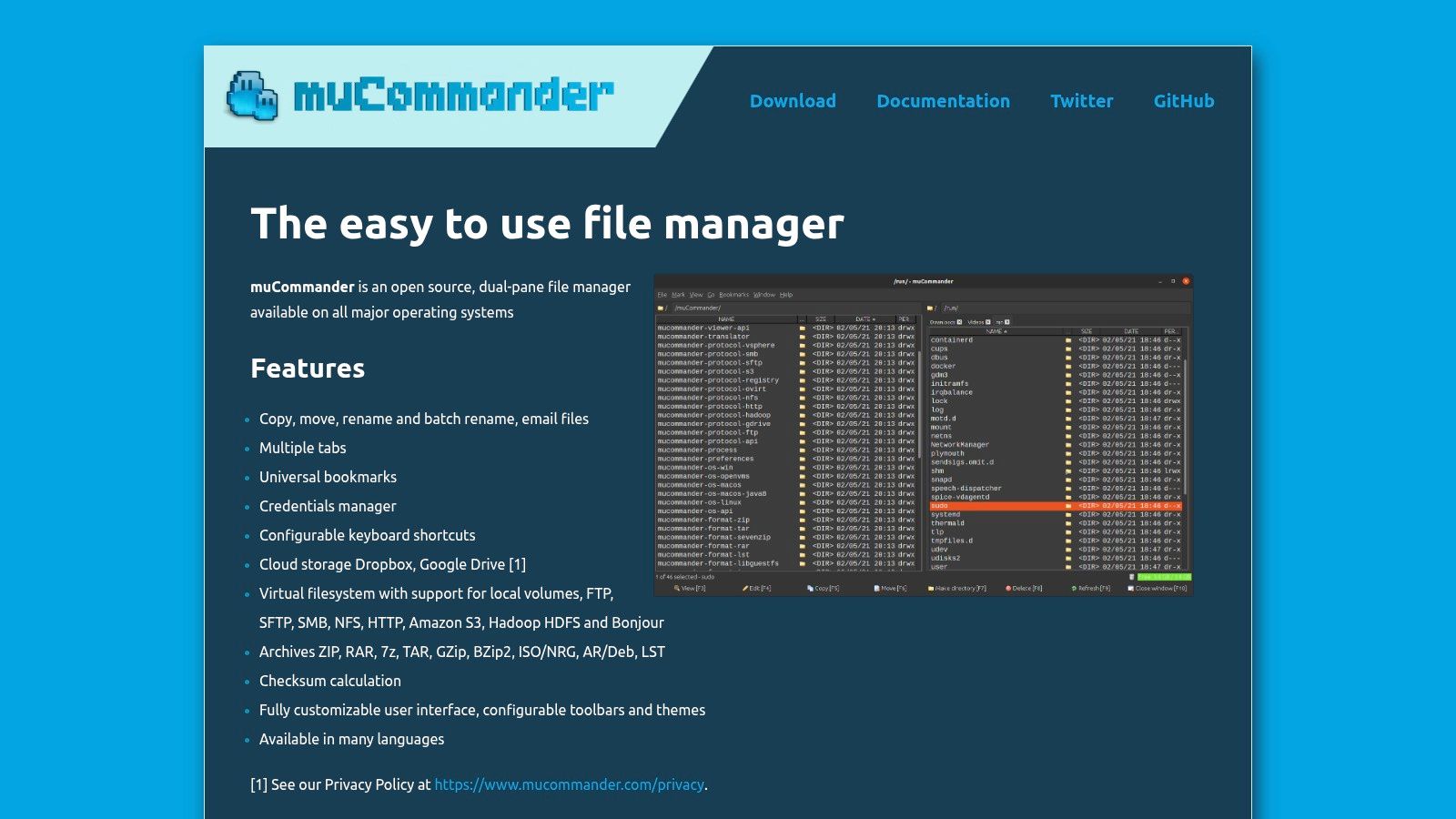
Protocol support is the headline. You get FTP, SFTP, SMB, NFS, and Amazon S3, plus tabs, bookmarks, and configurable shortcuts. Archive support covers ZIP, RAR, 7z, and ISO, and batch renaming and checksum calculation help when you're verifying files moving between systems.
What you give up
It requires Java 11 or later, so there's a separate installation to manage. Official downloads are relatively large, and the cross-platform design can feel less native on macOS than Swift-built rivals like Marta. Small interface details may remind you it's not Mac-first software.
None of that matters much if consistency across operating systems is your priority. Students in mixed labs, researchers moving data between machines, and developers working across platforms will appreciate using identical shortcuts everywhere. Mac-only users who care about native polish should probably look elsewhere on this list first.
8. Bloom
Bloom describes itself as "Finder, but refined," and that positioning tells you who it's for. You don't want a commander, a terminal, or a transfer station. You want familiar folder browsing that feels better than what Apple ships.
It's a standalone file browser for macOS 14 or later, and you can configure it to open folders instead of Finder. Third-party coverage describes multi-pane browsing, and installation is available through the developer's site or Homebrew, which technical users often prefer for easy updates.
Setting it as your default folder viewer may require additional configuration, so don't expect a single toggle to handle everything. Check current compatibility and pricing before installing or buying, since newer apps change quickly. Bloom also focuses on browsing, so it doesn't provide automatic icon and color styling for folders.
I'd shortlist Bloom for students and knowledge workers who like Finder's model but want a lighter, cleaner take on it. Power users needing sync, checksums, or deep remote tools will outgrow it quickly.
9. Seek
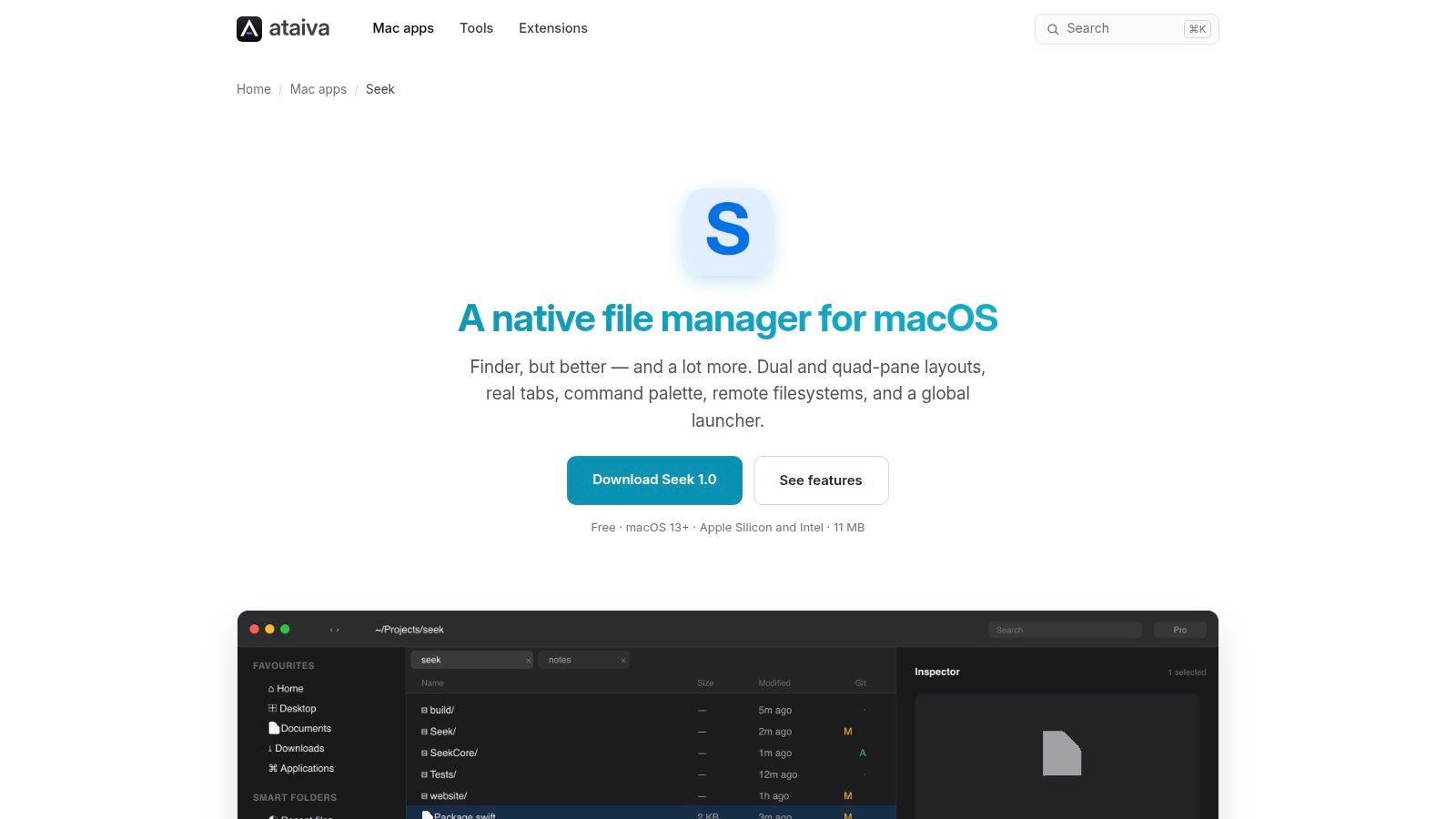
Most lists skip Seek from Ataiva, which is a shame, because developers get a lot here for free. It's a native Mac file manager that mixes multi-pane browsing with tools you'd normally hunt for in separate utilities.
Dual- and quad-pane layouts let you watch several locations at once, useful when you're comparing a repo, build output, assets, and a deploy folder. A keyboard-accessible command palette and global launcher speed up jumping around, while native SFTP, S3, and WebDAV support covers remote storage. Git status and diff features are the differentiator for anyone living in code projects.
- Cost: Free, with no account required according to the developer
- Availability: Not in the Mac App Store, so you download it directly
- Fit: Developers who want Git awareness inside a file browser
- Misfit: General users who'll never touch remote connections or diffs
Setup for remote connections and the launcher takes more effort than basic Finder use, and non-developers may find whole feature areas irrelevant. But if your folders are mostly repositories, Seek gives you context Finder never will. That's worth more than another coat of polish.
10. Shuffle
Newer projects deserve skepticism, but Shuffle earns its spot by aiming squarely at keyboard-driven speed. It's a free, open-source Mac file manager under an MIT license, listed for macOS 12 or later.
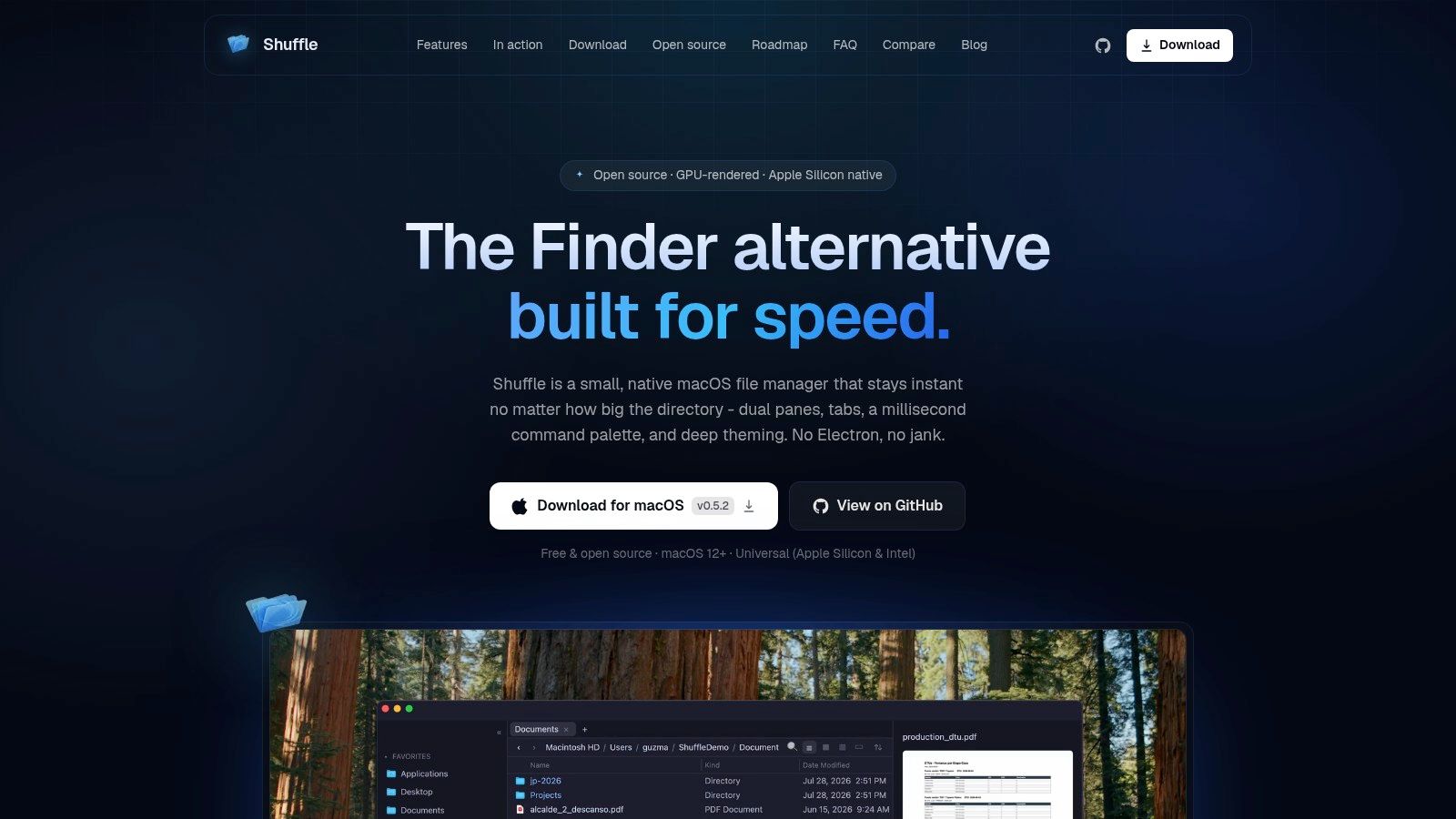
You get dual-pane browsing and tabs, a fuzzy command palette, in-place filtering, Quick Look previews, and an optional terminal mode. GPU rendering and optimization for large folders, as the developer describes it, should help when you're opening directories with thousands of files that make Finder hesitate.
Temper your expectations
Apple silicon is the primary optimization target, with Intel support described as available through source builds. As a newer project, it does not have the long track record of Path Finder or ForkLift, so keep backups of important workflows while you test. Its power-user focus also exceeds what everyday browsing requires.
If your weakness is structure rather than speed, start with these Mac file organizer ideas for cleaner project folders before adding more software. For users who want a modern, free, keyboard-first browser and don't mind younger software, Shuffle is a promising alternative.
Finder alternatives at a glance
| Cost | Layout | Remote connections | Best for |
|---|---|---|---|
| Paid license required after trial | Path Finder: Dual-pane, customizable panels | Not specified | Power users wanting advanced file operations and customization |
| Paid license; newer versions may require a new license | ForkLift: Two-pane browsing | FTP, SFTP, WebDAV, cloud services | Users who regularly transfer or sync files with servers and cloud storage |
| Free mode; paid PRO features | Commander One: Dual-pane with tabs | FTP/SFTP and cloud services with PRO | Users seeking a free core workflow with optional remote features |
| Pro features and extensions may require purchases | QSpace: Flexible multi-pane layouts | Optional server and cloud connections | Users wanting customizable layouts and workflows |
| Current cost unclear; paid licensing may arrive later | Marta: Keyboard-oriented browsing | Not specified | Keyboard-focused users who value plugins and customization |
| Free and open source | Nimble Commander: Dual-pane | FTP, SFTP, WebDAV | Users wanting fast file operations and remote protocol support |
| Free and open source | muCommander: Dual-pane with tabs | FTP, SFTP, SMB, NFS, Amazon S3 | Users managing files across platforms and remote locations |
| Check current pricing | Bloom: Finder-style browsing with multi-pane support | Not specified | Users seeking a familiar browsing alternative to Finder |
| Free | Seek: Dual- or quad-pane | SFTP, S3, WebDAV | Developers wanting file management with Git and command tools |
| Free and open source | Shuffle: Dual-pane with tabs | Not specified | Keyboard-oriented users seeking a modern power-user workflow |
Which Finder Alternative Should You Actually Install
Start with your job, not a feature list. Developers should shortlist Seek or Marta. Seek gives you Git status, diffs, quad panes, and a command palette, while Marta wins if you want a native Swift app, a directory-synced terminal, and Lua plugins you can shape yourself. Both assume you're comfortable with shortcuts and some setup, and both will bore anyone who mainly opens documents.
Creatives with multi-drive workflows should look at QSpace or ForkLift. QSpace handles camera cards, working drives, and delivery folders in layouts you control, which suits photographers and videographers comparing several locations at once. ForkLift is the better pick when delivery means servers and cloud storage, because synchronization and remote connections are its whole reason to exist. Path Finder sits nearby for generalists who want nearly everything in one paid app and accept the learning curve.
Anyone wanting a free first step should try Nimble Commander or Shuffle. Nimble Commander is the safer, more established open-source choice with remote connections and internal viewers. Shuffle feels more modern and keyboard-focused, but it's newer and optimized first for Apple silicon. muCommander is your pick only when cross-platform consistency beats native polish, Bloom suits people who want refined everyday browsing, and Commander One works if you want a free taste of dual-pane life before paying for PRO extras.
There's also a category most roundups ignore. CleanMyMac's guide to file explorers on Mac reflects the usual pattern, focusing on dual panes, search, renaming, and automation, while users whose real problem is recognizing folders quickly get pushed toward full replacements they may not need. A better browser doesn't fix a wall of identical blue folders, and it won't rescue a cluttered structure on its own.
That's where enhancement beats replacement for a lot of people. If you'd rather stay in Finder itself, Tintd colorizes and adds icons to folders automatically, with more than 11,000 icon overlays to choose from. It runs entirely on-device, so folder names never leave your Mac and no AI service gets called. You can try it for free before a one-time purchase, and it's available on the Mac App Store. For visual navigation, that combination can matter more than a second pane.
Don't install three apps and judge them in an afternoon. Pick one alternative, give it a two-week trial in your real workflow, and run your actual transfers, renames, and project work through it. Keep what sticks, delete what doesn't, and don't feel guilty about staying with Finder plus better visual organization if that works.
If your real problem isn't moving files but spotting the right folder in a sea of identical blue ones, Tintd automatically adds meaningful colors and icons inside Finder itself, so projects, clients, and coursework become recognizable at a glance. It works entirely on your Mac with a huge icon library and bulk styling for whole folder trees. Try it free, keep Finder if you love it, and just make it easier to manage.