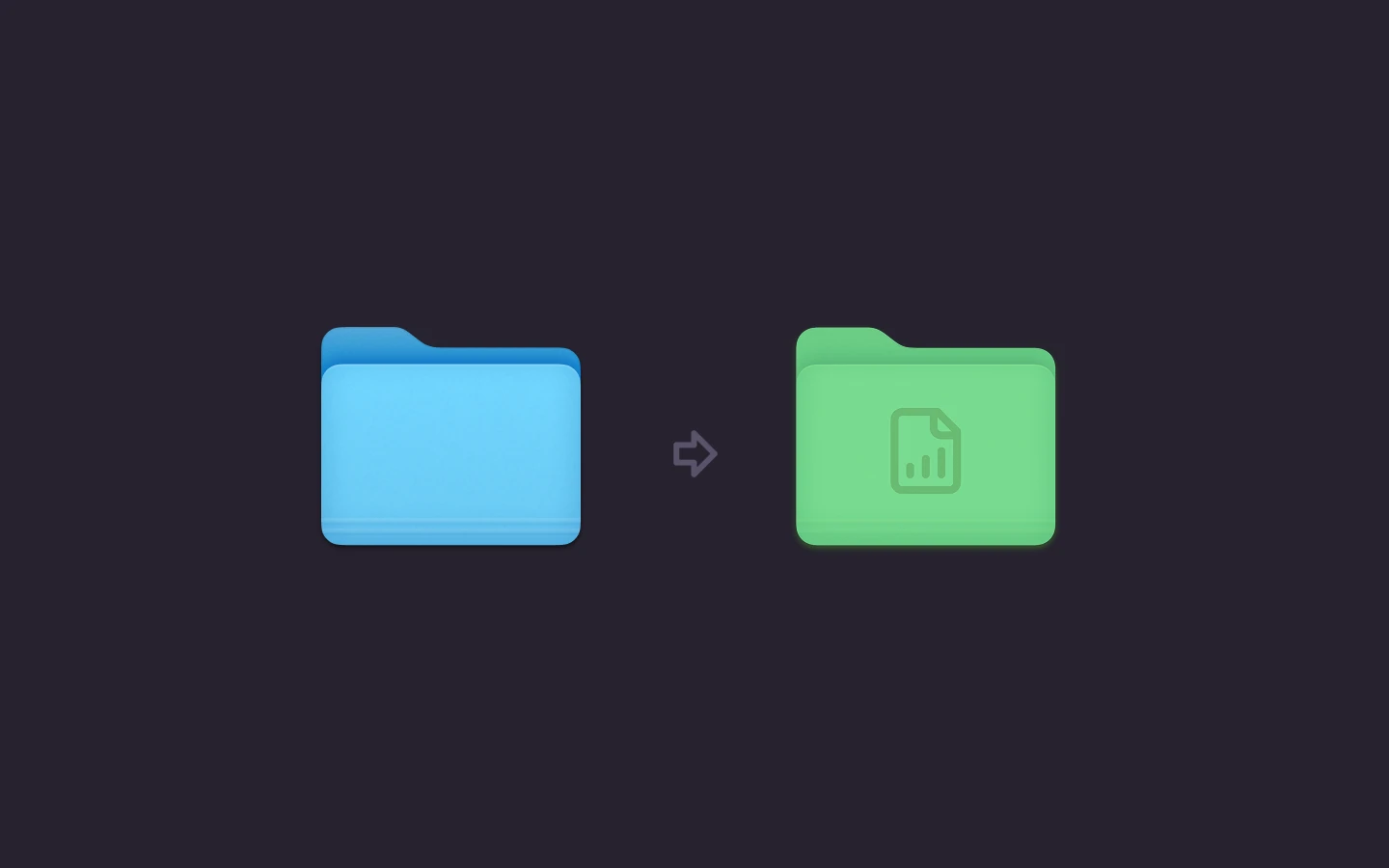

You open Projects to find last week's client folder and face thirty identical blue folders in a row. You scan names, open the wrong one, back out, and scan again. The files are organized. Your eyes just can't tell them apart fast enough.
That's the case for a recognition system, not decoration. When you customize folder icons on Mac with a consistent color and symbol per category, you spot the right folder before you read its name. Do it carelessly and you get a rainbow that means nothing, icons that vanish on a second Mac, and symbols too small to read in list view. The methods below work, but each has a narrow job. Pick the right one for your folder count and you'll avoid most of that waste.
Choose the Right Method for Your Folders
| Method | What it changes | How many folders | Best for |
|---|---|---|---|
| Finder Customize Folder | Color, symbol or emoji | One at a time | A few personal or project folders |
| Get Info custom image | Any picture you choose | One at a time | A folder that needs a specific logo or photo |
| Tintd bulk emoji and icon editing | Color, icon, emoji and size | Many at once | Client or project trees with dozens of folders |
| Tintd Folder Watcher | Color and icon by folder name | Every new folder in chosen locations | Downloads, Projects or inbox-style folders that keep growing |
Apple's own route is built into Finder. The Apple guide to organizing files in Finder documents selecting a folder, choosing Customize Folder, and changing its color, symbol or emoji, plus replacing an icon with a custom picture or one copied from another file. It also sets a hard boundary. You can customize your Home folder, but Applications, Library, System and Users can't be customized this way. Don't plan a system around those.
Icons Versus Tags
Keep the two layers separate. Apple notes that tags can be applied to files and folders, with multiple tags per item, and tagged items turn up through Finder search or the sidebar. Its Tint folders based on tags setting adds a tint, but that tint means classification, not identity. Use icons to show what a folder is for. Use tags to make it findable across locations.
Everyone starts from the same default macOS folder blue. Any custom look is set on the Mac where you made it, so a second Mac starts from that default until you set it up there too. Find your row above before you touch anything.
How to Set a Folder Icon in Finder Step by Step
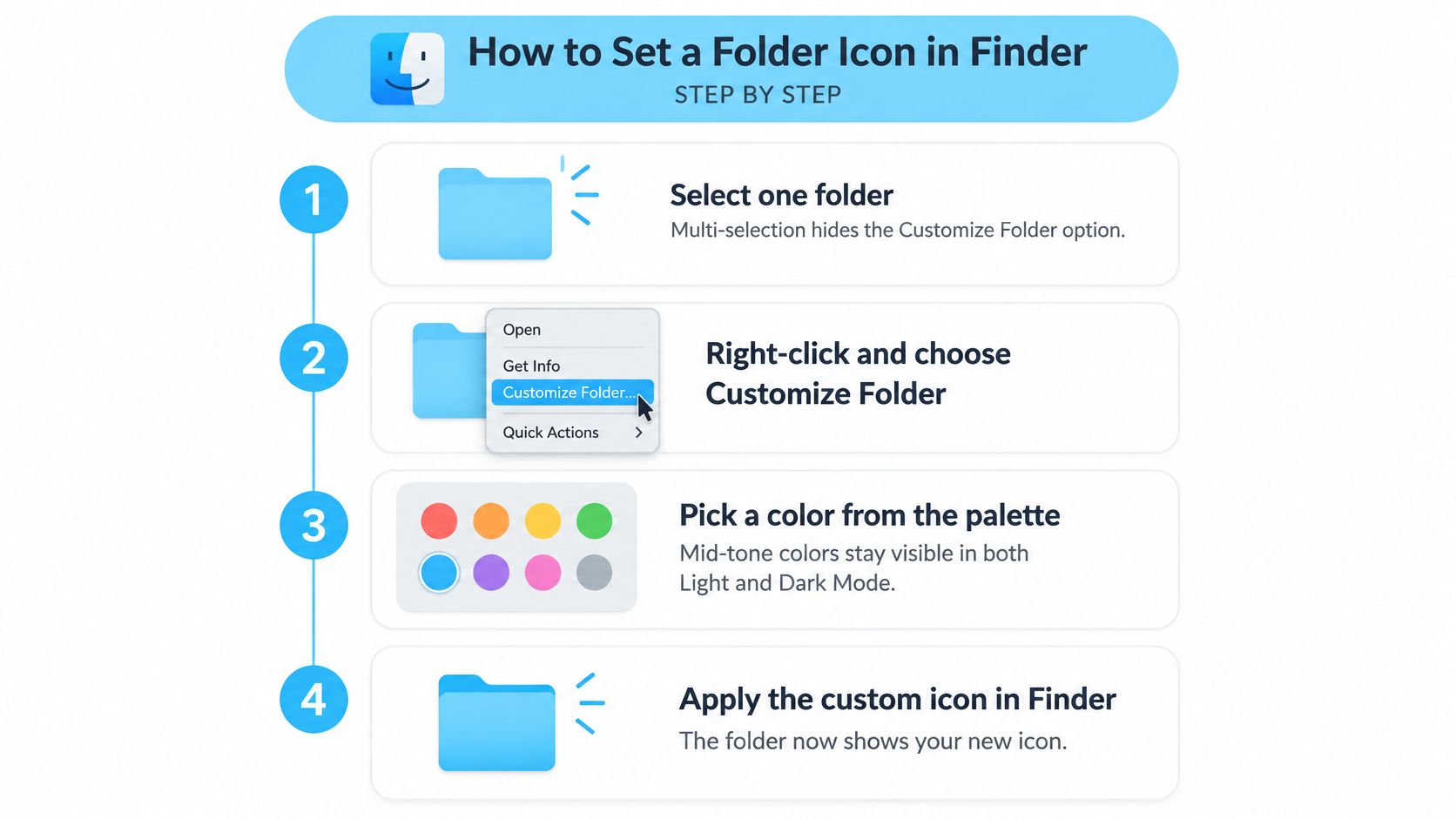
A folder's color and symbol work best as a quick recognition system: choose them so you can spot a category before reading its name. Finder's built-in Customize Folder controls are a practical way to test that system on one folder at a time.
The visual below condenses the Finder routine into six steps.
The Six Steps
- Select one folder. Start with a single folder so you can see exactly what the controls change.
- Right-click and choose Customize Folder. This opens Finder's built-in options for that folder. If the command is missing, check that you selected a folder and not a protected location.
- Choose a color. A mid-tone shade is generally easier to distinguish than a very pale one against a light Finder background.
- Add a symbol or emoji. Use a recognizable shape as a second cue, especially when neighboring categories have similar colors.
- Check it at your usual Finder size. A detailed symbol can look clear in icon view but become hard to distinguish in a compact list.
- Revert if the scheme does not work. Open Customize Folder again and clear the customization to restore the default appearance.
What a Good Result Looks Like
You should recognize the category at a glance, and the symbol should remain distinct at the size you use most. If it disappears in list view, choose a simpler symbol or rely more on color.
Changing a folder's icon or color is cosmetic. It does not affect the files or subfolders inside. Test the scheme on a couple of folders first, then adjust it before applying the same visual cues elsewhere.
How to Apply a Custom Image Through Get Info
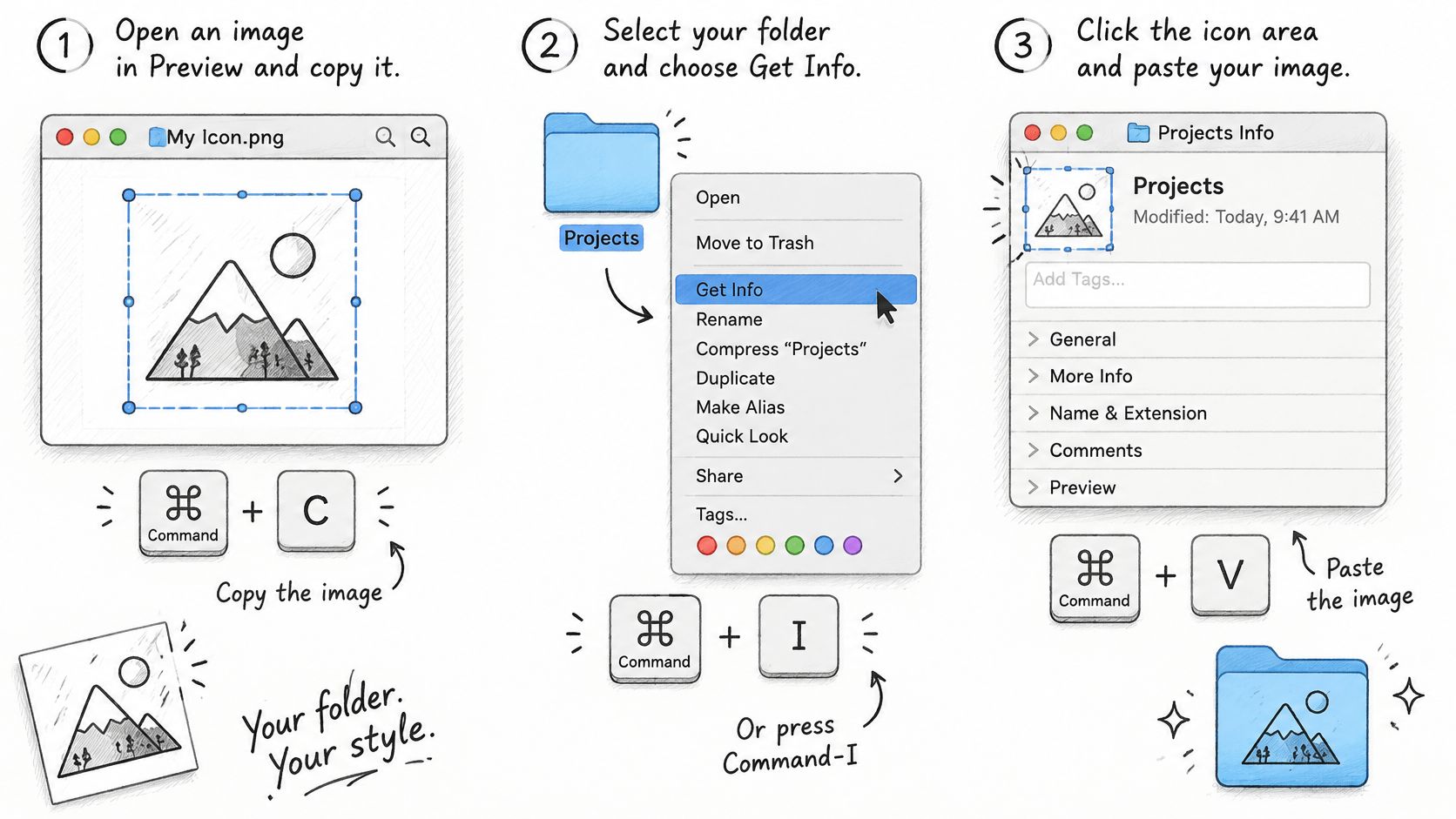
The step often done incorrectly is selecting the paste target. Get Info shows a large preview further down the panel, and pasting there doesn't set an icon. You need the small icon in the top-left corner. Get that wrong and you'll think the method is broken when the clipboard was fine.
This walkthrough shows the sequence visually before you run it yourself.
The Routine
- Prepare a square image of at least 512 pixels in Preview. Crop tight to the subject so it survives shrinking. Use one consistent size across a project so icons look uniform in list view.
- Copy the image with Command-C. Copy the picture itself inside Preview, not the file in Finder. Those put different things on the clipboard.
- Select the folder and press Command-I. That opens the Get Info panel for that exact folder. Check the name at the top before you paste anything.
- Click the small icon at the top-left. Apple's guide to customizing files and folders with your own icons describes this copy, Get Info, click and paste workflow, and warns that selecting the large preview instead can replace content or fail to apply the icon.
- Press Command-V to paste. The small icon should change immediately. If nothing happens, check permissions before repeating the paste, since items on Apple's Signed System Volume and folders without write access can't be modified.
- Revert from the same spot. Select that small icon and choose Edit, then Cut, or press Delete.
The short video below shows the click targets at real size, which helps if your first paste landed in the wrong place.
Close and reopen Get Info to verify the small icon shows your picture. Then check a neighboring folder to be sure the paste went to the right target. Sourcing consistent artwork gets easier if you start from a prepared Mac icon pack instead of resizing random images one at a time. Keep the original files, because you'll want them again after a move or a macOS update.
Bulk Edits and Automatic Styling for Many Folders
A project with separate folders for assets, exports, and invoices is easier to scan when each folder has a consistent visual cue. For a large set, applying styles one folder at a time takes longer and makes consistency harder to maintain. Tintd lets you select several folders and give them a color and icon in one action.
The screenshot shows the editing surface for setting a style before applying it.
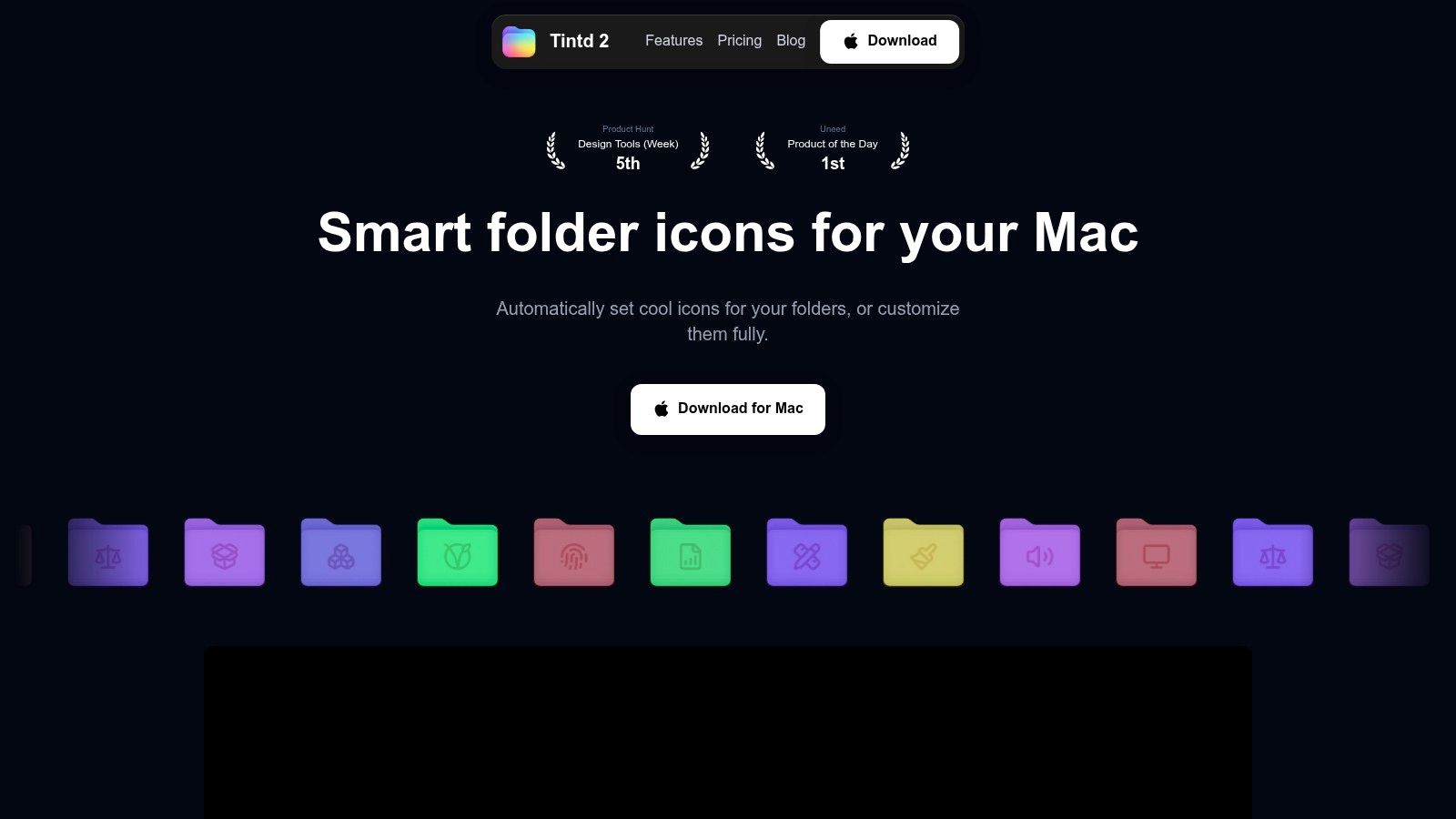
For a uniform set, apply one icon across multiple folders. For more visual variation, batch editing can randomize their colors. Tintd's Smart Icon matches a folder name to an icon or emoji from a library of more than 11,000 options. Smart Color considers neighboring folders and chooses a color that fills a gap on the color wheel, helping related folders look distinct while keeping the set cohesive. This guide to what batch editing does can help you choose between a shared style and individual treatments.
Setting Up Folder Watcher
- Choose a narrow location in Settings. Start with one project or client folder rather than your entire Home folder. A limited scope makes it easier to judge whether new folders are getting suitable styles.
- Create a test folder. Give it a clear name, such as Invoices or Photos, and check the icon and color Tintd suggests. Tintd reads the folder name to choose a matching style, and its suggestions run locally on your Mac.
- Review the result before expanding the watched locations. If the match does not fit, adjust the style or keep the watcher limited to that location.
A watched location can include temporary folders, such as ones you create and delete soon after.
Folder Watcher detects new folders in selected locations and applies a matching color and icon based on their names. Keep its scope focused if you want to avoid styling short-lived folders in a busy location. The watcher can be turned off at any time in System Settings.
Fixing Icons That Vanish, Reset or Sync Badly
Most icon failures aren't random. They follow from where Finder stores the artwork, so match your symptom to its cause before you restyle everything.
| Symptom | Likely cause | Fix |
|---|---|---|
| Custom icon missing on a second Mac | Icons are stored locally on each Mac | Set the icon again on that Mac |
| Default blue after iCloud sync | The hidden icon file may not sync to other devices | Reapply the icon locally after sync and check a sample |
| Icon lost after moving to an external drive | Destination may not preserve extended attributes and resource forks | Check a sample after the move and reapply if needed |
| Icons look different after a macOS update | Newer releases such as macOS 26 Tahoe change folder appearance and icon dimensions | Reapply icons and check them in list view |
Why the Hidden File Matters
Finder doesn't store your custom icon as a simple folder property that travels everywhere. The Eclectic Light Company explains in its guide to custom file and folder icons in Sequoia that the icon data sits as an icns resource in the com.apple.ResourceFork extended attribute attached to a hidden file whose name ends in a carriage return. A customized folder in iCloud Drive may therefore show its icon only on the Mac that performed the customization, because other clients don't necessarily receive or interpret that hidden file.
Custom folder icons are stored locally on each Mac, so icon customizations must be set up separately on each Mac. That's not a sync bug you can wait out. It's how the storage works, and your workflow has to absorb it.
The Sample Check
After any sync, move or bulk operation, open Get Info on three folders at random before assuming the set is intact. Three good results don't guarantee all fifty, but one default blue folder tells you to reapply before you rely on the system. Confirm the destination preserves extended attributes when you copy to external drives, and don't assume cloud sync reproduces Finder appearance.
A reverted folder returns to standard macOS blue. That's your safety net. A bad batch is embarrassing, not destructive, so undo it and rerun rather than patching folders one by one.
Design a Readable Icon System and Plan Your First Week
A folder icon is a recognition cue, not decoration. Use color to identify a broad category and a symbol to make the category clear when color is hard to distinguish, the icon is small, or the folder appears outside Finder. Apple's guide to customizing folders and files explains how to add colors, symbols, emojis, and custom images. The system itself is up to you.
Pair Every Color With a Symbol
If two categories differ only by shade, the distinction disappears when those shades are difficult to tell apart or the icon is too small. A symbol preserves the cue.
Try a three-tier scheme:
- Active client work: blue folder with a briefcase. The color marks active work; the symbol identifies client projects.
- Finished work: grey folder with a checkmark. The checkmark signals completion even when the folder is shown small.
- Personal archives: green folder with a leaf. Keep the pairing consistent so it remains easy to recognize.
Reserve each color for one stable category. A short palette is easier to remember than a different color for every project. Check each icon at the smallest Finder size you use, including list view, where fine details can disappear. Folder icons work best alongside clear names and grouping, not as substitutes for them. For more on naming and organizing folders, see this guide to digital file organization.
If you can't name a folder's category from its icon in two seconds, use fewer colors and clearer symbols.
Your First Week
- List the five folders you open most often. Start with folders you use daily. Styling an archive you rarely open is unlikely to improve navigation.
- Choose a method for each folder. Use Finder for one-offs and bulk editing for sets. Applying images one by one to a long list takes longer and makes inconsistencies easier to miss.
- Give each category a color and symbol. Keep the pairing consistent wherever that category appears. Tintd can be opened from Finder's right-click menu to set a folder icon.
- Check the icons in list view at your usual size. Replace symbols that blur into a smudge. A quick visual check can catch a poor choice before you apply it more widely.
- Start Folder Watcher in one location. It detects new folders in chosen locations and applies a matching color and icon based on the folder name. Expand its use only if the results fit your system. You can turn it off in System Settings at any time.
A customized folder can be restored to the original macOS Finder icon with one click. Revisit your categories when they stop helping you scan, and check the appearance after a macOS update rather than assuming every icon will render the same way. Treat the system as something to maintain: a few clear categories you still recognize are more useful than a large set you no longer remember.
Style your daily folders first. Tintd also offers bulk editing, Smart Icon and Smart Color suggestions, a library of more than 11,000 icons and emojis, and Folder Watcher for styling new folders. Its suggestions run locally on your Mac, and you can restore a folder's original icon with one click. Visit Tintd to set up a folder system you can scan at a glance.