
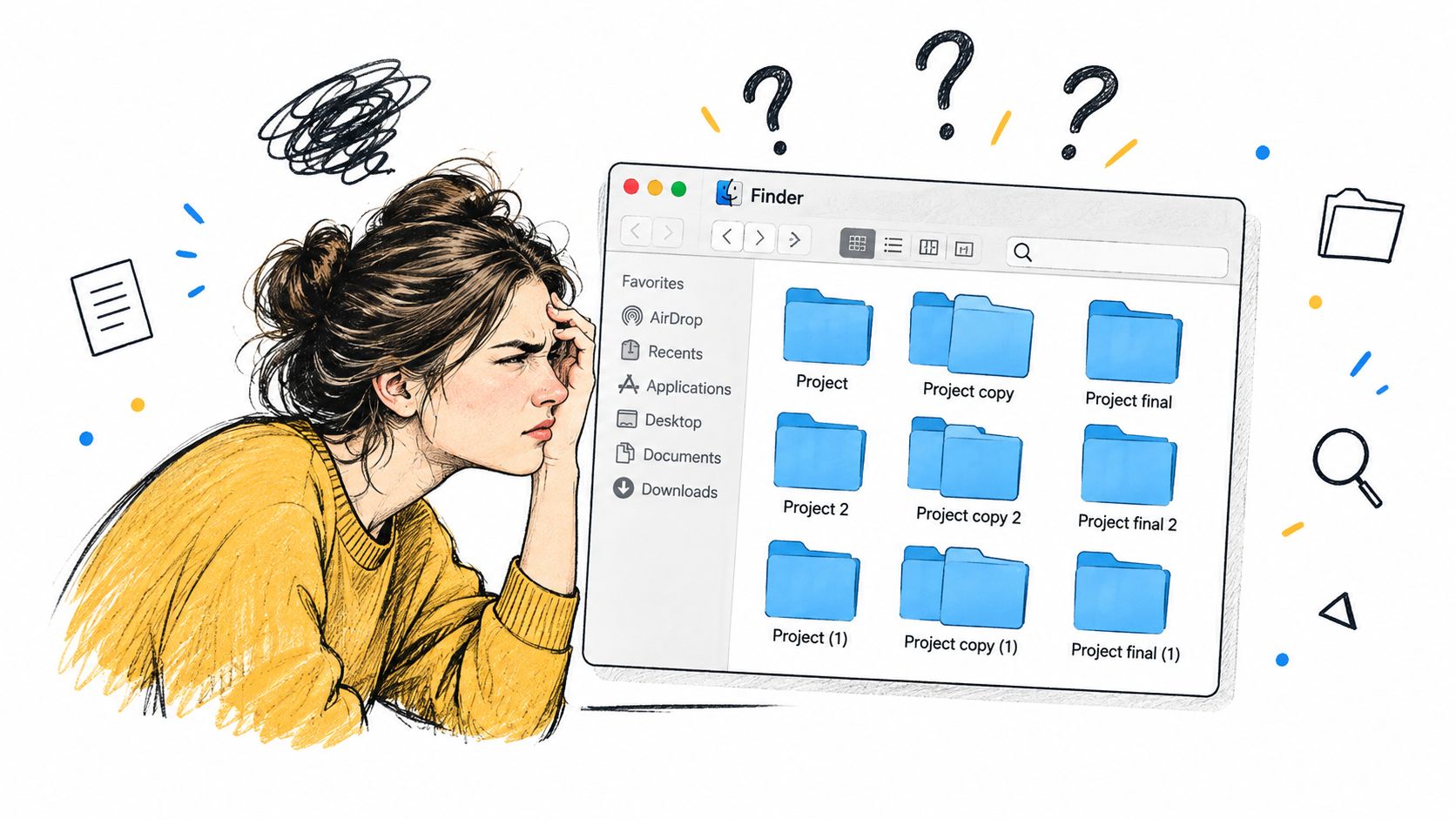
You open a project folder expecting to find the latest design assets. Instead, you see a row of identical blue folders with names that only make sense if you stop and read each one. The files are organized, technically, but Finder isn't helping you recognize the right place at a glance.
A useful icon organizer for Mac isn't just a way to make folders look distinctive. It's a way to maintain a visual navigation system as projects, clients, and research folders change. Finder's icons sit alongside a real folder hierarchy, so a good visual scheme should help you spot purpose or status without replacing clear names or sensible placement.
Mac folder organization developed as Finder moved from a visual metaphor toward a genuine hierarchical file system. Finder's history records that Finder 4.1 added a New Folder command in April 1985, followed by HFS and Finder 5.0 that September, making folders representations of nested data organization. That connection still matters: folders are both storage containers and landmarks.
Start with Finder's own controls when you have a handful of important folders. Consider bulk styling when repeated manual edits become tedious, and folder watching only when new folders appear often enough to make upkeep a chore. Keep the system limited to folders you control, use meanings you can remember, and make every change easy to reverse.
Why Folder Icons Stop Being Cosmetic
A visual system works when it makes the right folder easier to recognize without making every folder shout for attention. Use a color or symbol to reinforce a folder's purpose, status, or ownership. Keep the folder name as the clear label, since an icon can suggest meaning but shouldn't have to explain a complicated project structure on its own.
Consistency matters more than variety. If green always means completed work in your project directories, don't use green for a new client's active work just because the shade looks good. The same rule applies to symbols: a book can stand for reference material, while a checkmark can signal completed deliverables. Pick a small vocabulary, then stick to it.
The work doesn't end after you customize an existing tree. A renamed folder may no longer fit its old category; a new project may need the same pattern as its neighbors; and a manual change can conflict with an automated style. Treat icons like labels that need occasional review, not like decoration you apply once and forget.
Finder's built-in method is a reliable starting point for a small set of user-created folders. A specialized organizer becomes useful when the same choices need to be repeated across many existing folders, when you want a consistent approach to subfolders, or when new folders need attention as they appear. Keep the automation selective. A visual system should clarify your workspace, not impose a new maintenance burden.
Use Finder's Built-In Folder Customization
For a few important folders, start with Finder. Apple's folder customization instructions describe the supported route: select a folder you created, open its contextual menu, choose Customize Folder, and apply a color, symbol, emoji, or imported image.
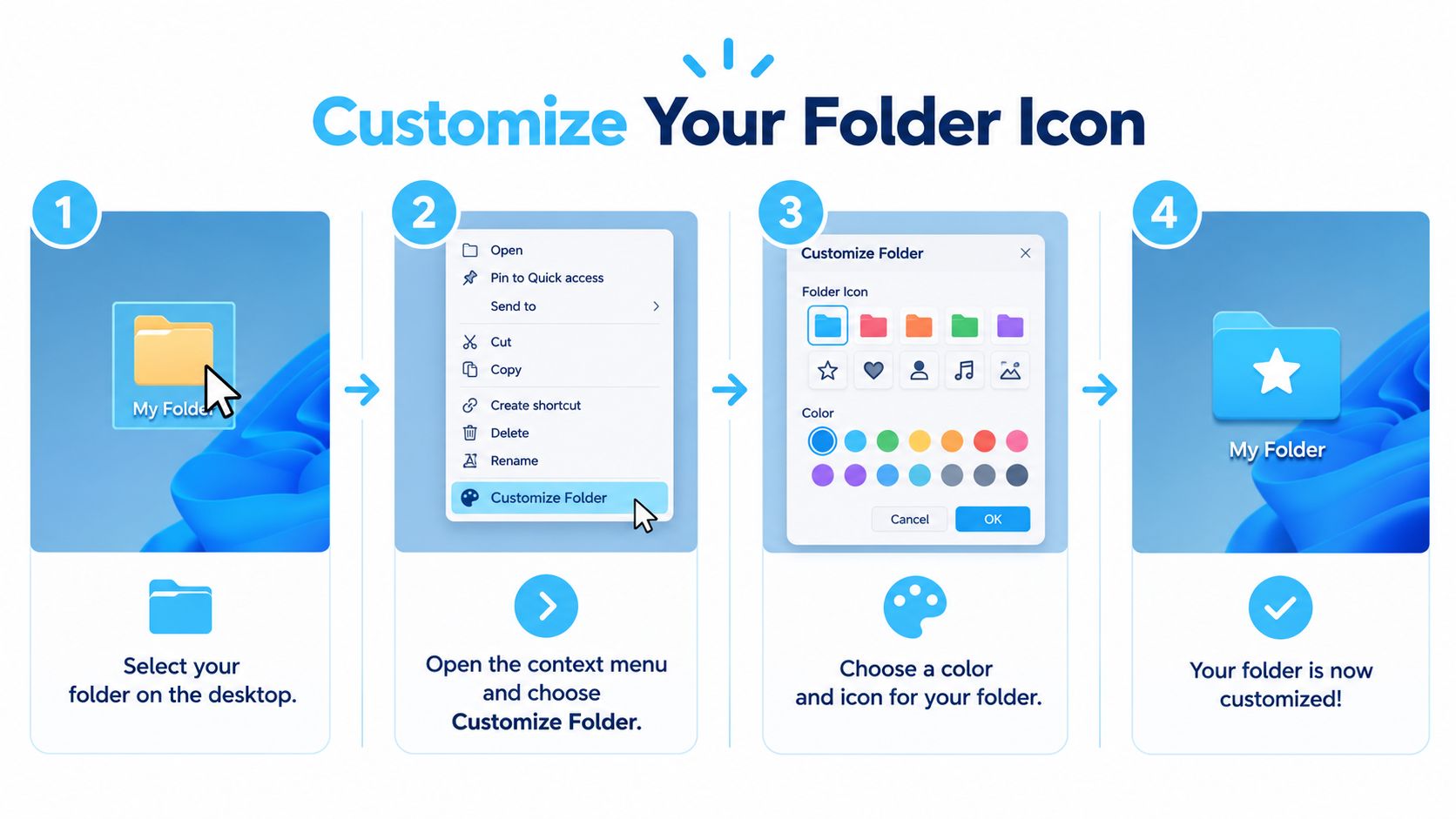
Use the native controls this way:
- Choose a folder you control. Start with a project or reference folder in your home directory, not a macOS system location.
- Open the folder's contextual menu. Select Customize Folder to access the available appearance controls.
- Choose a visual cue. Apply a color, symbol, or emoji, or use an imported image when you need a more specific identity.
- Check the result in Finder. Make sure the cue is recognizable at the icon size you normally use.
Apple documents that locations such as Applications, Library, System, and Users generally can't be customized. Don't treat a permission failure as a challenge to work around. Leave protected areas alone, and focus your visual scheme on the project folders, working files, and other locations you manage.
Finder's view controls solve a different problem. Adjusting icon size, grid spacing, or text display changes how items appear in a window; it doesn't create a persistent visual classification system. A folder's custom appearance is useful when you want the same visual cue to remain attached to that folder as you browse.
If you're refining the rest of your Finder workflow, these Mac Finder tips can help you think about the way you work with files beyond folder appearance.
Native customization is the right tool for a small number of meaningful folders. It gives you direct control without adding another organizer to your routine. When you find yourself repeating the same edits across a deep project tree, that's the point to consider a bulk workflow rather than abandoning your visual rules.
Design a Consistent Folder Icon System
Before styling a large folder tree, decide what the cues mean. Start with categories you already use, such as active work, completed deliverables, and reference material. Assign each category a recognizable color and, when it helps, a simple symbol. Avoid subtle distinctions that are hard to notice in Finder or meanings that change from project to project.
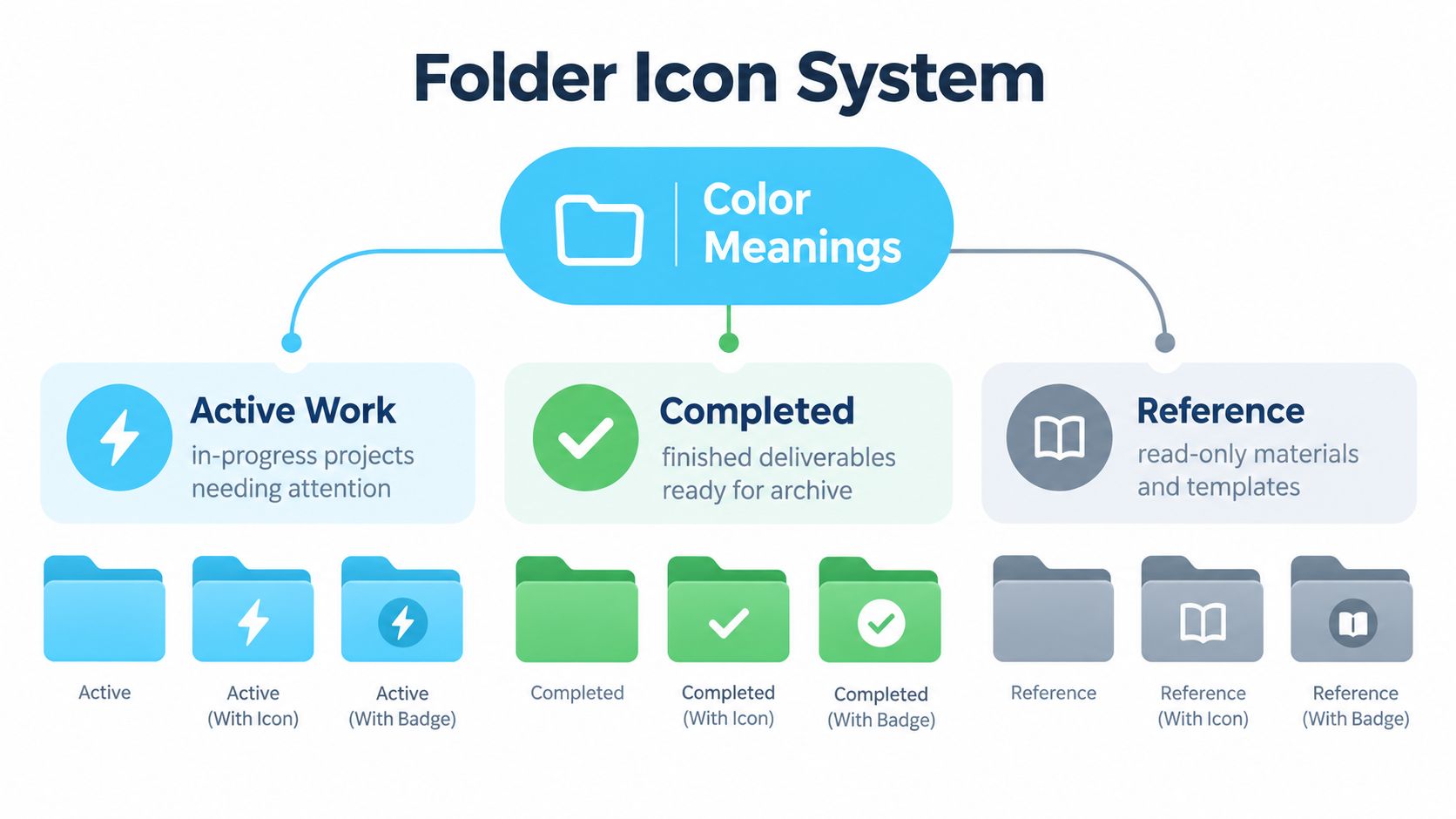
A straightforward set of conventions might look like this:
- Active work: Use a blue tone and a clear attention or activity symbol for work in progress.
- Completed work: Use green with a checkmark for finished deliverables that are ready to archive.
- Reference material: Use gray with a book symbol for templates, notes, and read-only resources.
The exact choices are yours. What matters is that the same cue keeps the same meaning within a folder tree. Use names and locations to add context: a folder called “Sources” under a research project is easier to classify than a folder called “Misc” with no obvious neighbors.
Test the system in one project before applying it across your Mac. Style the parent folder and a few child folders, then view them at the Finder size you use. If a color looks too similar to another category or a symbol becomes unclear when reduced, change the rule before extending it.
Imported images need extra care. A square canvas helps a custom image fit the folder icon; high resolution, transparency, and strong contrast help it remain legible at smaller sizes. Don't depend on fine detail to distinguish neighboring folders. Simple symbols usually communicate more reliably than a busy miniature illustration.
Finder also has its own appearance rules. Its icon-selection process considers file characteristics such as bundle information, type and creator codes, filename extensions, and user settings before falling back to a generic item icon, as described in the Finder software overview). That's a reminder to customize user-controlled folders deliberately rather than treating every Finder-visible item as an interchangeable canvas.
When a team manages visual assets alongside its marketing workflow, a related resource such as Iconik ad management may help with the broader work of keeping campaign materials organized. For your Finder folders, write down the visual rules you choose and apply them consistently rather than inventing a new style for each directory.
Choose Manual, Bulk, or Automatic Styling
Each workflow suits a different amount of change. Manual Finder customization gives you precise control over a few folders. Batch editing reduces repeated work across an existing project tree. Rule-based styling helps when folder names and nearby folders provide predictable context. Folder watching addresses ongoing upkeep in selected locations where new folders appear regularly.
| Workflow | Best for | Main trade-off |
|---|---|---|
| Manual Finder customization | A few important folders | Direct control, but every folder needs individual attention |
| Batch editing | Existing projects and subfolders | Faster for repeated changes, but still requires review of the selection |
| Rule-based styling | Folder trees with clear naming and neighboring-folder patterns | Consistent application depends on useful context |
| Folder watching | Selected locations that regularly receive new folders | Requires safeguards, overrides, and ongoing checks |
A sensible progression is to begin manually, then move to batch edits when the same action starts repeating across a folder tree. If names follow a reliable pattern, add rules that use folder names or neighboring folders as context. Don't assume a rule can infer every folder's purpose correctly. Review its suggestions before applying them broadly.
For a primer on the editing approach, this guide to batch editing explains why applying the same change across a group can be more practical than repeating it folder by folder.
Automation should follow your rules, not replace them.
Folder watching needs more care than batch work. A dependable organizer should monitor only selected user directories, wait for bursts of filesystem events to settle, ignore hidden or temporary items unless you've opted in, and apply a style only when the folder doesn't already match the intended state. It should also record success or failure so you can review changes and roll them back.
Set an explicit policy for manual choices. If you deliberately change a watched folder's icon, automation shouldn't immediately overwrite your decision. Also consider inaccessible folders, renames, moves, and new folders that existed before watching began. For those cases, prefer clear status reporting and a way to reconcile the folder tree over a tool that claims every folder is styled.
Apply the System to Real Folder Workflows
A design studio can give active client work a shared visual treatment and reserve a different cue for archived deliverables. The project names still identify the client; the icons help the team spot which folders are active and which hold finished material. Review unusual projects manually rather than assuming every folder with a familiar name belongs to the same category.
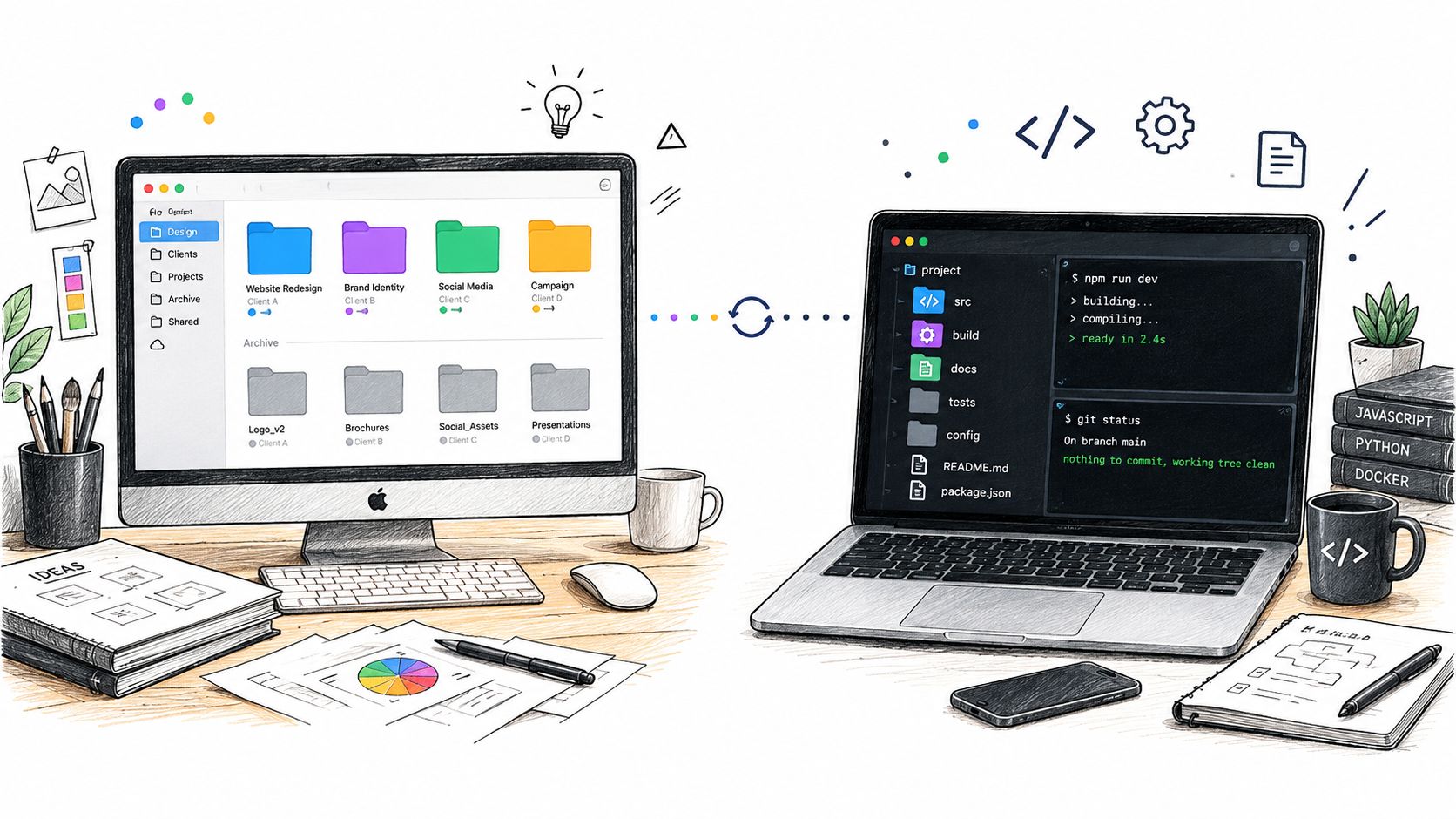
A developer might use one pattern for source code, another for documentation, and a clear treatment for build outputs or dependencies. The folder labels remain specific, while a repeated visual cue helps show the folder's role. Avoid using an icon to imply that a generated folder can be deleted unless your team's actual cleanup process supports that decision.
A researcher can distinguish projects, source material, analysis, and final writing. Use the project folder to establish the context, then keep the child folders' styles aligned with their role. If you share a folder tree with colleagues who use different languages, meaningful symbols can support recognition without relying on a color label alone.
For a client-based knowledge worker, use a consistent project cue across each client's materials and a separate cue for shared templates or reference files. The client name remains the primary identifier. This is especially useful when neighboring client folders have similar names, but it still calls for a human check when a folder moves or its purpose changes.
Apple documents a folder-by-folder customization path, which leaves a maintenance gap in large, changing workspaces with many projects, clients, and subfolders. That makes a repeatable visual convention more valuable than a collection of one-off choices. For the naming and structure side of the same problem, this guide to digital file organization offers ideas you can adapt to your own directory tree.
Use Tintd for Bulk and Automatic Organization
A consultant wraps a client engagement on Friday, archives the folder, and opens a fresh project folder on Monday. Repeat that for a year and Finder's per-folder setup stops keeping pace. Tintd is built for that kind of recurring upkeep: batch styling across folders and subfolders, custom colors and imported images, and a library of 11,000+ icons and emojis. Tintd's feature overview describes its local operation, styling tools, history, and restoration options.
Start with a tree you control:
- Choose the scope. User-created project folders, not protected system locations.
- Set the visual rules. Smart Icon and Smart Color suggestions read folder names and nearby folders for context. Review each proposal before accepting it.
- Apply in batches. Select every folder that shares a meaning, then check the result in Finder before widening the treatment.
- Keep a way back. History lets you reuse earlier styles, and one-click restoration returns a folder to its default macOS icon when a cue stops earning its place.
Two details matter in daily use. Finder contextual-menu access lets you apply a style inside normal folder work, without switching into a separate process each time. Custom-image import handles the odd project that needs a specific look, and recognition across 11 languages helps when folder names mix languages. Treat every suggestion as a draft you approve, never a decision made for you.
Folder Watcher monitors selected locations and applies matching styles to new folders. Keep the watched scope narrow. Exclude places where a manual choice should win, and test how the tool handles folders it cannot access or names that fall outside your rules. Automatic styling handles the upkeep. You still decide what each cue means.
The privacy posture is simple: everything runs on-device, with no cloud or AI calls, so folder names and activity stay local. Pricing is a one-time purchase with perpetual access. Pick a tool like this when batch application, reusable styles, or ongoing watching solves a real maintenance problem. When Finder's built-in controls cover your workload, stay with them.
Verify, Refine, and Maintain Your Mac Folder System
A folder-icon system stays useful when you check it after changes. Don't judge success by the number of folders styled. Judge it by whether you can recognize the right locations and whether the cues still match their meaning.
Use a simple review routine after a bulk edit or major reorganization:
- Inspect the main project root. Confirm that colors and symbols still distinguish the categories you intended.
- Test a new folder. If a watcher is active, check that its behavior matches your rules and respects deliberate manual choices.
- Review moves and renames. Make sure a folder's new location or label hasn't made its old icon misleading.
- Look for overuse. If a color or symbol appears everywhere, reserve it for the category it's supposed to identify.
- Restore what no longer helps. Remove a custom style when the folder's role changes or the cue adds clutter.
Keep protected or inaccessible locations out of your workflow, and prefer tools that report what they changed rather than hiding partial failures. After a large reorganization, compare watched folders with your intended style rules and correct anything that was missed. Treat a manual override as a deliberate decision, not an error for automation to erase.
The reliable approach is simple: use Finder for a few folders, batch tools when a whole tree needs the same treatment, and watching only where folders change often. Start small, keep meanings consistent, and preserve a clear route back to the default appearance.
Tintd offers on-device bulk folder styling, icon and emoji choices, history, one-click restoration, and folder watching for selected locations. If Finder's manual controls have become a maintenance chore, visit Tintd to see whether its workflow fits your Mac.