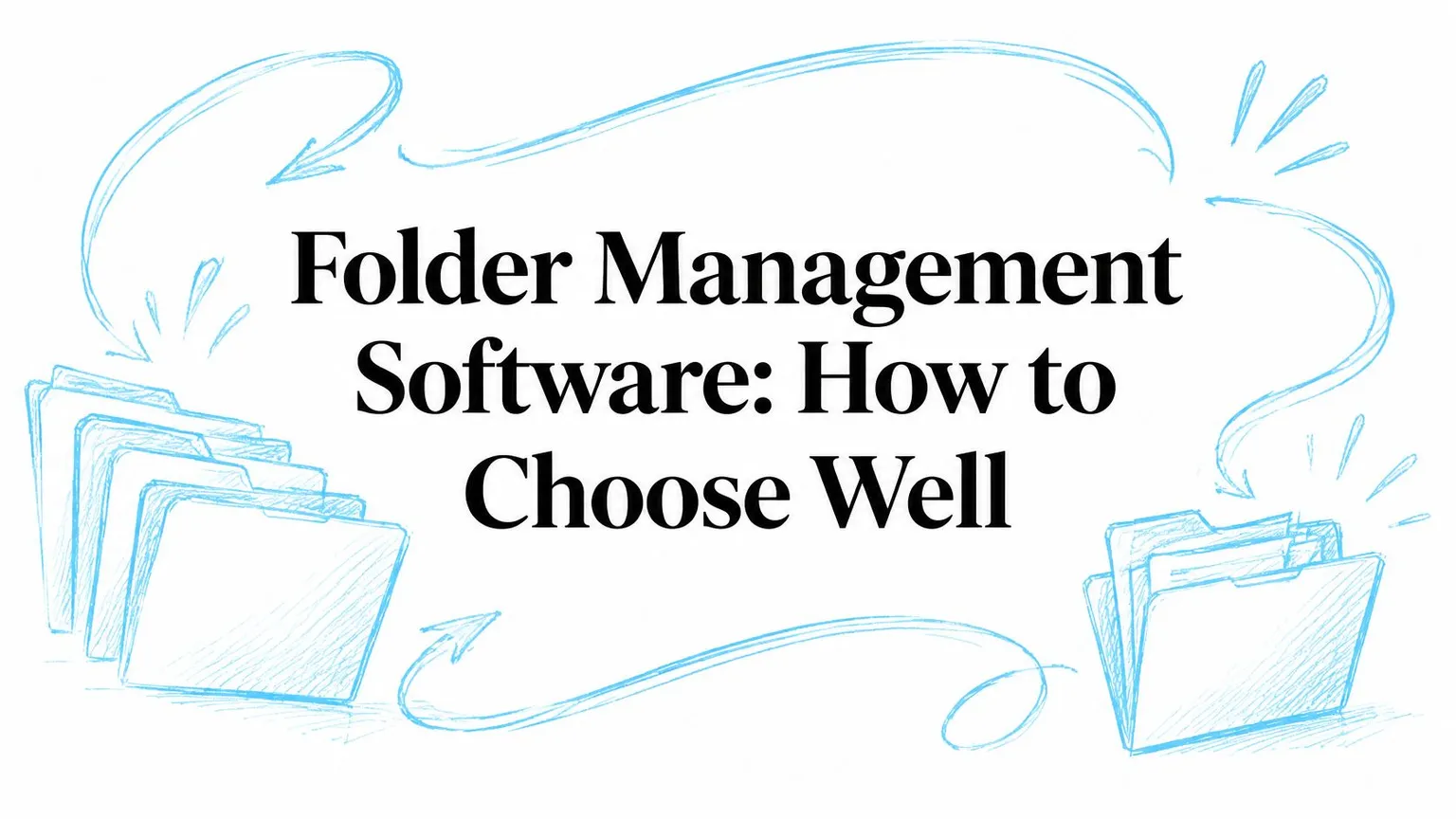

You're looking for one client folder. You know it's on this Mac. You open Finder, scan a wall of identical blue folders, try two wrong ones, then fall back to search and hope you remember the exact name.
That's not a memory problem. It's a recognition problem, and it gets worse every time a new project lands in the same plain wrapper.
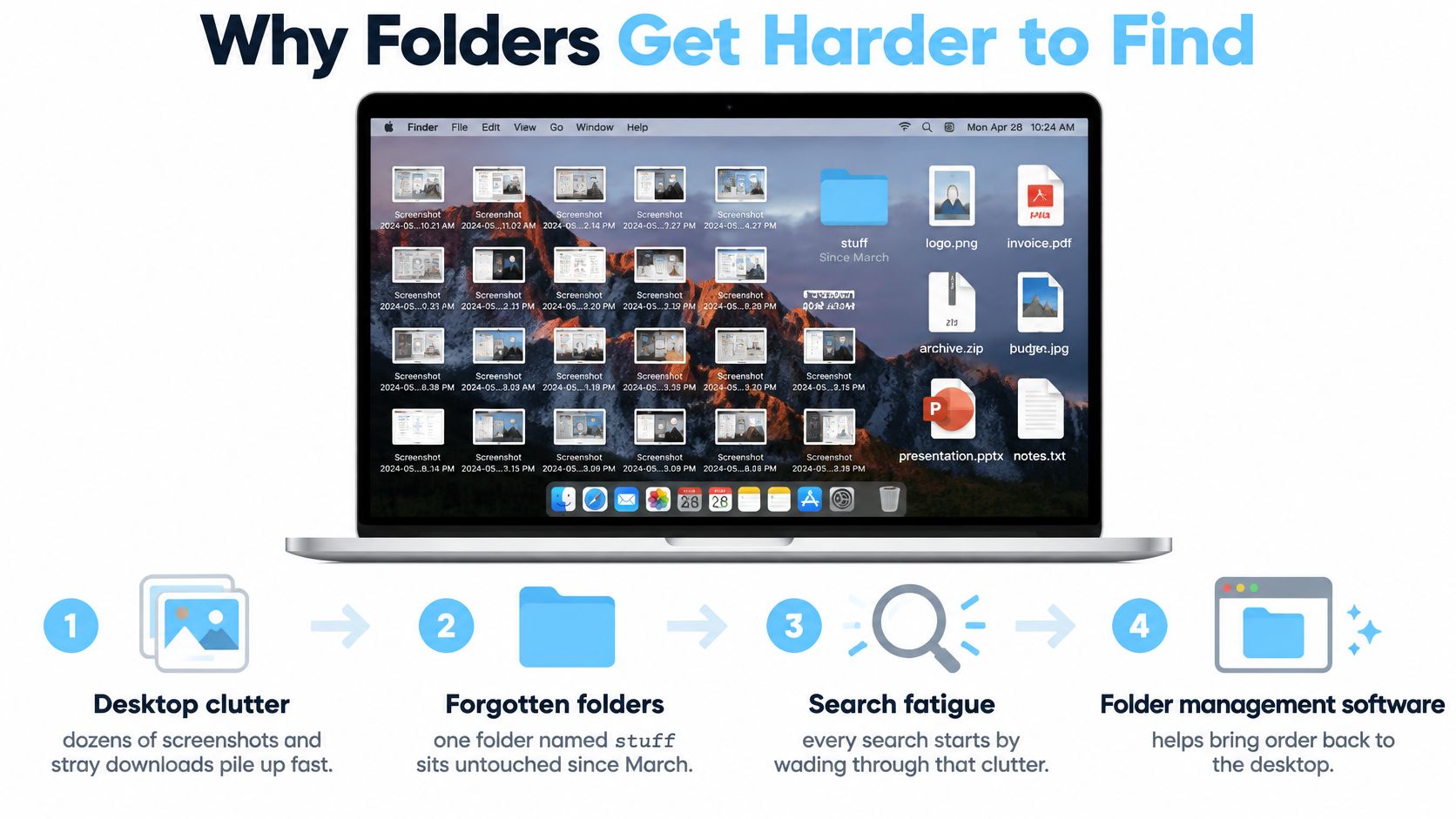
Why Folders Get Harder to Find
Folder management software is a category of Mac tools that groups, names, colors, icons, watches, and batch-styles folders so you can recognize a place before you open it. It's not a digital asset manager, which catalogs individual photos, versions, and rights inside a library rather than making Finder folders scannable.
Say your desktop holds dozens of screenshots, stray downloads, exports named final and final-two, and a folder called stuff that you haven't opened since March. Every search starts by wading through that clutter, even when you only need last week's invoice or one shoot from a client project.
Scale Breaks Plain Hierarchy
Deleting your way out rarely works, because archives grow faster than you're willing to prune them. In a study of 167 participants reported in a digital-hoarding study published in Human-Computer Interaction, people with high digital-hoarding scores stored an average of 35,622 information items, more than four times the 8,024 stored by low scorers. Higher scores were statistically associated with difficulty deleting files and difficulty finding information.
Once you're storing creative assets, research, code, and client work for years, hierarchy alone stops scaling. Names help only if you read every label. Color, icons, and consistent categories let your eye sort before your brain starts reading.
If you're rebuilding from a messy tree, it helps to build a reliable folder system first, then add visual cues on top. Practical Mac Finder tips for faster everyday navigation can also cut the clicks while you set that structure up.
The path from here is simple. Give each signal one job, pick features that scale, adapt them to your work, check privacy and reversibility, then start with one watched folder.
Give Every Folder Signal One Job
Finder already gives you folders, tags, and Smart Folders. Folder management software adds color and icons on top. The failure mode is using every signal for everything, so a red folder sometimes means urgent, sometimes finance, and sometimes just looks nice.
Start with this fixed vocabulary.
| Signal | Its one job | Example | Do not use it for |
|---|---|---|---|
| Folder location | Project or client ownership | Clients / Northwind / 2026 Campaign | Status such as draft or final |
| Tags | Status that crosses folders | Review, Invoice sent, Archive | Replacing the project tree |
| Folder color | A category you scan at a glance | Blue for code, green for finance | A unique meaning on every folder |
| Icon or emoji | What is inside, matched to the name | Camera for shoots, terminal for repos | Repeating the color's meaning |
| Smart Folder | A saved search, not a home | All PDFs tagged Review | The only copy of a file |
One Campaign, Read at a Glance
Take a hypothetical 2026 client campaign. The folder lives under Clients / Northwind / 2026 Campaign, because location answers who owns it. A tag says In review, because that status will change and you may need to find every review item across clients.
Inside it, a camera icon marks the shoot folder and a layout icon marks design files. Don't make green mean finance here unless green means finance everywhere. If the budget folder is green, that's category. The icon can then say spreadsheet, invoice, or contract.
A Smart Folder can gather everything tagged In review without moving a single master file. That's its strength and its limit. It's a view, not storage.
Why Personal Schemes Work Better
Retrieval fails often when the scheme doesn't match how you work. Research on personal document organization in the ACM digital library reported that in one earlier investigation 19% of documents could not be retrieved and another 26% could be retrieved only with difficulty. In one comparison, users lost 17% of information under one arrangement versus 10% under another suited to their activities.
That same body of work describes 20 personal-computer users who tended to keep project-related items together when interface design encouraged a unified project folder, but separated them by format when design encouraged fragmentation. Your system should push you toward the project, not toward splitting a job into Images, Docs, and Videos silos you'll forget.
Keep the top level shallow. Four or five buckets you understand beat five clicks of nesting you'll avoid. For a broader digital file organization framework you can adapt to your projects, keep those buckets stable and let tags handle change.
Don't add a label to be thorough. Add it only when it answers a question the other signals don't. From here on, location means ownership, tags mean status, color means category, and icons mean contents.
Features That Save Time at Scale
A feature list doesn't tell you much. Ask what minute it saves, and how often.
Automation Stops the Next Plain Folder
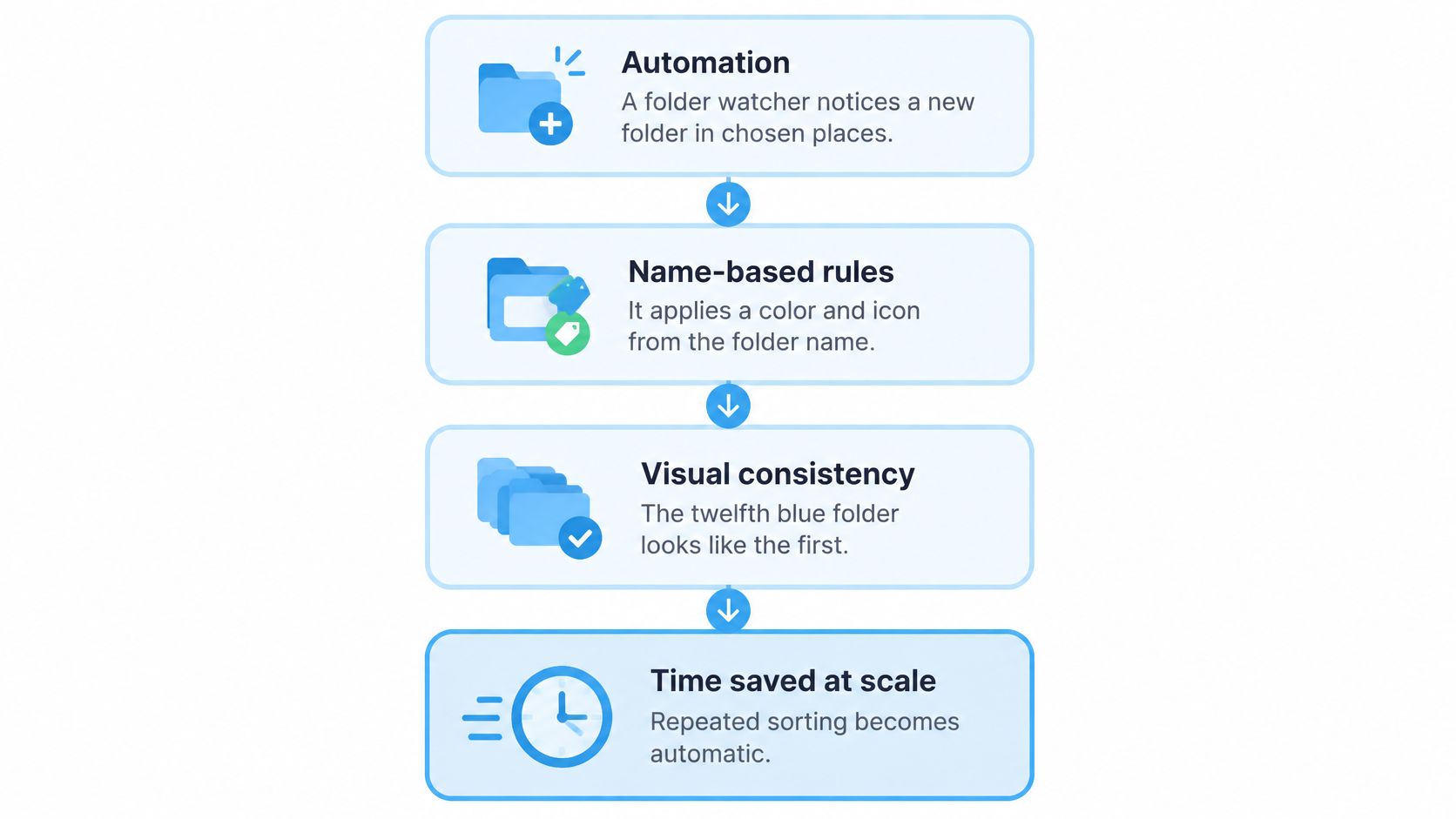
Folder watcher: A watcher notices a new folder in locations you choose and applies a color and icon from its name. Without it, your system decays one default blue folder at a time, because macOS won't auto-style new folders for you.
I would start a watcher on one active directory, not the whole disk. You learn whether its rules match your naming habits before you let it touch archives.
Batch Editing Fixes the Backlog
Batch editing lets you select many folders, or a folder and its subfolders, and set a color and icon in one action. That's the difference between styling a client archive in one sitting and abandoning the job halfway through.
Useful batch tools can also vary color across a set while keeping one shared icon. That works well for semester folders or shoot dates, where contents are the same kind but each folder still needs a distinct edge.
Suggestions Beat Blank Pickers
Smart suggestions read a folder name against a large icon and emoji library, then propose a match. Good suggestions also look at neighboring folders, so the next color fills a gap instead of cloning the folder beside it.
That matters with mixed-language client names. A capable Mac tool should handle names across 11 languages, because real project trees rarely stick to one language or one naming style.
- Manual controls: Choose a palette or custom color, tune icon size and placement, import your own image, or add an emoji overlay when a suggestion misses.
- Finder right-click access: Style the folder in the window you're already using instead of switching apps and hunting for the same path again.
- History: Reuse a style that worked last month without rebuilding it from memory.
- One-click restore: Return to the default macOS folder icon when a rule was wrong or a category changes.
Those details fit naturally alongside other Mac automation apps that remove repeated setup work, but keep the boundary clear. These features style presentation. They don't replace backups, search, or a DAM that tracks individual assets, versions, and licenses.
How Creatives, Developers and Students Use It
Keep the signal jobs fixed. Change only the examples.
Creatives Work in Client Trees
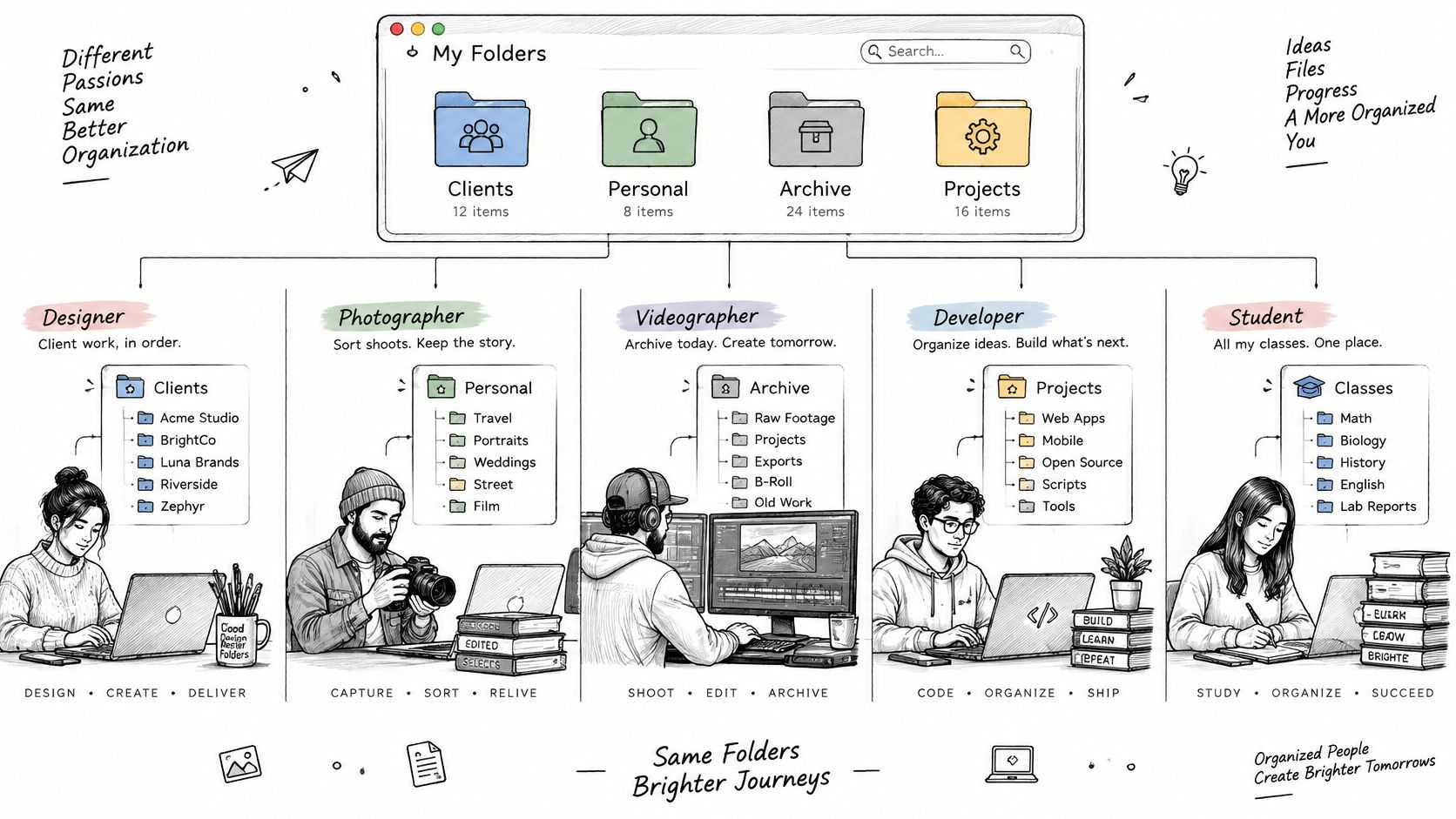
A designer, photographer, or videographer might keep Clients, Personal, Archive, and Inbox at the top. Under a client, each project gets an icon matched to the deliverable, such as a camera for a shoot, film for edits, or a layout mark for print files.
Color marks the kind of work, not the deadline. Tags carry Selects or Delivered, so a Smart Folder can gather everything awaiting review without moving masters out of the project that owns them.
Developers Need Repos to Look Different From Archives
For code, put a terminal or package icon on active repos and keep names a tool can read, such as api, docs, or assets. Use a distinct color for archived work so you don't open a dead project when you're scanning quickly.
Don't confuse styling with project rules. A colored repo folder is cosmetic. It doesn't change ignore rules, build output, dependencies, or anything your tools read from the path.
Students Benefit From Shallow Semester Buckets
A student or researcher can use one bucket per semester, then course folders inside it. An emoji can separate lab work from essays, while tags say Draft or Submitted because that status changes week to week.
If a folder's job changes every week, use a tag. Recoloring it every week turns your palette into noise.
That shared edge case applies to everyone. Stable categories earn a color. Moving states belong in tags.
How to Choose Folder Management Software
Score a tool against your folders, not against a feature count. Use this checklist before you install.
| Criterion | Why it matters | What good looks like | Red flag |
|---|---|---|---|
| Automation | New folders stay plain unless something watches them | A watcher on chosen folders, easy to turn off | Rules you cannot disable |
| Batch editing | Hand-styling dozens of folders does not stick | Many folders or subfolders in one action | One folder at a time only |
| Platform | You already live in Finder | Native Mac integration, including the right-click menu | A separate browser you must keep open |
| Privacy | Folder names reveal clients, code, and research | On-device processing, no cloud or external AI call | Names sent off the Mac to suggest an icon |
| Reversibility | A bad color system should be undoable | One-click return to the default Finder icon | Custom icons with no restore path |
| Price | Ongoing fees surprise people who wanted a utility | A clear one-time unlock or an obvious in-app purchase | A trial that renews without a visible cancel path |
Privacy and Safety Are Technical, Not Just Promises
Folder names and paths should stay on your device. Apple's platform security guide for APFS describes a filesystem with copy-on-write metadata and strong encryption, where updates can avoid modifying existing file data in place. A well-built styling tool fits that model by treating icon changes as metadata operations, processing only selected directories, and recording the prior icon state.
In practical terms, changing a folder's icon or color is purely cosmetic in our app and does not affect any files or subfolders inside. If a tool wants to scan contents it doesn't need, or send names to a remote service for a suggestion, that's exposure without a payoff.
Check the pricing model in plain language. Our Lifetime plan gives you access to all features, unlimited generations, automatic folder icons, smart icons based on folder name, and more than 11,000 icons and emojis. Whatever you pick, you should be able to tell what's paid, what's free, and how to stop a trial.
Remember the local caveat. Custom folder icons are stored locally on each Mac, so you'll set them up separately on another machine.
Mac Options Compared by Situation
Match the tool to the job in front of you. Brand comes second.
1. Finder Tags and Smart Folders Alone
Choose these if you only need to find status across locations. Tags and saved searches are built into macOS, cost nothing, and work well for questions like, show me every PDF awaiting review.
They won't make a row of project folders easier to scan. If you still read every label, you haven't solved the recognition problem.
2. A Watcher-Plus-Batch Mac App
Choose this if your pain is scanning hundreds of project folders and keeping new ones consistent. It should style new folders in chosen places and color many existing folders in one action, inside Finder.
This is the category built for client trees, repos, coursework, and research folders you open by sight every day. It's overkill if you keep only a handful of folders.
3. A Digital Asset Manager
Choose a DAM if you manage versions and rights of individual assets, such as photo masters, licenses, captions, and usage terms. It catalogs files inside a library. It isn't there to make Finder folders recognizable.
Many creatives need both layers for different jobs. Don't force one tool to do the other's work.
4. Skip Tools That Upload Folder Names
Skip any tool that sends folder names to a remote service just to suggest an icon. Names can reveal clients, code projects, patients, students, or research topics, and that data doesn't need to leave your Mac.
Confirm your shortlist against the criteria table before installing anything. If the watcher-plus-batch category fits, the next option is the on-device Mac case.
A Privacy-First Mac Option Called Tintd
I would recommend our app only for the job defined here, scanning visual folders in Finder. It isn't a photo library manager, a backup tool, or a replacement for search.
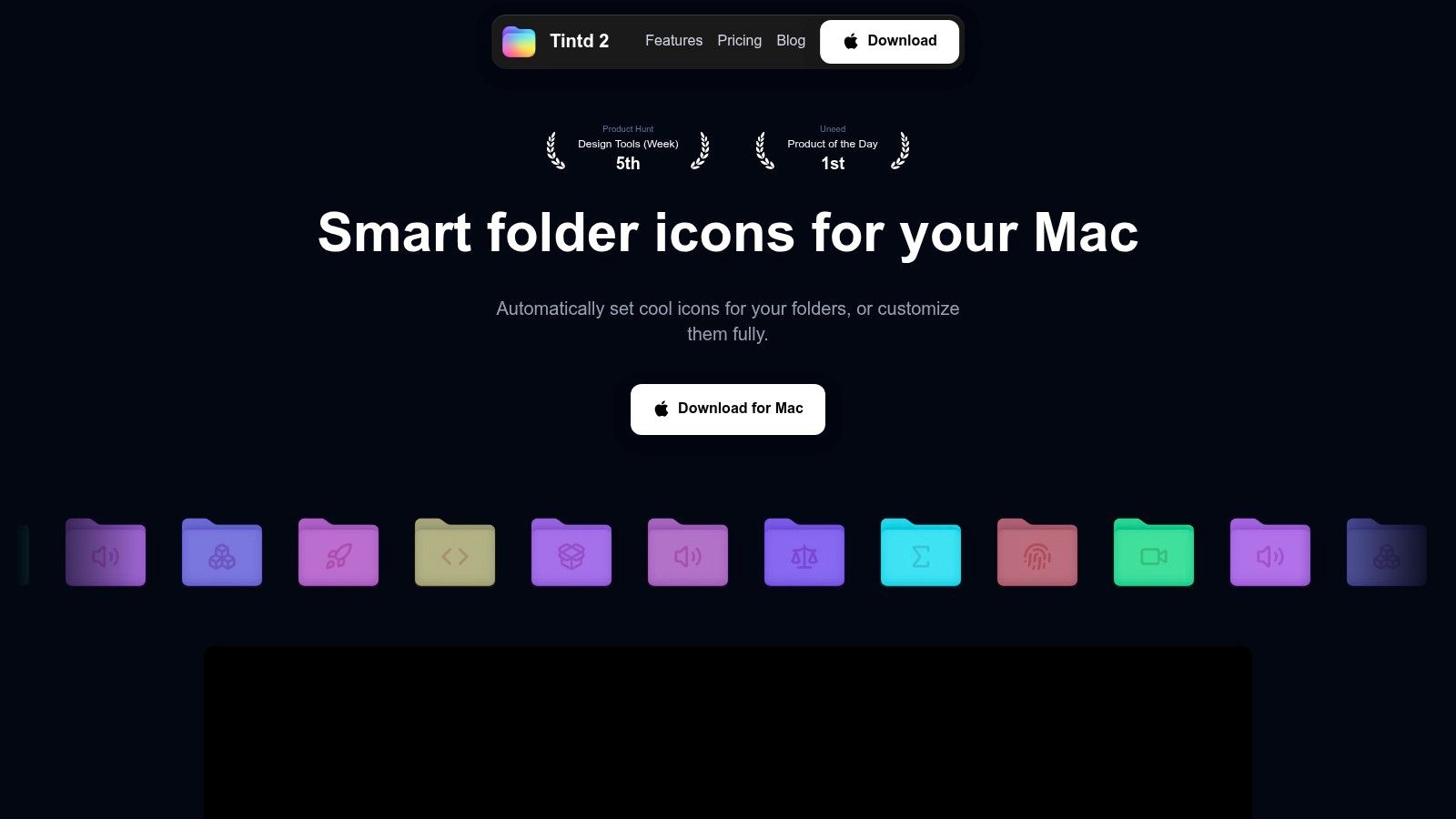
This screenshot shows the basic idea, styling the folder where you already work rather than moving you into another browser.
Built Around How Finder Shows Folders
Apple's developer documentation on files and Finder presentation explains that Finder first distinguishes directories from files, then evaluates whether a directory is a bundle, and otherwise gives ordinary non-bundled directories the generic folder icon unless a custom icon is assigned.
So the reliable approach is to change supported icon metadata and leave the path and contents alone. Restore then works cleanly, remove the custom icon data and Finder falls back to its default directory icon.
What You Get on Device
Our Mac App Store app runs locally with no cloud or AI calls. Smart Icon matches a folder's name against a library of more than 11,000 icons and emojis and picks one that fits. Smart Color looks at neighboring folders and chooses a color that fills a gap on the color wheel.
You can drag an emoji or custom image onto a folder, tune icon size and placement, and open the controls from Finder's right-click menu. Several folders can be selected and given a color and icon in one action.
Watch the workflow here before you decide whether it fits your tree.
Folder Watcher detects each new folder created in chosen locations and automatically gives it a matching color and icon based on its name. That keeps next month's folders from breaking the system you built today.
The limits are plain. Icons are cosmetic, they're stored on that Mac, and another computer needs its own setup. Lifetime access includes the full set, including unlimited generations and automatic icons, alongside optional in-app purchases for individual features or items.
Set Up One Folder and Watch It
Don't redesign the whole disk today. Make one area work, then expand only if it earns it.
- Clear the surface: Drag desktop clutter into one temporary folder so you can see what you're doing. You can sort its contents later.
- Make four or five buckets: Use Work, Personal, Projects, Archive, and Inbox, or your own equivalents, and stop there. A shallow top level is easier to keep honest.
- Assign signal jobs once: Location for the project, a tag only for status, one color per category, and one icon for contents. Write the color meanings down if you'll forget them.
- Color the top level: On a Mac, download Tintd and color a handful of top-level folders from the app or the Finder right-click menu. Colorizing folders manually does not require Full Disk Access.
- Watch one directory: Turn on Folder Watcher for Projects only. It requires Full Disk Access, which macOS asks you to grant the first time you enable it.
- Test it: Create a folder with a clear name and check that the icon matches what's inside. If the name is vague, fix the name rather than blaming the suggestion.
- Revert if it's wrong: Return any customized folder to the original macOS Finder icon with one click, or turn the watcher off in System Settings. Nothing inside the folder changed.
Style subfolders in the next session. Until then, a shallow tree plus one watched folder is enough to feel whether recognition is faster.
Start with your top-level buckets and one watched Projects folder, then let automatic colors and name-matched icons keep new work recognizable in Finder. If that on-device approach fits how you work, visit Tintd to download it from the Mac App Store and style your first folders today.